

Claude for Excel went generally available on May 7, 2026, and the first wave of finance people who tried it kept saying a version of the same thing: it does the work I used to hand to a junior analyst.
One controller reported building an 11-tab financial model in ten minutes. Another clicked a broken cell and got the exact cause of a #REF! error in three seconds — after a coworker had hunted it until 2am.
But here’s the catch nobody mentions. As one early user put it, “only a good prompter can really do this.” A vague request gets you a vague spreadsheet. So this post is the prompt library — ten that actually work — plus the small framework that makes all of them land.
First, how to write a prompt Excel won’t fumble
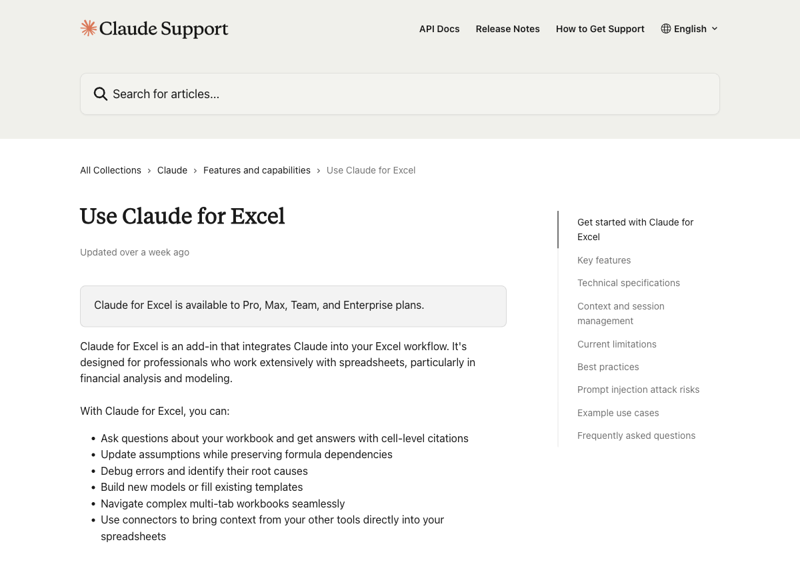
Claude for Excel sits in a sidebar next to your workbook. It reads your cells, formulas, and structure, then proposes changes — highlighting every cell it touches so you can review before anything is committed.
The difference between a great result and a frustrating one is four habits:
- Name the exact range. “Analyze my data” is weak. “Analyze the range B2:M40” is strong. Claude works with cell references — give it cell references.
- Say what you want, concretely. “Make it better” means nothing. “Flag every variance over 10%” means something.
- Say what not to break. Add “keep all existing formulas and formatting intact.” Finance models die when a dependency silently breaks. Tell Claude to protect them.
- Ask it to explain and cite. End with “explain your reasoning and cite the cells.” You want the why, not just the what — that’s what makes the output auditable.
Do those four things and the prompts below sing. Skip them and you’ll be the person tweeting that it “didn’t work.”
The 10 prompts
Swap the bracketed parts for your real ranges and sheet names.
Analyze what’s in the workbook
1. Variance analysis
Compare actuals to budget by month in the range [B2:M40]. Flag every line with a variance over 10%, tell me whether each is favorable or unfavorable, and cite the cell. Then summarize the three biggest drivers in plain language.
This is the Monday-morning close task. Claude scans the rows, cites references like “C14 shows a 23% unfavorable variance,” and hands you a structured summary — no manual filter-and-sort.
2. Find the revenue drivers
Review the dataset in [Sheet1]. Identify the top 5 drivers of the revenue change versus last quarter, explain what’s behind each one, and cite the cells you used.
The question your boss actually asks. Now you answer it in a minute instead of an afternoon.
3. Cohort analysis
Build a monthly cohort retention table from the signup and activity data in [columns A:D]. Show retention as a percentage by month, and tell me which cohort is the weakest and your best guess why.
Cohort tables are fiddly to build by hand. This is one of the clearest time saves on the list.
Build and model
4. DCF with scenarios
Build a 5-year discounted cash flow model from the assumptions in [B2:B12]. Add a scenario toggle for base, bull, and bear cases, and a sensitivity table for discount rate against terminal growth. Keep every assumption in its own labeled input cell.
Anthropic actually ships pre-built finance Agent Skills for exactly this — DCF models with scenario toggles, comparable-company analysis with refreshable multiples. Worth turning on.
5. Write a formula (and explain it)
Write a formula for cell [F2] that calculates the rolling 3-month average of [column D], ignoring blank cells. Explain how the formula works so I can adjust it later.
The “explain it” half matters. You want to own the formula, not just paste it.
6. Populate a template safely
Populate the empty [Q2 Forecast] template using the historical data in [Q1 Actuals]. Keep all existing formulas, named ranges, and formatting completely intact, and list every cell you fill.
The “keep formulas intact” instruction is the whole game here. Claude is built to maintain dependencies — but tell it anyway.
Clean and fix
7. Debug a broken formula
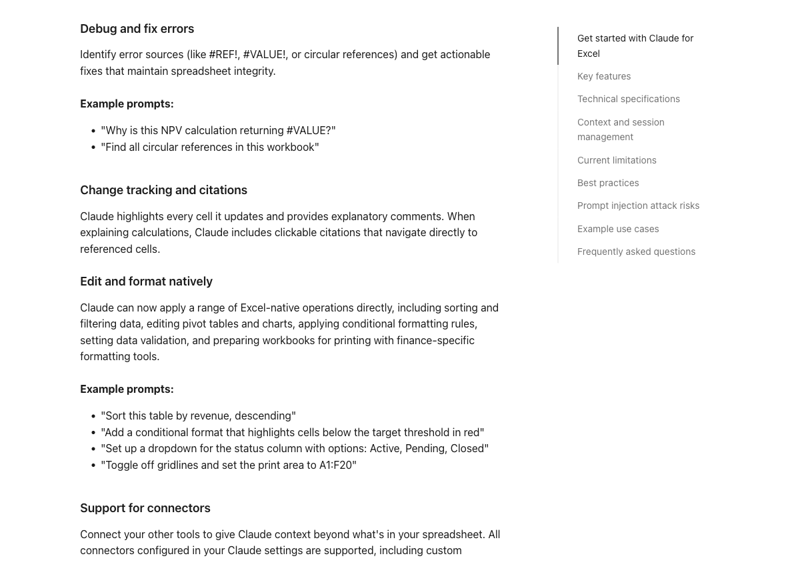
Cell [F22] shows a #REF! error. Trace the full dependency chain, tell me exactly what broke it and why, and propose a fix before changing anything.
This is the one that goes viral. Claude doesn’t just spot the error — it explains the cause (“Column D was deleted, which broke the OFFSET in cell F22”). It handles #VALUE!, circular references, the lot.
8. Clean messy data
Clean the data in [A1:G500]: remove duplicate rows, standardize the vendor names in column C, and fill missing values in column E with the most likely value. List every change you make so I can review it.
The “list every change” line turns a scary bulk operation into a reviewable one.
9. Reconciliation
Compare [Bank Statement] against [Ledger]. Find every transaction in one but not the other, and every amount that doesn’t match. Put the exceptions in a new sheet labeled “Reconciliation Breaks.”
Month-end reconciliation, minus the eye strain.
Communicate the result
10. Pivot table and exec summary
Build a pivot table from [Sales Data] showing revenue by region and product line. Then write a three-line summary with the numbers an executive would want first.
Claude builds the pivot — with the Power Query M-code if it’s needed — and adds the human-readable takeaway on top.
What this means for you
If you’re an FP&A analyst, prompts 1, 2, and 4 are your week. The grind work — variance flags, driver analysis, scenario toggles — compresses into minutes. What’s left is the interpretation, which is the part you’re actually paid for.
If you’re a bookkeeper or accountant, prompts 7, 8, and 9 matter most. Formula debugging, data cleanup, reconciliation — the unglamorous hours.
If you manage a finance team, the real shift is the floor. Your most junior people now produce mid-level output. Reset where their time goes — toward judgment, toward review — instead of toward grunt formulas.
If you’re not in finance at all but you live in spreadsheets — operations, sales ops, anyone — prompts 5, 8, and 10 work on any data, not just money.
What it can’t do
It’s not a finance brain. Claude builds the model; it doesn’t decide the assumptions. One CFO who tested it on a three-statement model said the visuals were impressive but on the genuinely complex modeling “the wheels started to wobble.” Treat the output as a strong first draft, never the final answer.
It can’t touch macros or VBA, and Anthropic explicitly says don’t use it for audit-critical calculations without verification. So verify.
And it works best on workbooks you trust. A spreadsheet from an outside source can carry hidden instructions — we covered that risk in our piece on whether Claude for Excel is safe. Worth two minutes before you go all in.
The bottom line
These ten prompts won’t replace you. They replace the part of your job you didn’t like anyway — the manual flagging, the formula archaeology, the reconciliation squint.
The skill that’s worth real money now isn’t writing an XLOOKUP from memory. It’s knowing which question to ask, naming the range precisely, and catching the moment the model’s logic goes wrong. That’s a learnable craft.
Our AI for spreadsheets course builds exactly that prompt fluency. If you want to be genuinely sharp in Excel itself, Spreadsheet Mastery is the foundation, and AI for accountants and finance ties it to real finance workflows.
Copy a prompt. Open your messiest workbook. See how much of your afternoon you get back.