
Open ChatGPT right now, click your profile icon, and go to Settings → Data controls. Look at whether “Improve the model for everyone” is on. For most people it is — which means the things you’ve been typing into ChatGPT have, by default, been used to help train the next version of the model.
That’s not a scandal. It’s a setting. And it’s one of six you can change in about five minutes to make your account meaningfully safer.
“Is ChatGPT safe?” is one of the most-searched AI questions of 2026 — about 4,400 people a month type those exact words into Google, and a rising number now ask the chatbots themselves. The honest answer is: ChatGPT is safe enough for most everyday use, but the defaults are tuned for OpenAI’s benefit, not yours — and a genuinely nasty wave of 2026 scams is now aimed squarely at people who trust the ChatGPT name. Here’s what’s actually true, and exactly what to tap.
Is ChatGPT Actually Safe? The Honest Answer
Two different questions hide inside “is ChatGPT safe,” and they have different answers.
Question 1: What does ChatGPT do with what I type? By default, on the free and Plus tiers, your conversations can be used to train OpenAI’s models. That doesn’t mean a human is reading your chats for fun, and it doesn’t mean your words pop out verbatim in someone else’s answer. It means your text becomes part of the giant pile the next model learns from. For “write me a birthday poem,” who cares. For a client’s contract, your home address, or a colleague’s salary, that’s a problem — once it’s in the training pile, you can’t pull it back out.
Question 2: Can my account get attacked? Yes — and 2026 is the year the attacks got clever. Two specific campaigns are circulating right now:
- ChatGPhish (disclosed by Permiso Security on May 28–29, 2026): when you ask ChatGPT to “summarize this page,” a malicious web page can hide instructions that make ChatGPT render fake security alerts, phishing buttons, and QR codes inside its own trusted interface. Because the warning looks like it came from ChatGPT, people click. The Register called it exactly what it is — a way to turn the AI’s credibility against you.
- LLMShare (documented by Push Security, same week): attackers buy Google Ads for “chatgpt” and “chatgpt free,” then send you to a real
chatgpt.com/s/shared-page link showing a fake “we’re experiencing high traffic, download our desktop app” notice. The download is malware. A sister version uses a shared Claude link disguised as an “Apple Support” install guide that tells you to paste a command into your Terminal — which quietly installs an info-stealer (the AMOS / Atomic macOS Stealer) that grabs your passwords, cookies, and crypto wallets.
The thread connecting both: the bad stuff now lives on real, trusted domains. Checking the URL is no longer enough. That’s why the settings below matter — and why one rule at the end matters more than all of them.
The 6 Settings to Change Today
You don’t need to be technical. Each of these is a toggle or a couple of taps.
1. Turn off model training (Settings → Data controls). Find “Improve the model for everyone” and switch it off. Your chats stop feeding the training pile. You keep every other feature. This is the single highest-value change, and it takes ten seconds.
2. Use Temporary Chat for anything sensitive. See the little speech-bubble/toggle at the top of a new chat? Temporary Chat doesn’t save to your history, isn’t used for training, and clears itself. Use it whenever you’re pasting something you wouldn’t put on a postcard — a document, a number, a name that isn’t yours to share.
3. Prune your Memory (Settings → Personalization → Memory). ChatGPT quietly keeps notes about you across chats — your job, your projects, people you’ve mentioned. Open it, read it, and delete anything you don’t want sitting there. You can also switch memory off entirely.
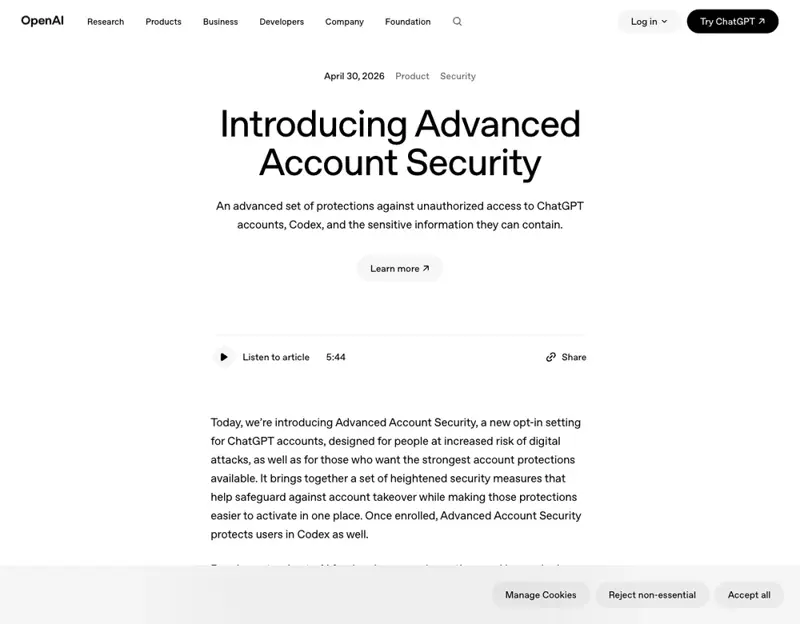
4. Turn on stronger login — and Advanced Account Security if you’re high-risk. At minimum, enable multi-factor authentication. If you’re a journalist, run a business, or just want the strongest option, OpenAI’s new Advanced Account Security (launched April 30, 2026) replaces your password entirely with passkeys or hardware keys, disables SMS/email recovery (the channels attackers hijack), and automatically opts you out of model training. OpenAI even sells a co-branded two-pack of YubiKeys for $68. The trade-off is real: if you lose every key and your recovery code, nobody — not even OpenAI support — can get you back in. For most people, plain MFA is the right call; for high-risk users, AAS is worth it.
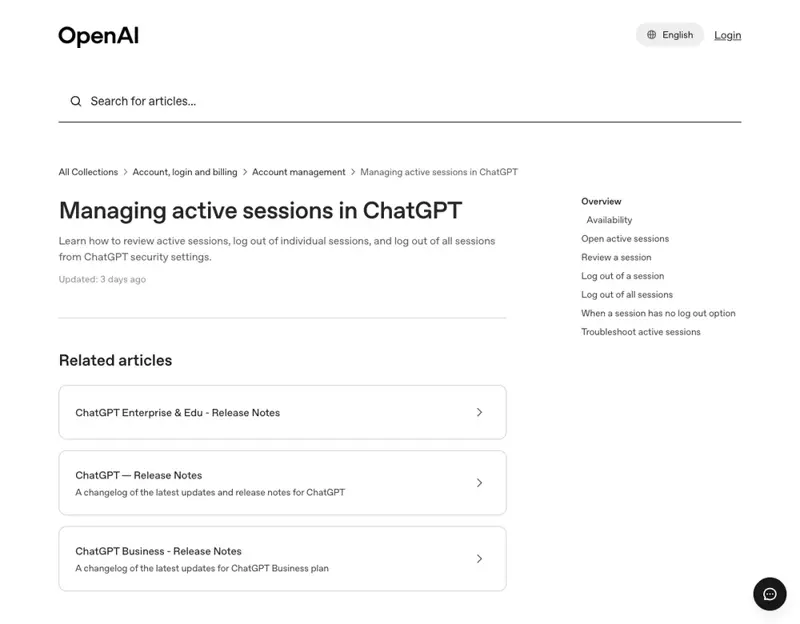
5. Audit your Active Sessions (Settings → Security → Active sessions). This panel — rolled out June 2, 2026 — lists every device signed into your account, with its type, rough location, and sign-in time. See a session you don’t recognize? Sign it out. To wipe the slate, hit Log out all (note: other devices can take up to 30 minutes to actually drop).
6. Clear out old history you don’t need. Old chats are old liability. Delete conversations you’re done with, especially any that contain personal or work details. Going forward, treat the chat box like a work email, not a private diary.
What This Means for You
If you use ChatGPT for casual personal stuff — recipes, trip plans, homework help — do steps 1, 4, and 5 and you’re done. You don’t need to be paranoid; you need training turned off and a strong login.
If you handle other people’s private information (HR, legal, healthcare, finance, teaching), the headline rule is: don’t paste it in the first place. Names, account numbers, medical or financial details — keep them out of the free tier entirely, and use Temporary Chat plus a paid Enterprise/Team plan with a no-training agreement for anything real.
If you run a small business, your biggest risk isn’t OpenAI — it’s your team downloading a fake “ChatGPT desktop app” from a Google Ad. Tell everyone: the only real app comes from openai.com. Turn on Advanced Account Security on the owner account.
If you’re not very technical and the scams scare you, focus on one rule (below) and steps 4 and 5. That covers the attacks actually targeting normal people in 2026.
What These Settings Can’t Fix
Honesty matters more than reassurance here.
- Turning off training doesn’t delete what’s already in there. It stops the flow going forward; it can’t un-train the model on what you typed last year.
- No setting protects you from the Terminal scam. If a page — even one on
chatgpt.comorclaude.ai— tells you to paste a command into your Terminal or “download our desktop app,” that is the attack. Settings won’t save you; not clicking will. - Active Sessions only shows OpenAI’s own sessions. It won’t list third-party apps you connected with “Sign in with ChatGPT.”
- Privacy isn’t anonymity. Even with everything locked down, OpenAI still processes your prompts to answer them. The only data that’s truly safe is the data you never paste.
The single rule that beats every scam in this article: never paste a command from a shared chat link into your Terminal, and never download an AI app from an ad, a pop-up, or a “shared conversation” — only from the official vendor’s website.
The Bottom Line
ChatGPT in 2026 is safe enough to use every day — once you flip six toggles and learn one rule. The defaults lean toward OpenAI; the new scams lean on the ChatGPT name’s credibility. Spend five minutes in Settings tonight, and you’ve handled both.
If you want the calm, step-by-step version — including how to spot each 2026 scam pattern and a two-minute monthly checkup — our Cybersecurity Basics course walks you through locking down ChatGPT and your other accounts without the jargon. The first two lessons are free.
Sources
- Introducing Advanced Account Security — OpenAI
- Managing active sessions in ChatGPT — OpenAI Help Center
- OpenAI announces new advanced security for ChatGPT accounts, with Yubico — TechCrunch
- ChatGPT prompt injection turns web pages into phishing lures — The Register
- LLMShare malvertising campaign — Push Security
- Is ChatGPT safe? The complete 2026 security & privacy guide — ESET