For about a year, the best AI image tools sat behind a paywall or a signup wall or a “join the waitlist” form. If you just wanted to swap the background on a photo, you were out of luck unless you paid.
That changed this week.
On June 30, Google rolled Nano Banana 2 — its viral AI image generator and photo editor — into the apps most people already have open. The Gemini app. Google Photos. AI Mode in Search. NotebookLM. Free, with limits, no separate download. And it spits out an image in about four seconds. (Google)
So if you’ve been watching people post those slick AI portraits and thinking “I have no idea how they made that” — you can now make one yourself, tonight, for free. Let me walk you through it.
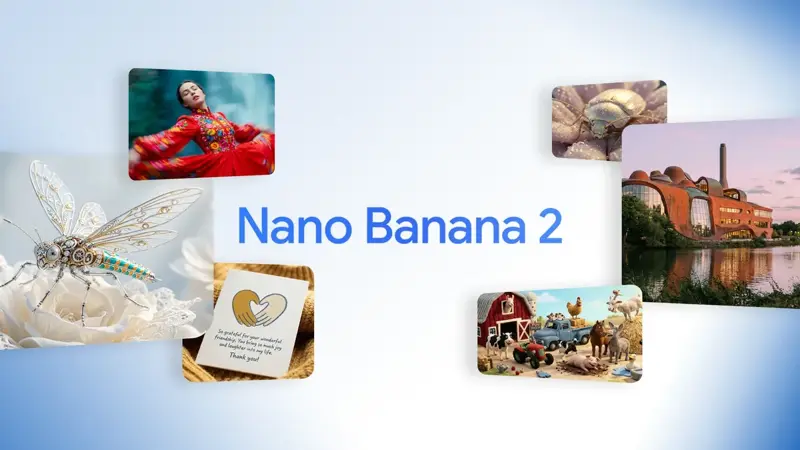
What Nano Banana 2 actually is
“Nano Banana” is a goofy nickname. The real product is Google’s AI image model — the thing that turns your words into a picture, or takes a photo you already have and edits it.
Two jobs, basically:
It makes images from text. You type “a golden retriever wearing tiny sunglasses on a beach,” and it draws it. No stock photos, no camera.
It edits photos you upload. This is the part people sleep on. Upload a picture and tell it what to change — swap the background, remove the ex out of the vacation photo, put yourself in a different outfit, blend two pictures into one. And it keeps the same face across every version, which is the trick that makes the whole thing feel like magic. (Gemini)
The “2” means it’s the second big version. There’s also a faster, cheaper flavor called Nano Banana 2 Lite — official name Gemini 3.1 Flash Lite Image — that’s what’s powering a lot of the free stuff you’ll see. You don’t need to memorize any of that. You just need to know where the button is.
What changed this week
Here’s the plain version of the news.
Nano Banana 2 used to be something you mostly reached through developer tools or a paid tier. Now Google made it the default image engine inside its everyday apps and turned on free access (TechCrunch):
- The Gemini app (phone and web) — the main place you’ll use it
- Google Photos — edits right inside your photo library
- AI Mode in Search — ask for an image mid-search
- NotebookLM — generate images alongside your notes
It rolled out across 100+ countries. And it’s fast now — roughly four seconds a picture instead of the long waits older tools made you sit through. (9to5Google)
That combo — free, everywhere, fast — is why your feed suddenly filled up with AI portraits over the weekend.
How to open it (the actual clicks)
You don’t need any of the pro tiers to start. Here’s the path in the Gemini app:
- Open the Gemini app (or gemini.google.com on a laptop).
- Start a chat, then find the tools menu and pick 🍌 Create images.
- Pick a mode from the model chooser: Fast, Thinking, or Pro. Fast is fine for messing around. Thinking takes a beat longer and follows tricky prompts better. (Gemini)
- Type a prompt — or tap to upload a photo you want to edit.
That’s it. No card, no signup dance.
One nice extra: if you do have Google AI Pro, Plus, or Ultra, you can take any image you made and hit the three-dot menu → Redo with Pro to regenerate it at higher quality. But you’ll get plenty done on the free path first. (Google Workspace)
Your first text-to-image (start dumb-simple)
Don’t overthink the first one. Google’s own tip is to start with a plain skeleton and build from there: create an image of [subject] [doing something] [in a place]. (Gemini)
Try this exact one:
Create an image of a cat napping in a sunbeam on a windowsill,
soft morning light, cozy and warm.
Look at what comes back. Then add detail — the more specific you are, the closer it lands. “A woman in a red dress” is vague. “A young woman in a flowy red dress running through a park at golden hour, hair mid-motion” gives the model something to actually aim at.
That’s the whole skill, honestly. Specific beats fancy every time.
Your first photo edit (the good part)
This is where it stops being a toy. Upload a photo of yourself or a pet or your living room, then tell it what to change. Here are five copy-paste starters — swap in your own details:
Change the background:
Keep me exactly the same, but change the background to a
sunny beach with palm trees. Match the lighting on my face
to the new scene.
Remove something you don’t want:
Remove the person on the left side of this photo and fill
in the background naturally so it looks untouched.
Try a different outfit:
Change my shirt to a navy blazer over a white tee. Keep my
face, hair, and pose exactly the same.
Blend two photos:
Take the person from the first image and place them into the
scene from the second image, matching the light and shadows.
Keep the same face across a set:
Using the exact same face from this reference photo, create
three versions of me: one in a chef's outfit, one in hiking
gear, one in a business suit.
That last one is the move behind most of the viral posts. On X, folks like @Ozayrr_irl have been making football-fan portraits by literally telling Gemini to “use the exact same face from the reference image,” then piling on custom jerseys and detailed backgrounds. @saniaspeaks_ posts photorealistic selfies built from long, specific prompts. The pattern is always the same: give it a face to lock onto, then describe everything else in detail.
What this means for you
Not everyone needs the same thing here. Find yourself in this list:
You run a small business (bakery, salon, plumber, shop). This is your new free design intern. Make a “Now Open Saturdays” graphic, dress up a product photo with a clean background, whip up a birthday-promo image. You were probably paying for Canva Pro or a freelancer for some of this. Start with product-photo cleanups — swap busy backgrounds for plain ones and your listings instantly look more pro.
You post on social media. Consistent portraits are the unlock. Lock your face into a reference and generate a whole themed set — same you, ten different looks. Way more shareable than one-off random images.
You’re a parent or hobbyist who just wants to play. Turn the kids’ drawings into “real” scenes, put the dog on the moon, restyle an old family photo. Zero cost, zero risk. This is the fun end of the pool.
You’re a teacher or student. Since it lives in NotebookLM too, you can generate diagrams and illustrations right next to your notes and study material. Handy for slides and worksheets. (9to5Google)
You already pay for a Gemini tier. Use the free Fast mode to iterate cheap and fast, then hit Redo with Pro only on the one you actually want to keep. Don’t burn your best-quality generations on rough drafts.
What it can’t do (and what you should never do)
Real talk, because the hype skips this part.
Text on images is still shaky. Small text — a caption, a phone number, fine print on a poster — often comes out garbled or misspelled. If a graphic needs readable text, generate the image, then add the words yourself in any editor. Don’t trust the model to spell.
Free means capped. People on X keep hitting rate limits and “over capacity” messages when they go hard. @BayJayZus and others have flagged daily caps and slowdowns. It’s free — you get a generous amount, not unlimited. Space out your heavy sessions.
Lite is lighter. The fast free model is great for quick, simple work. Push it into a super-complex scene with a dozen exact requirements and detail can drop. For the fussy stuff, that’s what Pro mode is for.
Never upload other people’s private photos. Editing your own face is fine. Editing someone else’s photo — especially to put them somewhere they never were — is a fast track to hurting a real person. Just don’t.
Label AI images as AI. Google stamps a hidden SynthID watermark and an AI label on what you make. (Google) That’s the honest default — follow it. If you post something you generated, say it’s AI. It costs you nothing and keeps you on the right side of the trust line.
The bottom line
The barrier just dropped to zero. A tool that would’ve cost you a subscription six months ago is now sitting in an app on your phone, free, generating a usable image in four seconds. The only thing between you and a decent AI photo edit is knowing what to type — and now you’ve got five prompts to start with.
If you want to go from “I can make a picture” to “I can make exactly the picture in my head,” that gap is all about prompting. Our Prompt Engineering course (first 2 lessons free) teaches the specific, detail-first phrasing that makes these tools actually listen — and we’re building a hands-on Nano Banana image course walking through creative edits step by step. New to AI generally? Start with AI Fundamentals.
Open the app. Type the cat prompt. See what four seconds gets you.
Sources
- Google — Start building with Nano Banana 2 Lite and Gemini Omni Flash
- Google — Nano Banana 2: Google’s latest AI image generation model
- Gemini — Image generation overview (how to access + prompt)
- Google DeepMind — Gemini 3.1 Flash-Lite Image (Nano Banana 2 Lite)
- 9to5Google — Nano Banana across Gemini, Photos, NotebookLM
- TechCrunch — Nano Banana 2 Lite consumer rollout