

Quick question you probably can’t answer: how many devices are signed into your ChatGPT account right now? Your laptop, sure. Your phone. But what about that library computer last spring, or the old tablet you gave away, or — the uncomfortable one — someone who got your password in a breach and has been quietly logged in for months?
Until recently you had no way to check. As of June 2, 2026, you do. OpenAI added an Active Sessions panel to ChatGPT that lists every device on your account and lets you boot the ones you don’t recognize. It takes about two minutes to use, and almost nobody has looked yet. Here’s the walkthrough.
What “Active Sessions” Actually Is
Active Sessions is a security screen inside ChatGPT’s settings. Think of it like the “where you’re logged in” page banks and Gmail have had for years — finally arriving for the AI app you probably use every day.
For each device that’s signed in, it shows you:
- The device and app — for example, “Chrome on Windows” or “ChatGPT iOS app”
- An approximate location — the city or region the sign-in came from
- The sign-in time — when that session started
- Whether it’s a trusted device, and which session is the one you’re using right now
One honest caveat from OpenAI: those details can be approximate or incomplete, and the panel only covers OpenAI’s own sessions — ChatGPT, Codex, and the API platform. It won’t show third-party apps you logged into using “Sign in with ChatGPT.”
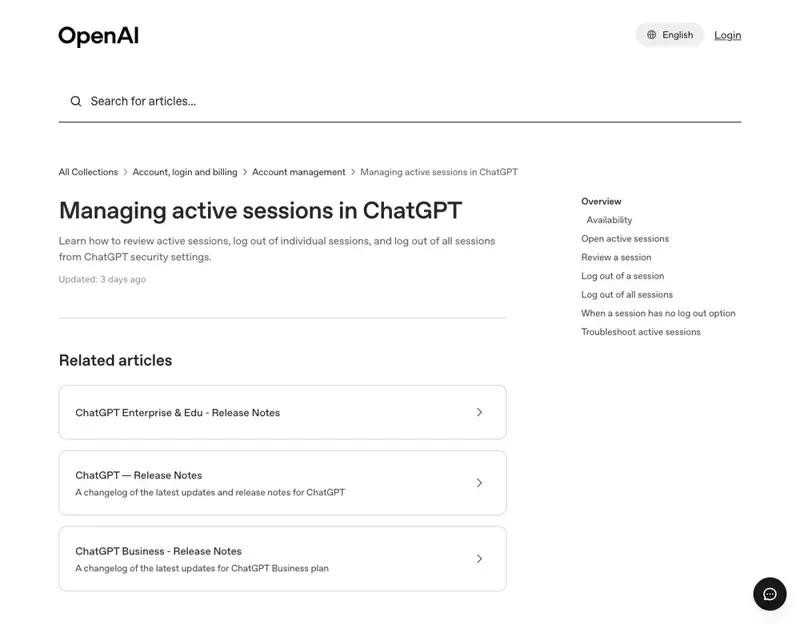
How to Find It and Read It (2 Minutes)
Step 1 — Open Settings. Click your profile icon (bottom-left on the desktop site, top-right in the mobile app), then Settings.
Step 2 — Go to Security → Active sessions. Open the Security tab, then Active sessions. The path is the same on web and mobile.
Step 3 — Read the list like a bouncer. Go row by row. For each session, ask one question: was that me? Your own laptop in your own city at a time you were working — fine. A sign-in from a city you’ve never visited, or a device you don’t own, is your answer.
Step 4 — Sign out anything you don’t recognize. Select the suspicious session and sign it out. To be thorough — or if you just want a clean slate — use Log out all to end every session at once. Heads up: your current device logs out immediately, but other devices can take up to 30 minutes to fully drop, so don’t panic if a session lingers briefly.
Step 5 — Then change your password. Signing out a stranger closes the door, but if someone was in there, they had your password. Change it, and turn on multi-factor authentication so a stolen password isn’t enough next time.
What This Means for You
If you’ve ever logged in on a shared or public computer — a hotel business center, a friend’s laptop, a work machine you’ve since left — this is your two-minute cleanup. Those sessions can outlive your visit. Sign them out.
If your email was ever in a data breach (most of us, honestly — check at haveibeenpwned.com), an attacker who reused that leaked password could be sitting in your account right now. Active Sessions is how you find out, and “Log out all” plus a new password is how you evict them.
If you handle sensitive work in ChatGPT, make this a monthly habit, like checking a bank statement. A stranger in your account could read your entire chat history — every document and detail you’ve ever pasted.
If you share a household account (please don’t, but it happens), this panel will show you exactly how many people are really using it — and is a good prompt to give everyone their own login.
What Active Sessions Can’t Do
- It’s not a breach alarm. It shows you sessions; it won’t proactively warn you the moment someone logs in. You have to look. (OpenAI’s Advanced Account Security adds new-login alerts on top — worth enabling if you want the heads-up.)
- It doesn’t cover third-party connections. Apps you authorized with “Sign in with ChatGPT” aren’t listed here — manage those separately.
- Signing out isn’t the same as securing. If a stranger was in, logging them out without changing your password just invites them back. Always do both.
- Approximate location is approximate. A nearby city or a VPN can make a legitimate session look odd. Use judgment, not just the map pin.
The Bottom Line
For the first time, you can see exactly who’s logged into your ChatGPT — and kick out anyone who shouldn’t be there. It’s two minutes, it’s free, and it’s the kind of small habit that prevents a genuinely bad day. Do it now, then put a monthly reminder on your phone.
Want to turn this into a real routine across all your accounts — email, bank, social, AI? Our Cybersecurity Basics course builds the whole habit in plain English, and the first two lessons are free. And if you’re locking down ChatGPT specifically, pair this with our 6 settings to change today.