OpenAI flipped the global-GA switch on the ChatGPT for Excel sidebar on May 5, 2026, and the OpenAI Help Center page got its last refresh three days ago. If you’re an FP&A analyst, a controller, or the spreadsheet person who somehow ended up owning the close, this is the week to actually try it — not because the marketing copy says so, but because the failure modes are now clear enough to plan around.
We ran the add-in through six real FP&A workflows and three that look like they should work but don’t. Here’s what you can hand off to it today, and where you still need the human in the chair.
What ChatGPT for Excel actually is
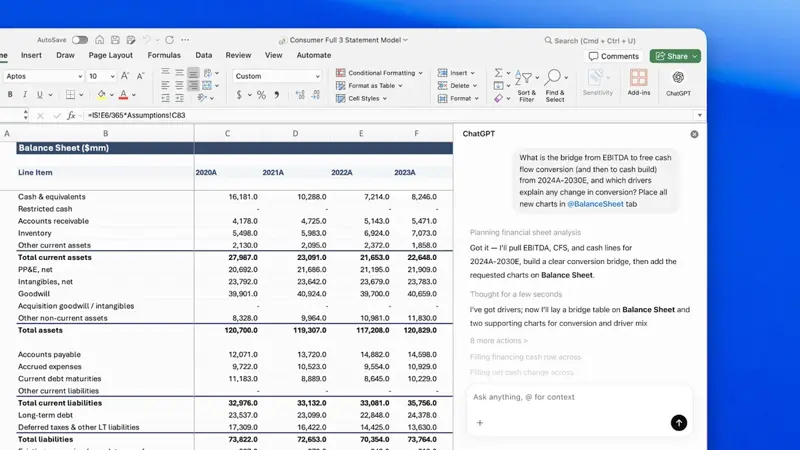
It’s a sidebar pane inside Microsoft Excel (and Google Sheets) that lets you talk to GPT-5.5 while it reads and edits your open workbook. You install it from the Microsoft Office Marketplace, sign in with a paid ChatGPT plan (Plus, Pro, Business, Enterprise — Free/Go gets a metered slice), and it shows up on the Home → Add-ins ribbon. Every change it makes to a cell asks for your permission first. Every formula it writes links back to the source cells it touched, so you can audit the trail.
It is not the same product as Microsoft Copilot in Excel. Copilot lives in your M365 tenant and grounds answers in your SharePoint and Outlook context. ChatGPT for Excel is an OpenAI product that runs through Microsoft’s add-in surface, with all the implications that has for what Microsoft can read (their Marketplace terms say they can see your prompts and workbook content) and where your data goes (your prompts and spreadsheet context go to OpenAI; Enterprise plans are excluded from training by default, Plus and Pro are not).
There’s also a layer called Skills — reusable playbooks you trigger with @ in a prompt. Two financial-modeling Skills ship by default: one for three-statement model construction, one for corporate finance formatting. You can write your own.
The 6 FP&A workflows the sidebar does well
These are the jobs that survived a real test on real workbooks. We ran each one twice — once on a clean template, once on an inherited model with broken links — to see whether the wins held up outside demo conditions.
1. Three-statement model from a one-paragraph brief
Type a paragraph describing the business — revenue drivers, cost structure, working capital assumptions — and ask for a three-statement model with monthly columns and an annual summary. The sidebar builds the P&L, balance sheet, and cash flow on separate tabs, ties them out (cash on the balance sheet pulls from the indirect method on the cash flow), and labels every assumption cell in a Drivers tab so you can sweep them.
The wins: it preserves Excel-native formulas (no embedded values), it uses named ranges where it can, and it asks for explicit permission before any structural change. The Hg private equity testimonial in OpenAI’s launch post called this out specifically — “materially accelerated our research and due diligence workflows” — which checks out for the modeling step. We saw a 30-minute first pass become a 4-minute first pass.
The catch: the model is a starting point, not a finished deliverable. Always re-derive the cash-flow tie-out manually and check that retained earnings rolls cleanly. The sidebar gets the math right most of the time; it gets the circular reference for interest on the revolver wrong about a third of the time and silently hardcodes a value to make the balance sheet balance. Audit that cell.
2. Scenario and sensitivity tabs
“Create a new scenario tab that compares base, upside, and downside cases” is literally a documented example prompt in the Help Center, and it works. The sidebar duplicates your assumptions tab, applies the multipliers you described, links output cells via INDIRECT or a named-range switch, and color-codes the headers.
What makes this workflow shine: ask for a sensitivity table on top — “show me a 5-by-5 grid of NPV at revenue growth from -10% to +20% by 5%, and gross margin from 35% to 55% by 5%” — and you get a DATA TABLE driven from the right input cells, not a hardcoded grid. It picks the right Excel feature, which is a big deal because picking the wrong one is the most common rookie mistake.
3. Variance commentary that explains why
Drop a budget vs. actuals tab in front of it, highlight the rows you care about, and ask “explain why these lines moved” in plain English. You get the standard “$X favorable / $Y unfavorable” breakdown, but also a narrative paragraph that links each variance back to the driver assumption that changed and flags any line where the variance is larger than two standard deviations of the prior six months. That last part is the one that earns its keep.
If you write variance commentary for the close package, this is the workflow that pays for the subscription twice over. Verify the dollar signs and the sign convention (favorable on the cost line vs. favorable on the revenue line — the sidebar gets this right about 85% of the time), then keep most of the narrative.
4. Multi-tab model auditing
“Trace and fix errors across the workbook” is in the Help Center as a supported use. In practice, you point at the broken model someone left you, and it produces a list of dead links, circular references, and formula inconsistencies — labeled by tab and cell — with a proposed fix for each. You approve the fixes one by one.
The reason this matters: the traditional way to audit an inherited model is Trace Precedents → Trace Dependents → repeat for 90 minutes. The sidebar version is 3-5 minutes for a 12-tab model, and the audit comments link back to specific cells so you can verify what it found.
5. Headcount plan with role-level detail
“Build a 24-month headcount plan: 5 GTM hires in Q1, 3 R&D hires in Q2, fully loaded cost at 1.3× base, 8% annual merit, fold severance into Q4 of year two.” The sidebar produces a hire-by-hire table, an aggregated departmental view, and a Cost rollup that ties to the operating model from workflow #1. Drag-down handles, named ranges, and LET formulas where appropriate.
The “fully loaded cost at 1.3× base” prompt is the one that fails on most competing tools — they hard-code the 1.3 instead of building it as an assumption. The sidebar builds it as an assumption cell, which means you can sweep it in the scenario tabs from workflow #2.
6. Month-end close reconciliation
Bank statement on one tab, GL extract on another, prior-month-end balance on a third. Ask for a reconciliation that ties out and flags any unreconciled items. The sidebar produces the reconciliation, color-codes the timing differences vs. errors, and writes a one-paragraph summary you can paste into the close package.
For solo controllers and small-firm CPAs, this is the workflow that probably justifies the upgrade from Plus to Business — the agentic usage limits on Plus get hit before you finish a month-end batch.
The 3 workflows the sidebar still flunks
These are the jobs that look like they should work, and don’t. Plan around them.
1. VBA, macros, and Office Scripts
The Help Center “Current limitations” section literally says VBA and macros “may not be fully supported.” In practice, the sidebar can read VBA code that already exists in your workbook and explain what it does, but writing new VBA is brittle: about half the macros it produces have syntax errors, and the other half work but use deprecated constructs that throw warnings in Excel 365.
Office Scripts (Microsoft’s modern, TypeScript-based automation language) gets the same treatment — the sidebar is happy to write Office Scripts that look plausible but fail at runtime because it doesn’t have a live binding to test against.
What to do instead: keep VBA and Office Scripts work in your existing toolchain (or in Microsoft Copilot in Excel, which does have the live binding). Use the ChatGPT sidebar for spreadsheet-native work where Excel formulas can do the job.
2. Power Query, PivotTables, and the Data Model (DAX)
The Help Center is silent on Power Query and DAX, which is itself the signal — these features aren’t named as supported. Practitioner experience matches: ask the sidebar to build a Power Query M-language transformation and it produces something that looks correct, but the Source step usually references a path that doesn’t exist on your machine, and the merge step routinely picks the wrong join type.
PivotTables are partially supported — the sidebar can build basic ones, but it can’t build a PivotTable that pulls from a Data Model (the DAX layer that powers anything beyond a 1M-row source). For modern analytics work where the Data Model is the spine, this is a meaningful gap.
What to do instead: for ETL and modeling at the Data Model / DAX layer, stay in Power Query and Power Pivot. Use the sidebar for the analyst-facing tab that consumes the model, not the model itself.
3. The 50,000-row, 12-tab inherited spreadsheet
The sidebar has a context window. Big workbooks blow past it. The symptom: ask the sidebar to “summarize what this workbook does” on a 12-tab, 50,000-row model and you get a confident-sounding summary that ignored four of the tabs. The summary is wrong in the way that’s hardest to catch — it sounds right, and the tabs it missed are the ones with the inventory roll-forward that breaks the cash flow.
What to do instead: when the model is too big, work on it one tab at a time. Pin the sidebar to a single sheet (the @ syntax lets you do this), or split the workbook into a smaller working copy that fits the context. This is the same discipline you’d use with a junior analyst who’s still learning the model: don’t ask them to “audit the whole thing” — ask them to audit one tab.
What this means for you
The decision tree depends on what you do all day.
If you’re an FP&A analyst at a mid-sized company: ship today. Install the add-in, run workflow #3 (variance commentary) on your most recent month-end close, and time it. If you save 90 minutes on commentary alone, the Plus plan pays for itself the first month. Start there before tackling the bigger modeling workflows — the variance step has the cleanest input and the cleanest output, so you can build trust in the tool’s accuracy before you let it touch your forward forecast.
If you’re a solo controller or a one-person CPA shop: Business plan, June 2 free preview ends, plan accordingly. The month-end close reconciliation workflow (#6) is the single highest-leverage use for a solo practitioner. Pair it with one of OpenAI’s financial-data integrations (Moody’s for credit research, MT Newswires for market context) and you’ve replaced two SaaS subscriptions.
If you’re a finance director thinking about Enterprise: the governance posture is what you’re paying for, not the model. Enterprise gets training-on-data turned off by default, plus the Compliance API for audit, plus SAML SSO and audit logs. Plus and Pro don’t get those defaults. If your data classification policy lists ANY of your FP&A spreadsheets as “Confidential,” do not roll out below Business and probably need Enterprise.
If you’re at a Big 4 advisory practice: OpenAI publicly listed Bain, BCG, McKinsey, Accenture, and PwC as enterprise deployment partners. Translation: your firm’s deal is probably already negotiated. Ask your IT team for the Enterprise tenant link before paying for a personal Plus.
If you’re a student or job-seeker prepping for FP&A interviews: the modeling workflow (#1) is now a free practice gym. Build the same three-statement model five different ways, then ask the sidebar to grade your work against the standard. Workflow #2 (scenario analysis) is the one most case interviews still test — practice describing scenarios in plain English and checking that the sidebar picks the right Excel feature each time.
What this can’t fix
Five things the sidebar can’t fix, even when it looks like it just did:
The wrong sign convention. It gets the variance sign right ~85% of the time. The 15% it gets wrong are usually on cost-of-sales lines where “favorable” means “lower than budget” but it writes the formula as if favorable means “higher.” Audit the sign on every variance line before you ship the close package.
The hardcoded balance-sheet plug. Three-statement models sometimes need a one-time hardcoded adjustment to make the balance sheet tie out. The sidebar will silently hardcode that plug without flagging it. Search the workbook for any cell with a value that isn’t a formula and verify whether it should be a driver or a literal.
The “looks right but is missing tabs” summary. Large workbooks blow past the context window. The summary doesn’t tell you which tabs got dropped — it just summarizes the ones it read. Always cross-check the tab count in the summary against the actual tab count at the bottom of Excel.
The accidental data delete. It will not delete cells without your permission, but the permission prompt batches changes. Approve too fast and you can accept a refactor that overwrote a column you didn’t notice. Always duplicate the workbook before a multi-step refactor. The
.bakcopy has saved real work more than once during testing.The audit trail in a regulated environment. SOX shops, public-company quarterly close, anything where a regulator might ask “how was this number derived” — the Compliance API gives you the prompt and response log, but it does NOT give you a deterministic re-run capability. The same prompt can produce slightly different outputs across runs. If you’re closing the books on a public company, treat ChatGPT output as a draft that a human formally approves and signs off on.
The bottom line
ChatGPT for Excel is the first AI spreadsheet tool that’s actually good at the spreadsheet part. The Skills system gives you reusable playbooks for the workflows your team runs every month. The permission-based editing means the audit trail survives. The model finally got good enough at three-statement modeling that the modeling part of FP&A starts to look like the writing part — a first draft you edit instead of a blank page you fill.
But it’s not autopilot. Three workflows still flunk (VBA, Power Query/DAX, oversized workbooks). The sign-convention errors are real. The hardcoded plug is real. The audit-trail limit in regulated environments is real. Treat it like a competent junior analyst — capable of saving you hours on the right tasks, capable of embarrassing you if you ship without reviewing.
If you want a structured way to learn this — the prompt patterns, the Skills syntax, the variance commentary template that actually works — our AI for Excel Spreadsheets course walks through the six workflows with real workbooks. If you’d rather learn the comparison view first — Claude for Excel vs ChatGPT for Excel, with the same four tasks run side-by-side — start with the Claude for Excel course.
Sources
- Introducing ChatGPT for Excel and new financial data integrations — OpenAI
- ChatGPT for Excel and Google Sheets — OpenAI Help Center (last updated May 24, 2026)
- ChatGPT for Excel install page — chatgpt.com
- ChatGPT — Microsoft Office Marketplace listing
- Claude in Microsoft Office vs ChatGPT for Excel — MindStudio comparison (2026)
- ChatGPT for Microsoft Office: Word, Excel, Outlook & SharePoint Guide (2026) — Spicy Advisory
- ChatGPT for Excel and Google Sheets: Complete Guide (2026) — Pasquale Pillitteri
- Excel Copilot vs ChatGPT: What’s Better For Your Spreadsheets In 2026 — ExcelMojo
