Update — July 13, 2026: Three days after launch, Meta removed the most controversial part of this tool: the ability to @-mention a public Instagram account and generate AI images from that person’s photos. Meta’s statement said the feature “missed the mark,” and it’s no longer available. Muse Image itself — the generator described in this guide — is still live and free, and everything below about making your own images still works. The privacy settings section has been updated to reflect what’s still on. If you came here because of the settings panic, the current, post-reversal walkthrough is here: Meta cancelled the AI photo feature — here’s what’s still turned on.
Yesterday Meta turned on a new button inside apps you already have open. Ask Meta AI for a picture in WhatsApp, and it draws one. Tap a new effect on your Instagram Story, and your photo gets restyled. No new app, no signup, no credit card. It’s called Muse Image, and it went live on July 7, 2026.
If you’ve seen “Meta’s new AI image thing” pop up and wondered whether it’s free, whether it’s any good, and whether it’s safe — this is the plain-English walkthrough. I’ll show you exactly where to find it, five things worth making in the first five minutes, and the one setting you should check today even if you never plan to make a single image yourself.
Let me start with what it actually is, because the name is genuinely confusing.
What Is Meta Muse Image?
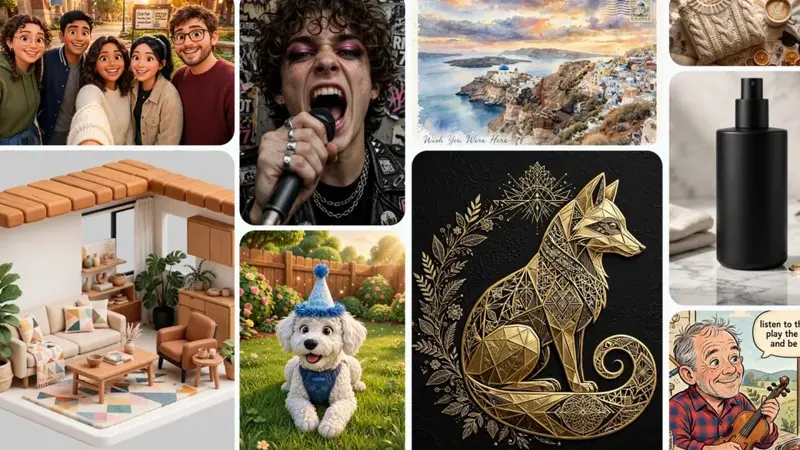
Muse Image is Meta’s first image generator built entirely in-house — no borrowed technology from another company underneath. It comes out of Meta Superintelligence Labs (the team Alexandr Wang runs), and it replaced the third-party model Meta AI used to lean on for pictures.
Here’s the part that makes it different from the last free image tool you tried. Most generators take your words and immediately paint. Muse Image thinks first. It pairs with a second model called Muse Spark to reason through your prompt — plan the layout, look up current facts on the web if it needs them, blend a few reference photos — and then it draws. Meta calls this “agentic.” In normal-person terms: it tries to figure out what you actually meant before it commits, so you get closer on the first try instead of the fifth.
A couple of things it’s weirdly good at, because they’ve tripped up every other model for years:
- Text that’s actually readable. Birthday cards, invitations, little infographics, a sign in the background — the words come out spelled right instead of garbled AI-soup.
- QR codes that scan. It can build a working QR code into an image. Sounds niche until you’re making a flyer.
- Edits you steer. You can circle or scribble on part of a picture and say “change just this,” and it remembers the conversation as you go. Erase a photobomber. Recolor an old photo. Swap the weather behind you.
Every image it makes also carries an invisible watermark Meta calls Content Seal — you can’t see it, but Meta’s tools (and others) can read it later to tell that a picture was AI-made. Hold that thought; it matters when we get to safety.
Wait — isn’t “Meta Muse” the thing from April?
This trips people up, so let’s clear it up fast. Back in April, Meta launched Muse Spark — a language and reasoning model, the “brain.” That’s a different product. What launched this week is Muse Image — the picture generator, the “hands.”
They’re not competitors. They’re a team. Spark does the thinking, Image does the drawing.
| Muse Spark (April 2026) | Muse Image (July 2026) | |
|---|---|---|
| What it is | A reasoning / language model | An image generator |
| What it does | Understands, plans, answers | Draws and edits pictures |
| You touch it via | Meta AI chat answers | Meta AI, WhatsApp, Instagram |
| The nickname | The brain | The hands |
If someone says “Meta Muse” with no other word attached, they usually mean this new image one now. But if you saw a headline in April about Meta’s Muse, that was Spark.
Is Meta AI’s Image Generator Free?
Yes — for everyday use. And that’s the whole appeal.
Making pictures with Meta AI and Muse Image is free for normal, casual creation. You don’t pay to type a prompt into WhatsApp and get a card back. Meta hasn’t published an exact “you get X images a day” number, so treat it like most free tiers: fine for regular use, and if you’re cranking out dozens in a sitting, you’ll eventually hit a wall. When you do, you either wait for the limit to reset or subscribe to Meta’s paid plan (Meta One) for heavier use. Businesses running ads get it through Meta’s advertiser tools, which is a separate thing entirely.
For you — parent making a party invite, small-business owner mocking up a menu photo, anyone bored on a Tuesday — free is free. Start there.
One catch worth naming up front: it’s US-only right now. Meta’s own wording is “starting in the US,” with other countries labeled “coming soon.” So if you’re reading this outside the States, the tool may not show up for you yet. Not a bug on your end.
How to Use Muse Image (In Each App)
There are three front doors. Pick whichever app you already have open.
In the Meta AI app (or meta.ai on the web). This is the fullest version. Open it, type what you want in plain English — “a birthday card for a 7-year-old who loves dinosaurs” — and it generates. To edit, tap the image and use the markup tool: circle the bit you want changed, tell it what to do, and it redraws just that part while remembering what you already asked.
In WhatsApp. Start a chat with Meta AI (the same way you’d message a contact), and just ask: “make me an image of…” It replies with a picture right in the thread. You can send it a photo first and ask for edits — clean up an old scan, brighten a dim shot, remove the stranger in the background.
In Instagram Stories. Open the Stories camera and look for the new AI effects — there are more than 30 now powered by Muse Image. Tap one, and it restyles your photo or adds AI elements before you post. This is the fastest, lowest-effort way in.
5 things to make in your first 5 minutes
Don’t overthink your first prompt. Try these:
- A birthday card or party invite. Describe the vibe, the age, the theme. Ask for the text right on it (“Happy 30th, Dana”). Muse Image handles the words well, so this actually works now.
- Fix an old photo. Send it a faded or blurry family picture and ask it to sharpen and recolor. This is the one that makes people gasp — as one Meta researcher put it, it’s “fun to make great memories look great.”
- Restyle a room. Photograph your living room, then ask “show this with warm lighting and a green couch.” Instant, free mood board.
- A social post graphic. “A cozy autumn coffee-shop promo, my logo space top-left, warm tones.” Tweak the text until it’s right.
- Put yourself somewhere silly. Upload a selfie and ask to be an astronaut, a Renaissance painting, whatever. Good for a laugh, good for a profile pic.
Notice none of those need design skills. That’s the point. You’re describing, not drawing.
Is Meta AI Safe? What It Does With Your Photos
Okay. The part you should actually read even if you skip everything else.
There was a real controversy attached to this launch — and it ended with Meta backing down. At launch, if you had a public Instagram account and were over 18, other people could @-mention you in a Muse Image prompt, and the tool would pull your public photos to build a new AI image featuring you, with no notification. A CNET reporter made a fake image of a colleague — put her face on a pirate — in under a minute, and the colleague had no idea until she was told. SAG-AFTRA told its members to opt out; the talent agency CAA publicly demanded Meta flip the default.
On July 10, Meta pulled that feature. The company’s statement: it “missed the mark, so it’s no longer available.” What was removed is the @-mention capability specifically — not Muse Image, which still works exactly as described above.
Here’s why the settings below still matter anyway: the underlying “Sharing and reuse” controls that the panic was about still exist and still govern whether your content can be reused with Meta’s AI features — and they’re still on by default for public accounts. Turning them off also does not delete any AI image someone already made before you opted out; there’s no removal mechanism for those. So the two-minute check is still worth doing.
To stop others reusing your content with AI, on Instagram:
- Go to Settings → Sharing and reuse
- Turn off “Allow people to reuse your content on Instagram and with AI features at Meta”
To control your face specifically, in the Meta AI app:
- Go to Settings → Your likeness
- Set who’s allowed to use your likeness — only you, people you approve, or nobody
And the blunt option that covers everything: switch your Instagram account to private. Private accounts aren’t available for this at all. If you’re under 18 with a public account, only people you already follow can reuse your media.
I’d check the “Sharing and reuse” toggle today regardless of whether you ever plan to make an image. It’s your face and your photos. Two minutes.
What This Means for You
Different people, different move. Find yourself here.
If you’re a parent or just a regular person: you finally have a free, genuinely-easy image maker for cards, invites, and fixing up old photos — right inside WhatsApp, where you already text. Make the birthday card. But do the two-minute privacy check first, and have the same chat with your teenager about their Instagram settings.
If you run a small business or a side hustle: this is free product mockups, menu shots, and social graphics without hiring anyone or opening Photoshop. The readable-text and QR-code tricks are quietly useful for flyers and promos. Just remember the “free tier” ceiling — if this becomes daily, budget for Meta One or spread work across tools.
If you make content (creators, marketers): Muse Image is strong on edits, multi-photo blends, and text-in-image, and it lives where your audience already scrolls. It’s a real option next to the tools you use now. Test it on the stuff it’s best at — restyles, composites, cards — rather than expecting it to top every leaderboard.
If you barely use AI at all: start in Instagram Stories. Tap one AI effect, see what happens, post it or don’t. That’s the whole learning curve. You don’t need a course to make your first image — though if you want to get good at prompting for pictures, that’s exactly what a short one teaches.
What Muse Image Can’t Do (Yet)
Let’s be honest, because the launch hype won’t be.
It’s not the undisputed best. On the independent Image Arena leaderboard, Muse Image landed around #2 — genuinely good, right behind OpenAI’s GPT-Image, neck-and-neck with Google’s Nano Banana. Testers say it edges out on quality but loses on speed. Translation: great pictures, sometimes a slower wait. Not everyone’s blown away — some critics flatly called it “AI slop.” Your mileage will vary by prompt.
It won’t fix a vague prompt. “Make something cool” gets you generic mush. The agentic planning helps, but you still have to say what you want. Specific in, specific out.
It can’t undo a screenshot. The Content Seal watermark travels with the file. But if someone screenshots your AI image and re-saves it, provenance gets murky. Watermarks help; they’re not magic.
It’s US-only, for now. No workaround. If it’s not showing up and you’re abroad, that’s why.
It doesn’t ask before using public photos. We covered this. The opt-out exists; the notification doesn’t. Design your privacy around that reality, not around good intentions.
The Bottom Line
Meta just put a free, surprisingly-capable image maker inside the three apps most people already keep open all day. For cards, photo fixes, and quick graphics, it’s worth ten minutes of play tonight. For your privacy, it’s worth two minutes of settings today — especially that Instagram “Sharing and reuse” toggle.
The people who’ll get the most out of tools like this aren’t the ones with the fanciest software. They’re the ones who know how to ask — how to describe what they want so the AI nails it. That’s a learnable skill, and it’s the same one that pays off across every AI image tool, not just Meta’s. If you want to actually get good at it, our AI Image Generation course walks you from your first prompt to images you’d be proud to post — free lessons to start, no signup.
Go make the birthday card. Then check your settings.
Sources
- Introducing Muse Image — Meta Newsroom (July 7, 2026)
- Meta rolls out Muse, a new AI image generator — and users are already pushing back — TechCrunch (July 7, 2026)
- Meta AI app adds image generation, powering WhatsApp and Instagram features — 9to5Mac (July 7, 2026)
- Meta’s Muse Image can clone your Instagram look — here’s how to opt out — Republic World (July 8, 2026)
- As part of Meta’s Muse Image rollout, public Instagram users must opt out — WIRED (July 7, 2026)
- Image Arena leaderboard — text-to-image and editing rankings
