

The Anthropic help doc for Claude for Excel is good. It just isn’t written for Mac users. Half the friction in getting Claude running inside Excel on a MacBook is in steps the doc covers in one line — “open Excel and activate the add-in” — that turn into a 15-minute hunt through Tools → Add-ins → Get Add-ins → Sign in → why is the search bar empty? the first time you do it.
This is the Mac-specific install. Screenshot points, the exact menu paths (Mac has Tools > Add-ins, not the Windows Home > Add-ins), the version requirement that breaks the install most often, the admin-center toggle your IT department probably hasn’t flipped yet, and the keyboard shortcut nobody mentions.
We’ll cover three scenarios in order: solo install on a personal Mac, install on a Mac that’s tied to a Microsoft 365 work tenant, and the admin-side rollout if you’re the IT person reading this for your team.
Before you start: the four things you need
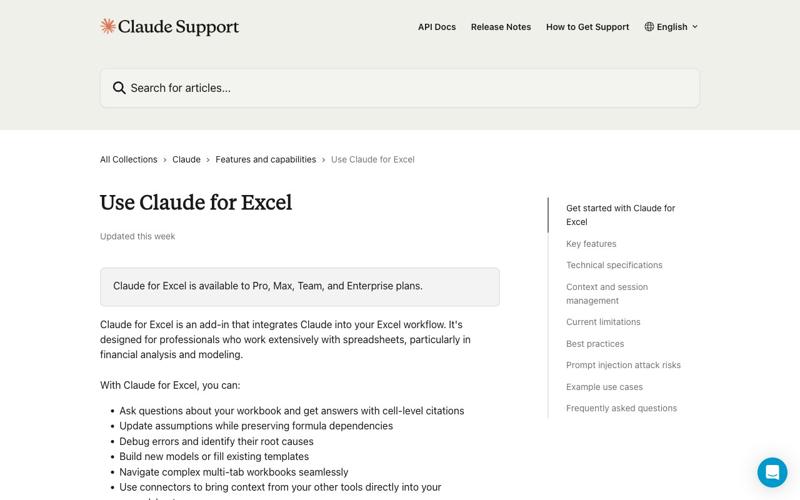
- A Microsoft 365 subscription that includes Excel. Perpetual licenses (Excel 2016, 2019) won’t work. The add-in needs the subscription stack.
- Excel for Mac, build 16.46 or later. Older builds don’t support the SharedRuntime extension model that Claude’s add-in is built on. Check via Excel → About Microsoft Excel; if you’re below 16.46, run Microsoft AutoUpdate (Excel → Help → Check for Updates) before going any further.
- A Claude Pro, Max, Team, or Enterprise account. Per Anthropic’s help docs, the Free tier does not include the Excel add-in. Pro starts at $20/month; you can also use it under a Team seat (Team plans are $30/user/month) or an Enterprise seat.
- Permission to install add-ins on this machine. On a personal Mac this is automatic. On a corporate Mac, your IT admin may need to flip a toggle in the Microsoft 365 admin center (we’ll cover this below).
If any of these is missing, fix it now. There’s nothing more annoying than getting to step 6 of an install only to discover Excel is on version 16.42 and you need to AutoUpdate first.
Solo install (personal Mac, personal Claude account)
This is the path most readers will take. Total time: 3-5 minutes once everything’s verified.
Step 1: Open the Marketplace listing in your browser
Go directly to the Microsoft Marketplace listing for Claude for Microsoft 365 (Excel, PowerPoint, and Word). Do not search for it in Excel itself — the in-Excel store search is flaky on macOS and frequently returns no results even when the add-in is published. Going via the Marketplace web UI works first try.
Click Get it now. Sign in with the Microsoft account associated with your Excel subscription (your @outlook.com, @hotmail.com, or work email if your tenant uses Entra ID). Confirm the permissions prompt. You’ll be redirected back to the Marketplace page with a “You have this add-in” confirmation.
Step 2: Open Excel and activate the add-in
This is the step where the Mac path diverges from Windows. On Windows you go Home → Add-ins. On Mac, you go:
Tools → Add-ins (top menu bar, not the ribbon).
If you don’t see Add-ins under the Tools menu, you’re on an older Excel build — go back and update via AutoUpdate. Once the Add-ins dialog opens, you should see Claude for Microsoft 365 listed. Check the box next to it, click OK, and the Claude side pane appears on the right side of your Excel window.
If Claude is not listed in the Add-ins dialog, two common causes:
- The add-in is still propagating. Wait 5 minutes, quit and re-open Excel. The Marketplace install can take a few minutes to surface on the client.
- Excel is signed into a different Microsoft account than the one you used at the Marketplace. Check Excel → Sign In and confirm the email matches the one you used at appsource.microsoft.com.
Step 3: Sign in to Claude
The first time you open the Claude pane, it prompts you to sign in. Use the same Claude account you’d use at claude.ai. If you have multiple Claude logins (e.g., a personal Pro and a Team seat through work), pick the one whose plan tier you want the add-in to run under. Switching later is possible but requires signing out and back in via the pane’s settings gear.
Step 4: Test it
In a blank workbook, type some data in A1:B5 — anything, even nonsense — then open the Claude pane and ask “summarize this data.” If it responds, you’re done. If it says “I can’t see your spreadsheet,” check that the workbook is saved (Claude can’t read unsaved scratch workbooks reliably) and that you’re on a .xlsx or .xlsm file. Older .xls files aren’t supported.
Step 5: Memorize one keyboard shortcut
Ctrl + Option + C opens the Claude pane from anywhere in Excel on Mac. This is the single highest-leverage Mac shortcut for the add-in — it’s faster than mousing over to Tools → Add-ins every time, and the Anthropic help doc doesn’t mention it at all.
That’s the solo install. You’re done.

Work Mac install (Microsoft 365 tenant, Claude work account)
If your Mac is tied to a corporate Microsoft 365 tenant, the install has one extra failure mode: your IT admin may have disabled the Office Store, in which case clicking Get it now in the Marketplace will fail with a generic “this add-in cannot be installed” error.
Two paths out:
Path A: Ask IT to deploy it. This is the right path in most organizations. Send your IT admin the Microsoft AppSource listing and ask them to deploy it via Microsoft 365 admin center → Settings → Integrated apps → Add-ins. Most admins can do this in under 15 minutes once they look up the right menu. Section below has the full admin walkthrough if you need to forward instructions.
Path B: Use a Claude work account on a personal Mac. If your Mac is personally owned but you have a corporate Claude account, install through the personal Marketplace path (Step 1 above) using your personal Microsoft account, then sign in to the Claude pane with your work Claude credentials. The add-in itself is installed against the Microsoft account; the Claude account is a separate sign-in layer. This works for many people whose IT is permissive about personal-device-with-work-Claude setups, but check your company’s BYOD policy first.
Either way, once the add-in is deployed, the Tools → Add-ins path from Step 2 above is identical.
Admin install (the IT person reading this for the team)
The Microsoft 365 admin center steps are short but the menu paths are non-obvious. This is the Mac-friendly walk-through.
Step 1: Verify the Office Store is enabled
Microsoft 365 admin center → Settings → Org Settings → User owned apps and services. Confirm Let users access the Office Store is toggled on. If it’s off, either turn it on (lowest-friction path) or plan to deploy via the manifest XML path in Step 3 below.
Step 2: Deploy via Integrated apps (recommended path)
Settings → Integrated apps → Add-ins → Get apps. This opens the AppSource catalog inside the admin center. Search for Claude by Anthropic for Excel. Click on the listing, then Deploy. The deployment wizard offers three scoping options:
- Entire organization — easiest, but every Excel user in the tenant gets the pane (and the Claude account sign-in prompt).
- Specific users — recommended for pilots. Pick the early-adopter group, give them a week, then expand.
- Specific groups — best for permanent rollouts. Use an Entra ID group that matches the org’s “AI tools approved users” list.
Deployment usually surfaces in users’ Excel within 5 minutes, but Microsoft documents an upper bound of 24 hours. Most users see it within 10.
Step 3: Fallback path — deploy via manifest XML
If the Office Store is disabled and you can’t enable it (some regulated environments require it stays off), you can still deploy by hand: download the manifest XML from Anthropic’s Microsoft 365 deployment guide and upload it via Integrated apps → Upload custom apps. The user-side experience is identical once deployed.
A known gotcha being discussed on Microsoft Q&A this week: some tenants get a deployment error when the Office agents setting under Microsoft 365 admin center → Settings → Org settings → Office agents hasn’t been toggled. Flip that on first if you see deployment failures.
Step 4: For Teams and Enterprise plans, enable cross-app
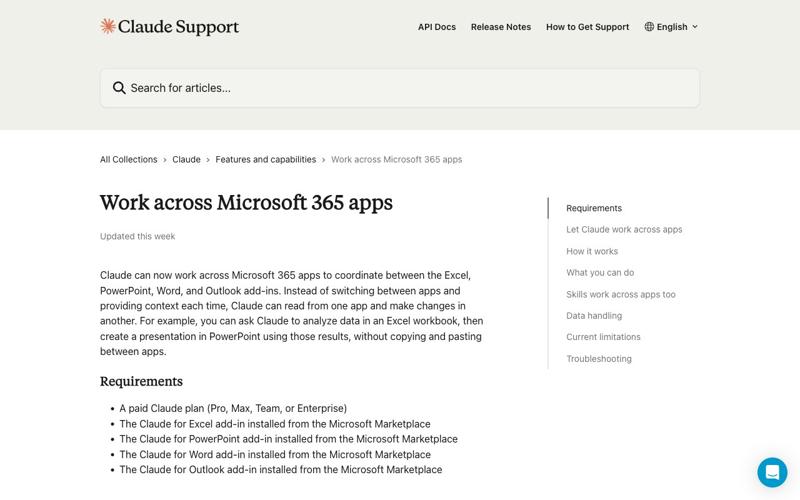
If your team is on Claude Team or Enterprise and you want users to be able to ask Claude to “analyze the Excel data and then build a PowerPoint deck” in a single prompt, an organization owner needs to enable the cross-app feature: Anthropic Console → Organization settings → Office agents → Let Claude work across apps → On. This was new as of May 5, 2026 (the Claude for Microsoft 365 launch), and many admins haven’t found it yet because it’s in the Anthropic console, not the Microsoft 365 admin center.
What this means for you
If you’re a solo user on a personal Mac, install via the Marketplace web UI, not the in-Excel store. Hit Ctrl + Option + C instead of menu-diving. The install takes 5 minutes once you’ve confirmed Excel is on build 16.46+. Skip the admin-center sections.
If you’re a corporate Mac user, expect a one-day delay while IT deploys it. Send your admin the AppSource link and the Step 2 instructions above. If you can’t wait, the personal-Microsoft-account + work-Claude-account workaround works for most people on BYOD policies (but check your policy).
If you’re the IT admin, use the Integrated apps path, not the manifest XML path, unless you’ve explicitly disabled the Office Store. Pilot with a small group first; the Claude pane changes how users interact with Excel and you’ll want to know about the support questions before they hit your help desk at scale.
If you’re a Mac power user already running Claude Desktop or claude.ai in a browser, the Excel add-in is additive, not replacement. The Desktop app reads your file system; the browser reads what you paste. The Excel add-in reads the current workbook. Each has a place in your daily workflow.
If you’ve been on Windows and you’re switching to Mac for this install, the only thing to internalize is that Home > Add-ins on Windows is Tools > Add-ins on Mac. Everything else is the same.
What it can’t do
A few honest limits, current as of May 2026.
- Excel macros, VBA, and data tables are not supported. If your workbook depends on macros, Claude won’t see them. The add-in supports formulas, charts, pivot tables, and standard cell data — the bulk of normal use — but stops at the VBA boundary.
.xls(Excel 97-2003 format) and Excel 2016/2019 perpetual licenses won’t work. Only.xlsxand.xlsmon the Microsoft 365 subscription stack.- The add-in needs an active internet connection. It’s a side pane that calls the Claude API; there’s no offline mode. If you’re on a flight without Wi-Fi, it goes silent.
- It doesn’t see other open workbooks. Claude only sees the workbook the pane is attached to. If you want to compare two files, copy data into a single workbook first.
- Mac keyboard shortcut conflicts.
Ctrl + Option + Cis the default. If you have a Karabiner Elements binding or another add-in mapped to the same combo, the Claude shortcut will silently fail. Re-map one of them in Karabiner → Complex modifications. - iPad support is via a different path. On iPad, Claude for Excel is built-in after Marketplace activation — you don’t go through Tools > Add-ins because the iPad UI doesn’t expose that menu. Same Claude account, different surface.
The bottom line
The Anthropic help doc is correct but generic. The Mac-specific bits — Tools menu instead of Home tab, build 16.46+, Ctrl + Option + C shortcut, the Office agents admin toggle that’s hidden in the Anthropic Console — make the difference between a 5-minute install and a 90-minute support ticket. Now you have them in one place.
If you want to go deeper on getting the most out of Claude in Excel — including the 12 prompts that handle 80% of analyst workflows, and the cross-app handoff to PowerPoint that was the headline of the May 5 launch — our Microsoft Copilot course covers the side-by-side workflows that AI-native analysts are using today.
Sources
- Anthropic: Use Claude for Excel (help center)
- Anthropic: Work across Microsoft 365 apps (help center)
- Anthropic: Use Claude for Microsoft 365 with third-party platforms
- Microsoft AppSource: Claude for Microsoft 365 (Excel, PowerPoint, and Word)
- Claude for Microsoft 365 product page
- Microsoft Q&A: Unable to deploy Claude for Excel add-in through admin console
- SumProduct: Claude for Excel — Basics, Setup and License Requirements