

For as long as you’ve used it, Google Search has done one basic thing. You ask, it answers. You type a question, it hands back a page of links, and everything after that is on you — open the tabs, find the detail, do the thing yourself.
That’s starting to shift. On July 16, Google gave its AI Mode two new abilities that nudge it from answering your questions toward doing small pieces of your day. It can read your Gmail and answer from what’s actually in there. And — this is the one that got people talking — Google says it can now drop events straight into your Google Calendar.
Quick plain-English note before we go further. AI Mode is the chat-style version of Google Search: the tab where you ask a full, messy question the way you’d say it out loud and get a written answer back, instead of ten blue links. It’s been around a while. What changed is what it’s allowed to see and touch.
What actually changed
Google shipped two separate things on the same day, and the press rolled them into one “seven apps” headline. That muddies it. Keep them apart and the whole thing clicks.
One: AI Mode can now read your own Google stuff. Google calls this Personal Intelligence — a stiff name for a simple idea. Switch it on and AI Mode can peek at your Gmail and Google Photos to answer using what’s in your life. Ask it to plan around a trip and it reads the flight confirmation already sitting in your inbox, instead of making you paste it in. The copy-paste dance, gone. Calendar reading is coming next, per Google.
Two: AI Mode can now do a task in three outside apps. Google calls this Connected Apps. Link Instacart, Canva, or YouTube Music once, and you can start a job in them right from the answer — build a grocery cart, kick off a design, queue up a playlist — without leaving Search.
Then there’s the headline. Google says AI Mode can now add events straight to your Google Calendar. Not just read it. Create in it. Say “put a 30-minute call with Dana on Thursday afternoon” and it drafts the calendar entry for you.
One honest flag on that last one, because it matters. This Calendar-create ability is brand new. It’s been reported by Search Engine Journal and confirmed by Google’s own search VP, Robby Stein, who posted about it — but it isn’t in a formal Google help doc yet, and Google’s main blog still lists Calendar on the reading side as “coming soon.” So take it as “Google says you can,” not as some settled feature that’s been there for years. It’s rolling out. If it’s missing from your AI Mode this week, that’s why.
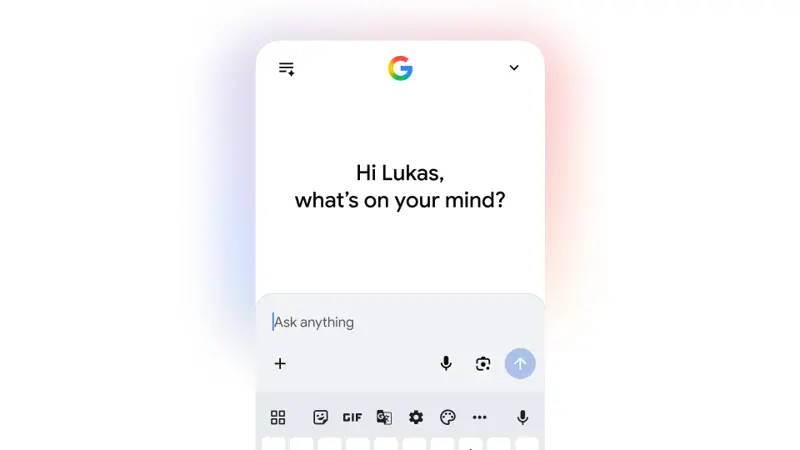
How to turn it on
None of this happens on its own. It’s all opt-in, which is the right call — you decide what Search gets to see. There are two separate switches, one per feature.
To let AI Mode read your Gmail, Photos, and Calendar:
- Open Google Search (the app or the web).
- Tap your profile picture in the corner.
- Go to Search personalization.
- Open Connected Content Apps.
- Connect Gmail (it may show up as “Workspace”), Photos, and Calendar.
That’s the reading side — the part that lets answers pull from your own inbox and pictures.
To link a task app like Instacart, Canva, or YouTube Music:
You don’t go hunting through settings for these. Just ask for one by name inside AI Mode — “build me an Instacart cart for banana bread” — and AI Mode shows a Link button. Click it, sign in once, and you’re set for next time.
To disconnect, whenever you want:
- Instacart, Canva, YouTube Music: go to myaccount.google.com/connections and remove them.
- Gmail, Photos, Calendar: back to Search, tap your profile picture, Search personalization, Connected Content Apps, and toggle them off.
Two minutes, tops. And you can pull the plug on any single connection without touching the rest.
Prompts worth trying
Once it’s on, you just talk to it. A few that show off what each piece does:
- “Add a 30-minute call with Dana Thursday afternoon.” The Calendar-create trick. It drafts the event; you confirm it.
- “What did my client email me about the proposal, and when’s it due?” The Gmail read at work — it goes and finds the thread instead of asking you to.
- “Find a dinner spot tonight that fits around what’s on my calendar.” Reading your day, then answering around it.
- “Build an Instacart cart for this banana-bread recipe.” The task hand-off — it assembles the cart, then sends you into Instacart to check out.
None of these need special wording or magic phrasing. Say it the way you’d say it to a person.
What this means for you
Depends on your day. A few real ones.
If you’re a solopreneur: you’re the assistant you can’t afford to hire, and this is the closest free stand-in. “Pull the invoice details from my last email with this supplier.” “Block two hours Friday for the tax stuff.” The little admin drips that quietly eat your morning, handled from the search bar you already have open.
If you’re a real-estate agent: your inbox is your CRM, whether you like it or not. Asking “when’s the closing on the Elm Street listing, and what did the buyer’s agent say about the inspection?” — and getting it back without opening five threads — is the kind of small win that stacks up across a busy week. Just double-check the date before you quote it to a client.
If you’re a consultant billing by the hour: the calendar-create is the quiet winner here. “Set up three 30-minute intro calls next week, mornings only” is faster said once than clicked through Calendar’s screens five times. You still confirm each one. But the setup’s done for you.
If you’re a manager buried in email: the “what did so-and-so say about X, and what did I promise back?” query is the one you’ll reach for daily. It won’t empty your inbox. But it’ll stop you re-reading the same thread three times to dig out the one number you needed.
The thread running through all of it: this is for the small stuff that clogs a day, not the big stuff that defines it. It finds, drafts, and sets up. You still decide, and you still hit send.
What it can’t do (and the privacy part)
Worth setting expectations, because the launch is early and narrow.
It’s US and English only, for now. Both features rolled out in the United States in English. The task apps — Instacart, Canva, YouTube Music — went live free the week of July 16. The Gmail and Photos reading is rolling out in the US too, and Google says it’s expanding the reach. But if you’re outside the US, or working in another language, this probably isn’t live for you yet.
Calendar-create is the newest and least settled piece. Reading your inbox is confirmed and shipping. Adding events is what Google says you can now do, and it’s still rolling out. Don’t be thrown if the reading works before the writing does.
It hands the last step back to the app. When you build an Instacart cart, you finish checkout in Instacart. Canva opens for the actual editing. AI Mode walks you to the doorstep — it doesn’t spend your money or hit publish for you. Which, honestly, is the sane way to do it.
It’s opt-in, and you can walk it back. Nothing connects until you say so, each connection stands on its own, and you can disconnect any of them in a couple of taps. Here’s the one thing I won’t tell you, because Google doesn’t clearly say it either way: whether any of this gets used to train Google’s models. Their posts don’t make a clean promise on that, in either direction. So do the reasonable thing — connect what’s genuinely useful, keep truly sensitive material out of the parts you’re unsure about, and remember the off switch is always right there.
The bottom line
Search is quietly turning into something that acts, not just something that answers. Reading your Gmail so you stop pasting, and — Google says — dropping events straight into your Calendar, are small moves on their own. Together, they’re the start of Search running your errands instead of just pointing at them.
Flip it on, try the four prompts above, and see whether it saves you the ten minutes of admin friction it’s aiming at. It’s free, it’s opt-in, and worst case you toggle it back off.
Want to actually get good at this — not just Google’s flavor of it, but talking to any AI so it does what you meant the first time? Our Google Gemini course walks the whole Google AI stack, AI Fundamentals starts you from zero, and Prompt Engineering is where you learn to write the kind of clear request that gets a clean result without three tries.
One more thing worth knowing. This post is about using AI Mode. If you run a business, there’s a flip side — how to get your business named when other people ask AI Mode for a recommendation — and that’s a whole different game we broke down in AEO for small business. (And if you’d rather have ChatGPT read your Gmail than hand it to Google’s own AI, there’s a route for that too.)
Sources
- Connect more of your apps to Search, Google
- Google brings Personal Intelligence to AI Mode in Search, Google
- Connected apps in AI Mode, Google Search Help
- Google Brings Calendar To Personal Intelligence In AI Mode, Search Engine Journal
- Google’s AI Mode now lets you link and interact with select apps, TechCrunch
- Google will let you connect apps to AI Mode in Search, The Verge
- Google AI Mode adds YouTube Music, Instacart, and Canva, 9to5Google