

Claude Code went from zero to over 1 million monthly searches in under a year. If you got here because “everyone is talking about it” and you want to try it yourself, this is your 5-minute setup guide for any OS.
Three things to know before we start:
- You need a paid plan. Claude Pro ($20/mo), Max, Team, Enterprise, or a Claude Console account all unlock Claude Code. The free Claude.ai plan does not include it.
- Claude Code lives in your terminal — the text-based command window on your computer. (Anthropic also ships a Desktop app if you’d rather skip the terminal entirely.)
- The native installer is the official method in 2026. Anthropic also added Homebrew, WinGet, and signed Linux package repos in early 2026, so package-manager folks now have first-class options too. The legacy npm path still works but is no longer recommended.
Pick your OS — every install path is one command:
| Your OS | Fastest install | Section |
|---|---|---|
| Windows (PowerShell) | irm https://claude.ai/install.ps1 | iex | Jump ↓ |
| Windows (WinGet) | winget install Anthropic.ClaudeCode | Jump ↓ |
| Windows (WSL) | Same as macOS/Linux, inside WSL | Jump ↓ |
| macOS (native) | curl -fsSL https://claude.ai/install.sh | bash | Jump ↓ |
| macOS (Homebrew) | brew install --cask claude-code | Jump ↓ |
| Linux (Ubuntu/Debian) | sudo apt install claude-code (after repo setup) | Jump ↓ |
| Linux (any distro) | curl -fsSL https://claude.ai/install.sh | bash | Jump ↓ |
Let’s go.
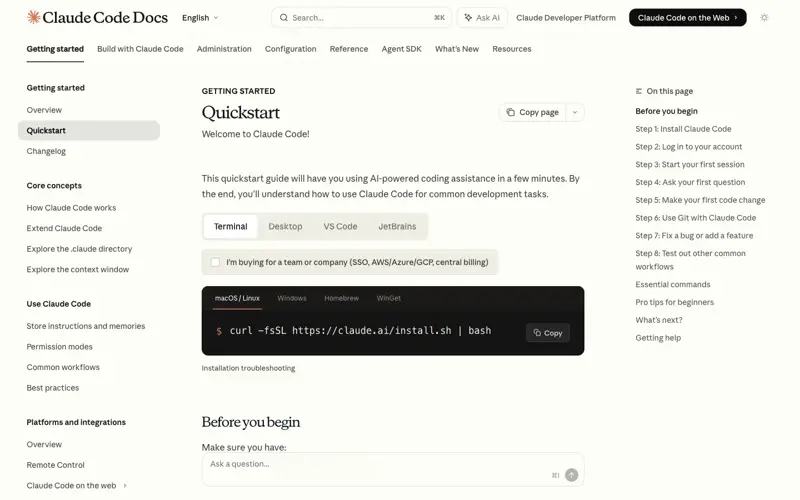
Source: docs.claude.com/en/docs/claude-code/quickstart — captured May 2026.
System Requirements
Before installing, check you’re on a supported OS:
| OS | Minimum Version | Notes |
|---|---|---|
| macOS | 13.0 (Ventura) | Apple Silicon or Intel |
| Linux | Ubuntu 20.04+ / Debian 10+ / Alpine 3.19+ | 4 GB+ RAM recommended |
| Windows | 10 (1809+) or Server 2019+ | WSL 2 or Git for Windows |
If you’re on Windows 11, you’re fine. If you’re on macOS Monterey (12) or older, upgrade first.
Install on Windows
You have three Windows install paths. Pick based on whether you need a Linux-style toolchain (WSL) or want to stay native (PowerShell + Git Bash).
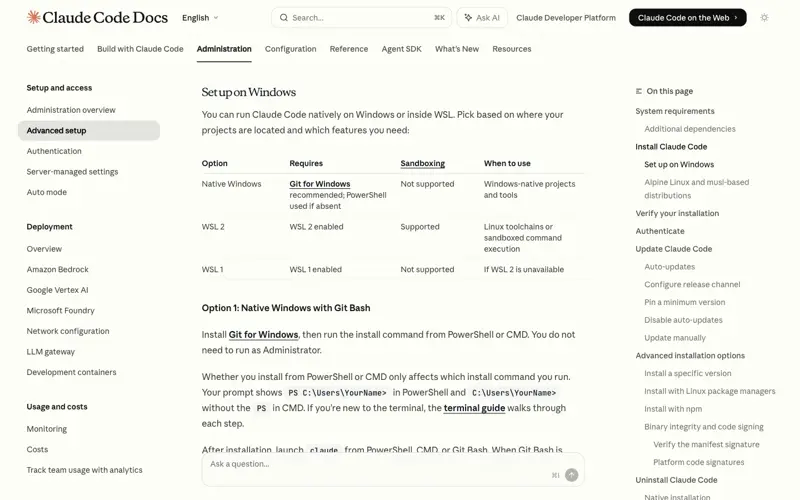
Source: docs.claude.com — Anthropic’s own decision matrix for Windows install paths.
Native Windows: PowerShell (the simplest path)
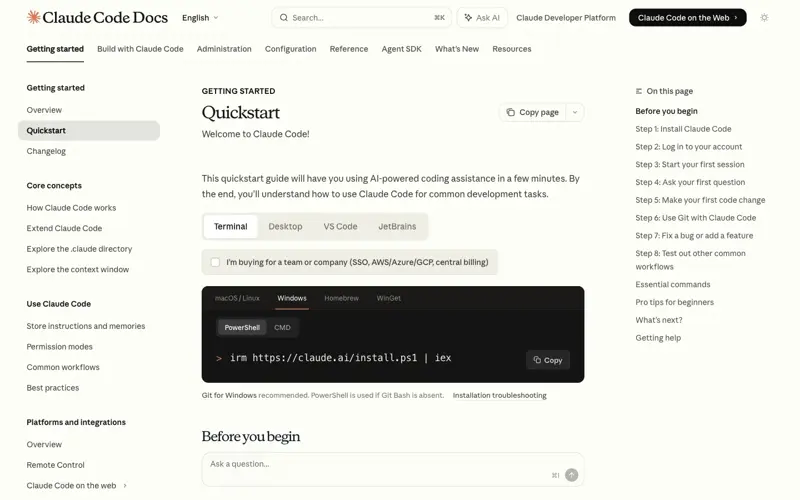
Open PowerShell (no Administrator needed) and run:
irm https://claude.ai/install.ps1 | iex
If irm returns “is not recognized as an internal or external command,” you’re in CMD instead of PowerShell. Your prompt shows PS C:\ in PowerShell vs plain C:\ in CMD. To use CMD instead:
curl -fsSL https://claude.ai/install.cmd -o install.cmd && install.cmd && del install.cmd
After install, close and reopen your terminal so the PATH refreshes, then verify:
claude --version
claude doctor
Recommended: Install Git for Windows before launching claude. Anthropic recommends it because Claude Code uses Git Bash internally for shell tooling. Without it, Claude Code falls back to PowerShell as its shell tool, which has fewer features.
If claude doctor says it can’t find Git Bash, point Claude Code at it explicitly in ~/.claude/settings.json:
{
  "env": {
    "CLAUDE_CODE_GIT_BASH_PATH": "C:\\Program Files\\Git\\bin\\bash.exe"
  }
}
Native Windows: WinGet (managed package install)
Anthropic publishes Claude Code through Microsoft’s official package manager:
winget install Anthropic.ClaudeCode
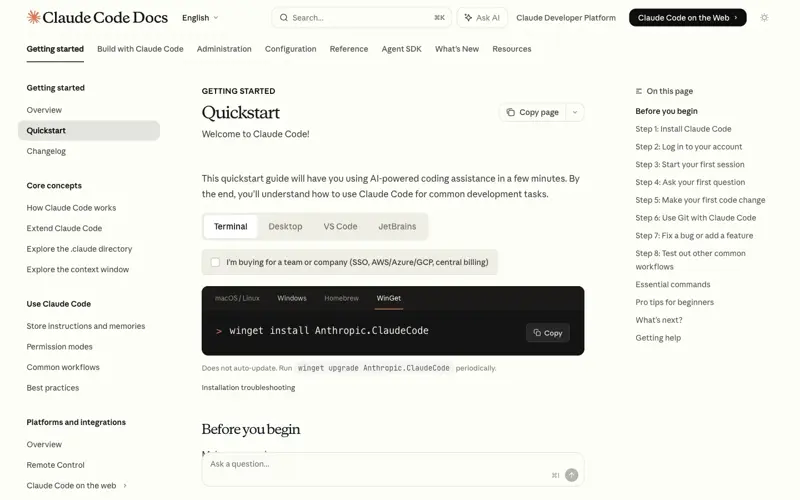
WinGet installs do not auto-update — run winget upgrade Anthropic.ClaudeCode periodically.
Install on Windows with WSL
WSL 2 (Windows Subsystem for Linux) gives you a real Linux environment inside Windows. Anthropic recommends WSL when you want sandboxed command execution or already work with Linux toolchains.
Step 1 — Install WSL. Open PowerShell as Administrator and run:
wsl --install
Reboot when prompted. After restart, open the Ubuntu terminal from your Start menu.
Step 2 — Install Claude Code inside WSL. From the Ubuntu prompt:
curl -fsSL https://claude.ai/install.sh | bash
Step 3 — Verify and start working on a project:
claude --version
claude doctor
cd /mnt/c/Users/YOUR_USERNAME/path/to/project
claude
The /mnt/c/ path is how WSL accesses your Windows drives. Your C: drive lives at /mnt/c/, D: at /mnt/d/, and so on.
Install on macOS or Linux
Open Terminal. Paste this. Hit Enter.
curl -fsSL https://claude.ai/install.sh | bash
That’s the entire install. The native installer downloads the binary, puts it in ~/.local/bin, and sets up auto-updates. No Node.js needed, no dependencies, no package manager drama.
Verify it worked:
claude --version
claude doctor
claude doctor runs diagnostics — auth status, PATH, config, MCP servers. Always run it after install to catch any issues early.
Now jump into a project:
cd /path/to/your/project
claude
That’s it. You’re in Claude Code.
Install with Homebrew (macOS)
If you already manage your tools through Homebrew, Anthropic ships an official cask:
brew install --cask claude-code
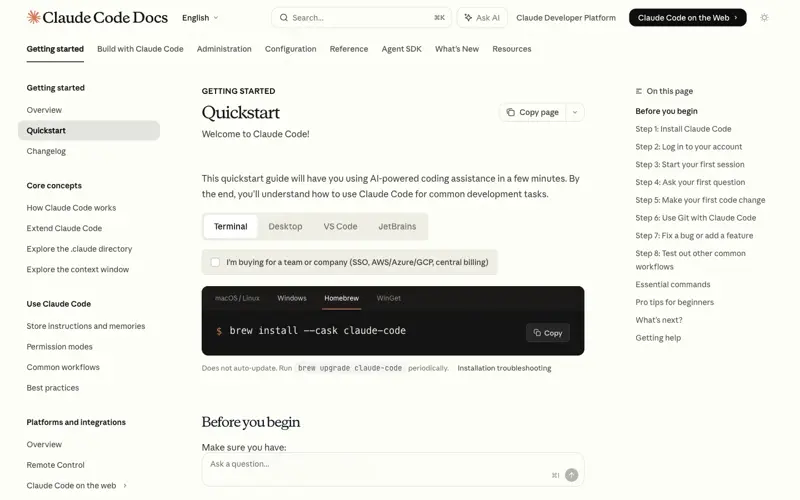
There are actually two casks:
claude-code— tracks the stable channel (about a week behindlatest, skips releases with major regressions). Safer default.claude-code@latest— tracks the latest channel (new versions as soon as they ship).
# For the bleeding-edge channel:
brew install --cask claude-code@latest
Heads up: Homebrew installs do not auto-update. Run brew upgrade claude-code (or claude-code@latest) to get new versions and security fixes.
Install on Linux with Package Managers
Anthropic publishes signed apt, dnf, and apk repositories. These are the cleanest path on Debian/Ubuntu, Fedora/RHEL, and Alpine because updates flow through your normal system upgrade workflow. Like Homebrew and WinGet, they do not auto-update through Claude Code itself.
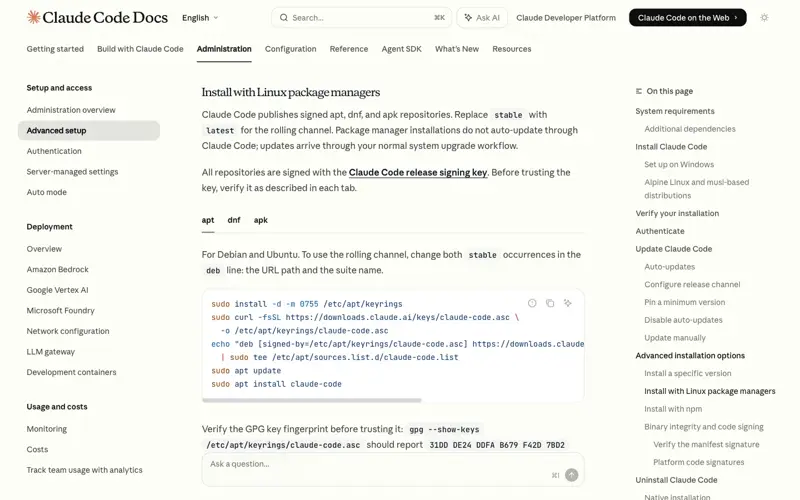
Source: docs.claude.com — the apt path. Verify the GPG fingerprint 31DD DE24 DDFA B679 F42D 7BD2 before trusting the key.
Debian / Ubuntu (apt):
sudo install -d -m 0755 /etc/apt/keyrings
sudo curl -fsSL https://downloads.claude.ai/keys/claude-code.asc \
  -o /etc/apt/keyrings/claude-code.asc
echo "deb [signed-by=/etc/apt/keyrings/claude-code.asc] https://downloads.claude.ai/claude-code/apt/stable stable main" \
  | sudo tee /etc/apt/sources.list.d/claude-code.list
sudo apt update
sudo apt install claude-code
To verify the GPG key fingerprint before trusting it: gpg --show-keys /etc/apt/keyrings/claude-code.asc should report 31DD DE24 DDFA B679 F42D 7BD2 BAA9 29FF 1A7E CACE.
Fedora / RHEL (dnf):
sudo tee /etc/yum.repos.d/claude-code.repo <<'EOF'
[claude-code]
name=Claude Code
baseurl=https://downloads.claude.ai/claude-code/rpm/stable
enabled=1
gpgcheck=1
gpgkey=https://downloads.claude.ai/keys/claude-code.asc
EOF
sudo dnf install claude-code
Alpine (apk):
wget -O /etc/apk/keys/claude-code.rsa.pub \
  https://downloads.claude.ai/keys/claude-code.rsa.pub
echo "https://downloads.claude.ai/claude-code/apk/stable" >> /etc/apk/repositories
apk add claude-code
For the rolling channel, change stable to latest in the URL/suite name. Upgrade later with your normal package-manager command (sudo apt upgrade claude-code, sudo dnf upgrade claude-code, apk upgrade claude-code).
Alpine extras: the native installer needs
libgcc,libstdc++, andripgrep. Install them withapk add libgcc libstdc++ ripgrep, then setUSE_BUILTIN_RIPGREPto0in your~/.claude/settings.json.
Install via npm (the legacy path)
Anthropic officially deprecated npm installs back in January 2026 (v2.1.15) in favor of the native installer — the package still works, but treat it as the compatibility path, not the default. If you already have Node.js 18+ installed and prefer npm:
npm install -g @anthropic-ai/claude-code
This installs the same native binary as the standalone installer through a per-platform optional dependency (@anthropic-ai/claude-code-darwin-arm64, etc.). Three reasons most people skip it now:
- No auto-updates. You manually
npm updatewhen new versions ship. - Requires Node.js 18+. The native installer has zero dependencies.
- Permission errors. Especially with
sudo npm install -g— don’t.
If you already installed via npm and want to migrate to native:
curl -fsSL https://claude.ai/install.sh | bash
npm uninstall -g @anthropic-ai/claude-code
Authentication (The Login Dance)
First time you run claude, it opens your browser for OAuth login. Sign in with whichever Anthropic account you use:
- Claude Pro/Max personal subscription — claude.ai login
- Claude Team or Enterprise — your workspace login
- Claude Console — if your org invited you
If your browser doesn’t open automatically, press c in the terminal to copy the login URL, paste it into your browser, finish login, then paste the code back into the terminal when prompted.
To switch accounts later:
/logout
(Run this inside Claude Code, not your shell.)
Your First Commands
After claude drops you into an interactive session, try these:
/help          # Show all available commands
/status        # Check auth, subscription, rate limits
/config        # View current configuration
/logout        # Sign out
From your shell (outside the interactive session):
claude doctor    # Diagnostic report
claude --version # Show installed version
claude mcp list  # List configured MCP servers
A Real First Task
Open a project you already have. Could be anything — a Next.js app, a Python script, a config repo. Start Claude Code:
cd /path/to/project
claude
Then type a real task in plain English. Something like:
“Read the README, then tell me how this project is organized.”
Or:
“Add a new function that validates email addresses. Put it wherever it fits best in the codebase.”
Or:
“Find all the TODO comments and list them with file paths.”
Claude will look at your files, think, and propose changes. It asks you to approve each file edit before making it. You stay in control.
Common Setup Problems (And Fixes)
“command not found: claude”
The installer put the binary in ~/.local/bin, but your shell doesn’t know about that directory. Add it to your PATH:
echo 'export PATH="$HOME/.local/bin:$PATH"' >> ~/.bashrc
source ~/.bashrc
Replace .bashrc with .zshrc if you’re on zsh (macOS default since Catalina).
“The token ‘&&’ is not a valid statement separator”
You pasted a CMD-style command into PowerShell. Either switch to CMD, or use the PowerShell version:
irm https://claude.ai/install.ps1 | iex
“Permission denied” during npm install
You tried sudo npm install -g and it broke permissions. Don’t use sudo with npm. Instead, either:
- Use the native installer (no sudo needed):
curl -fsSL https://claude.ai/install.sh | bash - Use nvm (Node Version Manager) to install Node in your home directory
WSL can’t reach the internet
Test with curl https://claude.ai. If that fails, your Windows firewall or VPN is blocking WSL. Most VPNs have a “exclude local traffic” option — enable it.
Node.js version too old (npm only)
Claude Code npm install requires Node 18 or newer. Check with node -v. If you see v16 or older, upgrade via nvm:
nvm install 20
nvm use 20
Or skip npm entirely and use the native installer.
Rate limited immediately after install
You’re on the Pro plan and hitting limits in under an hour? This is a real issue Anthropic acknowledged on March 31, 2026. Check your Claude Code version:
claude --version
The latest build as of May 4 is v2.1.126, which added a useful claude project purge [path] command and fixed an Opus 4.7 /context percentage bug — but the underlying token-inflation issue introduced in v2.1.100 is still not publicly patched. Workaround per community reports: downgrade to v2.1.34, or reinstall via npm instead of the native binary, until the official fix lands.
You can pin a specific version through the native installer:
curl -fsSL https://claude.ai/install.sh | bash -s 2.1.34
Or pin a minimum floor in ~/.claude/settings.json so future updates can’t accidentally jump you back into a bad release:
{
  "autoUpdatesChannel": "stable",
  "minimumVersion": "2.1.34"
}
Extending Claude Code With MCP
Once you’ve got the basics working, the real power is connecting Claude Code to other tools via MCP (Model Context Protocol). MCP turns Claude Code from “coding assistant” into “coding assistant with direct access to your databases, APIs, and team tools.”
List current MCP servers:
claude mcp list
Add a new one (example — connecting a database):
claude mcp add my-db --command "docker run --rm my-db-mcp:latest"
Each project can have its own .claude/.mcp.json file listing the MCP servers that project uses. Shared codebases can commit this file so everyone on the team gets the same tool setup.
Popular MCP servers to try:
- GitHub MCP — Claude Code can open PRs, review branches, search issues
- Database MCPs — query PostgreSQL, MySQL, or MongoDB directly
- Shopify MCP — see our Shopify AI Toolkit guide
- Slack/Notion/Linear — pull context from your team tools
Quick OS Cheat Sheet
| Environment | Install Command | Auto-updates? |
|---|---|---|
| macOS 13+ (native) | curl -fsSL https://claude.ai/install.sh | bash | ✅ |
| macOS (Homebrew, stable) | brew install --cask claude-code | ❌ — brew upgrade claude-code |
| macOS (Homebrew, latest) | brew install --cask claude-code@latest | ❌ — brew upgrade claude-code@latest |
| Linux (any distro, native) | curl -fsSL https://claude.ai/install.sh | bash | ✅ |
| Ubuntu/Debian (apt repo) | sudo apt install claude-code (after repo setup) | ❌ — system upgrade flow |
| Fedora/RHEL (dnf repo) | sudo dnf install claude-code (after repo setup) | ❌ — system upgrade flow |
| Alpine (apk repo) | apk add claude-code (after repo setup) | ❌ — system upgrade flow |
| Windows PowerShell (native) | irm https://claude.ai/install.ps1 | iex | ✅ |
| Windows CMD (native) | curl -fsSL https://claude.ai/install.cmd -o install.cmd && install.cmd && del install.cmd | ✅ |
| Windows (WinGet) | winget install Anthropic.ClaudeCode | ❌ — winget upgrade Anthropic.ClaudeCode |
| Windows WSL | Same as Linux native (inside WSL) | ✅ |
| Legacy npm | npm install -g @anthropic-ai/claude-code (Node 18+) | ❌ — npm update -g |
What This Means for You
If you’ve never used a terminal before: Stick with macOS or WSL on Windows. The terminal is part of Claude Code’s identity — you can’t really use it without at least basic terminal comfort. Spend 30 minutes learning cd, ls, pwd, and git basics if you haven’t already.
If you’re a developer evaluating Claude Code: Install it in 5 minutes, point it at a side project, give it a real task. Cursor is more IDE-like, Copilot is more autocomplete-like — Claude Code is genuinely different, and you have to feel it to understand it.
If you’re setting this up for your team: Create a .claude/ directory in your shared repos with team-wide MCP configuration. Commit it. New team members run the installer, authenticate, and inherit your team’s tool setup automatically.
If you already installed Claude Code: The plugin and MCP ecosystem is where you level up from “Claude Code user” to “Claude Code power user.” Our Claude Code Mastery course goes deep on skills, hooks, and MCP.
The Bottom Line
Installing Claude Code takes 30 seconds to 5 minutes depending on your OS. The native installer (April 2026 default) is reliable, fast, and dependency-free.
The real learning curve isn’t installation — it’s figuring out how to use Claude Code productively once it’s installed. Start with small tasks, grow into larger workflows, add MCP tools as you find real needs. Don’t try to configure everything on day one.
And budget for the subscription. Free tier won’t get you there. Pro at $20/month is the real entry point.
Next step: Our Claude Code Mastery course covers the entire workflow — from first install to advanced agentic patterns with skills, hooks, and MCP. If you’re already installed, you might also want our Claude Code Pricing Guide to pick the right subscription tier.
Sources (last verified May 4, 2026):
- Claude Code Setup — Official Docs (verified live for command syntax)
- Claude Code Changelog — Official
- Claude Code v2.1.126 release — May 1, 2026
- Install Claude Code — Anthropic
- Install Claude Code Complete Setup Guide — NxCode
- How to Install Claude Code: Windows, Mac & Linux — ClaudeFast
- How to Install Claude Code 2026: Every Platform — MorphLLM
- Install Claude Code — Claudelog
- Claude Code Installation Complete Guide — Skills Playground
- How to Install Claude Code for Beginners — phpFashion
- Claude Code GitHub Repository
- How to Install via npm, brew — eesel AI