You’ve done this a hundred times: ChatGPT gives you a genuinely great answer — the perfect email template, a clean project outline, a fix that finally worked — and you copy it into Apple Notes or a random doc so you don’t lose it. Two weeks later you can’t find it, and you’re back in ChatGPT re-asking the same question.
In June 2026, OpenAI started quietly fixing that. Some users now have a way to save ChatGPT answers as proper, editable notes that live inside ChatGPT — in a full-screen markdown editor, stored in your Library, reusable across future chats. People are calling it “ChatGPT Notes.” Here’s what it actually is, how to tell if you have it yet, and where it falls short.
What it actually is (a little myth-busting first)
Search “ChatGPT Notes” and you’ll find breathless write-ups about a brand-new notes app inside ChatGPT. The honest reality is more modest, and worth knowing so you’re not hunting for a button that doesn’t exist.
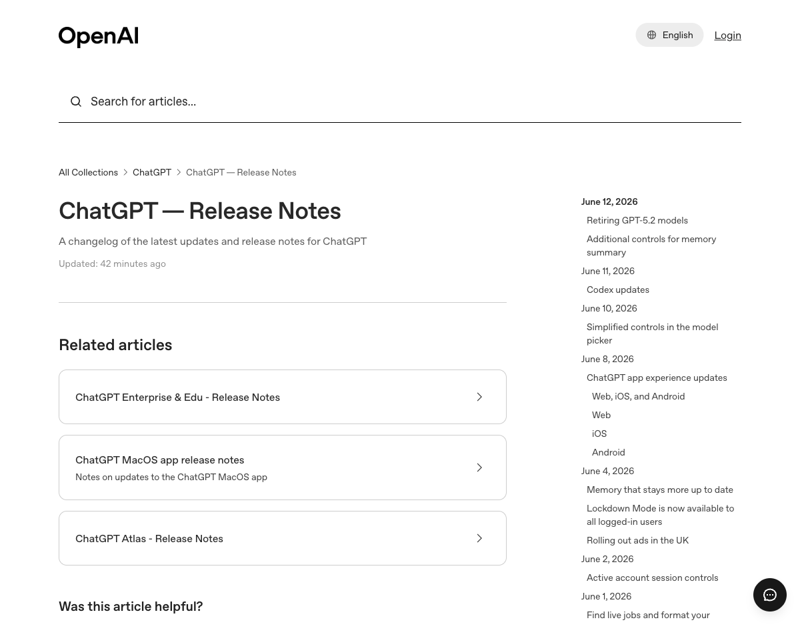
There is no separately branded “Notes” product in OpenAI’s release notes. What people are calling Notes is OpenAI’s June 8, 2026 “writing blocks” update — full-screen document editing for longer-form work (the release notes literally list “essays, PRDs, reports, blog posts, notes, and other document work”) that you can save into your Library as a reusable document. Pair that with the Library tab OpenAI has been building out since earlier this year, and you get something that behaves like a notes feature: a place to write, save, and come back to documents instead of letting them vanish into chat history.
So: not a Notion killer with a tidy launch page. More like ChatGPT growing a memory for the documents you make in it.
First: do you even have it?
This is a gradual rollout, so the honest first step is to check rather than assume. Look for one of these:
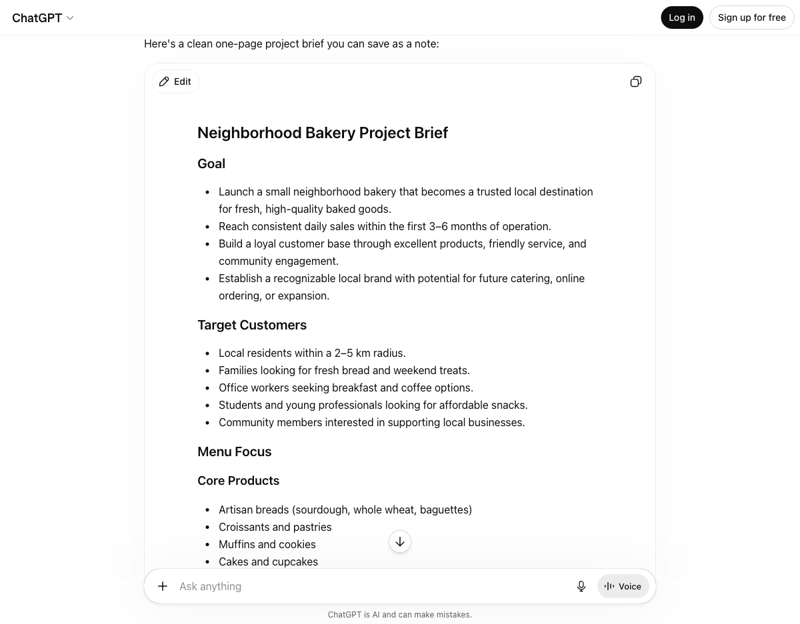
- A “writing block” with an expand icon. Ask ChatGPT to draft something longer — “write me a one-page project brief.” If the answer appears in a bordered block with an option to pop it out full-screen, you have the new editor.
- A Library tab in the left sidebar (web) or menu. Open it. If you can create a new document there, that’s the second path.
If you don’t see either yet, you’re not doing anything wrong — it just hasn’t reached your account. Free and Go plans got expanded Library storage in May, so it’s spreading, but unevenly. Check back in a week.
The two ways to make a note
Path 1 — from inside a chat. When ChatGPT writes something worth keeping, look for the writing block, expand it to the full-screen editor, give it a title, and save it to your Library. That “save to Library” is effectively “turn this answer into a note.” You get markdown formatting (headings, lists), and longer docs even get an automatic table of contents.
Path 2 — from the Library. Open the Library and use the new-document / “create a note” action. It drops you straight into the same full-screen markdown editor with a blank page, and saves to your Library when you’re done.
Either way, the payoff is the same: the document survives outside the conversation. You can reopen it, edit it, download it, and — increasingly — ask ChatGPT in a new chat to pull it up and build on it.
What it’s genuinely good for
- A personal prompt library. Save the prompts that actually work — your email rewriter, your meeting-summary format — as notes you reuse instead of rebuilding.
- A “second brain” of fixes and answers. That config that finally worked, the explanation that finally clicked — keep it where you’ll find it.
- Drafts that don’t die in chat history. Blog posts, briefs, reports you’re iterating on, with a real editor instead of a cramped chat bubble.
- Research scratch pads. Dump findings into a note, clean them up, reference them later.
The theme across all of these: it closes the gap between “ChatGPT said something useful” and “I still have it next month.”
What this means for you
If you live in ChatGPT for work: this is a real quality-of-life upgrade. Start one note as your prompt library and one as your running “answers worth keeping.” That alone will save you re-asking the same questions.
If you already use Notion or Obsidian: don’t migrate. ChatGPT Notes is a convenient capture-and-iterate surface, not a knowledge-management system. Use it for AI-generated drafts, then move the keepers into your real system.
If you’re a student or writer: the full-screen editor with a table of contents is a genuinely nice place to draft long pieces, and keeping sources/notes attached to the AI that helped you write is a tidy workflow.
If you don’t have it yet: you can fake most of it today. Keep one ongoing ChatGPT chat titled “My Notes,” paste your keepers there, and turn on Memory so it can recall them. Clunkier, but the same idea for free.
What it can’t do (yet)
Set expectations honestly, because early users are running into the rough edges:
- It’s buggy. The most common complaints: you “create a note” from a chat and nothing visibly happens (you can’t find where it went), or a note opens read-only when referenced from a chat. It’s early.
- It’s not a real notes app. No folders, no tags, no databases, no backlinks, no templates. Next to Obsidian or Notion it’s bare-bones — by design, for now.
- It’s cloud-only and locked to ChatGPT. No local files, no offline vault, no easy two-way sync with your existing tools. Your notes live in OpenAI’s world.
- It’s not universal. Gradual rollout means your coworker may have it and you may not, which makes it hard to rely on for shared workflows.
- It won’t organize itself. It captures; it doesn’t curate. Without a little discipline (clear titles, the occasional cleanup) the Library becomes another pile.
The right mental model: it’s a bridge between chatting and keeping, not a destination. Treat it as a fast capture tool and you’ll like it. Expect a second brain and you’ll be let down.
The bottom line
ChatGPT Notes — really, the new writing-blocks-plus-Library combo — is OpenAI nudging ChatGPT from “a place where conversations happen” toward “the place where your work lives.” It’s early and a little rough, but the core idea is overdue: your best AI answers shouldn’t evaporate the second the chat scrolls away. Check if you have it, start with a prompt-library note and an answers-worth-keeping note, and let it earn its place.
Want to get genuinely fast with ChatGPT — the prompts worth saving in the first place, and a workflow that compounds? Start with AI Fundamentals, then Prompt Engineering to build the prompt library that makes a feature like this actually pay off.
