

You’ve got a little sum you do twenty times a week. A job quote, a tip split, a deposit. It lives in your head, on a scrap of paper, or in a spreadsheet only you understand.
On November 24, 2026, Anthropic released a button for that, as a beta. It’s called Install as app. You describe a tool to Claude, try it in the chat, then turn it into a Mac or Windows app with its own icon and window. Anthropic’s help article lists it as a beta on every plan, Free included.
But “free” has a few edges, and they matter more than the button does. So this guide covers what a Free account gets, how to build one useful tool, how to catch it getting your money wrong, and which permission to refuse.
TL;DR. Install as app turns a Claude artifact into a desktop app on Mac or Windows. It’s a beta on every plan, though Enterprise owners have to switch it on. You need the desktop app, version 6.28899.0 or later, and you stay signed in and online. On Free, Anthropic’s plan table leaves out saving data and connected apps, so build calculators, not trackers. And test the math before you quote anyone from it.
What is Install as app?
An artifact is something Claude makes that you’d put in front of someone: a document, a design, a dashboard, a small interactive tool. It opens beside your chat. Install as app takes that artifact and gives it a window of its own, an icon of its own and a place among your computer’s apps.
Anthropic’s announcement puts the idea simply: a tool you rely on for work should open like the rest of your apps and remind you when something needs your attention.
Two details from the help article change how you think about it:
- It’s still the same artifact. When you (or another editor) change the artifact, the installed app changes too.
- It doesn’t run on its own. To open it, you need to be online and signed in to Claude Desktop.
So this isn’t like downloading a calculator from an app store. It’s closer to pinning one of your Claude creations to your desktop, with extra powers it has to ask you for.
Anthropic’s own example prompts show the range: “Make a Pomodoro timer that lives in my menu bar.” “Make a small Mac app that reminds me to stretch every hour.” “Make a Windows app that renames the photos in a folder by date.” The first two are tidy little helpers. The third one touches your files, and that’s a different level of trust (more on that below).
One more thing, because people mix these up. Your browser’s “Add to Dock” or “Add to Home Screen” only adds a shortcut. Anthropic says those don’t get the desktop features at all.
Is it free?
Yes, the feature is listed on the Free plan. No, a Free account doesn’t get everything an artifact can do.
Here’s what Anthropic’s pages said on November 28, 2026:
| What you want | Free plan | Pro, Max, Ultra | Where it comes from |
|---|---|---|---|
| Build an artifact in a chat | Yes | Yes | Artifacts help article |
| Install it as a Mac or Windows app | Yes (beta) | Yes (beta) | Install help article |
| Save data between sessions (entries, history, trackers) | Not listed | Yes | Artifacts help article |
| Read or write your connected apps (calendar, Slack and so on) | Not listed | Yes | Artifacts help article |
| Building it and its calls to Claude | Count toward your limits | Count toward your limits | Install help article |
Read the third row twice. The artifacts help article says “Store data in an artifact” is available on Pro, Max, Ultra, Team and Enterprise plans. Free isn’t on that line.
That reshapes what’s worth building on a Free account. A calculator that takes numbers and shows a result is a good fit. A habit tracker, a customer list or a sales log is a bad one, because it may not remember anything the next time you open it. We didn’t test saving ourselves, so if you’re unsure, add one entry, close the app, open it again and look.
What counts against your limits
The install help article says: “Building an app, and any requests an app makes to Claude, count toward your plan’s usage limits.”
That sentence names two things. Building it (your chat with Claude), and any time the finished app asks Claude something. It doesn’t say that opening the app or typing numbers into it costs anything, and no page we read says either way. A plain calculator has no reason to ask Claude anything, which is why the prompt further down tells it not to.
On the other hand, an app that summarizes emails or drafts replies every time you open it is asking Claude. Claude’s pricing page gives Free accounts limited usage every five hours and every week. And that usage is shared: Anthropic’s limits article says claude.ai, Claude Code and Claude Desktop all draw from the same limit.
If you decide you need saved data or connectors, Claude Pro is listed at $20 billed monthly, or $200 billed up front for a year, before tax. Don’t buy it for a calculator.
Before you start: three checks
Do these first and you’ll skip most of the “why isn’t the button there?” frustration.
- Get the desktop app and update it. You need Claude for Mac or Claude for Windows, version 6.28899.0 or later. On a Mac, use Claude > Check for Updates. On Windows, open the menu button (☰), then Help > Check for Updates. Claude Desktop needs macOS 13 or later, or Windows 10 or later. Linux has a desktop app in beta, but you can’t install artifacts as apps there.
- Turn on the setting artifacts need. Anthropic says artifacts require “Cloud code execution and file creation” (called “Create and edit files” in the updated Settings layout). It’s under Settings > Capabilities on Free, Pro, Max and Ultra, and under Organization settings > Capabilities on Team and Enterprise.
- At work? Ask first. On Team plans the feature is on by default, but full computer access is off. On Enterprise plans the whole feature is off until an owner turns it on. Organizations set up for HIPAA, and hybrid deployments, can’t use it.
Build your first one: a job-quote calculator
Let’s build something with money in it, because that’s where a mistake costs you. Our example is a plumbing job quote, with made-up sample rates. Swap in your own.
Vague requests get guesses back. So write your rules down the way you’d explain them to a new hire. This is the full prompt we ran:
Make me a small job-quote calculator for my plumbing business. These are sample rates.

Rules:
1. Call-out fee: $75 on every job.
2. Labour: $90 per hour, billed in half-hour steps, always rounded up (1 hour 10 minutes is billed as 1.5 hours).
3. Parts: my cost plus a 30% markup.
4. After-hours job (a checkbox): labour is charged at 1.5 times the normal rate. The call-out fee and parts do not change.
5. Minimum charge: if call-out + labour + parts comes to less than $150, charge $150 instead, and show that the minimum was applied.
6. Sales tax: 8% on the marked-up parts only. Add it after the minimum charge rule.
7. Show every line (call-out, labour, parts, minimum adjustment, tax, total) in dollars and cents.
8. Labour is entered as hours and minutes. If a number is empty, treat it as 0. If any number is negative, show an error and no total.
9. Do not use Claude, any connected app, any external library or any web address. Everything must be calculated in the page.

Reply with one complete, self-contained HTML file and nothing else.
If you’re typing this into Claude’s app, you can drop the last line. We added it because we ran the test outside claude.ai (details below).
And here’s a blank version for your own trade:
Make me a small price calculator for my [type of business].

Rules:
1. Fixed fee on every job: [amount, or none].
2. Time: [rate] per [hour or visit]. Round [how, and give one example].
3. Materials: my cost plus [markup]%.
4. Extra charges: [after-hours, travel, rush, and exactly what each one changes].
5. Minimum charge: [amount, and whether tax comes before or after it].
6. Tax: [rate] on [exactly which lines].
7. Show every line and the total in [currency].
8. If a field is empty, treat it as 0. If any number is negative, show an error and no total.
9. Do not use Claude, any connected app, any external library or any web address. Everything must be calculated in the page.
Don’t leave out number 6 or number 8. Here’s what happened when we did.
We tried the lazy version too
On November 28, 2026, we ran two prompts twice each with Claude Sonnet 5.5, four builds in all. We ran them through Claude Code, Anthropic’s coding tool, as plain web pages. They weren’t artifacts on claude.ai and we didn’t install them, so treat this as a test of what Claude writes from each prompt, not of the install button.
The short prompt was one sentence of rates:
Make me a small app that works out job quotes for my plumbing business. Call-out fee is $75, labour is $90 an hour, I mark parts up 30%, and sales tax is 8%. Reply with one complete, self-contained HTML file and nothing else.
Then we opened all four pages in a browser and typed sample jobs into them: the same set for the two short builds, and the same set for the two long ones.
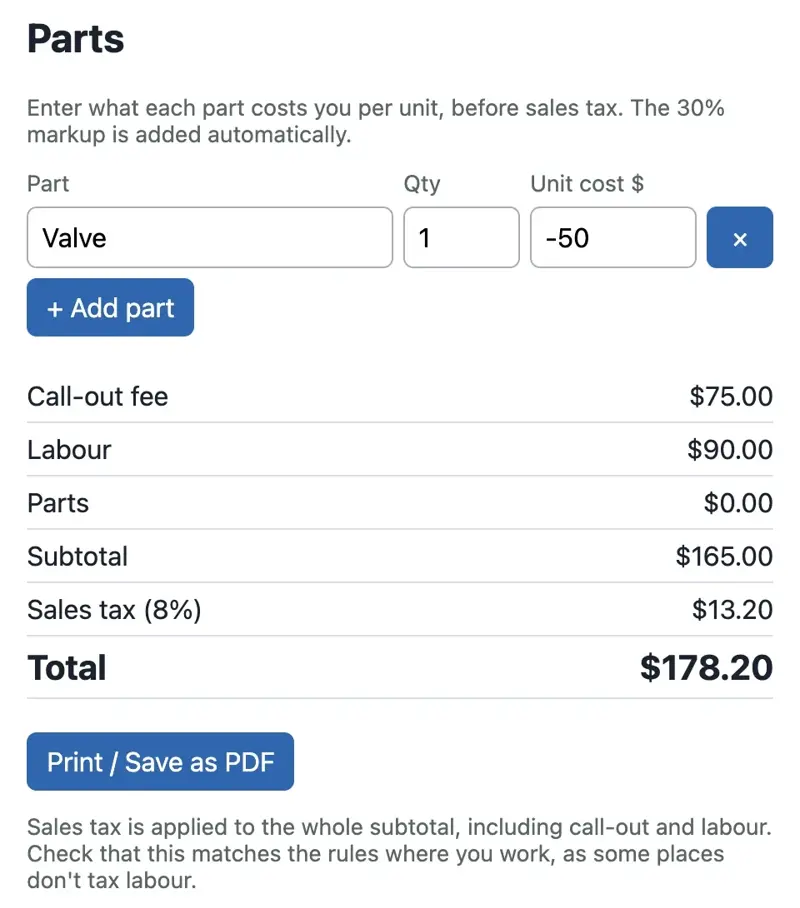
Both short-prompt builds taxed everything. The 8% went on the call-out fee and the labour, not just the parts. We never told them what to tax, so they picked. One build printed a note under the total saying so (“Check that this matches the rules where you work, as some places don’t tax labour”). The other didn’t say a word.
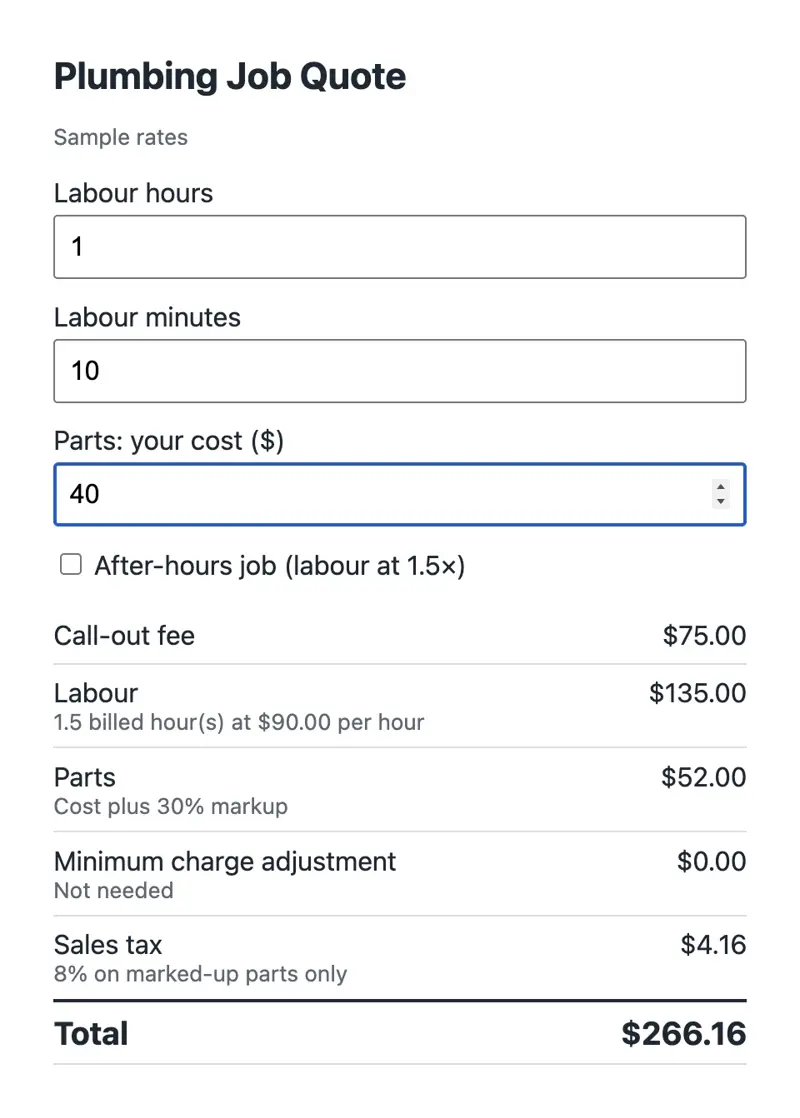
On a 1.5-hour job with a $40 part, the short builds quoted $282.96. Under the nine rules, the same job comes to $266.16. That’s $16.80 extra on one quote, which is 8% of the call-out and labour.
One short build swallowed a typo. We entered a part cost of -50. The first short build showed an error. The second counted it as zero and quoted $178.20 with no warning at all.
The nine-rule builds matched our hand math. Both gave the right total on all four priced test jobs, and both refused the negative number.
Four builds is a small sample, and your rules aren’t our rules. The lesson isn’t “this prompt is perfect”. It’s that anything you leave out gets decided for you, and the decision may not show on screen.
Test it before you quote anyone from it
Work out a few jobs by hand first. Then type them into your calculator and compare. These are the five we used, with the answers under our sample rules:
| Test job | What it checks | Correct total |
|---|---|---|
| 1 hour 10 minutes, parts cost $40 | Half-hour rounding, markup, tax on parts only | $266.16 |
| 15 minutes, no parts | The minimum charge | $150.00 |
| 2 hours after hours, parts cost $100 | The after-hours rate leaves other lines alone | $485.40 |
| 20 minutes, parts cost $20 | Tax added after the minimum | $152.08 |
| 1 hour, parts cost -$50 | Bad input is refused | No total, an error |
Here’s the working for the first one, so you can copy the method: $75 call-out, plus $135 labour (1 hour 10 rounds up to 1.5 hours at $90), plus $52 parts ($40 and 30%), makes $262. Tax is 8% of $52, or $4.16. Total $266.16.
Then try one more thing: open it and type nothing. Both of our nine-rule builds showed $150.00, because the minimum charge applies to an empty quote. The short builds showed $81.00. Neither is wrong by the rules we gave, but you should know what yours does before a customer sees the screen.
If a total is off, don’t fix it in your head. Tell Claude which job, what you got and what you expected. For example: “For 1 hour 10 minutes with $40 parts I expect $266.16, you show $282.96. Tax applies to parts only. Fix it and tell me what you changed.” Then run all five again, not only the one that failed.
How to install it, step by step
We didn’t run this part ourselves, since installing needs Claude Desktop signed in to an account. These steps are Anthropic’s.
- Open the artifact in the main Claude Desktop window.
- Open the artifact’s title menu, or right-click the artifact.
- Select Install as app.
- Select Install to confirm.
You’ll also find Install as app under Share. An artifact can even show its own install button if you ask for one, and Claude still asks you to confirm.
Where it goes afterwards:
- Mac: a folder called Claude Apps, inside the Applications folder in your home folder. Spotlight finds it too. To keep it in the Dock, right-click its icon and choose Options > Keep in Dock.
- Windows: the Start menu, in a Claude Apps folder, plus a shortcut on your desktop.
- Inside Claude Desktop: File > Apps lists them. On Windows, File is under the menu button (☰).
To remove one, go to File > Apps, select the app and choose Uninstall. On a Mac it moves to the Trash; on Windows its shortcuts are removed. The artifact itself isn’t deleted. If you pinned it to your Dock or taskbar, take it off there as well.
Permissions: what to refuse
By default, an installed app can only do what it could do in a web page. Anything more, it has to ask for, and you answer Allow or Don’t allow.
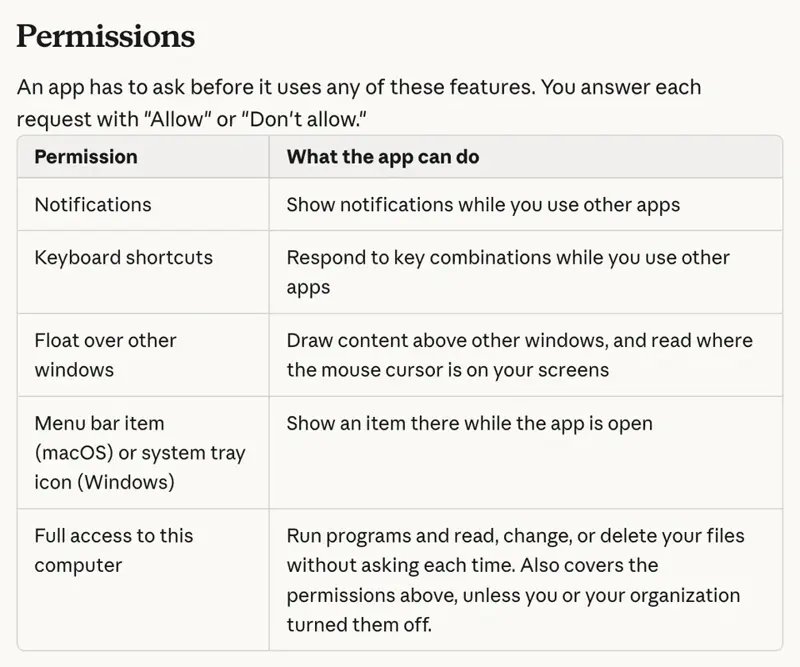
The first four are ordinary. A stretch reminder needs notifications. A timer might want a menu bar item. Note one quirk: “float over other windows” also lets the app read where your mouse pointer is on your screens.
The last one is not ordinary. Full access to this computer means the app can run programs and read, change or delete your files without asking each time. It also covers the other permissions, unless you or your organization turned those off.
Anthropic is blunt about it: “Anthropic doesn’t review apps before you install them.” So here’s a simple rule I’d follow.
- A calculator, timer or checklist asks for full access? Don’t allow. It has no reason to.
- A tool that has to touch files (renaming photos, sorting a folder) asks for it? Read what you asked Claude to build, try it on copies first, and only then think about it.
- Anything someone else made? Treat it like a file from a stranger.
A few mechanics that will save you a surprise:
- An Allow covers one version. After any update, including your own edits, Claude asks again. A “Don’t allow” stays until you change it.
- If an app loads code from another website, that code can change without a new request.
- Turning full access off doesn’t undo what the app already did to your files. It can also reload or close the app, so save your work first.
- On Free, Pro, Max and Ultra plans, you can only give full access to apps you made yourself. On Team and Enterprise plans, apps made by people in your organization count too.
To change an answer later: on a Mac, click the app’s name in the menu bar and choose Permissions. On Windows, right-click the app’s title bar (or press Alt+Space) and choose Permissions.
If you run a team
Owners and admins control three switches under Organization settings > Artifacts: installing apps, the ordinary app permissions, and full access. The admin guide lists Team defaults as on, on and off. Enterprise defaults are all off, and so are all three for organizations with customer-managed encryption keys or organization-wide zero data retention.
There’s a gap to know about. The same guide says app opens are logged in the Compliance API, but installs, permission answers and what an app does on the computer aren’t. TechRepublic suggests a careful pilot: start with a tool built from sample notes, keep full access off, then make a small edit and have a colleague reopen it, to see how the approval behaves.
Sharing it with someone else
Go slowly with this part.
An app is your artifact in a window. To give it to someone, you share the artifact from its Share menu. Artifacts start private, and Anthropic’s sharing article says nothing is shared until you share it. On Pro, Max and Ultra plans the choices are “Only you” or “Anyone with the link”, with email invitations in beta. Check what your own Share menu offers before you promise a colleague a copy.
To use it as an app, the other person needs Claude Desktop at the same minimum version, an internet connection and a Claude sign-in.
What they can’t borrow from you:
- Your connected apps. Someone else’s copy uses their own connections, not yours.
- Claude features, in some cases. Someone opening a link without being signed in, or from outside your organization, sees the artifact, but the parts that use Claude or connectors don’t work for them. On personal plans, “outside your organization” means anyone but you.
And if your calculator holds your markup and your rates, remember that whoever opens it can see what it does. Don’t send your cost structure to a customer.
How it compares with what you already have
| Option | What you get | Needs | Good for |
|---|---|---|---|
| Claude artifact installed as an app | Its own window and icon; updates when you edit the artifact | Claude Desktop, online and signed in; Mac or Windows | A tool you open many times a day |
| The same artifact left in Claude | Lives in your Artifacts tab | Claude on the web or desktop | A tool you use now and then |
| Browser “Add to Dock” or home screen | A shortcut only | A browser that offers it | Quick access, none of the desktop features |
| A spreadsheet | Cells you can inspect one by one | A spreadsheet app | Records you need to keep and audit |
If you built something in Claude Cowork’s “Live Artifacts” back in April (we covered five templates then), note that those can’t be installed. Neither can legacy artifacts, meaning ones made in a chat before September 16, 2026, or anything made from a template. Ask Claude to build a fresh artifact and give it your rules again.
Docs, Slides and Sheets are Anthropic’s own examples of templates that can’t be installed. If you want a deck or a document, Claude builds those in chat, but they stay documents. Prefer ChatGPT? We walked through a break-even calculator there, with the same advice about checking the numbers.
Five more tools worth trying
Each of these is a starting sentence, not a finished spec. Add your own rules the way we did above, then test.
| Tool | Prompt to start from | Works on Free? |
|---|---|---|
| Tip or commission split | “Split a day’s tips between staff by hours worked, show each person’s share and check the shares add to the total.” | A good fit: nothing to save |
| Deposit quoter for bookings | “Given a service price and date, work out the deposit, the balance and the refund if cancelled, using my policy.” | A good fit |
| Markup and margin checker | “Enter cost and price, show both markup and margin, and warn me when margin is under my floor.” | A good fit |
| Stretch or break reminder | “Make a small app that reminds me to stretch every hour.” | Needs the notifications permission |
| Loyalty-points counter | “Keep points per customer and show who has earned a reward.” | Needs saved data, so not on Free |
That last one is the trap. It sounds as small as the others, but it’s a database in disguise. And once you’re keeping customers’ names, treat it as customer data, with whatever care your privacy rules ask for.
What this means for you
If you’re a plumber, electrician or contractor: build the quote calculator with your own rounding and minimum rules. First action: write last week’s three most awkward quotes by hand, so you have answers to test against. If bids are the bigger headache, our AI for contractors course (first 2 lessons free) is about writing them.
If you run a salon, café or shop: start with the tip split or the deposit quoter. First action: write your cancellation or tip policy as numbered rules before you open Claude. If you can’t write it down, the app can’t follow it.
If you’re on the Free plan: stick to tools that calculate and forget. First action: after installing, type something, close the app and reopen it, so you know what it remembers.
If you manage a team on Claude Team: decide who may install what before someone does it for you. First action: open Organization settings > Artifacts and check that full access is still off.
If you’re the office “computer person”: you’ll get asked to approve permissions. First action: agree on one sentence with your colleagues: no full access for anything that only calculates or reminds.
If you already pay for Claude Pro: you can build tools that save data or read connected apps. First action: before connecting a calendar or inbox, read the list of apps and tools Claude asks you to approve, and turn off the ones this tool doesn’t need.
If your work computer is locked down: you may not see the button at all. First action: ask your IT team whether the feature is on, and don’t move work data to a personal account to get around a “no”.
When something goes wrong
There’s no “Install as app” button. Check the version first: 6.28899.0 or later. It’s a beta, and a Team or Enterprise organization may not have it yet. If you’re on the default Stable release channel, new things can arrive a few days later than on Latest. One user on X wrote on November 27 that the option appeared only after quitting Claude from the task tray and opening it again. On a work account, the owner may have it switched off.
Artifacts don’t show up at all. Anthropic says they need the code execution and file creation setting, under Settings > Capabilities (or Organization settings > Capabilities at work).
Your older tool won’t install. It may be a legacy artifact (made before September 16, 2026), a Cowork live artifact, or something made from a template such as Docs, Slides or Sheets. Rebuild it as a new artifact in a chat.
Your entries vanished. On Free, saved data isn’t on the plan. On a paid plan, ask Claude whether the artifact actually uses storage; a tool only saves what it was built to save.
It keeps asking for permission. That happens after every update, including your own edits. It’s meant to.
It’s still running after you closed it. An app with a menu bar or tray item keeps going. On a Mac, quit it from the Dock or press Cmd+Q while it’s active. On Windows, choose Exit from its tray icon.
A colleague can’t use it. Check they’re signed in, on a recent Claude Desktop, and that they were given access. Parts that call Claude may not work for people outside your organization.
The totals changed after an edit. An edit to the artifact changes the installed app too. Rerun your test jobs after every change, even a cosmetic one.
What it can’t do
- Run offline or without Claude. No signal in a basement job? The app won’t open.
- Run on a phone, the web or Linux. Installed apps are Mac and Windows only.
- Know your tax rules. In our short-prompt builds, Claude picked what to tax by itself. Check tax with your accountant or your local authority.
- Act as your records. A quote calculator isn’t an invoicing system. Keep quotes and invoices somewhere that saves them properly.
- Vouch for itself. Anthropic doesn’t review apps before you install them, so checking the math is your job.
It’s also a beta. Menus and limits can change, so if your screen doesn’t match this guide, trust the help article over us.
Frequently asked questions
Is Claude’s Install as app free? Anthropic lists it as a beta on the Free plan as well as paid plans. Building the app and any requests it makes to Claude count toward your usage limits, and saving data and connected apps aren’t listed for Free.
Do I need to know how to code? No. You describe the tool in plain words and try it in the chat. What you do need is clear rules and a few answers you’ve worked out yourself.
Does opening the app use up my messages? Anthropic says building an app and any requests the app makes to Claude count toward limits. It doesn’t say that opening one does, and we didn’t test it.
Does it work offline? No. You need to be online and signed in to Claude Desktop to open an installed app.
Can I install it on my iPhone or Android phone? No. Apps aren’t available on mobile or the web. A browser shortcut to your home screen isn’t the same thing.
Can I turn an old artifact into an app? Not if it’s a legacy artifact (made in a chat before September 16, 2026), a Cowork live artifact, or made from a template, such as Docs, Slides or Sheets.
Is it safe to install an app someone sent me? Be careful. Anthropic doesn’t review apps, and its sharing article says to treat someone else’s artifact like a file from an unknown sender. On personal plans, full access is only for apps you made yourself.
How do I remove an app? In Claude Desktop, go to File > Apps, select it and choose Uninstall. The artifact stays in Claude.
The bottom line
Install as app is a small button with a useful idea behind it: the sum you do all day can sit one click away, built from your own rules, without you writing a line of code. On a Free account it’s best for tools that calculate and forget. Saving things is where a paid plan starts.
The button isn’t the hard part. Your rules are. Write them down, work out five answers by hand, and don’t let anyone quote from the app until it agrees with you.
If you want to go further with Claude in your business, Claude for Small Business (first 2 lessons free) is a good next step, and AI for Electricians & Plumbers (first 2 lessons free) is built around the trades. Before you paste real customer details anywhere, AI Privacy 101 (first 2 lessons free) is worth your time.
Sources
- Claude Help Center: Install an artifact as an app
- Claude: Turn artifacts into Mac and Windows apps (November 24, 2026)
- Claude Help Center: What are artifacts and how do I use them?
- Claude Help Center: Share artifacts
- Claude Help Center: Artifacts admin guide for Team and Enterprise plans
- Claude Help Center: Install Claude Desktop
- Claude Help Center: How do usage and length limits work?
- Claude plans and pricing
- TechRepublic: Claude turns artifacts into desktop apps (November 25, 2026)
- MacRumors: Claude now lets you install artifacts as desktop apps (November 25, 2026)
- A user’s post on X about the missing menu option (November 27, 2026)