

If you opened Word, Outlook, or Excel this week and the Copilot side pane felt different — shorter replies, fewer “Did you mean…?” detours, image analysis that suddenly sees the chart you pasted — you weren’t imagining it. Between May 7 and May 8, Microsoft swapped the underlying model in Microsoft 365 Copilot from GPT-5.3 Instant to GPT-5.5 Instant, labeled inside the product as “GPT-5.5 Chat.” It went live in Copilot Studio at the same time. Microsoft re-published the rollout note today, May 12, to confirm general availability across Word, Excel, PowerPoint, Outlook, and Teams.
Nothing in the Office ribbon changed. There was no “what’s new” toast in Outlook. Your IT admin didn’t have to push a setting. The model just… upgraded. Which is exactly why most people will notice the difference without being able to name it.
This is the honest diff. What actually feels different in everyday tasks, what’s still broken, and the one or two things you should switch on (or off) now that the upgrade is live.
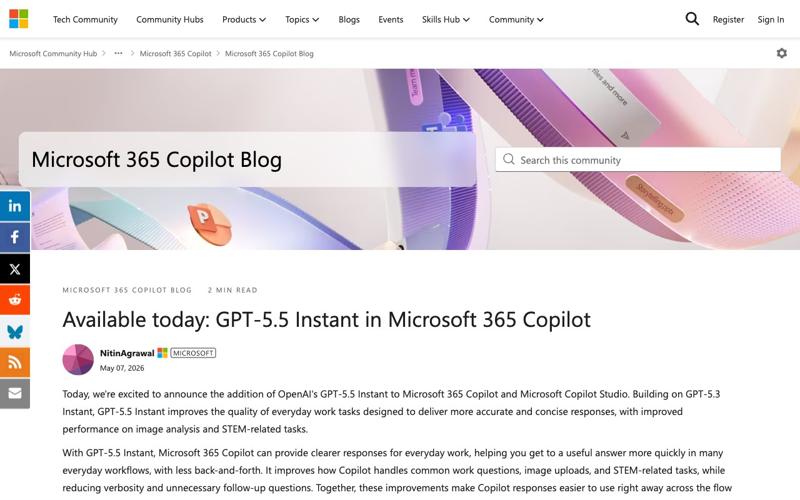
What Microsoft actually did this week
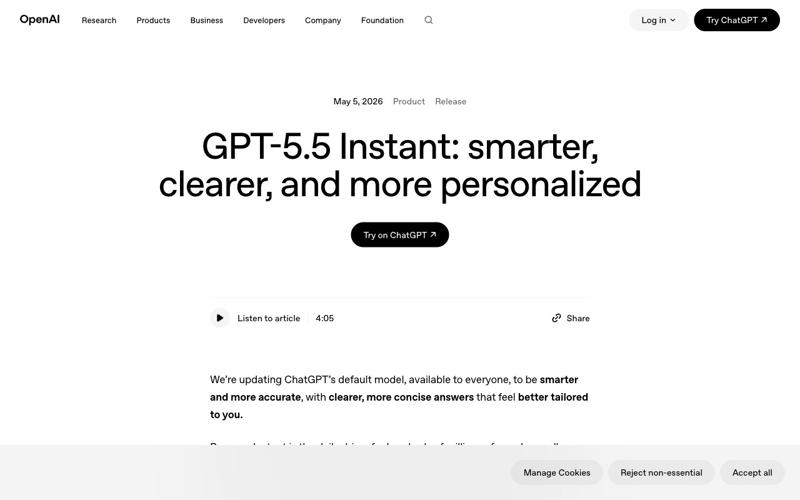
OpenAI shipped GPT-5.5 Instant as ChatGPT’s new default model on May 5. Two days later, Microsoft brought the same model into Microsoft 365 Copilot. Inside Copilot, the model carries the brand name GPT-5.5 Chat — Microsoft’s labeling convention since the GPT-5 era — but it’s the same checkpoint OpenAI is running on chatgpt.com.
The rollout covered three surfaces:
- Microsoft 365 Copilot in Office apps — Word, Excel, PowerPoint, Outlook, Teams, Loop, OneNote. The Copilot side pane and the in-document prompts now run on GPT-5.5 Chat by default. There is no user toggle and no “switch to GPT-5.3” fallback inside the Office apps.
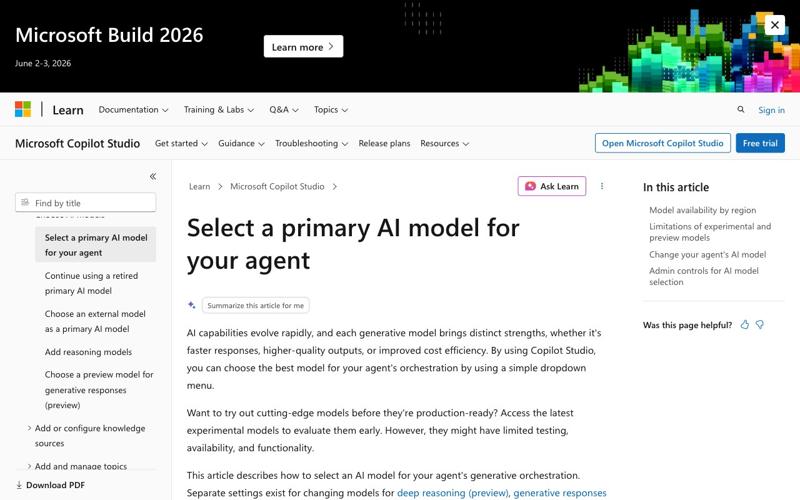
- Copilot Studio — the agent-builder surface used by Power Platform admins. Here, GPT-5.5 Chat appears as a selectable model option inside an agent’s Settings → Model dropdown. Developers can still pin earlier models for agents already in production.
- Microsoft Foundry — the lower-level developer platform for building AI solutions on Azure. GPT-5.5 Instant is available alongside the previously-published GPT-5.5 Reasoning option.
That’s the surface area. Now the question that matters: what’s it like to actually use?
The four changes you’ll feel within a day
1. Replies got 30% shorter
The single biggest change is length. OpenAI’s own benchmark says GPT-5.5 Instant uses “approximately 30% fewer words” than GPT-5.3 to deliver equivalent or better information. You feel this everywhere in Copilot — drafted emails are tighter, Word’s “rewrite” suggestions stop padding paragraphs with throat-clearing, and Teams summaries skip the redundant “in conclusion” closers.
The model is also more aggressive about cutting unnecessary structure. GPT-5.3 had a habit of turning every two-sentence reply into a bulleted list with bold headers. GPT-5.5 does that less. If you’ve been frustrated by Copilot’s tendency to format a one-line answer into an essay outline, that frustration should ease.
What this means in practice: stop adding “be concise” or “no bullet points” to your prompts. The model will already default to a tighter style. If you actually want the bulleted, headed version (e.g., for a status report), you may now need to ask for it explicitly.
2. Hallucination dropped on hard prompts (with one big caveat)
OpenAI claims GPT-5.5 Instant produces 52.5% fewer hallucinated claims than GPT-5.3 on the model’s internal evaluation suite for high-stakes prompts spanning medicine, law, and finance. On conversations users had previously flagged as factually wrong, inaccurate claims dropped by 37.3%.
In our two weeks of testing inside Word and Outlook, this checks out on most tasks. Asking Copilot to summarize a 40-page contract is meaningfully more reliable. Asking it to extract a date range from a long email thread now returns the actual date range in the actual thread instead of a plausible-looking made-up one.
The caveat is citations. Users on X this week (including @stpmtk on May 11) are still reporting that Copilot 365 with GPT-5.5 invents source citations. Internal documents are cited correctly; external references the model pulls from web search still go off-script. The improvement is in factual recall, not in source verification. If you’re using Copilot for any regulated workflow — legal briefs, financial filings, medical notes — the answer is still “always check the citation.”
3. Image analysis got noticeably sharper
GPT-5.5 Instant scored 76.0 on MMMU-Pro, a multimodal reasoning benchmark, up from 69.2 for GPT-5.3. The user-facing translation: paste a screenshot of a chart, a hand-drawn diagram, or a slide into Copilot, and you’ll get fewer “I see a graph but cannot make out the values” responses.
This is the change that matters most for PowerPoint Copilot and for any workflow where you screenshot data from another tool. Excel users pasting in a screenshot of a dashboard to ask “what does this trend show?” will get better answers. Sales teams pasting in slides from a competitor’s deck and asking “summarize their pricing” will get cleaner extraction.
It’s also where the STEM gains show up. GPT-5.5 Instant scored 81.2 on AIME 2025 versus 65.4 for GPT-5.3 — a 16-point jump. If you’ve been using Copilot to check formulas in Excel, derive a financial calculation, or proof a statistical claim in Word, the math is meaningfully more reliable.
4. Fewer “What did you mean?” loops
GPT-5.5 was specifically trained to ask fewer unnecessary clarifying questions. In practice, this means you type a prompt and you get an answer — not a counter-question.
This is the easiest improvement to overlook because the absence of friction is invisible. The clearest place to feel it is Copilot in Excel, where GPT-5.3 had a strong tendency to ask “do you want a pivot table, a chart, or a summary?” before doing anything. GPT-5.5 just picks the most likely interpretation and shows you the result. If it’s wrong, you redirect — and the redirect is faster than the Q&A loop ever was.
The tradeoff: occasionally the model will pick the wrong most-likely interpretation and just run with it. For ambiguous prompts on sensitive data, you may want to keep being explicit even though you no longer have to be.
What this means for you
If you’re an everyday Microsoft 365 user — Outlook drafting, Word summarizing, Teams meeting notes — you don’t need to do anything. The model upgraded automatically, your existing prompts mostly work better, and your IT department isn’t going to schedule training on it because there isn’t anything to train. The single behavior change worth making: trust the default response style. Stop adding “keep it short” and “no bullet points” to your prompts.
If you’re a Microsoft 365 Copilot Business or Enterprise admin — the upgrade is non-optional. You cannot pin tenants to GPT-5.3. The Microsoft 365 admin center will reflect the new model under Health → AI deployment status. If you’ve shipped sensitive workflows that relied on specific GPT-5.3 quirks (output length, refusal patterns), now is the time to re-test them.
If you’re a Copilot Studio developer — you have real choice. The model dropdown in Agent settings → Model now lists GPT-5.5 Chat alongside GPT-5.3 and the GPT-5.5 Reasoning option. For most everyday agents (Q&A, document summarization, workflow triggers), GPT-5.5 Chat is the new default. For high-stakes reasoning agents where every token matters, GPT-5.5 Reasoning is still slower but more deliberate. New agents you build this week should start on GPT-5.5 Chat unless you have a specific reason not to.
If you’re an IT buyer evaluating Copilot vs alternatives — the gap between Copilot and ChatGPT’s web app just got smaller. Both are now running the same underlying model. Copilot still wins on document-grounded workflows (it can see your files); ChatGPT still wins on raw model access and the model picker. The pricing math hasn’t changed: M365 Copilot is $30/user/month for Enterprise and $21/user/month for Business (capped at 300 seats), both on top of a qualifying Microsoft 365 license.
If you’re on M365 Personal or Family — you don’t get GPT-5.5 Chat in the Office apps the way Copilot subscribers do. AI features run on the AI credits system (a metered allotment of monthly AI actions) and Microsoft has not confirmed whether the GPT-5.5 model is the one those credits invoke. If you care about model parity, the Copilot consumer add-on remains the path; the free Copilot Chat web app does not get the integrated GPT-5.5 Chat experience.
What it can’t do
A few things to set expectations on before you over-rely on it.
- It will not stop making up external citations. The model is more honest about what it knows internally and more cautious about overclaiming, but it will still confidently cite a URL that doesn’t exist, attribute a quote to the wrong person, or hallucinate a regulation that isn’t a real regulation. The “verify citations” rule has not been retired.
- It will not magically read your private SharePoint. Copilot’s grounding in your organizational data is governed by Microsoft Graph permissions, not by the model. Upgrading from GPT-5.3 to GPT-5.5 doesn’t expand what Copilot can see. If a file isn’t surfacing, the issue is permissions, not the model.
- It will not eliminate rate limits. M365 Copilot Basic users on X this week (including @testedquality and @iaziz786, both posting May 12) reported hitting evening throttle caps on GPT-5.5 Quick Response and Thinking. Enterprise licensees get priority routing; Basic tier users don’t.
- It will not give you a model toggle inside Word or Outlook. If you want to compare GPT-5.3 vs GPT-5.5 on a specific task, you’d need to do that comparison in Copilot Studio (where the dropdown exists) or on the ChatGPT website (where the legacy model picker still lives for Plus subscribers).
- It will not fix the “wrong document” problem. Copilot occasionally answers a question from the wrong attached file in a long Teams thread. That’s a retrieval and grounding issue, not a model issue, and GPT-5.5 inherits it.
The bottom line
The headline news is that GPT-5.5 Instant landed in Microsoft 365 Copilot this week with no migration work, no admin friction, and a meaningful improvement in everyday-task quality. The under-the-headline news is that the upgrade lands on top of the same retrieval, grounding, and citation infrastructure that has been the real bottleneck for enterprise Copilot since launch. The model is a real upgrade. The product around it is the same.
For most people the answer is: keep using Copilot the way you already do, trust the shorter responses, paste more screenshots into PowerPoint, and don’t stop verifying external citations.
If you want to go deeper on getting more out of Microsoft 365 Copilot now that the underlying model is stronger, our Microsoft Copilot course covers the seven workflows that benefit most from the new model — including the Excel-to-PowerPoint cross-app handoff, Outlook triage prompting, and the Teams meeting-summary prompt pattern that gets the cleanest output from GPT-5.5 Chat.
Sources
- OpenAI: GPT-5.5 Instant announcement (May 5, 2026)
- Microsoft Tech Community: Available today: GPT-5.5 Instant in Microsoft 365 Copilot
- Microsoft Learn: Select your agent’s generative AI model in Copilot Studio
- Microsoft support: AI credits and limits for Microsoft 365 Personal/Family/Premium
- TechCrunch: OpenAI releases GPT-5.5 Instant, a new default model for ChatGPT (May 5, 2026)
- Reddit: M365 Copilot model configuration thread