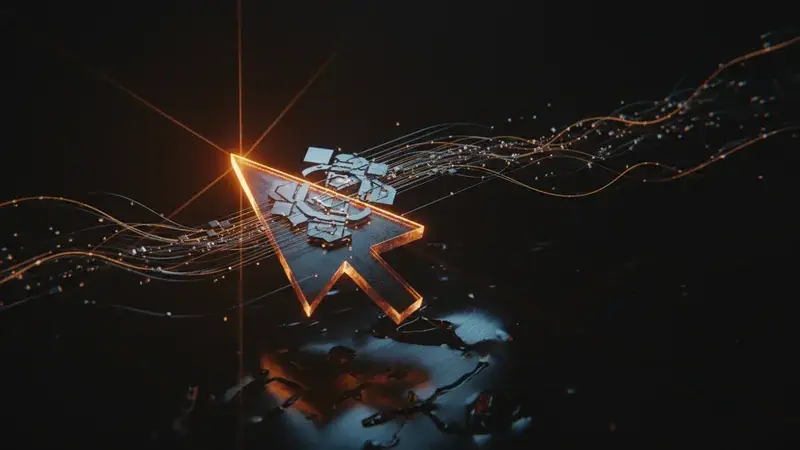
The mouse cursor has barely changed in 40 years. You point at things; the computer waits for you to also tell it what to do with the thing. Google DeepMind just shipped a working preview of what comes next: a cursor that already knows what you’re pointing at and what you probably want to do with it.
It’s called Magic Pointer. Google introduced it on May 12 alongside Googlebook, the new AI-native laptop. Most coverage treated Magic Pointer as a Googlebook feature. That’s wrong. Magic Pointer is a DeepMind research demo, it’s coming to Gemini in Chrome, and — most importantly — two interactive demos are already live in Google AI Studio. You can try them right now.
This post is a walkthrough of what Magic Pointer is, what the two live demos do, and what it means for your day-to-day computing.
What Magic Pointer actually is
Magic Pointer is a cursor that uses Gemini to read the visual and semantic context around itself. Instead of pointing at a pixel, you point at a thing — and the cursor knows what the thing is, what it’s connected to, and what makes sense to do with it next.
Three concrete behaviors:
- It understands “this” and “that.” You can say “move this here” while pointing at one image element and dragging to another. The cursor connects the verbal pronoun to the visual target.
- It carries context between apps. Point at a building in a photo, ask “where is this?” — Gemini pulls the location into Google Maps without you copying anything.
- It anticipates the next action. Hovering over a chart, the cursor can offer to extract the data, summarize the trend, or compare it to last month — instead of you having to right-click and pick from a menu.
DeepMind’s stated principle: “We want AI to help the pointer not only understand what it’s pointing at, but also why it matters to the user.” That second clause is the design break. Today’s cursor is a coordinate; Magic Pointer is an intent.
The two live demos in AI Studio
You can try both of these today. Open Google AI Studio in a browser, sign in with your Google account, navigate to the Apps gallery.
Demo 1: Image editing with point-and-speak
A cartoon beach scene loads — palm tree, crab, surfing penguin, snowman, wooden sign. Your cursor turns into Magic Pointer. You point at the crab and say “move this to the left of the palm tree.” Magic Pointer interprets the spatial language, picks up the crab, places it where you indicated.
You can chain commands. “Now make the snowman bigger.” “Add a beach ball next to the surfing penguin.” “Change the wooden sign to say ‘Tuesday.’” Each command operates on whatever the cursor is hovering over plus whatever you mention by reference.
This is a demo. It’s not Photoshop. The point isn’t that you’ll do production design work in AI Studio — the point is that the cursor + voice + Gemini stack is already coherent enough to manipulate a scene through natural-language gestures.
Demo 2: Map finding from a photo
A photo loads — a building, a landmark, an interior shot. You point at part of the image and ask “where is this?” Magic Pointer ships the visual context to Gemini, which identifies the location and pinpoints it on a Google Maps panel beside the photo.
Try it with screenshots from social media (a building you saw in someone’s vacation post), real estate listings (a property whose address isn’t in the listing yet), or news photos (a press conference whose location isn’t in the caption). The recognition isn’t 100% — it works best on famous landmarks and distinctive architecture — but when it works, it collapses a 60-second image-search workflow into a single point-and-ask.
Why this is a bigger deal than the demos suggest
The two demos are illustrative, not definitive. The shift Magic Pointer signals is the death of the right-click menu.
Today, every interaction with a digital object follows the same pattern: select the object, open a menu, choose an action, configure the action, execute. The selection step requires precise pointing. The menu requires you to know what the available actions are. The configuration requires you to know the parameters.
Magic Pointer collapses all three. You point in the rough vicinity, you say what you want in plain language, the cursor figures out the rest. That’s not a UI improvement — it’s a different model for how humans direct computers.
This matters specifically for:
- Knowledge workers who spend hours moving information between apps (paste this PDF chart into a slide, find this email in Slack, pull this number from the dashboard into a doc). The point-and-speak loop is faster than the copy-paste-switch loop.
- Designers and creative pros who want to direct revisions without learning every tool’s keyboard shortcuts. “Move the crab” is faster than locating the layer panel.
- Older users and accessibility-first users who struggle with multi-step interactions. Saying what you want collapses the cognitive load.
This is also why DeepMind shipped Magic Pointer as a research demo before shipping it as a product. Google wants developer feedback on the interaction model before locking the design into Googlebook OS, Chrome, and ChromeOS.
How to try Magic Pointer today (real walkthrough)
- Open Google AI Studio in Chrome (other browsers may degrade).
- Sign in with a personal Google account. Workspace accounts may have AI Studio gated by IT — if so, switch to your personal account.
- Navigate to the Apps tab in the left sidebar. Look for “Magic Pointer demos” or “AI Pointer experiments.”
- Pick the image-editing demo first. It teaches you the spatial-pointing-with-voice grammar that demo 2 also relies on.
- Allow microphone access when prompted — the demos are voice-first.
- Try the prompts in order: start with “move the crab to the left,” then “make the snowman bigger,” then a more ambiguous one like “give the penguin sunglasses.” See where the recognition holds and where it breaks.
Five minutes is enough to internalize the interaction model. Once you’ve felt it, the rest of the announcements (Googlebook, Gemini Intelligence on Android) make more sense — Magic Pointer is the connective tissue between them.
What this means for you
If you’re a Mac or Windows user with no plans to switch to Googlebook — Magic Pointer is coming to Gemini in Chrome. You’ll get the cursor inside the browser, not at the OS level. That’s fine for most workflows; the productivity gain shows up in Google Docs, Sheets, Slides, Gmail, and any web app you use heavily.
If you’re a Chromebook user — Googlebook is the upgrade path; Magic Pointer at the OS level is one of the headline reasons to migrate when ChromeOS Flex or your Chromebook hits end-of-life. Don’t rush the upgrade just for this; Chrome integration is good enough for most use cases.
If you’re a designer, writer, or knowledge worker — start practicing the verbal-spatial vocabulary that Magic Pointer rewards. Phrases like “move this here,” “make this bigger,” “align these,” “find this somewhere else.” This becomes your prompt vocabulary the same way “ChatGPT, write me an email about…” became a vocabulary in 2023.
If you build software — Magic Pointer is going to expose semantic-action APIs to apps that opt in. The early apps that publish what their UI elements mean (not just where they are) will become the ones Magic Pointer talks to fluently. The ones that don’t will feel inert by comparison. Roadmap accordingly.
If you teach or train others on computers — Magic Pointer is the moment the “right-click → properties” pattern starts becoming legacy. Update your courseware sooner than you would have.
What Magic Pointer can’t do (yet)
The demos are tightly scoped. Here’s what isn’t in them:
- No multi-window orchestration. Magic Pointer works inside the active window or canvas. It can’t yet drive a workflow that spans several apps with their own UIs (e.g., “copy this row from Sheets to a new Notion page and tag the customer in HubSpot”).
- No persistent memory across sessions. Each demo is stateless. You can’t tell it to remember a frequent action and reuse it tomorrow.
- No offline mode. Voice + visual context both call Gemini in the cloud. No internet, no Magic Pointer.
- English-only at launch. Voice recognition for the demos works in English. Multi-language support is “coming.”
- Recognition fails on niche content. The map-finding demo works on famous landmarks but stumbles on residential streets, indoor settings, or anything whose visual signature isn’t in Gemini’s training data.
The shipping product (Googlebook OS + Gemini in Chrome) will close several of these gaps before public availability, but the demos as they stand today reflect the realistic edge of the technology.
The bottom line
Magic Pointer is the most interesting interaction-model demo Google has shipped in years. The two AI Studio demos take five minutes to try and rewire how you think about pointing at things on a screen. Even if you never buy a Googlebook, the same model is coming to Gemini in Chrome — which means it’s coming to almost everyone.
The fastest way to be ready for this shift is to learn how Gemini actually works under the hood — what it can see, what it can interpret, what kinds of language it responds best to. Our Google Gemini course covers all of that. By the time Magic Pointer is the default cursor on your laptop, you’ll already know how to direct it.
Sources
- Google DeepMind — Shaping the future of AI interaction by reimagining the mouse pointer
- 9to5Google — DeepMind details Googlebook ‘Magic Pointer’ with demos you can try
- MarkTechPost — Google DeepMind Introduces an AI-Enabled Mouse Pointer Powered by Gemini
- The Register — Google’s AI-enabled mouse pointer understands ’this’ and ’that’
- HotHardware — Google DeepMind Launches Interactive AI Magic Pointer Demos
- PCWorld — I tried Google’s AI mouse pointer. It’s not magic yet