The new Siri AI is out. Sort of. Apple dropped the first iOS 27 developer beta the same day as the WWDC 2026 keynote, and for the first time the install is genuinely free — no $99 developer membership, just a regular Apple ID. So a lot of people are about to try putting beta software on the phone they use every single day.
Update, July 10, 2026: Apple shipped iOS 27 beta 3 on July 6 — the new Siri’s voice controls (the Pace and Expressivity sliders) are now active, and new Siri reached Apple Watch for the first time. Apple says the first public beta lands this month; reports point to around July 13. Everything below applies to beta 3 too — and if you only have one phone, the public beta is now close enough to be worth the wait.
Before you do: take a breath. There’s a right way to do this, and a way that leaves you locked out of your banking app on a Tuesday. Let’s do the right way.
Quick map of what’s ahead: back up first, install the beta, join the Siri waitlist, and — if it all goes sideways — roll back. None of it is hard. The skippable-looking steps are the ones that save you.
First, the honest warning
A developer beta is unfinished software. That’s the whole point of it. Things break. Battery drains faster. Some apps — especially banking, two-factor, and work apps — can flat-out refuse to run. And going back to iOS 26 means wiping the phone.
So one rule above all others: don’t install this on the phone you can’t live without. Got an old iPhone in a drawer? Perfect. Only have one phone? Then either wait for the public beta in July (steadier) or the full release this fall (steadiest) — or read the rollback section at the bottom before you touch a thing.
Back up before you do anything. Plug into a Mac or PC and make a local encrypted backup, or run an iCloud backup (Settings → your name → iCloud → iCloud Backup → Back Up Now). An iCloud backup made on iOS 27 won’t restore onto iOS 26, which is exactly why you want a clean one from before you upgrade.
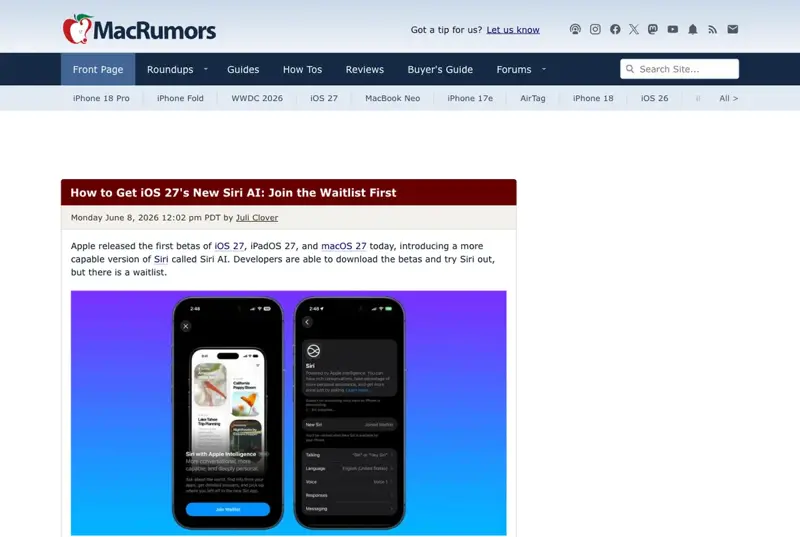
How to install the iOS 27 developer beta
Here’s the whole thing. It’s four taps once you’re signed in.
Step by step:
- Sign in as a developer. Go to developer.apple.com on any browser, sign in with your normal Apple ID, and accept the free developer agreement. You do not need the paid program anymore.
- Open Beta Updates. On the iPhone, go to Settings → General → Software Update, then tap Beta Updates.
- Pick the beta. Choose iOS 27 Developer Beta from the list.
- Install. Go back one screen. The iOS 27 beta should now appear as an available update. Tap Download and Install and let it run — it’ll restart your phone a couple of times.
That’s it for the OS. Now the part everyone actually came for.
How to join the new Siri AI waitlist
Updating to iOS 27 does not automatically hand you the new Siri. The rebuilt Siri AI rolls out behind a waitlist — the same pattern Apple used for Apple Intelligence on iOS 18.
After your phone restarts on iOS 27, open Settings → Apple Intelligence and opt in. According to MacRumors and 9to5Mac, that’s where you join the queue for Siri AI. Then you wait. And here’s the honest part, straight from people who did it Monday: the wait is unpredictable. One user posted, “I’m currently on a waitlist… no idea when. Hours? Days? Weeks?” Another joined and briefly got bounced back to old Siri while the system indexed. It sorts itself out — but don’t expect the new Siri the second the update finishes.
Two things that’ll save you a headache:
- You need the right iPhone. Siri AI needs an iPhone 15 Pro, iPhone 16, or newer. An older phone can run iOS 27 but won’t get the new Siri at all. No waitlist will change that.
- EU iPhones are out for now. If your iPhone is in the European Union, Apple has confirmed Siri AI won’t be available on iPhone or iPad at launch, due to its Digital Markets Act dispute. (You can still set up ChatGPT or Claude as your assistant instead — that’s the EU workaround a lot of people are using.)
What this means for you
If you’re an early-adopter type with a spare phone. Go for it. Install today, join the waitlist, and you’ll be one of the first to actually use the thing everyone’s arguing about.
If this is your only phone. Please wait for July’s public beta. It’s the same features with fewer sharp edges, and you skip the worst of the broken-app roulette.
If you mostly want bragging rights. Honestly? The new Siri is rolling out gradually anyway. You might install the beta, join the waitlist, and still be staring at old Siri for a while. Patience costs you almost nothing here.
If you’re in the EU. The beta won’t give you Siri AI on your iPhone no matter what you do. Save yourself the trouble and look at the assistant-swap route instead.
If it breaks: how to roll back to iOS 26
Buyer’s remorse is allowed. Here’s the escape hatch.
Rolling back erases the phone — there’s no clean downgrade that keeps your data, because iOS 26 can’t read an iOS 27 backup. That’s why the pre-upgrade backup mattered.
- Plug the iPhone into a Mac or PC.
- Put the phone into recovery mode (the button combo depends on your model — Apple’s support page lists it).
- In Finder (Mac) or the Apple Devices app (Windows), choose Restore — not Update. This installs the current public iOS 26 and wipes the beta.
- When it’s done, restore from that backup you made before installing the beta.
If you only have an iCloud backup made on iOS 27, you’re stuck waiting until iOS 27 ships publicly to get your data back. One more reason the boring backup step is the most important one on this page.
The bottom line
Installing the iOS 27 beta is easy. Doing it safely is the part people skip — and then post about. Back up first, use a spare phone if you possibly can, join the Siri waitlist in Apple Intelligence settings, and know the rollback wipes your phone before you commit.
And once Siri AI does land — on the beta now, or on everyone’s phone this fall — the real win is knowing how to actually talk to it so it saves you time instead of frustrating you. That’s a learnable skill, and it’s the same one whether you’re talking to Siri, ChatGPT, or Claude. Our AI Fundamentals course gets you fluent in a single afternoon, first two lessons free.
Sources
- How to Get iOS 27’s New Siri AI: Join the Waitlist First — MacRumors
- iOS 27 beta has a waitlist for accessing new Siri AI — 9to5Mac
- How to download the iOS 27 developer beta — TechRadar
- iOS 27 Announced: How to Install the Beta — MacRumors Forums
- iOS 27 Guide: features, release date, beta, compatibility — Macworld
