Last Wednesday, Google quietly turned one of its stranger experiments into something a lot of exhausted parents are going to want to know about. CC — the “Your Day Ahead” briefing bot that used to just email you your own schedule — got its own Google account, an invite list for up to six people, and permission to read your kids’ school emails, build your week’s meal plan, and fill out the permission slip you were about to forget again.
Google’s product lead Josh Woodward introduced it with a heart emoji and the line “Have a family? We ❤️ this in ours.” The post picked up over 1,100 likes in a day — modest by tech-launch standards, but for a household-logistics tool, that’s real interest from real parents, not just AI-news accounts.
Here’s the thing nobody’s told you yet: CC isn’t the only AI trying to do this job, it isn’t even the most capable one on paper, and depending on your situation, you might not need to install anything new at all. I went and checked what Google actually shipped, what Ohai, Nori, and Cozi already do that CC can’t, and what you can get done this afternoon with the free ChatGPT or Gemini account you already have.
What Google Actually Shipped on September 17
Google first tested CC back in December 2025 as a solo morning-briefing bot — read your Gmail and Calendar, email you a “Your Day Ahead” summary. That personal version is still around (FindSkill covered it as the Gemini Daily Brief setup). What shipped on September 17 is a different, bigger thing: a shared household version built for up to six adults at once.
The mechanics matter more than the marketing here, so let’s be precise about what Google actually built:
- CC gets its own verified Google account. It isn’t tucked inside one parent’s phone — it shows up as a distinct participant across the family’s mail, chat, and calendar, the way a shared family member would.
- A “group manager” invites up to five other adults, for a maximum household of six. (Google’s tweet says “5 members,” its own blog post says “up to six” — a small but real inconsistency in Google’s own messaging that’s worth knowing before you invite everyone in.)
- Each person chooses what CC sees. You forward individual emails, share specific senders (the school, the swim league, the airline), or share files and photos. CC does not get blanket access to anyone’s inbox by default.
- It builds one shared “Your Day Ahead” brief each morning — who’s going where, what’s due, what CC already handled.
- It extracts dates, RSVPs, forms, and deadlines from shared messages into a group Google Calendar and task list, and updates them if plans change.
- It writes weekly meal plans and shopping lists, and drafts shared Docs or Sheets for packing lists, budgets, and school-supply runs.
- It detects fillable PDFs — permission slips, camp registrations, waivers — and pre-fills the editable fields for a human to review. It cannot sign or submit them.
- It calculates real drive times between back-to-back activities using Google Maps data.
- It keeps a shared memory that separates household facts (the family’s regular grocery order, favorite restaurants) from personal ones (one kid’s allergy, someone’s time zone).
Under the hood, every CC instance runs in its own isolated cloud environment on Google’s newest Gemini models, using Antigravity, Google’s agentic tool-use harness — which is the technical reason it can actually create a Doc, check a map, and edit a calendar instead of just describing what you should do.
The catch: it’s a waitlisted Labs experiment, not a shipped product. Access is limited to people 18 and older with a personal Google account in the United States. Existing CC users are being invited in waves; everyone else joins a waitlist. Google has not announced a price, and there’s no indication yet of when — or whether — it leaves the US or the “personal account” restriction.
What Changed From the Personal Version
If you already use the solo “Your Day Ahead” briefing, here’s the honest diff: the personal version reads your own inbox and calendar and emails you a summary. The family version is the same underlying idea scaled to a group identity — six accounts, one shared brief, one shared calendar, one shared memory. It is a genuinely different product with a genuinely different setup process, not a checkbox you flip on an existing account.
The Comparison Nobody’s Written Yet
Search “which AI is best for families” today and you get an AI Overview that punts the question back to you (“tell us your kids’ ages”) and a mix of AI-literacy nonprofits and one October-2025 listicle. Nobody has put Google’s new agent next to the tools families were already paying for. So I did — pulling exact current pricing, not the numbers that get repeated from outdated blog posts.
Ohai, the closest thing to a direct competitor, is a conversational household assistant that already ingests forwarded emails, PDFs, photos, and voice notes and turns them into events, tasks, and meal plans. Its own website still advertises a “starting at $9.99/month” price, but its current Apple App Store listing shows Individual Premium at $14.99, Premium Plus at $24.99, and Premium Group at $39.99 — worth checking the actual in-app price before you commit to a number you saw in an older review (including some of mine).
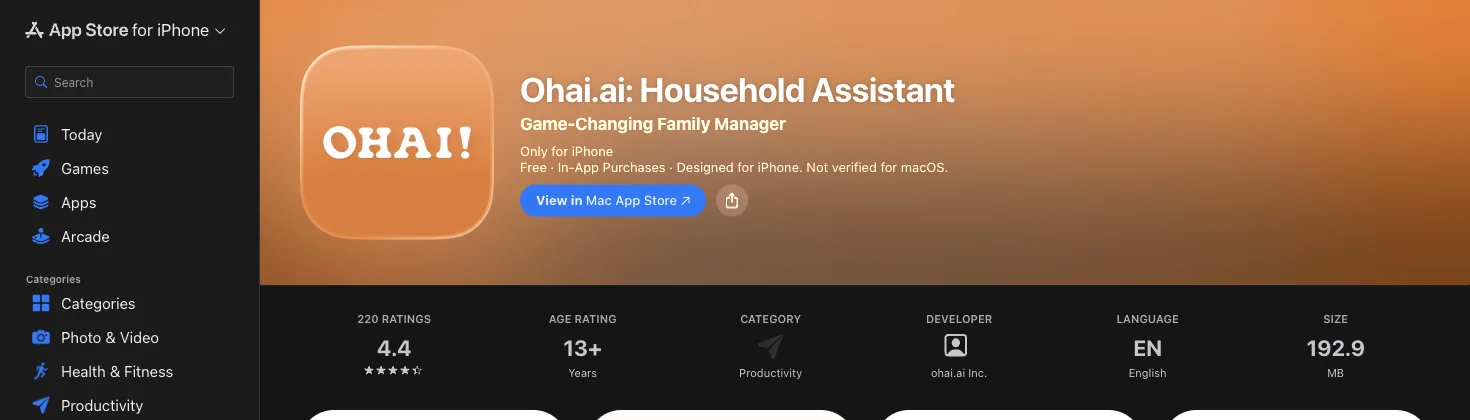
Source: Ohai.ai on the Apple App Store
Nori is the broadest of the three competitors — a shared family workspace covering calendar, tasks, recipes, meals, shopping, an AI chat mode, and an optional $200+ physical display called Nori Frame. The core app is free; Nori Plus is $7.99/month per family, covering everyone in the household on one subscription.
Cozi is the oldest and simplest: a reliable, boring, color-coded shared calendar and lists that has worked for over a decade. Its AI layer, Cozi Max, is a genuine add-on (about $79–80/year) rather than the whole product — it adds AI recipe generation, AI meal planning, and AI event import from a forwarded email or photo, but it isn’t a general household agent with persistent memory the way CC or Ohai are.
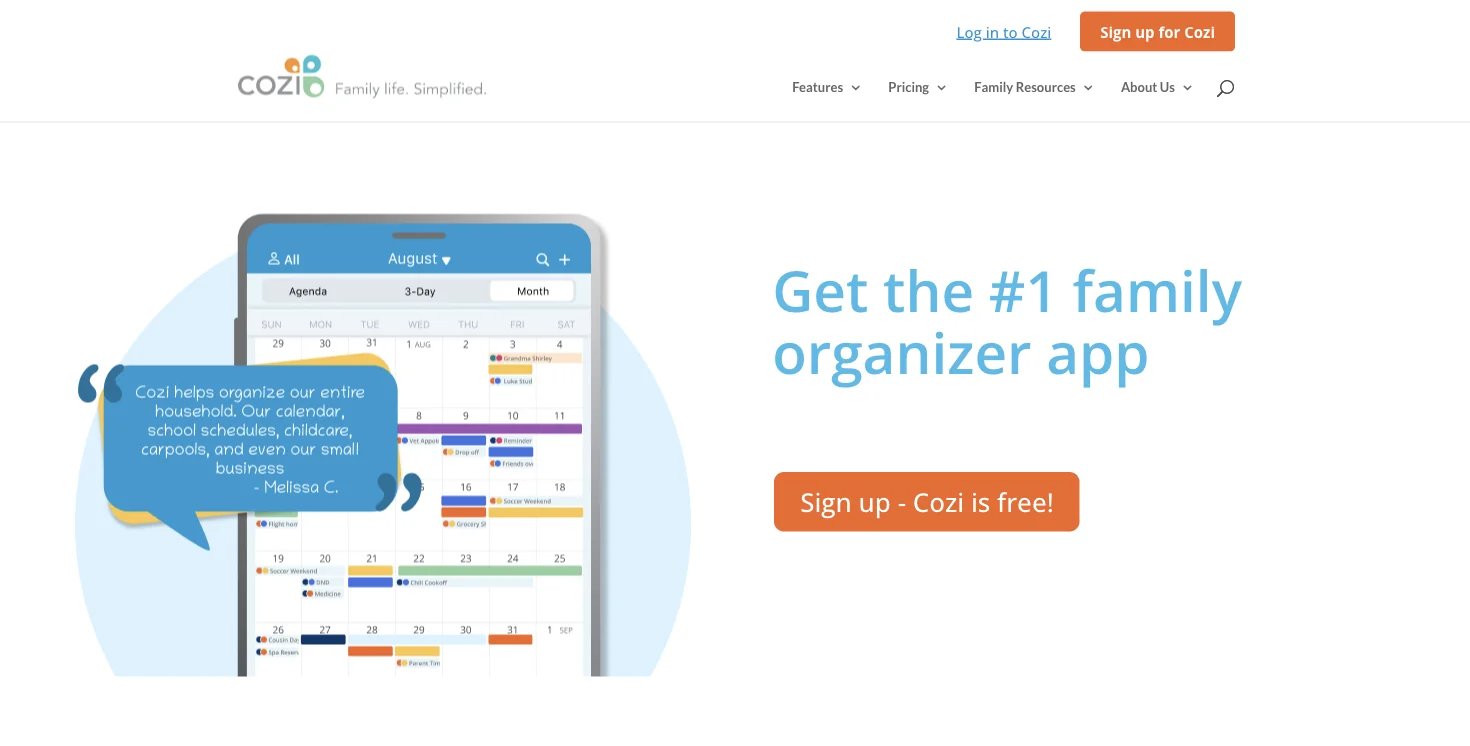
Source: Cozi Family Organizer
Feature-by-Feature Matrix
| Capability | Google CC | Ohai | Nori | Cozi / Cozi Max |
|---|---|---|---|---|
| Price | Not yet announced (Labs waitlist) | $9.99/mo advertised; $14.99–$39.99 in-app tiers | Free core; Plus $7.99/mo per family | Free core; Gold ~$39/yr, Max ~$79–80/yr |
| Household size | Up to 6 adult Google accounts | Individual/2-person/group tiers | Whole family, one subscription | Up to 12 members |
| Email intake | Only forwarded or explicitly-approved senders | Dedicated Ohai email + forwarding + uploads | Email access advertised; expanding | Forward one email/PDF/photo per event (Max) |
| Shared calendar | Creates a dedicated shared Google Calendar | Syncs Google/Outlook/Apple; builds events from messages | Shared calendar + conversational editing | Color-coded shared calendar, feeds |
| Meal plans | Weekly plan + shopping list in Docs/Sheets | Meal plans + grocery list, can hand off to Instacart | Meal plans, recipes, dietary substitutions | AI Recipe Creator + AI Meal Planner (Max) |
| Permission slips / forms | Pre-fills editable PDF fields; won’t sign or submit | Flags form deadlines as tasks; no confirmed PDF pre-fill | No documented pre-fill feature | Imports event details only, no pre-fill |
| Daily briefing | Native shared “Your Day Ahead” email | Conversational reminders | Organizer view, not a single daily email | Daily/weekly agenda email |
| Dedicated hardware | None | None | Optional Nori Frame display | None |
| Maturity | Experimental, waitlisted, US-only | Commercial, available now | Commercial, available now | Commercial, available now, most mature |
The honest read: CC’s real differentiator isn’t any single feature — Ohai, Nori, and Cozi Max all do meal plans and calendar extraction too. It’s the combination of a shared agent identity living inside Google’s ecosystem, per-member sharing controls, and an environment that can actually touch your Docs, Sheets, and Maps data natively, because it’s all already Google. If your family already lives in Gmail and Google Calendar, that’s a real advantage. If you’re on Outlook and iCloud, it’s much less of one, and Ohai — which explicitly syncs Google, Outlook, and Apple calendars — is the more realistic pick today.
The Free DIY Path (What You Can Do This Afternoon)
Before you join a waitlist or start a subscription, it’s worth being honest that a chunk of what these tools do, free ChatGPT and Gemini can already do for you — with more manual effort and none of the automatic monitoring.
Worked Example: A Real Week, Start to Finish
Here’s the exact prompt I used with free ChatGPT to build a five-dinner meal plan, followed by what the output actually looked like.
Step 1 — the prompt:
“Build a five-dinner plan for two adults and two children. Tuesday and Thursday meals must take under 25 minutes. Avoid peanuts, reuse ingredients across the week to reduce waste, and return one consolidated shopping list grouped by supermarket aisle.”
Step 2 — expected result: ChatGPT (or Gemini) returns five named dinners, a short prep-time note per meal, and a shopping list sorted into produce, dairy, meat, and pantry sections — genuinely usable output, comparable to what Cozi Max’s AI Meal Planner or Nori’s meal-plan feature produces.
Step 3 — save it. On ChatGPT Free, create a “Family Logistics” Project and pin your standing constraints (allergies, budget, who eats what) so you don’t retype them every week. Gemini’s equivalent is a saved Gem or a pinned note in a Doc it can reference.
Step 4 — the school-email version. Paste (or forward, if you’re using Gemini connected to Gmail) this week’s school newsletter and ask:
“Extract every date, deadline, required item, payment, RSVP, form, and parent action from this email. Return: calendar entries, a prioritized task list, questions where anything is ambiguous, and a five-line summary for the other parent.”
Gemini has the smoother version of this if the email already lives in your Gmail — with Workspace connected, it can read and create calendar events directly. ChatGPT’s advantage is the reusable Project scaffolding for repeated weekly uploads.
Step 5 — the permission slip, carefully. Upload the PDF and ask the model to identify blank fields and draft the answers using information you provide directly. The safer workflow, and the one Google’s own CC deliberately follows too: extract → draft → verify against the original → sign it yourself. Never let a chatbot invent a medical detail, an emergency contact, or a signature.
What the DIY Path Doesn’t Give You
Be honest with yourself about the gap: free ChatGPT and Gemini don’t watch your inbox, don’t notice when a schedule changes, don’t remind the other parent, and don’t maintain a household memory across sessions the way a dedicated agent does. They’re excellent for a one-off task; they’re not a system that runs itself. If your logistics load is genuinely heavy — three kids, split custody, multiple activities — the setup time for a dedicated tool usually pays for itself within a month. If it’s occasional, DIY is the right call.
How to Actually Get Started (Whichever Path You Pick)
If you want to try Google CC
- Check eligibility first. You need to be 18+, in the US, with a personal (not school or work) Google account. If your household is on Google Workspace for a business or a school-managed account, CC isn’t available to you yet regardless of how you sign up.
- Join the waitlist through Google Labs, or, if you’re already using the personal “Your Day Ahead” briefing, watch for an in-app upgrade invitation — Google is rolling out to existing users in waves before opening it more broadly.
- While you wait, decide who your “group manager” will be. That person sends the invitations later, so it’s worth a two-minute conversation now about who owns the account if custody, marriage, or living situations ever change.
- Start narrow on day one. Approve two or three senders (the main school email, one activity) rather than forwarding everything at once — you can always add more once you’ve seen how CC handles the first batch.
If you want to try Ohai, Nori, or Cozi today
All three offer either a free tier or a free trial, so the lowest-risk move is a two-week test before you pay for anything:
- Ohai — download the app, connect the calendars you actually use (it explicitly supports Google, Outlook, and Apple, unlike CC), and forward one week’s worth of school and activity emails to see how it categorizes them before deciding between the $14.99, $24.99, or $39.99 tiers.
- Nori — start on the free core plan covering calendar and tasks; only upgrade to Plus ($7.99/month for the whole household) once you’ve confirmed the shared-calendar workflow fits how your family actually communicates.
- Cozi — this is the lowest-risk option of the four: free core calendar and lists with no credit card required, and Cozi Max is a $79–80/year add-on you can skip entirely if you just want the basics.
If you’re going the free DIY route
- Pick one tool and stick with it for two weeks — bouncing between ChatGPT and Gemini for the same task means you never build the saved context (Projects, Gems, pinned Docs) that makes the second week faster than the first.
- Write your standing constraints once: allergies, budget ceiling, which parent handles which categories, recurring activities. Save it in a Project or pinned note so you’re not retyping it every Sunday.
- Run the meal-plan and school-email prompts from the walkthrough above for one real week before judging whether you need a paid tool at all. Most families find the gap between “free DIY” and “$8/month app” is smaller than the marketing suggests — and some find it’s bigger than they expected. You won’t know which camp you’re in until you’ve actually tried it once.
Privacy: A Safer Configuration Checklist
Whichever tool you pick, the research is consistent that the setup choices you make in the first week matter more than which brand you chose. Before you connect anything to your family’s inbox or calendar:
- Create a dedicated shared calendar rather than exposing a calendar that also contains confidential work meetings, medical appointments, therapy sessions, or financial reviews.
- Approve senders narrowly. Whitelisting an entire school district’s domain or a whole healthcare system’s email range is very different from approving one specific sender address — start with the latter.
- Prefer one-time forwarding over persistent access for anything occasional or sensitive, like a single medical form, rather than granting standing access to that sender forever.
- Redact before you upload. Student ID numbers, medical diagnoses, passport numbers, and payment details don’t need to be visible in a form just because the rest of the document does.
- Treat a photographed form like a sensitive document, not a casual chat message — the same redaction instinct applies to a phone photo of a permission slip as to a typed one.
- Give every adult their own login. Never share a single parent’s Google or email password across the household, even for convenience — this is exactly the kind of shortcut that turns a minor breach into a major one.
- Review the shared memory periodically. Old dietary restrictions, an ex-caregiver’s contact info, or an outdated address can linger in a system’s “memory” well past their relevance — check and prune it every few months.
- Require human review before anything leaves the household — a calendar deletion, an external email, a form submission, or a purchase should never be a fully autonomous action, and none of the tools above claim to do this without approval regardless of their marketing language.
- Keep an independent record of anything truly critical — custody schedules, medication timing, travel documents — rather than making an experimental AI tool your only copy.
- Test the export and deletion process before you commit months of family history to any of these services, especially an explicitly experimental one like CC.
What This Means for You
If you’re a single parent juggling everything solo — the free DIY path is probably your best first move. You don’t have a second adult to loop into a shared account yet, and a $0 ChatGPT Project with your standing constraints saved gets you 70% of the value without a subscription. First action: create one “Family Logistics” project today and paste in this week’s biggest pain point.
If you and a partner are both drowning in the same inbox — this is exactly the gap CC, Ohai, and Nori are built for. If you’re both already deep in Gmail and Google Calendar, join Google’s waitlist and try free ChatGPT in parallel while you wait. If either of you is on Outlook or iPhone-only, start with Ohai’s free trial instead — it’s available today.
If you have a blended or co-parenting household — read CC’s membership rules closely before you commit. Google’s documentation currently makes removing a member awkward (you reportedly have to delete and rebuild the whole group), which matters a lot for changing custody arrangements or a temporary nanny. Cozi’s simpler, password-based shared login has its own tradeoffs but is easier to adjust.
If your kids are older and mostly self-sufficient — you likely don’t need any of this. A shared Google Calendar and a five-minute Sunday-night ChatGPT meal-plan prompt covers most of what these tools automate.
If privacy is your main hesitation — Cozi’s iOS disclosure states usage data may be used for tracking; Nori’s policy discloses AI providers (Gemini and Claude) plus service-provider and advertising disclosures; Google hasn’t published a CC-specific retention policy separate from its general Gemini Apps notice yet. None of the four is a clean “your data goes nowhere” story — treat all of them the way you’d treat any new account with access to your family’s schedule.
If you’re budget-conscious — Cozi’s free tier plus a weekly ChatGPT meal-plan prompt gets you 80% of the way there for $0. Nori Plus at $7.99/month for the whole household is the cheapest paid option that adds real AI on top.
If you’re a working parent with a demanding job — the “Your Day Ahead” single shared brief is the single most useful CC feature on paper: one email, once, that both partners see, instead of two people separately trying to remember the same five things.
Edge Cases and Things That Will Actually Trip You Up
“How is that the ’entire fam’ if only 18+ personal accounts qualify?” — a fair question people are already asking online. CC currently cannot include anyone under 18 or a school-managed Google account, which rules out giving a teenager their own login inside the system for now.
Automatic sender-forwarding is a bigger privacy decision than it sounds. Once you approve a sender — the school, the pediatrician’s office, the swim league — every future email from that address flows into CC automatically, including anything that address ever sends, forever, until you revoke it. Approve senders narrowly, not by domain.
Removing a family member isn’t simple. Early documentation suggests you can’t just remove one person from an existing CC group — you delete and recreate it. If your household composition might change (co-parenting handoffs, a temporary caregiver), factor that friction in before you build a routine around it.
“Does it reduce mental load, or make one parent the AI supervisor?” — this is the single most common skeptical reaction from early testers, and it’s a legitimate one. Someone still has to notice what needs sharing, verify the output, and correct mistakes. If that person is always the same parent, the tool has moved the work around rather than removed it.
Ohai’s own documentation is inconsistent about how it reads email — some pages describe connected Gmail/Outlook scanning, others describe a dedicated forwarding address that never touches your primary inbox. Confirm which mode you’re actually using before you forward anything sensitive.
A missed reminder or a wrong grocery item breaks trust fast. One hands-on reviewer described spending more energy “managing the assistant” after a few small errors than she’d spent before using it. Test any of these tools for two weeks on genuinely low-stakes tasks before you rely on them for something that matters — a flight, a medical appointment, a form with a hard deadline.
“Free ai for project managers”-style searchers exist here too — if you’re specifically trying to avoid a new subscription, the DIY ChatGPT/Gemini path above is a legitimate, complete answer, not a consolation prize.
What None of These Tools Can Do
- None of them can sign a form, submit a payment, or complete a legally-binding action on your behalf. CC explicitly refuses this by design; treat any tool that claims otherwise with real suspicion.
- None of them can read a private, non-shared calendar or inbox by default — CC in particular exposes nothing beyond what’s explicitly forwarded or approved.
- None of them meaningfully reduces mental load automatically. Every option here still requires a human to notice a need exists, decide what information to share, and verify the output. The actual academic research on household cognitive labor (more below) is clear that automation of execution doesn’t automatically fix the imbalance in who’s doing the noticing and deciding.
- None of the AI meal planners account for what’s actually in your fridge unless you tell them — they optimize a shopping list, not your existing inventory.
- None of this works if one parent won’t participate. A shared system with only one contributor just becomes another inbox that one person maintains.
The Mental Load Question, Answered Honestly
“AI for families” search traffic keeps circling one real question: does any of this actually make things fairer, or just faster? The research here is more developed than the marketing.
Sociologist Allison Daminger’s widely-cited framework splits household cognitive labor into four stages: anticipating a need, identifying options, deciding, and monitoring the outcome. Current AI tools — CC included — are genuinely good at the middle two once a need has already been surfaced. They’re much weaker at the first and last: someone still has to notice the permission slip exists and confirm it actually got submitted.
A study of 322 mothers of young children found respondents reported carrying about 73% of household cognitive labor, versus 64% of physical labor — and a heavier cognitive share was linked to higher stress, burnout, and lower relationship satisfaction. A separate 3,000-parent survey found mothers reporting 71% of mental-load tasks versus 45% for fathers, with the gap widest in recurring daily categories like scheduling and food.
University of Melbourne sociologist Leah Ruppanner’s take, in a hands-on review of a family AI app: these tools may remove only “a sliver” of the load, because responsibility often stays with the same parent even after a task is technically delegated. Political scientist Ana Catalano Weeks describes the harder problem plainly — an assistant can’t help with information that hasn’t been made visible yet, and making it visible (forwarding, photographing, explaining) is itself invisible work.
The honest bottom line: these tools help most when they capture information automatically from a channel you’re already using, expose the resulting task to every responsible adult (not just the one who set it up), and create a record everyone can check. They help least when one person is still the one feeding, correcting, and monitoring the system — which just relocates the mental load instead of reducing it.
Frequently Asked Questions
Is Google CC free? Google hasn’t announced pricing. It’s a Labs waitlist experiment, not a shipped, priced product, and there’s no confirmation of whether it will eventually require a paid Google AI plan.
Can I get Google CC outside the US? Not yet. It’s currently limited to US-based users 18 and older with personal (not school or work) Google accounts.
Does CC replace Ohai, Nori, or Cozi? Not directly — it’s not generally available, doesn’t yet match Nori’s recipe/hardware ecosystem or Cozi’s decade of reliability, and can’t include anyone under 18. Think of it as a fourth option to watch, not a reason to cancel an existing subscription today.
Can free ChatGPT actually plan meals as well as a paid app? For a single week’s plan, yes, close enough that most people won’t notice the difference. What free ChatGPT doesn’t do is remember your preferences automatically next week unless you’ve saved them in a Project, or watch your inbox for changes.
Is it safe to forward my kid’s school emails to an AI? Treat it the way you’d treat any account with access to your child’s information: approve specific senders rather than your whole inbox, redact medical or ID details from anything you upload, and check what each service’s privacy policy says about human review and model training before you commit to ongoing automatic forwarding.
What is the “family organizer app” everyone’s Googling about? It’s the broader search category CC just stepped into — Cozi, Nori, and similar shared-calendar-plus-lists apps that have existed for years. CC is Google’s new, AI-native entrant into a category that already has mature, cheaper competitors.
Will CC eventually let kids have their own login? Google hasn’t said. The current 18+, personal-account-only restriction is a real limitation for families who want teenagers included directly rather than relayed through a parent.
Does using one of these tools actually save time, or just feel like it? Genuinely unclear yet — none of the vendors have published independent data on net time saved after accounting for setup and correction time. Track it yourself for two weeks before deciding it’s worth a subscription: note how many times you had to fix something the AI got wrong.
The Bottom Line
Google’s new CC is a legitimately interesting entrant into a category that already has three solid, cheaper, available-today options — and a free path using tools you already have. If your household already lives inside Gmail and Google Calendar, the waitlist is worth joining, with the honest expectation that it’s an experiment, not a finished product. If you need something that works today, Ohai’s free trial or Nori’s $7.99/month plan are the more realistic starting points. And if you just want to test whether AI helps with your specific chaos before committing to anything, the free ChatGPT prompts above will tell you in one week what a subscription would take a month to prove.
Want to go deeper on using AI for the parts of parenting that don’t fit in a calendar — behavior strategies, homework help, and building routines that actually stick? FindSkill’s Parenting in the AI Age course walks through it lesson by lesson, free for the first two lessons.
Sources
- Google — The new CC, an AI agent built for families
- TechCrunch — Google’s new ‘CC’ is an AI agent that helps families run their households
- The Verge — Google’s revamping its ‘CC’ AI as an organizing agent for families
- Josh Woodward on X — official CC family launch announcement
- Unite.AI — Google Labs Expands CC Into an AI Agent for Families and Households
- Ohai.ai — AI Personal Assistant on the App Store
- Nori — Best Family Chore Apps 2026
- Cozi Family Organizer
- PMC — Cognitive household labor: gender disparities and consequences for maternal mental health
- British Psychological Society — Mothers report taking the brunt of household mental load
- PMC — Gendered Mental Labor: A Systematic Literature Review
- The Spinoff — Can you actually outsource your mental load? I desperately tried to
- TIME — Can AI Free Women from the Mental Load of Caregiving?
- Google Gemini Apps — Upload & analyze files
- OpenAI — ChatGPT Release Notes
