

On November 9, 2026, Google began rolling out a page inside the Gemini app that shows you, in plain bullet points, what the assistant has saved about you. It is called Memory summary. Google’s own description is that you can “view, edit, and delete what Gemini Apps understands about you.”
The page is useful, but it comes with fine print. As of November 10, 2026, it is limited to US users with an active Google AI plan, in English, on a personal account. It does not by itself settle the question most people actually have, which is whether deleting your chats wipes what Gemini learned from them. Google’s pages answer that differently than you might expect, and the answer is different from what ChatGPT and Claude say about their own memory.
TL;DR. Memory summary is a readable, editable list of what Gemini has learned about you, found under Settings, then Personal Intelligence. You need a personal account, to be 18 or older, Keep Activity on, Memory on, and, as of November 10, a US account with a Google AI plan, in English. Removing a line is one thing and deleting the chats it came from is another. Google’s help page for past-chat memory says to delete the chats that contain the information. Check both.
One honest limit before we start. We have no US account on a Google AI plan, so we have not opened the Memory summary page ourselves. Everything below about what the page does comes from Google’s help pages and the launch reporting, read on November 10, 2026, and we say where those sources disagree. The worked example in the middle is a sample we wrote to show the shape of an audit, not something Gemini produced.
What Memory summary actually is
Gemini already has a memory of your past chats. Google’s help page for it says Gemini can learn from your chats, and “understand more about you and your world,” and gives examples of what that looks like: suggesting next steps for a project, offering to help plan a trip you mentioned, or comparing products you discussed. What was missing was a place to read what it had actually kept.
Memory summary is that place. Google’s help page says it “helps make sure that Gemini Apps responses are accurate and relevant for you.” In practice it is a page, grouped by topic, with several bullet points in each group. 9to5Google, which reported the rollout on the morning of November 9, saw five groups:
| Group | What 9to5Google says it covers |
|---|---|
| The Essentials | A “snapshot of your core background, location, and key relationships” |
| Career & Professional Projects | Not described in the report |
| Travel & Daily Gear | Not described in the report |
| Media & Entertainment | Not described in the report |
| Fitness & Lifestyle | Not described in the report |
Two cautions on that table. First, only The Essentials has a described scope; the other four are names. Second, treat the five as what one early report saw, not a guaranteed fixed list for every account.
There are three ways to change what is on the page, according to Google’s help page and the reporting:
- Type a request. Google’s examples are “Add to my memory that I speak Japanese” and “Remove my old phone number from your memory.” Gemini updates the summary and “may ask follow-up questions if your request is ambiguous.”
- Use the pencil icon. 9to5Google reports a pencil in the top-right corner for broader edits.
- Check Memory history. It lists when information was added or modified. Google’s help page says to tap Memory history at the top right; 9to5Google and MobileSyrup place it in the three-dot overflow menu. The two descriptions may be the same control on different layouts, or one may have changed. Look in both places.
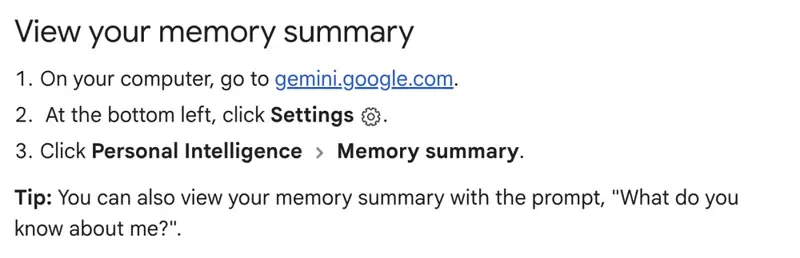
There is also a shortcut that needs no page at all. Google’s help page says you can ask Gemini, “What do you know about me?”
Who can see it today
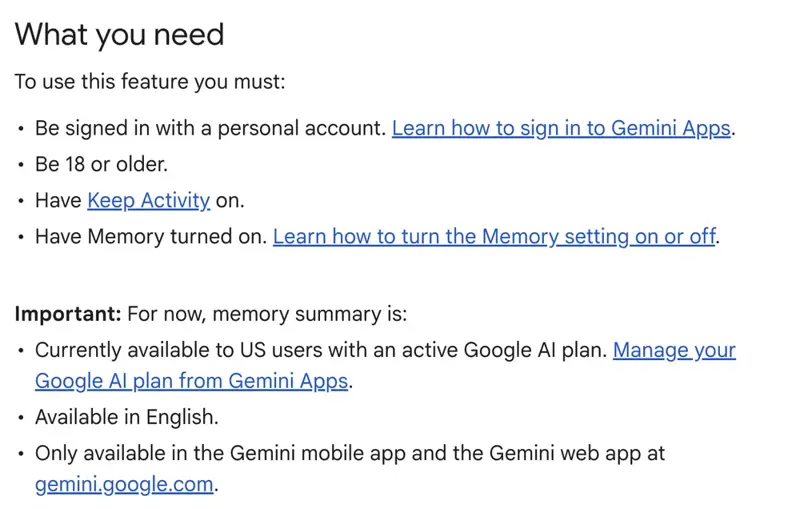
This is the part most likely to save you a wasted afternoon. Google’s help page lists what you must have, and a separate “Important” box that limits where the page works for now.
A few details sit behind those boxes.
Plan and region. Google’s help page says the feature is “currently available to US users with an active Google AI plan” and “available in English.” We did not read what the plan costs, and this guide does not give a price. A free Gemini account is not covered by that sentence.
Mobile versus web. Google’s help page says the feature is “only available in the Gemini mobile app and the Gemini web app.” The reporting is less sure. 9to5Google says it wasn’t yet seen on Android or iOS when it published, and MobileSyrup says it has not rolled out to mobile and is web only. If you cannot find it on your phone, open gemini.google.com on a computer. Both 9to5Google and MobileSyrup give a direct address, gemini.google.com/personalization-settings.
Gradual rollout. One write-up of the launch, tech-insider.org, says the rollout is gradual and availability varies by account. If you tick every box and the page is missing, that is the likeliest reason.
Work and school accounts. Google’s help page for past-chat memory says “work, school, or supervised accounts don’t get this feature.” Google’s help page for Keep Activity adds that on work or school accounts a Google Workspace administrator controls those settings. If you are looking for Memory summary on your employer’s Google account, it is not there, and no setting you control will put it there. The help pages do not describe an administrator version.
Under 18. The requirement is 18 or older.
How to open it and read it
Google’s help page gives the steps for a computer. On your computer, go to gemini.google.com. At the bottom left, click Settings. Then click Personal Intelligence, then Memory summary. On a phone, the help page says to open Menu on the left, tap Settings at the bottom left, then Personal Intelligence and Memory summary, but see the caveat above about whether your phone has it yet.
Once it is open, read it the way you would read a file someone else has kept about you:
- Look for what is wrong first. Old phone numbers, an employer you left, a city you moved from. These are the easy fixes, and they are what Google’s own examples are about.
- Look for what is right but private. A health detail, a family member’s name, a money worry. Accurate is not the same as something you want stored.
- Look for what you did not know you had told it. The Essentials group is described as covering “key relationships.” Seeing a relative’s name there is the moment to ask whether you meant to have shared it.
The early reaction on X, as a Grok search summarised it on November 10, was split. One poster described theirs as in-depth and “scary accurate.” Others asked whether this kind of transparency is enough control or still uncomfortable, and some replies to a widely seen news post were dismissive or hostile. Grok’s search did not turn up a wave of reports that the summaries were full of wrong facts. That could change as more paid accounts get the page, and we have not checked the posts ourselves, so take it as a mood, not a measurement.
A sample audit, start to finish
Here is what an audit could look like. The person and the entries below are invented by us to show the shape. This is not Gemini output, and we cannot say what the real page will include for any account.
Imagine Maya, who uses Gemini for work emails and trip planning. She opens her Memory summary and finds, in a made-up version of it:
| Group | A sample entry | Her call |
|---|---|---|
| The Essentials | Lives in Austin | Keep, it is correct |
| The Essentials | Phone number she changed in the spring | Remove, it is out of date |
| The Essentials | Sister’s name and a note about her surgery | Remove, it is her sister’s private news |
| Career & Professional Projects | Writes weekly reports for a client | Keep, but check the client is not named |
| Travel & Daily Gear | Prefers aisle seats | Keep |
| Fitness & Lifestyle | A note about a diet she tried and dropped | Remove, no longer true |
She removes entries with the same kind of request Google’s examples use. Wording of this style, written by us and following Google’s examples:
Remove my old phone number from your memory.
Remove what you have saved about my sister's surgery.
Remove the note that I am on a diet.
Gemini may ask a follow-up if a request is ambiguous, per Google. Then Maya does three more things, none of which is in the Memory summary page itself:
- She opens Memory history to see when the entries were added.
- She asks Gemini, “What do you know about me?”, as Google’s help page suggests, to see how the answer reads now.
- She goes to Activity and deletes the chats where she mentioned her sister, because Google’s help page for past-chat memory says deleting the chats that contain the information is how you delete what Gemini learned from them.
That third step is where the rest of this guide goes.
Memory is not chat history
Here is the confusion in plain terms. Gemini keeps several different things, and they are managed in different places. Google’s pages describe them separately:
| Layer | What it is | Where you manage it |
|---|---|---|
| Memory of past chats | Gemini learning from your chats to personalize | Settings, Personal Intelligence, Memory toggle |
| Memory summary | A readable, editable view of what Gemini understands about you | Settings, Personal Intelligence, Memory summary |
| Gemini Apps Activity | Your saved chats and related activity, when Keep Activity is on | Settings & help, Activity |
| Instructions | Explicit guidance you give about how Gemini should respond | A separate page; steps not read for this guide |
| Connected apps | Content and activity from your connected Google apps | Where you connect and disconnect the apps |
Google’s personalization help page lists three sources Gemini can personalize from: memory of your past chats, your content and activity in connected Google apps, and your preferences such as instructions. Memory summary is where you view and edit what Gemini understands about you; the help pages we read do not spell out which of these sources feed it.
So what happens when you delete a chat? Google’s help page for past-chat memory is direct about it. To delete what Gemini learned, it says to delete all chats containing that information in Gemini Apps Activity, and “there may be a short delay before Gemini stops using them.” To correct something, make sure Memory is on and correct Gemini in a chat; the page adds that Gemini “might not always get it right.”
In the version we read, that page does not say how it relates to Memory summary. In the pages we read on November 10, 2026, Google does not say how the two interact. If you remove a line in Memory summary but the chat that produced it is still in your Activity, does the line come back? Does deleting the chat remove the line? Google’s Memory summary help page describes removing information with a prompt, and gives no step for deleting the source chats. A research write-up we ran through Perplexity put it the same way: Google’s documentation does not fully explain how summary edits propagate to underlying chats or other stored copies. We could not test it. Until Google says, the safe move is to do both: remove the line, then delete the source chats.
Google’s help page for past-chat memory also covers connected apps. To remove information that came from a connected app, “you must” both delete the relevant chats and disconnect the app. It warns that deleting or updating data in a connected app “may not affect Gemini for days.”
Where to delete chats
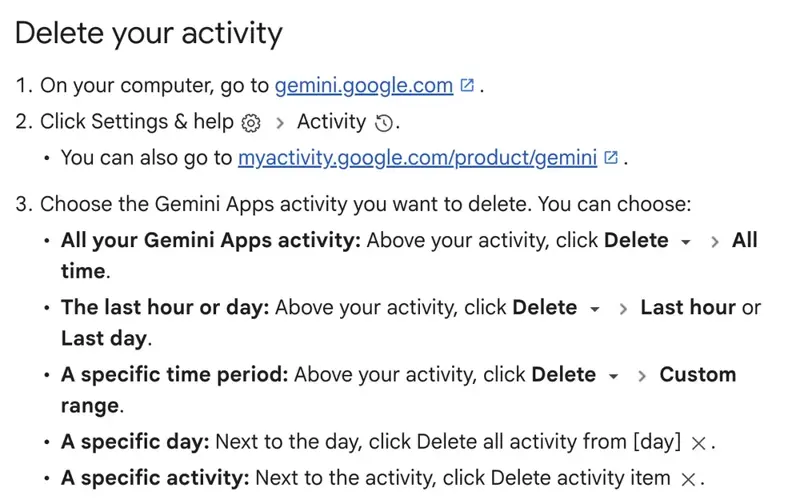
Google’s Keep Activity help page lists the steps for a computer. Go to gemini.google.com, click Settings & help, then Activity. You can also go to myactivity.google.com/product/gemini. Above your activity, click Delete and pick All time, Last hour, Last day or Custom range. To delete one day, click Delete all activity from that day. To delete a single item, click Delete activity item next to it.
Four details on that page are worth knowing before you click:
- Removal from view is immediate. Data is then removed from storage systems.
- Deleting a chat with a Gem does not delete the Gem.
- Deleting a shared chat does not remove its public link.
- Deleting a Live chat also deletes its related audio, transcript, videos and screenshares.
The timers: how long things stay
Several different clocks run in Gemini, and people mix them up. Here are the ones Google’s pages give.
| Setting | What it covers | How long | Source |
|---|---|---|---|
| Auto-delete (default) | Gemini Apps activity | Older than 18 months is deleted. You can choose 3 or 36 months, or not to auto-delete | Keep Activity help page |
| Keep Activity off | Conversations still retained for service and feedback | Up to 72 hours, not shown in your activity | Keep Activity help page |
| Temporary chats | Chats you start as temporary | 72 hours; the last 24 hours are used as context | Gemini Apps privacy page |
| Human review | A subset of chats | Reviewed chats are retained for up to three years | Gemini Apps privacy page |
Two lines on Google’s privacy page matter here. The first: chats are disconnected from your account before being sent to service providers for review. The second is a plain warning: “Please don’t enter confidential information that you wouldn’t want a reviewer to see.” Google suggests turning off Keep Activity or using temporary chats, which are not used to improve Google AI with the help of human reviewers.
Notice what the table says about off-switches. Turning Keep Activity off does not mean nothing is held: Google says those conversations are still retained for up to 72 hours, and that even with Keep Activity off or in a temporary chat, Google still uses chats to respond and to help protect Google, its users and the public.
Temporary chats are the one feature that sidesteps memory in advance. Google’s privacy page describes them as a way to “discuss info that you don’t want Gemini to remember or use to personalize your experience.” It also says temporary chats “are not used to train Google’s AI models.” The page does not say outright whether a temporary chat can create a memory, so read the first part as Google’s description of the purpose, not a technical guarantee.
How this compares with ChatGPT and Claude
If you use more than one assistant, the differences matter, because the same habit (delete the chat) works differently on each.
| Assistant | Where to look | Remove a single entry | Does deleting the chat remove the memory? |
|---|---|---|---|
| Gemini | Settings, Personal Intelligence, Memory summary | A prompt, or the pencil | Google’s past-chat memory page says to delete the chats containing the info |
| ChatGPT | Settings, Personalization, Memory | Edit the summary or delete a saved memory | OpenAI: “not necessarily” |
| Claude | Settings, Your Claude, Manage next to “Your memory” | Select a topic, then Delete | Claude’s help page: entries from a deleted chat “aren’t automatically removed” |
ChatGPT’s help page says “Deleting a chat alone does not necessarily delete a separate saved memory created from that chat,” and tells you to delete the saved memory and the chat where you first shared it, plus any other place the information appears. It adds that OpenAI “may retain logs of deleted saved memories for up to 30 days for safety and debugging purposes.” Claude’s help page says you can delete such memories individually while memory is on, and that Reset memory deletes all of them and cannot be undone.
ChatGPT also has a memory summary, and OpenAI says it “does not necessarily include every detail or source that Memory can reference.” Google’s help page does not make a matching statement about Gemini’s summary one way or the other; it says only that the summary shows what Gemini Apps understands about you. So do not read Google’s silence as a promise that the page is complete.
For each assistant, the move that matters most is the same: the page you can read is not the only place the information lives. For our earlier look at how the other two work, see ChatGPT’s New Dreaming Memory, Explained and Claude Memory: What It’s Storing About You.
What this means for you
If you are on a Google AI plan in the US. Open the page today and read all five groups. Fix what is wrong, remove what is private, then go to Activity and delete the chats those entries came from. Your first action: type “What do you know about me?” and read the answer before you open the page, so you can compare the two.
If you are on a free Gemini account, or outside the US. Google’s help page limits the feature to US users with an active Google AI plan, in English. You should not expect the page for now. You can still control the chat side: Keep Activity, auto-delete and Temporary Chats are described on Google’s separate help pages. Your first action: check your auto-delete setting in Activity and decide whether 18 months is what you want.
If you use Gemini through work or school. Google says work, school and supervised accounts do not get this feature, and administrators control activity settings on Workspace accounts. Do not assume personal-account rules apply to your work account. Your first action: ask your administrator what is kept and for how long.
If you handle other people’s private information. Google’s own guidance says not to enter confidential information you would not want a reviewer to see, and that reviewed chats are retained for up to three years. Consumer chat accounts are a poor home for client details. Your first action: read the guidance for your profession and use Temporary Chats or leave the details out. Our write-ups on Claude’s memory for professionals and ChatGPT’s locked chats cover the same questions for those tools.
If you use more than one assistant. Do a pass on each. Deleting a chat alone does not necessarily remove a memory on ChatGPT and does not automatically remove it on Claude, and Google’s pages frame it differently for Gemini. Your first action: pick the assistant you talk to most and audit that one first.
If you just want to try it. Memory is a feature, not only a risk. Google’s examples include adding something you want remembered. Your first action: add one useful, harmless fact (a language you speak) and see whether replies change.
Edge cases and things that go wrong
The page is missing and you meet every requirement. One write-up says the rollout is gradual and availability varies by account, and reporters did not see it on mobile on November 9. Try gemini.google.com on a computer, check you are on your personal account, and check you are in the US on a Google AI plan.
Memory is on but the page does not list something you remember telling it. Google’s help page does not say what the summary includes. Perplexity’s summary of the documentation says the page is a view of what Gemini understands, not a complete privacy dashboard. Ask “What do you know about me?” as a second check.
You removed a line and it reappears. This is the open question from earlier. We have not seen a source confirming or denying it. If it happens, look for the chat the information came from, delete that chat in Activity, and try again. Google says a short delay is possible.
You deleted the chats and Gemini still seems to know. Google’s help page says there may be a short delay before Gemini stops using them. If the information came from a connected app, it also says to disconnect the app and that changes there may not affect Gemini for days.
A shared chat link still works after deletion. Google’s help page says deleting a shared chat does not remove its public link.
Memory history seems to be in two places. Google’s help page puts it at the top right of the Memory summary page. 9to5Google and MobileSyrup place it in the three-dot menu. Open both.
You cannot tell which chat produced an entry. Neither the help page nor the write-ups we read say that Memory history links an entry back to its conversation. One of them lists exactly that as unconfirmed. Plan on searching your Activity for keywords instead.
What Memory summary can’t do
- It cannot show you everything Gemini holds. It is a view of what Gemini Apps understands about you. Your chats live in Activity, and connected apps are a separate source.
- It cannot, as far as Google says, delete your chat history. Google’s Memory summary page describes removing information with a prompt and gives no step for deleting the source chats.
- It does not fix the human review question. Google says a subset of chats is reviewed by humans and reviewed chats are kept for up to three years. That is about chats, not the summary page.
- It does not work everywhere. For now: US users, a Google AI plan, English, personal accounts, adults.
- It cannot undo what you already typed in a chat. Turning Memory off, per Google’s help page, stops Gemini from learning about you. The help pages we read do not say that doing so erases entries already stored, and one write-up lists that as unconfirmed.
Questions people are asking
What is Gemini’s Memory summary? A page in the Gemini app listing what Gemini Apps understands about you, which you can view, edit and delete, according to Google’s help page.
Where do I find it? On a computer: gemini.google.com, Settings at the bottom left, Personal Intelligence, then Memory summary. The direct address 9to5Google and MobileSyrup give is gemini.google.com/personalization-settings.
Why can’t I see it? The most likely reasons are your plan, your country, your language, an account that is not personal, or a rollout that has not reached you. Google’s page requires a personal account, age 18 or older, Keep Activity on and Memory on, and limits the feature for now to US users with an active Google AI plan, in English.
Does deleting my chats delete my memories? Google’s help page for past-chat memory says to delete the chats containing the information to delete what Gemini learned from them. How that interacts with Memory summary is not documented in the pages we read.
How do I stop Gemini building a memory at all? On Google’s help page, turn Memory off in Settings, Personal Intelligence. It says this stops Gemini from learning about you. For a single conversation, Temporary Chats are described as a way to discuss things you do not want Gemini to remember.
How long does Gemini keep my chats? With Keep Activity on, the default is to delete activity older than 18 months, and you can pick 3 or 36 months or no auto-delete. Reviewed chats are kept up to three years.
Is my work Gemini account covered? No. Google says work, school and supervised accounts do not get this feature.
Can I back up my memory before I delete it? None of the pages we read describe an export for the summary. We did not look for one.
The bottom line
A readable memory page is a real improvement over asking an assistant what it knows and hoping it answers honestly. It also makes it easy to feel finished after one tidy-up. The page is one layer of several, the chats behind it live somewhere else, and in the pages we read on November 10, 2026, Google does not say how the two fit together. Read the page, fix what is wrong, delete the chats it came from, and set an auto-delete period you can live with.
If you want a structured way to do this across Gemini, try Gemini Personal Intelligence: The Privacy Playbook (first 2 lessons free), which walks through what Gemini can see and how to use its off-switches. For the wider habits that apply to every assistant, AI Privacy 101 (first 2 lessons free) is the place to start. Start lesson 1 free →
For a different angle on which assistant to trust with what, see Which AI Assistant Should You Actually Trust in 2026?
Sources
- View & manage your memory summary in Gemini Apps, Google Gemini Apps Help
- Get personalization with memory of your past Gemini chats, Google Gemini Apps Help
- Gemini Apps activity and Keep Activity, Google Gemini Apps Help
- Gemini Apps privacy and temporary chats, Google Gemini Apps Help
- Get personalization in Gemini Apps, Google Gemini Apps Help
- Google Gemini app rolling out your ‘Memory summary’, 9to5Google, November 9, 2026
- Google rolls out ‘Memory summary’ on Gemini, MobileSyrup, November 9, 2026
- Gemini Memory Summary: 5 Categories, View and Delete, tech-insider.org
- Gemini’s Memory Summary: 4 Requirements, 4 Controls, shattered.io
- Memory in ChatGPT, OpenAI Help Center
- Temporary chat in ChatGPT, OpenAI Help Center
- Use Claude’s chat search and memory to build on previous conversations, Claude Help Center