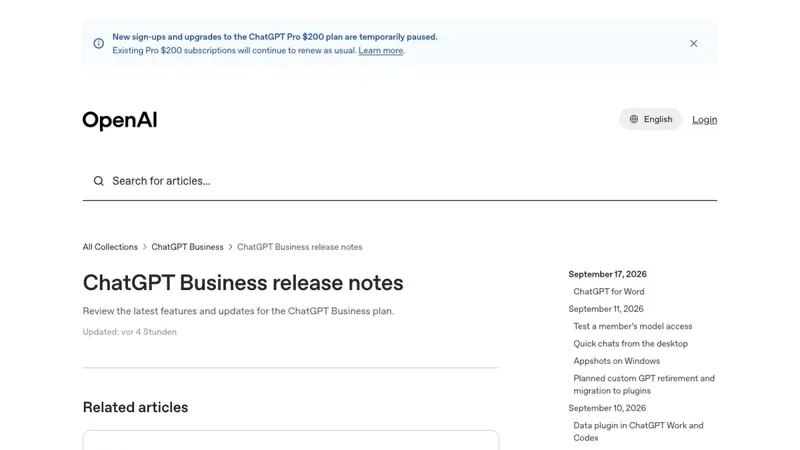
On September 17, 2026, OpenAI quietly did something it had been building toward for months: it put ChatGPT directly inside Microsoft Word. Not a browser tab you copy-paste into. Not a plugin from some third-party developer promising to “supercharge your writing.” An official sidebar, built by OpenAI, sitting right next to your document — and it works on the free plan. If you’ve been drafting in Word and pasting into ChatGPT and pasting back for two years, that loop is over as of this week.
What Just Changed
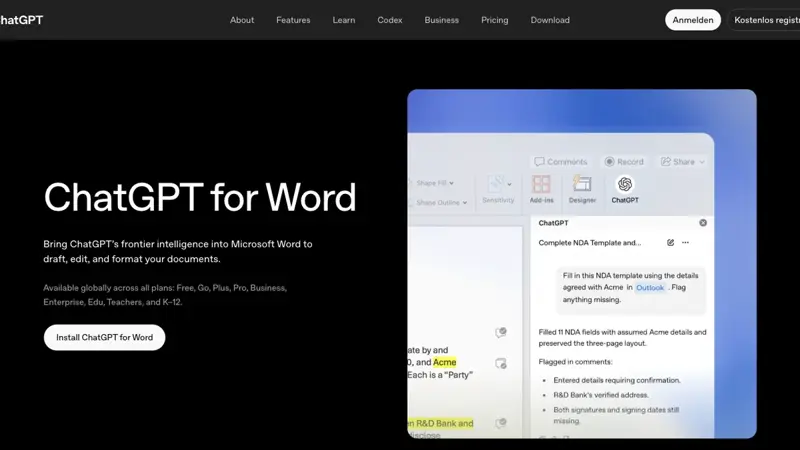
The new add-in — officially called ChatGPT for Word — is the same Microsoft Office add-in framework OpenAI already used for ChatGPT for Excel and ChatGPT for PowerPoint, extended to cover Word. It opens as a sidebar panel next to your document and does five specific things, according to OpenAI’s own release notes: draft a document from a set of notes, summarize a document you already have open, revise a block of selected text, and adjust headings and formatting to bring a document closer to a clean structure. It reads the document you currently have open — nothing more, nothing less — and hands back changes for you to accept, tweak, or throw away.
That “reads only the open document” detail matters, and we’ll come back to it, because it’s the single biggest difference between this and asking regular ChatGPT for help with the same text.
The launch tweet from OpenAI’s official ChatGPT account put it plainly: “Procrastination has met its match. ChatGPT is now in Word. You can add ChatGPT to Microsoft Word to turn rough notes into first drafts, untangle tricky paragraphs, proofread, and get suggested edits — all without leaving your document.” That single post picked up more than 4,000 likes and nearly 300 reposts within its first day, which for a product-feature announcement (not a flashy demo) is a genuinely strong signal that this landed with real working professionals, not just AI-news accounts.
Where This Fits Next to Excel and PowerPoint
OpenAI now has all three major Office document types covered by the same underlying add-in framework, but each one is built around what people actually do in that program:
- ChatGPT for Excel focuses on spreadsheet-native work: building and updating multi-tab workbooks, writing formulas, cleaning up data, and running “what if” scenarios.
- ChatGPT for PowerPoint focuses on decks: creating and revising slides, checking the story and structure of a presentation, and — for paid tiers — pulling in Skills and connected data sources.
- ChatGPT for Word is the odd one out in a useful way — it’s the most text-centric of the three, focused on prose and document structure rather than formulas or slide layout.
One OpenAI staffer, Sherwin Wu, posted on launch day that “the usage of ChatGPT for Excel and Powerpoint has been absolutely exploding recently — glad to finally bring it to Word to round it out.” That’s a real signal worth noting: Word was the gap in OpenAI’s Office coverage, not the starting point. If the same growth curve that Excel and PowerPoint saw plays out for Word — and Word is used by roughly ten times more people day-to-day than either of the other two — this is likely to become OpenAI’s most-used Office integration within weeks, not months.
Why Now: The Copilot Backdrop You Need to Know
Timing is the actual story here, and it’s worth being explicit about it. On April 15, 2026 — five months before this launch — Microsoft made a change that stripped the free, in-app Copilot Chat button out of Word, Excel, PowerPoint, and OneNote for a specific group of users: anyone in a Microsoft 365 tenant with more than 2,000 seats who didn’t have a paid Microsoft 365 Copilot license. According to independent IT-administration reporting that cites Microsoft’s own Message Center notices (MC1253858 for the large-tenant change, MC1253863 for the smaller-tenant version), organizations under 2,000 seats kept a reduced, capacity-dependent version of in-app access, while the standalone Copilot web app and Copilot inside Outlook and Teams stayed available everywhere. That same reporting cites an analyst estimate that Microsoft’s free in-app Copilot experiment had converted only about 3% of exposed users into paid license purchasers — worth noting that figure is an analyst’s read, not a number Microsoft itself has published, but it helps explain the timing of the pullback.
The practical result: a meaningful number of people who work at a mid-size or large company opened Word one day in April and found the little Copilot icon they’d gotten used to clicking was simply gone, replaced by an upgrade prompt.
Five months later, OpenAI put a free, no-Microsoft-license-required alternative right in the same spot. Several early posts about the launch made exactly this connection — one described it as “huge for people who are in the Microsoft Ecosystem but do not like using Copilot,” and multiple write-ups explicitly framed ChatGPT for Word as “no Copilot license required.” Whether or not OpenAI planned the timing that precisely, the practical effect for anyone who lost that free Copilot button in April is the same: there’s a new free option, and it doesn’t require your IT department to buy you a Copilot seat.
There’s also a more complicated wrinkle worth being straight about: GPT-5.6, OpenAI’s current flagship model, has actually been the preferred model inside Microsoft 365 Copilot itself since July 2026 — meaning OpenAI now sits on both sides of the same document, powering part of Microsoft’s own paid product while also shipping a free, competing sidebar under its own brand. One sharp observer on X called this exactly what it is: “Shipping its own pane to the free tier on top of that is a distribution move against its own partner.” That’s not a criticism you need to resolve before using the tool — it’s just useful context for understanding why this landed the way, and when, it did.
What Is “ChatGPT for Word,” Exactly?
If you’ve never used ChatGPT for Excel or PowerPoint, here’s the mental model. It’s a sidebar — a vertical panel that opens on the right side of your Word window, next to your document, not instead of it. You keep typing and editing normally in the main document area. When you want help, you talk to the sidebar the way you’d talk to ChatGPT anywhere else: type a request in plain English, get a response, and — this is the key part — accept or reject the specific changes it suggests to your actual document, rather than getting a wall of text back that you then have to manually copy over.
It is genuinely not the same thing as opening ChatGPT.com in a browser tab and pasting your document in. Three differences matter:
- It sees your open document automatically. No copy-pasting the whole thing in every time you want a second opinion on a paragraph.
- It doesn’t carry your ChatGPT memory or chat history. Every session starts fresh, seeing only what’s in the currently open file — nothing from your other conversations, and no custom instructions you’ve set up elsewhere.
- It edits in place. Ask it to tighten a paragraph and, depending on the request, you get an actual suggested revision to that paragraph in your document — not a new copy of the whole page pasted below it.
The Walkthrough: Installing and Using ChatGPT for Word
Here’s the full setup, start to finish, based on OpenAI’s own documentation and the add-in framework already proven out by Excel and PowerPoint.
Step 1: Confirm you have a Microsoft 365 subscription with Word
The add-in installs through Microsoft’s own add-in marketplace (technically called Microsoft AppSource, often just labeled “Add-ins” inside Office), so you need a version of Word that supports Office add-ins — that means Microsoft 365 (subscription Word), not the old perpetual-license “Word 2019” style installs, which generally don’t support modern add-ins. If you’re on Word for the web (Word inside a browser via office.com), that also supports add-ins and is often the fastest way to try this the first time.
Expected result: You have Word open, either the desktop app or office.com, and you can see the Ribbon (the toolbar at the top with Home, Insert, Layout, etc.).
Step 2: Open the Add-ins menu
In the Ribbon, look for a button labeled Add-ins or Get Add-ins — its exact location shifts slightly by Word version, but it’s typically on the Home tab or Insert tab. Click it. This opens a small marketplace window inside Word itself.
Expected result: A panel or dialog opens showing a searchable list of available add-ins, with a search bar at the top.
Step 3: Search for “ChatGPT” and install
Type “ChatGPT” into the search bar. OpenAI’s official add-in should appear — look for the OpenAI-branded listing rather than any third-party lookalike (more on that in the troubleshooting section below, because this is a real point of confusion right now). Click Add or Install.
Expected result: After a short install process, a new ChatGPT icon appears somewhere in your Ribbon, and clicking it opens the ChatGPT sidebar on the right side of your document.
Step 4: Sign in with your ChatGPT account
The sidebar will prompt you to sign in. Use the same account you already use at chatgpt.com — Free, Plus, Pro, or a Business/Enterprise/Edu workspace account all work, though what you can do differs slightly by plan (more on that below).
Expected result: The sidebar shows a chat interface, ready for you to type a request, with your open document already “visible” to it in the background.
Step 5: Try your first real request — a worked example
Let’s walk through an actual use case end to end: turning a page of rough meeting notes into a clean, shareable summary — one of the single most common admin and EA tasks there is.
Real input (typed into the sidebar, with a document open containing raw notes from a Tuesday planning meeting):
“From the meeting notes in this document, draft a one-page shareable summary. Use these headings: Purpose, Decisions Made, Open Questions, Next Steps. For Next Steps, format each item as Action – Owner – Deadline. Do not add anything that isn’t in the notes — if something’s unclear, mark it ‘unclear’ rather than guessing.”
What the sidebar does: It reads the currently open document, identifies content that maps to each requested heading, and returns a structured draft using the exact section headers you specified. Because you told it explicitly not to invent anything, it should flag genuinely ambiguous items (e.g., “Owner: unclear — notes just say ‘someone from marketing’”) rather than fabricating a name.
Real output (what a well-scoped request like this typically returns):
Purpose
Weekly planning sync — review Q4 launch timeline and align on
open blockers before Thursday's leadership review.

Decisions Made
- Launch date confirmed for November 3rd
- Budget for paid social approved at $12,000/month starting October
- Sarah will own the press outreach list

Open Questions
- Owner for the customer-email sequence: unclear — notes say
  "someone from marketing" without a name
- Final logo approval status: unclear — notes mention "pending"
  with no date

Next Steps
- Finalize press list – Sarah – Friday
- Confirm paid social budget with finance – Marcus – Wednesday
- Follow up on logo approval – unclear owner – ASAP
Step 6: Review and accept, don’t blindly trust. This is the step people skip and shouldn’t. Read the draft against your actual notes. Fix anything it flagged as “unclear” with the real answer. Then either accept the suggested text directly into your document or copy the parts you want.
That five-minute loop — draft, review, correct the ambiguous bits, accept — is the entire workflow. It scales down to a two-line email reply and up to a full first-draft report; the sidebar doesn’t change, only the size of what you ask it to do.
A Second Worked Example: Reformatting a Document to Match a Template
The “adjust headings and formatting” function deserves its own walkthrough, because it’s the one most likely to save real time for anyone working from a firm, school, or organizational template.
Real input (with a rough draft memo open that has no consistent heading structure):
“Reformat this document to match a standard internal memo structure: a bold ‘To/From/Date/Re’ block at the top, then sections titled Background, Analysis, and Recommendation, each as a Heading 2. Keep every sentence of the existing content — only change structure and headings, not wording.”
What the sidebar does: It scans the document for content that logically belongs under each heading, inserts the requested structure, and — because you explicitly said not to touch the wording — should leave your actual sentences untouched, just reorganized under the new headers.
Real output (the same content, restructured):
TO: Program Committee
FROM: J. Alvarez
DATE: September 18, 2026
RE: Q4 Volunteer Coordination Update

Background
[existing paragraph text, unchanged]

Analysis
[existing paragraph text, unchanged]

Recommendation
[existing paragraph text, unchanged]
This is the function to reach for any time you’re handed a rough draft and told “make this match our format” — a task that used to mean manually re-typing headers and shuffling paragraphs by hand. The instruction to preserve exact wording matters: without it, a formatting request can drift into also rewriting sentences you didn’t ask to change, which is exactly the kind of scope-creep worth watching for (see the troubleshooting section below).
ChatGPT for Word vs. Microsoft Copilot in Word: The Honest Comparison
Both put an AI sidebar in Word. Here’s where they actually differ, based on OpenAI’s and Microsoft’s own documentation plus independent reporting on the April 2026 Copilot access change.
| ChatGPT for Word | Microsoft Copilot in Word | |
|---|---|---|
| Who makes it | OpenAI, via Microsoft Marketplace add-in | Microsoft, built into Microsoft 365 |
| Cost to access | Free tier included (usage limits apply); paid ChatGPT plans get higher limits | Requires a Microsoft 365 Copilot license for full in-app access at most large organizations |
| Where it lives | Sidebar add-in, same framework as Excel/PowerPoint versions | Native integration inside Word’s own interface |
| What it sees | Only the currently open document — no memory carryover, no other files | Can draw on Microsoft Graph data (your emails, calendar, other files) with the right license and permissions |
| Admin control | Two separate gates: Microsoft 365 admin must allow the add-in, AND the ChatGPT workspace admin must enable Word access | Controlled entirely through Microsoft 365 licensing and tenant admin settings |
| Default rollout | Enabled by default for eligible workspaces starting October 1, 2026 (admins can still turn it off) | Depends entirely on your organization’s Copilot licensing decision |
| Large-tenant free access (2,000+ seats) | Available on Free tier globally, subject to plan usage limits | In-app Copilot Chat button removed for unlicensed users as of April 15, 2026 |
| Model choice | Uses OpenAI’s models (GPT-5.6 family) | Uses Microsoft’s model mix, historically including OpenAI models under the hood |
| Best documented strength | Drafting from notes, summarizing, revising selected text, reformatting | Deep integration with your other Microsoft 365 content (email, calendar, files) when licensed |
The practical takeaway: if your company already pays for Microsoft 365 Copilot licenses, you likely have more integration depth with Copilot (it can reference your calendar and other files). If you don’t have a Copilot license — which, per that April 2026 change, now includes a lot of people at larger companies who used to get it for free — ChatGPT for Word is a genuinely free, no-approval-needed way to get a comparable drafting and editing experience for the document in front of you right now.
What This Means for You
If you’re an executive assistant or office admin: This is very likely your new default for turning messy inputs — meeting notes, a string of emails, a stakeholder’s rambling voice memo transcript — into clean, shareable documents. Start with the meeting-notes workflow above; it transfers almost exactly to briefing memos, decision logs, and trip itineraries.
If you’re a lawyer or paralegal: Use it for the unglamorous first pass — turning an approved outline into a first-draft memo, tightening an issue statement, or reformatting a document to match your firm’s heading structure. Do not use it, and don’t let anyone on your team use it, as a substitute for verifying citations, checking case names, or confirming any factual or legal claim. The sidebar drafts and reformats; it does not fact-check, and OpenAI’s own materials don’t claim otherwise. Treat every AI-touched paragraph in a legal document as needing the same review a first-year associate’s draft would get.
If you’re a nonprofit grant writer: This maps unusually well onto grant work because grant proposals are exactly the kind of long, template-heavy, deadline-driven writing this tool is built for. A strong pattern: build your budget numbers in Excel first, use Word for the narrative sections (needs statement, budget narrative, executive summary), and PowerPoint for the board or funder-facing deck — three different ChatGPT add-ins, three different artifacts, one connected workflow.
If you’re a teacher: Draft lesson plans, parent communication templates, and rubrics faster, then use the “revise selected text” function to create differentiated versions of the same handout for different reading levels. Keep a human eye on anything that goes home to parents or gets graded against — the same rule that applies to any AI-assisted classroom material.
If you’re at a small business with no IT department: You don’t need anyone’s permission to try this — Free tier plus a Microsoft 365 subscription with Word is enough to get started today. Just know your usage is capped on the Free tier; if you use it constantly, budget for ChatGPT Plus.
If you’re at a large company (2,000+ employees) and lost your free Copilot button in April: This is your most direct replacement for casual drafting help, and it doesn’t need to go through a licensing request. It won’t replace the deeper Microsoft Graph integration a licensed Copilot seat gets you, but for “help me write this” tasks, it’s a real, free substitute.
If you’re an IT admin evaluating this for your organization: Know that there are two separate gates you control — whether the Microsoft 365 add-in is allowed for your tenant at all, and, separately, whether your ChatGPT workspace (if you have Business, Enterprise, or Edu) permits Word access. Both need to be set the way you want before October 1, 2026, when OpenAI turns Word access on by default for eligible workspaces.
Edge Cases and Troubleshooting
“I can’t find the ChatGPT add-in when I search.” A few third-party add-ins with generic names like “AI Assistant” or “GPT Writer” can crowd the search results above OpenAI’s official listing. Look specifically for the OpenAI-branded entry, or install directly from OpenAI’s own apps page (chatgpt.com/apps/word/) if your Word version supports installing from a direct link.
“The sidebar doesn’t remember what we talked about yesterday.” This is expected behavior, not a bug — the Word sidebar doesn’t carry ChatGPT conversation history or memory between sessions, and it only sees the document that’s currently open. If you need context from a previous conversation, paste the relevant part into your current session.
“It doesn’t know about my other files or projects.” Same root cause — it’s scoped to the open document only. If you need it to reference another file, you’ll need to open that content in the same document or paste in the relevant excerpt.
“My IT admin says they can’t find the toggle.” There are two separate switches, and both need attention: the Microsoft 365 admin center controls whether the add-in is allowed for your tenant at all, and the ChatGPT workspace admin console (for Business/Enterprise/Edu accounts) separately controls whether Word access specifically is turned on. A Microsoft 365 admin without ChatGPT workspace access — or vice versa — will only see half the picture.
“Can I use Skills or custom GPTs while working in Word?” As of launch, this wasn’t confirmed in OpenAI’s documentation — several early users asked this exact question publicly without a clear answer. Treat Skills/custom-GPT support inside the Word sidebar as unconfirmed until OpenAI documents it explicitly.
“Is the two-week free GPT-5.6 Sol preview for Business/Enterprise real?” Third-party launch coverage reported a no-usage-impact preview of OpenAI’s top model running September 17–30 for Business and Enterprise accounts, but this specific offer wasn’t visible in OpenAI’s own official Word release notes at the time of writing. If you’re on a Business or Enterprise plan, check your admin console directly rather than assuming the offer applies — don’t plan a workflow around it until you’ve confirmed it in your own account.
“Which plans actually get this?” OpenAI’s own ChatGPT for Word page confirms it’s available globally across Free, Go, Plus, Pro, Business, Enterprise, Edu, Teachers, and K-12 — every plan tier. If you’re on a specific institutional plan and don’t see the option yet, check with your workspace admin, since admin-side toggles can still delay rollout for your account.
“It reformatted my document in a way I didn’t ask for.” Because the “adjust headings and formatting” function can restructure more than intended, always review a formatting-only request the same way you’d review a content edit — check the whole document, not just the section you were focused on.
What This Can’t Do
It can’t fact-check itself. The sidebar drafts, summarizes, and revises based on what’s already in your document or what you tell it — it has no independent way to verify a legal citation, a statistic, or a claim about your organization is actually correct.
It doesn’t preserve confidentiality guarantees by default. Treat anything you paste or draft in the sidebar the same way you’d treat any cloud AI tool — appropriate for general drafting, not for content bound by strict confidentiality agreements or regulated data-handling requirements, unless your organization’s specific ChatGPT workspace terms say otherwise.
It can’t see your other Office files, your calendar, or your email the way a fully licensed Microsoft Copilot seat can. It’s scoped to the one open document, full stop.
It won’t replace a licensed Copilot seat’s deeper Microsoft Graph integration if your organization genuinely needs AI that can pull context from across your entire Microsoft 365 environment — that’s a different, deeper kind of integration this add-in isn’t built to provide.
It doesn’t have a proven track record yet. This shipped days ago. Features that seem solid at launch sometimes get adjusted quickly based on real-world use — treat anything not explicitly confirmed in OpenAI’s own documentation (like the exact Free-tier limits) as subject to change in the coming weeks.
Frequently Asked Questions
Is ChatGPT for Word actually free? Yes. OpenAI’s own product page confirms it’s available globally across every plan — Free, Go, Plus, Pro, Business, Enterprise, Edu, Teachers, and K-12 — subject to usage limits that scale with your plan.
Do I need a Microsoft 365 Copilot license to use it? No. This is a separate, OpenAI-built add-in that installs through the Microsoft add-in marketplace. It doesn’t require a Copilot license at all.
Will it work with an old, non-subscription copy of Word? Almost certainly not — Office add-ins generally require a Microsoft 365 subscription version of Word, not a perpetual-license install like Word 2019.
Does it see my whole document or just what I’ve selected? Both, depending on what you ask for. Drafting-from-notes and summarizing work on the whole open document; “revise selected text” works specifically on whatever you’ve highlighted.
Is this the same as pasting my document into ChatGPT.com? No — the sidebar reads your open document automatically without you copy-pasting it, and it can suggest edits in place. But it also doesn’t carry your ChatGPT memory, custom instructions, or chat history the way a regular ChatGPT.com conversation would.
Can my IT department turn this off if they don’t want it used? Yes, in two places — the Microsoft 365 admin center can block the add-in for the whole tenant, and (for Business/Enterprise/Edu ChatGPT workspaces) the ChatGPT workspace admin console has a separate toggle specifically for Word access.
Is there a Google Docs equivalent from OpenAI? Not covered in the September 17 Word launch — OpenAI’s broader document-creation tooling (sometimes called “ChatGPT Work”) includes some cross-platform file creation, but the Word-specific sidebar covered here is a Microsoft Office add-in.
What happens on October 1, 2026? That’s when OpenAI turns Word access on by default for eligible ChatGPT workspaces that haven’t explicitly configured it — it’s a default-setting change, not a removal of admin control. Workspace and Microsoft 365 admins can still turn it off either before or after that date.
Should lawyers or grant writers worry about accuracy? The sidebar is a drafting and reformatting tool, not a verification tool. Any AI-assisted legal or grant document should go through the same human review process you’d apply to a first draft from a junior team member — check every fact, citation, and number independently.
Is my data used to train OpenAI’s models? This depends on your specific plan’s data settings — the same data controls that apply to your regular ChatGPT account (Free, Plus, Business, Enterprise, Edu each have different defaults) apply here too. Check your account’s data controls settings if this matters for your work.
The Bottom Line
Five months after Microsoft quietly pulled free Copilot access out of Word for a lot of large-company users, OpenAI answered with a free alternative that doesn’t ask anyone’s IT department for permission first. It’s not a Copilot replacement for organizations that have already invested in deep Microsoft 365 integration — but for the much more common task of “turn these notes into a clean draft,” it’s a real, no-cost option that just became available to anyone with Word and a ChatGPT account. If you’re an admin, a grant writer, a teacher, or anyone who spends part of their week turning rough material into finished documents, the five-minute setup above is worth doing today. And if you want to go deeper on using AI tools inside your actual daily workflow — not just as a novelty — our Executive Assistants course walks through exactly this kind of document-drafting workflow step by step.
Sources
- OpenAI Help Center — ChatGPT Business Release Notes
- OpenAI Help Center — ChatGPT Enterprise & Edu Release Notes
- OpenAI — ChatGPT Release Notes
- OpenAI Apps — ChatGPT for Word
- OpenAI — GPT-5.6 Rate Card / Developer Pricing
- Cryptobriefing — Microsoft integrates ChatGPT into Word for enhanced drafting and editing
- WindowsForum — ChatGPT for Word Launches for Free Users via Office Add-In
- A Guide to Cloud — M365 Copilot Chat: April 15 Changes for IT Admins
- CG Tech — Copilot Chat Changing on 15 April: Here’s What Your Organization Needs to Know
- X/Twitter — @ChatGPT official launch announcement, Sept 17, 2026
- X/Twitter — @sherwinwu, OpenAI staff, on Excel/PowerPoint usage growth
- GPT for Work — ChatGPT into Microsoft Word How-to Guide
