

You can spot it instantly. Someone opens Claude Design, types “make me a landing page,” and out comes something that looks like every other AI landing page — the same gradient, the same rounded cards, the same nobody’s-brand feeling.
That’s not Claude Design failing. That’s someone skipping the one step that makes it worth using: the design system.
Claude Design launched April 17, 2026, and search interest went vertical — from a few hundred a month to hundreds of thousands. Most people are clicking around the canvas and missing the setup that turns it from “a generic AI design toy” into “a tool that produces your brand.” Here’s that setup, start to finish.
Why the design system is the whole point
Claude Design generates websites, prototypes, slide decks, and dashboards from a plain-English prompt. It’s powered by Claude Opus 4.7 and it’s included with Claude Pro, Max, Team, and Enterprise — no extra charge.
But the generation isn’t the differentiator. Plenty of tools generate. The differentiator is that Claude Design can learn your design system once and then apply it to everything you make afterward — automatically.
One designer put the shift well: the job “moved from drawing to curating the corpus the model remixes.” You’re not pushing pixels anymore. You’re feeding Claude a clear picture of your brand and then directing it. Get that picture right and every prompt lands on-brand. Get it wrong — or skip it — and you’re back to generic gradients.
So this is the step. Don’t skip it.

The 4-step setup
Anthropic documents this in a help center article called “Set up your design system in Claude Design.” Here’s the practical version.
Step 1: Create or switch to your organization
Open Claude Design and click your current organization name — it’s in the lower-left of the project picker. Select your org, or create one, and go through the onboarding. This matters because on Team and Enterprise plans, once you publish a design system, everyone’s projects inherit it. You’re setting it up for the whole team, not just yourself.
Step 2: Upload your brand assets
This is where the quality gets decided. Claude needs at least one of these — and the more you give it, the better:
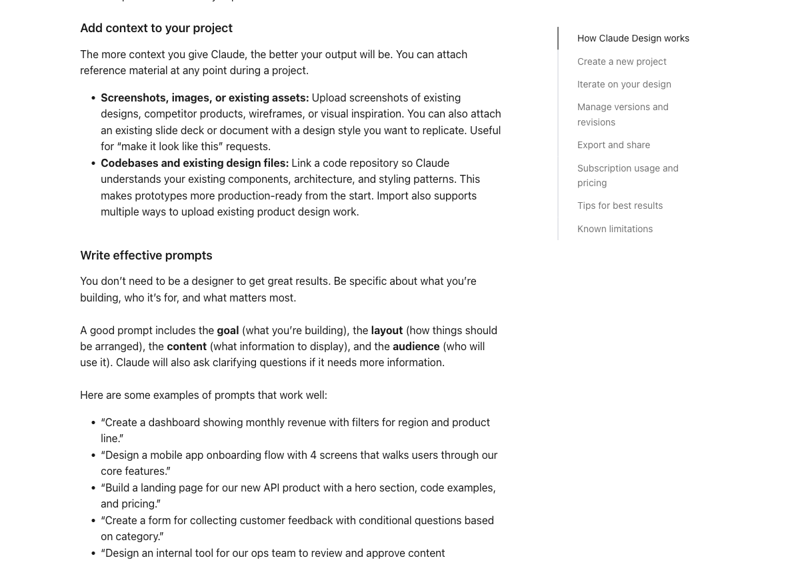
- A codebase. If your design system already lives in code — a React component library, say — link or upload the repo. Claude reads your real components and styles. This is the highest-fidelity input there is.
- Slide decks or brand documents. A well-designed PowerPoint, a brand guideline PDF, your pitch deck. Claude pulls out the colors, the layout patterns, the typography.
- Individual assets. Logo files, a color palette, type specimens.
- Prototypes. Screenshots, existing design files, web flows.
There’s also a web capture tool — point Claude at your live website and it grabs real elements so prototypes look like your actual product, not an approximation.
One rule from designers who’ve done this well: less is more. A small set of strong, clean components beats throwing your entire messy asset library at it. A tidy input produces a tidy system.
Step 3: Review the generated design system
Claude processes your uploads and generates a UI kit — usually a color palette (primary, secondary, accent), typography (font families, sizes, weights), components (buttons, cards, navigation), and layout patterns (spacing, grids, page structure).
Don’t rubber-stamp this. Read it. This is the brain every future project runs on. If the accent color is off or the spacing feels wrong, fix it here — not project by project later.
Step 4: Publish
Toggle “Published” on. From that moment, every new project anyone in your org starts from the Claude Design homescreen uses your system instead of the default. That’s the magic step. That’s what makes prompt number 50 as on-brand as prompt number one.
To change it later: organization settings, click “Open,” then “Remix” to reopen the chat and revise.
The trick most people miss: write your soft rules down
Here’s the part that separates a decent setup from a great one.
Claude is good at extracting the hard parts of your brand — hex codes, fonts, component shapes. It struggles with the soft parts. How sharp versus soft should things feel? What’s the ratio of white space to content? When do you use the accent color and when do you not?
Those soft rules don’t live in a logo file. So write them down — in a plain markdown document — and feed that in alongside your assets.
The best mental model I’ve heard: write your soft rules the way you’d brief a very talented but very literal intern. Things like “use the accent color for no more than 10% of any screen” or “headlines are confident, body copy is calm” or “we lean sharp and geometric, never soft and playful.” If you wouldn’t leave it implicit with a new hire, don’t leave it implicit with Claude.
That one document is the difference between output that’s roughly your brand and output that’s unmistakably your brand.
What this means for you
If you’re a founder or solopreneur, this is how you stop looking like a startup that used an AI tool. Twenty minutes of setup — feed it your site, your colors, a few soft rules — and every landing page, deck, and prototype you generate afterward looks like a real company designed it.
If you’re a designer, your role shifts and it’s worth leaning into. You become the person who curates the inputs and writes the soft-rules doc — the highest-leverage work in the whole process. The grunt layout work compresses; the taste work matters more.
If you’re a marketer, you can finally produce on-brand assets without waiting in the design queue. Set the system up once with your design team’s blessing, then self-serve the landing pages and one-pagers.
If you run a team, do the setup centrally and publish it. One good system, published once, keeps fifty future projects consistent without anyone policing it.
What it can’t do
It’s a research preview, and it shows in small ways. Comments don’t always persist. There are save errors in the compact view. Large codebases can make it sluggish.
It also won’t invent a brand you don’t have. If your inputs are thin or contradictory, the output drifts back toward generic — that’s the “you can tell” effect. Claude remixes what you give it; it can’t remix nothing.
And if you export a slide deck to PowerPoint, expect some fidelity loss — fonts can substitute, colors can flatten. The brand consistency is strongest while you stay on Claude’s own canvas.
The bottom line
Claude Design’s generation is impressive on day one. But the thing that makes it genuinely useful — week after week — is the fifteen minutes you spend teaching it your brand and the markdown file where you write down what your brand feels like.
The skill here isn’t prompting. It’s curation: knowing which assets to feed it and how to describe the soft rules a logo file can’t carry.
Our Claude Design Essentials course walks through the whole tool, setup included. If you want the deeper design thinking behind it, UX Design with AI covers the principles, and Canva AI is a solid companion if you also work in Canva.
Set the system up first. Then watch how on-brand every prompt comes back.