The average knowledge worker gets 117 emails a day. Most of them don’t need you. But you still have to open each one to find that out — and that’s the part that eats your morning.
On May 7, 2026, Anthropic put Claude for Outlook into public beta. It’s an add-in that sits inside Outlook and does the opening-and-sorting for you. Not “AI for email” in the vague sense. A specific thing: it reads your unread mail, tells you which six messages actually need a human, and drafts the replies for the rest while you go get coffee.
I’ve spent the last week watching how people actually use it. Here’s the real workflow — the part that works, and the part where you still have to step in.
What Claude for Outlook actually is
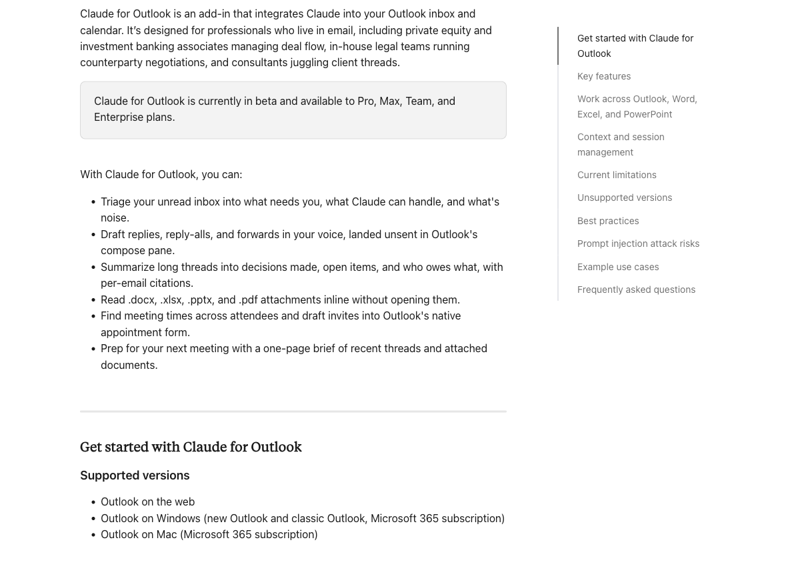
It’s an add-in, not a separate app. You install it from the Microsoft AppSource store, and after that Claude shows up as a button in your Outlook ribbon — on the web, on Windows, or on Mac. Click it, sign in with your Claude account, and it works inside the inbox you already have.
The headline feature is “Triage your inbox.” That’s the literal name of the button. You click it, and Claude reads your unread mail and sorts it into three buckets:
- Action items for you — the messages that genuinely need your judgment, each with a one-line note on why
- Items Claude can handle — scheduling, acknowledgments, the routine back-and-forth
- Noise you can archive in one click — newsletters, FYIs, the receipts
That middle bucket is the interesting one. Because Claude doesn’t just flag those emails — it drafts the responses and leaves them in your drafts folder, waiting. You never lose control of the send button. But the typing? Done.
One early tester put the math plainly: Claude categorized the inbox, wrote context-aware replies, and saved them all as drafts in under two minutes. Another said he hit inbox zero by 9am for the first time he could remember. The tool starts every session in what Anthropic calls review-and-approve mode — nothing leaves your outbox without you clicking it.
The 10-minute triage workflow
Here’s how a real morning looks once it’s set up.
Step 1: Open Outlook and click the Claude button. It’s in the ribbon. On Mac you’ll find it under Tools → Add-ins if it’s not showing; on Windows it’s Home → Add-ins. (Quick heads-up: Outlook defaults to the “simple” ribbon, and the Claude button is easier to spot if you switch to the classic ribbon view.)
Step 2: Ask it the one question that matters. Type something like “What needs my attention today?” into the Claude panel. You don’t need clever prompting here. Plain English. Claude scans everything unread and surfaces the handful — usually five or six — that actually need you.
Step 3: Work the action bucket first. These are the real emails. The client asking a real question, the decision your boss is waiting on. Claude gives you a one-line summary of each so you’re not re-reading threads. For the long ones, hit “Summarize long threads” — it pulls out the decisions made, the open questions, and who owes what, with citations back to the specific messages so you can verify.
Step 4: Review the drafts Claude already wrote. For the routine replies, Claude has them sitting in your drafts. It writes them in your voice — it learns your tone from your sent folder during setup. Read each one. Tweak what’s off. Send.
Step 5: Archive the noise. One click. Gone.
Step 6: Let it book the meetings. If three of those emails are “can we find time,” use “Find time and create events.” Claude checks the relevant calendars, proposes slots, and drops a calendar invite into Outlook’s normal event window — filled in, but unsent, for you to approve.
That’s the loop. The honest time estimate isn’t “10 minutes for 200 emails” every single day — it’s closer to that on a normal Monday, slower when real things are on fire. But the shape of the morning changes. You spend your attention on the six emails that deserve it instead of spreading it thin across 117.
The part most coverage skips: meeting prep
There’s one more feature worth knowing about, and it’s the one that quietly saves the most time. It’s called “Prep for meetings.”
Before a call, Claude pulls together a one-page brief from the recent email threads and documents tied to the people you’re meeting. So instead of scrambling through six months of email at 8:55am trying to remember where you left things with a client, you open Outlook and the context is already assembled.
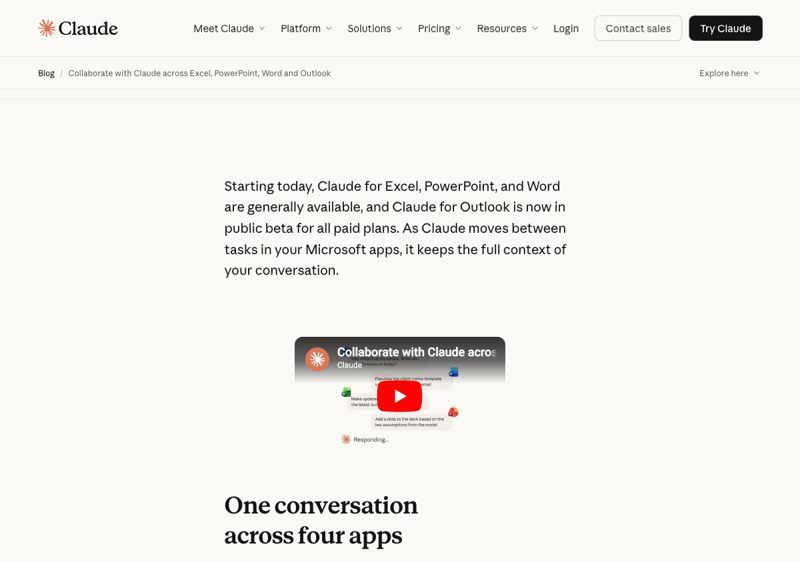
It also reads attachments inline — a .docx, an .xlsx, a .pdf — without you opening each file. And because Claude carries one conversation across Outlook, Word, Excel, and PowerPoint, you can go from an email straight into the spreadsheet it references without re-explaining anything.
What this means for you
If you’re a solo professional drowning in email — a consultant, a freelancer, an agent — this is the clearest win. Nobody triages your inbox for you. Claude becomes the assistant you can’t afford to hire. Start with just the triage button and ignore everything else for a week.
If you manage a team, the value is the summarize-threads feature. Those 40-message reply-all chains where a decision got buried somewhere in the middle? Claude extracts the decision and who’s accountable. You stop being the bottleneck who has to read everything.
If you’re an executive assistant, this changes your job in a good way. Claude handles the first pass — the sorting, the rough drafts — and you do the judgment layer on top. You’re reviewing and polishing instead of typing from scratch.
If you already pay for Microsoft 365 Copilot, you don’t have to choose blind. Claude for Outlook works alongside it. Try Claude on your messiest inbox day and see if the triage genuinely beats what Copilot’s been giving you. (We dug into that head-to-head in a separate post.)
If you handle regulated or privileged information — legal, healthcare, finance — read the next section carefully before you install anything.
What Claude for Outlook can’t do
This is a beta. Anthropic is upfront about the limits, and you should be too.
It can’t send anything on its own. By design. Claude drafts and queues — every email and every calendar invite waits for you to hit send. That’s a feature, not a missing one. But it means this isn’t “set it and forget it.” You’re still in the loop on every outbound message.
It only works with work accounts. You need a Microsoft 365 work or school account backed by Microsoft Entra. Personal Outlook.com addresses won’t work. And it doesn’t support Outlook 2016 or 2019, the mobile apps, or on-premises Exchange — it’s web, Windows, and Mac on a current Microsoft 365 subscription.
It can be fooled by a malicious email. This is the real one. Because Claude reads your messages, a cleverly crafted email could contain hidden instructions trying to manipulate it — a known attack called prompt injection. Claude can’t send mail on its own, which limits the damage. But if you’re triaging an inbox full of unknown senders, treat it the way you’d treat any tool with access to your data.
It can slip on names in long threads. Early testers caught it occasionally swapping or mangling names of people in a thread. So proofread the drafts. Especially the client-facing ones.
There’s no Teams version. Claude for Outlook handles email and calendar. It doesn’t touch Teams chat or meetings.
It needs a paid Claude plan. Pro, Max, Team, or Enterprise. There’s no free tier for the add-in.
The bottom line
Claude for Outlook doesn’t make email disappear. It changes where your attention goes. Instead of skimming 117 messages to find the six that matter, you see the six first — and the rest arrive pre-sorted, pre-drafted, and ready for a quick yes.
The skill worth building isn’t “using the tool.” It’s knowing which replies to let Claude draft and which ones you write yourself, because the relationship is too important to hand off. That judgment is the actual job now.
If you want to get faster at the writing layer Claude can’t do for you — the high-stakes emails, the ones that need your real voice — our AI email writing course walks through it. And if you’re rolling AI tools out across a small team, Claude Cowork Essentials covers the shared-workflow side. New to all of this? AI Fundamentals is the place to start.
Triage is the easy 80%. Your job is the 20% that’s actually you.
