

Claude Design (Anthropic Labs, launched April 17, 2026) is genuinely good at prompt-to-prototype work, but there’s an unstated detail that catches most design teams in the first week: Claude Design itself cannot read a Figma file. There’s no “Import from Figma” button. Pasting a Figma URL doesn’t work. The closest thing the official onboarding offers is “Claude reads your codebase and design files” — which is true, but only if your design tokens live in your codebase in a format Claude can parse.
For a team already on Figma with a real design system — colors, type ramps, spacing scale, components — the question becomes: how do you actually get that into Claude Design without rebuilding everything from a prompt?
The answer is a two-leg path through the Figma plugin for Claude Code. Claude Code’s Figma plugin reads from Figma (tokens, components, variables) and writes structured output into your codebase. Claude Design then reads that codebase during its own onboarding and inherits the system. There’s a third leg for round-tripping back to Figma, using Anima or the HTML-to-Design extension. None of these are documented as one clean migration path — but they work, and the migration takes about 30 minutes once you’ve done it once.
Here’s the seven-step workflow that actually preserves your tokens.
Why Direct Figma Import Doesn’t Exist
Worth understanding before you build the workaround. Claude Design’s launch page describes the design-system feature this way: “During onboarding, Claude builds a design system for your team by reading your codebase and design files. Every project after that uses your colors, typography, and components automatically.”
“Design files” is doing ambiguous work in that sentence. In practice, it means:
- Files in your repo that already encode the design system (CSS custom properties, Tailwind config, design-tokens.json, etc.)
- Image references you upload (PNG / SVG mockups)
- Documents (DOCX, PPTX, XLSX) you point Claude at
It does not mean live Figma URLs, .fig files, or direct Figma library access. Anima’s migration writeup is explicit: “As of today, Claude Design cannot export to Figma. Exports are Canva, PDF, PPTX, HTML, internal URL.” The same applies in reverse — there’s no native Figma-to-Claude-Design pipe.
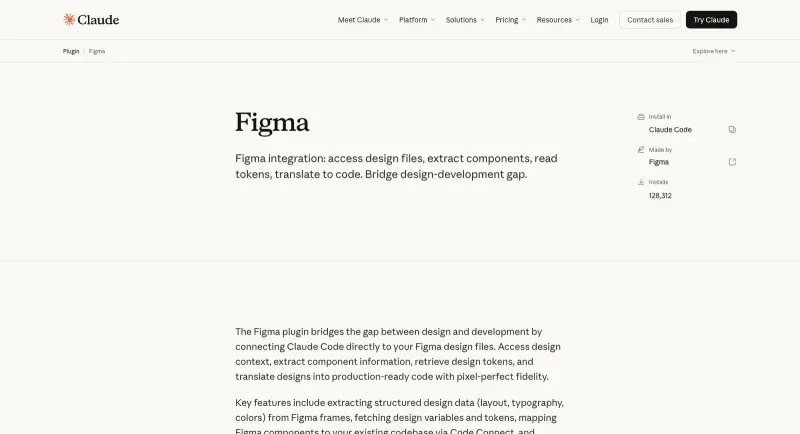
The official path uses Claude Code (not Claude Design) as the bridge. The Figma plugin for Claude Code is read-only on the Figma side — it can pull variables, components, frames, and styles from a Figma file you’ve authenticated to, and write that data into your codebase as design-token files, MDX documentation, or React components. From there, Claude Design’s codebase-reading onboarding picks up your tokens.
The plugin lives at claude.com/plugins/figma. Install via Claude Code:
claude mcp add figma
The plugin’s documented slash commands:
/code-connect-components— establishes mappings between Figma components and codebase implementations/create-design-system-rules— generates custom guidelines that encode your team’s development conventions/figma-use— teaches Claude what your Figma tokens, variables, styles, and components are/apply-design-system— connects existing Figma designs to published design system components
/code-connect-components and /create-design-system-rules are the two you’ll use for migration. The others are useful for ongoing work after the system is imported.
The Seven-Step Migration
About 30 minutes total once you’ve done it once. Plan for 60–90 the first time as you learn what your Figma library actually contains.
Step 1: Audit what’s in your Figma library
Open your Figma library before you touch Claude. Make a list of what you want to migrate. Not everything in Figma is worth importing — you want the canonical design system, not every component someone made for a one-off project.
A useful audit covers:
- Color variables. Brand colors, neutrals, semantic tokens (success / warning / error), surface colors. Including dark-mode pairs if you have them.
- Typography variables. Type ramp (h1–h6, body, caption), font families, line-height scale.
- Spacing & sizing. Spacing scale (e.g., 4 / 8 / 12 / 16 / 24 / 32), radius scale, border-width scale.
- Components worth migrating. Buttons, form inputs, cards, navigation, modals. Skip experimental components and obsolete variants.
- Shadows / elevation. The 3–5 shadow values you actually use.
Write this down. You’ll need it as your migration checklist in step 5.
Step 2: Install and authenticate the Figma plugin in Claude Code
In your terminal:
claude mcp add figma
The first time you run a Figma command, Claude Code prompts you to authenticate to Figma. This opens a browser window for OAuth — sign in to the Figma account that owns the library you’re migrating. Grant read access to the file or team.
Verify it works: claude (start a Claude Code session) and try the slash command /figma-use. Claude Code should respond with a status message acknowledging the Figma connection.
Step 3: Extract design tokens from Figma into structured files
The most important step. From Claude Code, point it at your Figma file:
/code-connect-components <Figma file URL>
Then tell Claude Code, in natural language, exactly what to extract and where to write:
“Extract every color variable, type style, spacing token, and radius token from this Figma file. Write them to a new file at
tokens/design-tokens.jsonusing the W3C Design Tokens Community Group format. Group tokens semantically —colors.brand.primary,colors.semantic.success,typography.heading.h1,spacing.scale.4, etc. Skip experimental tokens or anything in a layer prefixed with_orarchive/.”
This is the prompt that produces a clean, structured design-tokens.json that Claude Design can later parse. The W3C format is the safe bet — it’s becoming the de facto industry standard for cross-tool token portability.
What you get back is a JSON file with the entire token system in a portable format. Spot-check it: the color count should match what’s in Figma, the type ramp should be complete, the spacing scale should preserve your numeric progression (no accidental rounding or unit conversion errors).
Step 4: Generate the design-system documentation
Run this prompt next in the same Claude Code session:
“Now generate a
design-system.mdfile in the repo root that documents the token system. For each token category (colors, typography, spacing, etc.), explain when to use each value, the semantic intent, and any constraints. Then list every Figma component I have — name, intended use case, key variants. This document is for the design system to be discoverable by both humans and AI tools.”
This is the canonical “context document” that’s emerging as a community pattern. As one developer described their workflow: “Smarter Claude Design workflow — instead of re-reading huge Figma files every prompt, I extract the design system once into a design_system.md file and use that as context. Less tokens. Less noise. More consistent UI.”
The design-system.md becomes the source of truth Claude Design reads in step 6.
Step 5: Translate components to code (for the ones that need it)
For each component you flagged in step 1 as canonical, ask Claude Code:
“Translate the
<ComponentName>Figma component to a TypeScript React component using our design tokens fromtokens/design-tokens.json. Match all variants (primary/secondary/tertiary, etc.) and states (default/hover/active/disabled). Write tocomponents/<ComponentName>.tsx. Follow our existing code style — checkcomponents/for the convention.”
This step is optional if you’re using Claude Design purely for prototyping (where it’ll generate its own components from your tokens), but it’s critical if you want a unified system across both your Figma source and your code-side implementation. The /code-connect-components slash command can also do this in bulk for an entire library.
Step 6: Run Claude Design’s onboarding pointed at the codebase
Now switch to Claude Design (claude.ai or the Claude product surface). Start a new project. During onboarding, when prompted, point it at the GitHub repo (or upload the relevant files) where you wrote:
tokens/design-tokens.jsondesign-system.mdcomponents/*.tsx
Claude Design’s onboarding reads these and constructs its internal design system. From the launch announcement: “Every project after that uses your colors, typography, and components automatically.”
Verify it worked. Create a quick test prompt: “Generate a landing page hero for a [your product].” The output should use your brand colors, your type ramp, your spacing — not generic defaults. If it doesn’t, the issue is almost always that your design-system.md file isn’t explicit enough about which tokens to use where. Edit the doc to be more prescriptive (“Always use colors.brand.primary for primary CTAs, never colors.semantic.success”) and re-onboard.
Step 7: Round-trip back to Figma (when you need to)
This is where the “Figma export from Claude Design” gap shows up — and where the community workaround comes in. Claude Design exports Canva, PDF, PPTX, HTML, and internal URLs but not Figma. For teams that need to bring Claude Design output back into Figma for further design work, the practical paths:
- Anima’s Claude-to-Figma plugin. Anima Labs has shipped a Claude-Design-to-Figma pipeline; the output preserves Auto Layout, variants, and component structure rather than being a flat-pixel paste.
- HTML-to-Design Chrome extension. Export the Claude Design output as HTML, then use the HTML-to-Design extension to paste it into a Figma file as editable layers. One developer described the round-trip on X: “When you need to polish your design → import it into Figma, 100% editable → Design in Claude → Copy to clipboard → Ctrl + V in Figma → Done.”
- PPTX → Figma manual. Export as PowerPoint, open the PPTX in Figma’s slides import — useful if your Figma org uses Figma Slides, otherwise overkill.
Pick whichever fits your team’s existing tools. Anima is the most token-preserving; the HTML extension is the fastest for ad-hoc handoffs.
What Survives, What Doesn’t
Honest accounting of what makes it through the round-trip and what doesn’t.
What survives cleanly:
- Color tokens (primitives and semantic aliases)
- Typography tokens (type ramp, font families, line heights)
- Spacing scale and radius scale
- Component variants and basic states
- Component-to-token semantic mappings (if you do step 5)
What partially survives:
- Auto Layout settings — preserved in concept, sometimes need manual reset on round-trip
- Component nesting — preserved through Anima, less reliable through HTML-to-Design
- Animations and prototyping connections — Claude Design doesn’t do animation; Figma’s prototyping connections don’t survive
What doesn’t survive:
- Figma plugin-specific data (e.g., custom plugin metadata)
- Comments, version history, and Figma’s collaboration metadata
- Pixel-perfect spacing on complex Auto Layout grids (you may see 1–2px drift on round-trip)
- Vector illustrations (these need to be re-imported as SVG files, not regenerated)
The 30-minute migration captures the design system as a structured set of tokens and components. The visual fidelity layer — which is the smaller of the two, but the one designers see first — still benefits from one cleanup pass in Figma after each Claude Design generation.
What This Means for You
If you’re a solo designer or small design team. Migrate the token system, skip the per-component translation in step 5 unless you also write code. The token-level migration gives Claude Design enough to produce on-brand output without you maintaining a separate component library on the code side.
If you’re a design-system team supporting multiple product teams. Do the full seven-step migration. The design-system.md becomes a load-bearing artifact — both for Claude Design and for any other AI tool you adopt later. Treat it as a first-class source of truth that lives in the design-system repo and gets reviewed in PRs.
If your design system lives primarily in Tokens Studio. You’re already in good shape — Tokens Studio’s export format is structurally similar to the W3C Design Tokens format. Step 3 simplifies: use Tokens Studio’s existing export to JSON, then point Claude Code at the exported JSON to validate and reorganize it. Skip the Figma plugin’s token-extraction step.
If you don’t have a structured design system yet. Don’t try to migrate one through this path. Start from Claude Design with a prompt-to-prototype workflow, accept that the early generations will use generic tokens, then formalize a system once you’ve shipped a few projects. The Migration path assumes you have something worth migrating.
What the Migration Path Can’t Do (Yet)
A few honest limits.
- There’s no live sync. This is a one-time migration. If your Figma library evolves, you need to re-run steps 3–4 to update the design-token files. There’s no documented automatic sync between Figma and Claude Design as of mid-May 2026.
- Animations and motion don’t transfer. Claude Design generates static layouts. Anything in your Figma library that depends on interaction states, motion, or prototype transitions doesn’t carry over.
- Multi-file Figma libraries need consolidation. If your Figma design system is split across multiple files (a common pattern for large orgs), the plugin works file by file. Plan to extract tokens from each file separately and merge into one
design-tokens.json. - Custom Figma plugins aren’t reachable. Variables or styles managed exclusively by third-party Figma plugins (some component-library plugins) may not be visible to Claude Code’s plugin. Check by inspecting your
design-tokens.jsonoutput for completeness. - Figma export from Claude Design is on the roadmap, not in production. Anima’s writeup confirms it’s listed but not live. Expect this to ship in a Claude Design update — don’t build a workflow that assumes it exists today.
The Bottom Line
The headline “import your Figma library into Claude Design” oversells what’s available today, but the workaround is real and the result is good. Spend 30 minutes once: extract tokens to JSON, document them in markdown, point Claude Design at the codebase during onboarding. From that point forward, every Claude Design project on your team uses your colors, your type ramp, your spacing, your components — without anyone manually re-prompting “use our brand blue, not generic blue.”
The migration path is also useful as a forcing function — it surfaces the inconsistencies in your existing Figma library that nobody’s wanted to fix. The semantic token names you write into design-tokens.json become the names everyone uses going forward, whether they’re working in Figma, in Claude Design, in Claude Code, or in any future AI tool you adopt.
If you want to go deeper on Claude Design itself — the patterns that produce production-quality output, the conversational refinement loop, and the export workflow — our Claude Design Essentials course covers it end to end. For the broader question of how AI design tools fit into the existing UX workflow with Figma, our UX Design with AI course walks through the role-by-role workflow for designers, PMs, and developers.
Sources
- Introducing Claude Design by Anthropic Labs
- Figma – Claude Plugin — Anthropic
- How to go from Claude Design to Figma — Anima
- Anthropic launches Claude Design, a Figma and Canva rival built on Claude — The New Stack
- Anthropic just launched Claude Design — VentureBeat
- W3C Design Tokens Community Group Specification
- Claude Code + Figma: A Designer-Developer Workflow That Actually Works — Medium
- Figma + Claude for Design System Tasks — UX Planet (Nick Babich)