Update, October 4, 2026: OpenAI opened Finances in ChatGPT to everyone in the U.S. on October 2. It’s now on the Free, Go, Plus, and Pro plans, so the parts of this guide that say it’s Pro-only describe the May launch and have been corrected below. The safety steps haven’t changed, and one setting is new for Free and Go users: check Settings → Ad Controls as well as Data controls. For a small-business version of this setup, see our small-business spending audit.
OpenAI launched Finances in ChatGPT on May 15, and the news cycle has not been gentle. The Verge ran the headline “OpenAI now wants ChatGPT to access your bank accounts.” Gizmodo went with “ChatGPT Can Now Connect to Your Bank Account and See All Your Transactions.” Tom’s Guide led with a quoted reaction: “What sane individual feels comfortable giving this level of access to OpenAI?”
The reactions aren’t unreasonable — there are real things to think about before you connect your bank to any AI tool. There are also real reasons people are connecting it anyway: Mint shut down, Rocket Money charges $12 a month, Monarch charges $15, YNAB charges $14, and ChatGPT now includes a perfectly capable personal finance dashboard (free in the U.S. since October 2, 2026; it launched as a Pro-only feature). The question isn’t “is this safe in the abstract.” The question is “how do I set this up without leaking more than I need to.”
This is the walkthrough — the setup flow, the five things to lock down before you connect, the prompts that actually work once you do, and how to disconnect cleanly if you change your mind. About fifteen minutes total.
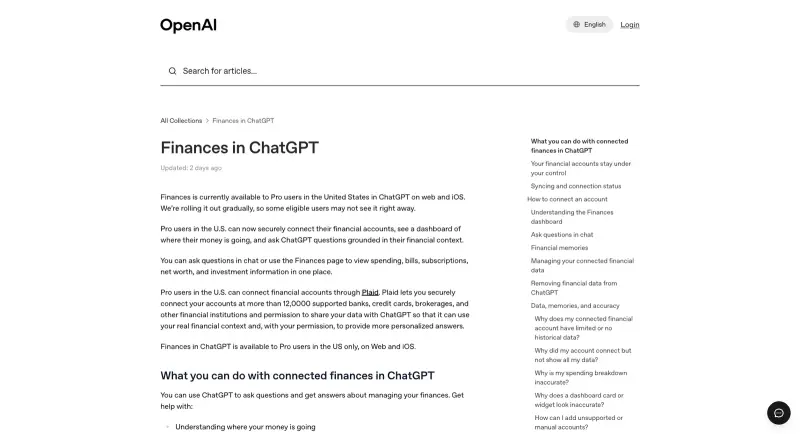
What Finances in ChatGPT Actually Is
It’s a Plaid-powered connector that lets ChatGPT read your bank, brokerage, and credit-card data so it can answer questions about your spending, balances, investments, and liabilities in plain English. Launched in preview on May 15, 2026 for ChatGPT Pro subscribers, added Plus on June 25, and opened to Free and Go users in the U.S. on October 2, 2026, on web, iOS, and Android. The integration covers over 12,000 financial institutions — Schwab, Fidelity, Chase, Robinhood, American Express, Capital One, and most major banks and brokerages. Intuit (Mint, TurboTax, QuickBooks) integration is reportedly on the roadmap for tax impact analysis and credit-card approval odds.
Important boundaries on what it can do:
- Read-only. ChatGPT can see balances, transactions, investments, and liabilities. It cannot initiate transfers, make payments, or take any action on your accounts.
- No full account numbers. OpenAI’s documentation explicitly states ChatGPT cannot see your full account numbers — only enriched transaction data.
- Plaid handles auth, not OpenAI. Your bank credentials never touch OpenAI’s servers. The handshake happens inside Plaid’s flow.
- Disconnect anytime. ChatGPT removes synced data within 30 days of disconnecting an account.
That’s the architecture. The interesting decisions all happen at the configuration step.
Five Things to Do Before You Connect
These take ten minutes total and cut the surface area significantly. Worth doing before you click “connect” the first time.
1. Decide your model-training opt-out — first
This is the single most important setting. ChatGPT’s privacy policy ties financial-account conversations to your global model-training preference: “Your conversations with connected financial accounts follow the same model training settings you choose across ChatGPT — so if you’ve opted out of contributing to model training, then that applies here too.”
In ChatGPT, open Settings → Data Controls → Improve the model for everyone and turn it off if you haven’t already. Verify the toggle is off before you click anything else. If you skip this step and connect your accounts first, the time window between connection and opt-out is data you can’t claw back. Set the policy, then connect.
2. Pick exactly which accounts to share — not “all”
When Plaid’s connect flow opens, it shows every account at the institution. You don’t have to share all of them. The default is to grant access to everything visible — that’s where most people overshare.
A practical filter: share checking and primary credit cards (the ones with spending you actually want analyzed). Skip the savings account that just sits there. Skip the joint account you share with a partner if they haven’t signed off on this. Skip the high-balance investment account unless you specifically want portfolio analysis. You can always add accounts later by reconnecting and selecting more; you can’t easily un-share what you over-shared on day one without disconnecting and starting clean.
The Plaid consent screen lets you tick specific accounts. Read the list before clicking continue.
3. Lock down ChatGPT itself — passcode, MFA, then connect
A ChatGPT account that can read your bank account is a higher-value target than one that can’t. Before you make the connection:
- Enable multi-factor authentication on your OpenAI account (Settings → Security → MFA). Authenticator app is better than SMS.
- If you use ChatGPT on iOS, enable Face ID / Touch ID locks for the app in your phone’s settings.
- Audit the list of sessions/devices in OpenAI account settings. Sign out any device you don’t recognize or no longer use.
- Change your OpenAI account password if it’s older than a year or shared with another service.
These are basic-hygiene steps you’d want anyway. They become non-negotiable when the account is connected to your finances.
4. Don’t connect from a shared device or shared browser profile
The connection is durable — once Plaid authenticates and ChatGPT syncs the dashboard, that dashboard is visible to anyone who can open your ChatGPT session. If you’re on a work laptop where coworkers occasionally borrow your machine, on a family Mac with shared logins, or in a Chrome profile that auto-signs your spouse in, your financial dashboard is now visible to them too.
Make the connection from a device that’s yours, in a browser profile that’s yours, on a network that’s yours. If you want a separate ChatGPT identity for finances, create one with a different email specifically for the finance feature.
5. Decide your prompt-history policy before you start asking questions
Conversations that involve financial data are still conversations — they live in your ChatGPT history. If your privacy threat model includes “someone gains access to my ChatGPT and reads my prompt history,” prompt history is the leak vector, not the Plaid connection.
You have two options:
- Use temporary chats for the most sensitive questions (“Am I overspending on X?” “Can I afford this purchase?”). Temporary chats aren’t saved to history. Enable per-conversation when needed.
- Delete sensitive conversations periodically. Settings → Data Controls → Clear chat history wipes everything. Or delete specific conversations one at a time.
Either approach works. Choose one and stick to it.
The Actual Connect Flow
With the five prep steps done, the connection itself takes about thirty seconds.
- Open ChatGPT on web, iOS, or Android. The feature is available in the U.S. on the Free, Go, Plus, and Pro plans. (When this guide was first written in May it was Pro-only.)
- Start a conversation and type:
Finances, connect my accounts(or open Settings → Apps → Finances). This launches the Plaid handshake. - Plaid’s secure flow opens. Type your bank name, sign in to your bank inside Plaid’s iframe (not on a redirected page — Plaid keeps it embedded for security). Your bank prompts for MFA on its side.
- Pick your accounts. Tick the boxes for accounts you want ChatGPT to read. Untick the ones you don’t. Re-read the list before continuing.
- Confirm. Plaid returns the encrypted token to OpenAI. ChatGPT syncs the dashboard. You can ask your first question.
Plaid has processed over 150 million bank connections across 12,000+ institutions and has not had a major breach. The auth surface here is genuinely well-trodden. The novel risk is not Plaid’s part of the flow. It’s what OpenAI does with the synced data after the handshake — which is where your model-training opt-out from step 1 matters.
What to Ask First (and What to Avoid)
A few prompts to try once the connection is live:
- “Find my recurring subscriptions and rank them by annual cost.”
- “Compare my Q1 2026 spending to Q4 2025 by category.”
- “Identify any merchant charges I might not recognize from the last 60 days.”
- “How long would my emergency fund last at my current spending rate?”
- “Stress-test my investment allocation against a 20% drawdown.”
What to skip in the first session:
- Don’t ask ChatGPT to summarize and email your full financial picture anywhere. Don’t share screenshots of the dashboard externally.
- Don’t ask for tax advice or legal advice on financial data — that’s outside what the tool is actually doing, and you’ll get plausible-sounding but unreliable output. Wait for the Intuit integration if you want tax-side analysis tied to your actual return.
- Don’t connect a business account or a fiduciary account (one you manage for someone else). That’s a different legal relationship and a different consent question.
How to Disconnect Cleanly
If you decide later you don’t want this — totally legitimate — the disconnect is also straightforward.
To disconnect inside ChatGPT:
- Open Settings → Apps → Finances in ChatGPT.
- Find the connected institution.
- Click Remove (or “Disconnect”). ChatGPT immediately stops syncing new data. The existing synced data is removed from OpenAI’s systems within 30 days per their stated policy.
To revoke at Plaid’s level (the more thorough disconnect):
- Go to my.plaid.com.
- Sign in with the email associated with your bank.
- You’ll see a list of every app that has connected to your accounts through Plaid.
- Find ChatGPT / OpenAI and click Disconnect. This revokes Plaid’s continued read access from the bank-side connection — useful belt-and-suspenders if you want to be absolutely sure no further syncing happens.
Doing both — disconnecting in ChatGPT and revoking at my.plaid.com — is the cleanest path. Each handles a different layer of the connection.
What This Means for You
If you’re already paying for Monarch, Copilot Money, Rocket Money, or YNAB. Try the ChatGPT version for a month before cancelling. The strengths are different. Monarch wins on categorization rules, partner accounts, and detailed budgets. YNAB wins on the envelope-budget philosophy and behavior change. ChatGPT wins on conversational Q&A and one-off questions like “should I refinance” or “compare this purchase to my normal spend.” Most people will end up keeping one and supplementing with the other; the feature is now free in the U.S., so there’s no subscription to justify. The only cost is the privacy trade-off you decide to make.
If you’re a solo professional with simple finances. This may be enough on its own. Spending categorization, subscription tracking, and basic planning are all covered. Skip the dedicated PFM app if budget matters.
If you’re a couple managing joint finances. Don’t share one ChatGPT account between you. Either pick which partner does the connection or each connect your own. Joint account data going through one person’s ChatGPT history creates ambiguity about who consented to what — keep it tidy.
If you’re an accountant or financial advisor. Don’t connect client accounts under your own ChatGPT subscription. That’s a fiduciary issue and an OpenAI ToS issue. If you want to use ChatGPT for client work, use the model anonymously — paste anonymized data into a chat — never connect a client’s actual Plaid token.
What This Setup Can’t Do
A few honest limits to set expectations.
- It can’t move money. Read-only means read-only. Don’t expect Bill Pay or investment trades.
- It can’t see cash transactions. If you pay cash for groceries, ChatGPT doesn’t know. Categorization assumes everything goes through the connected accounts.
- It can’t fact-check itself on your tax situation. Without an Intuit-style connection to your actual return, tax advice is generic and shouldn’t be acted on without your CPA’s review.
- It can’t predict the future. Forecasting based on transaction patterns is reasonable; treating those forecasts as financial planning is not. Use the data, don’t outsource the judgment.
- It can’t see business accounts under a personal Plaid connection. Business banking is a separate consent. The integration is built for personal finance.
The Bottom Line
The privacy concerns aren’t fabricated, and the convenience isn’t fake either. The right move depends on the prep, not on whether you “trust OpenAI in the abstract” — which is the wrong frame. Set the model-training opt-out first. Pick specific accounts, not all of them. Lock down your ChatGPT account with MFA. Use temporary chats for the most sensitive questions. Know how to disconnect at both layers.
Do those five things and connecting your bank to ChatGPT is no more risky than connecting it to Monarch or any other Plaid-using PFM app. Skip them and you’ve just casually handed read-access to the most data-hungry company on the planet with no friction.
If you want to go deeper on safe AI workflows — the specific habits that keep your data out of training sets and the prompts that produce useful financial output instead of generic advice — our Personal Finance with ChatGPT course walks through the safe-setup flow and the prompts that produce real value once you’ve connected. For the broader question of how to use ChatGPT with sensitive information in any context (not just finance), see our ChatGPT Privilege & Safe Workflow course.
