You have a rubric. It’s real — it’s been photocopied so many times the corners are soft, it lives in a manila folder from three years ago, and it works. You’ve just never had the time to rebuild it as a proper digital rubric inside Google Classroom. This week, you don’t have to. You can photograph it with your phone, upload it during assignment creation, and Gemini turns it into a structured, editable Classroom rubric in about the time it takes to walk back to your desk.
That’s the actual news here — not some flashy new AI feature nobody asked for, but Google finally closing the gap between the rubric you already trust and the one your gradebook wants.
What just changed (and what didn’t)
Here’s where it gets worth being precise, because two separate Gemini-in-Classroom announcements landed close together this month and they’re easy to conflate.
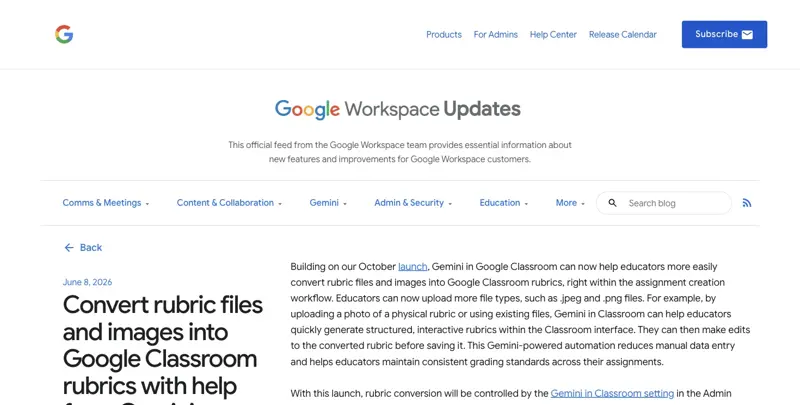
The rubric-from-photo tool — the one this post is about — actually launched back on June 8, 2026. Google had already let teachers convert rubrics from Drive files starting in October 2025; the June update extended that to accept photographed or scanned images directly, in .jpeg and .png format, right inside the assignment-creation flow. This is the feature you’ll use.
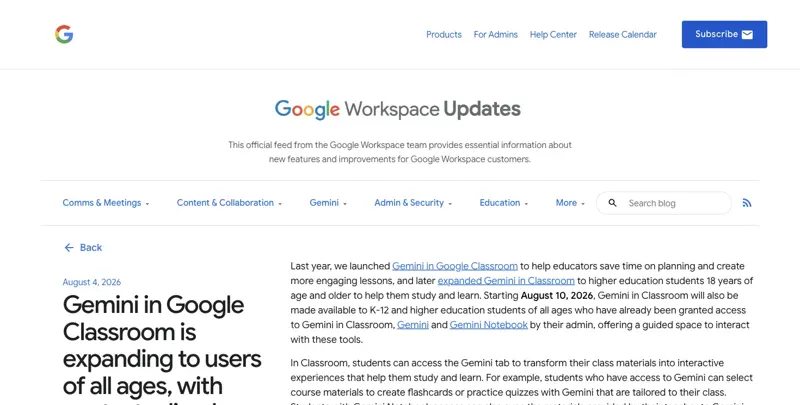
The “all ages” expansion you may have seen in headlines around August 5 is a different thing: it’s Google opening up the student-facing side of Gemini in Classroom — the tab where students generate flashcards, quizzes, and study guides from your posted materials — to K-12 students of every age, not just 18-and-up college students. That rolls out on the web starting August 10 and on mobile August 17. It’s real, it’s worth knowing about because it changes how your students might use what you post, but it’s not the rubric tool.
One detail worth flagging honestly: some early coverage blurred these two stories together, and at least one educator on X (posting in Japanese, translated here) called out the resulting confusion directly — the general Gemini access expanded to all ages, but specific features inside it, including the rubric conversion tool, launched separately with their own more limited scope and haven’t necessarily kept pace with the broader rollout. If a colleague tells you “the rubric thing is all-ages now,” double-check what they actually mean before you plan a lesson around it.
The exact click-path
This is the part worth bookmarking. Here’s how the rubric-from-photo conversion actually works, step by step.
Step 1: Start creating (or editing) an assignment in Google Classroom, the way you normally would.
Step 2: Find the Rubric option in the assignment-creation panel. Click it.
Step 3: Choose “Convert from file” (there’s also a “Convert from Drive” option if your rubric already lives as a Doc, Sheet, or Slide — or a Word/Excel/PowerPoint file). For the paper rubric in your folder, you want “Convert from file.”
Step 4: Take a photo of your paper rubric, or upload an existing scan. Supported formats now include .jpeg, .png, and .pdf, along with Google Docs/Sheets/Slides and Microsoft Word/Excel/PowerPoint files. A photo taken on your phone works fine — you don’t need a scanner.
Step 5: Let Gemini parse it. It reads the content and builds a structured Classroom rubric — criteria, performance levels, and point values — matching what was on the page.
Step 6: Review before you save. This is the step to not skip. Expected result: a rubric that’s close to your original, but check the point totals add up the way you intended, and that any criteria wording that was shorthand on paper (“neatness — 5”) got expanded sensibly rather than left cryptically short.
Step 7: Adjust anything that needs it, then save. Once it’s saved, it’s a normal, fully editable Classroom rubric you can reuse, attach to future assignments, or export.
The whole thing, in practice, takes about the time it takes to snap the photo and skim the result — most teachers who’ve tried it report a few minutes, not a project.
One thing to check before you rely on it: the admin setting
Rubric conversion from documents or images is controlled entirely by your school or district’s “Gemini in Classroom” admin setting. If it’s off at the organization level, the option won’t appear for you at all, no matter how recent your Chromebook or how current your Classroom app is. At launch, the feature was also English-only. If you don’t see the “Convert from file” option, that’s the first thing to check with your IT department — before you assume something’s broken on your end.
How accurate is it, actually?
Here’s where independent research earns its keep, because AI accuracy claims from any vendor deserve a second look before you build your grading around them.
The picture that emerges from actual studies is: genuinely useful, not perfect, and not a replacement for reading your own rubric before you trust it. One study on AI-enabled grading interfaces found up to 85% agreement between AI-generated criterion-level decisions and instructor judgments in a computer-science exam setting — solid, but the researchers were careful to describe that output as a “reasonably accurate first-pass” that instructors still needed to validate, not a hands-off replacement.
A separate study measuring how closely AI-generated scores matched teacher scores in rubric-based writing assessment found something almost eerie: a 0.985 correlation between teacher and AI (GPT-5.2, in that study’s case) scoring, with the two sides differing by an average of just 0.41 points. But — and this is the part worth sitting with — that same study found the agreement was mostly procedural. The AI’s feedback stuck tightly and explicitly to the rubric’s own language. Teacher feedback showed something the AI’s didn’t: contextual sensitivity, actual diagnosis of what a specific student was misunderstanding, and instructional foresight about where that student needed to go next. Score alignment isn’t the same thing as feedback-quality alignment. The AI can often land on roughly the right number. It’s less reliably going to tell you why a specific kid’s paragraph fell apart in a way that actually helps them next time.
A Hong Kong study looking at AI-revised rubrics for essay assessment found a similar split: teachers valued the efficiency gains genuinely, but flagged that equity in grading outcomes needs active monitoring, not an assumption that the AI treats every student’s work the same way a careful human would.
The practical takeaway: trust the rubric conversion to save you the tedious part — retyping criteria and reformatting for the digital interface. Don’t skip reading it before you save.
Does this actually save time?
The honest answer is: probably, but the exact number depends a lot on who you ask and how they measured it, and that spread is worth knowing about rather than repeating a single flattering statistic as gospel.
One 2026 compilation on AI in education put average time savings for teachers using AI regularly at about 2 hours a week on administrative and content-prep tasks. A separate, broader compilation citing Gallup and Walton Family Foundation data put it much higher — 5.9 hours a week for teachers using AI at least weekly, which the same source translated to roughly six extra weeks over a 37-week school year. That’s a big range, and it almost certainly reflects different survey populations and different definitions of “using AI” more than it reflects one number being wrong.
Here’s the more interesting wrinkle, though: despite grading being one of the most time-consuming parts of teaching, actual AI-for-grading adoption is a minority behavior. A Teachers Pay Teachers marketplace survey found only 4% of educators cite grading specifically as their AI use case. A separate, broader compilation put AI-for-grading usage at 16%. Even the higher-adoption estimates topped out around 47% for “grading, feedback, or rubric development” combined — a much broader bucket than grading alone.
The most methodologically solid data point here comes from the Walton Family Foundation/Gallup survey — a genuine national probability sample of 2,069 U.S. public school teachers, fielded via the RAND American Teacher Panel with a disclosed margin of error. It found 60% of teachers use AI for work generally, including 30% weekly. But only 18% of teachers report receiving any formal administrative guidance on AI use at all — and specifically on grading and feedback, 58% receive no guidance whatsoever. Among the smaller group who do get grading-specific guidance, 10% say they’re actively discouraged from using AI to grade, the highest discouragement rate of any task the survey measured.
Put plainly: your district almost certainly hasn’t told you clearly whether AI-assisted grading is encouraged, tolerated, or off-limits. That’s worth a two-minute conversation with an administrator before you build a habit around this tool, not because the tool is risky, but because “nobody told me either way” is a bad position to discover you’re in later.
Rubric-from-photo vs. building it from scratch vs. other AI teaching tools
| Gemini in Classroom | ChatGPT for Teachers | Khanmigo | |
|---|---|---|---|
| Cost for teachers | Free with any Workspace for Education license | Free through June 2027 for verified U.S. K-12 educators | Free in 44+ countries (Microsoft/Gates Foundation-funded) |
| Rubric tool | Photo/file → structured Classroom rubric, in-workflow | General-purpose — you’d build a rubric via chat, then move it manually | Built-in rubric and exit-ticket generator |
| Classroom integration | Native — lives inside Classroom, Docs, Sheets, Slides, Gmail, Meet | Standalone app/browser, limited native LMS integration | Limited Google Classroom/Canvas integration via Clever |
| Student-facing side | Flashcards, quizzes, study guides, Guided Learning (all ages, admin-gated) | Separate “Study and Learn” mode | Socratic tutor that refuses to just hand over answers |
| Compliance claims | FERPA, COPPA, GDPR, HIPAA per Google; Common Sense Privacy Seal | FERPA-compliant, education-grade security per vendor | COPPA/FERPA-compliant per vendor, parental controls |
The pattern that shows up consistently in side-by-side reviews: Gemini’s edge is that it’s already living inside the tools you use every day, so there’s no context-switching to a separate app. ChatGPT for Teachers has the broadest standalone feature set and arguably the most generous free K-12 offer on the market right now. Khanmigo’s differentiator is pedagogical — it’s built to make students work through problems rather than just handing them answers, which matters if your worry about AI in the classroom is students using it to skip thinking rather than support it. One practical comparison actually recommends mixing tools: ChatGPT for rubric drafting, parent communication, and feedback requiring a nuanced tone; Gemini for differentiation, research, and anything needing current information pulled in.
What this means for you
If you’re a K-12 teacher with paper rubrics from past years: This is the single most direct time-saver in this whole update. Dig out your best rubrics, photograph them during a planning period, and convert them in batches rather than one at a time when you’re already crunched before a deadline.
If you’re new to teaching and building rubrics from scratch: The conversion tool doesn’t help you here directly — you still need a rubric to photograph first. But once you or a colleague builds even a rough one on paper, you can digitize and reuse it going forward, rather than rebuilding from nothing each time.
If you teach a subject with heavily standardized rubrics (writing, lab reports, presentations): These are exactly the rubric types the research on AI accuracy applies most cleanly to — well-structured criteria with clear performance levels convert more reliably than idiosyncratic, hand-annotated grading notes.
If your district hasn’t set an AI policy for grading: Ask before you lean on this heavily for anything that affects a grade. Given that 58% of teachers nationally report zero grading-specific guidance, you’re not the outlier if your school hasn’t addressed this — but that’s exactly why it’s worth a direct question rather than an assumption.
If you’re a department head or instructional coach: This is a genuinely low-friction rollout candidate for a staff PD session — it takes about 10 minutes to demo, doesn’t require new logins if Gemini in Classroom is already enabled, and the “photograph what you already have” framing means teachers don’t need to learn rubric design from scratch to benefit.
If you’re a parent wondering what this means for your kid’s grades: The rubric conversion tool is a teacher-side time-saver for building the grading structure, not something that grades your child’s work autonomously — a teacher still reviews and applies it.
If your school uses a non-Google LMS: This feature is Google Classroom-specific. If you’re on Canvas, Schoology, or another platform, this particular workflow doesn’t apply, though similar AI-rubric tools exist in some of those ecosystems.
Edge cases and things to check first
“I don’t see the ‘Convert from file’ option at all.” Check with your IT admin first — this is gated by the district-level “Gemini in Classroom” setting, and if it’s off, the option is invisible, not broken.
“It converted my rubric but wrote something differently than I meant.” This is expected sometimes, especially with shorthand notes (“effort — 5pts” with no further explanation). Review every converted rubric before saving; treat the AI output as a strong first draft, not a final answer, matching what the accuracy research above actually found.
“My rubric was in Spanish (or another non-English language) and it didn’t convert well.” The feature launched English-only. If you teach in a dual-language or non-English program, expect rougher results and budget extra review time, or build that particular rubric manually for now.
“A colleague said this is available to my students too now.” Probably a mix-up with the separate “all ages” expansion (the flashcard/quiz/study-guide side, rolling out Aug 10–17). The rubric-from-photo tool is a teacher-facing feature inside assignment creation, not something students interact with directly.
“I’m worried about student data privacy with this.” Google states Workspace for Education’s core services — including Classroom and Gemini for Education — carry no ads, aren’t used to build ad-targeting profiles, aren’t sold to third parties, and support FERPA/COPPA/GDPR/HIPAA compliance; the service also earned a Common Sense Privacy Seal for not training models on student data and not having prompts human-reviewed. That said, a July 2026 Common Sense Media report flagged “unacceptable risk” concerns about Google Search’s separate AI features around sensitive topics for minors — a different product, but it’s fueled broader “how much do we trust AI defaults in schools” conversations worth being aware of, even though it isn’t a direct finding about Classroom’s rubric tool.
“Our Workspace for Education plan is the free Fundamentals tier — does that matter?” Possibly. Some analysis suggests the free Fundamentals tier lacks some of the “enterprise-grade” data security tooling that comes with paid Standard or Plus tiers, meaning protection levels can vary by district budget, not just district policy. Worth asking your IT lead which tier you’re on.
“Parents are asking me what AI policy the school has — and I don’t actually know.” You’re far from alone. A March 2026 survey found 47% of parents said their child’s school hadn’t provided any information about its AI policy, and 57% said they were never asked for input on AI use in schools at all. If this comes up, it’s a fair question to route to administration rather than something you’re expected to have an answer for solo.
What it can’t do
It can’t grade student work for you. This tool converts your rubric’s structure into a digital format. It doesn’t apply that rubric to student submissions or assign grades — that’s still on you.
It won’t catch a rubric that was poorly designed to begin with. If your paper rubric had vague criteria (“good effort”) or point values that don’t actually add up to your total, the conversion will faithfully digitize those same problems rather than fixing them.
It doesn’t work outside English at launch. Multi-language rubrics need manual handling for now.
It’s not available if your admin hasn’t enabled Gemini in Classroom. No individual workaround exists — this is a district-level setting, not a personal one.
It doesn’t replace the judgment calls that make feedback useful. Per the research above, AI-generated feedback tends to track the rubric’s own language closely, while missing the contextual read on what a specific student actually needs to hear next. Use it for structure, not for the parts of grading that require knowing your students.
FAQ
Do I need a Google Workspace for Education paid plan to use this? No — it’s included with any Workspace for Education license, including the free Fundamentals tier, though some security features may differ by tier.
Can I photograph a handwritten rubric, or does it need to be typed?
The tool accepts .jpeg and .png photo uploads; a clearly legible handwritten rubric should work, though a typed original will convert more reliably.
What happens to the original photo after conversion? The conversion process reads the image to build the structured rubric; the resulting rubric is a normal, separate Classroom object you can edit going forward.
Is this the same update as “Gemini in Classroom expanding to all ages”? No — that’s a separate, later announcement (Aug 5, rolling out Aug 10–17) about student-facing Gemini access for flashcards, quizzes, and study guides. The rubric-from-photo tool launched earlier, June 8, 2026, and is teacher-facing.
Can I reuse a converted rubric across multiple assignments? Yes, once it’s saved as a Classroom rubric it behaves like any other rubric you built manually — reusable, editable, exportable.
Does this replace Khanmigo’s or ChatGPT’s rubric tools? Not necessarily — it’s most useful if you’re already living inside Google Classroom day to day. If you use ChatGPT or Khanmigo for other teaching tasks, you may end up using different tools for different jobs rather than consolidating to one.
How accurate is the AI-generated rubric compared to what I’d write by hand? Research suggests high but imperfect agreement with human judgment — one study found 85% criterion-level agreement in a CS grading context. Review before saving regardless.
Is my district required to enable this? No — it’s opt-in at the admin level. Some districts may choose not to enable Gemini in Classroom at all.
Will this feature come to other languages soon? Google hasn’t announced a specific timeline for non-English support as of this writing; the feature launched English-only in June 2026.
What if I don’t have a paper rubric to photograph — can this build one from scratch? This specific tool converts an existing rubric (photo, scan, or file) into digital form. Building a new rubric from scratch is a related but separate Classroom workflow.
The bottom line
The rubric-from-photo tool is a small, unglamorous feature doing exactly the kind of practical time-saving that actually shows up in a teacher’s week — not a flashy AI demo, just one less annoying re-typing task before a deadline. Photograph what you already trust, review what Gemini builds from it, and you’ve turned a folder of paper into a reusable digital asset in a few minutes instead of an evening. Just keep the two announcements straight — this rubric tool and the broader all-ages student rollout are different things on different timelines — and check your district’s guidance before leaning on AI-assisted grading more heavily.
If you’re building out your first-week-back routine and want a fuller AI toolkit beyond just rubrics, our AI for Teachers: First Week Back course walks through a practical, standards-aligned starting point — free to begin.
Sources
- Google Workspace Updates — Gemini in Google Classroom is expanding to users of all ages
- Google Workspace Updates — Convert rubric files & images into Classroom rubrics with Gemini
- ChromeUnboxed — Gemini in Classroom to students of all ages
- Google Support — Learn about Gemini in Google Classroom
- Google for Education — Gemini in Classroom: no-cost AI tools
- Gallup / Walton Family Foundation — 2026 teacher AI usage survey
- EdWeek — Echelon Insights parent survey on AI guardrails, March 2026
- Educators Technology — ChatGPT for Teachers vs. Gemini vs. Khanmigo comparison
