Google’s new Daily Brief is the feature people actually wanted out of the May I/O announcements: an AI morning summary that reads your Gmail, your calendar, and your recent Gemini chats overnight, then hands you a short “here’s your day, here’s what to do first” rundown before you’ve opened a single tab. Early users are warm on it — one called it the thing that “changed my whole morning routine.”
It’s also genuinely fiddly to turn on, and there’s a wall of fine print: it’s paid-only, US-only, and personal-account-only at launch. This is the plain-English setup guide — who can get it, the exact steps, and how to control what it reads. (If you’re a teacher, we already wrote the Daily Brief guide for school accounts — short version: it won’t run on a Workspace-for-Education account, and this post explains why.)
What Daily Brief actually is
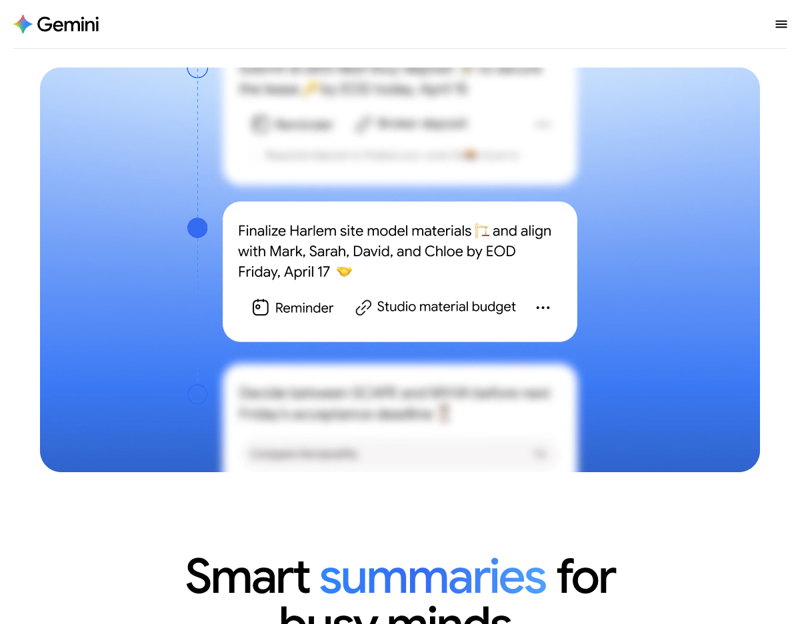
Think of it as a personalized newspaper about your day. Overnight, Gemini looks at your connected Google apps and your chat history, then builds a single skimmable digest: the emails that actually matter, today’s meetings, deadlines it spotted, and suggested next steps — most important first. It’s not a chatbot you have to prompt; it just shows up, once each morning.
That’s the appeal and the catch in one sentence: it’s useful because it reads your personal data, which is also exactly the part to be deliberate about. We’ll get to the controls.
First, the honest gate: can you even get it?
Before you spend ten minutes hunting through settings, check whether you qualify. At its June 2026 launch, Daily Brief needs all of these:
- A personal Google account. No work, school (Workspace), or supervised/child accounts. This is the one that trips most people up.
- A paid Google AI subscription — Plus, Pro, or Ultra. There is no free-tier Daily Brief. (Google also just dropped Ultra from $250 to $200/month, for what it’s worth.)
- You’re 18 or older.
- You’re in the United States. It’s a staged rollout; the UK, Canada, Australia, and India are the likely next markets, but as of now Daily Brief only shows up for US accounts.
If you fail any of those, skip to the “what to do if you can’t get it” section near the end — there’s a free workaround that gets you 80% of the value.
The setup, step by step
Assuming you qualify, here’s the path. It lives inside Personal Intelligence, Google’s umbrella for “let Gemini use my Google data.”
- Confirm the right account and plan. Open Gemini on the web (gemini.google.com) or the app and sign in with your personal Gmail. Make sure it shows your paid tier. If the account is labeled “Work” or “School,” stop — it won’t work here.
- Open Personal Intelligence. On desktop: bottom-left Settings & help → Personal Intelligence. On mobile: tap your profile icon → Personal Intelligence.
- Connect Gmail and Calendar. In the Connected apps / Google Workspace section, turn on access for Gmail and Calendar and accept the permission prompt. Daily Brief can’t build anything until it can read these.
- Turn on Memory. Same Personal Intelligence page — toggle Memory on. Google requires both connected apps and Memory before Daily Brief appears.
- Turn on Daily Brief. Find the Daily Brief toggle (still under Personal Intelligence) and switch it on. Note this spot — it’s also where you turn it off.
- (Optional) Flip on Gmail smart features. If the brief looks thin, enabling “Smart features and personalization” in your Gmail settings helps Google surface more context. Not strictly required, but a common fix.
Your first brief arrives the next morning. It generates once a day, automatically — at launch there isn’t a setting to pick the exact time.
Making it actually useful (not just noise)
The single biggest complaint from early users is that the brief reads everything — including promotional junk — and ends up cluttered. A few minutes of tuning fixes most of it:
- Clean up Gmail first. Daily Brief mirrors your inbox. If your Promotions tab is a swamp, the brief will dredge it. Unsubscribe from the worst offenders and it gets noticeably sharper.
- Keep your calendar honest. It leans on Calendar for “your day.” Real events in, real briefs out.
- Tell Gemini what you care about. Because it uses Memory, a chat like “for my Daily Brief, prioritize emails from clients and my team, skip newsletters and receipts” actually shapes future briefs.
What it reads — and how to keep control
This is the paragraph to read twice. Daily Brief works by giving Gemini standing access to personal data, and privacy watchdogs have specifically flagged “always-on Gmail” as the default for these new features. You don’t have to avoid it — you just have to know the dials:
- What it reads: your Gmail, your Google Calendar, your tasks, and your past Gemini chats. That’s the whole picture it builds the brief from.
- Pause or stop it: the same Daily Brief toggle under Personal Intelligence turns it off completely.
- Cut the data, keep some features: you can disconnect Gmail or Calendar individually in Connected apps, or turn Memory off, without nuking your whole account.
- Review what it remembers: Memory has its own management screen — you can see and delete what Gemini has stored about you.
The right setting depends entirely on your comfort level. Heavy Gmail/Calendar users tend to find the trade worth it; if “an AI reads my whole inbox every night” makes you flinch, that instinct is valid — leave it off and use the manual workaround below.
What this means for you
If you live in Gmail and Calendar all day: this is the best version of Daily Brief’s audience. The brief turns “20 minutes of inbox triage” into a 30-second read. Turn it on, spend five minutes tuning it, and it pays off fast.
If you’re privacy-cautious: don’t feel pressured. The honest move is to disconnect what you don’t want read, or skip the feature and use a manual prompt. You lose the “automatic” part, not the usefulness.
If you can’t get it (not in the US, no paid plan, or a work account): you’re not locked out of the idea. Any free Gemini or ChatGPT account can do a manual version — paste or describe your day and ask: “Here’s my calendar and my key emails for today. Give me a prioritized brief: what matters most, what to do first, and anything I might be forgetting.” It’s not automatic, but it’s the same payoff for $0.
If you’re comparing it to other tools: if you mostly want email triage, see our Gmail Live vs Gemini Daily Brief breakdown — they overlap, and you may only need one.
What Daily Brief can’t do
- It can’t run on a work or school account. That’s a hard architectural limit, not a setting you can flip.
- It won’t read anything outside Google. Slack, Notion, Outlook, your to-do app — invisible to it. It’s a Google-ecosystem feature, full stop.
- It’s not real-time. It’s a once-a-morning snapshot. Something that lands at 2 p.m. won’t appear until tomorrow’s brief.
- It can misjudge importance. It can surface a promo and bury a real email — early users report exactly this. Treat it as a smart first pass, not gospel.
- It can be buggy. Some users have reported the scheduled brief silently turning itself off. If it stops showing up, check the toggle is still on.
The bottom line
Daily Brief is a real upgrade if you’re the right person for it: a US, paid, personal-account user who lives in Gmail and Calendar. The setup is just non-obvious, and the privacy trade is real — so turn it on deliberately, tune it for a few minutes, and know where the off switch is. And if you can’t get it, the manual prompt gives you most of the win for free.
Want to get genuinely good at this whole category of “let AI run your day” tools — Gemini, ChatGPT, and the rest — without the trial and error? Start with AI Fundamentals, then ChatGPT vs Claude: Which Should You Use to pick the right assistant for your actual workflow.
