

Hold down one key on your Mac, say what you want, and clean, formatted text shows up wherever your cursor is sitting — no chat window, no copy-paste, no app switching. That’s what Google shipped on July 29, 2026, for its free Gemini app on macOS, and a week later, Google’s own VP of Gemini was posting demo videos calling it his “new favorite” way to work. If you own a Mac and haven’t heard of this yet, you’re not alone — the update landed quietly, and most of the coverage has been a single MacRumors post and some scattered social buzz, not a proper walkthrough anywhere.
This guide is that walkthrough. We’ll cover what the Gemini app for Mac actually is, exactly how to install and set it up, how the new Fn-key voice feature works in practice (including the parts nobody’s written about yet), how it stacks up against Apple’s own built-in Dictation and against ChatGPT and Claude’s Mac apps, and the honest limits — including one hardware requirement that locks a chunk of Mac owners out entirely.
What Gemini for Mac actually is
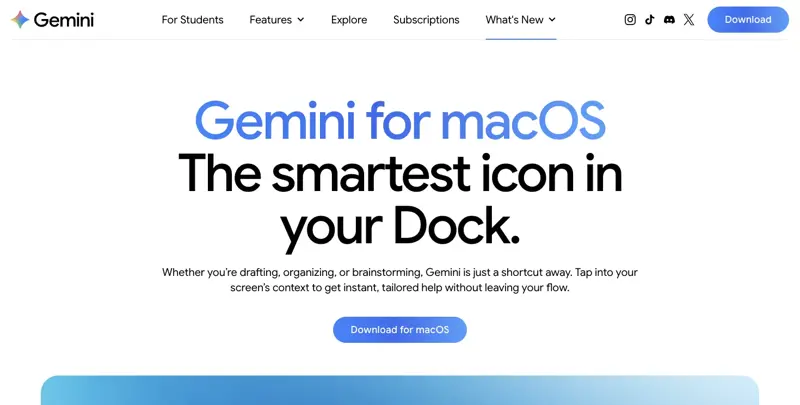
Gemini for Mac is Google’s native desktop app for its Gemini AI assistant — a real Mac application that lives in your Dock and menu bar, not a browser tab you have to keep open. Google first launched it broadly on April 15, 2026, giving Mac users a way to chat with Gemini, share their screen for context, and run automations without ever opening a browser.
For nearly three and a half months, that’s all it did: a solid, if unremarkable, desktop chat client. Then on July 29, 2026, Google pushed an update that changed what the app is actually for. The headline feature is a system-wide voice mode Google calls Speak to Window — hold down the Fn key from inside any Mac application, talk, and Gemini either transcribes what you said as clean text or, if you’ve opted in, reads what’s on your screen and acts on it.
Google’s own announcement put it simply: “Stay in your flow by speaking into any active window: dictate clean text or ask Gemini to transform highlighted content, analyze local files, and generate visuals right where your cursor is.” That’s a different pitch than “chat with an AI.” It’s “talk to your computer instead of typing,” and it’s aimed at replacing the reflex of opening a chat window at all.
How to install Gemini for Mac (5 minutes)
The app is free to download and free to use at a basic tier, in every country and language where Gemini itself is available. Here’s the full setup:
- Go to
gemini.google/macin any browser. There’s a single “Download for Mac” button on the page — no account wall before you download. - Open the downloaded
.dmgfile from your Downloads folder once it finishes. - Drag the Gemini icon into your Applications folder. This is the standard Mac install pattern — if you’ve ever installed Chrome or Zoom this way, it’s identical.
- Open Applications, double-click Gemini, and sign in with a personal Google Account, or a work/school Google account if your administrator has Gemini enabled for it.
- Check for updates immediately from the Gemini menu bar icon → “Check for Updates.” This matters more than usual right now: the Fn-key voice feature and screen-aware reasoning are part of the July 29 update, and if you installed the app before then, you won’t see them until you update.
After signing in, macOS will prompt you for Screen Recording and Accessibility permissions under System Settings → Privacy & Security. You need both for the screen-sharing and screen-aware voice features to work. If the prompts don’t appear automatically, you can add them manually: open System Settings → Privacy & Security → Accessibility (and separately, Screen Recording), click the “+” button, and select Gemini from your Applications folder.
That’s the whole install. No license key, no separate app-store purchase, no trial that expires.
The two keyboard shortcuts that make this worth using
Once Gemini is installed, two shortcuts do almost everything:
Option + Space opens a compact “mini chat” window instantly, from inside any app, without switching windows. Option + Shift + Space opens the full Gemini interface instead, if you need the larger chat view with history and settings visible. Both are remappable in Settings if they clash with something else on your Mac. A third, less-publicized shortcut — double-tapping the Command key — shares whatever window is currently open with Gemini, so it has context for whatever you ask next without you describing it.
None of that is new; those shortcuts have existed since the April launch. What’s new is the Fn key, and it works completely differently from the other two — it doesn’t open a window at all.
The Fn-key voice trick, step by step
This is the actual news, and it deserves the detailed walkthrough nobody’s published yet. Google is repurposing the Fn (globe) key — the same key you’d normally use to change your Mac’s function-key behavior or trigger emoji — into a universal voice trigger that works inside whatever app currently has focus: Mail, Slack, a Google Doc, the Notes app, a terminal window, anywhere you can normally type.
There are two distinct modes hiding behind that one key, and the difference matters:
Mode 1: Plain dictation (on by default). Press and hold Fn, speak, and release. Gemini transcribes what you said, strips out filler words like “um” and “uh,” cleans up any mid-sentence corrections you made out loud (“send it Tuesday — actually, no, Wednesday” becomes just “Wednesday”), and drops the polished result directly at your cursor. If you want your hands free for a longer dictation, double-tap Fn instead of holding it — that starts an open-ended recording, and a second double-tap ends it. This mode requires no extra setup and no special permissions beyond microphone access.
Mode 2: Screen-aware reasoning (“Speak to Window,” opt-in). Go to Settings → Speak to Window and enable it. Once on, Gemini can see what’s visible on your screen when you hold Fn and speak, so instead of just dictating raw text, you can give it an instruction about what it’s looking at: highlight a paragraph and say “make this friendlier,” or say “summarize this PDF” while a document is open, and Gemini acts on the visible content instead of just transcribing your voice. Gemini automatically figures out whether what you said was meant as plain dictation or a reasoning command — you don’t have to switch modes manually mid-sentence.
Here’s a worked example, based on the actual setup workflow SEO consultant Julian Goldie posted after testing it for a week: you’re staring at a half-written email in Mail. You highlight the clumsy paragraph, long-press Fn, and say “tighten this up and make it sound more confident, don’t change the last line.” You release Fn. A few seconds later, the highlighted text is replaced — right there in Mail — with a tighter, more confident rewrite, last line untouched. No copying into a chat window, no pasting the result back. That whole loop — highlight, hold, speak, release — took about ten seconds start to finish in testing, versus the 60-90 seconds it typically takes to switch to a chat app, paste text in, type an instruction, wait, then copy the result back out.
Screen-aware reasoning requires granting Gemini Accessibility permission specifically (separate from the general Screen Recording permission you granted at install). Google is explicit that both dictation and screen-aware reasoning currently work in English only at launch, with more languages “planned later in the year” — worth knowing if you were hoping to dictate in another language on day one.
Here’s a second worked example, this time for plain dictation rather than screen-aware editing — the more common everyday use case. You’re in the Notes app, jotting down a grocery list while you’re actually looking in the fridge. Instead of typing one-handed, you double-tap Fn to start hands-free recording and just talk: “milk, eggs, we’re out of the good coffee, oh and remind me to get the thing for Sarah’s birthday — actually just put ‘birthday gift idea’ since I don’t know what yet.” Double-tap Fn again to stop. What lands in Notes isn’t a verbatim transcript of that ramble — it’s a cleaned-up list: milk, eggs, coffee, and “birthday gift idea,” with the self-correction about not knowing what to buy already resolved into the final phrasing. That’s the filler-and-correction cleanup doing its job without you touching the keyboard once.
The distinction between the two examples matters for deciding when to bother enabling screen-aware mode at all: if you’re just capturing thoughts into a blank field, plain dictation (the default, no extra setup) already does the heavy lifting. Screen-aware reasoning earns its keep specifically when there’s existing content on your screen you want Gemini to read, reference, or modify — a document, an email thread, a spreadsheet — rather than a blank space you’re filling in from scratch.

Official system requirements
Before you download anything, check this table — it’s the single biggest catch with this app, and it isn’t prominently flagged on the download page.
| Requirement | Specification |
|---|---|
| Processor | Apple Silicon only (M1 or later) — Intel Macs are not supported at all |
| Operating system | macOS Sequoia 15.0 or later |
| Memory | 8 GB RAM minimum |
| Disk space | At least 200 MB free |
| Account | Personal Google Account, or work/school account with Gemini enabled by an admin |
| Connectivity | Stable internet connection required for every feature — there’s no offline mode |
If you’re on an Intel Mac — which includes any MacBook Pro, MacBook Air, iMac, or Mac mini sold before November 2020 — this app will not install, full stop. That’s not a bug or a rollout gap; it’s a hard requirement Google has held since the April launch, and it’s still true after the July update. We cover what to use instead if you’re on Intel hardware in the edge-cases section below.
What it costs (the free tier is more limited than it sounds)
The app itself never has a separate price — it’s free to download and free to use at Google’s base tier everywhere Gemini is offered. What changes with a paid plan is the model you get access to, how much context Gemini can hold in one conversation, and how many requests you get per day.
| Tier | Price (US) | Model access | Context window | What you actually notice |
|---|---|---|---|---|
| Free | $0/month | Gemini 3.6 Flash by default, limited daily allowance of the Pro model | ~32,000 tokens (roughly 50 pages) | Fast for short dictation and quick edits; long documents or long chat threads get cut off sooner |
| Google AI Plus | ~$5–8/month (varies by region) | Gemini 3.1 Pro, limited access | ~128,000 tokens | 2x the daily usage limits of Free, more cloud storage |
| Google AI Pro | $19.99/month | Full Gemini 3.1 Pro access | 1,000,000 tokens (~1,500 pages) | The jump most people actually need if they hit Free-tier limits — full Deep Research, Veo video generation |
| Google AI Ultra | $99.99–$199.99/month | Highest-tier models, “Deep Think” reasoning | 1M–2M tokens | Priority access and the largest usage caps; overkill for most individual users |
For the Fn-key voice feature specifically, there’s no separate paid unlock — it rides on top of whatever tier your account already has. The thing that actually limits everyday voice dictation on the Free tier isn’t the voice feature itself; it’s the 32K-token context ceiling, which matters if you’re using Speak to Window’s screen-aware mode on a long document, and the capped number of Pro-model responses per day, which matters if you’re asking Gemini to reason about something rather than just transcribe.
Gemini’s Fn-key voice vs. Apple’s built-in Dictation
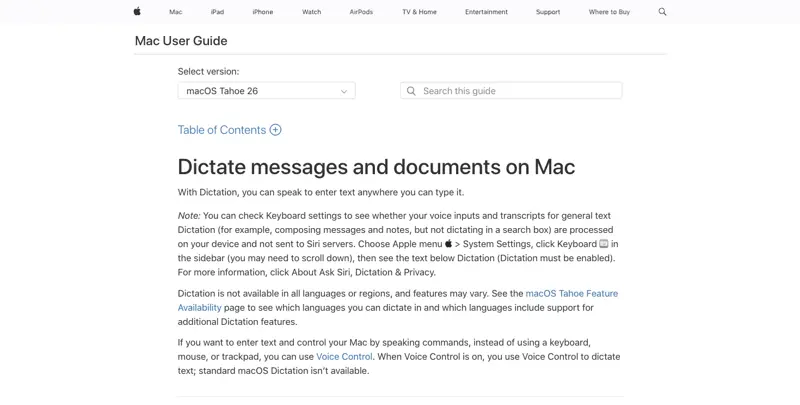
Your Mac already has a voice-to-text feature — System Settings → Keyboard → Dictation, which has shipped for years and works completely offline on supported hardware. So why would you use Gemini’s version instead? Here’s the direct comparison:
| Aspect | macOS built-in Dictation | Gemini for Mac (Fn-key voice) |
|---|---|---|
| Trigger | Fn key (often double-tap) or a custom shortcut | Long-press Fn for dictation; double-tap for hands-free |
| Text cleanup | Verbatim transcription, including your “ums” — punctuation only via spoken commands | Automatically strips filler words and fixes self-corrections |
| Formatting | Manual — you speak “new paragraph” or “new line” yourself | Auto-formats into bullet points or structured paragraphs when appropriate |
| Screen awareness | None — it only transcribes what you say | Opt-in reasoning that reads and acts on visible window content |
| Works offline | Yes, on supported hardware | No — requires an internet connection for every request |
| Cost | Included free with macOS | Free tier included; heavier use needs a paid Gemini plan |
| Silence timeout | Stops automatically after 30 seconds | Ends when you release or double-tap Fn — no fixed timeout |
The honest read: if you just want raw, accurate transcription and you’re offline or privacy-conscious about sending audio to Google’s servers, Apple’s Dictation is still the simpler, free, built-in tool — it’s been solid for years and doesn’t need an account. Gemini’s version is worth switching to specifically when you want the AI to do something with what you said, not just type it out: clean up rambling, follow an instruction about on-screen content, or turn a stream-of-consciousness ramble into structured bullet points without you editing it afterward.
Gemini vs. ChatGPT vs. Claude on Mac — which app should you actually open?
Gemini is now the third major AI chatbot with a dedicated native Mac app, joining ChatGPT (May 2024) and Claude (October 2024). Independent reviews as of August 2026 find the three apps have converged on the basics — screen sharing, a global hotkey, image generation — while still diverging on a few things that actually matter day to day.
| Feature | Gemini for Mac | ChatGPT for Mac | Claude for Mac |
|---|---|---|---|
| Launched | April 2026 | May 2024 | October 2024 |
| Global hotkey | Option + Space | Option + Space | Double-tap Option (customizable) |
| Screen sharing | Yes (window or full screen) | Yes (“Work with Apps”) | Yes (with permission) |
| System-wide voice input | Fn-key dictation + screen-aware reasoning (new, Jul 29) | Advanced Voice mode | Voice (beta) + Quick Entry dictation |
| Image / video generation | Nano Banana images, Veo video | Images 2.0, no native video | Claude Design images, no video |
| Google Workspace integration | Excellent (Gmail, Docs, Sheets, Drive) | Good | Limited |
| Multi-account switching | No | Yes | Yes |
| Paid plan | Google AI Pro, $19.99/mo | ChatGPT Plus, $20/mo | Claude Pro, $20/mo |
| Apple Silicon required | Yes | Yes | Yes |
Since the July 29 update, Gemini has the most capable system-wide voice input of the three — the combination of automatic filler-word cleanup plus opt-in screen-aware reasoning is genuinely ahead of what ChatGPT’s Advanced Voice or Claude’s Quick Entry currently do inside third-party apps. Where Gemini still trails: there’s no full spoken back-and-forth conversation mode inside the Mac app yet (Gemini Live hasn’t made it to desktop), and unlike ChatGPT and Claude, you can’t switch between multiple Google accounts inside one instance of the app — a real annoyance if you keep separate work and personal Google accounts.
Practical rule of thumb: if your daily work already lives in Gmail, Google Docs, and Sheets, Gemini’s workspace integration alone probably makes it the app worth having installed, voice feature aside. If you need multi-account switching or want the most mature standalone voice-conversation experience, ChatGPT currently has the edge. If your priority is careful, structured writing assistance, Claude’s app remains the strongest for that specific job, even without matching Gemini’s new voice trick yet.
What this means for you
If you’re a Mac user who writes a lot of email or Slack messages: This is the single most useful case for the Fn-key feature. Install the app, turn on Speak to Window, and try dictating a reply instead of typing it for a week. The filler-word cleanup alone will save more editing time than you’d expect.
If you’re on an Intel Mac: Skip this app entirely — it will not install. Use Apple’s built-in Dictation (free, offline, no account needed) for voice-to-text, or use Gemini through a browser tab instead, where the Apple Silicon requirement doesn’t apply.
If you’re already paying for ChatGPT Plus or Claude Pro: You don’t need to add a third $20/month subscription just for this. The Free tier of Gemini for Mac gives you the Fn-key voice feature at no cost — install it as a free add-on for voice dictation specifically, and keep using your paid subscription for everything else.
If you’re a heavy Google Workspace user (Gmail, Docs, Sheets, Drive all day): This is close to a must-install. The screen-aware reasoning mode is particularly strong when it can see a Doc or Sheet you’re working in, because Gemini already has native context for Google’s own file formats.
If you handle sensitive client or patient information: Be deliberate about the Speak to Window toggle. It requires broad Accessibility permission and sends whatever’s visible on your screen to Google’s servers when active. Turn it off (or don’t turn it on) when you’re looking at anything you wouldn’t want processed by a third party — plain dictation mode doesn’t have this issue since it only sends your voice audio, not your screen.
If you’re a student or in an unpaid role and hit the Free tier’s daily limits fast: Google AI Plus at roughly $5-8/month is the smallest step up, and it doubles your usage allowance before you need to consider the $19.99/month AI Pro tier.
If you’re not sure this is worth five minutes of setup: It is, specifically because it’s free and reversible. Worst case, you uninstall it and you’re back where you started; best case, you stop typing routine messages entirely.
If you’re a freelancer or solo consultant juggling client communication all day: The time savings compound faster for you than for most, because you’re switching between different clients’ tone and context constantly. Dictating a reply and letting Gemini clean it up removes a chunk of the mental overhead of re-reading your own typing for tone before you hit send — though it’s still worth a quick read-through, since AI cleanup isn’t the same as knowing your client relationship.
If you’re someone who deals with RSI, wrist strain, or another reason typing for long stretches is genuinely uncomfortable: This is arguably the most meaningful use case in this whole list, ahead of pure convenience. A tool that reliably turns speech into properly formatted, corrected text — not a raw verbatim transcript you still have to clean up by hand — can measurably cut down on keyboard time across a full workday.
Edge cases and troubleshooting
Real problems people have actually hit in the first two weeks, pulled from user reports and community threads:
The app crashes when you open the Notebooks view or click “view reasoning.” Multiple users reported this independently in the days after launch. The fix that’s worked for most people: force-quit the app (Cmd+Option+Esc) and relaunch — if it recurs, check for a pending update via the Gemini menu, since this was flagged as a known early bug Google has been patching.
Holding Fn accidentally minimizes the app instead of triggering voice. An early bug some users hit in the first days after the July 29 rollout. Reported fix: force-quit the app 4-5 times in a row; several users confirmed the behavior stopped recurring after that, which suggests it was tied to a stuck background process rather than a permanent bug.
Screen-aware reasoning doesn’t seem to do anything, even though dictation works fine. This almost always means you haven’t enabled Speak to Window in Settings, or you haven’t granted the separate Accessibility permission it requires (distinct from the Screen Recording permission you granted at install). Check both.
The app won’t even open on my Mac. Check Apple menu → About This Mac → check the chip. If it says “Intel,” the app fundamentally cannot run — see the “what it can’t do” section below for alternatives.
Voice dictation only works in English, and I need another language. This is a known launch limitation, not a bug — Google has stated additional languages are planned “later in the year” but hasn’t given a specific date. Apple’s built-in Dictation supports far more languages today if you need multilingual voice-to-text right now.
Dictation picks up mid-sentence corrections wrong, or drops words I actually meant to keep. The automatic self-correction cleanup is a best-effort AI process, not a rule-based system — it occasionally over-corrects. If precision matters (a legal document, a quote you’re transcribing exactly), read the output before sending or saving it; don’t treat it as verbatim.
“Where’s the Gemini app for Windows?” This is the single most common complaint across every official announcement post — reply after reply asking when a Windows version is coming. As of this writing, Gemini for Mac is Mac-only; there’s no confirmed Windows timeline.
I granted permissions but Speak to Window still won’t read my screen. Double-check under System Settings → Privacy & Security → Accessibility that Gemini is toggled ON, not just listed. macOS sometimes adds an app to the list without actually enabling the toggle, especially after an app update — a common false-negative that looks like a permissions grant when it isn’t fully active.
What Gemini for Mac still can’t do
Five honest limits, so you know what you’re not getting:
- No full spoken conversation mode on desktop. Gemini Live — Google’s back-and-forth voice conversation feature — hasn’t come to the Mac app yet. The Fn-key feature is dictation-and-command, not an ongoing spoken dialogue.
- No offline mode, ever. Every single feature, including basic dictation, requires an active internet connection. Apple’s built-in Dictation can work offline on supported hardware; Gemini’s cannot.
- No multi-account switching. If you manage separate work and personal Google accounts, you’ll need to sign out and back in to switch — both ChatGPT and Claude’s Mac apps support this natively.
- English-only voice, for now. Both dictation and screen-aware reasoning are English-only at launch, with no committed date for additional languages.
- Zero support for Intel Macs. This isn’t a temporary rollout gap — it’s an architectural requirement tied to on-device processing Google is using for parts of the feature, and there’s no stated plan to extend support backward to Intel hardware.
Frequently asked questions
Is Gemini for Mac actually free? Yes — the app itself has no purchase price, and the Free tier includes the Fn-key voice dictation feature with no separate paywall. You’ll only hit a cost if you need more daily usage or a larger context window than the Free tier’s caps allow.
Do I need a Google One or Google Workspace subscription to use it? No. A standard personal Google Account is enough for the Free tier. Google Workspace accounts work too, but only if your organization’s admin has enabled Gemini access.
Can I use this on an Intel Mac? No. Apple Silicon (M1 or newer) is a hard requirement. Intel Macs cannot install or run the app at all — see the alternatives listed above.
What’s the difference between the two shortcuts — Option+Space and Fn? Option+Space (and Option+Shift+Space) open a chat window you type or read in. Fn is different: it doesn’t open a window at all — you hold it, speak, and release, and the result lands wherever your text cursor already is.
Is my screen content sent to Google when I use Speak to Window? Yes, when the feature is actively triggered — that’s how screen-aware reasoning works. It requires you to explicitly enable it in Settings and grant Accessibility permission; it’s not on by default, and plain dictation mode doesn’t share your screen at all.
Does this replace Apple’s built-in Dictation? Not necessarily — they serve different purposes. Apple’s Dictation is a simple, free, offline-capable transcription tool. Gemini’s Fn-key feature is an AI layer on top that cleans up and can act on what you say, but it always requires internet and sends audio (and optionally your screen) to Google.
Why does holding Fn sometimes just minimize the app instead of starting dictation? This was a known early bug shortly after the July 29 rollout. Force-quitting the Gemini app several times in a row resolved it for most affected users; if it persists, check for a pending app update.
Can I change which key triggers dictation? The dictation trigger itself is fixed to Fn, but the two chat-window shortcuts (Option+Space and Option+Shift+Space) are remappable in Settings if they conflict with another app’s shortcuts on your Mac.
Is there a Gemini app for Windows or Linux? Not currently. It’s the single most-requested feature in replies to Google’s own announcement posts, but there’s no confirmed timeline as of this writing.
How is this different from just using Gemini in a browser tab? The browser version works on any operating system, including Intel Macs and Windows, but you lose the system-wide Fn-key trigger, the global Option+Space hotkey, and native screen-sharing — those are specific to the desktop app.
The bottom line
Gemini for Mac quietly went from “a decent chat app” to “the fastest way to turn speech into finished text on your Mac” in one July 29 update, and most people with a compatible Mac haven’t tried it yet. The install takes five minutes, the Free tier costs nothing, and the Fn-key trick is the kind of small workflow change — hold, speak, release — that’s easy to underestimate until you’ve used it for a week and start reaching for it out of habit. The catches are real but narrow: Intel Macs are locked out completely, everything requires an internet connection, and voice support is English-only for now. If none of those apply to you, this is a genuinely free upgrade to how you write on your Mac.
Want to go deeper on getting real day-to-day value out of Gemini, not just the Mac app? Our Google Gemini course walks through the assistant end to end — prompting, Workspace integration, and the automation layer — in lessons built for people learning AI for their actual job, not for its own sake.
Sources
- Google Blog — Speak naturally with Gemini app for macOS
- Google Workspace Updates — Now available: the Gemini app for Mac (April 15, 2026)
- Gemini for macOS — official product page
- Google Support — Use the Gemini app on Mac
- MacRumors — Gemini for Mac Adds System-Wide Voice Dictation and Screen-Aware Commands
- AppleMagazine — Gemini for Mac Adds Voice Commands Across macOS
- 9to5Google — Gemini app free vs Plus vs Pro features
- Apple Support — Use Dictation on your Mac
- felloai.com — Gemini Mac App Review 2026: Setup, Features, Comparison
- Google — Gemini subscription plans
- Josh Woodward (VP, Google Gemini) — X/Twitter demo post
- @GeminiApp — official launch announcement, X/Twitter