

If you run a salon, a restaurant, a dental office, or pretty much any business with a Google listing, you’ve probably ignored that listing for weeks at a time. Not because you don’t care — because checking it means digging through a dashboard full of numbers nobody explained to you, then trying to write a review reply that doesn’t sound like a form letter.
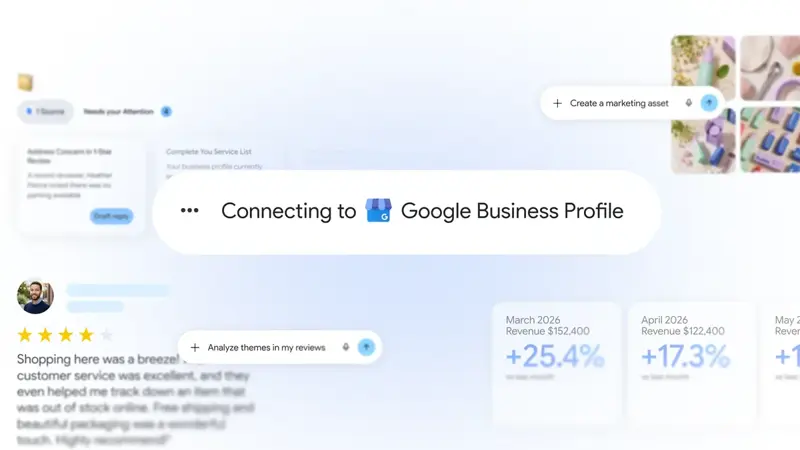
Google just handed that whole job to Gemini. Connect your Google Business Profile to the free Gemini app, and it can read your reviews, draft replies in your voice, tell you in plain English how your month went, and fix the stuff quietly costing you customers — missing hours, an outdated phone number, a question nobody answered. It went fully live worldwide on August 7, and it just picked up support for businesses with more than one location. Here’s what it actually does, exactly how to set it up, and where it still falls short.
What just changed
Google first announced this back in June — a way to link your Google Business Profile (the free listing that shows up when someone searches your business name or “near me”) directly to the Gemini app. On August 7, 2026, it went globally available on desktop and mobile. A week later, Google’s Small Business Bulletin confirmed it now works for accounts managing more than one location, closing a gap that had blocked most multi-location owners and agencies since launch.
What is Google Business Profile, and why does connecting it to Gemini matter?
Your Google Business Profile is the free listing Google builds for your business — the box that shows your hours, photos, reviews, and a map pin when someone searches for you. Before this update, managing it meant logging into a separate dashboard, reading a review, and typing a reply yourself, one at a time. Now you can just talk to it. Ask “how did my business do this month?” and Gemini pulls your actual search impressions, phone calls, and direction requests into a plain-English summary. Ask it to draft a reply to your latest three-star review, and it writes one in your tone — referencing what the customer actually said, not a generic template.
That’s the whole shift: a task that used to require opening a separate app and interpreting a dashboard now happens inside a conversation, in the same free app a lot of people already have on their phone for everything else.
Why Google built this now
Google’s own framing, straight from the launch post, is worth quoting directly: “Save time and grow your business with new Gemini tools.” That’s marketing language, sure, but it points at something real — Google Business Profile has always had good data buried in it. Search impressions, direction requests, call volume, review sentiment — all of it was already sitting there. The problem was never the data. It was that reading a Google Business Profile dashboard feels like reading a tax form, and most small-business owners have exactly zero minutes a week for that.
There’s also a competitive angle worth naming honestly. AI assistants are increasingly the place people ask “what’s a good [type of business] near me” — not just a Google Maps search, but a conversational one, inside ChatGPT, inside Gemini, inside whatever assistant someone already has open. Every one of those assistants pulls from some combination of business listings, reviews, and structured data. A business with accurate hours, a filled-out profile, and recent review activity is simply more likely to get surfaced and recommended correctly than one that’s been untouched since 2023. Google connecting Gemini directly to your profile isn’t just a convenience feature — it’s Google making it easier for you to keep the exact data its own AI (and increasingly, other AI tools scraping the same public listing) uses to describe your business to people asking about it.
The 15-minute setup
Here’s the actual walkthrough — what you’ll see, step by step, on a normal Google account with one verified Business Profile.
Step 1: Open the Gemini app (or gemini.google.com)
You need the Gemini app on your phone, or the web version at gemini.google.com, signed into the personal Google account that manages your Business Profile. This matters more than it sounds — more on that in the edge cases section below, because it’s the single most common setup snag.
Expected result: you land on the normal Gemini chat screen, same as any other query.
Step 2: Connect your Business Profile
Type @ in the chat box and select “Google Business Profile” from the dropdown, or start a new Business Notebook (Gemini’s dedicated workspace for one business’s context — chats, sources, your profile, and your website URL, all held together so you’re not re-explaining your business every session). Google requires just one tap of confirmation to link the two.
Expected result: Gemini confirms the connection and can now see your reviews, questions, hours, photos, and performance data.
Step 3: Ask your first real question
This is where it gets useful. Type:
“How did my business do this month?”
Gemini pulls your actual search impressions, direction requests, call data, and customer engagement — the exact metrics Google’s own launch announcement names — and gives you a plain-English read instead of a dashboard full of unlabeled charts.
Expected result: a short summary, not a spreadsheet dump. Something closer to “calls were up, but your Tuesday hours are still marked as closed” than a wall of numbers.
Step 4: Draft (not post) three review replies
“Draft a warm reply to each of my three most recent reviews, referencing what each customer actually said.”
Gemini writes each reply in your brand voice, referencing the specific feedback left — not a copy-pasted “Thanks for your review!” Read every single one before it goes anywhere. This is the one non-negotiable rule in this whole setup: a human reads and approves every reply before it posts publicly. Gemini drafts; it doesn’t have a “post automatically” switch, and that’s exactly how it should stay.
Expected result: three distinct, specific drafts you can lightly edit and approve — not three templates with the customer’s name swapped in.
Step 5: Ask what’s missing
“What’s missing or outdated on my profile right now?”
This is the quiet money-saver. Gemini can flag unanswered customer questions, outdated holiday hours, and gaps in your profile that are easy to forget about but directly affect whether Google shows you to nearby searchers.
Expected result: a short list — maybe two or three things — not an overwhelming audit.
A worked example: a two-chair hair salon in its first week
Say you run a two-chair salon. You connect your profile Monday morning. First question: “How did my business do this month?” Gemini comes back with something like — search impressions up 12% from last month, 34 phone calls, 8 direction requests, and one thing worth noting: your Sunday hours still say “Closed” even though you started opening 11–3 three weeks ago.
You fix the hours in the same conversation (“update my Sunday hours to 11am–3pm”). Then you ask for review replies. You’ve got a fresh 3-star: “Cut was fine but I waited 20 minutes past my appointment.” Gemini drafts: “Thanks for the honest feedback — a 20-minute wait isn’t the experience we want for you. We’re working on tightening our scheduling buffer between appointments. Hope you’ll give us another shot.” You edit one word, approve it, done. Total time from opening the app to fixing your hours and clearing your review backlog: about eleven minutes.
That’s the shape of it every time — read, draft, approve, done. Not a dashboard you have to learn.
A copy-paste prompt library
Once you’re connected, here are ten prompts worth having on hand — save them somewhere you’ll actually find them again:
- “How did my business do this month, compared to last month?”
- “Draft a reply to my most recent review, referencing what they specifically said.”
- “Are there any customer questions on my profile I haven’t answered yet?”
- “What’s missing or outdated on my profile right now?”
- “Update my hours for [holiday/date] to [new hours].”
- “Summarize the main themes in my last 20 reviews — what are people consistently praising or complaining about?”
- “Write a seasonal update post about [your promotion/event] for my profile.”
- “Which of my photos are outdated, and what should I replace them with?”
- “How do my search impressions this month compare to three months ago?”
- “Draft replies to my three lowest-rated reviews, acknowledging the specific issue each one raises.”
Prompt 6 is the one most owners skip and shouldn’t — a review-theme summary across your last 20 reviews will often surface a pattern (slow Tuesdays, a specific menu item, a parking complaint) that’s easy to miss reading reviews one at a time as they trickle in.
What data Gemini can actually access — and what’s still confirmed vs. reported
This is worth being precise about, because there’s a real gap between Google’s official documentation and what trade press is reporting about the August expansion.
| Data / capability | Status | Source |
|---|---|---|
| Reviews, ratings, review-associated media | Confirmed — can summarize, draft replies, delete | Google Business Profile Help |
| Customer questions | Confirmed — can flag unanswered ones | Gemini launch post (blog.google) |
| Search impressions | Confirmed | Gemini launch post |
| Call data | Confirmed | Gemini launch post |
| Direction requests | Confirmed | Gemini launch post + Help page |
| Website clicks, bookings, search keywords | Confirmed | Google Business Profile Help |
| Hours, menus, photos, attributes, contact info | Confirmed — can update directly | Google Business Profile Help |
| Business Notebooks (persistent workspace) | Confirmed | Gemini launch post |
| Multi-location account support | Reported by trade press (Aug 7) — Google’s own Help page still describes single-verified-profile eligibility as of this writing | PPC Land, Small Business Bulletin |
| Google Workspace account support | Not yet available — personal Gmail accounts only | User reports, cross-checked against Help documentation |
That gap in the second-to-last row is real, and it’s the kind of thing that’s easy to miss if you only read the press coverage. Treat the multi-location rollout as “confirmed by multiple industry outlets, not yet reflected in Google’s own help documentation” — worth trying if you manage more than one location, but don’t be surprised if it’s inconsistent location to location while Google catches its docs up.

Gemini vs. the alternatives: what’s actually different
| Gemini + Google Business Profile | Doing it manually in the GBP dashboard | Local-SEO agency retainer | Yelp / Meta AI business tools | |
|---|---|---|---|---|
| Cost | Free | Free | Typically $300–1,500+/month | Free (basic) to paid tiers |
| Setup time | ~15 minutes, one-tap connect | N/A — already exists | Days to weeks (onboarding call, audit) | Varies by platform |
| Review replies | AI-drafted in your voice, you approve | You write every one from scratch | Often templated, low personalization | Varies — usually manual or generic |
| Performance summaries | Plain-English, on request | Raw dashboard, you interpret it | Monthly report, delivered on their schedule | Platform-specific, not unified |
| Data source | Your own Google Business Profile directly | Same, unfiltered | Same data, repackaged | Yelp/Meta’s own listing data, not Google’s |
| Who reads it | You, immediately, in plain English | You, but you have to translate the jargon | An account manager, then you, with lag | You, per platform |
| Best fit | Solo/small owners doing their own marketing | Owners with time and patience for dashboards | Multi-location brands with real ad budgets | Businesses primarily built on that specific platform |
The honest takeaway: this doesn’t replace an agency if you’re running a serious multi-location ad budget and need strategy, not just execution. But for the overwhelming majority of single-location owners who were never going to hire an agency anyway — the ones currently doing nothing with their listing — this closes almost the entire gap for free.
It’s also worth being honest about where this sits relative to Yelp and Meta’s own AI tools, since they’re not really competing for the same job. Yelp’s AI features are scoped to Yelp’s own platform — helpful if a meaningful share of your customers find you through Yelp specifically, less useful for your actual Google listing, which is what most local search traffic still runs through. Meta’s business AI tools (inside Facebook and Instagram business tools) are built around ad creation and Messenger automation, not review management or Google-specific performance data. None of the three are direct substitutes for each other — a business that’s serious about local visibility will likely end up touching all three at some point, each for what it’s actually good at, rather than picking one and ignoring the rest.
What this means for you
If you’re a solo owner with one location (salon, barbershop, small retail): This is squarely built for you. Connect it this week, ask the “how did my business do” question once a week, and clear your review backlog in one sitting. First action: open Gemini right now and connect your profile — it takes one tap.
If you run a restaurant or café: Pair this with checking whether you’re bookable inside ChatGPT’s new reservation feature (a related but separate AI shift hitting restaurants this month). For Gemini specifically, the review-reply drafting is your highest-value use — restaurant reviews are read by more prospective customers than almost any other business type. First action: ask Gemini to draft replies to your three most recent reviews today.
If you manage 2–5 locations: Try the new multi-location support, but verify it actually surfaced for your account before you rely on it — press reports it as live, Google’s own help docs haven’t caught up yet. First action: check whether the multi-location option appears when you connect; if it doesn’t, monitor for it over the next few weeks rather than assuming it’s broken.
If you’re a dental office, med-spa, or professional service with sensitive reviews: Read every drafted reply twice before approving, especially for anything touching a specific complaint about care or service quality. The AI-drafted reply is a strong first draft, not a final answer for anything with liability implications. First action: use it for routine 4-5 star replies first, build trust with the tool, then extend to harder cases.
If you’re a contractor or field-service business (HVAC, plumbing, landscaping): Your “direction requests” and “call data” numbers are your best leading indicator of local demand — check them monthly, not just your review count. First action: ask “how did my business do this month?” and specifically note the call-data trend over your next three check-ins.
If you manage someone else’s Business Profile as part of a marketing role (not an agency, just internal marketing at a small company): You’ll hit the personal-vs-Workspace account gap fast — see the edge cases below. Plan around it now rather than discovering it mid-task.
If you’re an agency managing many client profiles: This isn’t built for you yet, and shouldn’t be treated as an agency tool. It’s explicitly not designed for accounts managing dozens of locations. Watch for expansion, but don’t restructure your client workflow around it today.
If you’re a freelancer or solopreneur without a storefront (consultant, photographer, tutor): Your Business Profile is doing more work than you think — it’s often the first thing a prospective client sees before your website. The “what’s missing” audit is your highest-leverage first move, since these profiles tend to be the most neglected. First action: run the audit prompt and fix whatever it flags before doing anything else.
If English isn’t your customers’ primary language, or you serve a bilingual community: Gemini drafts replies in whatever language and tone you specify — try “draft a reply in [language], warm and casual” if your customer base skews that way. First action: test one reply in your community’s primary language and see how it reads before committing to it as your default.
Privacy and security: what to actually think about before connecting
This is worth a genuinely separate section, not a single FAQ line, because “should I connect my business’s data to an AI assistant” is a real question deserving a real answer, not a reassurance.
What you’re actually sharing: your Business Profile data — reviews, questions, hours, photos, performance metrics — was already visible to Google and, in aggregate, to the public. Connecting it to Gemini doesn’t create new data or share anything with a third party; it gives Gemini’s chat interface a way to read and act on data your business already generates. It’s not the same as, say, connecting your email inbox or a customer database.
What’s still your call: every reply, every hours change, every post is a draft until you approve it. Nothing publishes automatically. If you’re uncomfortable with an AI assistant even drafting your public-facing communication, that’s a legitimate preference — you can use the “how did my business do” and audit features without ever touching the review-reply drafting.
What’s worth double-checking: if your business handles anything sensitive in customer feedback — a medical practice, a legal service, financial advising — read Google’s current privacy documentation for Business Profile directly before connecting, rather than relying on any single source (including this one) to have the final word. Regulatory and privacy specifics shift, and a practice with compliance obligations should verify current terms itself.
Edge cases and troubleshooting
“I got the option to connect, but only on my personal account — not my Workspace account, where I actually need it.” This is the single most-reported snag from early users, and it’s confirmed by multiple accounts, including local-SEO practitioners who tested it in the first weeks after the June announcement. Google Workspace accounts aren’t supported yet. If your business listing is managed through a Workspace email, you’ll need to check whether a personal Gmail account also has manager access to the same profile — that’s currently the only path in.
“The connection option isn’t showing up at all.” Not everyone gets it on the same day — Google’s rollouts stagger by account and region even after a “global” GA announcement. If it’s genuinely not there after a few days, the profile itself may not be fully verified, or you may not be listed as an owner/manager on it (not just an editor).
“I’m outside the US or Canada — does this work for me? For most markets, yes — this is a genuinely global rollout. The one confirmed exception: it’s not available in the EEA or UK as of this writing, per Google’s own announcement. If you’re in Germany, France, or the UK, you’ll need to wait for a regional expansion that hasn’t been announced yet.
“The review reply Gemini drafted feels generic — is that normal?” It shouldn’t be, and if it consistently is, that’s worth flagging. Local-SEO practitioners on X have raised exactly this concern — one framed it well: “the risk is generic outputs, so the best use is gap-finding and draft review, not blind auto-publishing.” If a draft feels templated, try a more specific prompt: “reference that they mentioned the wait time specifically” tends to fix it immediately. This is exactly why the approve-before-posting rule isn’t optional.
“Can Gemini post the review reply for me automatically?” No — and don’t set up any workaround to make it do so. Every draft requires your manual approval before it goes live. That’s a feature, not a limitation.
“I run a business with more than one location and I don’t see multi-location support yet.” As covered above, this is reported live by press as of August 7 but not yet reflected in Google’s own help documentation. It may be rolling out unevenly. Check back in the app periodically rather than assuming it’s simply broken for your account.
“Will this replace my need to check the real Business Profile dashboard entirely?” Not for everything — the dashboard still has some deeper controls (certain verification steps, ownership transfers) that live outside what Gemini currently surfaces. Think of Gemini as the fast, plain-English front door for the 90% of tasks you do regularly, not a full replacement for the dashboard’s edge-case controls.
“Does connecting my profile mean Google is now reading my reviews with AI for advertising purposes?” Google’s documentation doesn’t indicate this connection changes anything about ad targeting or data sharing beyond what your Business Profile already does. It’s specifically framed as a management tool, not a new data-sharing arrangement — but if that distinction matters to you, it’s worth reading Google’s current privacy documentation for Business Profile directly rather than taking any single source’s word for it, including this one.
“What if I don’t trust AI-drafted replies to sound like me at all?” Start narrow. Use it only for your performance summaries and the “what’s missing” audit for the first week, skip the review-reply drafting until you’ve seen how it writes. Once you see two or three drafts and know it’s in the right ballpark, expand from there.
“I asked it to update my hours and nothing changed.” Give it a minute — profile edits made through Gemini go through the same update pipeline as edits made directly in the dashboard, and Google’s own systems can take a short while to reflect a change publicly. If it’s been more than an hour and the change still isn’t live, try making the edit directly in the Business Profile dashboard instead and treat that as the more reliable fallback for anything time-sensitive, like holiday hours you need live by tomorrow morning.
“Does this work the same on mobile and desktop?” Yes — the feature is confirmed for both, and the underlying connection is tied to your account, not the device. Connect once from either, and it’s available on the other.
“My business has a very niche or technical service — will Gemini understand it well enough to write a good reply?” Reasonably well, but not perfectly on the first try for unusual terminology. If a draft misses the point on something technical (a specific medical procedure, a specialized repair term), just tell it directly: “that’s not quite right — here’s what actually happened” and ask for a redraft. It adjusts fast within the same conversation.
What this can’t do
It can’t post anything publicly without you approving it first. This isn’t a limitation so much as the correct design — but it means you still need to actually show up and read each draft. If you were hoping for full autopilot, that’s not what this is, and it shouldn’t be.
It doesn’t work on Google Workspace accounts. If your business email is a Workspace address and that’s the only account with manager access to your profile, you’re currently blocked until Google extends support.
It’s not available in the EEA or UK. A meaningful chunk of the world’s small businesses simply can’t use this yet, with no announced timeline for when that changes.
It doesn’t replace strategic marketing decisions. It can tell you your calls dropped 15% this month. It can’t tell you why, or what to do about a genuine local competitive threat — that’s still a judgment call for you, or for whoever handles your marketing strategy.
It’s not built for agencies managing many client accounts. If you’re managing 10, 20, or 50 business profiles professionally, this tool isn’t shaped for that workflow yet, multi-location support notwithstanding.
It can’t fabricate reviews, ratings, or engagement that don’t exist. This sounds obvious, but it’s worth stating plainly given how much noise there is about “AI-boosted” local rankings: Gemini reads and helps you act on your real data. It has no mechanism for inflating your review count, faking engagement, or manipulating your ranking beyond what genuinely improving your profile and response rate would do anyway.
It doesn’t currently integrate with third-party booking or POS systems. If your actual operational data lives in Square, Toast, Calendly, or a similar platform, Gemini’s view is limited to what Google Business Profile itself tracks — it won’t cross-reference your point-of-sale numbers against your profile performance.
FAQ
How do I connect my Google Business Profile to Gemini? Open the Gemini app or gemini.google.com, type @ in the chat and select “Google Business Profile,” or start a new Business Notebook. One tap confirms the connection.
Can Gemini reply to my Google reviews automatically? No. It drafts replies for you to review and approve — it doesn’t post anything without your explicit action.
Is Gemini for business free? Yes, the Business Profile connection and the features described here are free in the standard Gemini app, no paid tier required.
Can Gemini update my business hours? Yes — you can ask it directly, “update my hours to [new hours],” and it makes the change to your live profile.
What are Business Notebooks in Gemini? A dedicated workspace inside Gemini that holds your chats, your connected Business Profile, and your website together, so you don’t have to re-explain your business context in every new conversation.
Does this work for businesses with more than one location? Multi-location support was reported live as of August 7, 2026, but Google’s own help documentation hasn’t been fully updated to reflect it yet — treat it as rolling out, not universally available.
Why can’t I connect my Workspace account? Google Business Profile in Gemini currently only supports personal Google accounts. Workspace account support hasn’t been announced.
Is this available outside the US? Yes, for most markets — this is a global rollout, with the confirmed exception of the EEA and UK, where it’s not yet available.
How is this different from just using the regular Google Business Profile app or dashboard? The dashboard requires you to interpret raw metrics and write every reply yourself. Gemini translates the same data into plain English on request and drafts replies for your approval — same underlying data, far less friction to actually use it.
Should I worry about AI-drafted review replies sounding fake? It’s a fair concern, and local-SEO practitioners have raised it too. The fix is simple: read every draft, and if one feels generic, ask Gemini to reference the specific detail the customer mentioned. Never approve a reply you wouldn’t have written yourself.
Do I need to pay for Gemini Advanced or a subscription to use this? No — everything described in this guide works in the standard, free Gemini app. There’s no paid tier gating the Business Profile connection itself.
Can I disconnect my Business Profile from Gemini later if I change my mind? Yes, the connection can be removed the same way it was added — through the same menu where you connected it. Disconnecting doesn’t affect your actual Google Business Profile; it just stops Gemini from reading it.
What happens to my data if I stop using Gemini? Your Google Business Profile itself is unaffected either way — it’s the same listing Google has always hosted. Gemini’s connection is a read/write bridge to that existing profile, not a separate copy of your data living somewhere else.
The bottom line
The gap this closes isn’t glamorous — it’s the gap between “I know I should check my Google listing” and actually doing it. A free tool that turns a dashboard nobody wants to open into a two-minute conversation is a real, if unglamorous, win for anyone running a small business without a marketing team. The one rule that matters more than any setup step: read every draft before it goes public. Gemini writes fast. You still own what gets said in your business’s name.
Want to go deeper on making your business findable and understandable to AI tools like Gemini, ChatGPT, and Google’s AI Mode — not just this one feature? Our AI Visibility for Local Business course covers the rest, and a free account opens the first two lessons.
Sources
- Google — New Gemini app features for small businesses
- Google Business Profile Help — Manage your Business Profile with the Gemini web app
- PYMNTS — Google Debuts Gemini Features Geared to Small Businesses
- PPC Land — Google Business Profile in Gemini now works for multi-location accounts
- Vizup — Google Business Profile comes to Gemini: what it means for local businesses
- 9to5Google — Gemini app adding Google Business Profile integration, Business notebooks
- SEO Roundtable — Connect your Google Business Profile to Gemini
- Search Engine Journal — Google Is Adding Business Profile Tools To The Gemini App
- SEO Sherpa — Gemini Can Now Manage Your Google Business Profile
- @GeminiApp on X — official launch thread, Jul 6, 2026
- @Marie_Haynes on X — early hands-on report, Jun 10, 2026