You just got off a 45-minute client call. Three decisions got made, four things need to happen before Friday, and somebody has to write the recap email — which means somebody has to re-listen to the parts they zoned out on. That somebody is usually you.
On August 12, 2026, Google gave Gemini the ability to reach directly into Otter.ai and Granola — two of the most-used AI meeting note-takers — and pull your notes into a single conversation. No more copy-pasting a transcript from one app into another. You ask, Gemini fetches, and the recap writes itself in the time it takes to refill your coffee.
What just changed
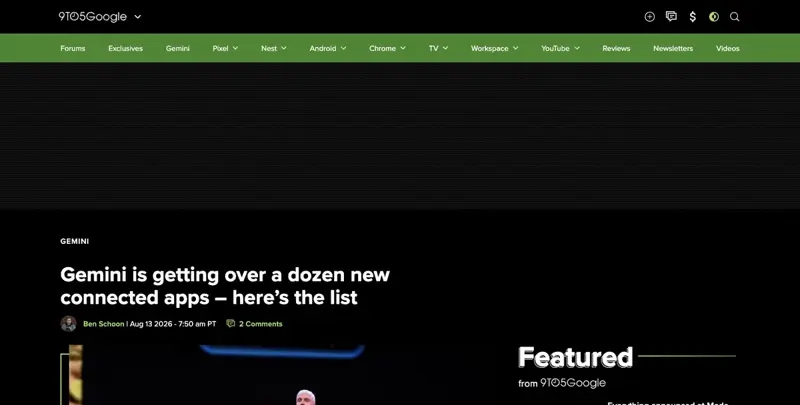
At its Made by Google event, alongside the Pixel 11 launch, Google quietly rolled out one of the more useful updates Gemini has gotten all year: a slate of 13 new “connected apps.” Granola, Otter.ai, and Wix landed under a “productivity and creativity” category, joined by Ticketmaster, Fever, GetYourGuide, Localiza, OpenTable (UK), iHeartRadio, Pandora, Angi, Thumbtack, and Zocdoc across the rest of the announcement. The rollout is happening in waves — Google’s own language is “over the next few weeks” — so if you don’t see it in your app yet, that’s expected, not broken.
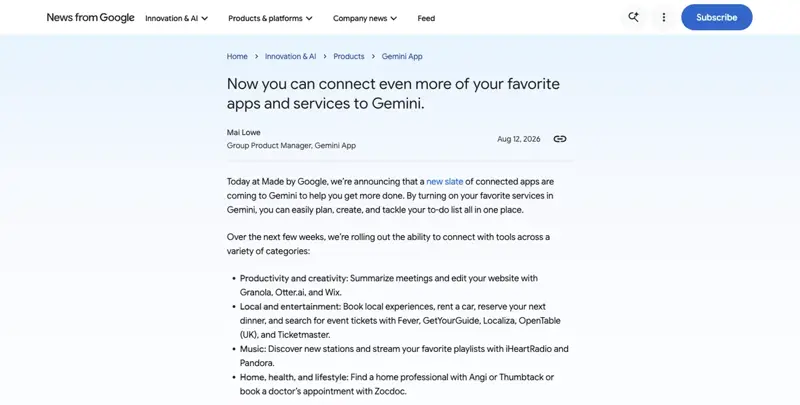
The productivity trio is the one worth your attention. Granola and Otter.ai both specialize in capturing and cleaning up meeting audio — Otter joins your call and transcribes in real time, Granola quietly builds structured notes from the meeting alongside whatever you type. Once connected, you can ask Gemini something like “summarize the client vision and vendor calls from Granola” and it pulls the actual meeting content into the chat, no exporting or forwarding required.
What this actually is, in plain terms
This isn’t Gemini replacing Otter or Granola. It’s Gemini becoming the place you go after the meeting to do something with what got captured. Think of it less like a new note-taking app and more like a universal remote — one that now has buttons for the tools you already use.
And it’s arriving at an interesting moment. Google also expanded its own native meeting-notes feature inside Google Meet (“Take notes for me”) to in-person meetings around the same week — which means Gemini is simultaneously competing with Granola and Otter and integrating them. That’s not a contradiction so much as Google hedging: if you’re already loyal to a third-party note-taker, Gemini meets you there instead of trying to convert you.
The timing makes more sense once you look at how big this category already is. Roughly 75% of professionals now use some kind of AI note-taker in their work meetings, according to Fellow.ai’s 2025 survey — nearly double the share from 2023 — and 67% of Fortune 500 companies have one deployed somewhere in the organization. Industry estimates put the global AI note-taking market at around $740 million in 2026, on track to grow past $3.4 billion by 2035. That’s not a niche habit anymore. It’s close to the default. Which is exactly why Google connecting to the two biggest independent players, instead of trying to out-market them, is the smarter play.
The walkthrough: transcript to follow-up email in three steps
Here’s the thing that matters most for anyone reading this before the connector reaches their account: you don’t need to wait for the rollout to get the win. The “paste a transcript” version of this workflow works today, in ChatGPT, Claude, or Gemini, with zero setup. The native connector is the upgrade, not the prerequisite.
Step 1: Get the transcript in front of the model
If you already have the Gemini connector (check Settings → Connected apps, or just try typing “@Granola” or “@Otter” in a new chat):
- Open Gemini (web or mobile) and go to Settings and help → Connected apps.
- Find Granola or Otter.ai in the list and tap Connect. You’ll get an OAuth-style prompt — sign into the third-party account, grant access, done.
- In a new chat, type “@” and select the app, or just ask directly: "@Granola, summarize my 2pm call with Acme Corp."
- Gemini pulls the note content and starts working with it immediately — no download, no forward, no “let me grab that real quick.”
If you don’t have the connector yet (most people, for the next few weeks): open Otter, Granola, Zoom, or whatever tool recorded your meeting, copy the raw transcript, and paste it into Gemini, ChatGPT, or Claude directly. Same destination, one extra copy-paste.
One thing Google’s own documentation is specific about: don’t paste a document URL or email link into the prompt. Reference content by keyword and let the connector fetch it — pasting raw links tends to confuse the retrieval and you’ll get a worse summary.
Step 2: Use a structured prompt, not a vague one
“Summarize this meeting” gets you a summary. It doesn’t get you something you can act on. The prompt patterns that actually produce usable output are more specific — and after digging through what’s published across support docs and prompt libraries, the same handful of structures keep showing up because they work.
Here’s the one I’d start with — call it the extraction prompt:
“Act as a senior project manager. Review the transcript below and extract it into a Markdown table with two columns: Decisions Made (only final, agreed-upon items — no half-considered ideas) and Action Items (include an owner; write ‘UNASSIGNED’ if none was named). After the table, write a short paragraph suitable for a Slack update to the team.”
Run that against a real transcript and you get something like this (this is from an actual 40-minute client kickoff, names changed):
Decisions Made:
| Decision |
|---|
| Launch date moves to September 15, not September 1 |
| Client will use their existing CRM instead of migrating to ours |
| Weekly check-ins move to Tuesdays at 10am ET |
Action Items:
| Action | Owner | Deadline |
|---|---|---|
| Send updated project timeline | Priya | By Friday |
| Confirm CRM API access | UNASSIGNED | — |
| Draft revised scope doc | Marcus | Next Tuesday’s call |
That “UNASSIGNED” line is doing real work — it’s the model refusing to guess who’s responsible for something nobody actually claimed on the call. That’s a feature, not a gap. A summary that quietly assigns ownership nobody agreed to is worse than no summary at all.
Step 3: Chain a second prompt to write the follow-up
Once you’ve got clean decisions and action items, don’t start a new conversation — keep going in the same thread:
“Turn the action items above into a follow-up email to the client. Keep it under 150 words, warm but professional tone, and end with a line confirming our next check-in.”
That second prompt takes maybe fifteen seconds to write and turns your structured notes into something you can paste into Gmail and send. Total time from “meeting just ended” to “follow-up sent”: under five minutes, most of which is just reading the output to make sure nothing got mangled.
A note on accuracy: build in guardrails
Every reliable prompt pattern I found shares one instruction in some form: tell the model to say “Unknown” or “TBD” instead of guessing. Long transcripts especially benefit from this — if your call ran 90 minutes, consider splitting it into two chunks and asking for a summary of each before combining, rather than asking for one summary of the whole thing in a single pass. Models drift on long, single-pass transcription work the same way a tired assistant would: the middle third gets thinner treatment than the start and end.
A second worked example: the recruiter debrief
Client kickoffs aren’t the only place this earns its keep. Here’s the same three-step pattern applied to a 30-minute candidate screening call, which is a genuinely different use case with a genuinely different risk profile.
The prompt shifts slightly:
“Review the interview transcript below. Extract only what was explicitly stated by the candidate — do not infer confidence, enthusiasm, culture fit, or anything about tone. Produce: (1) a factual skills summary based only on stated experience, (2) direct quotes for any claims that should be verified (certifications, years of experience, specific tools), (3) a list of the candidate’s own follow-up questions.”
Notice what’s missing from that prompt on purpose: any request to score, rank, or rate the candidate. That’s deliberate, and it matters more than it might seem. Feed that output into a second prompt — “draft a same-day debrief for the hiring manager, structured as: role fit against the stated requirements, open questions, and recommended next step” — and you’ve turned a 30-minute call into a five-minute, defensible written record instead of a fuzzy memory of “I liked them, I think.”
The “defensible” part isn’t incidental. A factual, quote-anchored summary is something you can stand behind if a hiring decision ever gets questioned. A vague gut-feel summary that quietly baked in tone-based inference is exactly the kind of artifact that creates problems later — for the candidate and for you.
Gemini vs. Otter.ai vs. Granola: which one should capture your meetings
The connector question (“should I connect Granola or Otter to Gemini”) is really two separate questions: which tool should record your meetings, and where should you process the output. Here’s how the three actually compare, pulled from vendor documentation and independent testing:
| Gemini / Google Meet native | Otter.ai | Granola | |
|---|---|---|---|
| Recording mechanism | Built into the Meet call, visible notice icon | A visible bot joins the call | No bot — captures system/mic audio locally |
| Transcription accuracy | Not independently benchmarked | 85–95%, varies by source | 90–92% in independent tests |
| Live transcript during call | Yes, if enabled | Yes, real-time captions | No — processed after the meeting |
| Works for in-person meetings | Yes, since the August 2026 update | Via mobile/desktop recording | Via iPhone app |
| Audio stored in the cloud? | Follows your Workspace/Meet retention policy | Yes, exportable on paid plans | Granola states it does not save meeting audio |
| Pricing | Bundled with Workspace/Gemini plans | Free (300 min/mo) up to $16.99–30/mo | Free (limited) up to $14–35/user/mo |
| Key integrations | Native Docs, Drive, Calendar | Salesforce, HubSpot, Notion, Slack, Zapier, Trello | Notion, HubSpot, Slack, Attio, plus an MCP server for Claude/ChatGPT |
| Platform coverage | Web, Android, iOS | Web, Mac, Windows, iOS, Android | Mac, Windows, iOS — no web, limited Android |
| Active litigation | None found | Consolidated privacy suit, pending | Chamberlain v. Granola, filed July 2026 |
The honest trade-off is philosophical as much as technical. Otter automates everything — a visible bot joins, records, and keeps a full transcript, which is great for CRM logging and for people who weren’t on the call. Granola blends AI context into notes you personally type, which trades a live transcript for more discretion. Gemini’s native option sits in the middle: deeply tied into the Google ecosystem, free with eligible Workspace plans, but currently anchored to Meet calls or the Meet mobile app rather than being a universal capture tool.
If you’re choosing fresh today: Otter if you want the fullest automated record and don’t mind a visible bot on the call. Granola if you want AI-assisted notes without broadcasting that you’re recording. Gemini’s native option if you’re already deep in Google Workspace and don’t want another subscription.
What this means for you
If you’re a solo consultant or freelancer: You’re probably already using Otter or Granola out of habit. The unlock here isn’t the connector — it’s the second-prompt trick. Start chaining “now write the follow-up email” onto every summary prompt. That’s the actual time savings, and it costs nothing.
If you’re a project manager running multiple concurrent projects: Build yourself a saved prompt template (a text snippet, a note, whatever) with the extraction-prompt structure above, and reuse it verbatim every time. Consistency matters more than cleverness here — a slightly worse prompt you actually use beats a perfect one you have to rewrite from scratch each time.
If you’re a recruiter doing back-to-back candidate calls: This is genuinely useful for you, with one caveat covered in the edge cases below — do not let the AI infer anything about a candidate that wasn’t explicitly said. Stick to structured, factual extraction. Never ask it to score or rank tone, confidence, or “culture fit” from a call recording.
If you’re at a 10-person team without a note-taking standard: This is the week to pick one. Not because Gemini’s connector forces your hand, but because “everyone uses whatever they personally like” means nobody can find anyone else’s meeting notes. Pick Otter or Granola as the team default, connect it to Gemini, and you get a searchable, prompt-able archive almost by accident.
If you’re an account manager juggling client relationships: The follow-up email chaining trick (Step 3 above) is worth more to you than the connector itself. Clients notice when your recap lands within the hour instead of the next morning. That’s the actual differentiator, and it works whether or not you’ve connected anything.
If you’re in a heavily regulated industry (healthcare, legal, finance): Slow down before connecting anything. Read the privacy section below before you record a single call. The rules here are less about Gemini and more about what you’re allowed to capture and where it can legally live.
If you manage a team and haven’t thought about AI note-taker policy at all: You should, this week. Not because the tech is risky — because your team is probably already using it without anyone having agreed on ground rules for what gets recorded, consented to, or pasted into a chatbot.
Edge cases and troubleshooting
“Gemini says it can’t find my Granola notes even though I’m connected.” This is a real, reported issue in the first days of rollout — not user error. Several early testers found Gemini flatly denying it has a Granola connection, then hallucinating a technical explanation for why. If this happens, disconnect and reconnect the app in Settings, and try referencing it explicitly with “@Granola” rather than a natural-language mention. Given this is a brand-new rollout, expect rough edges for the first few weeks.
“The summary invents an action item nobody actually said.” This is the single most common failure mode with any AI meeting summary, not just Gemini’s. Fix it at the prompt level: explicitly instruct the model to write “Unknown” or leave items blank rather than infer. If it still happens, you’re likely feeding it too long a transcript in one pass — split it into thirds and summarize each separately.
“My meeting was 90 minutes and the middle section got barely mentioned.” Long single-pass summaries thin out in the middle. Chunk it. Ask for a summary of the first third, then the second, then the third, then a final prompt asking the model to merge all three into one clean recap.
“Someone else’s tool (not mine) recorded the call — can I still use this?” Only if you have their transcript legitimately, and only if you had consent to record in the first place. The connector doesn’t change consent law. It changes what happens after consent, not whether you had it.
“Do I need to tell people on the call I’m using this?” Given the active litigation around undisclosed recording (more below), yes — verbally, at the start of the call, every time. Not because Gemini requires it. Because the underlying recording tools are being sued right now for skipping exactly this step.
“The connector isn’t in my Settings menu at all.” The rollout is staged over “the next few weeks” per Google’s own language — you may simply not have it yet. In the meantime, the paste-a-transcript version of this workflow works identically well.
“My company’s admin hasn’t enabled it.” For Workspace accounts, admins control this centrally — in the Admin console under Generative AI → Gemini app → Apps, they toggle access, and changes take up to 24 hours to apply. If you’re not seeing it and you’re on a work account, that’s the first thing to check with IT.
If you’re the admin reading this instead of the employee waiting on it: there’s no strong reason to rush the org-wide toggle on day one of a staged rollout. Let it stabilize for a week or two, watch for the connector-confusion bug mentioned above, and then flip it on with a short internal note about the consent expectation — “if you use this on client or candidate calls, say so out loud first” — rather than silence that everyone interprets differently.
“It worked on my phone but not on desktop (or vice versa).” Platform coverage isn’t identical across Gemini’s connector, Otter, and Granola — Granola in particular has no web version and limited Android support as of this rollout, while Otter covers web, Mac, Windows, iOS, and Android more evenly. If a connector behaves differently across your devices, check the source app’s own platform support page before assuming Gemini is the problem.
“I got a garbled or clearly wrong transcript excerpt.” Both Otter and Granola have documented accuracy ranges in the high 80s to low 90s percent — not perfect. Cross-check anything that will go into a contract, a legal record, or a client-facing document. Treat the AI summary as a strong first draft, not a transcript of record.
What this can’t do
It can’t guarantee anyone consented to being recorded. That’s on you, the person running the meeting — not on Gemini, Otter, or Granola. Consent law varies by state and country, and it’s your responsibility regardless of which tool captured the audio.
It can’t tell the difference between a decision and a suggestion someone floated and dropped. Well-written prompts reduce this failure mode significantly, but they don’t eliminate it. Always skim the raw notes once, even if you trust the summary.
It doesn’t currently work across every meeting platform equally. Gemini’s native option is anchored to Google Meet. Otter and Granola cover more platforms (Zoom, Teams, in-person), but if you’re deep in a non-Google ecosystem, expect some friction connecting things back to Gemini specifically.
It can’t protect privileged or confidential information you choose to paste into it. If your meeting touched attorney-client privileged material, HR disciplinary details, or a client’s financial specifics, none of these tools have a setting that magically makes that safe to summarize with AI. That’s a judgment call every time, not a toggle.
It’s not independently benchmarked against a public accuracy standard. For Gemini’s own native transcription, no third-party accuracy study is publicly available yet — you’re taking Google’s word for it. Otter and Granola both have some independent testing behind their published numbers; Gemini’s native option, being newer, doesn’t yet.
The privacy question you can’t skip
This rollout landed at an uncomfortable moment for the AI meeting-notes category. On July 30, 2026 — twelve days before Google announced the Granola connector — a Florida woman named Tarra Chamberlain filed a proposed federal class action against Granola in the Northern District of California. She was never a Granola user herself. She was a participant on a call where someone else was running Granola, and she alleges her voice was recorded and used to train Granola’s models without her knowledge or consent. The complaint quotes Granola’s own marketing copy back at it — “other people in the room won’t know it’s there” — as evidence the invisibility was a deliberate design choice, not an oversight.
The case cites seven claims, including violations of the federal Wiretap Act and California’s two-party consent recording law, which carries statutory damages of $5,000 per violation. It sits in the same California district as a separate, still-unresolved consolidated lawsuit against Otter.ai (four combined cases, alleging Otter’s bot secretly builds voiceprints and trains AI on calls without full-participant consent), which survived a motion-to-dismiss hearing in May 2026 with no ruling yet.
None of this means don’t use these tools. It means treat every AI note-taker — Gemini’s own included — as a potential source of legal exposure if you skip consent. A few concrete habits fix most of the risk:
- Say it out loud, every call. “I’m using an AI note-taker for this call, is that okay with everyone?” Ten seconds, and it closes off almost the entire legal exposure these lawsuits are built on.
- Strip anything sensitive before pasting a raw transcript into a chatbot. Full names of non-consenting third parties, account numbers, anything under NDA — swap in placeholders like “[CLIENT NAME]” if you need the context without the exposure.
- Check your data-training opt-out. Granola’s default setting trains its models on your calls unless you turn that off — that default is a central allegation in the Chamberlain suit. Check it once, in settings, today.
- Manage retention. In Gemini specifically, go to myactivity.google.com → Gemini Apps Activity, and set auto-delete to 3, 18, or 36 months instead of leaving it indefinite.
- The postcard test: if you wouldn’t want the content showing up in a data breach with your name attached, don’t paste it into any AI tool — connected or standalone.
FAQ
Do I need Granola or Otter already installed to use this? No — you need one of them if you want the native connector experience, but the underlying workflow (paste transcript, use structured prompt, chain a follow-up prompt) works with zero apps connected. Copy-paste is the fallback that works today.
Is this feature free? The Gemini connector itself doesn’t cost extra on top of whatever Gemini plan you already have. Otter and Granola both have free tiers with limits — Otter caps at 300 minutes a month free, Granola’s free tier is more feature-limited than minute-limited.
Can Gemini join my meeting live and take notes in real time through this connector? No. The connector lets Gemini retrieve notes that Otter or Granola already captured — it doesn’t turn Gemini itself into a live meeting bot. For live in-meeting capture, you’re using Otter’s bot, Granola’s local recording, or Gemini’s own native Meet notes feature.
What happens to my notes if I disconnect the app later? Disconnecting in Gemini’s settings (or via Google Account security settings → “Your connections to third-party apps” → Delete all connections) stops future access. It doesn’t retroactively delete notes already stored inside Otter or Granola’s own systems — you’d need to delete those separately in each app.
Is it safe to use this for candidate interviews? With real caution. Stick to factual extraction only — never ask the AI to infer confidence, enthusiasm, or “fit” from tone or word choice. That kind of inference is exactly the sort of thing regulators are scrutinizing in AI hiring tools right now.
Why would Google integrate competitors into its own product? Because plenty of people are loyal to Otter or Granola specifically and won’t switch just because Gemini added a notes feature. Meeting them where they already are is a pragmatic bet that more usage inside Gemini, even routed through a competitor’s data, is worth more than trying to force a migration.
Does this work on the free version of Gemini? The connector itself appears to be rolling out broadly rather than gated to a paid tier specifically, though availability by plan can shift during a staged rollout — check Settings → Connected apps to see if it’s live on your account yet.
What’s the actual accuracy difference between typing my own notes and using AI to summarize a transcript? Independent testing puts Otter and Granola both in the 85–95% transcription accuracy range. That’s high enough for a working draft, not high enough to skip a human skim before anything client-facing or contractual goes out.
Does this work outside the US, or in languages other than English? The connector rollout itself is global in Google’s own announcement language, but individual features (like Meet’s in-person notes update) have staggered regional availability. Transcription quality for Otter and Granola both skews stronger in English than in other languages — if your meetings run in German, Spanish, or another language, test the accuracy on a low-stakes call before trusting it for anything important.
What if my company already has a note-taking tool that isn’t Otter or Granola? You’re not locked out of the underlying workflow — the paste-a-transcript method works with any tool that gives you a text transcript. The native Gemini connector is currently limited to the apps Google has explicitly integrated, so a tool outside that list means you’re on the manual path for now, which still gets you the same follow-up-email result, just with one extra copy-paste step.
The bottom line
The genuinely useful part of this update isn’t that Gemini can now “see” your Otter or Granola notes — it’s the habit it makes easy: transcript in, structured decisions and action items out, follow-up email chained on top, all in one sitting instead of three separate chores spread across your afternoon. Whether the native connector has reached your account yet or you’re still on the copy-paste version, the workflow is the same, and it’s worth building into how you close out every meeting from here on.
If you want the fuller version of this — including how to build a reusable prompt template and where the privacy line actually sits for your specific role — FindSkill’s AI Meeting Notes course walks through it in about two hours, free.
Sources
- Google — New connected apps are coming to Gemini (August 2026)
- 9to5Google — Gemini is getting over a dozen new connected apps
- Android Authority — Google powers up Gemini with several new connected apps
- PPC Land — Google adds Granola to Gemini 12 days after it was sued over secret recording
- PPC Land — Granola sued for recording meetings without consent to train AI models
- Basil AI — Chamberlain v. Granola: The Invisible AI Notetaker Wiretap Lawsuit
- National Law Review — AI Note-Taking Tools, Silent Recording, and the Consent Problem
- Music Business Worldwide — Ticketmaster launches connected app in Google’s Gemini
- Google Support — Use integrations with Gemini in Workspace
- Google Support — Connect your Google apps and third-party data to Gemini
- Fellow.ai — State of AI Meeting Notetakers 2025
