A client’s contract says “no AI”. Or a pitch event, a book publisher or a marketplace says it. You do your design work in Canva, and on November 19 Canva announced a switch for Free and Pro users to turn its generative AI off. So can you now sign that clause?
You can sign it more safely than you could a week ago, because it is easier to avoid AI. But a switch only changes what tools you can reach. It does not prove what happened in the project, and “no AI” is a promise about the whole process. This guide walks through the setup, what the file does and does not tell a reader, the records worth keeping, and a sample clause you can adapt. Two honest notes up front. This is not legal advice, so have a lawyer read any contract that matters. And we did not test the switches on a live Canva account, because Canva’s help page says they are rolling out gradually. We read Canva’s pages, the policies named below, and what people posted in the days after launch, all on November 22, 2026.
If you only want to know where the switches are, our other guide covers them: Canva’s AI Off-Switch: Every Toggle and What It Won’t Hide. This one is about what to do when someone else is checking your work.
“No AI” can mean four different things
Before you touch a setting, find out what the other side means. The same two words can cover very different promises.
| What the clause might cover | Example | Canva setup that helps | What you still have to do |
|---|---|---|---|
| The final deliverable only | “No generative AI image appears in the files we receive” | Generative AI switch off; check every asset | Check each element in the final file |
| The whole process | “No AI used at any stage, including ideas and references” | Switch off, plus working habits outside Canva | Do not use a chatbot for concepts either |
| Assistive edits | Cut-outs, resizing, tidying | Canva keeps Background Remover and Magic Grab on | Ask if cut-outs count as AI |
| Third-party assets | Stock photos, templates, fonts | Library toggle shows fewer AI-tagged items | Check where each asset came from |
The third row is where designers get caught. Canva says Background Remover and Magic Grab keep working with generative AI off, because they edit what is already there. If the contract says “no AI tools”, that wording may include them. Ask which one the client means before you sign, not after you deliver.
Step 1: Set Canva up
There are three settings, and they are separate. Canva’s help page says so in plain words: the library toggle is “separate from turning generative AI features on or off”, and it is “separate from your privacy control for AI feature improvement”.
- Turn off generative AI features. Profile icon, Settings, then Permissions under “Controls and permissions”, then turn off “Enable generative AI features”. Canva says this hides tools including Canva AI, Magic Write, Magic Design, Magic Edit, Magic Media, Dream Lab, Canva Code, AI Shapes, Image to Video and Translate designs, and that new generative features follow the same setting.
- Turn off AI-generated content in the library. Profile icon, Your account, AI personalization, then turn off “AI-generated content”. This shows fewer templates and elements that Canva has tagged as AI-generated. Canva says “Some AI-generated templates and elements may still appear.”
- Read Privacy controls. Profile icon, Your account, Privacy controls. This decides whether your content may help improve Canva’s AI. It matters if your client’s worry is their confidential material, which is a different worry from “was AI used to make it”.
As of Canva’s help page of November 22, these personal settings are for Free and Pro accounts. If you work inside an agency’s Canva Teams, Business or Enterprise account, an admin controls AI features there, one feature at a time. Ask who that is.
Do this on the day you start the job, and write down the date. We come back to that note in the records section.
Step 2: Choose assets whose origin you know
This is the step most guides skip, and it is the one that decides whether your “no AI” is true.
Canva calls its library “the world’s largest library of creator-made templates and design elements”, and says it also has “a small portion” of AI-generated content, “such as abstract backgrounds and illustrated graphics”. Canva says those assets “are identified as AI-generated in their metadata”. But there are three limits you should know about:
- The toggle shows fewer, not none. Canva’s help says some AI-generated templates and elements may still appear.
- The toggle does not label anything. The help page says “This toggle doesn’t label content as AI-generated.” You cannot use it to check an element you are about to use.
- It skips some places. It does not affect Brand Templates or searches of your own uploads and designs.
One person posted about the practical result on November 21: for ready-made templates and elements in the library, Canva does not label which are AI-made, and that is a problem at agent pitch events that ban AI. It was one post with a handful of likes, so treat it as a signal, not a survey. It does match what Canva’s own help page says about labels.
So for a client who needs “no AI” in the deliverable, the safest approach is to reduce how many unknown assets are in the file:
- Build from your own photos, drawings and logos, uploaded to Canva.
- Use fonts and shapes that came with the editor, not decorative backgrounds you picked from search.
- When you do use a library element, save its name, the date, and a screenshot of where you found it, so you can say later what it was.
- Treat Brand Templates from a client’s own team as theirs to vouch for. Ask the client to confirm in writing that their templates are not AI-made.
None of this is a guarantee. It lowers the number of things you cannot account for.
Step 3: Know what the file says, and what it doesn’t
People ask whether a clean file is proof. It is not, and Canva’s own wording shows why.
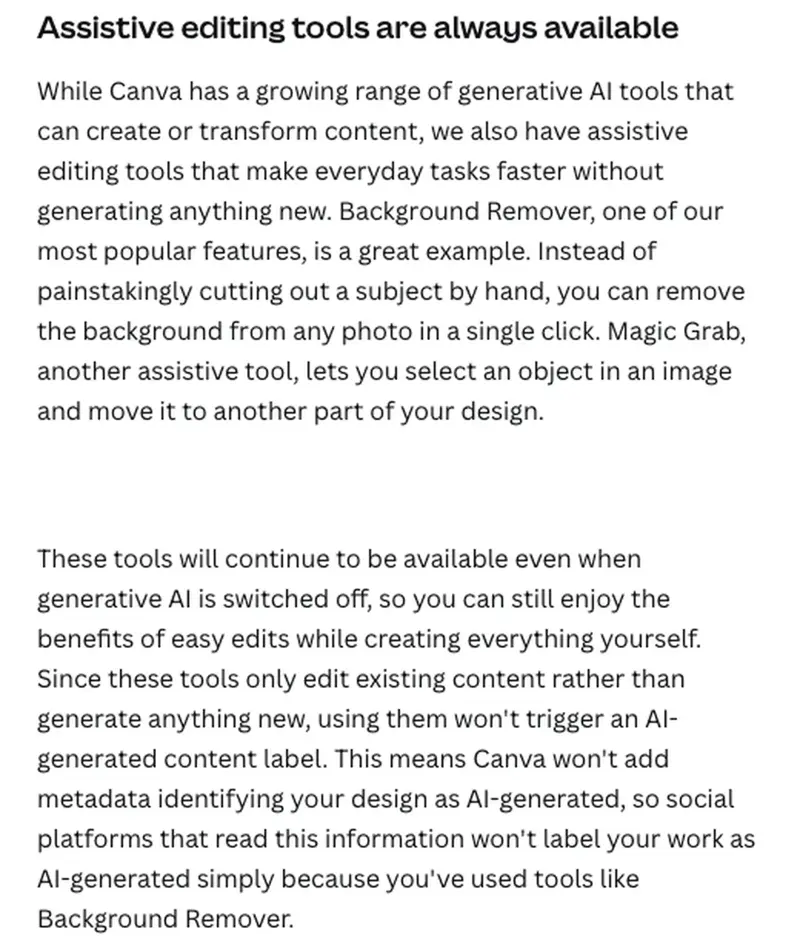
Canva says using Background Remover or Magic Grab “won’t trigger an AI-generated content label” and that Canva “won’t add metadata identifying your design as AI-generated”. It also says its AI-generated library assets are identified in their metadata, “allowing that information to carry through to social platforms and other services that recognise and label this.”
Read that carefully. It tells you what Canva writes into a file. It does not tell you:
- which exact field or format carries the label, because the announcement does not say;
- whether the label survives every export, screenshot, re-upload or edit in another program;
- what a given client’s, platform’s or marketplace’s checking process will conclude.
On the platform side, the two public policies we opened describe a mix of signals. Meta’s February 2024 announcement says it is building tools to read “the ‘AI generated’ information in the C2PA and IPTC technical standards”, and in the same post it says “it’s not yet possible to identify all AI-generated content, and there are ways that people can strip out invisible markers.” That was written in 2024, so check Meta’s current help pages before you rely on it. Pinterest’s Help Center says it analyzes a Pin’s metadata and also uses classifiers that detect AI content “even if the content doesn’t have obvious markers”. A label can also appear if the owner says the Pin was made or changed with AI, and there is an appeal route.
Two practical conclusions follow. A clean file does not prove you used no AI: markers can be missing, and a classifier does not look at your process. And a label does not prove you did: Pinterest, at least, describes an appeal route. So the file is one clue. It is not the evidence.
Etsy’s rules add a small, concrete point. Etsy’s listing image rules say most products need at least one unedited photo of the actual item against a real background. You may crop, watermark or resize it, “but make sure you do not use any AI-powered tools” for that, otherwise Etsy’s systems “may flag your photo as AI-edited”. (We read the German version of that page and translated the wording.) If your “no AI” shop graphics start from a photo, do the crop outside any AI-powered tool.
Step 4: Keep process records while you work
The strongest answer to “prove it” is a trail of work that is hard to fake after the fact. Here is the clearest published example we found.
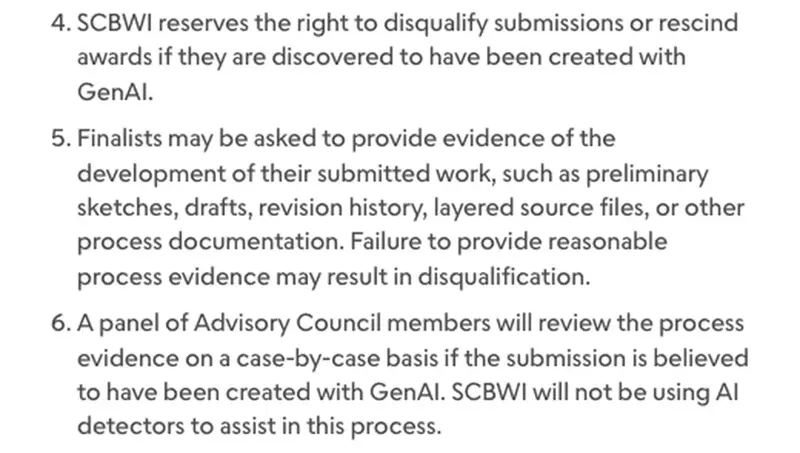
The Society of Children’s Book Writers and Illustrators updated its generative AI policy on September 14, 2026. Members who submit work to awards, grants, showcases and pitching events must tick a box confirming that no generative AI was used. And “Finalists may be asked to provide evidence of the development of their submitted work, such as preliminary sketches, drafts, revision history, layered source files, or other process documentation.” A review panel looks at that evidence case by case, and the policy says SCBWI “will not be using AI detectors”.
That is one organization’s rule for its own events, not a standard for every client. But it shows what “proof” tends to mean in practice: a human can look at your steps. Here is a lightweight set of records you can keep for a Canva project without turning the job into a second job:
- A settings note. The date you turned off generative AI features and the library toggle, and a screenshot of each setting.
- Saved stages. Duplicate the design at the sketch, the first draft and the final, and keep the dated copies.
- Source files. Your original photos, drawings and exports, in the folder where they started.
- An asset list. For each library element: name, where you found it, date. For your own uploads: where they came from.
- A short timelapse or screen recording of one working session, if you are comfortable with that.
- Messages with the client that mention the “no AI” requirement and what they accepted.
One artist posted a tip on November 20 that shows how this habit looks in other tools: in Procreate, the canvas information screen shows the time spent and the number of brush strokes. That is one person’s method in another program, and a client may not accept it. We mention it because it shows the idea, which is to use whatever your own tool already records.
Step 5: Put the promise in writing, and make it small
A clause protects you when it says exactly what you are promising. Three published sources show how the industry words it.
The Authors Guild publishes model contract clauses for book deals. Its artwork clause reads: “Publisher agrees not to use AI-generated images or artwork for the book cover or interior artwork without Author’s prior express approval.” It then says “a human designer may use artificial intelligence technologies as a tool to assist in the creation of artwork for the Work, provided that the human artist has control over the final artwork and the artwork substantially comprises human creation.” That wording draws a line between generating and assisting, and between control and substance.
The Graphic Artists Guild’s guidelines for designers include, under transparency: “Clearly label any AI-generated or AI-assisted images or visual content” and “Inform your clients if GenAI is used in any part of your creative process.” These are professional guidelines, not contract terms, but they tell you what a client may expect.
Amazon’s rules for publishing a book through Kindle Direct Publishing draw the same line in different words. KDP requires you to inform it of AI-generated text, images and translations, and “You are not required to disclose AI-assisted content.” It defines AI-generated as content “created by an AI-based tool”, even “if you applied substantial edits afterwards”, and AI-assisted as content you created and then used AI tools to edit, refine or error-check.
So a sensible clause names the thing it covers and the thing it leaves out. Here is a sample, written by us for illustration, not a legal template. Change it to fit your job and have a lawyer read it:
Designer warrants that no image, illustration or graphic in the final deliverables was created by a generative AI tool.
"Generative AI tool" means a tool that creates new images or artwork from a text prompt or from an existing image.
Standard assistive edits such as cropping, resizing, color correction and background removal are not generative AI use under this agreement.
Designer will not use client files or confidential material as input to any generative AI tool.
Designer will keep dated working files and a list of third-party assets for [90] days after delivery and will provide them on reasonable request.
If Designer later learns that a delivered asset was created by a generative AI tool, Designer will tell Client in writing and replace it at no charge.
Three choices in that sample are worth noticing. It defines the term instead of leaving “AI” open. It says whether cut-outs count, so nobody argues about it later. And it promises records you can actually produce, not “proof” nobody defined. The bracketed number is a placeholder: pick what you will realistically keep.
A worked example, from brief to delivery
This is an example we wrote to show the order of the steps. It is not a real client’s job, and the file names and dates are made up.
A freelance designer is making a six-page menu for a small restaurant. The contract has a one-line clause: “No AI-generated imagery.” Before starting, she asks what that covers. The owner says he means no images made by AI, and a background cut-out is fine. She adds the assistive-edit sentence from the sample clause.
On the first day she opens Canva and turns off “Enable generative AI features” and “AI-generated content”, takes a screenshot of each setting, and saves them to the project folder. She builds the pages from the restaurant’s own photos, uploaded from the owner’s phone, and from fonts in the editor. For one decorative border she picks an element from the library. She saves its name and a screenshot of the search results.
Her project record at delivery looks like this. It is a sample, written by us:
| Record | What it shows | Where it is kept |
|---|---|---|
| Settings screenshots | Both toggles off, with the date | Project folder |
| Owner’s photos | Original files, as received | Project folder |
| Asset list | One library border: name, date, screenshot | Project folder |
| Three dated copies | Sketch, first draft, final | Canva folder |
| Client email | “No AI images; cut-outs are fine” |
At delivery she sends the files with one line: “No generative AI tools were used for the images in these files; one library border is listed in the attached asset list; Background Remover was used on two of the owner’s photos.” The detail about Background Remover is the point. She told him about the thing that could have caused an argument before he found it.
Notice what she did not do. She did not claim the files are “AI-free” in some absolute sense, and she did not rely on a clean-looking export as proof. She made a small promise, and she kept the records to back it up.
If you sell on Etsy or publish a book
Marketplaces and platforms have their own rules, which are not the same as a client’s clause.
Etsy. The October 2026 changes and what they mean for a shop are in Etsy’s New AI Rules (Oct 2026): What Sellers Must Change, and the disclosure question is in Do You Have to Tell Buyers Your Photos Are AI?. For this guide, the useful rule is the one above: keep one unedited photo and do not run it through an AI-powered tool.
Kindle Direct Publishing. The question is not “did AI touch it” but “did an AI tool create it”. If an AI tool created your cover art, even if you edited it afterwards, KDP counts it as AI-generated and wants you to tell it. If you made the art yourself and used a tool to polish it, that is AI-assisted and does not need disclosure.
Pitch events and contests. Read the exact wording. SCBWI’s policy bars generative AI “to generate, rewrite, illustrate, or alter any portion of work” for many of its programs, and requires the no-AI tick box. That is a different line from KDP’s.
What this means for you
- If you are a freelance designer. Add a definition and a records promise to your contract. First action: write down your own one-sentence answer to “do cut-outs count?” and put it in the clause.
- If you are an agency owner or team lead. Your team’s Canva may be admin-controlled, with AI features set one at a time. First action: ask which Magic and AI features are on, and write it down per client job.
- If you are an Etsy or handmade seller. Keep your unedited item photo away from AI-powered crop tools. First action: check your newest listing photo against Etsy’s image rules.
- If you are an author or self-publisher. Know which side of KDP’s AI-generated or AI-assisted line your cover is on. First action: check where each library element in your cover came from.
- If you are a teacher making handouts for a school with an AI policy. Use the switches, keep a short note of the date, and check old designs by hand. First action: ask your school what its policy says about assistive tools.
- If you are a marketer working for a client with a no-AI brand promise. The client’s promise is public, so yours should match it. First action: ask them to define “AI” in writing before you start.
Edge cases and troubleshooting
“The switch isn’t in my menu.” Canva’s help page says the toggles are rolling out gradually, as of November 22. Do not start a “no AI” job and assume it is off. Check Permissions, and if the switch is missing, say so to the client and rely on your own asset discipline.
“I used Background Remover. Do I have to disclose it?” The contract decides. Canva says it does not add an AI label, but a client’s clause may say “no AI tools”. Tell them. It costs one sentence.
“A library element looks AI-made.” The library toggle does not label it, so you cannot confirm. Replace it with something you made, or with an asset whose origin you can state.
“The client supplied a Brand Template.” Canva says the library toggle does not affect Brand Templates. Ask the client to confirm in writing that the template’s elements were not made with generative AI.
“A platform labeled my post ‘AI’ and I used no AI.” Appeal it, and send your process records. Pinterest’s Help Center describes an appeal route. Do not assume one post proves anything about your tools: we found only one low-engagement post about a Canva design being labeled on Instagram, and nothing from Canva or Meta supporting a pattern.
“I switched the settings on after I started.” Say so in your notes. The switches affect what you can use from then on. Check what you built before that day.
“My client wants a signed statement.” A short, scoped warranty is reasonable. Make it match what you did and what you can show.
“My client uses AI detectors.” SCBWI’s policy says it will not use them and reviews process evidence instead. We did not research how reliable detectors are, so ask the client in writing which one they use and what happens after a wrong result.
What it can’t do
- It can’t prove a negative. Canva’s switch limits which tools you can reach. Records show your steps. Neither one proves nothing else touched the project.
- It can’t label library items. The toggle shows fewer AI-tagged items and “doesn’t label content as AI-generated”.
- It can’t read another platform’s mind. Whether Instagram, Pinterest or Etsy labels a file depends on their systems, which Canva does not control.
- It can’t replace a lawyer. Contracts, copyright registration and regional laws need someone qualified.
- It can’t fix the past. Canva says the library toggle does not change AI content already added to a design.
FAQ
Can I tell a client my Canva work is AI-free now? You can say you turned off Canva’s generative AI features and what you did to check your assets. “AI-free” is a bigger claim than the switch supports: Canva’s assistive tools stay on, and some AI-generated library items may still appear.
Does Canva’s switch add or remove an AI label in my file? Canva says Background Remover and Magic Grab do not add AI-generated metadata, and that its AI-generated library assets are identified in their metadata. Its announcement does not say which fields or file types carry the label.
Is a clean file proof that no AI was used? No. Meta said in 2024 that it cannot identify all AI-generated content and that markers can be stripped. Pinterest also uses classifiers. A file is one clue.
What records should I keep? A dated note of your settings, saved copies of the design at each stage, your original source files, a list of third-party assets, and your messages with the client.
Do AI detectors work as proof? We did not research detector accuracy, so we cannot say. SCBWI’s policy says it will not use AI detectors and reviews process evidence case by case instead.
Do cut-outs count as AI? It depends on the contract. Canva calls Background Remover an assistive tool, and the Authors Guild’s artwork clause allows a human designer to use AI “as a tool to assist” while keeping control. Ask the client, and write the answer into the clause.
What does Amazon KDP require? It requires you to inform it of AI-generated text, images and translations when you publish or republish a book. It says you are not required to disclose AI-assisted content.
What does Etsy require for photos? Most products need at least one unedited photo of the actual item against a real background (Etsy lists exceptions, such as some digital downloads). Etsy says cropping or resizing it with an AI-powered tool may get it flagged as AI-edited.
Should I write a warranty into my contract? It is one way to make a “no AI” promise concrete. Keep it narrow, define what counts, and promise records you can provide. Ask a lawyer about the exact wording.
Does this apply to my teaching materials? If your school has an AI policy, the same ideas apply: use the switches, keep a dated note, and check older designs by hand.
The bottom line
Canva’s November 19 switches make “no AI” easier to deliver, not easier to prove. Turn them on, choose assets whose origin you know, keep your working files, and write a small, defined promise. A short record you can produce on request is worth more than an export that looks clean.
If you freelance and want to turn this into a habit for every contract, the Freelance Smarter with AI course (first 2 lessons free) covers working with clients and proposals. If you sell handmade goods, see Crafts & Handmade Business with AI (first 2 lessons free). For a wider view of when and how to disclose AI use, AI Ethics in Practice (first 2 lessons free) is the place to start.
Sources
- Canva Newsroom: Introducing AI Controls: Your creativity, your call (November 19, 2026)
- Canva Help Center: Turn generative AI features off and see less AI-generated content
- Canva Help Center: Manage your privacy preferences
- SCBWI: Generative AI Policy (updated September 14, 2026)
- Amazon KDP: Content Guidelines, AI content
- Etsy: Listing Image Requirements
- Authors Guild: AI-Related Model Publishing Contract Clauses
- Graphic Artists Guild: Generative AI Ethical Use Guidelines
- Meta: Labeling AI-Generated Images on Facebook, Instagram and Threads (February 6, 2024)
- Pinterest Help: Gen AI labels