
On November 19, 2026, Canva announced a way for people on its Free and Pro plans to turn its generative AI off. The announcement says “AI Controls”, and it sounds like one switch. It is really three separate settings in three different menus, which is easy to miss if you only read the headlines.
This guide separates them. You will see where each one lives, what each one hides, what it leaves alone, and what to check before you tell a client, a school or a manager that your Canva is “AI-free”.
One honest note first. We did not flip these on a Canva account of our own, because Canva’s help page, read on November 22, says the switches are rolling out gradually, so you may not see them yet. Everything below comes from Canva’s announcement and help pages, which we read on November 22, 2026, and from what people reported in the three days after launch.
What Canva launched on November 19
Canva’s newsroom post is titled “Introducing AI Controls: Your creativity, your call”. It describes two new controls “available today on Canva Free and Canva Pro”, at no extra cost:
- Generative AI Control. A switch that enables or disables generative AI features “across Canva”. When it is off, those features “are hidden across Canva, and can be enabled again at any time”.
- AI-Generated Content Control. An option to limit AI-generated content while you browse the Canva library, “without changing any of your existing designs”.
Canva also says people have used its AI tools “more than 38 billion times”, and says it is “continuing to invest in making these tools even more powerful”. This is not a retreat from AI. It is a “you choose” feature: use it, skip it, or mix both.
The Help Center article adds the part the announcement leaves out. The toggles are, in Canva’s words on November 22, “rolling out gradually, so you might not see them yet”. Both are on by default, so nothing changes in your account until you change it. And they are for Canva Free and Canva Pro accounts. If your Canva belongs to a team or a school, there is a different set of controls, which we cover in a later section.
The three switches people mix up
Here is the part that is easy to blur. There are two new switches from the launch, plus a privacy setting that decides whether Canva may use your content to improve its AI. They sit in different places and do different jobs.
| Setting | Where it lives | What it changes | What it does not change |
|---|---|---|---|
| Enable generative AI features | Profile, Settings, then Permissions under “Controls and permissions” | Hides and disables Canva’s generative tools, and any new generative tool Canva adds later | Background Remover and Magic Grab; your plan’s other tools |
| AI-generated content | Profile, Your account, then AI personalization | Shows fewer templates and elements Canva has tagged as AI-generated, in search and recommendations | The tools themselves, your existing designs, Brand Templates |
| Privacy controls | Profile, Your account, then Privacy controls | Whether your content and usage may be used to improve Canva’s AI-powered features | What you see in the editor |
Canva’s own help page makes the separation explicit. The library toggle is “separate from turning generative AI features on or off”, and it is “separate from your privacy control for AI feature improvement”. So there is no master switch, and flipping one does not flip the others.
How to turn off the generative AI features
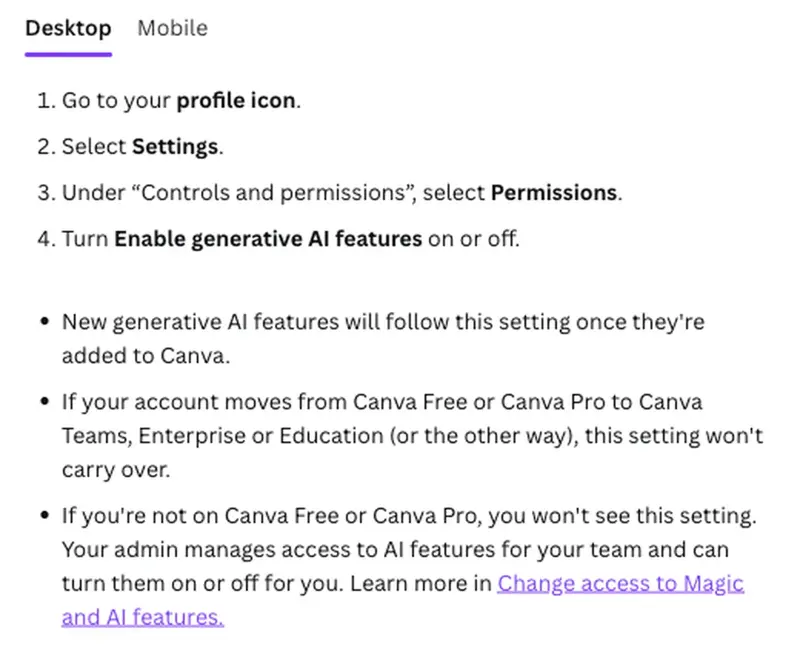
This is the big one. Here are the steps from Canva’s Help Center, which show a desktop and a mobile tab. We read the desktop steps:
- Go to your profile icon.
- Select Settings.
- Under “Controls and permissions”, select Permissions.
- Turn Enable generative AI features on or off.
Three notes sit under those steps, and each one matters:
- New tools follow the setting. “New generative AI features will follow this setting once they’re added to Canva.” If you turn it off today, a generative tool Canva launches next year starts out hidden for you.
- Changing plans resets it. “If your account moves from Canva Free or Canva Pro to Canva Teams, Enterprise or Education (or the other way), this setting won’t carry over.”
- No setting means no personal switch. If you are not on Free or Pro, you will not see it. Your admin decides.
What disappears when it is off
Canva lists what you can no longer use with the toggle off, introduced as “certain features including”. Treat the list as the features Canva names, not a promise that nothing else is affected:
| Group | Features Canva names |
|---|---|
| Writing and design | Canva AI, Magic Write, Magic Design, Magic Activities, Magic Edit, Magic Media, Magic Insights, Magic Layers |
| Images, video and sound | Dream Lab, Image to Video, Canva AI Music and Sound Effects, Decorate |
| Building and charts | Canva Code, AI Shapes, AI Charts, Transform into Doc |
| Teams and bulk work | Use team content to generate AI responses, Auto-match in Bulk Create, Create ads in Grow, Translate designs |
| Help | Help Assistant for AI-generated design advice |
Two things stand out in that list. First, “Translate designs” is on it, so a workflow that translates your layouts will stop working. Second, the AI music and sound effects tool is on it, which matters if you build video in Canva.
What stays on, and why
Canva says its “assistive editing tools” keep working with the switch off. Its examples are Background Remover and Magic Grab. Background Remover cuts a subject out in one click. Magic Grab lets you select an object in an image and move it.
Canva’s line between the two groups is whether the tool creates something new. Generative tools “can create or transform content”. Assistive tools “only edit existing content rather than generate anything new”.
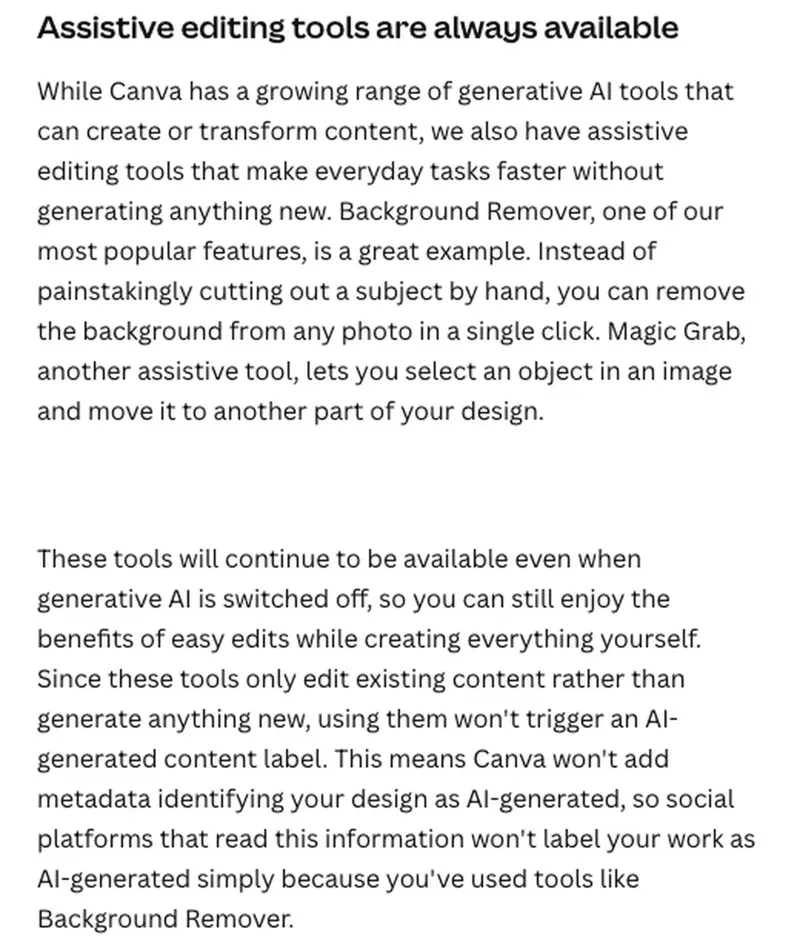
The paragraph in that screenshot has a consequence that is easy to miss. Canva says using these tools “won’t trigger an AI-generated content label”, and that Canva “won’t add metadata identifying your design as AI-generated”. The reason it gives is so that “social platforms that read this information won’t label your work as AI-generated simply because you’ve used tools like Background Remover.”
That is a statement about what Canva writes into the file. It is not a guarantee about what Instagram, Pinterest or an Etsy buyer sees, and we come back to that distinction in the limits section. If you need the full version of the “prove it was made without AI” question, we wrote it up separately in Your Client Says “No AI”: Set Up Canva and Prove It.
One more cost note from the Help Center: even with generative AI off, “you may still use your plan’s AI allowance if you use non-generative AI feature if they are considered Standard, Premium, or Ultra AI tools.” So an assistive tool can still count against a usage allowance. Off does not mean “uses no AI at all”.
The library toggle: fewer, not none
Now the second setting. Canva calls its library “the world’s largest library of creator-made templates and design elements”, and says “a small portion” of it is AI-generated content, such as “abstract backgrounds and illustrated graphics”. Canva says those assets are identified as AI-generated in their metadata.
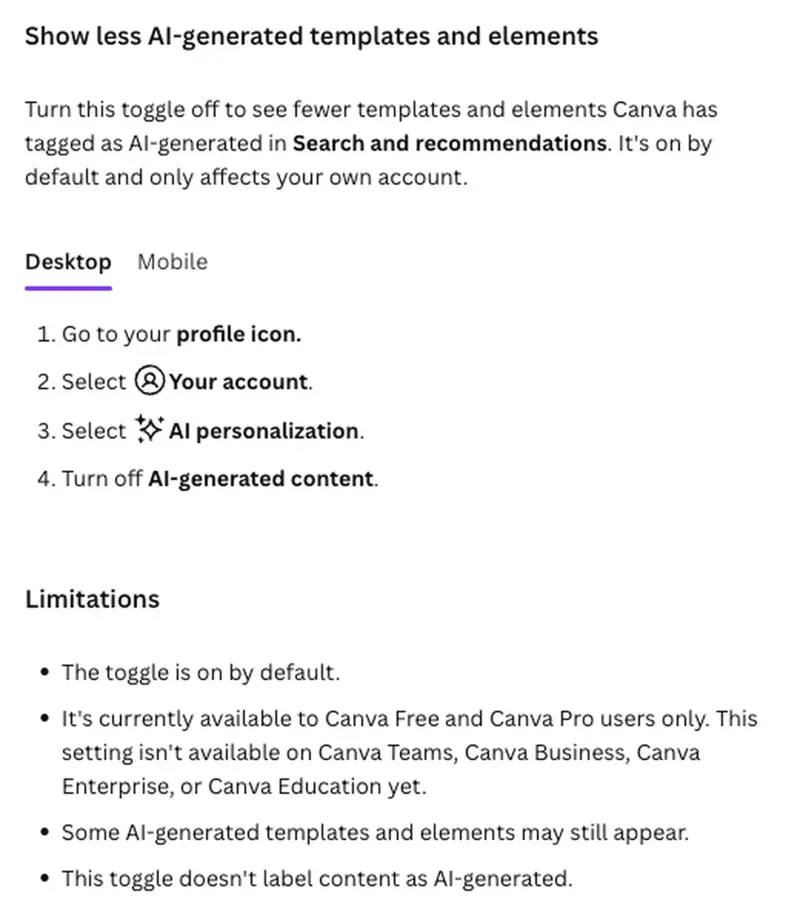
The AI-generated content setting is how you ask the library to show fewer of them. The steps:
- Go to your profile icon.
- Select Your account.
- Select AI personalization.
- Turn off AI-generated content.
Notice the wording: you turn the toggle off to see less. The toggle is on by default, and the page says it “only affects your own account”.
Canva’s Help Center then lists what the toggle does not do. This is the list worth reading twice:
- It does not catch everything. “Some AI-generated templates and elements may still appear.”
- It does not label anything. “This toggle doesn’t label content as AI-generated.” You cannot use it to find out whether an item you already like is AI-made.
- It does not touch what you already made. It “doesn’t change AI-generated content you’ve already added to a design”.
- It skips some places. It “doesn’t affect Brand Templates or searches of your own uploads and designs”.
- It covers two places only. It changes search and recommendations “in Homepage and Editor”. It does not change search or recommendations “in Canva AI, third party Apps, or if you use Canva via an API or MCP server”.
That last point is worth a pause if you build with Canva through another tool. Canva’s page names API and MCP use as outside the toggle’s reach for the library setting. It says nothing, in the text we read, about whether the generative switch changes what Canva does inside a connected app such as ChatGPT, so we cannot tell you either way. If that matters to you, test it with a throwaway design before you rely on it. Our walkthrough of using Canva inside ChatGPT shows what that connection looks like.
The third setting: whether Canva learns from your work
The setting that is easiest to overlook is the privacy control. Turning off Canva’s generative features does not decide whether Canva may use your content to improve its AI. That decision lives in Privacy controls.
Canva’s help page for it says to go to your profile icon, choose Your account, then select Privacy controls. It tells you to read the description of each permission, then use the toggle to turn it on or off. If a control has a lock icon, you cannot change it. Canva says that can be because you are part of a managed team, or because of your account type. Canva also notes that its navigation is changing gradually, so if you cannot find your profile photo on the homepage, look under More.
What the setting covers is explained on Canva’s Trust Center privacy page. Canva says it improves its AI-powered features using a mix of:
- content from creators in its Creators program who have not opted out (and who are paid for it);
- licensed content from stock media agencies and other partners;
- openly licensed content;
- user content, “where this is consistent with their Privacy Settings”;
- general usage and activity, again “where this is consistent with their Privacy Settings”.
The Trust Center separates those last two. “Your content” means “things like the text in your designs and media you upload”. “General usage and activity” is about how people use Canva, “but never your user content”: design metadata such as how people use layouts, colors and fonts, and events such as what features you use and which buttons you click.
The rest of the page is about who cannot choose. Canva says Education users’ privacy settings are disabled and that it does not use students’ content this way. For Business and Enterprise accounts it says the control is disabled, which “means that we don’t use your business, team or enterprise content to improve AI-powered features”. It also says its privacy settings do not apply to third-party apps in Canva, where the third party’s own terms apply.
We have not seen your account, so we cannot tell you what yours is set to. Open it and read the descriptions as Canva words them. If privacy was your reason for wanting AI off, this is the setting that answers that question, and turning off generative features does nothing about it.
A worked example, step by step
This is an example we wrote to show the order of the steps, not a test on a live account. Suppose you are a teacher on a Canva Free account, and your school asks that the handouts you make for parents be made without generative AI. You want the editor to stop offering you AI, and you want fewer AI-looking templates when you search.
- Open Settings. Profile icon, then Settings. If you do not see Permissions under “Controls and permissions”, stop. The switch has not reached your account yet, and Canva’s page says to expect that for now.
- Turn off “Enable generative AI features”. Canva says the listed tools are then hidden, so Magic Write, Magic Design and Dream Lab should disappear from your editor. Open a blank design to check. Background Remover should still be there.
- Open AI personalization. Profile icon, Your account, AI personalization. Turn off AI-generated content. Search for “worksheet” templates. Expect fewer AI-tagged results, not zero.
- Handle what you already made. Open an older handout. Canva says the library toggle does not change content already in a design, so check old designs by hand.
- Read Privacy controls. Profile icon, Your account, Privacy controls. Decide on each permission as Canva describes it. Nothing in steps 2 or 3 touches this.
- Write down what you did. One line in your notes: the date, the three settings, and that Background Remover was still on. That line is the start of a record you could show your school.
The point of the exercise is step 4. The toggles shape what you see from now on. They do not clean the past.
Who cannot see these switches
The personal switches are for Free and Pro. Everyone else has a different control, and in some cases none yet:
| Account type | Generative AI switch | AI-generated content toggle |
|---|---|---|
| Canva Free | Personal switch under Permissions | Personal toggle under AI personalization |
| Canva Pro | Personal switch under Permissions | Personal toggle under AI personalization |
| Canva Teams, Business, Enterprise | Set by admins, per feature | Not available “yet”, per Canva’s help of November 22 |
| Canva Education | Set by admins, per feature | Not available “yet”, per Canva’s help of November 22 |
Canva’s admin help adds details. It says “There’s no single switch to turn off all AI features for your team.” Instead, an owner or admin turns each Magic and AI feature on or off under Permissions. It also says Canva Teams is no longer available for new sign-ups or upgrades, and that in Canva Education accounts “Only administrators and teachers have access by default”.
So if you are a teacher inside a school’s Canva, do not go looking for the personal switch. Ask your administrator which AI features are on, and ask them to put it in writing. One more thing: Canva warns that if your account moves between Free or Pro and Teams, Enterprise or Education, the generative setting “won’t carry over”. Check it again after any move.
What this means for you
- If you are a casual Canva user who is just tired of AI buttons. Turn off “Enable generative AI features” and leave the rest. First action: open a blank design afterwards and confirm the Magic tools are gone. If they are not, your rollout has not reached you yet.
- If you are a teacher on a personal account. Use both switches, then check old handouts by hand. First action: open your three most recent designs and look for AI-made images, since the toggle does not edit them.
- If you are a teacher inside a school’s Canva. You probably have no personal switch. First action: email your administrator and ask which Magic and AI features are enabled for teachers and students.
- If you are a freelance designer with a client who said “no AI”. The switches help you work without AI. They do not prove you did. First action: keep your process files, and read the no-AI clause guide before you sign anything.
- If you are a small business owner worried about customer data. The generative switch is not your privacy control. First action: open Privacy controls and read each description.
- If you work in a team on Canva Business or Enterprise. Canva says it does not use your business, team or enterprise content to improve its AI-powered features, and that the control shows as disabled for you. First action: ask your admin who can change the Magic and AI permissions.
- If you are an author or Etsy seller. The library toggle helps you browse human-made elements. It does not label items. First action: before you export a design for a book or a listing, check where each library element came from.
Edge cases and troubleshooting
“I cannot find the switch.” Canva’s help says the toggles roll out gradually and that you may not see them yet, and several posts between November 19 and 21 said the same thing. Check that you are on a personal Free or Pro account, try the website rather than a phone app, and look again in a few days.
“I turned it off and still see AI templates.” That is the library toggle behaving as documented. It reduces tagged AI results in search and recommendations, and Canva says some may still appear. It also leaves Brand Templates and your own uploads and designs alone.
“The Magic tools came back after I changed plan.” The generative setting “won’t carry over” when an account moves between Free or Pro and Teams, Enterprise or Education. Re-check Permissions after any move.
“I want to know whether this element is AI-made.” The library toggle does not label content. Canva says its AI-generated library assets are identified in their metadata, but the Help Center article describes no label you can see in the editor for a given element. So the toggle will not answer that question for you. The same gap came up in a post on X on November 21, which said that book pitch events that ban AI can catch authors out when a library template is not marked as AI-made.
“Background Remover is still there.” It is meant to be. Canva classes it as assistive and says it stays available with generative AI off.
“My AI allowance went down anyway.” Canva’s help says non-generative tools that count as Standard, Premium or Ultra AI tools can still use your plan’s allowance.
“I use Canva through ChatGPT or another connected tool.” The library setting does not apply to search or recommendations over an API or MCP server. Canva’s page does not say what the generative switch does there, so test with a throwaway design.
“I switched back and forth and lost track.” Both settings are plain on or off toggles, and Canva says the generative features can be “enabled again at any time”. Nothing here is permanent. Write down your settings on the day you rely on them.
What it can’t do
- It cannot make a design provably AI-free. The switch controls which tools you can reach from now on. It does not inspect assets that were already in a design, or elements you picked from the library before you turned the toggle off.
- It cannot label library items. Canva says the toggle “doesn’t label content as AI-generated”.
- It cannot control what Canva learns from you. That is the Privacy controls setting.
- It cannot give a team a one-switch policy. Canva’s admin page says there is “no single switch” for a team, only per-feature permissions.
- It cannot reach every surface. The library toggle does not apply to Canva AI’s own results, to third-party apps, or to API and MCP use, and it does not apply to Brand Templates.
Other apps with an off switch
Canva is not alone, and the controls differ a lot from app to app. We have written the ones below, each as its own guide:
- How to Turn Off Meta AI on Instagram, Facebook & WhatsApp covers the Meta AI settings that exist, and what each one really does.
- How to Turn Off Copilot’s AI Notes in a Teams Meeting covers Microsoft’s mid-meeting off switch for Teams AI.
- QuickBooks and Xero AI: What’s On, What You Can Turn Off covers a product that, by its own account, cannot switch its AI off one feature at a time.
- Gemini’s Bank Link: What It Sees and How to Undo It covers how to turn off a connection and what unlinking will not delete.
If you would rather use Canva’s AI, not avoid it, Canva AI 2.0 vs ChatGPT Images 2.0 compares it with the alternative.
FAQ
Is Canva’s AI off-switch free? Yes. Canva says both controls are available to everyone on Canva Free and Canva Pro “at no extra cost”.
Where is the toggle to turn off Canva AI? Profile icon, then Settings, then Permissions under “Controls and permissions”, then turn off “Enable generative AI features”. The page shows separate desktop and mobile steps; we read the desktop ones.
Does turning it off delete my existing AI-made designs? Canva’s help says the library toggle does not remove or change AI-generated content you have already added to a design. For the generative switch, Canva’s newsroom post says the hidden features “can be enabled again at any time”, and neither Canva page we read describes it deleting anything.
Which tools does it hide? Canva lists Canva AI, Magic Write, Magic Design, Magic Activities, Magic Edit, Magic Media, Magic Insights, Magic Layers, Dream Lab, Canva Code, Help Assistant for AI-generated design advice, Use team content to generate AI responses, Transform into Doc, AI Shapes, AI Charts, Canva AI Music and Sound Effects, Decorate, Auto-match in Bulk Create, Image to Video, Translate designs and Create ads in Grow. Canva introduces the list with “including”, so it may not be everything.
Does it turn off Background Remover? No. Canva says Background Remover and Magic Grab remain available, because they edit existing content rather than generate anything new.
Will new AI features in Canva switch themselves on? Canva says new generative AI features “will follow this setting once they’re added to Canva”, so with the switch off they should arrive hidden.
Does turning off AI stop Canva from training on my designs? Not by itself. Canva describes the privacy control for AI feature improvement as separate. Open Profile, Your account, Privacy controls and read each permission.
Does it work on Canva Teams, Business, Enterprise or Education? Not as a personal switch. Canva says admins on those plans manage AI features through Permissions, feature by feature, and that the AI-generated content toggle is not available on them yet.
Why can’t I see the toggle? Canva’s help page, read on November 22, says it is rolling the toggles out gradually. Confirm that you are on a personal Free or Pro account, and check again later.
Can I still use Canva without any AI? You can hide the generative tools and see fewer AI templates, but Canva keeps its assistive tools on, and its own page says some AI-generated templates and elements may still appear. “Without any AI” is not something these settings promise.
The bottom line
The off-switch is real, free and worth the two minutes if the AI buttons bother you. Just keep three things apart. One switch hides the generative tools. A second asks the library to show fewer AI-tagged items, and it admits “fewer” means fewer. A third, in Privacy controls, decides whether Canva may learn from your work, and neither new switch touches it.
If you want to use Canva’s AI on purpose instead of avoiding it, start with Canva AI Mastery (first 2 lessons free). If your worry is what any AI tool does with your data, AI Privacy 101 (first 2 lessons free) is the place to begin.
Sources
- Canva Newsroom: Introducing AI Controls: Your creativity, your call (November 19, 2026)
- Canva Help Center: Turn generative AI features off and see less AI-generated content
- Canva Help Center: Manage your privacy preferences
- Canva Trust Center: Privacy, AI at Canva
- Canva Help Center: Change access to Magic and AI features (admin controls), the excerpt shown at the foot of the help article above