

On 18 November 2026 OpenAI added “Accounting workflows” to ChatGPT, and the next day Xero said accountants and bookkeepers can start a month-end close review inside it. The vendors’ own pages describe something narrower and more useful than “ChatGPT does your books”: ChatGPT can prepare a first pass of the month-end work, and the ledger, your judgment and your sign-off stay where they were.
This post is for the person who runs the books for a handful of clients, or for their own business, alone. It covers what was launched, which of three similarly named plugins you actually want, who can run it today, a first-pass routine you can try on one client, and the checks that matter more than any prompt. Everything below comes from OpenAI’s, Xero’s and Intuit’s own pages, read on 23 November 2026, plus IRS guidance and two studies, one on how models handle accounting documents and one on how reviewers treat work a machine did.
Short version. OpenAI’s Accounting plugin is built around one skill (instructions for the work) and works with files you attach and apps you connect. Xero’s connection is read-only, so ChatGPT can draft a review but can’t change your Xero books. QuickBooks’ plugin can create and send invoices and estimates, so it needs more care. We have not run any of it on real client books, and we found no independent study that measures how often the November releases get a close wrong. Treat every output as a draft you tie to source records yourself.
What OpenAI launched on 18 November
OpenAI’s release notes have an entry dated 18 November 2026 titled “Accounting workflows in ChatGPT”. It says the Accounting plugin “helps you reconcile transactions, draft invoice entries, and prepare month-end reports from your records and templates.”
OpenAI’s product page for the launch lists four jobs:
- Cut down on manual entry: draft entries from invoices and receipts, “with suggested account coding and unclear details flagged for review”.
- Spend less time gathering records: bring together invoices, statements and payment records from your email, files and accounting apps.
- Check your work for errors: compare workpapers with supporting records and draft review notes on “possible duplicates, missing information, and unexplained differences for you to investigate”.
- Reuse your process each month: save your templates, instructions and review checks as reusable skills and apply them to each month’s new records.
The same page names eight accounting apps: Intuit QuickBooks, Xero, BILL, FreshBooks, NetSuite, QuickStart, Rillet and Campfire.
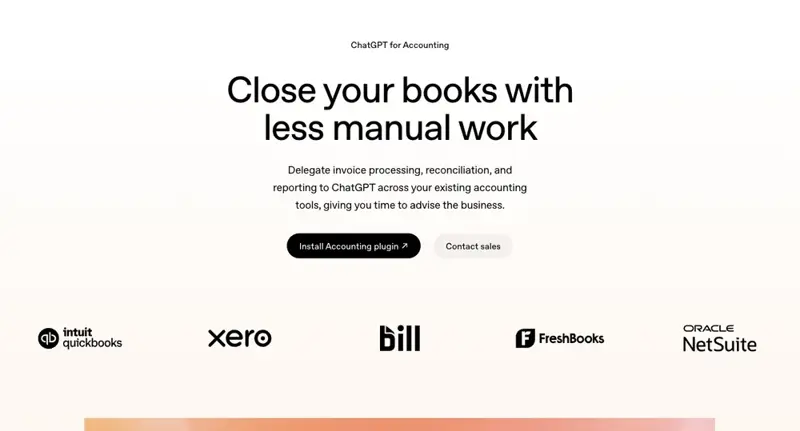
Two sentences on that page set the tone for everything else. The first: “You make the final call: Review supporting records, calculations, and suggested coding before approving entries or reports.” The second is OpenAI’s example prompt for invoicing, which ends “for my review. Flag anything unclear.” The launch is framed as drafting and flagging, not as posting.
Three plugins with similar names
The words “connect QuickBooks to ChatGPT” can mean any of three separate things.
| Plugin | Made by | What it is | Start here |
|---|---|---|---|
| Accounting | OpenAI | One skill (instructions for reconciliation, entries and reports) plus a list of apps | OpenAI’s plugin listing |
| Xero | Xero | A read-only connection to your Xero data | Connectors directory in ChatGPT |
| Intuit QuickBooks | Intuit | A connection to QuickBooks Online | Plugins in the ChatGPT sidebar |
OpenAI’s help article on plugins explains the split. A plugin can include “Skills that provide instructions and workflow guidance” and “Connected apps that link external accounts, information, and actions.” The Accounting plugin is built around a skill. OpenAI’s product page lists Xero and QuickBooks among the apps that go with it. Xero’s own announcement describes its side as building on “our existing Xero in ChatGPT integration”, which already worked “throughout ChatGPT, including Chat, Work and Codex.”
So you can use the Xero plugin without the Accounting plugin, and the other way round. The Accounting plugin on its own can work from files you attach (OpenAI’s example prompts ask it to tie out “the attached bank statement” or review “the attached month-end workbook”), and it works with a connected app when you add one.
Who can run it today
OpenAI’s pages answer part of this and leave some of it open. I’d rather say which is which than guess.
Plan and workspace. The release note says to select Install plugin “if it’s available for your plan and workspace,” and that “in Enterprise workspaces, an admin must approve Accounting before members can install it.” OpenAI’s plugin page says availability “depends on the plugin, your plan and workspace settings.” OpenAI’s help article “Using ChatGPT for accounting work” adds that “ChatGPT Business members can install Accounting without prior admin approval,” that “the Accounting plugin is free to install,” and that “access to the model, tools, and usage included with your plan can vary.” On 23 November I opened the plugin’s listing inside a ChatGPT account on the Free plan and it showed an Install button. I did not install it or connect any books, and I found no OpenAI page that lists which personal plans can use the plugin end to end. Its setup steps say to start a new chat in ChatGPT Work or Codex, and OpenAI’s help describes Work as “an agent designed for longer, multi-step work and finished deliverables.”
The desktop app. The release note’s instructions begin “Open the ChatGPT desktop app for macOS or Windows, set up computer use, and open the Accounting plugin listing.” OpenAI’s product page separately says plugins connect ChatGPT to your accounting tools while “computer use lets ChatGPT help in apps that aren’t available through a plugin.” The help article’s setup list puts it later: open the desktop app, install the plugin, choose your sources (an Excel template and files, or a connected accounting app), then “follow the computer use setup instructions.” I could not find a sentence that says whether a plugin-only query, such as Xero’s, stops working without computer use. What I can say is that the launch instructions list it as a setup step, and that OpenAI’s Computer Use page says that when an app has a dedicated plugin, “prefer that structured integration for data access and repeatable operations.”
Region. Xero’s post says “Xero in ChatGPT for Accounting” is “currently available in the US.” Intuit says its QuickBooks plugin “is currently available to QuickBooks Online customers in the US.” I found no region statement for the Accounting plugin itself.
If you are outside the US, the practical reading is that the two accounting-app connections discussed here are US-first as of 23 November, and you should check the listing in your own account before planning around it.
What Xero added on 19 November
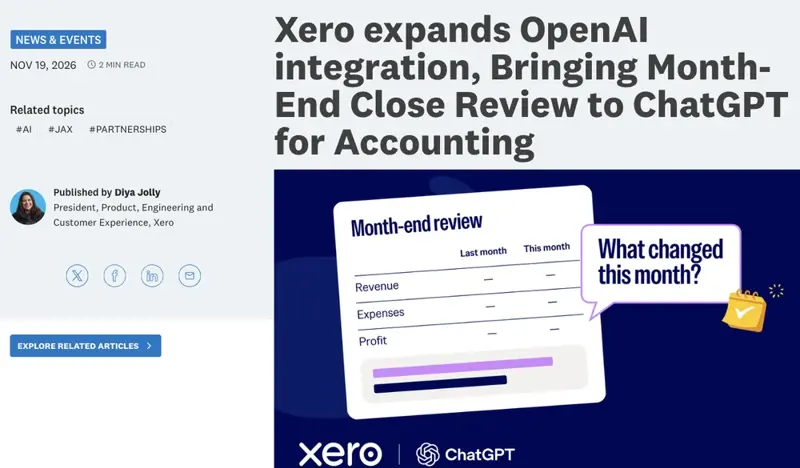
Xero’s post, dated 19 November 2026 and signed by Diya Jolly, Xero’s President of Product, Engineering and Customer Experience, says accountants and bookkeepers can “start month-end close reviews, client portfolio review, and quarterly review and client meeting preparation” inside ChatGPT for Accounting.
What it describes in practice:
- You can “ask questions about a client’s books, surface what changed since last month, and get ChatGPT to take a first pass at the work in minutes, grounded in live, trusted Xero data.”
- One sign-in “connects your whole client portfolio”, so you can ask portfolio-wide questions.
- The data covers “profit and loss, balance sheet, invoices and bills, and more.”
- When the review finds something to do, you “move from insight to action back in Xero, where your ledger lives and where every change stays traceable.”
Xero’s plugin page is blunter about the limits. It says: “The connector is read-only and follows your Xero permissions, including when accounting skills use it.” The list under it reads “No creating, editing, approving, reconciling, paying or posting journals.” Adding the plugin is free, but “you’ll need an active Xero subscription and a ChatGPT account (either free or paid)”, and Xero says “OpenAI doesn’t access Xero data through the Xero plugin to train OpenAI models.”
Xero also describes the month-end flow in two inputs: “give ChatGPT for Accounting a report template and dates to compare.” The walkthrough below uses those two inputs.
What QuickBooks’ plugin can do
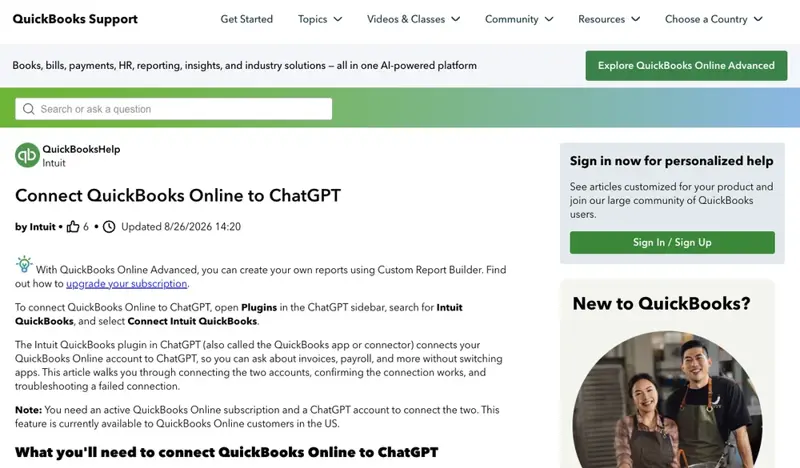
Intuit’s help article, updated 26 August 2026, says to open Plugins in the ChatGPT sidebar, search for Intuit QuickBooks and select Connect Intuit QuickBooks. You need “an active QuickBooks Online subscription and a ChatGPT account.”
Intuit’s news post of 28 July 2026 says the plugin moved “beyond read-only access to your data”. It lists these actions in ChatGPT and Claude: create, update, send and delete invoices; recurring invoices; reminders on overdue invoices; create, update, send and delete estimates; payment links; customers; products and services. It also lists payroll questions such as “Who’s on payroll?” and “Am I ready to run payroll?”
That difference between Xero and QuickBooks is the most useful fact in this post. A review you run on Xero cannot change a Xero ledger. The same prompt on QuickBooks can sit next to tools that create and delete invoices. OpenAI says “users connect their own accounts, and ChatGPT respects their existing app permissions,” so the person whose login you connect decides what a runaway prompt could touch.
What each connection does on your books
| Tool | What it reads | Can change records? | Where the source says so |
|---|---|---|---|
| Accounting plugin | Files you attach and apps you connect | Depends on the connected app | OpenAI product and plugin pages |
| Xero plugin | P&L, balance sheet, invoices, bills | No, read-only | Xero plugin page |
| QuickBooks plugin | Invoices, estimates, payroll answers and more | Yes, for invoices, estimates and customers | Intuit news post, 28 July 2026 |
I read Xero’s and Intuit’s pages. I did not open BILL’s, FreshBooks’, NetSuite’s, Rillet’s or Campfire’s documentation, so this table does not rate them. If you use one of those, read its own page before you connect it.
A first-pass month-end, step by step
This routine follows what the vendors describe. We have not run it on real books, so it is a plan for your first test on one client, not a report of results. Do it on a client whose books you already trust, so you can tell a wrong answer from a right one.
Step 1: Pick the surface and connect one client
Open the ChatGPT desktop app, switch to Work, and open the Accounting plugin’s listing. Select Install plugin if it shows. Then add the app for that client: Xero from the connectors directory, or Intuit QuickBooks from Plugins. OpenAI’s help article says to “open the specific listing to check its supported actions and account requirements”, because “a connection that lets you read transactions may have different permissions for entering records.”
Expected result: the connection asks you to sign in to the accounting app with your usual login and to choose the organization. Xero says you can “choose which organizations to connect and disconnect anytime.” Connect one organization first.
Step 2: Prove the connection reads the right books
Before any review, ask a question you can check by eye. Intuit suggests “What’s my company name in QuickBooks?” and “Show me my open invoices.” Do the Xero version: ask for the organization’s name and its open invoices.
Expected result: the company name and the invoice list match your own screen. Intuit’s article says “if ChatGPT returns information from your account, the connection is working.” Check the company name against the one you meant to connect, not just that something came back.
Step 3: Ask for what changed, with sources
This is the prompt we would try first. It is our wording, based on Xero’s description of the flow, and it asks for links because Xero says ChatGPT “gives you the links back to the Xero report, invoice, or contact it sourced from so you can check the details before you act.”
Use Accounting with the Xero plugin for the organization "Client A". Compare October 2026 with November 2026.
List every profit and loss line that moved by more than 10 percent, with both figures and a link to the Xero report each figure came from.
Then list unpaid invoices and bills that are more than 30 days old.
Say what you could not see.
Expected result: a list of moved lines and aged items, each with a figure and a link. A line with no link is a line you check yourself or drop.
Step 4: Put the figures in your own template
Xero’s input for month-end is a template plus dates. Attach the report template you already use for this client, then ask for a draft.
Using the attached template and the same two months, draft the variance commentary.
For each explanation, show the supporting figure and mark it "confirmed in Xero" or "hypothesis".
Do not explain a cause you cannot see in the data.
Expected result: your own layout filled in, with each explanation tagged. OpenAI’s own sample prompt for budget work asks for the same discipline: “flag where I need more detail before explaining a cause.”
Step 5: Tie out the bank, from a file
For bank reconciliation, OpenAI’s plugin page gives this example prompt, which you can run with a statement you attach:
Tie out the attached bank statement to the general ledger for the same month.
List unmatched transactions by date and amount, distinguish timing differences from likely errors, and show how much of the balance difference remains unexplained.
Expected result: unmatched transactions, a split between timing differences and likely errors, and a remaining difference. Compare that remaining difference to the figure in your own reconciliation. If you have a reconciliation open in your accounting app, the draft is only a second pair of eyes.
Step 6: Review against source records
Open the source behind every number you plan to use: the Xero report, the invoice, the bank line. Recompute any total the answer gives. OpenAI’s page says to review “supporting records, calculations, and suggested coding before approving entries or reports”, and the evidence section below explains why this step carries the weight.
Step 7: Act in the ledger and keep a record
Make corrections in the accounting app, not in the chat. Xero says actions stay in Xero “where every change stays traceable.” Keep a one-page note per client and month: which organization, which month, what you asked, what the draft said, what you changed and when you signed off. The IRS has said firms need “all steps and processes documented” for AI use, a point I come back to below.
A sample month, to show the shape
The numbers below are invented by us to show what a good first pass looks like. They are not output from ChatGPT. The client does not exist.
A sample answer, written by us to show the shape:
| Line | October | November | Change | What to check |
|---|---|---|---|---|
| Subcontractors | $4,200 | $6,900 | +64% | Two October bills dated in November? |
| Revenue, mulching | $3,100 | $5,800 | +87% | One invoice for $2,400, check it is one job |
Below the table, a useful draft names what it could not see (“no bank feed lines after 25 November”) and which explanations are hypotheses. A draft that explains the subcontractor jump with a confident cause and no link is the one to distrust, because the data in this sample says only that the figure moved.
Why the review step is the whole job
You can skip reading the studies and still use the routine. But the research is why the routine insists on source records, so here is what three pieces of it say. None tested ChatGPT’s Accounting plugin, and none of them is a forecast for your practice.
A model can produce plausible entries that don’t tie to documents. FinBalance, a paper in the Findings of EMNLP 2026, built synthetic bundles of invoices, bank statements, contracts and other documents that models must turn into journal entries and a balance sheet. On its 710-record evaluation split, six models “reach at most 46% exact final-balance-sheet accuracy.” The authors write that “models often recover numerically plausible entries but fail to bind them to supporting documents and aggregate them consistently.” For four models, balance sheets rebuilt from the model’s own journal entries scored 26 to 41 percentage points higher than the balance sheets the models reported. The benchmark is synthetic, so 46% is not a real-world error rate. It is a reason to rebuild totals yourself rather than accept a balance sheet a model typed.
In one experiment, reviewers checked automated work less carefully. Christian Peters’s June 2025 working paper, published by the Foundation for Auditing Research, gave 119 professional auditors the same inventory-count work, labelled either as done by an automated tool or by a human colleague. Without the study’s intervention, auditors spent 497 seconds on the automation-labelled work and 706 seconds on the human-labelled work. They found fewer of the six seeded errors: 1.59 against 2.75.
The study’s inventory counting is not bookkeeping and the tool was not a language model, so the result is about the habit, not about ChatGPT. The habit is the risk for a solo bookkeeper: if the draft arrives with a table and links, it feels like checked work. The paper’s own remedy was a “counterarguing mindset” intervention, which it reports “alleviates the reductions in effort and effectiveness.”
Regulators already say to verify. The IRS Office of Professional Responsibility’s guidance of 24 June 2026 (Issue Number 2026-19) says generative AI has limitations “such as fabricated outputs (or, as commonly termed, ‘hallucinations’), bias, and lack of transparency”, and that “it is incumbent on any tax professional using GAI to carefully review all documents crafted by the technology.” On Circular 230 § 10.22 it says “due diligence requires verifying the accuracy of facts, citations, and calculations produced by AI” and “practitioners cannot rely solely on AI.” On § 10.36 it says firms need procedures, third-party tools “should be vetted”, and steps should be documented. That guidance is about federal tax practice, not monthly bookkeeping, and it applies to people who practice before the IRS. If you don’t, it is still a clear statement of what a reasonable reviewer is expected to do.
What this means for you
If you are a solo bookkeeper on Xero. The read-only connection is the safest place to start, since ChatGPT cannot change the ledger. First action: connect one client you know well, run the Step 2 check, and compare the Step 3 draft with what you would have found by hand.
If you are a solo bookkeeper on QuickBooks. The plugin can create and delete invoices and estimates, so the question to settle first is whose login you connect and what that login’s permissions allow. First action: connect with a user whose role fits a review job, and run only the read questions from Intuit’s check list.
If you run a small practice with staff. One sign-in across a client portfolio is convenient, and it puts many clients’ data behind one login. First action: decide who may connect, write it down, and read the IRS guidance’s point that procedures and training belong to the firm.
If you are a tax preparer. The IRS guidance is written for you. First action: leave identifiable return information out of any pilot until you’ve worked out your firm’s rules for third-party tools, and keep your documented review of AI-drafted work.
If you do your own books. Xero says owners can “check in on how the month is shaping up and show up to conversations with their advisor with sharper questions.” That is a good use: a view of the month, not a closed month. First action: ask one question, such as which invoices are overdue, and open the linked invoice to confirm it.
If you are outside the US. Both accounting-app connections are described as available in the US. First action: open the Accounting plugin’s listing in your own account and see what it offers before building a routine around it.
If you manage an Enterprise workspace. OpenAI says an admin must approve Accounting before members can install it. First action: read the plugin’s included apps in your admin console and decide which apps to enable, since OpenAI says admins choose which apps are enabled.
Problems you may hit, and fixes
These come from the vendors’ own pages. I found no first-hand failure reports in the first days of discussion, so this is a list of documented failure points, not of what people complained about.
- No Install button. OpenAI says availability depends on your plan and workspace, and some connections need admin approval. Ask your workspace admin, and check that you are in the account and workspace you meant.
- Enterprise members can’t install it. An admin must approve Accounting first. The approval is the admin’s job, not yours.
- QuickBooks won’t connect. Intuit’s steps: disconnect and reconnect from ChatGPT’s plugins list, confirm you are signed in to the QuickBooks Online company you want, and allow pop-ups and third-party cookies for chatgpt.com and quickbooks.intuit.com. If it still fails, contact QuickBooks Support.
- It answers about the wrong company. Intuit’s check question, “What’s my company name in QuickBooks?”, exists for this. Xero says you can switch between businesses by name. Name the client in every prompt and read the company name in the answer before the figures.
- The answer has no link. Xero says answers link back to the report, invoice or contact they came from. An answer without links gets checked line by line or discarded.
- Computer use asks for permissions. On a Mac, OpenAI’s documentation says to grant Screen Recording and Accessibility permissions when prompted. On Windows, “keep the target app visible on the active desktop while the task runs.” OpenAI also says to “keep sensitive apps closed unless they’re required for the task,” which matters when the screen shows a client’s books.
- An entry’s status is unclear. OpenAI’s help article says: “If an entry’s status is unclear, check the accounting app before trying again to avoid creating a duplicate.” That matters most on QuickBooks, where the plugin can create records.
- You switched clients and the figures look familiar. The same article says to “check the company and account again when switching clients.” Read the company name before you read the numbers.
- You expected it to fix an entry in Xero. It can’t: “No creating, editing, approving, reconciling, paying or posting journals.” Make the correction in Xero and keep the draft as evidence of what you were told.
What it can’t do
- Close the books. Xero’s own wording is that the review is “a first pass” and that you “apply your judgment to the first pass that’s drafted.”
- Make Xero changes. The Xero connection is read-only by Xero’s own description.
- Prove its accuracy. I found no independent study of how often the November releases get a close wrong. OpenAI’s page carries a customer’s estimate of five to six hours saved a month, and Xero says ChatGPT can take a first pass “in minutes”. Those are vendor reports, not measured error rates.
- Replace your duty to the client. OpenAI’s page says “you make the final call”. The IRS says practitioners cannot rely solely on AI.
- Work the same for every connected app. I checked Xero and QuickBooks; the other six partners have their own limits that I did not read.
FAQ
Can ChatGPT close my books? Not by itself. OpenAI describes drafting and flagging, and says you review supporting records, calculations and suggested coding before approving. Xero’s connection can’t change your ledger at all.
Is ChatGPT for Accounting free? Xero says its plugin is free to add and needs “an active Xero subscription and a ChatGPT account (either free or paid)”. OpenAI’s help article says the Accounting plugin “is free to install” and that access to the model, tools and usage “can vary” with your plan; its plugin page says availability depends on your plan and workspace settings. I found no page that lists which personal plans can run it end to end. Intuit says QuickBooks needs an active QuickBooks Online subscription and a ChatGPT account.
Do I need the desktop app? OpenAI’s launch instructions start in the desktop app for macOS or Windows and mention setting up computer use. I could not confirm whether a plugin-only query works without it. Check the listing in your own account.
Does it work outside the US? Xero’s post of 19 November says Xero in ChatGPT for Accounting is currently available in the US, and Intuit’s help article, updated 26 August, says the same for its QuickBooks plugin. I found no region list for the Accounting plugin.
Can it post journals in Xero? No. Xero’s page lists “No creating, editing, approving, reconciling, paying or posting journals.”
Can it change things in QuickBooks? Intuit says the plugin can create, update, send and delete invoices and estimates, among other actions. It is not read-only.
Is my clients’ data used to train OpenAI’s models? OpenAI says “data from ChatGPT Business and Enterprise isn’t used to train OpenAI’s models by default.” Xero says OpenAI doesn’t access Xero data through the Xero plugin to train models. Xero adds that your ChatGPT plan and settings govern OpenAI’s use of conversation and uploaded-file data. I did not read the rules on personal plans, so check your own settings.
Do I need my clients’ consent to use it? That depends on your jurisdiction and professional body, and I did not read those rules myself. The IRS guidance I read says outsourced or third-party AI tools should be vetted and that client privacy can be compromised if data is reused across clients. Read your professional body’s confidentiality rules before connecting client books.
Is there evidence on how often it gets things wrong? Not for these releases. The research I found tests parts of the work (FinBalance) or how reviewers behave (Peters), with the limits described above.
Is it better than Claude for this? I have not tested both on the same books, and they are different tools. For the Claude side, see our posts on Claude and QuickBooks month-end close and the Anthropic finance plugins for a solo CPA.
The bottom line
The useful change on 18 and 19 November is not that ChatGPT replaced a bookkeeper. It is that the first look at a month can now start from live data, with a template you already own, and links back to the source. What stays yours is the part that was always the job: opening the invoice, tying the bank line, and signing your name.
If you want to get your own review routine right, start with the one client whose books you know best. Run the Step 2 check, the Step 3 prompt and the Step 6 review, and note where the draft was wrong. That list of misses is worth more than any launch post.
For the wider routine, Bookkeeping with AI (first 2 lessons free) covers reconciliation, financial statements and tax prep, and QuickBooks AI for Bookkeepers & Owners (first 2 lessons free) is the QuickBooks-specific one. Start lesson 1 free →
Related reading on the site: Year-End Close With AI: What to Hand Off, What to Keep, QuickBooks and Xero AI: What’s On, What You Can Turn Off, and ChatGPT Wallet on a Business Card: What Owners Should Know.
Sources
- OpenAI, ChatGPT release notes, entry of 18 November 2026: Accounting workflows in ChatGPT
- OpenAI, ChatGPT for Accounting
- OpenAI, Accounting plugin for ChatGPT
- OpenAI Help, Using ChatGPT for accounting work
- OpenAI Help, Plugins in ChatGPT
- OpenAI Help, ChatGPT Work and Codex
- OpenAI, Computer Use
- Xero Blog, Xero expands OpenAI integration, Bringing Month-End Close Review to ChatGPT for Accounting, 19 November 2026
- Xero, Bring your Xero data into ChatGPT
- QuickBooks Support, Connect QuickBooks Online to ChatGPT
- QuickBooks, QuickBooks expands connector in Claude and plugin in ChatGPT with new sales invoicing, payroll, and lending features, 28 July 2026
- IRS Office of Professional Responsibility, Issue Number 2026-19: Introductory Guidelines for Responsible AI Use in Federal Tax Practice, 24 June 2026 (PDF)
- Peters, Automated Audit Tasks and Auditor Effectiveness, Foundation for Auditing Research working paper, June 2025 (PDF)
- FinBalance, Findings of EMNLP 2026 (PDF)