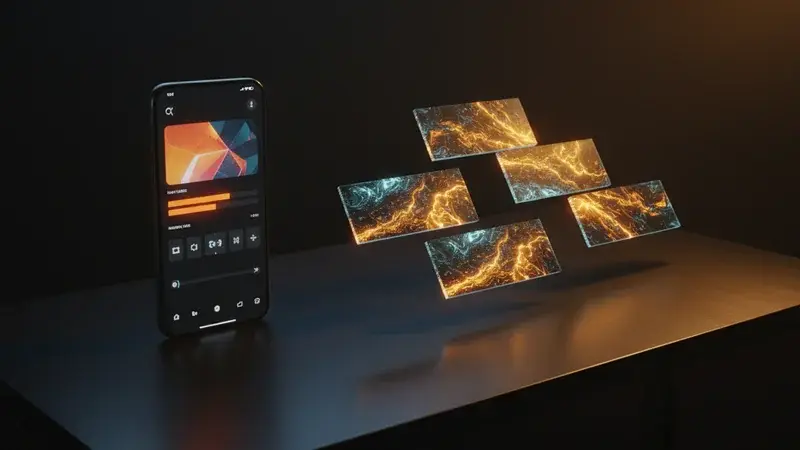
Gemini Omni Flash, Google’s new multimodal video model, started rolling out to YouTube Shorts and the YouTube Create app for free this week. If you create short-form video — for your own channel, for a brand client, or because your job suddenly added “content” to the description — this is the first AI video tool that’s both genuinely free and built into the publishing surface you already use.
What it isn’t: a magic button. What it is: a real shift in what one person can produce in an evening. Here’s the workflow that actually works on Shorts, based on the launch demos, the prompt patterns Google shipped with the model, and what early creators have been generating in the first 48 hours.
Before the seven steps: what makes Omni different from Veo and Sora
If you used Veo 3 or Sora over the past year, you know the rhythm — write a careful prompt, generate, mostly accept the result because re-rolling is expensive, post. Omni Flash shifts the workflow because of one feature: conversational editing. You don’t write one perfect prompt. You write a rough first prompt, then refine across three to six follow-up instructions that build on each other. Characters stay consistent. Lighting carries over. The scene “remembers” what came before.
That changes what you can actually make. With Veo, you were rolling dice on a final shot. With Omni Flash, you’re directing — say “make the lighting warmer”, then “have her glance left”, then “add the rain sound from this audio file”, and each instruction lands on top of the last.
The catch: clips are capped at 10 seconds. If you want a 30-second Short, you stitch generations in Flow’s scene builder. (We’ll get to that in Step 6.)

Step 1: Ideate around a 10-second hook
The fastest way to fail at Shorts is to over-script. The Shorts algorithm rewards the first three seconds, so build everything around what happens in seconds 0-3. Then plan a payoff in seconds 7-10.
Three hook archetypes that work for Omni-generated Shorts specifically:
- The visual surprise — something impossible happens in second 1 (the violinist suddenly playing inside a snow globe, the coffee cup pouring upward, the mirror becoming liquid). Omni Flash is uniquely good at this because of how it interprets physics-violating prompts.
- The transformation — character or environment changes mid-clip. The conversational editor handles this much better than single-prompt generators because you can describe each phase of the change as a separate edit instruction.
- The reveal — a tight shot pulls back to show context the viewer didn’t expect. Omni Flash’s camera control via prompts (“change the camera angle to over the shoulder”) makes this a one-prompt move.
Pick one archetype. Write the 0-3-second hook as a single sentence. Write the 7-10-second payoff as a single sentence. The middle is what Omni Flash interpolates.
Step 2: Write the seed prompt with one strong visual anchor
Strong Omni prompts have one specific visual anchor and let the model invent the rest. Google’s official example prompts show the pattern:
- “Make the sculpture out of bubbles”
- “A marble rolling fast on a chain reaction style track, continuous smooth shot”
- “The lights of the apartments start turning on in sync with the music”
- “Dim the lights in the room. Put a black and white checkerboard room inside a glass sphere”
Notice what they don’t have: shot lists, framing instructions, color palettes, runtime breakdowns. The model handles those. What they do have: one concrete, evocative visual that anchors everything else.
Bad seed prompt: “A 10-second clip of a barista pouring coffee in a busy cafe, medium shot, warm tones, cinematic lighting, dynamic camera movement” — too many adjectives, no anchor.
Good seed prompt: “A barista pours an espresso shot, but the coffee floats up out of the cup in slow motion before settling back” — one anchor (coffee floats up), everything else implied.
Submit the seed prompt to Omni Flash and let it generate the first cut.
Step 3: Refine with up to three conversational edits (in Flow)
This is where Omni earns its keep. Each follow-up instruction lands on top of the last while preserving character and scene continuity. Important note on the limit: in Google Flow, the conversational editor holds context across up to 3 turns before the model loses the chain — that’s the documented limit. The Gemini app’s conversational editor is more generous in practice. Plan your edit sequence around the 3-turn cap if you’re working in Flow. The pattern that works:
Edit 1 — Camera change. “Change the camera angle to over the barista’s shoulder.” This anchors the perspective for everything that follows.
Edit 2 — Lighting / mood shift. “Make the lighting warmer and slightly amber.” Omni honors the prior camera choice while changing the mood.
Edit 3 — Action refinement. “Have the barista glance up at the camera the moment the coffee settles back.” Adds the human beat that turns a visual trick into a story.
Edit 4 — Audio or environmental. “Add the sound of a busy cafe and the faint hum of an espresso machine.” Omni Flash generates synchronized audio for new edits.
Edit 5 (optional) — Final polish. “Remove the background person on the left.” Single-element removal is more reliable than batch edits.
The conversational editor handles each turn as an edit, not a regeneration. That’s the difference. If you tried to write Edits 1-5 as one giant prompt, you’d get something less coherent than running them sequentially.
Step 4: Use reference inputs when text alone isn’t enough
Omni Flash accepts any combination of text, images, audio, and video as input — and reasons across all of them simultaneously. You can hand it a reference image of a character, an audio file with dialogue you’ve recorded, and a clip showing the lighting style you want, then have it generate one output that resolves all three constraints.
Where this earns its keep:
- Character consistency across multiple Shorts. Upload a reference image of a character once, then use it in every generation that week. Character stays consistent across clips you’ll post on different days.
- Brand color or lighting style. Upload a clip from your past best-performing video and prompt: “Use the lighting style from this clip”. Saves you naming colors and lighting types in plain text.
- Voice consistency. If you’ve recorded a voiceover, attach it as audio input. Omni Flash will time the visual to the audio, lip-sync if there’s a face, and preserve the audio in the output.
The trap to avoid: attaching too many reference inputs to one prompt. Two or three is the practical limit. More than that and the model averages everything together instead of honoring each input distinctly.
Step 5: Decide on avatar mode (or don’t)
If you want a digital version of yourself in the clip, Omni Flash has an Avatar mode — but the onboarding is more involved than other features. You record yourself reading a series of numbers aloud (this is the consent gate that prevents people from generating deepfakes of strangers), the model builds an avatar of your voice and likeness, and you can then use it as a character in subsequent generations.
Two things to know before you commit to avatar mode:
- The general-purpose audio and speech editing capabilities are held back at launch. You can’t take an existing audio file and edit the speech inside it — only generate fresh audio that matches your avatar’s voice.
- The avatar workflow is more useful for a creator series than for a one-off Short. The setup time only makes sense if you’ll reuse the avatar in multiple clips.
For most Shorts, skip avatar mode in week one. Come back to it once you have a series concept.
Step 6: Stitch generations for clips longer than 10 seconds
Shorts can be up to 60 seconds. Omni Flash caps at 10. The path to longer Shorts: Google Flow’s Scene builder.
Flow is Google’s AI filmmaking surface — accessible at flow.google — and it includes a Scene builder that lets you sequence and trim Omni Flash generations into longer pieces. The official workflow per Google’s support docs:
- Generate Clip A (10 seconds)
- Open Scene builder and add the clip to a sequence
- Generate Clip B with a continuation prompt referencing where Clip A ended
- Add Clip B to the sequence; rearrange clips by dragging them, trim each clip using the handles at the edges
- Download the full sequence as a single rendered video
- Repeat for 30s and longer composites
The seams aren’t invisible. You’ll see a subtle cut between generations even with frame-perfect handoff. The trick is to put the cut on a natural beat — a sound effect, a camera blink, a character glance — so the viewer doesn’t notice. Editing instinct still matters.
A workaround for creators who don’t want to deal with Flow: lean into the 10-second cap as a constraint. Tight 10-second Shorts often outperform longer ones in the algorithm anyway. Plenty of viral Shorts are exactly the right length to fit inside Omni Flash’s native limit.
Step 7: Publish with caption + sound strategy
Generated clips drop into your YouTube Create app or Shorts editor as drafts. The SynthID watermark goes with them automatically — it’s invisible to human viewers but lets YouTube’s AI-content disclosure system label the video correctly. Do not try to strip the watermark; that violates YouTube’s AI disclosure policy and can demonetize your account.
Two quick wins for AI-generated Shorts publishing:
1. Write a caption that frames the AI explicitly. YouTube’s algorithm slightly favors creators who disclose AI use in the caption (the policy is moving toward “transparent AI use” being a positive signal, not a penalty). A simple “made this with Gemini Omni in 20 minutes” caption gives you both the disclosure and a comment-bait hook.
2. Pick a trending sound, then time your Omni clip to it. Sound choice still matters more than visual choice for Shorts discovery. Find a trending sound, build your Omni prompt around how the visual interacts with the music (“the lights of the apartments start turning on in sync with the music” is literally one of Google’s example prompts), then layer the trending sound on top in the editor.

What this workflow can’t fix
Five honest limits before you build a content plan around this:
- Omni Flash is not yet rolling out to every region equally. Even in supported countries, the YouTube Shorts integration is gradual. Don’t promise weekly Omni-generated content until you’ve confirmed your account has access.
- The conversational editor is Gemini-app-only at launch, not in the Shorts editor. What you get on Shorts is one-shot generation. To do the conversational editing workflow in Step 3, you need to generate in the Gemini app first, then bring the result into Shorts.
- 10 seconds is a real cap, not a soft suggestion. Plan around it.
- Avatar mode requires a consent recording. You can’t generate avatars of other people, even with their permission, except through the same recorded-numbers flow.
- Brand-safe generation isn’t guaranteed. Omni Flash can still produce off-brand outputs — wrong tone, wrong colors, wrong implied demographics. Review every clip before posting. Don’t schedule generations to auto-publish.
What this means for you
If you make Shorts as a creator hobby: Use Step 1, 2, 3 only. Skip Flow, skip reference inputs, skip avatar mode. One conversational chain per Short, max five edits, publish. You’ll be ahead of the curve on AI-native Shorts for the next six weeks before everyone catches up.
If you make Shorts for a brand or client: Use all seven steps but build a style guide first. Reference inputs in Step 4 are how you keep brand consistency across multiple generations and across multiple campaigns. Don’t trust the model to remember your brand from session to session — feed it a reference image each time.
If you’re a small business owner using Shorts for marketing: Steps 1, 2, 7. Trending sound matters more than visual sophistication. A simple Omni clip that fits a trending audio will outperform a complex one that doesn’t.
If you’re a YouTube optimizer obsessing over watch time: The 10-second cap is your friend. Generate tight 10-second Shorts and let the loop play. Algorithm prefers high-completion-rate Shorts.
If you’re a teacher or educator making short explainers: Avatar mode is worth the setup time if you’re making a series. The consistent on-camera presence increases trust for educational content. Skip Omni for live demos — it doesn’t replace a webcam yet.
The bottom line
Omni Flash on YouTube Shorts is the first AI video integration that lives where the publishing actually happens. That changes things. The friction between “I have an idea” and “the Short is live” drops from hours of editing to minutes of generation. The seven-step workflow above isn’t a hard sequence — it’s a checklist. Some Shorts only need Steps 1, 2, 7. Some need all seven.
The thing to internalize before you build a content plan around this: the conversational editor is where the magic is. If you treat Omni Flash like Veo (one prompt, one output, post), you’ll get unimpressive results. If you treat it like a director’s chair with five iterations per scene, you’ll get content that looks like a small team made it.
If you want a structured framework for building AI-native short-form content across multiple platforms (Shorts, Reels, TikTok), our AI Video Creation course walks through the prompt patterns, the comparison shoots, and the publishing workflows that actually move metrics. First 2 lessons free.
Sources
- Google Keyword blog: Introducing Gemini Omni
- Google: Everything new in our Google AI subscriptions
- Storyboard18: Google’s Gemini Omni brings AI video generation and conversational editing
- TechTimes: Google Gemini Omni Brings AI Video Creation and Conversational Editing to the Next Level
- TheNextWeb: Google launches Gemini Omni Flash, a conversational video-generation model
- Winbuzzer: YouTube expands Ask YouTube and adds Gemini Omni for Remixing
- Anil Matcha: Awesome Gemini Omni API Prompts repository
- Almcorp: YouTube AI Tools Explained — Gemini Omni, Ask YouTube & Shorts