The problem with every AI presentation tool has never been making slides — it’s that the slides come out looking like the AI’s brand, not yours. A perfectly nice deck in somebody else’s fonts is a deck you rebuild by hand. That specific problem is what Google just fixed: Gemini in Google Slides can now generate a full presentation that matches an existing deck of yours — your fonts, your colors, your layout habits — with every element remaining an ordinary, editable Slides object.
One consultant summed up the before-times better than any product page: “I have spent a meaningful percentage of my career nudging a text box 4 pixels to the left.” This feature is aimed at exactly that career.
We already covered generating a deck from one prompt in the Gemini app’s Canvas back in May — this is different. That was a fast first draft in Gemini’s own styling; this is Slides-native generation that inherits your brand. Here’s the new layer, and only the new layer.
What just changed
Two dates matter. In late June, Gemini in Google Slides gained the ability to generate a full multi-slide presentation from a prompt — natively, meaning real text boxes, real charts, real layouts you can edit, not a baked image of a deck. Google’s launch post leaned hard on that distinction, and a Google exec put it bluntly on X: “Not Images. Not PDFs.”
Then the July Workspace feature drop added the piece that changes daily work: on-brand generation. You point Gemini at one of your existing presentations as a style reference, and it matches your formatting when it builds the new deck. It also pulls content from your Docs, Sheets, PDFs, and previous decks — and asks clarifying questions before it builds, instead of guessing.
Who gets it: Workspace Business/Enterprise Standard and Plus, and Google AI Pro/Ultra subscribers. Desktop only for now, English only at launch. If you tested it during July, note that Google’s promotional higher generation limits ran “through at least August 1” — so your quota may feel tighter this month than it did last week.
The 5-minute on-brand deck workflow
Step 1: Start where the brand lives
Open a blank presentation (or type slides.new) on desktop and choose the Gemini presentation option. Describe the deck in one honest sentence: “A 10-slide Q3 results deck for our leadership team, focused on the two product lines that grew.”
Step 2: Feed it your context — and your old deck
This is the step that separates this from every “AI deck generator” you’ve tried:
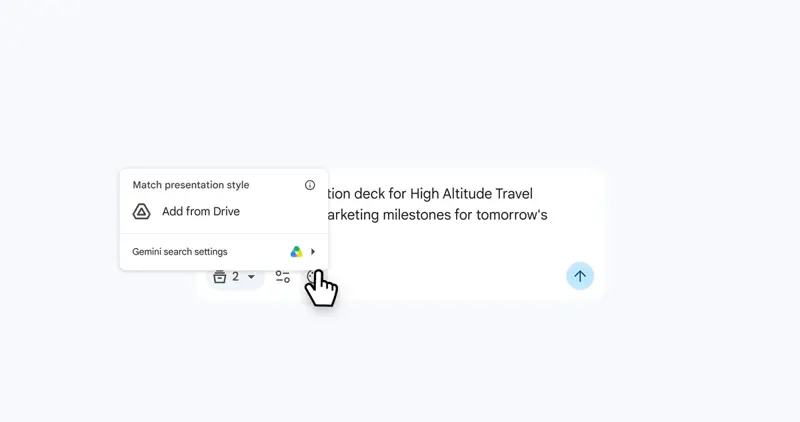
- Add sources: attach the Docs, Sheets, or PDFs the content should come from. Gemini will even suggest related files from your Drive it thinks are relevant.
- Match presentation style: attach last quarter’s deck (or your best-branded one). This is the on-brand switch — fonts, colors, and layout DNA come from this file.
The quality of the style reference matters more than the prompt. Feed it your cleanest deck, not your most recent one.
Step 3: Answer the clarifying questions
Gemini asks a few questions before building — audience, emphasis, length. Answer them; this is where “generic deck” and “your deck” diverge.
Step 4: Edit the plan, then generate
You get an outline first — a slide-by-slide plan you can reorder and trim before generation. Cut the slides you know you don’t need at the plan stage; it’s faster than deleting designed slides later.
Step 5: Do the human pass
Everything that comes out is a native Slides element, so the fix-it pass is normal Slides editing — no fighting a flattened image. Verify every number against your source files (Gemini pulls from them, but you present it), and rewrite the one slide that carries your actual argument. That slide was never going to be automated.
What this means for you
If you make a recurring deck (weekly, monthly, quarterly): this is the biggest win. Your previous edition is the perfect style reference and the structural template. The monthly report deck drops from hours to a review pass.
If you’re a consultant or freelancer: client-branded decks are the sleeper use case. Ask each client for one representative deck, and every proposal you generate matches their brand, not yours. That’s a detail clients notice — and it used to cost you an evening of reformatting.
If you’re a small business owner without a “brand team”: your brand is whatever your best-looking deck says it is. Pick it, use it as the reference every time, and stop making font decisions at 11pm.
If you already use Gamma, Canva, or Beautiful.ai: the honest comparison is about where the output lives. Those tools still often produce web-native layouts or exports that need cleanup once they land in Slides or PowerPoint. If your organization lives in Google Workspace, native-and-editable beats prettier-but-foreign for anything a colleague will edit after you.
If you’re on the free tier: this one isn’t for you yet — it needs a paid Workspace or AI plan. The Gemini Canvas route remains the free way to get a first-draft deck, just without the brand matching.
What it can’t do
- It matches style, not judgment. It’ll inherit your fonts and colors faithfully — and also faithfully generate a slide of bullet soup if your reference deck is bullet soup. Garbage brand in, garbage brand out.
- It can’t know which numbers matter. It pulls figures from your Sheets, but choosing the number that carries the story — and checking every stat before you present — stays your job.
- Desktop and English only, for now. No mobile generation, no localized UI at launch.
- Quota reality is arriving. The generous July promo limits ran through at least August 1; expect plan-based caps now (Ultra advertises 5–20× Pro’s limits).
- The last 10% is still the job. Every early reviewer lands in the same place: it produces the deck you edit, not the deck you present. Budget the review pass — it’s just measured in minutes now.
The bottom line
AI deck tools have been demoing “a presentation in seconds” for two years; the missing piece was always whose presentation it looked like. Brand-matching inside the tool your company already uses is the version of this feature that survives contact with a real Monday.
If presentations are a real part of your job, our AI for Presentations course covers the full workflow — structure, story, and the AI tools worth keeping — and the Presentations course sharpens the human half no generator touches.
Sources
- Google Workspace — Create on-brand presentations in minutes with Gemini in Google Slides
- Google Workspace Updates — Create fully native and editable presentations with Gemini in Google Slides (June 2026)
- Google Workspace — July 2026 feature drop
- Google Help — Create presentations with Gemini in Google Slides
- Chrome Unboxed — Create on-brand presentations in minutes with Gemini in Google Slides
