Here’s a workflow that’s probably familiar: you’re writing a status update in a Google Doc, and you need to know what’s overdue in Asana. So you switch tabs, scroll through the board, mentally note three things, switch back, and start typing before you forget them. Multiply that by every status report, every campaign recap, every client update you’ve ever written, and you get a sense of how much of a project manager’s or marketer’s week is just… tab-switching.
On September 15, 2026, Google quietly removed a chunk of that friction. Gemini inside Google Workspace can now reach directly into Asana, Atlassian Rovo, HubSpot, Intuit Mailchimp, Intuit QuickBooks, Monday, and Salesforce — from the Gemini side panel in Docs, Sheets, Slides, Gmail, Drive, and Chat — without you opening another tab. The announcement didn’t make much noise (no viral demo video, no big keynote moment), which is probably why you haven’t heard about it yet. It’s also why, if you use any of these seven tools, it’s worth five minutes of your Sunday to check whether it’s already turned on for you.
What Changed on September 15
Google’s own Workspace Updates post describes it plainly: Gemini in Google Workspace now connects to seven external systems through MCP — the Model Context Protocol, the same open standard Anthropic introduced for connecting AI models to outside tools and data. You don’t need to know what MCP stands for to use this; the useful mental model is “a common plug that lets Gemini see into another app’s data without you exporting anything.”
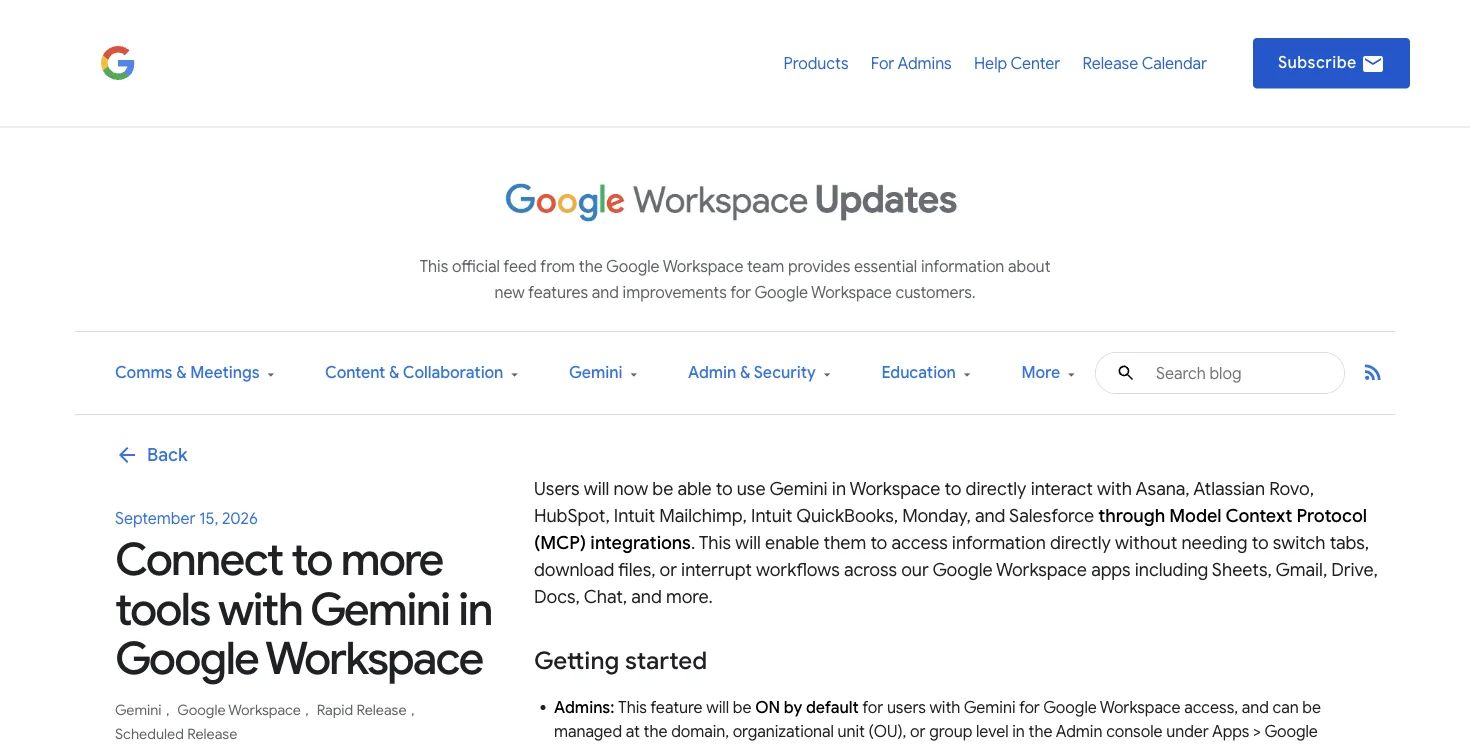
Source: Google Workspace Updates — Connect to more tools with Gemini in Google Workspace
The facts worth knowing before you go looking for it in your own account:
- It’s read-only at launch. Gemini can search and summarize information from these seven systems; it cannot create, edit, or delete records in them. If you ask it to “update the Asana task,” it can’t — yet.
- It’s on by default for anyone with qualifying Gemini access — you don’t opt in, an admin has to opt you out.
- It works from the Gemini side panel in Docs, Sheets, Slides, Gmail, Drive, and Chat — the same panel you already use for “Help me write.”
- Admins control it centrally at Apps → Google Workspace → Gemini for Workspace → Third-Party Connectors, at the domain, organizational-unit, or group level.
- Rollout was immediate, not staged — both Rapid Release and Scheduled Release domains got it the same day, which is unusual for a Workspace feature this broad.
Who Actually Gets This (The Part Google’s Marketing Undersells)
This is the detail most coverage has gotten fuzzy on, so here’s the exact breakdown. On the consumer side, it’s available to Google AI Pro and Google AI Ultra subscribers. On the business side, Google’s own support documentation lists Business Standard and Business Plus, plus Enterprise Standard and Enterprise Plus as the qualifying editions — Business Starter does not get it, regardless of whether you’ve added a Gemini add-on. If you’re on Workspace Business Starter, this feature simply isn’t available to you yet at any price, which is worth knowing before you spend an afternoon troubleshooting why your side panel looks different from a colleague’s.
For reference, current Business-tier monthly pricing (per user, US) runs Business Starter at $8.40, Business Standard at $16.80, and Business Plus at $26.40 — with annual commitments dropping those to roughly $7, $14, and $22 respectively. If connectors are the deciding feature for your team, that’s the concrete gap between the tier that has it and the one that doesn’t.
The Five-Minute Setup
Step 1 — Confirm you’re eligible. Open a Google Doc, click the Gemini icon to open the side panel, and look for a small tools or plug icon near the prompt box. If you don’t see it, you’re either on an ineligible plan (Business Starter, free personal Workspace) or an admin has switched it off for your organization or group.
Expected result: a list of available connectors, which may show all seven or a narrower set depending on what your admin enabled.
Step 2 — If you’re an admin, check what’s actually on. Go to Admin Console → Apps → Google Workspace → Gemini for Workspace → Third-Party Connectors. You’ll see all seven listed even for services your organization doesn’t use — that’s expected; an unused connector showing up doesn’t mean anyone’s connected to it. Toggle off anything you don’t want available at the domain, OU, or group level.
Expected result: a clear on/off state per connector, adjustable by group.
Step 3 — Connect your first tool. In the Gemini side panel of a Doc or Sheet, select the connector for the tool you use most (Asana is the natural first pick for most PMs). You’ll go through a one-time authorization to your Asana (or HubSpot, or Monday) account — the same kind of OAuth screen you’ve seen connecting any two apps.
Expected result: Gemini confirms the connection and you can now reference that tool’s data in your next prompt.
Step 4 — Ask a real question. This is the part that actually matters. In the same Doc where you’re drafting a status report, type: “What tasks in my Asana project are overdue?” Gemini pulls the live answer into the side panel — no tab switch, no export, no copy-paste.
Expected result: a list of overdue tasks with names and due dates, ready to paste or reference directly in the Doc you’re already writing.
Step 5 — Build it into your actual workflow. The setup is a one-time cost; the payoff is every week after. Below are the five prompts worth turning into a personal or team template.
Worked Example: A Real PM’s Monday Morning
Here’s what this looks like end to end, using a real (composite) project — a marketing site redesign with 14 open tasks across three team members.
The old way: Open Asana, scan the board, note that 3 tasks are overdue and 2 are due today, switch to Gmail, draft a status email summarizing that, switch back to Asana to double-check a date, finish the email. Time: 12–15 minutes.
The new way: In the Google Doc where the weekly status report lives, prompt: “Pull my Asana project’s overdue and due-today tasks, then draft a three-sentence status update for the team, tagging who owns each overdue item.” Gemini returns something like:
“3 tasks are overdue: homepage copy revision (owned by Priya, due Sep 17), asset handoff to dev (owned by Marcus, due Sep 18), and QA pass on mobile nav (owned by Priya, due Sep 15). 2 tasks are due today: final CTA copy and stakeholder sign-off email. Recommend a quick sync with Priya given she owns 2 of the 3 overdue items.”
You review it, adjust the tone, and paste it. Time: 3–4 minutes, most of which is you reading and lightly editing, not gathering. That’s the actual, measurable win — not “AI magic,” just fewer tab switches.
The Five Prompts Worth Saving
- Status roll-up: “Pull this week’s completed, in-progress, and overdue tasks from [Asana project] and draft a status update for [stakeholder].”
- Overdue chase list: “List every overdue task in [project], grouped by owner, with days overdue.”
- Risk flag: “Looking at task due dates and current progress in [Monday board], which items are at risk of missing their deadline this sprint?”
- Stakeholder email: “Summarize this month’s [HubSpot] campaign performance — opens, clicks, conversions — in three sentences for a non-technical executive.”
- Retro input: “Pull everything completed in [Asana project] in the last two weeks and group it by team member for a sprint retro.”
What Early Users Are Actually Saying
Because this launched quietly, most of the visible early discussion has come from IT admins and consultants working through the implications rather than end users showing off demos — which is itself useful signal about how this feature is actually landing.
The most-repeated observation, paraphrased from several independent early write-ups: the real bottleneck was never how you phrased your question to the AI — it was that the AI never had access to the data in the first place. One consultant put it plainly: people assumed getting better answers from AI meant learning better prompts, when usually the actual blocker was that the numbers living in QuickBooks or the tasks living in Asana were never visible to the model at all. Fix the access problem, and the same prompts you were already using start working better.
A second consistent thread is the on-by-default concern. Multiple early posts — independently, across different languages — flagged the same two-part reality: this feature activated automatically for eligible users, and the only way to change that is through the admin console’s Third-Party Connectors screen, not a personal setting. That’s not a criticism of the feature’s usefulness so much as a reminder that “convenient” and “reviewed” aren’t the same thing, and it’s worth being the one who reviews it rather than the one who’s surprised by it later.
A third theme, more practical: several early testers of the underlying MCP protocol (via Claude Code and other MCP-compatible tools, not just Gemini) reported being deliberate about which tools they exposed on first use — connecting one system, testing it, and only adding more once they’d seen how it behaved. That’s a reasonable model to copy even if you’re not technical: connect Asana first, live with it for a week, then decide whether HubSpot or QuickBooks is worth adding.
What’s conspicuously absent so far: a viral “look what I just did” demo video, and any direct public comparison thread pitting this against Zapier or Make. Both are likely coming as adoption grows, but as of this writing, the loudest voices are administrators doing due diligence — not marketers doing victory laps. That’s a healthy sign for a feature with this much default-on data access, even if it makes for a less exciting launch story.
What This Means If You’re a Marketer, Not a PM
The same mechanism applies to HubSpot and Mailchimp, and the numbers here are actually bigger. Marketers searching “AI for marketers” generate a genuinely enormous volume of queries asking assistants which tool to use — bigger, proportionally, than the equivalent PM search volume — which means being able to answer “ask your CRM a question inside the Sheet you’re already building the report in” is a real, current need, not a hypothetical one.
The marketer’s version of the setup: connect HubSpot or Mailchimp from the Gemini side panel in the Google Sheet where you build your monthly report, then prompt directly: “Pull this month’s HubSpot campaign results and format them into the report structure in this Sheet.” Or for a quick recap: “Which subject line had the highest open rate in Mailchimp this month, and draft one sentence explaining why it likely worked.”
The honest limit: because this is read-only, you still can’t have Gemini update a HubSpot deal stage or launch a Mailchimp campaign from inside a Doc. It reads; you still act. That’s a meaningful boundary if your mental model was “AI now runs my CRM.”
Worked Example: A Marketer’s Monthly Report, Start to Finish
Here’s the same before-and-after treatment for the marketing side, since the mechanics are identical but the numbers change.
The old way: Log into HubSpot, export last month’s campaign performance to a CSV, open the report Google Sheet, paste the data, manually reformat columns to match the existing template, then write a summary paragraph by hand. Time: 20–30 minutes for a typical monthly report.
The new way: In the Google Sheet where the report template already lives, connect HubSpot once, then prompt: “Pull last month’s campaign performance from HubSpot — opens, clicks, conversions, and spend per campaign — and populate it into the existing columns in this Sheet.” Gemini returns the data already shaped to your template. Follow up with: “Now write a three-sentence executive summary highlighting the best and worst performing campaign.” You review, adjust tone, done. Time: 5–8 minutes.
The time savings compound weekly if you’re doing any recurring reporting — which is exactly the audience the 2,371-per-month “ai for marketers” search volume represents: people actively looking for exactly this kind of workflow fix.
Admin Security Checklist Before You Turn This On (Or Leave It On)
Because this rolled out on-by-default rather than opt-in, the responsible move — whether you’re an admin or just a heads-up team member — is a quick audit rather than assuming it’s fine because nobody complained yet.
- Don’t trust the toggle alone — test as a real user. One admin’s public warning is worth repeating: the admin console can show a connector as “Blocked” while it’s still reachable through another access path. If you need a connector genuinely off, verify by testing with a real account in the affected group, not just by reading the console state.
- Review connector access by group, not just domain-wide. A blanket domain-wide decision (“we don’t use Salesforce, so it doesn’t matter”) ignores that a specific team or contractor group might have Salesforce access you don’t know about.
- Treat “read-only” as a floor, not a ceiling, for your risk assessment. Read-only today doesn’t mean the data exposure risk is zero — anyone with Gemini access in a qualifying group can now surface CRM or accounting data inside a Doc or Sheet that might get shared more broadly than the source system ever was.
- Check which specific fields each connector can see. QuickBooks and Salesforce connectors touching financial and customer data deserve a closer look than, say, a Monday board with only internal task names.
- Communicate the change to your team before someone discovers it by accident. Several early posts about this feature were people surprised to find it already active — a two-line internal announcement avoids that “wait, since when could it see this?” reaction.
- Re-check this quarterly, not just once. Google has a track record of expanding these connector lists — Trello, ClickUp, and others could plausibly be added later, and each addition deserves the same review as the original seven.
How This Compares to Zapier, Make, and Native Integrations
If you already use Zapier or Make to connect these same tools, you might reasonably ask whether this replaces them. It doesn’t, and the difference is worth understanding rather than guessing at.
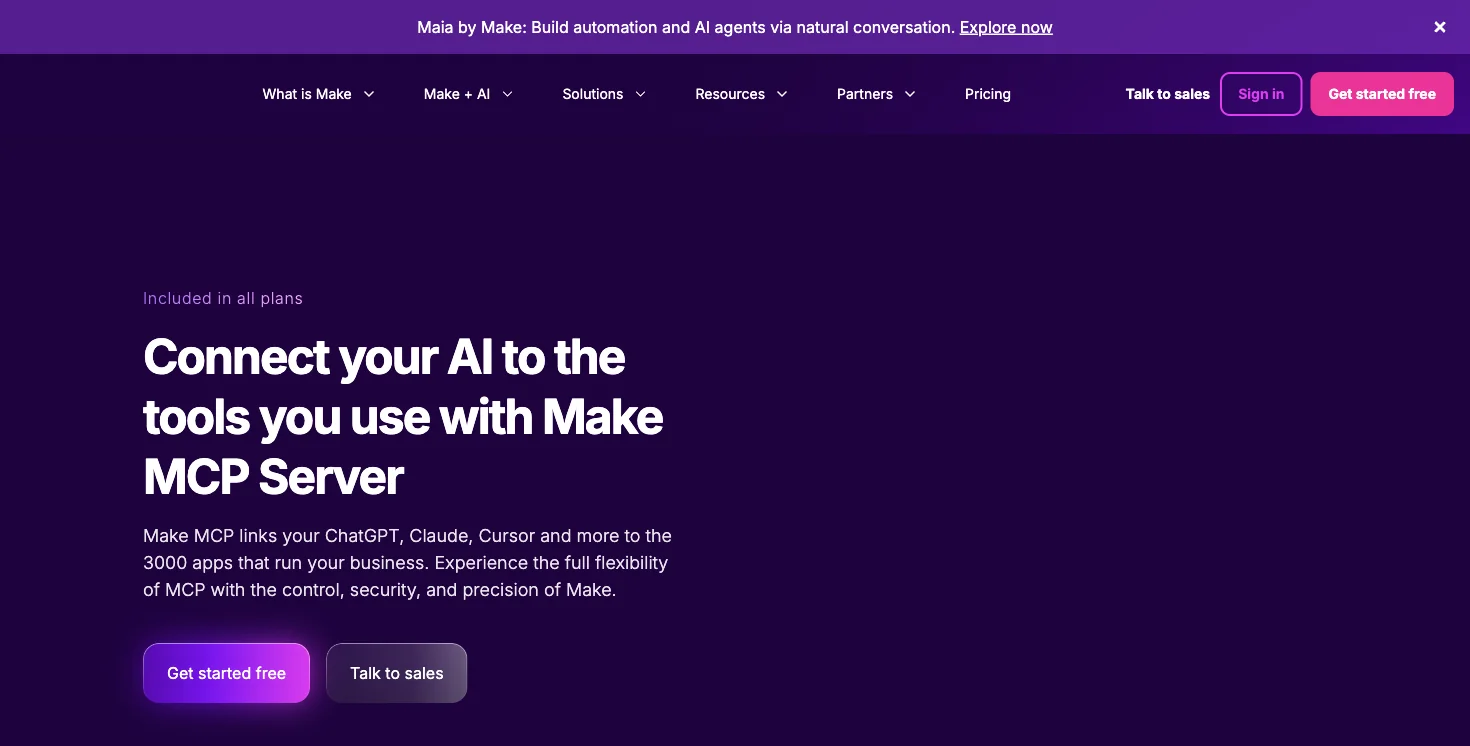
Source: Make — Make MCP Server
MCP-based connectors (what Gemini just got) are built for conversational, on-demand retrieval — you ask a question, in the moment, inside the document you’re already working in, and get an answer. They’re not built for automation that runs on a schedule or in response to an event without you asking.
iPaaS tools like Zapier and Make are built for exactly that — scheduled syncs, multi-step workflows, and write-access automations that run whether or not you’re in the room. Both Zapier and Make have themselves added MCP servers this year specifically so AI assistants can trigger their existing automations — which tells you the two approaches are converging, not competing head-on.
| Gemini Workspace Connectors | Zapier / Make | |
|---|---|---|
| Best for | “What’s the current state of X, right now, inside this Doc” | “When X happens, automatically do Y” |
| Access type | Read-only (as of Sept 2026) | Read and write |
| Setup | Native, no separate account, admin-toggled | Separate account, per-zap/scenario setup |
| Trigger | You ask, in the moment | Scheduled or event-based, runs unattended |
| Cost | Included in qualifying Gemini/Workspace plan | Separate subscription, often usage-tiered |
| Auditability | Conversational, not logged as a workflow | Full workflow history and logs |
The honest recommendation: if your need is “let me ask a quick question about my project data without switching tabs,” the native Gemini connector is simpler and already included in your plan. If your need is “automatically move a new HubSpot lead into Asana as a task every time one comes in,” you still need Zapier, Make, or a native integration — that’s write-access, scheduled automation, which this feature explicitly doesn’t do.
What This Means for You
If you’re a project manager on Business Standard or Plus — this is worth setting up today. The overdue-task and status-report prompts above will save real time within the first week, and there’s no additional cost since it’s included in your existing plan.
If you’re on Business Starter — you don’t have access to this yet, and upgrading purely for this feature means moving to Business Standard at roughly double the per-user cost. Weigh that against how much tab-switching time you’re actually losing before upgrading.
If you’re a marketer managing HubSpot or Mailchimp reporting — the Google Sheets workflow above (connect the CRM, build the report in the same Sheet) is probably your highest-value use of this feature, especially if monthly reporting is currently a manual export-and-paste job.
If you’re a bookkeeper or work with QuickBooks — this connector exists, but treat it as a read-only convenience for quick lookups (“what’s outstanding on this invoice”) rather than a replacement for your existing month-end-close workflow. FindSkill has covered dedicated bookkeeping AI workflows in more depth elsewhere if that’s your main need.
If you’re an IT admin — your first move should be auditing the Third-Party Connectors screen this week, not next quarter. “On by default” means every eligible user in your domain already has this unless you’ve explicitly reviewed it.
If you’re budget-conscious and just want to try this without paying more — check whether you already qualify under your current plan before assuming you need to upgrade; a lot of Business Plus and Enterprise seats already have this active and unused.
If your team already lives in Zapier or Make — nothing changes for your existing automations. This is a complementary, read-only, in-the-moment tool, not a replacement for scheduled write-access workflows.
Edge Cases and What Trips People Up
“Blocked” in the connector list doesn’t always mean off. One admin flagged this directly: the API can report a connector as blocked in one view while it’s still reachable through another path. If you’re auditing access, test as an actual user, not just by reading the admin toggle state.
The seven connectors show up even if you don’t use that service. Seeing QuickBooks listed in your Third-Party Connectors screen doesn’t mean anyone in your org is using it — Google shows the full catalog regardless of whether your organization has an account with that vendor.
Read-only surprises people who assumed otherwise. Because Gemini already drafts emails and documents for you elsewhere in Workspace, it’s an easy assumption that it can also “update the CRM.” It currently can’t, and Google’s own Help Center is specific about this being read-access only for now.
Language availability is narrower than the feature rollout. Ask Gemini in Google Chat, one of the surfaces where this works, is currently English-only — a real limitation if your team works in another language.
No English-language viral demo exists yet. If you were expecting a slick screen-recording of someone asking Asana a question inside a Doc to explain this — it doesn’t really exist yet in a widely-shared form. Most of the visible discussion so far has been admin-focused writeups (heavy on Japanese and Spanish-language posts, notably) rather than flashy demos, which is itself a signal this launched quietly rather than as a headline feature.
“Free ai for project managers” searchers, this applies to you too. If you’re not on a qualifying paid plan, the free-DIY version is: export a CSV or screenshot from Asana/HubSpot, paste it into free ChatGPT or Gemini, and ask the same question manually. Slower, but it costs nothing and works today regardless of your Workspace tier.
What This Can’t Do
- It cannot write back to any of the seven connected tools. No task creation, no deal updates, no calendar changes in the connected system — read-only means read-only.
- It cannot run on a schedule. Every query is you asking, in the moment. If you want an automatic Monday-morning status email, you still need Zapier, Make, or Apps Script.
- It cannot see data your admin hasn’t authorized, and if you’re on Business Starter, it can’t see anything at all yet, regardless of what you personally want to connect.
- It cannot replace the audit trail an iPaaS tool provides. There’s no workflow log of “Gemini asked Asana X on this date” the way a Zapier history gives you — treat it as a conversational lookup, not a compliance-grade record.
- It doesn’t yet cover every popular PM or marketing tool. Notably absent: Trello, ClickUp, Airtable, and Slack (for direct data pulls, as opposed to just posting messages). If your stack lives there, this specific feature doesn’t reach you yet.
Frequently Asked Questions
Do I need to pay extra for this? No — if you’re already on a qualifying plan (Google AI Pro/Ultra for individuals; Business Standard/Plus or Enterprise Standard/Plus for organizations), it’s included at no additional cost. Business Starter does not qualify at any price currently.
Can I turn it off if I don’t want Gemini seeing my Asana data? Yes, at the individual connector level, or your admin can turn it off domain-wide, by organizational unit, or by group.
Is my data being used to train Google’s models? Google’s connector announcement doesn’t specifically address model training for this feature; check your organization’s Gemini Apps Activity settings, which govern this more broadly across Gemini features.
Can it create a new Asana task from a Google Doc? Not yet — this launch is read-only. Creating, editing, or deleting records in any of the seven connected tools isn’t currently supported.
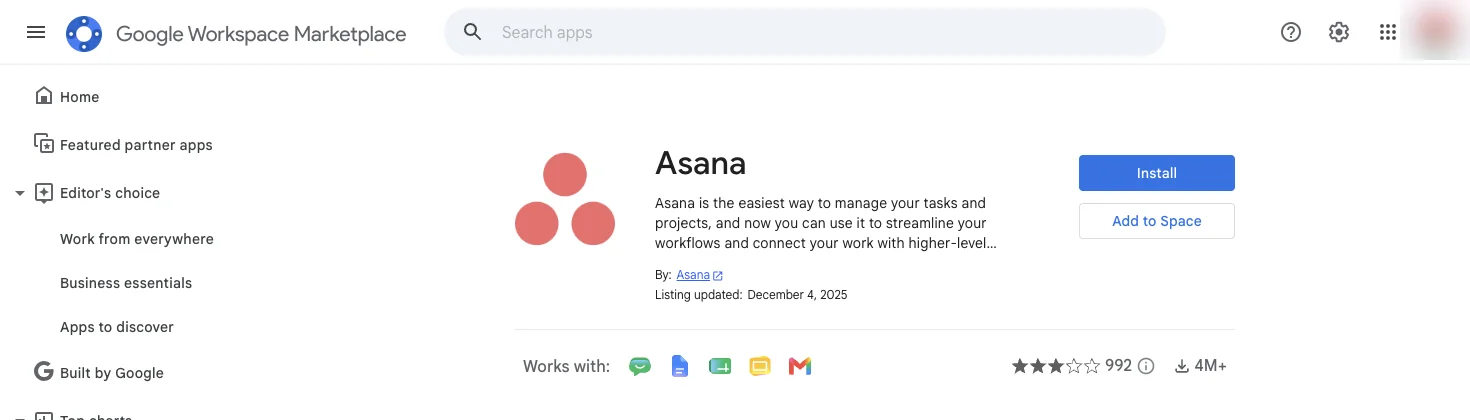
What’s the difference between this and Gemini Enterprise or Google Workspace Marketplace add-ons? This feature is native to the standard Gemini side panel and doesn’t require installing a separate Marketplace add-on for these seven specific connectors — it’s part of the Workspace/Gemini plan itself.
Will write access come later? Google hasn’t announced a timeline, but the “read-only at launch” phrasing in Google’s own materials implies write access is a plausible future step, not a permanent limitation.
Does this work in Gmail too? Yes — the side panel connector access extends to Gmail, Drive, and Chat, not just Docs, Sheets, and Slides.
I’m a solo freelancer on a personal Gmail — do I get this? Only if you’re subscribed to Google AI Pro or Google AI Ultra; a free personal Gmail account does not include this feature.
The Bottom Line
This is a quiet, useful, genuinely limited feature — not the sweeping “AI runs your CRM” story some early coverage implied, and not nothing either. If you’re a PM or marketer on a qualifying Business or Enterprise plan, the setup takes five minutes and the payoff shows up in your very next status report. If you’re not eligible yet, the free DIY path (export, paste, ask) gets you most of the value today, and the real automation you might actually want — write access, scheduled syncs — still lives with Zapier or Make for now.
Want a deeper, structured walkthrough of using AI across the rest of Google Workspace — Gmail, Docs, Sheets, and Slides together? FindSkill’s AI for Google Workspace course covers it lesson by lesson, with the first two lessons free.
Sources
- Google Workspace Updates — Connect to more tools with Gemini in Google Workspace
- Google Workspace Updates — Weekly Recap, September 18, 2026
- Google Help — Use integrations with Gemini in Workspace
- Google Help — Support access to Workspace Integrations
- Google Workspace Help — AI features and pricing updates for Business editions
- Google One — Google AI plans with Cloud Storage
- KuCoin — Gemini Integrates Seven Business Systems into Google Workspace
- Zapier — MCP Server Documentation
- Make — Make MCP Server: What is MCP, How it Works & Examples
- Albato — MCP vs iPaaS: Will MCP Replace Your iPaaS in 2026?
- Asana Help Center — Connect your tools with Asana: integrations
- HubSpot Knowledge Base — Set up and use HubSpot for Google Sheets
