

Google quietly shipped a feature in the middle of August that turns any spreadsheet into a drag-and-drop app, and the first example it showed off wasn’t a sales dashboard — it was a seating chart. That timing isn’t an accident. It’s landing on most teacher accounts during the exact week schools go back into session.
The feature is called Sheets canvas, and if you’ve ever built a seating chart by typing names into little boxes in a Google Doc, or copy-pasted a class roster into yet another app just to track who’s sitting where, this is worth five minutes of your prep period. But before you get excited, there’s a catch that matters more to teachers than to almost anyone else Google is marketing this to: not every Google Workspace for Education account gets it, and the free tier most public schools actually use is the one that doesn’t.
What Just Changed
Sheets canvas is a new layer inside Google Sheets, powered by Gemini (Google’s AI), that lets you describe what you want in plain English and get back a working, interactive mini-app built on top of your spreadsheet data — no formulas, no Apps Script, no coding. Google announced it on its official Workspace blog on August 13, 2026, calling it a way to “build mini-apps with Gemini in Google Sheets.”
Here’s the plain-language version: normally, a Google Sheet is a grid. Rows and columns. If you want to drag a student’s name onto a seat, or click a plus button to add a behavior point, you can’t — you’re stuck typing into cells. Sheets canvas adds a second view on top of that same grid: a real interface with buttons, cards, drag targets, and colors, generated from a sentence you type into Gemini. Edit something in the canvas — drag a student to a new seat, click a point button — and it writes back into your original spreadsheet automatically. Edit the spreadsheet, and the canvas can update too. It’s a two-way mirror, not a one-time export.
For the pro reader who wants the technical framing: Sheets canvas is a read-write interface layer sitting on top of your existing Sheet, generated on demand from natural-language prompts, with access gated at the point of “Create canvas” inside the Gemini side panel, Tools menu, or Insert menu. It’s the same underlying idea as “Canvas” features elsewhere (Claude’s Artifacts, ChatGPT’s Canvas, Gemini’s own chat-based Canvas) — a persistent, editable output surface instead of a wall of chat text — except this version is purpose-built to sit on spreadsheet data specifically, with bidirectional sync back to the source cells.
The rollout has two dates that matter if you’re wondering why your Sheets menu doesn’t look like the screenshots yet:
- Rapid Release domains (most personal Google accounts, and any school that opted into early feature access) started seeing it around August 10, 2026.
- Scheduled Release domains — which is the default setting for the overwhelming majority of school district Workspace accounts, because IT admins deliberately choose the slower, more-tested release track — began a gradual rollout starting August 31, 2026, with Google’s own documentation noting it can take up to 15 days to reach every user on that track.
Translation: if you’re a teacher on a district-managed Google account, you may not see this until early-to-mid September even in the best case, and your IT department controls whether it shows up at all (more on that below).
Google’s own launch material leans hard into two demo use cases: a wedding seating chart with drag-and-drop tables, and a student “study tracker” for managing assignments and deadlines. Notice what’s missing from that list — an actual classroom seating chart, built by an actual teacher, with actual behavior-tracking columns. That’s the gap this guide fills.
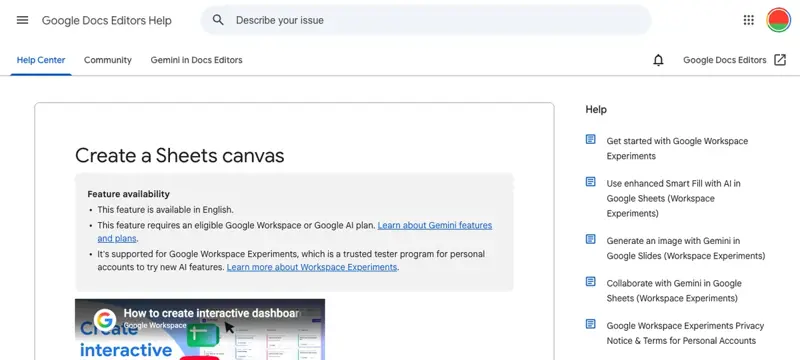
Source: Google Docs Editors Help
Who Actually Has Access (Read This Before You Get Excited)
This is the single most important section of this guide, so we’re putting it before the walkthrough instead of after.
Google Workspace for Education comes in two main published tiers: Education Fundamentals, which is free for qualifying K-12 and higher-ed institutions, and Education Plus, a paid upgrade. On top of either of those, Google now sells a separate add-on called Google AI Pro for Education, priced in the roughly $15–24 per user, per month range depending on commitment length and region.
According to Google’s own edition-comparison page, Education Fundamentals gets what Google calls “limited” Gemini access — the AI assistant shows up in Workspace Studio and in Google Classroom, but not inside Docs, Slides, Forms, or Sheets. Full Gemini access inside the actual Sheets app — the thing Sheets canvas depends on entirely — requires either Education Plus with Gemini enabled, or the Google AI Pro for Education add-on layered on top of whichever base edition your school has.
Google’s own August 13, 2026 rollout announcement on the Workspace Updates blog lists exactly who’s getting Sheets canvas: Business Standard and Plus, Enterprise Standard and Plus, personal Google AI Pro and Ultra subscribers — and for schools, specifically Google AI Pro for Education add-on subscribers. Education Fundamentals is not on that list, and multiple independent outlets covering the launch (TechTimes among them) confirm the feature simply isn’t available on basic, free-tier Workspace accounts at launch.
Here’s why this matters so much for a K-12 audience specifically: Education Fundamentals is the tier most public school districts actually run, because it’s free and meets baseline compliance needs. If your district hasn’t separately purchased Education Plus or the AI Pro for Education add-on, you can be a perfectly normal, fully logged-in teacher with a district Google account and still not see “Create canvas” anywhere in your Sheets menu — not because of a bug, but because your district’s plan doesn’t include it. Grok’s research into real-time social reactions from teachers and Workspace admins turned up the same pattern in the wild: multiple paying subscribers in Spanish- and Japanese-language communities reported the feature simply not appearing yet on accounts that should qualify, alongside the universal complaint that the interface itself is currently English-only regardless of your account’s display language.
If you’re a teacher using a personal Gmail account (not a district-managed one) for your own class organization — genuinely common for planning tools that live outside official grading systems — you’d need a personal Google AI Pro subscription to get Sheets canvas there, which is a separate cost from anything your school provides.
The practical takeaway: before you plan a lesson, a professional development session, or a department rollout around this feature, check with your school’s IT/Google admin about which Workspace for Education edition and add-ons your account is actually on. Don’t assume “we use Google for everything” means you have it.
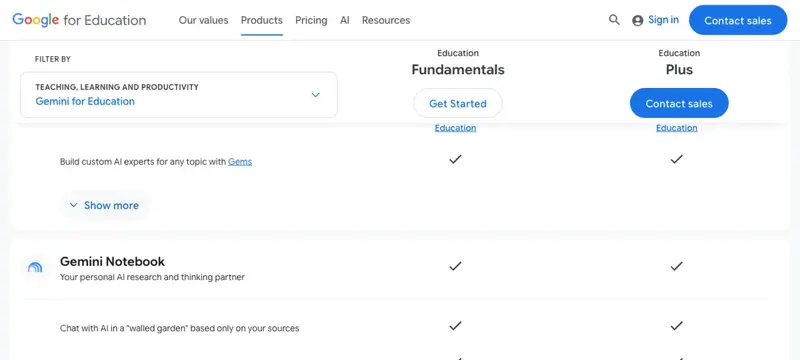
Source: Google for Education
A Word on Names Before We Build Anything
Before the walkthrough, one more thing has to be said plainly: don’t type your students’ full names into an AI feature by default.
Google’s contractual position is that Workspace for Education’s core services, Gemini included, “can be used in compliance with FERPA, COPPA, and GDPR” — Google acts as what FERPA calls a “school official,” meaning student records stay under your institution’s control, and Google states there’s no human review of your prompts and no use of your data to train its models. That’s the legal backstop. But Google’s own guidance for schools goes a step further and gives explicit, practical advice: for K-12 and higher-ed accounts, avoid using students’ full names in AI tools, and instead use student ID numbers or initials. Google’s “Guardian’s Guide to AI in Education” frames it as a simple gut-check: before you type something into a Gemini feature, ask yourself whether you’d be comfortable sharing that exact information publicly.
That guidance doesn’t mention Sheets canvas by name — it’s too new — but it applies directly, because a seating chart or behavior tracker is exactly the kind of spreadsheet that tempts you to paste in a full class list with names, disciplinary notes, and sometimes even IEP or 504 flags in one sitting. The walkthrough below is built around that guidance from the first cell: initials and student ID numbers instead of full names, generic seating-constraint notes instead of anything that reads like a disciplinary file. It’s not paranoia — it’s the same standard Google itself recommends, and it costs you nothing in functionality.
The Walkthrough: Building a Seating Chart and Behavior Tracker
This walkthrough assumes you already have Sheets canvas access (see the section above if you’re not sure). We’ll build two connected canvases from one class roster: a drag-and-drop seating chart, and a weekly behavior-and-reading-group tracker.
Step 1: Build the roster tab first
Open a new Google Sheet (or a copy of your existing class list) and set up one clean tab called Class Roster. Use columns that give Gemini what it needs without exposing anything you wouldn’t want typed into an AI tool:
| Student ID | Initials | Reading Group | Reading Level | Weekly Behavior Points | Seating Constraint |
|---|---|---|---|---|---|
| 24-101 | A.M. | Group A | Level R | 4 | Front row — vision |
| 24-102 | J.K. | Group B | Level N | 5 | — |
| 24-103 | D.T. | Group A | Level R | 2 | Keep apart: 24-108 |
| 24-104 | S.L. | Group C | Level M | 5 | — |
| 24-108 | R.P. | Group B | Level N | 3 | Keep apart: 24-103 |
Notice what’s not here: no last names, no disciplinary narrative, nothing that would be uncomfortable if it were shared publicly. “Keep apart: 24-108” tells Gemini everything it needs for seating logic without writing a sentence about why — that stays in your head or your private notes, not in the sheet an AI feature reads.
Step 2: Open Gemini and start the canvas
In Google Sheets, click the Gemini sparkle icon in the side panel (or use the Tools menu, Insert menu, or the Canvas control at the bottom of the screen — Google built three entry points to the same feature). Select “Create canvas.”
Step 3: Describe the seating chart in plain English
This is the actual prompt text — copy the structure, swap in your own room layout:
“Using the data in the ‘Class Roster’ tab, create a seating chart canvas for a room with 5 rows of 6 desks. Show each desk as a draggable tile labeled with the student’s Initials, color-coded by Reading Group (Group A = blue, Group B = green, Group C = yellow, Group D = orange). Pull any text from the Seating Constraint column into a small note icon on that student’s tile. Add a sidebar list of unassigned students I can drag onto empty desks, plus two buttons: ‘Auto-Arrange by Reading Group’ and ‘Reset Seating Chart.’ Sync all seat placements back to a new ‘Seat Assignment’ column in the Class Roster tab.”
Gemini reads your roster data, generates the grid of desks, applies the color logic, and writes the sync behavior — all from that one message. In Google’s own demo of the equivalent wedding-seating workflow, the assistant responds with a short confirmation (“I’ve successfully created your new canvas. Your edits now sync with your data in real time.”) and the canvas appears next to the chat panel, ready to use immediately.
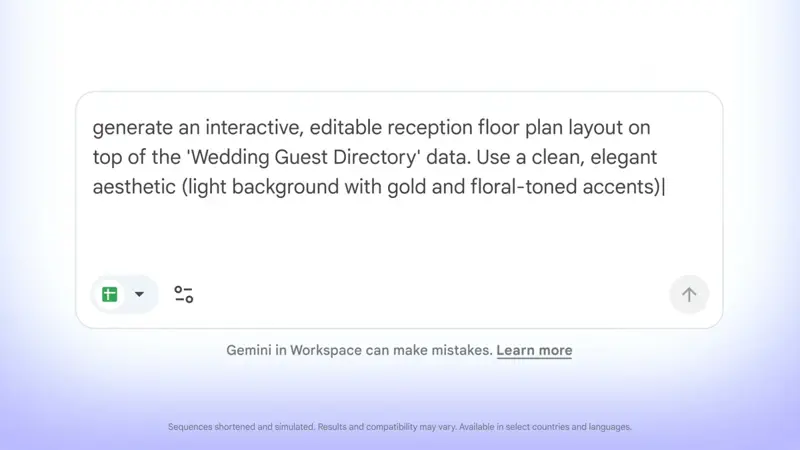
Source: Google — Google’s own demo video shows the exact prompt structure that generates a canvas: describe the data source, the layout, and the visual style in one sentence.
Step 4: Review the result and refine with follow-ups
You don’t have to get the prompt perfect the first time — canvas is conversational. If two students who clash need to be on opposite sides of the room instead of just “not adjacent,” send a follow-up:
“Move 24-103 and 24-108 to opposite sides of the room, and don’t let Auto-Arrange place them at the same table group again this quarter.”
Gemini regenerates the layout in place. This is the same back-and-forth you’d use in a chat conversation, except every change lands directly on your live seating chart instead of producing a new block of text to copy somewhere else.
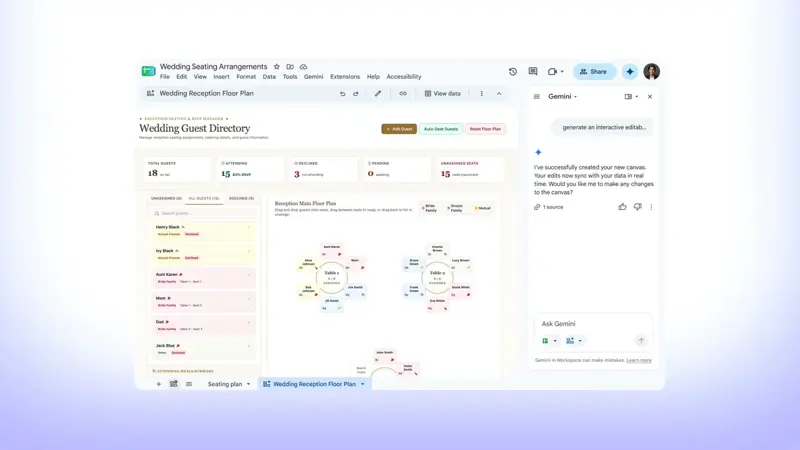
Source: Google — the same drag-and-drop grid, stat cards, and auto-arrange button pattern shown here is what a classroom seating chart canvas looks like once built; swap “guests” for “students” and “tables” for “desk groups.”
Step 5: Build the behavior and reading-group tracker as a second canvas
From the same roster tab, create a second, separate canvas with its own prompt:
“Create a second canvas from the ‘Class Roster’ tab called ‘Weekly Behavior & Reading Groups.’ Show one card per student, grouped by Reading Group, displaying the student’s Initials and current Weekly Behavior Points total, with a plus and minus button on each card. Every click should log a new row to a new ‘Behavior Log’ tab with a timestamp, the Student ID, and a dropdown reason: Great Teamwork, Off Task, Kind to Others, Needs Redirection. Add a filter toggle that shows only students with fewer than 3 points this week.”
The result: a card-based dashboard, grouped visually by reading group, where a quick tap during independent work time logs a timestamped, reason-coded entry — replacing the sticky-note-on-a-clipboard system most self-contained classrooms still run on, without you ever opening a formula bar.
Step 6: Share it the way you’d share any Google Sheet
Canvas doesn’t have its own separate sharing system — access to the canvas exactly matches access to the underlying spreadsheet. Click “Copy link” in the canvas view, and whoever you share it with sees the same permission level (view, comment, or edit) they already have on the sheet. If you want a paraprofessional or co-teacher to update behavior points during class but not touch the seating layout, that’s a spreadsheet-level sharing decision, not a canvas-level one — plan your tab permissions accordingly before you hand out the link.
Sheets Canvas vs. the Alternatives
You have real options here, and Sheets canvas isn’t automatically the right one for every classroom. Here’s how it stacks up against what teachers already use:
| Option | Cost | Setup time | Drag-and-drop | Auto-arrange | Live sync with roster | Behavior tracking | Best for |
|---|---|---|---|---|---|---|---|
| Google Sheets canvas | Free if your plan qualifies (Google AI Pro ~$20–25/mo personal, or bundled via Business/Enterprise Standard+/Education AI Pro add-on ~$15–24/user/mo) | ~5–10 min per canvas | Yes | Yes, via prompt | Yes, bidirectional | Yes, if you prompt for it | Teachers already living in Sheets who want one tool to do both jobs |
| Manual Sheets formulas + conditional formatting | Free with any Google account | 30–60+ min to build once | No — manual cell edits | No | Yes, it’s just the sheet | Manual tally formulas | Zero-budget teachers who don’t mind a one-time build they can reuse every year |
| Seating Plan / Mega Seating Plan | From £9.38–£12.50 per teacher, per year (whole-school pricing) | ~15 min with MIS/roster import | Yes | Yes, algorithm-based | One-way import from school MIS | Yes, dedicated module | Whole-school rollouts wanting SIMS/MIS integration and admin oversight |
| seatingchartmaker.app | $3.99/mo or $47.88/yr personal; free 7-day trial | ~10 min | Yes | Yes, random/smart grouping | No live sync — manual re-import | No | A polished, single-purpose seating chart with no interest in behavior data |
| Printable template (Canva, PDF, laminated cards) | Free | 15–20 min | No — physical cards | No | No | No | A physical backup for the first week of school or a sub folder |
The honest read: if you already have Sheets canvas access, it’s the only option on this list that does both jobs — seating and behavior tracking — from one data source, with zero extra subscription cost beyond what you’re already paying for AI Pro or your district is already paying for the add-on. If you don’t have access, a $4/month dedicated seating app or a one-time formula build will get you 80% of the value without waiting on your district’s Workspace tier.
What This Means for You
If you teach a self-contained elementary classroom (K-5): This is the clearest win on this list. One roster, one seating chart, one behavior tracker, updated in real time as you rearrange desks for group work. Start with the Class Roster tab structure above today, even before you know if you have canvas access — you’ll need clean data either way, and it’s the same prep whether canvas shows up next week or next month.
If you teach middle or high school with 5-6 rotating class periods: Build one master roster tab per class period rather than trying to force all sections into a single canvas — Gemini’s layout generation works best with one grade level or one period’s worth of students per prompt. Budget slightly more setup time up front (closer to 45–60 minutes across all sections) but reuse the same prompt template for each one.
If you run a special education or resource classroom with behavior-plan tracking needs: The card-based behavior tracker in Step 5 can absolutely be extended with more granular categories tied to individual behavior intervention plans, but be extra careful about what goes in the “reason” dropdown and the roster itself — IEP and 504 details are exactly the kind of sensitive record FERPA treats most strictly, and Google’s own guidance to avoid identifying details applies doubly here. Keep the canvas data limited to points and general categories; keep the actual plan documentation in your district’s dedicated special-ed system.
If your school runs Google Workspace for Education Fundamentals (the free tier) and you don’t know if you have AI Pro for Education: Don’t build your back-to-school plans around this feature yet. Ask your school’s Google admin directly whether the AI Pro for Education add-on is purchased district-wide, and if not, whether it’s on the roadmap. In the meantime, the manual-formula or $4/month seatingchartmaker.app routes in the table above get you most of the practical benefit without the wait.
If you’re on a personal Google AI Pro subscription for your own classroom tools (not a district account): You already qualify. This is a good weekend project before the first day of school — build the roster tab, generate both canvases, and you’ll walk in with a live seating-and-behavior system instead of a laminated paper chart.
If you’re a department head or instructional coach managing multiple teachers’ rosters: Consider building one shared, reusable prompt template (the exact wording from Step 3 and Step 5 above) and distributing it to your team rather than letting each teacher reinvent the prompt. Consistent column names across teachers’ rosters also make it trivial to eventually merge attendance or behavior data at the grade level if your school wants that visibility.
If you’ve never used Gemini or AI tools in your classroom workflow before: This is a genuinely low-risk place to start. You’re not asking an AI to grade anything, write feedback on student work, or make any judgment call about a student — you’re asking it to generate a visual layout from data you already control. If the result is wrong, you just re-prompt it or drag a tile yourself; nothing is graded, submitted, or sent anywhere.
Edge Cases and Troubleshooting
“I have Google AI Pro / my district has the add-on, but I don’t see ‘Create canvas’ anywhere.” Check your release track first — if your account is on Scheduled Release, the rollout only started August 31, 2026, and Google’s own documentation says it can take up to 15 days to reach every account on that track. Also confirm your Sheets interface language is set to English; canvas is English-only at launch regardless of your account’s display language, a limitation multiple non-English-speaking users specifically flagged as confusing during rollout.
“The canvas stopped syncing with my spreadsheet.” This typically happens after a large manual edit to the underlying sheet (bulk paste, column reorder) made outside the canvas view. Refresh the canvas or ask Gemini to “resync the canvas with the current Class Roster data” — it will regenerate the mapping rather than losing your layout.
“I accidentally put full student names in before reading this.” Delete the names from the roster tab, replace them with initials or IDs, and ask Gemini to regenerate the canvas from the corrected data. There’s no way to know for certain whether a prompt was retained anywhere on Google’s side, so treat this as “fix it going forward,” not something you can fully undo — which is exactly why the initials-first approach in the walkthrough above is worth doing correctly from the first prompt.
“Sharing is confusing — I gave a co-teacher edit access to the canvas but they can edit things I didn’t want them to touch.” Remember canvas permissions inherit 100% from the spreadsheet. If you need different people to have different levels of access to seating versus behavior data, that has to be two separate tabs with two separate sharing settings on the underlying sheet — canvas has no independent permission layer to fall back on.
“My prompt isn’t producing the layout I described.” Be more literal about physical structure than you’d think necessary — “5 rows of 6 desks” works better than “a typical classroom layout.” Canvas generation, like any AI output, does better with explicit structure than with vague spatial language it has to infer.
“I tried to build this from an Excel file, not a native Google Sheet.” Canvas doesn’t work directly on .xlsx files — you’ll need to convert the file to Google Sheets format first (File → Save as Google Sheets), then create the canvas from the converted copy.
“It’s not showing up on my phone.” Canvas is a desktop web feature at launch — it’s not available in the mobile Sheets app on iOS or Android. If you build your seating chart on a laptop, you can still view the underlying spreadsheet data on your phone, but you can’t drag-and-drop the canvas itself from a mobile device yet. This was one of the most repeated complaints in early user feedback, alongside the English-only interface.
“The file is stored in a shared drive or downloaded locally, and canvas won’t load.” Canvas requires the file to live natively in Google Drive with normal online access — it won’t work on files in certain third-party storage integrations, offline copies, or sheets where an admin has disabled download/copy/print permissions at the organization level.
What Sheets Canvas Can’t Do
It doesn’t replace an actual classroom management system. There’s no attendance tracking, no gradebook integration, no parent communication layer, no report generation beyond what you specifically prompt for. It’s a flexible display and data-entry layer on your own spreadsheet, not a purpose-built SIS.
It’s English-only at launch, and desktop/web-only. No interface localization yet, and nothing on mobile. If your school community or your own workflow leans heavily on a phone or tablet during the day, this won’t fit into that habit yet.
It can’t see or reason about anything outside the spreadsheet you point it at. It won’t cross-reference district-wide behavior policy, IEP accommodations stored elsewhere, or another teacher’s roster unless you explicitly feed that data into the same sheet — and per the privacy guidance above, you generally shouldn’t be feeding sensitive accommodation details into it anyway.
Usage limits exist and aren’t fully published yet. Because the feature is brand new, exact rate limits or “how many canvases can I generate per day” caps haven’t been clearly documented publicly. Treat it as something to pilot with one class before rolling out school-wide.
It won’t magically resolve seating conflicts you haven’t defined. “Auto-Arrange” only respects constraints you’ve actually written into your roster columns — if two students who shouldn’t sit together aren’t flagged anywhere in your data, Gemini has no way to know that, the same as any tool that only knows what you tell it.
One More Thing Worth Knowing: “Sheets Canvas” Is Not “Gemini Canvas”
Here’s a genuinely useful fact that most coverage of this launch is getting muddled, based on real-time research into how people are actually talking about this feature: Sheets canvas (the spreadsheet-specific feature this guide covers) and Gemini Canvas (a separate, more general side-panel app-builder inside the standalone Gemini chat app, which predates this launch) are two different products that share a name. Several content creators covering the August 2026 launch — and at least one prominent EdTech influencer demoing a classroom “randomizer wheel” — were actually showing Gemini Canvas, not Sheets canvas, despite framing it as the new spreadsheet feature.
Why this matters to you: if you go searching for tutorials, demos, or troubleshooting help and the video or thread doesn’t specifically show a Google Sheet with a “Create canvas” option inside it, you may be watching content about the wrong tool entirely. When in doubt, the test is simple — Sheets canvas only exists inside an actual spreadsheet, built from that spreadsheet’s actual data, and only appears via the Gemini icon, Tools menu, or Insert menu inside Google Sheets itself.
FAQ
Is Google Sheets canvas free? Only if the Google Workspace or Google AI plan you’re already on qualifies. It’s not a separate purchase on top of an already-qualifying plan, but if your account is on Google Workspace for Education Fundamentals with no add-ons, you don’t have access at any price until your school buys Education Plus or the Google AI Pro for Education add-on.
Does Google Workspace for Education Fundamentals include this? No. Fundamentals gets limited Gemini access (Workspace Studio and Google Classroom only) — Gemini inside Sheets specifically, and therefore Sheets canvas, requires Education Plus with Gemini enabled or the separate Google AI Pro for Education add-on.
Can I use my students’ real names in the roster? You can, but Google’s own guidance for K-12 and higher-ed accounts specifically recommends against it — use student ID numbers or initials instead, and apply the general rule of not entering anything into an AI tool you wouldn’t be comfortable sharing publicly.
Will the seating chart update automatically if I edit the class roster later? Yes — that’s the core mechanic. Canvas is a read-write layer on your spreadsheet, so edits in either direction (canvas or grid view) sync back and forth automatically.
Can my students see or edit the canvas themselves? Only if you give them access to the underlying spreadsheet with edit or comment permissions — canvas access exactly mirrors sheet access. Most teachers will want to share view-only or keep the roster sheet fully private and instead export or screen-share the seating chart as needed.
What’s the difference between Sheets canvas and Gemini Canvas? Sheets canvas is a spreadsheet-specific feature that only appears inside Google Sheets and is built directly from your sheet’s data. Gemini Canvas is a separate, more general writing/coding/app-building surface inside the standalone Gemini chat app. They share a name but are different products — see the section above for why that’s tripping people up.
Does this work on the Google Sheets mobile app? No, not at launch. Canvas is desktop web-only for now.
When will my school’s account actually get this? It depends on your district’s release track. Rapid Release domains started seeing it around August 10–13, 2026. Scheduled Release — the default for most school districts — began a gradual rollout on August 31, 2026, and can take up to 15 days to reach every account after that.
Is there a dedicated seating-chart app that’s simpler than this? Yes — seatingchartmaker.app and Seating Plan (Mega Seating Plan) are both purpose-built, low-cost alternatives if you don’t have Sheets canvas access or want a tool that doesn’t require any prompt-writing at all. See the comparison table above.
Can I build a canvas from an Excel file a colleague sent me? Not directly. Convert it to Google Sheets format first (File → Save as Google Sheets), then create the canvas from that converted copy.
The Bottom Line
Sheets canvas is a genuinely useful tool for the exact back-to-school task Google is marketing it for — but the marketing gets ahead of the reality for a big chunk of the teacher audience it’s aimed at. If your school runs a paid Workspace for Education tier or the AI Pro for Education add-on, this is worth five minutes this week: build the roster tab with initials instead of names, write the two prompts above, and you’ll have a synced seating chart and behavior tracker before your first bell. If your school runs the free Fundamentals tier with no add-ons — which is most public K-12 districts — check with your Google admin before you plan a lesson around a feature you might not have yet, and lean on the $4/month or free alternatives in the meantime.
Either way, the FERPA-safe habit — initials and IDs, not full names, in anything you type into an AI feature — is worth building now, because it’ll matter for every AI tool your district adopts after this one, not just this one.
Want a deeper, structured walkthrough of Gemini across the rest of Google Workspace — Docs, Slides, Gmail, and Meet — built specifically for how teachers and other professionals actually use it day to day? Our Google Workspace AI course covers exactly that, starting with two free lessons before anything requires a Pro subscription.
Sources
- Build mini-apps with Gemini in Google Sheets — Google
- Create a Sheets canvas — Google Docs Editors Help
- Google Workspace Updates: Use Sheets canvas to visualize data in custom, interactive mini-apps
- Compare Editions — Google for Education
- Education Fundamentals — Google for Education
- Google Sheets Canvas Launches: Turn Any Spreadsheet Into Live Airtable-Style Apps — TechTimes
- Google Sheets gets Gemini-powered Canvas for interactive data — Android Authority
- Google’s approach to FERPA compliance — Google Cloud
- Guardian’s Guide to AI in Education — Google for Education
- Google Workspace for Education Data Protection Implementation Guide — Google
- Gemini in Google Workspace: back to school — Google
- Seating Plan (Mega Seating Plan) — EdTech Impact
- Seating Chart Maker