

If you keep books in Google Sheets and you’ve been eyeing those AI-in-your-spreadsheet demos while thinking “not at that price” — the price just became zero. On July 24, xAI released a free Grok add-on for Google Workspace. One install puts an AI side panel inside Sheets, Docs, and Slides, and in Sheets it does the thing bookkeepers actually want: you ask questions about your data in plain English, and it answers with the exact cells it used as receipts.
No Gemini subscription. No Copilot license. Free, from the Google Workspace Marketplace.
Before you paste a client’s transactions into it, though, there’s a permissions screen you should actually read and a training-policy question you should settle. We’ll cover both — because “free AI tool” and “client financial data” is a combination that deserves two minutes of caution.
What just changed
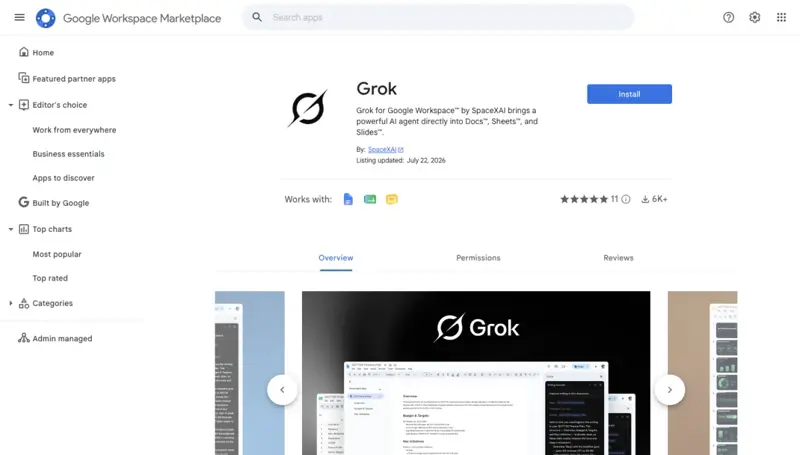
Until now, getting a capable AI inside Google Sheets generally meant paying: Gemini’s full spreadsheet features live in the paid Workspace business tiers, and Microsoft’s Copilot is a separate per-user subscription on top of Microsoft 365. Grok’s add-on breaks that pattern — xAI listed it on the Google Workspace Marketplace on July 21 and announced it on July 24, free, no Grok subscription required.
What it does, per app:
- Sheets — the headliner. Grok reads the ranges you’re working with, answers questions about the data, and cites the specific cells behind each answer. It writes and fills working formulas, inserts charts, and re-runs scenarios when you change an assumption — so updating a projection doesn’t mean rebuilding it.
- Docs — turns rough notes into a structured, formatted draft; fixes grammar; applies consistent headings. Useful for the month-end summary email nobody enjoys writing.
- Slides — turns an outline into an editable deck that matches the existing theme. If you present quarterly numbers to clients, that’s your deck skeleton handled.
It all happens in a side panel next to your open file. No copy-pasting between a chatbot tab and your spreadsheet.
First: the two-minute privacy check
Here’s the part most of the launch coverage skipped, and the part that matters most if the spreadsheet holds client money.
1. Read the permissions screen before you click Allow. When you install, Google shows you exactly what Grok gets. The listing requests, among other things, the ability to see, edit, create, and delete all your Google Docs documents and all your Google Slides presentations — but for Drive, only the specific files you use with this app, and for Sheets, spreadsheets where the add-on is used. That’s a normal shape for a Workspace add-on, but “all your Docs” is a broader grant than many people expect from a free tool. Install it on the account you’re comfortable granting that to — which brings us to the next point.
2. Know the training policy — and its limits. xAI’s connector documentation says connector data is accessed in real time, not stored on xAI’s servers afterward, and not used for model training. That’s the right policy. But two honest caveats: the consumer Grok experience on X famously ships with training on by default (you have to opt out in X settings), and as of this week there isn’t a single plainly-worded privacy page specific to the Workspace add-on that spells out its exact terms. Different Grok surfaces have different rules. If you handle books under an engagement letter or your clients are in a regulated industry, that ambiguity is worth respecting.
The practical version: use a dedicated Google account or a copy of the workbook with client names replaced (“Client A,” “Vendor 14”) until you’ve confirmed the add-on’s data terms meet your obligations. Anonymized categorization works exactly as well as named categorization — the AI doesn’t need to know it’s Mrs. Alvarez’s bakery to total her vendors.
The 3-prompt month-end workflow
Once you’re set up, here’s a month-end close in three conversations. Open the client’s transaction sheet, open the Grok side panel, and work down the list.
Prompt 1 — Categorize and flag
Look at the transactions in A2:D180. Column A is date, B is
description, C is amount, D is blank.

1. Suggest a category for each row in D using these categories:
   [paste your chart of accounts categories].
2. Flag every transaction over $500 in a separate list, with its
   row number.
3. Flag anything that looks like a duplicate (same amount, same
   vendor, within 3 days) — list the row pairs.
Tell me which cells you used for each conclusion.
That last line is the habit worth building: Grok cites cells anyway, but asking makes the receipts explicit — and makes its mistakes findable. Which is the whole game in bookkeeping.
Prompt 2 — Reconcile and total
Using the categorized data in A2:D180:
1. Total the amount by category, and by vendor for the top 10
   vendors.
2. Write the SUMIF formulas into F2:G20 so the totals update if
   I correct a category by hand.
3. Compare the month's total against E1 (the bank statement
   total) and tell me the difference, if any, and which rows
   most likely explain it.
Note what you’re asking for in step 2: not just answers — formulas that live in the sheet. If Grok totals something in chat, the number dies when you close the panel. If it writes the SUMIF, your workbook got permanently smarter, and you can audit the formula like any other.
Prompt 3 — Chart and summarize
1. Insert a bar chart of spending by category for this month.
2. Draft a 5-sentence plain-English summary of this month for
   my client: total spend, biggest category, biggest change
   from the "Last Month" tab, anything I flagged over $500,
   and one sentence on what to watch next month. Friendly but
   professional, no jargon.
Copy the summary into the client email, attach the sheet, done. What used to be the last 90 minutes of a close is now mostly review — and review is what your clients are actually paying your judgment for.
What this means for you
If you’re a solo bookkeeper on Google Sheets: This is the biggest no-cost upgrade to your toolkit since Sheets added QUERY. Start with one small client and this month’s close, run all three prompts, and check every number once. You’re auditioning an assistant, not handing over the books.
If you’re a solo CPA with a QuickBooks-first practice: Your ledger stays where it is — but the export lands in a spreadsheet. Grok in Sheets is a fast second pair of eyes on a QBO export: duplicate detection, vendor totals, the “why is software spend up 40%” question, all with cited cells you can verify against the source.
If you run a small business and do your own books: The “no Gemini subscription” part is aimed at you. You were never going to pay per-seat AI prices to categorize your own expenses. Now the categorize-total-summarize loop above is free, in a tool you already use. Budget 20 minutes to test it on last month.
If you’re an office admin or EA: The Docs and Slides halves are yours. Meeting notes into a clean document, an outline into a themed deck. Same install, same side panel, no spreadsheet required.
If you’re at a firm with an IT policy: Ask before installing — genuinely. The permissions grant plus an unsettled add-on privacy page is exactly the kind of thing your IT lead wants to evaluate once for everyone, and some firms will reasonably say “wait.” A one-line email now beats an awkward conversation at the next security review.
What it can’t do
It can’t replace your review. Grok writes plausible formulas and plausible categorizations, and “plausible” is not a standard any client is paying for. The cell citations make checking fast; they don’t make it optional.
It’s not your ledger. Sheets with AI on top is still Sheets — no audit trail, no double-entry enforcement, no bank feeds. This speeds up the spreadsheet parts of your practice; it doesn’t compete with your accounting software.
The first week has rough edges. Early users report friction with multiple signed-in Google accounts (the add-on can fail to fetch permissions until you’re down to one account) and a workflow that’s occasionally less “inline magic” and more “capable sidebar.” Free product, week one — calibrate accordingly.
The privacy story is good-but-unfinished. No-training, no-retention is xAI’s stated connector policy, but the add-on-specific fine print is thin as of this writing. For client data under professional obligations, thin fine print is a real limitation, not a footnote.
It won’t know your judgment calls. Whether that Costco run was supplies or owner’s draw is a question about your client, not about the data. The AI drafts; you decide.
The bottom line
Free, inside the spreadsheet you already use, with answers that cite their cells — Grok’s Workspace add-on is the most bookkeeper-shaped AI release of the year, and the price removes the last excuse to not try it. Run the privacy check, keep client names out until the fine print firms up, and give it one month-end close as a tryout. Worst case, you’ve lost 20 minutes. Best case, you just automated the worst hour of your month.
If you want to build the full AI-assisted bookkeeping stack — categorization rules, reconciliation habits, and the review workflow that keeps you in control — our Bookkeeping with AI course covers it end to end, and the first two lessons are free.
Sources
- xAI — Introducing the Grok Google Workspace add-on
- Google Workspace Marketplace — Grok
- xAI — Grok for Google Workspace
- xAI docs — Connector data handling (no training, no retention)
- Techgenyz — Grok Google Workspace Add-On Hits 3 Apps, Free but Risky
- Silicon Republic — Grok AI is training on user data by default (X settings)
- Microsoft — Microsoft 365 Copilot plans and pricing