Everyone has the photo: the group shot with a stranger walking through it, the once-in-a-lifetime moment with a crooked horizon, the perfect picture of your kid that you took from exactly the wrong angle. At WWDC on June 8, Apple announced the fix — three AI editing tools coming to the Photos app in iOS 27 that reviewers are calling the biggest Photos upgrade in years.
The coverage so far describes the tools. Almost nobody explains how to actually use them — which button, which gesture, which iPhone, and which photos they’ll ruin instead of rescue. That’s this post.
What just changed
iOS 27’s Photos app adds a new Tools section to the photo editor, marked with the Apple Intelligence logo, holding three AI editors:
- Extend expands a photo beyond its original frame. Straighten a crooked horizon without cropping anyone out, change the aspect ratio for a print or a wallpaper, or give a too-tight shot breathing room — the AI fills in the missing edges.
- Reframe (Spatial Reframing) is the one nobody else has: it changes the camera angle after the shot. Built on the spatial models Apple developed for Vision Pro, it lets you drag the photo and watch the perspective shift in real time, as if you’d moved your feet before pressing the shutter. It works on any photo in your library — including ones taken on other cameras.
- Cleanup, the existing object-remover, gets a major upgrade: more realistic fill-ins on complex scenes, plus a new choice of processing model — Fast, High Quality, or Auto.
All three are live in the iOS 27 developer beta now, with the public beta expected later this summer and the full release this fall. And one detail Apple slipped into the announcement that deserves more attention than it got: every photo edited with these tools automatically carries a hidden SynthID watermark marking it as AI-edited. Your eyes might not spot the edit; software can.
How to use each tool, step by step
The path is the same for all three: open Photos, pick a photo, tap Edit, then tap the new Tools button (the Apple Intelligence logo) in the bottom toolbar. Cleanup, Extend, and Reframe live inside.
Extend: un-crop and straighten

- In the Tools panel, choose Extend.
- Drag the frame outward in the direction you want more image, or pick a new aspect ratio — square for a profile picture, 16:9 for a wallpaper.
- To fix a tilted shot, straighten it as usual — Extend fills in the corners that straightening normally crops away, so nobody at the edge of the group photo loses their head.
- Wait a few seconds for the fill, then check the generated edges before saving (look at repeating textures like fences, tiles, and foliage — that’s where generative fill still slips).
Best on: landscapes, buildings, group shots cut off at the edge. Skip it when the missing area would need to invent something specific — a person’s arm, readable text, a logo.
Reframe: move the camera after the fact
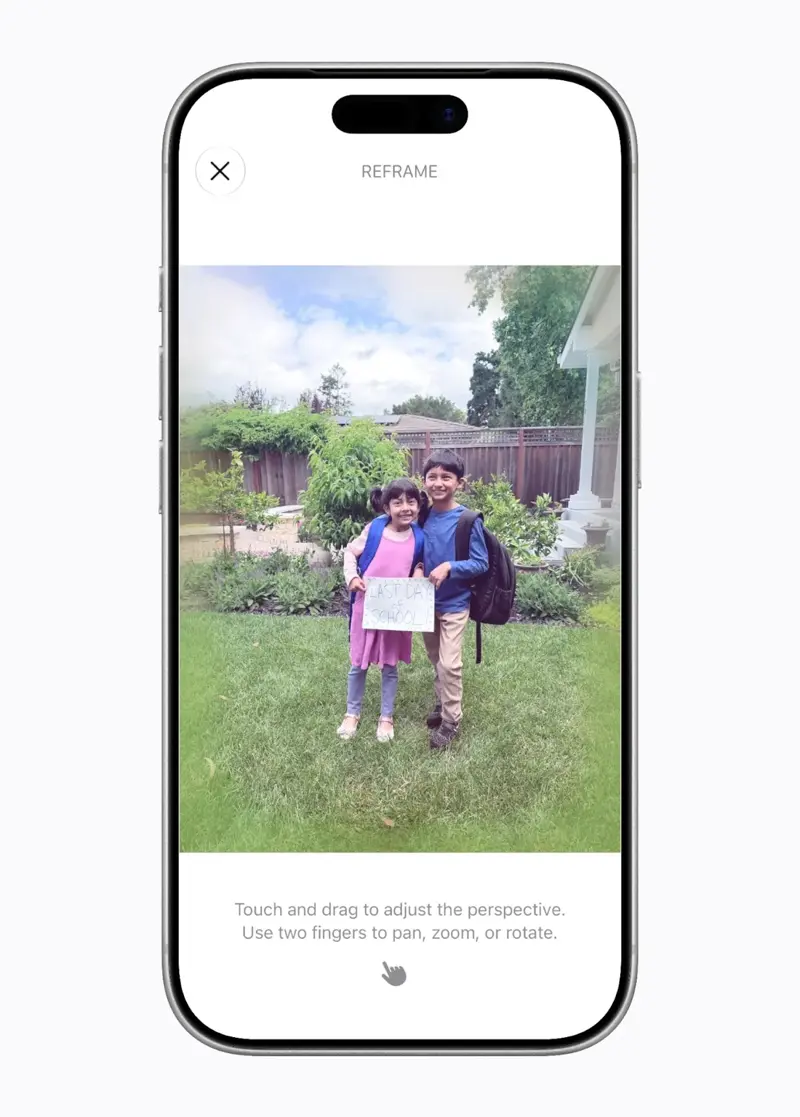
- Choose Reframe in the Tools panel. The photo gets scanned for a moment — you’ll see an overlay while it builds a spatial model of the scene.
- Touch and drag with one finger to shift the perspective — the photo tilts and swings as if you’re repositioning the camera.
- Use two fingers to pan, zoom, or rotate the view.
- Stop while the change is still believable, then confirm.
The honest usage rule, straight from the first wave of hands-on tests: small corrections look like magic, big swings look like a fever dream. Nudging the angle so your subject is centered, or simulating a slightly higher vantage point — excellent. Dragging until you’re “behind” the subject — that’s where testers got the warped limbs and stretched faces one reviewer memorably filed under “nightmare fuel.” Apple says Reframe only generates new content where the perspective shifted, which is why modest moves hold up and dramatic ones fall apart.
Cleanup: erase distractions, now with a quality dial

- Choose Cleanup, then tap, brush over, or circle the thing you want gone — the photobomber, the trash can, the power line.
- New in iOS 27: pick your model. Fast runs entirely on your iPhone — quick, private, fine for simple backgrounds. High Quality sends the job to Apple’s cloud models for complex scenes — busier backgrounds, bigger objects. Auto decides for you.
- Check the filled-in area at full zoom before saving — the upgrade handles complex scenes far better than iOS 26’s version, but busy patterns can still smear.
One more thing worth knowing before you go wild: edits in Photos remain non-destructive. The original stays underneath, and Revert to Original undoes the AI’s work entirely — so experiment freely.
What this means for you
If you have an iPhone 15 Pro, or any iPhone 16 or 17: you get all three tools — these are Apple Intelligence features, and that’s the hardware floor. If you’re comfortable with beta software, the developer beta has them today; for everyone else, the public beta lands this summer. On a beta, back up first, and remember these tools are still visibly improving build to build.
If you have an iPhone 11 through 15 (non-Pro): iOS 27 itself will run on your phone, but the AI Tools section won’t appear — Apple Intelligence needs an A17 Pro chip or newer. If photo editing is the feature you care about, this is the first iOS release where the Pro/non-Pro line genuinely changes what your camera roll can do.
If you’re in the EU: temper expectations. Apple has confirmed that Siri AI and the new Apple Intelligence features won’t ship in the EU with iOS 27 at launch, citing the Digital Markets Act — and these photo tools are branded Apple Intelligence. Whether they arrive late or not at all is still unclear, so don’t upgrade your phone for these tools until Apple says they’re coming to your country.
If you edit photos for work — listings, products, social posts: the SynthID watermark matters more than the tools. Anything you fix with Extend, Reframe, or Cleanup is detectably AI-edited by any platform that checks. For real-estate listings, marketplace photos, or news-adjacent work where AI edits have disclosure rules, that hidden watermark is now part of your file.
If you’re on Android: nothing here should make you switch — Google’s Magic Editor has done object removal and generative expansion for years, and head-to-head tests still favor Google for complex generative fills. Reframe is the one genuinely new trick Apple has that Google doesn’t.
What it can’t do
- Faces under pressure. Reframe’s known weakness: push the perspective too far and faces stretch, warp, or grow extra geometry. Keep people away from big angle changes, or reshoot.
- Specific missing content. Extend invents plausible scenery, not facts. It can’t reconstruct the half of a sign that wasn’t photographed or the rest of someone’s jacket pattern — it guesses, and guesses look generic.
- Already well-composed shots. Testers found Reframe resists improving photos that are already framed well — there’s nowhere better to move the camera. It’s a rescue tool, not an enhancement pass.
- Full privacy in every mode. Fast Cleanup runs on-device, but High Quality mode explicitly uses Apple’s cloud models. Private by Apple’s standards, but “my photos never leave my phone” only holds if you stay on Fast.
- Polish, today. This is a developer beta. The same edit can succeed on one photo and produce artifacts on a near-identical one. Judge the feature when the public beta lands — that’s also when it’s safe for your main phone.
The bottom line
iOS 27’s photo tools are the rare AI feature with an obvious, everyday use: every camera roll is full of almost-great photos, and Extend and the upgraded Cleanup fix the two most common reasons they’re “almost.” Reframe is more uneven — astonishing on the right photo, unsettling when pushed — but it’s also a tool no other phone has, and it will only get better between now and the fall release.
The deeper shift is that serious photo editing no longer requires editing skills — it requires knowing what to ask the AI for and how to judge what it gives back. That’s a learnable skill. Our AI Photo Editing course covers the workflow across tools — Apple’s included — and the Photography course helps you take the shots that need less rescuing in the first place.
Sources
- Apple Intelligence brings powerful AI capabilities into everyday experiences — Apple Newsroom
- Apple Intelligence gives Photos in iOS 27 its biggest editing upgrade in years — AppleInsider
- Spatial Reframe in iOS 27 is a neat trick that creates nightmare fuel right now — AppleInsider
- Spatial Reframing in iOS 27: how it works — TechRadar
- Apple’s Extend and Reframe image tools review — Cult of Mac
- Apple to bring AI reframing and editing tools to Photos — MacRumors
- iOS 27 gets new AI photo editing tools — Engadget
- Due to DMA, Siri AI delayed in EU for iOS 27 — Apple Newsroom
- iOS 27 compatible devices — The Independent
