

You’ve got six tabs open, a calendar that already double-booked itself this week, and a client email sitting unanswered since yesterday. On July 24, 2026, Meta quietly gave its free assistant the ability to fix exactly that — connect your calendar and email, and it will hand you a morning briefing that flags the collision before you do, then keep doing it every day without you asking twice. No subscription. No enterprise sales call. Just Settings → Apps → Connect.
That’s not a small feature bump. It’s Meta AI moving from “answers questions” to “keeps a job running in the background,” and almost nobody outside the tech press has written the plain-English version of how to actually turn it on, what it can see once you do, and where it quietly falls short.
What just changed
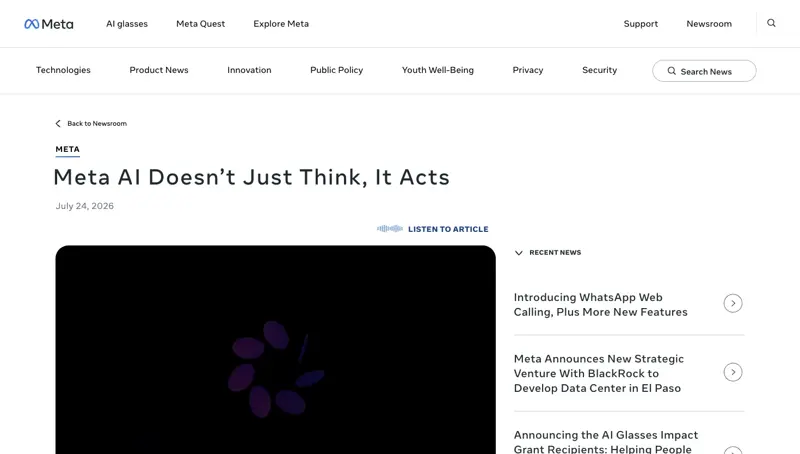
Meta AI runs on a model called Muse Spark 1.1, which Meta’s Superintelligence Labs group shipped on July 9, 2026. On its own, Muse Spark 1.1 was a solid but unremarkable release — a 1-million-token context window, strong scores on two benchmarks built specifically to test tool use (JobBench and MCP Atlas), pricing that undercuts most rivals. What made it interesting arrived two weeks later: on July 24, Meta turned that tool-use strength into three consumer-facing features inside the Meta AI app and at meta.ai.
Daily briefings. Connect your calendar and email once, pick a time, and Meta AI sends a summary every day — what’s on your schedule, whether anything overlaps, and what needs a reply.
Recurring tasks. Set something up once — a weekly meal plan, a Monday morning sales-pipeline check, a Friday content-ideas digest — and it keeps running without you re-prompting.
Scheduled actions and Artefacts. Two new sections appeared inside the mobile app the same week: “Artefacts” (interactive outputs — slide decks, research summaries, planning docs — that live in one place for revision and reuse) and “Scheduled Tasks” (the control panel for everything you’ve set to repeat).
The rollout started in a limited set of markets through the Meta AI app and meta.ai. WhatsApp support — which matters enormously if you already run your business out of WhatsApp — is described as coming “in the coming weeks,” not day one.
None of this is unique in isolation. Google’s Gemini has had scheduled actions for a while. Claude and ChatGPT have had artifact-style outputs for even longer. What’s new is Meta putting a free, no-subscription version of both in front of literally billions of existing Facebook, Instagram, and WhatsApp users at once. As one X post framed it during launch week: “Gemini has scheduled actions. Claude and ChatGPT have artifacts. Meta is the one putting both on mobile at the same time.”
Why Meta is doing this now
There’s a bigger shift happening underneath this one product update, and it explains why Meta picked this moment to ship it. For most of the last two years, AI labs competed on raw intelligence — which model scored higher on math benchmarks, which one reasoned better through a hard logic puzzle. That race hasn’t stopped, but a second, quieter race has opened up alongside it: which model can actually be trusted to finish a task across messy, real-world tool connections — a calendar, an inbox, a file system — without falling apart.
Muse Spark 1.1 was built and benchmarked specifically for that second race. JobBench and MCP Atlas, the two benchmarks Meta highlighted at its July 9 launch, don’t test whether a model can solve a proof — they test whether it can search, read data, touch a calendar, send an email, and operate files across a dozen task types without losing the thread. Meta’s own pricing for Muse Spark 1.1 — $1.25 per million input tokens, $4.25 per million output — lands in the same tier as Anthropic’s Sonnet-class models, positioning it as a workhorse for repeated tool calls rather than a flagship reasoning model.
Every major lab is now making a version of this same argument. Anthropic points to tool-use benchmarks for its Opus-tier models. Google highlights Gemini’s function-calling scores. OpenAI has built tool routing directly into GPT-5’s core behavior. What’s different about Meta’s move is that it’s the first of the major labs to hand a free, consumer-facing, no-technical-setup version of that capability to hundreds of millions of existing app users in one rollout, rather than shipping it as a developer API or a paid tier. That’s the actual news here — not that agentic AI exists (it’s existed in developer tools for a while), but that it just became a checkbox in your phone’s settings menu instead of a project you’d need an engineer to build.
Who this is actually for
This is not an enterprise workflow tool, and Meta isn’t pretending otherwise. Every example Meta has published — a morning brief, a workout plan, a Marketplace scouting run, a dinner-planning assistant — is personal-life-shaped. But personal-life-shaped is exactly the shape of a solopreneur’s actual day: one person, one calendar, one inbox, no admin department to hand the busywork to.
If you run a one-person business — freelance design, a small consulting practice, a handmade shop, a local service business — your calendar and your inbox are your operations department. A tool that reads both, catches conflicts before they become a missed client call, and hands you a plain-English summary every morning is worth ten minutes of setup, free version or not.
The 10-minute setup, step by step
Here’s exactly what happens when you connect it, based on Meta’s own help documentation and a walkthrough of the live flow.
Step 1 — Open Meta AI and find Settings. In the Meta AI app (or at meta.ai on desktop), tap your profile icon, then Settings.
Step 2 — Go to Apps. Inside Settings, tap Apps. This is where every third-party connection Meta AI can make lives — right now that’s calendar and email, with more expected over time.
Step 3 — Tap Connect next to the app you want. You’ll see separate entries for calendar and email. Start with whichever one actually runs your day — for most solopreneurs, that’s calendar first.
Step 4 — Sign in and confirm. You’ll be sent through the normal Google (or relevant provider) sign-in flow, then asked to confirm what Meta AI is allowed to see. Read this screen — it’s the only place the specific scope gets shown to you before you commit.
Step 5 — Repeat for the second app, then set your briefing time. Once both are connected, go back to the main Meta AI screen and ask directly: “Set up a daily briefing for me at 8am.” That’s the entire trigger — no separate automation builder, no if-this-then-that configuration.
Expected result: the next morning, you get a message that reads today’s schedule back to you in plain language, flags anything that overlaps, and — if you connected email — surfaces what’s sitting unanswered.
A worked example
Say you’re a freelance graphic designer named Priya. Tuesday night, you connect Meta AI to your Google Calendar and Gmail, then type: “Give me a daily briefing at 7:30am, and remind me every Monday to check which invoices are still unpaid.”
Wednesday, 7:30am, the briefing arrives:
Good morning. You have 3 events today: a 10am client call with Marcus (Redline Studio), an 11am dentist appointment, and a 2pm design review with the Henderson account. Your 10am and 11am overlap by 15 minutes — the dentist office added a reminder call that landed on your calendar. You have 2 unread emails flagged urgent: one from Henderson asking to move the 2pm review, one from a new lead asking about availability next month.
That’s the whole point in one message: a genuine scheduling conflict you’d have discovered mid-panic at 9:55am, surfaced at 7:30am instead, with the two emails that actually need a reply pulled out of an inbox that probably has forty other things in it.
The following Monday, the invoice reminder fires on its own — no re-prompting, because it was set up as a recurring task the first night.
Two more worked examples
A one-chair salon owner named Denise connects her calendar only (no email — client bookings come through a separate scheduling app she trusts more) and sets: “Give me a daily briefing at 6:45am covering today’s appointments, and every Sunday night remind me to check which regular clients are overdue for a rebooking.” Her Wednesday briefing reads back four appointments, flags that her 1pm and 1:15pm bookings overlap because a walk-in got manually added to the wrong slot, and gives her twenty minutes to call and reschedule before either client shows up frustrated. The Sunday reminder, running untouched for three weeks now, has already caught two clients who were six weeks overdue for a color appointment — a task she used to do maybe once a quarter, if she remembered.
An independent consultant named Marcus connects both calendar and email and asks for a briefing plus a recurring task: “Every Friday at 4pm, pull together a one-paragraph summary of what I billed this week based on my calendar meetings, so I can sanity-check my invoice before I send it.” This is a good example of where the Artefacts feature (covered next) becomes genuinely useful rather than just a novelty — instead of a chat message that disappears into scroll history, the Friday summary lands as a saved, revisable Artefact he can open, edit, and reuse as the actual invoice draft.
What an Artefact actually is
“Artefacts” is the section Meta added to the mobile app alongside Scheduled Tasks, and it’s worth explaining plainly because the name alone doesn’t tell you much. An Artefact is any output Meta AI produces that’s meant to be kept and reused, not just read once in a chat bubble — a research summary, a slide deck outline, a planning document, a recurring report. Instead of that output living only in your chat history (where finding it again a week later means scrolling), it gets its own entry in the Artefacts tab, where you can reopen it, ask Meta AI to revise a specific section, or hand it off as a finished document.
The closest comparison, per Meta’s own materials and independent coverage, is Claude’s artifacts feature or ChatGPT’s canvas — both let you build and iterate on a standalone output rather than losing it in conversation scroll. The difference for Meta AI specifically is that Artefacts can be the output of a recurring task — Marcus’s Friday billing summary doesn’t just get generated once; a fresh Artefact appears every Friday, building a running archive of weekly summaries he can flip back through.
What Meta AI can see, exactly
This is the part worth reading slowly before you connect anything.
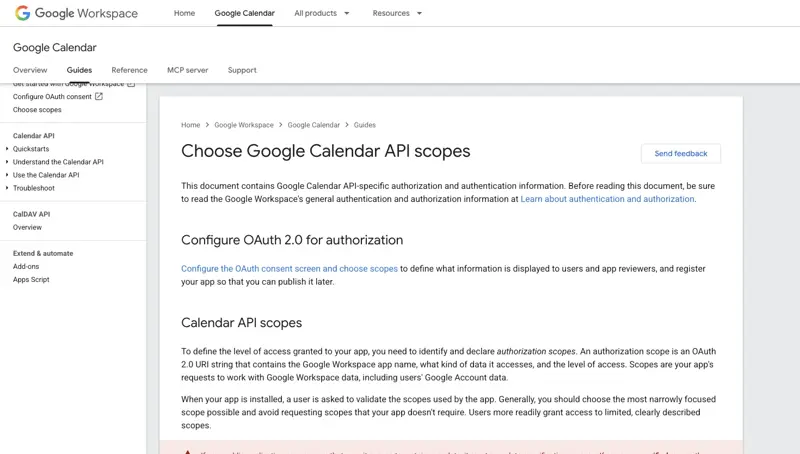
Meta’s own help documentation is explicit that once you connect an app, “you’ll see what the connection enables and what data is shared” at the point of connecting — but it does not publish the exact technical scope (the specific OAuth permission level) for this rollout in its public materials. What it does say: when the connection is to Google, Meta’s use of the data pulled through Google’s Workspace APIs is bound by Google’s User Data Policy and Limited Use requirements — the same rules that govern every third-party app connecting to your Google account, not a special Meta carve-out.
Google’s own developer documentation lays out what the underlying Calendar permission tiers actually mean, since that’s the framework Meta is operating inside:
calendar.readonly— read-only. The connected app can see your events but cannot create, edit, or delete anything.calendar.events— read and write access to events specifically, without full account-level control.calendar(the broadest tier) — full read/write/delete access to the calendar itself.
Google explicitly instructs apps to request “the most narrowly focused scope possible” — but Meta hasn’t published which tier the daily-briefing feature actually requests. That’s a real gap in Meta’s disclosure, not a hypothetical one, and it’s the single most important thing to check on that confirmation screen in Step 4 above before you tap through it.
On the privacy side, Meta’s help page states that connected third-party app data can be used “to personalize responses,” and that disconnecting an app means Meta AI “will no longer be able to access its data” going forward. On Google’s side, its Workspace privacy documentation states that Workspace content is not used to train generative AI models outside of Workspace without permission, and is not used for ad targeting.
The honest summary: the privacy framework is the standard one every calendar-connected app operates under, not a uniquely alarming one — but Meta’s own disclosure of exactly what it requests is thinner than it should be. Read the confirmation screen, and if it isn’t clear whether you’re granting read-only or read/write access, that’s worth pausing on before you continue.
The four questions worth asking before you connect anything
Community reaction to this rollout on X converged on a point worth taking seriously: the moment an assistant can read your calendar, access your inbox, and act on your behalf, the conversation stops being “is this chatbot smart enough” and becomes “how much am I comfortable delegating.” That’s a genuinely different question, and one worth answering deliberately rather than by default before you tap “Connect.”
Four questions frame it well:
- What can it see? Calendar-only is a narrower grant than calendar-plus-email. Decide which one you actually need before connecting both out of convenience.
- What can it change? As covered above, Meta doesn’t publish the exact scope tier — check your Google account’s connected-apps page if this matters to you.
- What requires your approval? Right now, nothing in this feature set asks for approval before acting — a recurring task, once set, runs unattended. There’s no “approve before sending” checkpoint published for anything Meta AI does on your behalf.
- How do you undo it if it gets something wrong? Disconnecting the app stops future access, per Meta’s help documentation — but there’s no published “undo the last action” button if a summary was wrong or a briefing missed something important. You catch and correct manually, the same way you would with a human assistant’s mistake.
None of these four questions have a wrong answer — plenty of solopreneurs will reasonably decide “calendar-only, no approval gate needed, I’ll just double-check the briefing each morning” is a fine trade for a free daily assistant. The point is to answer them on purpose, in the ten minutes it takes to set this up, rather than discover the answer by accident three weeks in.
How it compares to what you might already use
If you’re already inside the ChatGPT, Gemini, or Claude ecosystem, here’s how Meta AI’s new agentic layer actually lines up — not marketing copy, feature-by-feature.
| Feature | Meta AI (Muse Spark 1.1) | Google Gemini scheduled actions | Claude artifacts | ChatGPT canvas |
|---|---|---|---|---|
| Recurring, scheduled output | Yes — daily briefings and recurring tasks after one-time setup | Yes — scheduled actions for daily/weekly/monthly routines | No — artifacts are output objects, not scheduled automations | No — canvas is an editing surface, not a scheduler |
| Calendar/email integration | Yes — connects directly to calendar and email apps | Yes, when the connected app is required for the action | Only via developer-style MCP connections, not consumer briefing automation | Not a native scheduled-briefing feature |
| Who sets the timing | You set when the recurring task runs | You set delivery time; content is prepared near that time | No scheduling layer | No scheduling layer |
| What it produces | Briefings, research, slide decks, recurring plans | Digests, summaries, reminders, recurring prompts | Live interactive pages, documents, dashboards, diagrams, code | Interactive editing/creation surface |
| Cost | Free | Free (Gemini app) / included in Google One AI plans for advanced use | Requires a Claude account; higher tiers for heavy use | Requires a ChatGPT account; higher tiers for heavy use |
| Where it lives | Meta AI app, meta.ai, WhatsApp/Instagram (rolling out) | Gemini app, Google One | claude.ai, Claude Code | chatgpt.com, ChatGPT apps |
The practical read: Gemini’s scheduled actions are the closest direct competitor — both let you set a recurring job and walk away. Claude artifacts and ChatGPT canvas solve a different problem entirely (building and iterating on a single output, not running a repeating background job), so “Meta AI vs. Claude artifacts” isn’t really an apples-to-apples fight — it’s Meta AI entering a category Claude and ChatGPT haven’t built a consumer version of yet.
One limitation worth knowing if you’re deciding between Meta AI and Gemini specifically: Google’s own documentation notes that scheduled content is prepared in advance, so anything that changes fast — stock prices, breaking news, same-day availability — can be stale by the time it’s delivered. That limitation almost certainly applies to Meta AI’s briefings too, since the underlying mechanic (prepare ahead, deliver at a set time) is the same.
What this means for you
If you’re a solo freelancer (design, writing, consulting): Connect calendar first. The single highest-value moment is catching a double-booking before a client notices you’re late. Set the briefing for 30 minutes before your first typical meeting.
If you run a small service business (salon, tutoring, cleaning, mobile trade): Your calendar is your entire operation. A briefing that flags a scheduling collision the night before, not the morning of, is worth the ten-minute setup by itself. Hold off on WhatsApp integration until it actually ships in your market — don’t restructure your client-messaging workflow around a feature that isn’t live yet.
If you’re at a 5-10 person team: This is a personal productivity layer, not a team coordination tool — there’s no shared briefing, no team calendar view in what Meta has shipped so far. Each person connecting their own calendar individually is the current reality. Revisit if Meta ships a team/workspace version.
If you’re privacy-conscious about connecting your inbox: Start with calendar-only. It gives you the double-booking catch (the single most valuable use case) without granting email access at all. Add email later only if the calendar-only version proves useful enough to be worth it.
If you already use Gemini’s scheduled actions: There’s limited reason to run both. Pick based on which ecosystem the rest of your day already lives in — if your calendar and email are Google accounts you check constantly, Gemini’s native integration has less friction. If you’re already spending time in the Meta AI app or plan to move workflows to WhatsApp once that ships, Meta AI’s free tier is the lower-cost option to test first.
If you’re weighing this against a paid tool like Motion or Reclaim.ai: Those tools do deeper calendar optimization (auto-scheduling focus blocks, task time-boxing) that Meta AI doesn’t attempt. Meta AI’s value is the free daily summary and conflict flag, not schedule optimization — know which problem you’re actually trying to solve before you pick.
If you’re on iOS vs. Android: Meta hasn’t published a platform-specific feature gap for the daily-briefing rollout specifically, but the “Artefacts” and “Scheduled Tasks” app sections were both confirmed live on iOS and Android at launch — so platform shouldn’t be a blocker either way.
Edge cases and troubleshooting
“I connected my calendar but the briefing never arrived.” The most common cause reported during the rollout window: the feature is launching in a limited set of markets first, not globally. If your account hasn’t received the update yet, the connection step may complete but the briefing trigger won’t fire. Check the Meta AI app for an update before troubleshooting further.
“It flagged a conflict that wasn’t real.” Calendar entries added by third parties (a dentist office’s automated reminder call, a recruiter’s calendar invite you never accepted) sometimes register as real events. Since the briefing reads your calendar literally, garbage-in-garbage-out applies — clean up stale or auto-added entries if you’re getting false-positive conflict warnings.
“I can’t tell if I gave it read-only or read/write access to my calendar.” This is the single most common confusion, and it’s a fair one given Meta doesn’t spell out the exact scope in its help docs. Go back to Settings → Apps → the connected app, and look for a “manage permissions” or equivalent link, or check your Google Account’s third-party access page (myaccount.google.com/permissions) directly — that page shows you exactly what any connected app, including Meta AI, was granted.
“The Chrome/mobile app sidebar version feels different from the WhatsApp version I was expecting.” WhatsApp support wasn’t part of the July 24 rollout — it’s described as arriving in the following weeks. If you’re trying to set this up specifically to run through WhatsApp because that’s where your clients message you, you may be a few weeks early.
“Recurring tasks stopped after a few days.” This has been reported anecdotally during the early rollout window as a rough edge in Meta’s implementation, not a documented limit. If a recurring task stops firing, the current workaround is re-creating it rather than troubleshooting the original — Meta hasn’t published a fix timeline.
“I disconnected the app but I’m not sure the data is actually gone.” Meta’s help documentation states that disconnecting means Meta AI “will no longer be able to access its data” going forward — that’s an access cutoff, not necessarily an immediate deletion of anything already processed. If you need confirmation of full data deletion, that’s a fair question to route to Meta’s support channel directly; the public help docs don’t spell out a deletion timeline.
“Is this the same as the Meta Business Agent I’ve heard about?” No — and this is a genuinely common mix-up. The Business Agent is a separate, business-facing product that auto-replies to customer DMs on WhatsApp and Instagram. What this article covers is the personal Meta AI assistant’s new agentic layer — connecting your own calendar and email for your own daily briefing. Different product, different purpose.
What this can’t do
It doesn’t optimize your schedule — it reports on it. Meta AI’s daily briefing tells you what’s happening and flags conflicts; it doesn’t proactively rearrange your calendar, suggest better time blocks, or negotiate meeting times with other people the way some dedicated scheduling-AI tools do.
It’s not a team tool. Everything here is single-account. There’s no shared team briefing, no delegated task assignment to a coworker, no visibility into anyone’s calendar but your own.
The exact data-access scope isn’t published. As covered above, Meta’s help materials confirm the category of data access (calendar, email) but not the specific technical permission tier. If precise, documented data governance matters for your business (regulated industries, client confidentiality requirements), verify the exact scope yourself via your account’s connected-apps permissions page rather than taking Meta’s consumer-facing description at face value.
WhatsApp isn’t live yet. If your business runs through WhatsApp, the feature you’re most likely waiting for hasn’t shipped as of this writing.
There’s no published reliability track record yet. This feature is roughly two weeks old at the time of writing. Early, anecdotal reports of recurring tasks lapsing suggest it’s not yet bulletproof for anything mission-critical — treat it as a helpful daily nudge for now, not infrastructure to build your business around.
FAQ
Is Meta AI’s daily briefing actually free? Yes. Everything covered in this article — connecting calendar/email, daily briefings, recurring tasks — is part of the free Meta AI experience. There’s no premium tier gate on it as of this rollout.
Do I need a Facebook or Instagram account to use it? You need a Meta account to use Meta AI, which for most people means an existing Facebook or Instagram login. You don’t need to actively use either platform day-to-day beyond that.
Can I connect Outlook instead of Gmail? Meta’s public documentation for this rollout centers on Google Calendar and Gmail connections. Outlook/Microsoft 365 support isn’t confirmed as part of this specific feature as of this writing — check Settings → Apps directly, since availability can change faster than documentation.
What happens if I get a new phone or reinstall the app? Your connections are tied to your Meta account, not the device, so they should persist across a reinstall or new device as long as you log into the same account.
Is this the same thing as Meta’s “Business Agent”? No — see the troubleshooting section above. The Business Agent replies to customer messages on your business’s behalf; this feature runs a personal daily briefing off your own calendar and email.
How is this different from just asking Meta AI a question directly? A regular question gets a one-time answer. A daily briefing or recurring task is set up once and keeps running on its own schedule without you re-prompting — that’s the entire point of the “agentic” framing.
Can I set more than one recurring task? Meta’s public examples show multiple recurring tasks running simultaneously (a daily briefing plus a separate weekly reminder, for instance), so there’s no indication of a hard one-task limit in what’s been published.
Does it work on WhatsApp yet? Not at initial launch. Meta has said WhatsApp support is coming in the following weeks, not on day one.
Will this replace tools like Motion, Reclaim.ai, or a virtual assistant? For schedule optimization or delegated task execution, no — those solve different problems. For a free daily summary and conflict flag, it’s a genuine no-cost alternative to checking your calendar and inbox manually every morning.
Is my calendar and email data safe? The governing policy is Google’s standard User Data Policy and Limited Use framework for the calendar/email side, and Meta’s stated ability to disconnect at any time. That’s the same framework most third-party calendar apps operate under — not a special risk, but also not a reason to skip reading the permission screen before you connect.
Can Meta AI send emails or calendar invites on my behalf without asking first? Based on Meta’s published materials, the daily-briefing and recurring-task features described here are read-and-summarize functions — pulling calendar and email context to build a briefing — not send-on-your-behalf actions. If Meta expands this toward drafting or sending replies automatically, that would be a materially different permission level worth re-evaluating separately.
What’s the difference between this and just setting a recurring calendar reminder myself? A calendar reminder fires on a fixed schedule regardless of what’s actually happening. Meta AI’s briefing reads the current state of your calendar and inbox each time it runs — so it catches a conflict that didn’t exist when you originally set the reminder, like a dentist’s office adding a call that overlaps a client meeting you booked last week.
The bottom line
Meta just gave away, for free, a feature category that other companies charge for or gate behind a subscription: an assistant that reads your calendar and inbox and proactively tells you what’s about to go wrong. For a solopreneur whose entire operations team is themselves, that’s a genuinely useful ten-minute setup — connect calendar first, add email once you trust it, and skip WhatsApp integration until it actually exists in your market.
It’s not infrastructure yet. The permission disclosure is thinner than it should be, the reliability track record is two weeks old, and it optimizes nothing — it just tells you the truth about your day a little earlier than you’d have found out otherwise. For most solo operators, that’s still worth having.
If you want a deeper, structured walkthrough of everything Meta AI can do — not just this one feature — our Meta AI Masterclass course covers the full Muse Spark toolkit, with a certificate on Pro.
Sources
- Meta Newsroom — Meta AI Doesn’t Just Think, It Acts (July 24, 2026)
- Meta Help Center — Connecting apps to Meta AI
- Axios — Meta takes first steps toward a personal AI agent (July 28, 2026)
- Google Developers — Google Calendar API OAuth scopes
- Google Workspace — Gemini in Workspace privacy documentation
- Google Support — Gemini scheduled actions
- Quartz — Meta AI adds daily briefings and recurring task automation
- UCToday — Meta AI Adds Automated Tasks and Daily Briefings
- Anthropic — Claude artifacts documentation
- OpenAI — ChatGPT canvas documentation