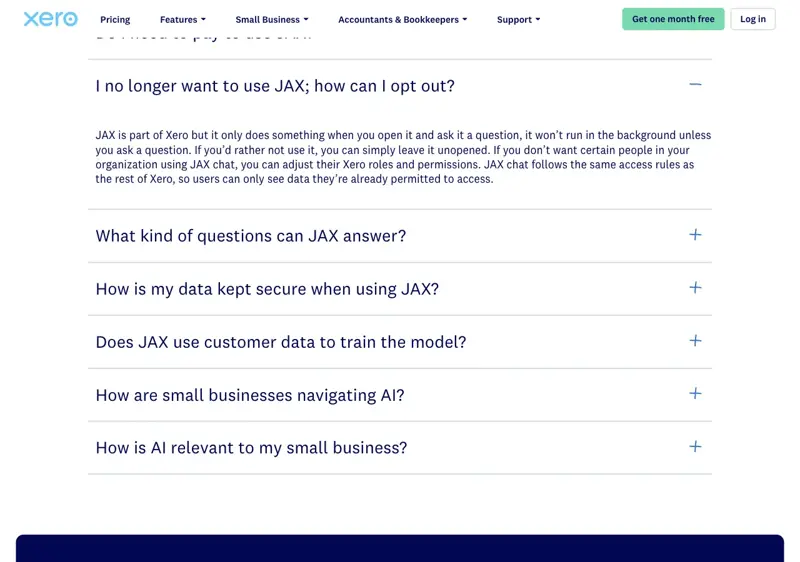
If you’ve been waiting for the day you’d go into QuickBooks or Xero, find the AI toggle, and decide whether to switch it on, I have news: for most of what matters, that day has already passed. The AI is in your books. Intuit’s own help page says “Currently, there isn’t a way to turn off AI features individually.” Xero’s assistant, JAX, is available to every subscriber and, per Xero, “won’t run in the background unless you ask a question.” The two companies have made opposite choices about control, and the difference changes what you should do this week.
I was asked to write “how to turn on the AI you already pay for.” Then I read the vendor documentation and the question turned out to be stale. What bookkeepers and small business owners actually need now is an answer to three plainer questions: what is the AI already doing in my file, what does it need my click for, and what can I genuinely switch off?
A note on how this was put together, because it matters for a piece about accounting data. I haven’t logged into a live QuickBooks or Xero file for this article, and I haven’t tested these features on a client’s books. This guide is built from Intuit’s and Xero’s own help pages and pricing pages (all checked on October 12, 2026), the privacy statements both companies publish, an independent practitioner test of Xero’s automatic reconciliation, IRS guidance on tax-preparer consent, a research pass across several dozen sources, and a sweep of what accountants and owners are saying on Reddit and X. Where sources disagree, or where I couldn’t confirm something that’s going around, I say so. Menus and plan names vary by country and by account, so treat each path below as a map and check it against your own screen.
One more scope note: prices and plan names here are for the US versions. QuickBooks Business Tax AI, for example, requires a US account, and Xero names its plans differently in the US, UK, Australia and elsewhere.
What just changed (and what didn’t)
Start with what didn’t change: nobody flipped a switch on October 12. What’s changed over the past year is the default. When Intuit launched Intuit Assist for QuickBooks in November 2024, it read like a feature you could try. By August 2026 Intuit’s help center describes eight separate AI “teammates” (Accounting, Customer, Payments, Project Management, Finance, Payroll, Sales Tax and Business Tax), says they can “act on your behalf with your permission,” and says there’s no way to turn the AI features off individually. The bank-transaction screen in most accounts is now the AI-powered version.
Three things happened in August that explain why this is suddenly a live topic:
- QuickBooks raised prices on the three plans that carry the most AI. For renewals on or after August 1, 2026, Essentials, Plus and Advanced changed price. Free, Lite, Ledger and Simple Start didn’t. Intuit ties the increase to platform investment, including its AI features. Today’s list prices on Intuit’s pricing page are Simple Start $38, Essentials $85, Plus $140 and Advanced $340 a month. The pre-increase list prices reported by independent sources were $75, $115 and $275 for those three plans, which works out to roughly 13%, 22% and 24% increases. Intuit’s own announcement doesn’t publish an old-versus-new table, so treat those percentages as reported, not official.
- Intuit’s August release widened the AI. Third-party summaries of the release describe Invoicing on Autopilot (beta), faster auto-categorization with flags for duplicate or conflicting bank rules, and an admin-only AI chat in beta.
- Xero announced and then updated automatic bank reconciliation powered by JAX. On August 14, 2026 Xero said the feature had reconciled more than 100 million transactions and that it was still in beta. It also said nearly three in four surveyed customers report it saves them time, based on an April 2026 survey of 203 small businesses and 120 accountants and bookkeepers.
You may also have read that QuickBooks AI “becomes active by default in every file starting September 30, 2026.” That claim appears on a third-party accounting firm’s blog. I couldn’t find an Intuit source for it, so I’m not repeating it as fact. What Intuit does document is the part that matters: the AI features exist in your file, and you can’t turn them off one by one.
What it actually is
“Intuit Assist,” “Intuit Intelligence,” “Accounting AI” and “agents” get used interchangeably in coverage. They aren’t separate purchases, but they’re not the same thing either.
- Intuit Assist is the generative-AI assistant Intuit introduced in 2024. In today’s banking documentation, it still names the assistant that can handle the back-and-forth when QuickBooks asks you or your accountant for more information about a transaction.
- Intuit Intelligence is the broader layer that uses your accounting, payments, payroll and tax data to answer questions and run workflows. Its chat and “conversational business intelligence” pieces are labeled beta, with limited monthly capacity and admin-only access in the disclosures I reviewed.
- The agents (Intuit’s help center calls them “Accounting AI,” “Payments AI” and so on) are the task-specific pieces. This is where the plan differences live.
On the Xero side there are really two things hiding behind one name:
- JAX chat (“Just Ask Xero”) is a conversational assistant inside Xero. It answers questions about your financial data and helps with admin tasks like drafting an invoice or quote.
- Automatic bank reconciliation, powered by JAX, is a separate feature. It reconciles bank-statement lines on its own when it’s confident, using four methods: your existing bank rules, matches to existing Xero records, memory of how you handled similar transactions, and predictions based on how other Xero users handled similar ones.
That last method is the one to remember when we get to privacy. It’s why “Xero doesn’t learn from customer data” is too broad a statement, even though JAX chat has a narrower, real commitment about not training the underlying language models.
The walkthrough: find out what the AI is doing in your file
The goal of this section is a ten-minute audit you can do on your own file, or on a client file you have access to. Do it before you decide anything else. You’re looking for what’s visible, what’s on, and what needs your click.
Step 1: Read the vendor’s own list of what exists
Open Intuit’s help article “Overview of Intuit AI in QuickBooks Online.” Here’s the page as I captured it on October 12, with the key sentence highlighted (the highlight is mine, not Intuit’s).
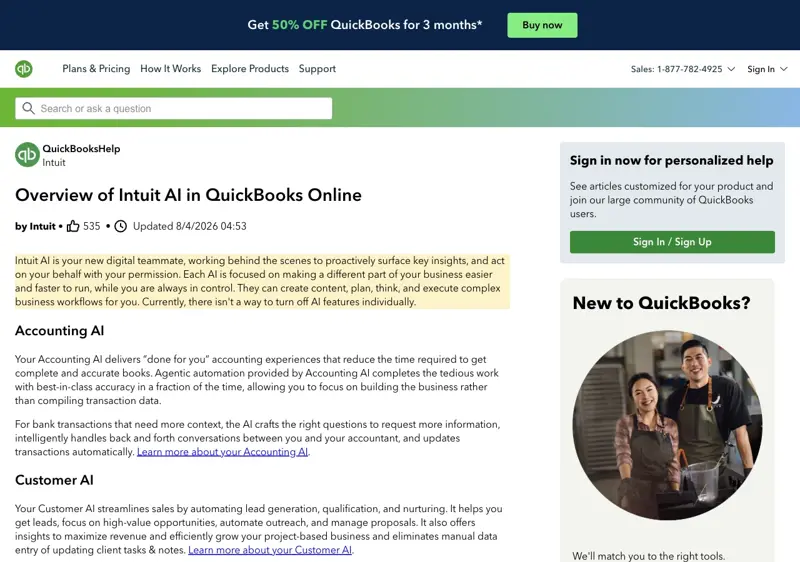
The page lists the eight AIs and what each does, but it doesn’t tell you which plan includes which. For that, use the pricing page.
Step 2: Match the features to your plan
Intuit’s pricing page shows what each tier adds. Here’s the top of that page.
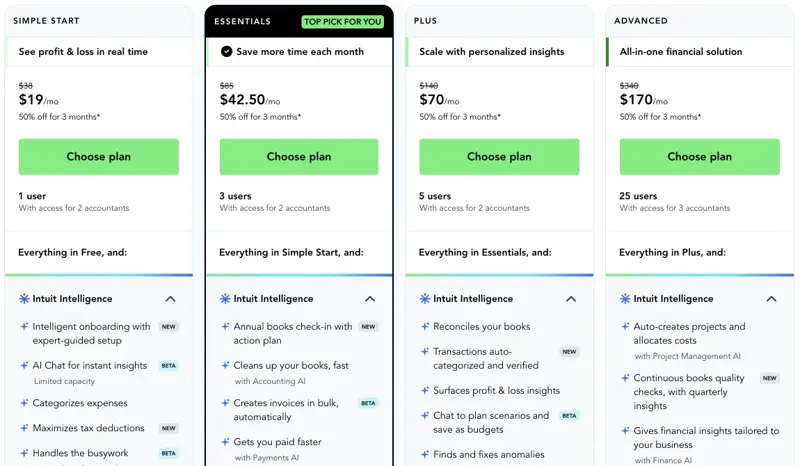
Combining the pricing page, Intuit’s banking help article and Intuit’s price-change post, here’s the matrix I’d work from. It’s a table you can check against your own plan.
| Feature | Simple Start | Essentials | Plus | Advanced |
|---|---|---|---|---|
| AI suggestions on bank transactions | Yes | Yes | Yes | Yes |
| Intuit Intelligence chat (beta, limited capacity, admin users) | Yes | Yes | Yes | Yes |
| Accounting AI: “Ready to post” groups and “requests for more information” | No | Yes | Yes | Yes |
| Auto-categorized and verified transactions | No | No | Yes | Yes |
| Payments AI, Invoicing on Autopilot (beta) | No | Yes | Yes | Yes |
| Business Tax AI (US only) | Deduction tool only | Yes | Yes | Yes |
| Continuous books quality checks, Finance AI, Project Management AI | No | No | No | Yes |
A caution on that table. Intuit’s materials use slightly different names in different places (“Continuously Clean Books” in announcements, “continuous books quality checks” on the pricing page), several features are beta, and rollout varies by account. If your screen doesn’t match the table, trust your screen and ask Intuit support which of your features are live.
Step 3: See the AI where it touches your books, the bank page
In QuickBooks Online, go to Accounting → Bank transactions. This is where the AI does its most consequential work, and it’s where you have the one documented off-ramp.
Intuit’s help article on the AI-powered banking page (updated October 5, 2026) says each transaction arrives with a suggestion and a signal:
- Green check: the suggestion looks right. You still “review any other required fields for the transaction, then select Post.”
- Blue info: “Confirm the suggestion is right before you select Post.”
- Orange alert: adjust the Category or From/To field first.
- A match: “Select Match in the Action column to complete the match.”
So by Intuit’s own description, a suggestion isn’t a posted transaction. Nothing lands in your books until a person clicks Post or Match. On Essentials and higher you’ll also see Ready to post, which Intuit defines as “an Accounting AI feature that groups all your highest-confidence transactions together.” It gives you a banner so you can post them all at once or edit first. That one-click convenience is the sharp edge: a batch post is only as good as the grouping.
One more detail from the same page that bookkeepers will care about: “your rule will always supersede our category suggestion.” If you’ve built bank rules, a rule beats the AI. A Rule badge appears on the category when one applied. That’s your best friend for clients whose coding the AI keeps getting wrong.
Step 4: Find the one real off-ramp
Intuit’s help article says to select Switch to previous version in the Bank Transactions page to revert to the classic banking experience. An Intuit-hosted support answer documents an older label for the same idea, Opt out of new banking page, and says it removes the AI categorization and collaboration experience. Treat those as two labels for the same escape hatch, and don’t assume your account shows both.
What this does and doesn’t do:
- It switches the banking interface back to the classic view and removes the AI suggestions there.
- It does not, based on anything Intuit publishes, turn off the other AIs (Payments, Finance, the chat), and nothing I found says it withdraws permission for Intuit’s own model-training uses described in its privacy statement.
- Some accounts have reported the switch disappearing. One March 2026 Reddit thread described the AI banking page becoming permanent for that user. I couldn’t verify whether that applies to your account, so check your own screen before promising a client you can revert.
Step 5: Check Xero the same way
In Xero, open the JAX icon in the navigation bar only if you want to use chat. Xero’s FAQ answer to “I no longer want to use JAX; how can I opt out?” is short, and here’s the page.
For automatic bank reconciliation, the control is per bank account. Xero’s reconciliation page says you connect your bank accounts first, then “enable JAX for each account separately, and disable it for any account you’d rather reconcile manually.” Xero’s page says a Standard or Premium plan is required for the feature; plan names differ by country, so check what your own subscription is called. Xero says JAX only reconciles automatically when it has high confidence; otherwise the line stays for you to review.
Step 6: Write down what you found
For each file, note four things: which plan, which AI features appear on screen, which of them can post or reconcile without a click (Xero auto-reconciliation can, once enabled; QuickBooks’ documented flow needs Post or Match), and who on the team can turn things on. That page is your control record, and it’s the thing you’ll want when a client asks, “Is AI touching my books?”
A worked example: the 10-transaction spot check
The most useful habit I can give you is a spot check before you trust any batch. Here’s the method with illustrative numbers. These are made-up figures for the sake of the arithmetic, not data from any real file.
Say your QuickBooks Essentials file shows a Ready to post banner with 40 transactions.
- Don’t click “post all.” Open the group.
- Sample 10, chosen on purpose, not at random. Take the three largest amounts, three from vendors you’ve never seen before, two that touch more than one account type (a deposit or a transfer), and two ordinary recurring ones. AI categorization tends to look best on recurring items and worst on the odd ones, so a random sample flatters it.
- Check each against the source document (the receipt, the invoice or the statement), not against the AI’s explanation of itself.
- Count the misses. Suppose you find 2 wrong out of 10. That’s a 20% miss rate in a sample built to be hard, which is useful information: it means you review the rest of the group line by line, and you consider adding a bank rule for the vendor that was mis-coded.
- Fix at the source. If the same vendor was wrong twice, build a rule. Rules beat suggestions, and the next batch gets cleaner.
- Post the verified ones, leave the rest. Re-run the check next week with a fresh sample. If three weeks in a row show 0 or 1 misses in your tough sample, you’ve earned a lighter review process for that client. If not, you’ve learned that this client’s books need hands-on work.
The same method works for Xero’s auto-reconciliation, with one difference: because it reconciles high-confidence lines without a click once enabled, your spot check happens after the fact. Open the reconciled list, sample, and un-reconcile anything wrong. That sample is the reason to enable it on one bank account first, not all of them.
What the independent evidence says about accuracy
Neither vendor publishes an independently audited accuracy rate for these features. QuickBooks language about “high confidence” and Xero’s volume statistics (100 million transactions reconciled) measure how much the AI did, not how often it was right.
The best independent practitioner evidence I could find is a test by Digit Business, published March 31, 2026. They switched on Xero’s automatic reconciliation across a mix of client files from January 2026 and ran it for up to ten weeks, with 18 team responses. It’s a real-world test by an accounting practice, not a randomized benchmark. Their reported numbers:
| Client file | Automatically reconciled (past 30 days) | What it measures |
|---|---|---|
| Day spa | 69 of 116 (about 60%) | Coverage, with no errors flagged |
| Web developer | 26 of 39 (about 67%) | Coverage on a mostly recurring file |
Those are coverage figures (how many lines it handled), not accuracy figures. The more useful part of the report is the failure list:
- Transfers between related entities were the most common failure, including funds sent to the wrong account.
- Variable or intercompany transactions on a high-volume file landed in multiple suspense accounts and had to be removed and redone weekly.
- Batch deposits and part payments often weren’t reconciled automatically.
- Tax-coding errors: a GST-free subscription was reconciled with GST on expenses.
- Inconsistency: one subscription was coded correctly the first time and incorrectly the second.
- A timing conflict with Dext: if a bank line arrives before the bill is published, Xero can reconcile it from memory and force you to undo it.
Digit’s recommendations are the sane ones: use it on simple, low-to-moderate-volume clients with repeating transactions; enable it per bank account (one tester turned it on for the credit-card account but not for the account used for transfers); review everything; and avoid relying on it for complex files for now.
On the QuickBooks side, I found only user reports, which are anecdotal. Posts in accounting communities describe AI bank-feed suggestions being right in roughly 60 to 75 percent of cases in practice, and as low as 30 to 40 percent for some messy files, with deposits occasionally categorized as payroll-tax expenses. Those are individual experiences, not a measured rate, and they’re mixed with posts from people who say the suggestions save them time on routine items. I’d read them as a reminder to run the spot check, nothing more.
What people are saying (the community layer)
A research pass across Reddit and X turned up a consistent shape of conversation, steadier in accounting subreddits than explosive on X. The recurring themes:
- “I can’t turn it off.” The most common complaint on the QuickBooks side. Users can dismiss the assistant panel or tell it to stop auto-opening, but the broader features don’t have a master switch. Intuit’s own help page agrees with them.
- Price versus value. The August increase landed alongside the AI marketing, and several threads question whether the new features justify the extra $10 to $65 a month, depending on plan. Reports from the research pass say Intuit replied to at least one pricing complaint on X by pointing to a faster, more reliable product and expanded Intuit Intelligence; I couldn’t verify that post directly.
- Rules colliding with suggestions. Bookkeepers who’ve built careful bank rules describe the AI suggesting something different, which is why Intuit’s August release added flags for duplicate or conflicting rules, per third-party summaries of the release.
- Xero’s auto-reconcile cleanups. Threads in r/xero describe wrong matches on PayPal, Amazon and Stripe-style feeds and bookkeepers spending time undoing them, alongside reports of real time savings on clean, recurring files. One June 2026 product-idea request for a full JAX opt-out reportedly got an admin reply saying there are no plans, since JAX is core to the product. I couldn’t verify that reply independently, so take it as community-reported.
- Privacy. Less about “AI at all” and more about vendor terms, data retention and tax-preparer consent. That’s the next section.
The privacy question, without the panic
The two companies draw their lines in different places, and the lines are narrower than the headlines suggest.
Intuit. Its Global Privacy Statement (March 9, 2026) lists research and development use of personal information, including “training our artificial intelligence models and other machine learning models.” A separate March 16, 2026 Intuit statement about its OpenAI and Anthropic partnerships says customer data isn’t shared with those partners to train their models, and that its agreements explicitly prohibit it. Those two statements don’t contradict each other: one is about Intuit’s own models, the other about partner models. I found no documented universal opt-out from the training use for QuickBooks ledger data, and the banking-page switch isn’t described as one. Don’t tell a client “I turned off AI training” unless you’ve confirmed it with Intuit in writing.
Xero. The JAX FAQ says data entered into JAX chat “is not retained and isn’t used to train the LLMs.” It names third-party providers including AWS, Microsoft Azure, Google Cloud and OpenAI. That’s a real commitment about chat. But automatic reconciliation explicitly uses memory and cross-customer prediction patterns, so “Xero never learns from customer data” overstates it. The accurate distinction is: JAX chat has a no-LLM-training promise; reconciliation uses pattern-based processing across users.
Tax preparers: Section 7216. If you prepare tax returns, IRC §7216 governs your disclosure and use of tax return information, and where no exception applies you need qualifying taxpayer consent. For the individual-return consent framework in Revenue Procedure 2013-14, consent has to be affirmative, and an opt-out consent isn’t permitted. The takeaway is narrower than “all cloud AI needs consent”: a vendor’s “no model training” promise doesn’t by itself resolve your §7216 obligations, and neither does a client’s failure to opt out. The question is the actual disclosure or use, the recipient, the purpose and whether an exception applies. Intuit also states that US tax return information is processed and stored in the US unless the customer has consented to a transfer, which is relevant but isn’t a substitute for your own analysis. If you handle returns, ask your counsel or your professional body before enabling anything new.
What this means for you
- If you’re a solo business owner on Simple Start or Essentials: You have AI suggestions on your bank page whether you asked or not. First action: open Bank transactions, post nothing in bulk this week, and review five suggestions against your receipts so you know how often it’s right for your kind of spending.
- If you’re a bookkeeper with 10 or more QuickBooks clients: Your risk is batch-posting across many files. First action: add the 10-transaction spot check above to your month-end checklist and keep a tally of miss rates per client; clients with a bad tally get rules, a manual review, or the previous-version banking page.
- If you use Xero: You control the riskier feature. First action: enable auto-reconciliation on one simple bank account (a card with recurring spend), leave transfer accounts off, and review the reconciled list weekly for a month before widening it.
- If you’re an accountant who prepares returns: The privacy terms matter more than the features. First action: write down which tools in your stack touch tax return information and ask your counsel whether §7216 consent is needed for each AI feature, before the next engagement-letter cycle.
- If you manage a firm-billed subscription: Some features, such as Continuously Clean Books on Advanced, need coordination between the client and the firm for eligibility and enablement. First action: ask Intuit or your account rep which of your client files have it available, and document who approved turning it on.
- If you’re a skeptic who wants no AI near the books: Be honest with yourself about what’s possible. In QuickBooks you can switch the banking page back and ignore the rest, but you can’t remove the AI from the product. First action: decide whether that’s acceptable, and if it isn’t, it’s a product-choice conversation, not a settings one.
- If you’re deciding whether the price increase is worth it: Don’t judge by the feature list; judge by your own hours. First action: for one month, track the minutes you spend on categorization and reconciliation, then compare to last quarter.
Edge cases and troubleshooting
These are the problems that came up most in the community and practitioner material.
- “I can’t find the switch to turn it off.” In QuickBooks, there isn’t a general one. The documented option is Switch to previous version (or Opt out of new banking page) on Bank transactions. If you don’t see it, the option may have been removed for your account; ask Intuit support rather than assuming.
- The AI suggests a category that fights my bank rule. Rules supersede suggestions per Intuit. If the wrong category still appears, check whether the rule’s conditions are too narrow or whether a second rule conflicts; Intuit’s August release reportedly flags duplicate or conflicting rules.
- Ready to post grouped something it shouldn’t have. Don’t post the group. Open it, uncheck or edit the wrong lines, and post the rest. Then build a rule for the vendor that tripped it.
- Xero reconciled a transfer into the wrong account. Transfers between related entities were the most common failure in Digit’s test. Turn auto-reconciliation off for accounts used for transfers, un-reconcile the bad lines and redo them manually.
- A bank line arrived before the bill and Xero reconciled it from memory (Dext users). Digit’s workaround: capture routine purchases as receipt attachments rather than bills to cut the timing conflict.
- The AI coded tax wrong. A GST-free item picked up GST in Digit’s test. Whatever your sales-tax or VAT regime, spot-check tax codes specifically, not just the account category.
- A client asks whether their data trains the AI. Answer narrowly and with sources: Intuit’s privacy statement lists model training as a use, and Xero’s JAX FAQ says chat data isn’t used to train the language models it uses. Don’t promise an opt-out that you haven’t confirmed exists.
- Features on the pricing page aren’t in my account. Several are beta, and Intuit notes that availability varies by rollout and that not every feature arrived August 1. Ask support; don’t promise a client a feature you can’t see.
What it can’t do
- It can’t verify itself. “High confidence” is the vendor’s internal measure, not an audit. Neither company publishes an independent accuracy rate for these features.
- It can’t make judgment calls for you. Intuit’s own help material for the Business Tax AI says it suggests potentially overlooked deductions. Whether one applies is a CPA decision.
- It can’t replace consent and professional-responsibility analysis. A “no training” promise doesn’t settle §7216, and an AI’s tax suggestion isn’t a filed return.
- It can’t handle the odd cases well yet. Split payments, foreign-currency receipts, intercompany transfers and batch deposits are where practitioners report the most trouble; Xero says more complex handling is planned “in the coming months,” which is a roadmap, not a feature.
- It can’t be fully removed in QuickBooks. You can go back to the classic banking view and ignore the rest, but Intuit says you can’t switch individual AI features off.
FAQ
Can I turn off AI in QuickBooks Online? Not entirely. Intuit’s help article says “Currently, there isn’t a way to turn off AI features individually.” What exists is a switch on the Bank transactions page (Switch to previous version, previously labeled Opt out of new banking page) that returns you to the classic banking experience and removes AI suggestions there. You can also dismiss the assistant panel, but that isn’t a system-wide opt-out.
Does QuickBooks post transactions by itself? In the workflow Intuit documents for bank suggestions and Ready to post, a person selects Post or Match. Intuit says AI outputs “require explicit approval.” Some features (such as Continuously Clean Books on Advanced, which requires activation) are described as categorizing, verifying and posting according to your preferences, so check which features are enabled on your file before assuming either way.
Does Xero reconcile transactions without asking me? Once you enable automatic bank reconciliation on a bank account, Xero reconciles high-confidence transactions without a click per line and leaves uncertain ones for you. You can review, reject or correct the results, and you can turn it off per account. JAX chat, by contrast, only acts when you open it and ask.
Which QuickBooks plans include the Accounting AI “Ready to post” feature? Intuit’s banking help article says Ready to post and requests for more information are available for Essentials and higher. AI suggestions on bank transactions are available in all versions. Auto-categorized and verified transactions appear from Plus per the pricing page.
Is JAX free? Xero says there’s “currently no additional charge to Xero subscribers to use JAX chat,” and reserves the right to change the terms, including pricing. Automatic bank reconciliation requires a qualifying plan (Xero’s page names Standard or Premium; plan names vary by country).
Does QuickBooks use my data to train AI? Intuit’s March 2026 privacy statement lists training its AI and machine-learning models as a research-and-development use of personal information. A separate Intuit statement says customer data isn’t shared with OpenAI or Anthropic to train their models. I found no documented universal opt-out for ledger data, so confirm with Intuit before telling a client otherwise.
How much did QuickBooks Online prices go up in August 2026? Intuit confirms renewals for Essentials, Plus and Advanced changed on or after August 1, 2026, with Free, Lite, Ledger and Simple Start unchanged. Current US list prices are $85, $140 and $340 a month for Essentials, Plus and Advanced. Independent reporting puts the previous list prices at $75, $115 and $275. New subscribers keep their starting price for their first six months and move to updated pricing with their seventh invoice.
Do tax preparers need client consent to use AI in accounting software? Not automatically, and not never. IRC §7216 requires taxpayer consent for disclosures or uses of tax return information that no exception covers, and for individual returns the consent must be affirmative. Whether a particular AI feature triggers it depends on the specific disclosure, recipient and purpose, so get a professional opinion for your engagement.
Is the Digit test a reliable accuracy benchmark? No, and Digit doesn’t present it as one. It’s one practice’s ten-week test across mixed client files with 18 responses. It’s useful for the failure modes it documents and the “use it on simple, recurring files” guidance, not for a universal accuracy number.
The bottom line
The headline isn’t that QuickBooks and Xero have AI. It’s that the two companies made opposite bets on control. Xero’s chat waits to be asked, and its riskier feature, auto-reconciliation, has a per-account switch. QuickBooks built the AI into the file and, by Intuit’s own description, doesn’t let you remove it piece by piece. Neither vendor publishes an independent accuracy rate. So the safest posture is the dullest one: know what’s on in each file, make the person the last click on anything that changes the books, sample before you trust, and keep a written record of what you enabled and why.
If you want to practice that workflow with an AI that doesn’t touch live client books, the QuickBooks AI and Intuit Assist course walks through the bank-transaction and reporting features step by step, and the Bookkeeping course covers the review habits that make any automation safe. For the broader picture of where AI belongs in a finance practice, start with AI for Accountants and Finance. And if you want a different angle on the same tools, see our Claude month-end close guide for bookkeepers.
Sources
- Overview of Intuit AI in QuickBooks Online (Intuit help, updated 8/4/2026)
- Updates to the new AI-powered banking page (Intuit help, updated 10/5/2026)
- QuickBooks Online pricing changes (Intuit blog)
- QuickBooks Online pricing and plans (Intuit)
- Maximize deductions with the Business Tax AI (Intuit help)
- Intuit Global Privacy Statement
- Intuit’s AI principles and OpenAI/Anthropic partnerships
- Intuit launches Intuit Assist for QuickBooks (Nov 2024)
- Just Ask Xero (JAX), FAQ (Xero US)
- Xero bank reconciliation and JAX automatic reconciliation
- Xero product update: auto bank reconciliation (August 2026)
- Xero auto reconciliation testing notes (Digit Business, March 31, 2026)
- QuickBooks AI agents: what they do and what still needs a human (Books LA)
- Intuit Community: turning off AI in QuickBooks Online
- IRS Revenue Procedure 2013-14 (IRC §§7216, 6713 consent rules)
