
It’s 6 a.m. You’re too sick to move, your phone is already buzzing with the sub line, and somewhere in a drawer is a folder labeled “EMERGENCY SUB PLANS” that you swore you’d fill out during pre-service week and never did. If that’s you right now — or you want to make sure it’s never you again — you can build a complete, ready-to-print emergency sub packet with ChatGPT, Claude, or Gemini in about 15 minutes, for free, and it’ll be better tailored to your actual classroom than the generic PDF you’d buy on Teachers Pay Teachers.
What actually changed here
Nothing launched. No new AI feature dropped this week. What changed is that back-to-school search interest in “emergency sub plans” spiked hard this month — Google Trends shows the term going from essentially flat to its peak value in the space of about a week in mid-to-late August, which tracks exactly with when most US districts start their school year. That’s the real story: a predictable, recurring teacher pain point is peaking right now, and almost everything ranking for it is a decade-old genre of product — a static, one-size-fits-all PDF you buy once and reuse forever, whether or not it actually fits your room, your grade, or this year’s schedule.
AI changes the economics of that trade-off. Instead of buying one generic packet and hoping it’s close enough, you can generate a packet built around your actual lesson content, your actual schedule, and your actual classroom procedures — and regenerate a fresh one in minutes whenever something changes.
What a real emergency sub packet needs (and what most templates skip)
Before the prompt, it’s worth being clear on what “good” actually looks like, because this is where a lot of quick AI attempts fall short — not because AI can’t do it, but because the request was too vague. A generic “write me a sub plan” prompt gets you a generic sub plan. A complete emergency packet needs all of the following pieces, and a substitute who’s never set foot in your room needs every one of them spelled out in plain language:
- An at-a-glance schedule with exact times, not just “morning” and “afternoon.”
- A welcome note and room orientation — where things are, who the helpful students are, what the daily routine looks like from the substitute’s point of view walking in cold.
- A step-by-step lesson script, written as if you’re standing behind the substitute telling them what to say and do.
- Student-facing directions for every activity, since the substitute can’t answer content questions the way you can.
- A materials list with locations — “worksheets are in the blue bin on the counter,” not just “worksheets.”
- Behavior expectations and your attention signal, plus what a substitute should do about disruptions without escalating them into your problem when you’re back.
- A no-tech backup for every activity that depends on a working projector, laptop cart, or website — because something will inevitably not connect.
- A formative check or exit ticket, with an answer key, so there’s something to actually assess when you’re back.
- An end-of-day note-back form for the substitute to leave you — what got covered, what didn’t, and anything you should know.
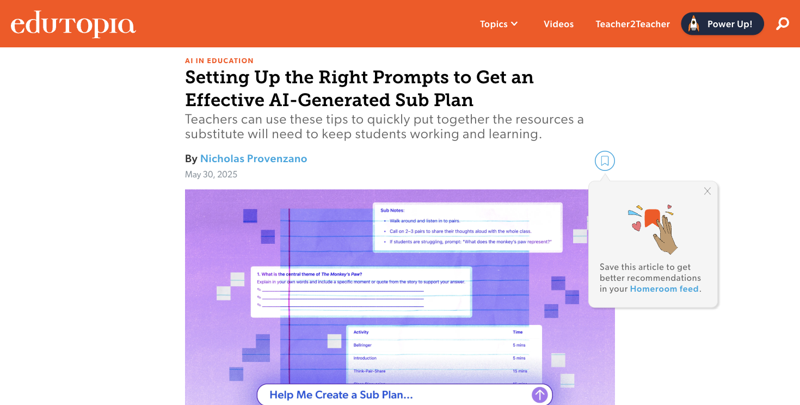
The single most-cited authority piece on this — Edutopia’s May 2025 guide on AI-generated sub plans — makes a point worth internalizing before you write your first prompt: the difference between a mediocre AI sub plan and a genuinely useful one is almost entirely in how specific your prompt is. Their own example replaced a vague “make a sub plan” request with one that supplied the actual source lesson, the grade and subject, the exact duration, and a list of required components — and the difference in output quality was dramatic enough that they built an entire article around it.
The complete copy-paste prompt
Here’s a prompt built to produce all nine pieces above in one pass. Paste it into ChatGPT, Claude, or Gemini — all three handle this equally well, since it’s a text-generation task, not something that needs a specialized model. Fill in the bracketed sections with your actual details, or leave them for the AI to mark as things you’ll fill in by hand.
Act as an experienced [grade band] [subject] teacher writing an emergency substitute packet.

Using the attached/inserted lesson outline, create a complete [length]-minute plan for [grade/course]. Learning objective or standard: [insert]. Student materials available: [insert]. Technology available: [insert or "none"]. Constraints: The substitute may not know the content area. Students should be able to work independently. Include a no-tech fallback.

Produce these sections in this order:
1. At-a-glance schedule with exact times
2. Substitute welcome and room/setup instructions
3. Step-by-step lesson script with teacher/substitute language
4. Student-facing directions for each activity
5. Materials list and where each item is located
6. Behavior expectations, attention signal, and positive redirection language
7. Tech troubleshooting and a no-tech backup activity
8. Differentiation/accessibility supports stated without student names
9. Formative check or exit ticket with answer key/rubric
10. End-of-day note-back form for the substitute

Do not invent school procedures, student names, medical information, IEP/504 details, or material locations. Mark unknown local details as [TEACHER TO COMPLETE]. Format it for printing and keep every direction concrete and concise.
That prompt structure — source material, class context, required components, constraints, and deliverable format, all in one request — comes directly from what Edutopia found actually worked, adapted into a single ready-to-paste block instead of something you’d have to assemble yourself from their article.
Step-by-step: from blank page to printed packet
Step 1 — Gather what you already have (2 minutes). Pull up one lesson you’ve already taught this year, or a unit outline. You don’t need anything polished — a bullet list of what students are working on is enough source material.
Step 2 — Fill in the bracketed prompt above (2 minutes). Grade band, subject, exact minutes, and what’s actually available in your room. Be honest about tech — if your projector is unreliable, say “none” so the AI builds the no-tech version as primary, not backup.
Step 3 — Paste it in and generate (1 minute, AI does the work). Expected result: a complete packet with all ten sections, most of it usable as-is, with a handful of [TEACHER TO COMPLETE] placeholders where the AI correctly declined to guess at things it can’t know — your actual helper students’ names, where your stapler lives, your school’s specific fire-drill route.
Step 4 — Fill in the placeholders by hand (5 minutes). This is the step that turns a good draft into something you’d actually trust a stranger with. Walk through each [TEACHER TO COMPLETE] marker and replace it with the real answer.
Step 5 — Read it once as if you’re the substitute (3 minutes). Actually picture someone who has never met your students following this cold. This is where you’ll catch anything that assumes knowledge only you have.
Step 6 — Print two copies and file one (2 minutes). One goes in your classroom’s designated sub folder — physical, not just saved on a laptop that might be off or a website that might be down on the actual morning you need it. Keep a digital copy too, but the physical folder is what makes this actually “emergency-ready.”
That’s the full loop in about 15 minutes, and — this is the part worth repeating — you can rerun Step 2 and 3 in about 90 seconds any time your unit changes, which is the entire advantage over a static purchased template: it’s not a one-time investment that goes stale by November, it’s a workflow you rerun for free whenever you need it.
Worked example: one prompt, real output
To make this concrete instead of abstract, here’s what a filled-in version of the prompt actually looks like, and roughly what comes back.
The filled-in prompt:
Act as an experienced 9th-grade English teacher writing an emergency substitute packet.

Using the attached/inserted lesson outline, create a complete 50-minute plan for
9th-grade English. Learning objective or standard: analyze how an author builds
suspense (RL.9-10.5). Student materials available: class set of "The Monkey's Paw"
short story, whiteboard, chart paper. Technology available: none reliable — assume
projector may not work. Constraints: The substitute may not know the content area.
Students should be able to work independently. Include a no-tech fallback.

[... remaining instructions as in the template above ...]
What comes back (abbreviated):
1. At-a-glance schedule 0:00–0:05 — Bellringer (silent, on desks) · 0:05–0:15 — Whole-class read-aloud, pages 1–3 · 0:15–0:30 — Think-Pair-Share on suspense techniques · 0:30–0:45 — Independent written response · 0:45–0:50 — Exit ticket
3. Step-by-step lesson script (excerpt) “Say to students: ‘Today we’re finishing “The Monkey’s Paw” and looking at how the author, W.W. Jacobs, builds suspense. I’m your substitute, so I’ll be relying on you to help this run smoothly.’ Distribute the bellringer slip already on each desk. Give students 5 minutes of silent work before starting the read-aloud…”
7. Tech troubleshooting and no-tech backup “This lesson requires no technology by design. If students ask to use classroom devices, redirect to the printed worksheet — all materials are physical.”
9. Formative check with answer key “Exit ticket: ‘Name one specific sentence from today’s reading that made you feel tense, and explain why.’ Answer key note for substitute: any specific textual reference with a plausible explanation should be marked complete — this is an open-response, not a right/wrong item.”
Notice what the AI got right without being told: it wrote actual dialogue the substitute can read aloud, it built the no-tech version as the primary plan (because you said the projector was unreliable, not “unavailable as backup”), and it created an exit ticket with clear enough scoring guidance that a substitute who’s never taught English can grade it fairly. That’s the difference specificity makes — none of this came from a vague “make a sub plan” request.
Free DIY vs. the paid sub-plan tools
There’s a real, established market of paid products built specifically around this problem, and being fair to them matters — they’re not scams, they genuinely generate lesson materials, and some teachers will prefer the packaged experience over prompting a general AI themselves. But it’s worth seeing exactly what you’re paying for, because in most cases, it’s polish and workflow, not an exclusive ability to write a sub plan that a free model can’t replicate.
| Tool | Price | What it generates | What the free DIY route gets you instead |
|---|---|---|---|
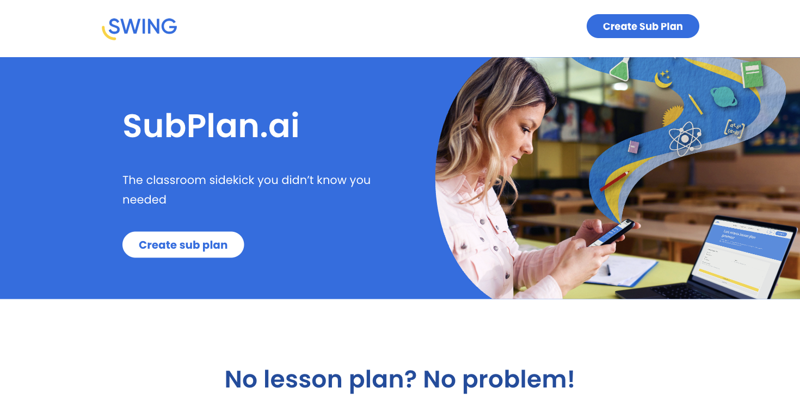
| SubPlan.ai (by Swing Education) | Free, no paid tier found | Custom lesson plans, worksheets, answer keys, multi-day follow-ups | The prompt above, plus a follow-up request for a worksheet, answer key, and a “Day 2” continuation — same output type, same $0 cost |
| Chalkie.ai | Free tier (5 resources/week); Pro $6.65/mo ($79.80/yr); Max $12.99/mo ($155.88/yr) | Lessons and slide decks, exports to Google/Microsoft, standards alignment on paid tiers | Ask the AI for a slide-by-slide outline with speaker notes and copy-ready text, then paste into Google Slides yourself — the subscription mainly buys you the export/formatting automation |
| Colleague AI | Free (30 credits/mo); Plus $10/mo (360 credits) | Lesson plans, rubrics, worksheets, quizzes, visuals, multilingual support | Prompt in stages — plan, then worksheet, then quiz, then rubric — using the same free model, one request per piece |
| OpenEduCat AI | Institutional subscription (15-day trial); no fixed public price | Structured coverage plans with discussion protocols and a note-back form (higher-ed focus) | The prompt above already includes a note-back form and discussion-ready structure |
The honest read, backed by the research behind this article: the paid tools’ real value is in workflow — saved templates, one-click exports to Google Slides, a standards database, district-level admin controls — not in generating text a general-purpose AI can’t also generate. If you already pay for one of these and like the interface, there’s no reason to switch. If you don’t, the free route gets you the same underlying document.
Where the paid tools genuinely pull ahead is scale and consistency across a whole department or district — if an instructional technology coordinator wants every teacher’s sub folder built and stored the same way, with district branding and a shared standards database, that’s a real, legitimate reason to pay for infrastructure rather than have 40 teachers each running their own version of the free prompt. For an individual teacher building their own folder, though, the free route gets you there just as completely.
Is this safe for student privacy? (FERPA, plain-language version)
Here’s the good news up front: a well-built emergency sub plan is naturally one of the lower-risk things you can use AI for as a teacher, because it genuinely doesn’t need to include anything about specific students. But “sub plan” doesn’t automatically mean “safe” — it depends entirely on what you type into the prompt.
The California Department of Education’s official AI guidance draws the line clearly: personally identifiable student information should only go into closed, district-approved AI systems with the right protections in place — not general-purpose tools like the free version of ChatGPT, Claude, or Gemini. Their guidance also frames AI as something that should support teacher judgment, not replace it — meaning you’re expected to actually review what comes out, not paste it in and print it blind.
Fine to include in your prompt:
- Grade level, subject, duration, standards, and the general lesson topic
- Generic classroom routines (“students enter quietly, retrieve notebooks, begin the warm-up”)
- Generic behavior language and universal procedures
- General accommodation needs stated without names (“include visual directions,” “provide an optional extension”)
Never paste into a general AI tool:
- Student names, initials that are easily identifiable, or roster information
- IEP or 504 plan details, medical information, allergy information, or discipline history
- Anything that identifies a specific student even indirectly — “the student who sits by the window and has trouble focusing” counts
- School security details: door codes, internal emergency procedures beyond generic fire-drill steps, or access credentials
If your classroom genuinely needs individualized notes about a specific student for a substitute — an allergy, a behavior plan, an accommodation — the right move is keeping that information in a separate, district-approved system or a sealed paper note, exactly as you’d have handled it before AI existed. The AI-generated packet handles everything else; it was never meant to replace your existing, appropriately locked-down system for the sensitive stuff.
Building differentiation in without naming a single student
The prompt template asks for “differentiation/accessibility supports stated without student names,” and this is worth a closer look because it’s the piece most generic templates skip entirely — a purchased PDF can’t differentiate for your specific class at all, since it was written before your students existed.
Here’s what a good AI-generated differentiation section actually looks like in practice: instead of “modify for students who need it” (useless to a substitute), you want something like “for any student who finishes early, offer the extension question on the back of the worksheet; for any student who needs more processing time, the reading passage is also available as an audio version linked on the classroom Google Classroom page; visual step-by-step directions are posted on the whiteboard for students who benefit from seeing steps written out, not just heard.”
Notice that none of that requires knowing which specific student needs what — it describes a menu of supports any substitute can offer to any student who needs them, which is both more useful to the substitute (they don’t need private student information to use it) and safer from a privacy standpoint (nothing in it could identify a specific child even if the packet ended up somewhere it shouldn’t). If your class includes students with formal accommodation plans, those specific accommodations still need to go through your district’s proper channel — but general good teaching practice like this belongs in the packet itself, and AI is genuinely good at generating a solid default list if you ask for it directly.
What this means for you
If you’re a first-year teacher with no sub folder yet — this is your actual to-do item for this week. Fifteen minutes now against a 6 a.m. scramble later is as close to a free win as this job offers.
If you already have a sub folder, but it’s three years old — pull it out and rerun it through the prompt above using this year’s actual schedule and unit. Half of “stale sub plans” is just outdated bell times and a curriculum that’s moved on.
If you teach multiple preps — build one packet per prep, not one generic packet for your whole day. It’s the same 15 minutes each time, and a substitute covering your 2nd period Biology and 5th period Chemistry genuinely needs two different documents.
If you’re an elementary teacher covering every subject in one day — ask the AI to build the schedule section first, standalone, then generate each subject block as its own follow-up request feeding off that master schedule. Trying to get one prompt to do all of it at once tends to produce a messier result than doing it in stages.
If you’re a department head or instructional coach — this is a genuinely easy back-to-school PD win. A 20-minute staff session where every teacher leaves with a completed packet is more useful than most back-to-school meetings, and it costs the district nothing beyond the meeting time.
If your district already pays for one of the tools in the comparison table — use it, especially if you like having everything in one saved account. This guide isn’t an argument to cancel a subscription you’re happy with; it’s for the teacher who doesn’t have one yet and doesn’t want to pay for something they can do for free.
If you’re worried about “AI-generated” feeling impersonal to a substitute — it won’t, because you’re the one filling in every placeholder with your actual room details in Step 4. The AI writes the skeleton; the personal, useful parts are still yours.
If you’re a paraprofessional or teaching assistant asked to help build these — the same prompt works for you, with one adjustment: note in the prompt that you’re drafting on behalf of the lead teacher, and route the finished packet back to them for the privacy review pass before it’s filed, since the FERPA judgment calls above are ultimately the classroom teacher’s responsibility.
If your school uses a shared curriculum with pacing guides already written — feed the actual pacing-guide language into the prompt as your “source material” instead of writing a lesson from scratch. The AI’s job shrinks to reformatting and filling gaps, which is faster and keeps the packet consistent with what every other class at your grade level is doing that day.
Edge cases and things people actually run into
- The AI invents a school procedure that doesn’t exist. This is exactly why the prompt explicitly says “do not invent school procedures” and asks for
[TEACHER TO COMPLETE]markers instead. If you skip that instruction, expect a confident-sounding but wrong fire-drill route or bathroom-pass rule. - The schedule doesn’t match your actual bell times. AI has no way to know your school’s specific schedule unless you give it. Always supply exact times rather than “morning block” and “afternoon block.”
- It writes activities that need technology you don’t reliably have. State your actual, honest tech situation in the prompt — “projector works about half the time” gets you a plan that leads with the no-tech version, which is what you actually want.
- A vague first prompt gets a generic, TPT-style output. This is the single most common way this goes wrong, and it’s an input problem, not an AI limitation — the fix is exactly the specificity in the prompt template above.
- You need a different packet for a half-day, an assembly day, or a testing day. Rerun the prompt with the actual constraint stated (“this is a 40-minute half-day schedule, not a full 6-hour day”) rather than trying to make one packet cover every scenario.
- The substitute note-back form gets skipped in a rush. Put it on the first page, not the last — substitutes are more likely to fill out something they see immediately than something buried at the end of a ten-page packet.
- Multi-day absences need more than one day’s plan. Ask a follow-up: “extend this into a 3-day sequence, with each day building slightly on the last, still assuming a substitute with no content background.”
- You’re not sure if your district has a policy on this. A growing number of districts have published AI-use guidance for staff, separate from student-facing AI policy — check with your instructional technology coordinator before making this a schoolwide practice, even though the sub-plan use case itself is low-risk.
- The AI produces a packet that’s technically complete but reads stiff or overly formal. This is a tone problem, not a content problem — a quick follow-up prompt (“make this sound warmer, like a note to a colleague”) usually fixes it in one pass without needing to regenerate the whole thing from scratch.
- You teach a block schedule, a rotating schedule, or an unusual bell structure. Generic templates almost universally assume a standard Monday-through-Friday schedule. State your actual structure explicitly in the prompt (“this is Day 3 of an A/B block rotation, 90-minute periods”) rather than letting the AI default to a standard day, which is one of the most common mismatches between purchased templates and real school schedules.
What this can’t do
- It can’t know your school’s actual emergency procedures. Fire drills, lockdown protocols, and safety routines are district- and building-specific — always fill these in yourself rather than trusting AI-generated guesses, no matter how plausible they sound.
- It can’t replace your relationship with your students. A well-written packet makes a stranger’s day manageable; it doesn’t make them your class’s actual teacher for the day.
- It can’t guarantee accuracy on subject content it wasn’t given. If you don’t supply real lesson material, expect generic filler content in the lesson-script section — garbage in, garbage out applies here as much as anywhere.
- It can’t account for individual student needs it doesn’t know about. This is why the IEP/504/medical exclusion above matters — those genuinely need a separate, district-approved handling path.
- It can’t fix a chronically disorganized classroom in one prompt. If materials aren’t in consistent, findable locations to begin with, no packet can describe locations that don’t reliably exist.
FAQ
Do I need ChatGPT Plus, Claude Pro, or Gemini Advanced to do this? No — this works fine on the free tier of any of the three. It’s a straightforward text-generation task that doesn’t need a premium model.
Is it true that 66% of substitute requests have no plan? That figure comes from Swing Education (the company behind SubPlan.ai) and is described on their own site as based on their internal data. They haven’t published the underlying sample size, date range, or methodology, so treat it as a vendor-reported statistic that illustrates a real, widely recognized problem rather than an independently verified national statistic.
Can I use this for a long-term substitute, not just a one-day emergency? Yes, with adjustments — ask the AI to extend the packet into a multi-week sequence and add more context about ongoing classroom routines, since a long-term sub needs more depth than a single-day emergency plan.
What if I teach special education or a self-contained classroom? The core packet structure still applies, but any student-specific accommodation, IEP, or behavior-plan details need to stay out of the general AI prompt and be handled through your district’s approved system, per the FERPA guidance above — a substitute in a self-contained room typically also needs a paraprofessional or case manager briefing that goes beyond what any written packet can cover.
Should I use ChatGPT, Claude, or Gemini specifically? Any of the three works well for this — it’s a well-structured writing task, not something that benefits meaningfully from one model’s specific strengths over another’s. Use whichever one you already have an account with.
How often should I regenerate this? Anytime your unit, schedule, or classroom setup meaningfully changes — realistically, once at the start of each unit or grading period takes under two minutes once you have the prompt saved.
Can I share this prompt with other teachers at my school? Yes — there’s nothing school-specific baked into the prompt template itself, which makes it a genuinely easy thing to share at a staff meeting or in a shared drive.
What if the AI’s tone doesn’t sound like me, or feels too formal for my classroom? Add a line to the prompt like “write in a warm, casual tone, as if the substitute is a friend covering for me” — tone is one of the easiest things to redirect with a follow-up request, and it’s worth doing since a packet that sounds like you tends to get followed more faithfully than one that reads like a corporate memo.
Does this work for specials teachers — art, music, PE, library? Yes, with the same structure. Swap “lesson script” for whatever the actual class format is (a rotation of stations for PE, a listening activity for music), and keep everything else — schedule, materials, behavior expectations, no-tech backup — exactly the same. The framework doesn’t assume a core-subject classroom.
I already have sub plans from last year — can AI just update them instead of starting over? Yes, and this is often faster than starting from scratch. Paste last year’s plan in and ask the AI to “update this for this year’s schedule and current unit, keeping the same structure and format.” It’ll flag anything that looks outdated and needs your input, rather than regenerating the whole document from nothing.
What do I do with the AI output if I don’t have a printer at home? Save it as a PDF and email it to your school’s front office or print it the next morning you’re in the building — but build the habit of keeping one physical copy in your classroom folder specifically for the mornings you can’t get to a printer at all.
The bottom line
A good emergency sub plan is one of those tasks that’s genuinely well-matched to what AI does best right now: turning a clear, specific request into a complete, well-structured document, fast. The paid tools built around this problem aren’t wrong to exist, but their advantage is packaging, not access to some capability you can’t reach for free. Fifteen minutes with the prompt above, one honest pass to fill in what only you know, and a printed copy in a folder — that’s the whole system, and it’s the same system whether you build it in ChatGPT, Claude, or Gemini.
If you want to build out a full first-week-back AI routine — not just sub plans, but seating charts, parent communication, and standards-aligned week-one lessons — FindSkill’s Claude for Teachers: Standards-Aligned Week course walks through the whole toolkit, sub plans included.
Sources
- Edutopia — Use AI to Create Sub Plans More Effectively with the Right Prompts (May 30, 2025)
- Edutopia — Using AI as a Thought Partner, Not a Shortcut
- Edutopia — How to Use a Chatbot to Create Engaging Do Now Activities
- Swing Education / SubPlan.ai — No lesson plans? No problem! (Oct 2, 2024)
- SubPlan.ai product page
- Chalkie.ai pricing
- Colleague AI pricing
- OpenEduCat AI substitute lesson plan generator
- California Department of Education — AI in Education guidance
- ShakeUp Learning — 25+ AI Tips for Teachers (Aug 2026)