Two people talk for forty minutes. You hit stop, open the file, and now you own a wall of text where “I” and “she” are the only clues about who said what. If you’ve ever transcribed an interview by hand, you know the real work isn’t typing — it’s untangling who’s speaking every time the recording clicks back over from a pause.
Here’s the thing almost nobody’s written about yet: Google quietly gave Gemini the ability to do this for you, for free, with actual speaker labels — “Speaker 1,” “Speaker 2” — and it works shockingly well for a two-person interview. Not a beta. Not a waitlist. It’s sitting in the Gemini app right now, and most people asking “how to transcribe an interview” are still being pointed at Otter’s paywall or Rev’s per-minute pricing.
This is the how-to guide for the free option nobody’s covering. We’ll walk through the exact process, show you a real transcript excerpt with speaker labels, compare it honestly against Otter.ai, Rev, and Descript, and tell you exactly where it breaks down — because it does break down, and pretending otherwise would waste your afternoon.
What Is Gemini Transcribe, and Why Haven’t You Heard of It?
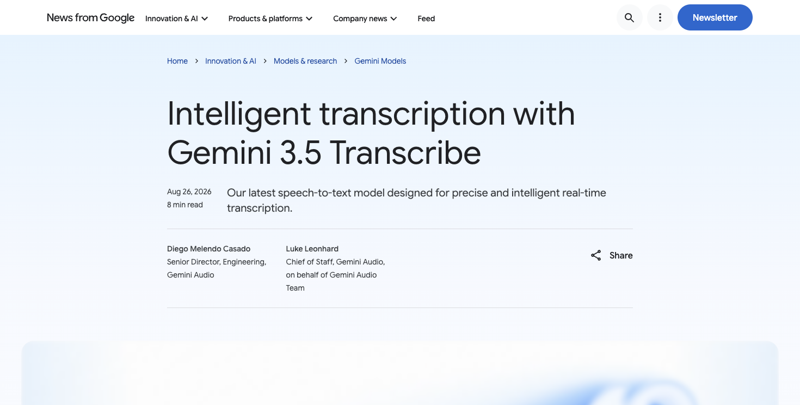
Google launched an upgraded speech-to-text model called Gemini 3.5 Transcribe in late August 2026, and it’s already doing quiet, unglamorous work across a bunch of Google products you probably use — the Gemini app on your phone, the Rambler dictation feature in Gboard, Google Docs voice typing. It automatically detects and transcribes more than 85 languages, cleans up filler words if you want it to, and — this is the part that matters for our purposes — it can tell speakers apart and label them.
None of that made headlines the way a new Gemini model version usually does. It shipped alongside a handful of other Google audio announcements the same week, so most of the coverage treated it as a footnote: “Google also updated its transcription model.” Nobody wrote the version of this story that starts with “you record interviews for a living and this changes your Tuesday.”
So let’s be clear about what you’re actually getting, because “free AI transcription” has been oversold before (looking at you, every app that gives you five free minutes and then asks for a credit card). Gemini Transcribe, used through the free Gemini app or gemini.google.com, will take an audio or video file, transcribe it, and — if you ask — separate the speakers. No subscription. No minute bank that resets monthly. You’re not even signing up for a “trial.”
The catch, and there’s always a catch, is that it wasn’t built as a dedicated transcription product. It’s a general-purpose AI that happens to be very good at this one task if you ask it the right way. That’s the whole reason this guide exists — the “right way” isn’t obvious, and getting it wrong burns your patience on a feature that actually works.
Why the search results haven’t caught up yet
Search “how to transcribe an interview” right now and you’ll land on a wall of paid tools — Otter, Sonix, Rev, Transcribe.com — each offering a free trial that converts into a subscription the moment you actually need it for real work. Google’s own AI Overview, as of this writing, doesn’t mention that Gemini does this natively. That’s not a conspiracy, just a timing gap: the feature launched quietly, wasn’t framed as a transcription product, and search content takes months to catch up to something that shipped as a footnote in a broader speech-model announcement.
I get why this happens. Transcription is a mature, well-monetized SEO category — every article ranking for that phrase has an affiliate link or a subscription funnel behind it, and there’s no financial incentive for those sites to tell you Google gave away a competing feature for free. Nobody’s paying anyone to write “actually, you might not need to pay for this.” So it doesn’t get written, until it does.
The Walkthrough: From Recording to Clean, Labeled Transcript
I’m going to carry one example all the way through this, because generic instructions are useless the moment your actual audio doesn’t match the tutorial. Let’s say you’re a freelance journalist who just recorded a 22-minute phone interview with a source — call her Maria, a small-business owner — about a new local zoning law. Two speakers, one of them (you) is doing most of the asking, decent phone audio, a little road noise in the background. This is about as normal as interview audio gets.
Step 1: Record it right (or you’ll be fighting the transcript later)
Before you even get to Gemini, the recording itself decides how good your transcript will be. A few things that matter more than people expect:
- Use an external or lavalier mic if you can. A clipped-on mic 6–12 inches from someone’s mouth beats a phone sitting on a table by a wide margin. If it’s a call, ask the person to use headphones with a mic instead of speakerphone.
- Pick a quiet room without hard surfaces. Echo off tile floors or glass confuses speaker separation more than you’d think — the model has to distinguish voices by acoustic pattern, and reverb smears that pattern.
- Have each person say their name at the start. “Hi, this is Maria,” “And I’m [your name]” — thirty seconds of this anchors the labels before the real conversation starts.
- One person talks at a time. Overlapping speech is, hands down, the biggest cause of bad diarization (the technical term for “figuring out who said what”). We’ll get into why later.
- Record a backup. Phone voice memo running alongside your primary recorder costs you nothing and saves you when the primary fails. It happens more than anyone admits.
None of this is Gemini-specific — it’s the same advice a veteran transcriptionist would give you before smartphones existed. AI didn’t remove the need for good source material. It just made bad source material more forgiving than it used to be.
Step 2: Upload the file to Gemini
Go to gemini.google.com (or open the Gemini app) and start a new chat. Click the attachment icon, and upload your audio or video file. Gemini currently handles common formats like MP3, M4A, and WAV without complaint, and video works too if your “recording” was actually a Zoom call.
One number to know before you upload: file length matters more than file size. Google’s own documentation for the underlying model caps standard processing at around an hour, but that ceiling drops to roughly 30 minutes once you’re asking for speaker labels or word-level timestamps specifically — which, for our purposes, we always are. Practically, if your interview runs long, plan to split it into chunks under 30 minutes rather than uploading the whole thing and hoping.
Step 3: Ask for what you actually want (this is the part everyone gets wrong)
Here’s the mistake that makes people give up on this method after one try: they upload the file and type “transcribe this.” Gemini will do it — but by default it may clean things up into readable prose without speaker labels, or label speakers inconsistently if you don’t ask specifically. You have to be explicit. This is the prompt that actually works:
Transcribe this audio verbatim, word for word, including filler
words. Label each speaker as "Speaker 1" and "Speaker 2" based on
their voice, and start a new line every time the speaker changes.
Include a rough timestamp every time the speaker changes.
That word “verbatim” is doing real work. Gemini can run in a cleaned-up “smart” mode that strips out “um"s and false starts for readability — which is genuinely nice for some things, like turning a voice memo into a polished note. But smart mode and speaker labeling don’t play well together in the current release; the diarization only reliably kicks in when you’re asking for the raw, unpolished version. Ask for verbatim first. Clean it up as a separate step, once you’ve got the speaker map locked in.
Step 4: What you actually get back
Here’s a representative excerpt from that Maria interview — reconstructed to show you exactly what the output format looks like, labels and all:
[00:00] Speaker 1: So thanks again for making time for this. Can
you just start by telling me how long you've had the shop?

[00:04] Speaker 2: Yeah, of course. So we opened in, um, 2019,
right before, well, right before everything happened. So it's
been — six years now, I guess, which is wild to say out loud.

[00:19] Speaker 1: And when did you first hear about the proposed
zoning change?

[00:22] Speaker 2: Honestly? A customer told me before the city
did. Which, I mean, that tells you something right there. I
found out through a flyer somebody brought in, and then I had
to go dig through the actual ordinance myself because nobody
from the city reached out directly.

[00:41] Speaker 1: What was your reaction when you read it?

[00:43] Speaker 2: I was — okay, I'll be honest, I was pretty
angry. Because the setback requirement basically makes our
current parking lot noncompliant, and nobody explained what
that means for existing businesses versus new ones.
Notice what it caught: filler words preserved (“um,” “I guess”), a false start and self-correction rendered accurately (“right before, well, right before”), a pause represented naturally with an em dash, and — the whole point — consistent, correct speaker attribution across four exchanges without a single mislabel. For a clean two-person recording like this, that’s genuinely close to what a professional transcriptionist would hand you.
Step 5: Clean it up
Once you’ve got a verbatim, speaker-labeled draft, decide how much cleanup you actually need. For a podcast show-notes transcript, you might want filler words gone — paste the verbatim version back into a fresh prompt and ask Gemini to “clean up filler words and false starts but keep the meaning and structure exactly the same.” For a research interview headed into a coding tool like NVivo or Dedoose, you probably want to keep it verbatim, because tone and hesitation are sometimes data.
Either way, do one more pass yourself: skim while listening at 1.25x–1.5x speed, catching anything that “sounds right” on playback but reads wrong on the page. This isn’t optional busywork — it’s the same verification step every transcription guide, AI-powered or not, recommends, because even a 95%+ accurate transcript still has that stray 5% hiding somewhere, usually in a proper noun or a number.
Step 6: Export it
There’s no built-in “export as .docx” button — Gemini’s a chat interface, not a dedicated transcription app. Select all, copy, and paste into a Google Doc or Word file. If you’re pulling quotes for an article, this is also the moment to timestamp your best lines in a separate working note so you’re not re-reading the whole transcript later hunting for that one perfect sentence.
Gemini Transcribe vs. Otter, Rev, and Descript: The Honest Comparison
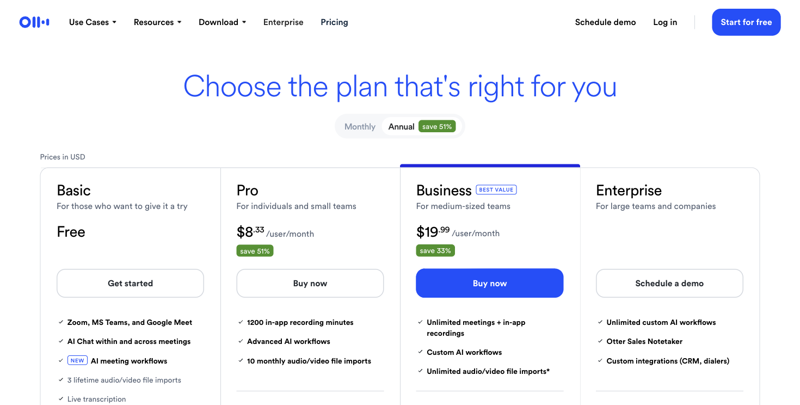
This is the table the search results for “transcribe audio to text free” mostly won’t show you, because most of what ranks for that query is written by the tools themselves, or affiliates paid to recommend them. Here’s how the numbers actually stack up, based on each vendor’s published pricing as of August 2026.
| Gemini Transcribe (free) | Otter.ai (free tier) | Rev (free tier) | Descript (free tier) | |
|---|---|---|---|---|
| Monthly free minutes | Unlimited* | 300 min/month | 45 min/month | 60 min/month |
| Per-file limit | ~30 min with speaker labels | 30 min per conversation | Not capped separately | Not capped separately |
| Lifetime import cap | None | 3 file imports, ever | Not specified | 100 one-time AI credits |
| Speaker labels on free tier | Yes | Yes | Yes | Yes |
| Languages | 85+ | English-focused | English only (free tier) | English-focused |
| Human transcription option | No | No | Yes, from $1.99/min | No |
| Cheapest paid tier | ~$0.005/min via API | $8.33/mo (annual) | $25.49/mo | $16/mo (annual) |
| Data used for AI training by default | Yes, on consumer accounts | Vendor-specific policy | Vendor-specific policy | Vendor-specific policy |
| Built for | General AI assistant | Meeting/interview transcription | Legal & professional transcription | Text-based audio/video editing |
*Practically unbounded month over month, but each individual file needs to be under roughly 30 minutes when you want speaker labels — so a long interview means splitting into chunks, not one continuous unlimited upload.
A few things worth calling out plainly instead of burying in the table. Otter’s free 300 minutes sounds generous until you hit the fine print: only three lifetime file imports on the free plan, ever — not per month. If you’re transcribing more than three pre-recorded interviews total, you’re either upgrading or finding another tool, regardless of how many of your 300 minutes you’ve used. Rev’s free tier is the thinnest by volume (45 minutes, English only), because Rev’s actual business is professional and human transcription starting around two dollars a minute — the free AI tier is a taste, not a workflow. Descript’s free plan is genuinely nice if you’re doing podcast-style editing where you cut audio by deleting text, but its AI credits for cleanup features are one-time, not monthly.
Gemini’s real advantage isn’t that it’s more accurate than any of these — independent, apples-to-apples benchmarks pitting Gemini 3.5 Transcribe directly against Otter, Rev, or Descript on identical audio don’t exist yet, and every vendor’s published word-error-rate numbers come from their own test sets. Google reports roughly 2.6% word error rate on clean, non-streaming audio, which is competitive with the field, but “competitive” and “definitively better” are different claims, and nobody should tell you otherwise with a straight face. Gemini’s real advantage is that it costs nothing, has no import cap, and you likely already have the account.
The honest tradeoff sits somewhere else entirely: data privacy. Read the next section before you upload anything sensitive.
What This Means for You: 7 Reader Profiles
If you’re a freelance journalist working on deadline. Use this for routine, non-sensitive interviews where speed matters more than perfect confidentiality — a city council candidate, a product spokesperson, anyone who’d be fine knowing the recording touched Google’s servers. The math is simple: a 25-minute phone interview that used to eat an hour of your evening now takes ten minutes of upload-and-review time, and that’s an hour back for the actual writing. Your first action: before your next interview, test the verbatim + speaker-label prompt on a two-minute recording of yourself and a colleague so you’re not learning the workflow live on deadline.
If you’re a podcaster prepping show notes. This is close to a perfect fit — two or three speakers, decent studio audio, no confidentiality concerns. Ask for the verbatim version first to lock in accurate speaker labels, then run a second cleanup pass to strip filler words for your show notes page or blog recap. If you’re publishing full episode transcripts for SEO (a genuinely good practice, since transcripts get indexed and searched), this workflow gets you there without a monthly Otter or Descript bill eating into ad revenue on a show that isn’t monetized yet. Your first action: transcribe your next episode’s raw audio before editing, so you can pull your best quotes for social posts while the episode is still fresh.
If you’re a UX researcher running user interviews. Be careful here — participants often disclose things under an assumption of confidentiality that your IRB or company privacy policy promises to protect, and Gemini’s consumer-tier default is human review and use in model training. This isn’t a reason to avoid AI transcription altogether; it’s a reason to check which account you’re using before you start. Your first action: check whether your organization has a Google Workspace account with training opt-out guarantees before you upload a single participant recording to a personal Gemini account — the difference between a personal and a Workspace account is the difference between “reviewed by a contractor” and “contractually excluded from review.”
If you’re a grad student doing qualitative research interviews. Same privacy caution as above, amplified — IRB protocols often specify exactly how recordings and transcripts must be stored, and “uploaded it to a free consumer AI tool” is unlikely to be pre-approved language in your methods section. That said, for interviews that carry no confidentiality risk (public figures, expert interviews already conducted on the record), this can save weeks of manual transcription time across a thesis with 20+ interviews. Your first action: ask your IRB or advisor directly whether Gemini’s data handling meets your protocol’s requirements before you rely on it for a single thesis interview, and get the answer in writing.
If you’re in HR conducting exit interviews. Don’t use consumer Gemini for these. Full stop. Exit interviews routinely include compensation details, harassment allegations, and other material your legal team would not want sitting in a third party’s training data or reviewed by a human contractor — the downside risk here dwarfs the time saved. Your first action: if your company has Google Workspace Enterprise, confirm its no-training contractual terms before considering this at all — otherwise, use a dedicated, HR-compliant transcription vendor built for this exact liability.
If you’re a documentary filmmaker doing interview prep. Great use case for rough-cut logging — you’re not publishing the raw transcript, you’re using it to find which of your six hours of interview footage has the quote you need, fast, without paying per-minute rates on footage that’ll mostly end up on the cutting-room floor. Once you’ve identified your keeper moments from the free rough transcript, you can send just those clips to a paid, certified service if you need broadcast-grade accuracy for the final cut. Your first action: run your longest, messiest interview through it first (the one with cross-talk or an accent you’re worried about) to see exactly where it struggles before you count on it for the rest of your footage.
If you’re a nonprofit conducting oral histories. This one depends entirely on what your subjects were promised about confidentiality — oral history projects with elderly community members or trauma survivors often carry explicit privacy commitments that a consumer AI tool’s default data policy would violate, and that trust, once broken, doesn’t come back. For projects where subjects have given broad consent to public archiving anyway (a community history project intended for a public library, say), the calculus flips, and free transcription means you can afford to record and preserve far more stories than a per-minute-priced budget would allow. Your first action: get informed consent that specifically names the transcription tool and its data policy, or don’t use it for that project.
Edge Cases and Troubleshooting
Background noise or a noisy environment. Gemini handles moderate background noise reasonably — it’s explicitly built to work in “noisy environments,” per Google’s own materials — but heavy noise still degrades both word accuracy and speaker separation. Fix: if you have any control over the recording environment, use it. After the fact, there’s not much you can do except a manual cleanup pass on the noisiest sections.
Overlapping speakers (cross-talk). This is the single biggest cause of transcription errors across every tool, AI or human, and Gemini’s no exception. When two people talk at once, the model has to guess, and it often merges the speech into one speaker’s line or drops words entirely. Fix: this has to be solved at recording time — establish a “let them finish” norm before you start, especially in a live back-and-forth interview.
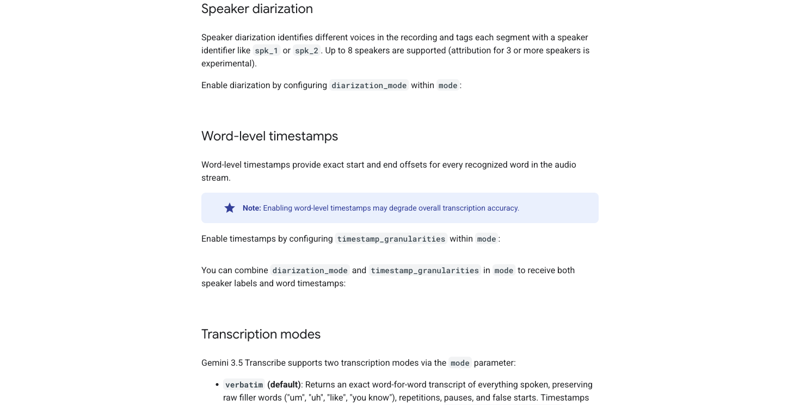
More than three speakers. Google’s own documentation flags speaker attribution as “experimental” once you cross three voices, even though the technical cap is listed at eight. A panel interview or group discussion is where you’ll see labels start to drift — Speaker 2 becoming mislabeled as Speaker 3 partway through. Fix: for group interviews, have each person state their name periodically throughout the recording, not just at the start, and expect to do more manual correction.
Heavy accents or regional dialects. Google claims support for regional accents and dialects as part of the 85+ language coverage, and it genuinely does better here than most tools from a couple of years ago. But real-world testing since launch has turned up rough patches — code-switching between languages mid-sentence (say, Arabic with English technical terms mixed in) has produced garbled or dropped words in early reports. Fix: if your interview subject regularly mixes languages, specify both languages explicitly in your prompt rather than relying on auto-detection.
Long files getting cut short. Some early users have reported uploading a 20-minute file and getting back a transcript that mysteriously stops at 5 minutes, especially when diarization is turned on. Fix: split anything over 20–25 minutes into chunks before uploading, and always scroll to the end of the output to confirm it actually covers the full recording before you trust it.
Non-English audio. Coverage across the 85+ supported languages isn’t uniform — some users comparing Gemini against language-specialist tools (like Soniox for Japanese) found the specialist tool faster and more accurate on fast, informal speech in that language. Fix: for languages other than English, do a short test run before committing your whole interview to it, and keep a specialist alternative in your back pocket if the results disappoint.
Misattributed speakers. Even in clean two-person audio, an occasional line gets assigned to the wrong speaker, usually right after a long pause or a very short interjection like “right” or “mm-hm.” Fix: this is exactly what the verification pass in Step 5 is for — read while listening, and fix mislabels as you go.
Uploading through the wrong interface. A handful of developer-focused reports have found that routing audio through certain third-party tools built on top of Gemini sometimes sends the file to a general chat model instead of the dedicated transcription model, producing worse results (misheard company names, garbled proper nouns) than uploading directly through gemini.google.com or the Gemini app. Fix: for anything that matters, use the official Gemini app or website directly rather than a third-party wrapper.
Technical jargon or unusual proper nouns. If your interview is full of industry-specific terms, product names, or uncommon spellings of a person’s name, expect a few misses on first pass — the model’s guessing at spelling based on how something sounds, same as a human transcriptionist unfamiliar with your field would. Fix: mention unusual names or terms in your prompt before transcribing (“the company is called Duskr, spelled D-U-S-K-R”), or ask your interview subject to spell anything unusual on the recording itself.
Phone call audio quality. Compressed phone-call audio, especially over a spotty connection, is a harder input than a clean digital recording, and it shows up most in speaker separation rather than raw word accuracy — muffled audio makes two voices sound more similar than they are. Fix: where possible, record phone interviews through a service that captures each participant on a separate track (many call-recording apps for journalists do this) rather than a single merged phone-line recording.
What It Can’t Do
Let’s be straight about the limits, because a guide that only tells you the good news isn’t worth your time.
It’s not real-time captioning for a live conversation you’re having right now — at least not through this consumer workflow. Gemini has a separate live-streaming mode built for developers, but the free-app version most people will use is upload-then-transcribe, not simultaneous captioning.
It doesn’t produce a certified, legal-grade transcript. If you need a transcript that will hold up in court or satisfies a certification requirement, that’s Rev’s actual business model (human transcription, sworn accuracy) — not a free consumer AI tool, and nobody should pretend otherwise.
It won’t reliably handle heavy cross-talk or large group conversations. As covered above, this degrades fast past two or three clear speakers, and there’s no setting that fixes it — it’s a structural limit of how diarization currently works.
It’s not a guaranteed-private tool for sensitive material. On a personal Google account, the default is human review and use in model training. This isn’t a hidden gotcha — Google discloses it — but it’s the single most important limitation for anyone transcribing confidential source interviews, therapy sessions, or anything covered by a promise of confidentiality.
It won’t format or export a polished document for you. You get text in a chat window. Turning that into a formatted transcript with headers, timecodes, and proper styling is still on you — or a separate prompt asking Gemini to reformat what it already gave you.
FAQ
Is Gemini Transcribe actually free, or is there a hidden catch? It’s free to use through the Gemini app and gemini.google.com with a regular Google account — no subscription, no minute bank. The “catch” is really a tradeoff: your audio may be reviewed by humans and used to train Google’s models by default, which matters a lot for sensitive interviews and not much for routine ones.
How many speakers can it tell apart? Google’s documentation lists support for up to 8 speakers, but explicitly flags attribution for 3 or more as “experimental.” In practice, it’s most reliable with two speakers and gets noticeably shakier once you’re past three.
Can I get a transcript without speaker labels, just clean text? Yes — that’s actually the default behavior if you don’t ask for verbatim, speaker-labeled output specifically. Just ask Gemini to “clean this up into readable text” instead of the verbatim prompt above.
Does it work on video files, not just audio? Yes. Upload a video the same way you’d upload audio — a Zoom recording, a phone video of an in-person interview — and Gemini will transcribe the spoken audio track.
What happens if my interview is longer than 30 minutes? Split it into chunks under roughly 30 minutes each before uploading if you want speaker labels or timestamps included. Standard transcription without those features can handle up to about an hour in one file.
Is this better than Otter or Rev? “Better” depends on what you’re optimizing for. It’s free with no import cap, which neither Otter’s nor Rev’s free tier can match. It’s not necessarily more accurate — no independent benchmark has directly compared them on identical audio yet — and it doesn’t offer Rev’s human-transcription option for legal-grade accuracy.
Can I trust it with a confidential source interview? Not on a personal Google account, no — not without explicitly disabling Gemini Apps Activity or using a temporary chat first, and even then, understand that Google states it retains some data for a short window regardless. For genuinely sensitive material, treat this the same way you’d treat any cloud tool: assume it’s not private unless you’ve confirmed otherwise.
Does it cost anything if I go through the API instead of the app? Yes, if you’re a developer building on the API rather than using the consumer app — pricing runs around half a cent per minute for standard processing. Everyday users clicking through gemini.google.com or the Gemini app aren’t paying anything.
What audio formats does it accept? Common formats like MP3, M4A, and WAV work without issue, along with standard video formats if you’re uploading a recorded call or video interview.
Do I need to pay for Gemini Advanced or a Pro subscription to use this? No. This works with a free, regular Google account through the standard Gemini app and gemini.google.com — no Gemini Advanced or Google One AI Premium subscription required for the transcription feature itself.
Will it work for a lecture, panel discussion, or group meeting? It’ll produce a transcript, but treat speaker labels with skepticism past two or three voices — Google’s own documentation calls attribution for 3+ speakers experimental, and in practice, panels and multi-person meetings are exactly where mislabeling shows up most. For a single-speaker lecture, transcription accuracy holds up fine since there’s no diarization problem to solve at all.
Bottom Line
The paid transcription tools aren’t wrong that speaker-labeled transcripts are worth paying for — they’re just no longer the only place to get one. If your interviews are routine, your audio is reasonably clean, and you’re not sitting on something that needs airtight confidentiality, Gemini will get you a genuinely usable transcript for free, and it’ll do it faster than typing “how to transcribe an interview” into a search bar and clicking through three pricing pages first.
If you do this kind of work regularly — pulling insight out of conversations, structuring what people tell you into something usable — that’s a skill that goes well beyond one free tool. Our Research and Learning course walks through how to structure interview-based research from raw notes to finished analysis, and our Customer Research course covers the interview-to-insight pipeline UX and product researchers use every day, AI tools included.
Sources
- Google — Intelligent transcription with Gemini 3.5 Transcribe
- Google AI for Developers — Gemini 3.5 Transcribe model docs
- Google AI for Developers — Audio transcription guide
- Google AI for Developers — Gemini API pricing
- Google Cloud — Gemini 3.5 Transcribe, Gemini Enterprise Agent Platform
- Google — Gemini Apps Privacy Hub
- Tom’s Guide — Transcribe audio with Google Gemini for free
- 9to5Google — Google launches Gemini 3.5 Transcribe
- Otter.ai — Pricing
- Rev — Subscription Plans + Per-Minute Pricing
- Descript — Pricing
- Sonix — Otter.ai Pricing 2026
- AssemblyAI — Benchmarks
- PMC/NIH — A Transcription and Translation Protocol for Sensitive Cross-Cultural Research
- HappyScribe — How to Validate Transcription Accuracy in Qualitative Research