A shopper posted a screenshot this week of a page on Amazon that said she “has flat buttocks.” Another found that Amazon had decided she “has a husband,” and that the “husband has skinny legs.” A third’s page said she “uses phone in the shower to read Kindle books.” The screenshots spread from Threads to X to Reddit to every major news site in about three days, and the question underneath all of them is a practical one: what is this page, where do I find mine, and can I make it go away?
The page is called About You, and it has been sitting in Amazon’s app and website since May. It’s an AI-written list of things Amazon thinks it knows about you, built from what you buy, search, save, review, and say to Amazon’s shopping assistant. You can look at it. You can remove entries from it. What the coverage keeps glossing over, and what this guide is mostly about, is the part you can’t do: as far as Amazon’s own documentation shows, there is no switch that turns About You off, and removing an entry doesn’t erase the purchase or search that produced it.
I’ll be direct about how this was assembled. I didn’t open my own About You page for this piece, and I haven’t tested Amazon’s controls on a live account. What follows comes from Amazon’s own announcement and the screenshots it published, hands-on write-ups from Malwarebytes and Business Insider, a deep-research pass across several hundred sources, and a sweep of what people were saying on X and Reddit. Where those sources disagree, or where I couldn’t confirm a claim that’s going around, I say so. Amazon’s menus also differ from account to account, so treat every path below as a map, not a promise, and check it against your own screen.
What just changed (and what didn’t)
Start with what didn’t change, because it’s the thing most headlines blur. Amazon didn’t launch anything this week. About You went live in May 2026 alongside Alexa for Shopping, the AI shopping assistant that used to be called Rufus. It’s still labeled “beta” on the page itself. What happened on October 6 and 7 is that screenshots of people’s pages started circulating, and the reaction snowballed.
By the numbers I could find: the original spark was a Threads post, reported to have passed a million views quickly. On X, a Dexerto post summarizing the story reached roughly 44,000 likes and about 3.4 million views in a research pull I ran on October 10; treat those as approximate. Business Insider ran a how-to on October 7. Malwarebytes published its own test on October 8. Search interest for “amazon about you” jumped from near-baseline to its peak in about 48 hours, then started to settle.
So the honest summary of the news is: an existing, quietly documented feature became visible to a lot of people at once, and a lot of them didn’t like what it said, or didn’t like that it existed.
What it actually is
Amazon’s own description is plain. About You “lets you view and edit the personal details that shape your shopping recommendations.” Those details come from what Amazon lists as five kinds of activity:
- Your conversations with Alexa for Shopping
- Your purchase history
- Product reviews you’ve written
- Items you’ve saved to Lists
- Your searches
Amazon’s wording is that personalization uses information “including” those things, so I’d treat the list as the main inputs rather than a guarantee of the full inventory.
The output is a set of short statements sorted into categories. In the screenshots Amazon published, the categories were Brands, Diet & Nutrition, Interests & Hobbies, and Home & Family. Malwarebytes also lists Product Preferences. A profile in Amazon’s own sample showed 19 entries in total, which tells you the scale: it’s not a novel, it’s a long list of one-liners.
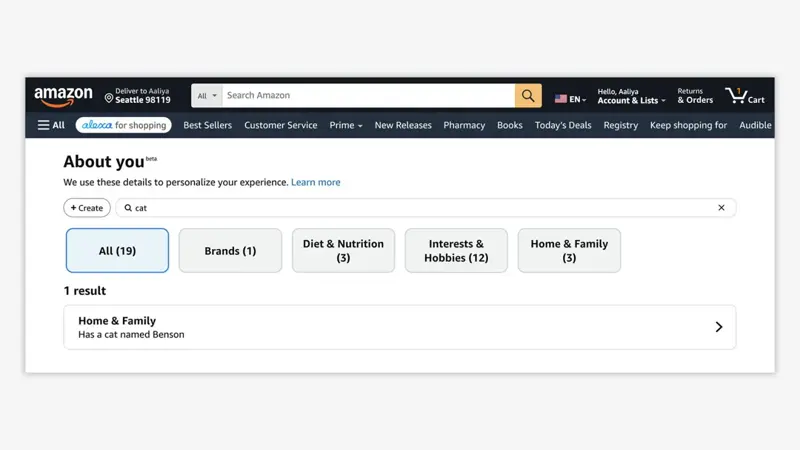
A few things worth noticing in that sample. There’s a search box, so you can look for a word and find every entry that mentions it. There’s a + Create button, so you can add details yourself. And the example entry, “Has a cat named Benson,” is exactly the kind of thing Amazon says the feature is for: tell the assistant about your cat and it recommends cat treats.
How the entries get written
Amazon hasn’t published the model behind About You, how much each source counts, or how long inferences are kept. Independent coverage describes the page as AI-generated, and the screenshots support that: some entries are plain facts (“has cats”), and some are leaps from a purchase to a claim about your life. The viral “flat buttocks” entry, according to the shopper who posted it, traced back to a purchase of scrunch leggings. That’s the pattern to keep in your head. A product goes in; a personal claim comes out; and the claim can be right, wrong, or merely rude.
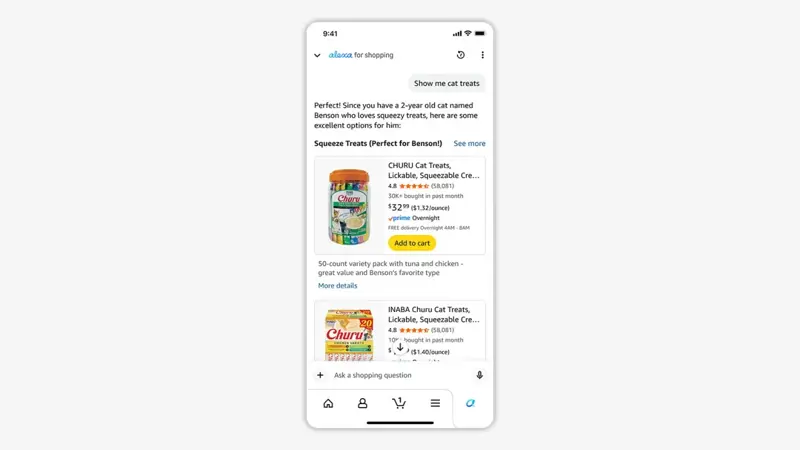
A useful comparison is what the page looks like when it works. Amazon’s own example is a shopper who chats with the assistant about a cat named Benson and gets recommendations for squeezable treats in the flavors Benson likes. That’s the pitch: you tell it things, it remembers, you stop re-explaining yourself.
The walkthrough: find your About You page
Amazon publishes one path on its announcement page and the press has reported several others. The differences are mostly cosmetic: app versions and account types label things slightly differently. Try them in this order.
Step 1: On your phone, the Amazon app
Amazon’s own instruction for mobile is: Me tab → tap your name → About You.
Business Insider and Malwarebytes describe a different route that lands in the same place: tap the person icon → Account → Account Settings → Shopping preferences → About You.
What you should see: a page titled “About You” with a small “beta” tag, a line saying Amazon uses these details to personalize your experience, and category buttons with counts.
Step 2: On desktop
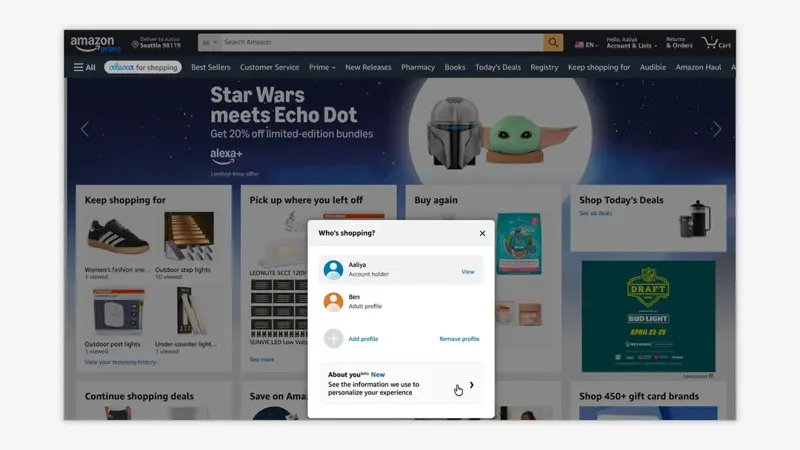
Amazon’s instruction: hover over your name above “Account & Lists” at the top right, then click your name or “Who’s shopping?” and select a profile. Then click “About You.”
The “Who’s shopping?” step is easy to miss and matters if your household shares an Amazon account. In Amazon’s own screenshot, the account holder and an adult profile are listed, and an About You card sits at the bottom of that panel with the text “See the information we use to personalize your experience.”
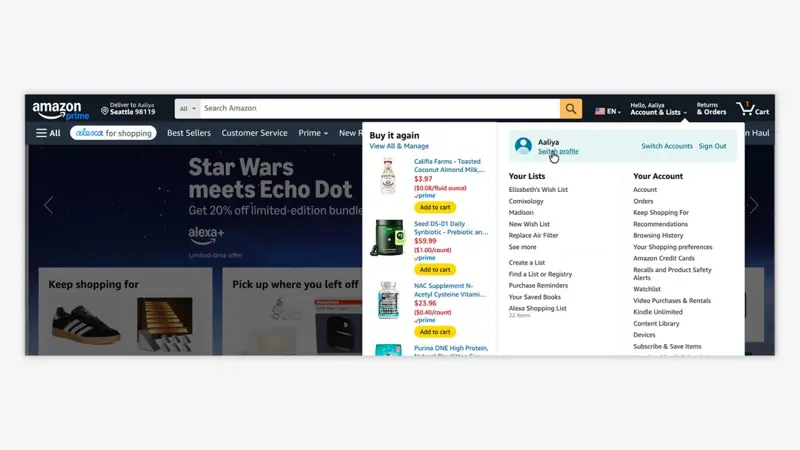
There’s an older route too, which some outlets describe: Account & Lists → Your Account → Ordering and shopping preferences → Your Shopping preferences, then scroll to “Manage your information.” If the direct path doesn’t show About You, this one often does. In Amazon’s own screenshot of the account menu, “Your Shopping preferences” sits in the same list as Browsing History and Recommendations.
Step 3: Or just ask
Amazon says you can also ask Alexa for Shopping: “What do you know about me?” This is the one method that every source agrees on, and it works from the shopping assistant in the app and, per Amazon, on an Echo Show.
A caution that comes up in the research: Amazon documents that exact question for viewing. I couldn’t find documentation of an exact voice command for deleting a particular About You entry, so use the on-screen controls for removal.
Step 4: Read it like an editor, not like an insult
Open each category. For every entry, ask three quick questions:
- Is it true? (Accuracy)
- Is it mine? (Did I buy it for someone else, or did someone else use my account?)
- Do I want it shaping what I see? (Even true things can be things you’d rather not have in a profile.)
What you should have after this step: a short mental list of entries to fix, entries to remove, and entries you’re fine with.
The walkthrough: edit and remove
Amazon says the page lets you “share what you want, provide feedback to update specific details, or remove information that you don’t want used for personalization.” In practice, here’s how that plays out.
To remove an entry: open its category, find the entry, choose Remove, and confirm. Malwarebytes tested this and noted that no reason is required. That’s the control I can say most confidently exists, because both Amazon’s description and independent testing describe it.
To correct or add: tapping an individual entry opens a detail view. Depending on your app version, outlets report options to correct it, give feedback, or add context. I couldn’t confirm exact button labels, so I won’t quote them. The + Create button in Amazon’s sample is how you add something yourself.
What removal does, exactly. This is the part to read twice. Removing an entry means Amazon should stop using that detail for personalization. It does not delete the purchase, search, review, List item, or chat that produced it, and it isn’t confirmed whether a similar guess could be generated again from the same activity. Amazon’s announcement doesn’t say either way, and Malwarebytes flagged the same gap.
A worked example, start to finish
I can’t show you a real person’s profile, so here’s the exercise on Amazon’s own demonstration data, using the account holder in its screenshots.
- Open About You. The page shows 19 entries: Brands (1), Diet & Nutrition (3), Interests & Hobbies (12), Home & Family (3).
- Search for a word. Typing “cat” returns one result, in Home & Family: “Has a cat named Benson.”
- Check it against reality. If it’s true, leave it. If, say, the cat was a one-time gift for a friend, remove it.
- See the effect. In Amazon’s sample chat, “Show me cat treats” gets a reply that opens “Since you have a 2-year old cat named Benson who loves squeezy treats.” That’s the entry in action. Remove the entry and that personalization should stop; the assistant would be working from whatever else Amazon still has.
- Don’t assume the history is gone. The treats you bought earlier are still in your order history. Removing the profile line didn’t touch them.
The point of the exercise isn’t the cat. It’s the two-layer picture: the profile is a summary, the activity is the source, and you only get a delete button on the summary.
There’s no master switch
This is the finding that matters most, so I’ll be careful about how sure I am.
- What the reporting says. Malwarebytes tested the page and wrote that it found no way to opt out entirely. Several outlets said the same. The Grok sweep of X and Reddit found people asking constantly whether a switch exists and being told no.
- What Amazon’s documentation says. A deep-research pass through Amazon’s About You announcement, its Help pages, and its privacy material turned up no switch that disables About You, stops future inferences, or turns off shopping personalization globally. Amazon’s announcement is silent on whether you can disable personalization entirely.
- What that does and doesn’t prove. It’s absence of evidence in documentation I could read, not a statement from Amazon that no such setting exists. If Amazon adds one, this section will be out of date. Check Amazon’s Help pages before you take my word for it.
The practical result: you can trim the profile to something you’re comfortable with, and you can reduce what feeds it, but you can’t flip it off. Those are different jobs, so let’s take them in turn.
Controls that do exist (and what each one actually covers)
Amazon spreads related privacy settings across several places. None of them is an About You off-switch, but together they cover a lot of the inputs. The paths below are as Amazon documents them or as the research pass reported them; Amazon’s menus change, so verify on your own screen.
| Control | Where | What it does | What it doesn’t do |
|---|---|---|---|
| Remove an About You entry | About You page | Stops Amazon using that detail for personalization | Doesn’t delete the purchase, search, or chat behind it |
| Alexa history | Alexa app → More → Alexa Privacy → Review Alexa History (or Amazon’s Alexa Privacy Settings site) | Lets you delete voice and chat history by entry, date range, device, or profile | Doesn’t necessarily delete products searched for, orders, Lists, or other linked records |
| Auto-delete Alexa recordings | Alexa app → More → Alexa Privacy → Manage Your Alexa Data | Auto-delete after 3 or 18 months, or choose not to save voice recordings | Transcripts and typed requests can stick around for 30 days after the last interaction in a chat |
| Delete by voice | After enabling it: “Alexa, delete what I just said” / “delete everything I said today” | Quick history cleanup | Governs Alexa history, not necessarily everything downstream |
| Browsing history | Account & Lists → Browsing History → settings → More settings → toggle off | Stops new viewed items and searches being used for browsing-based personalization | Amazon says purchases continue to influence what you see |
| Your Ads Privacy Choices | amazon.com/privacyprefs while signed in | Opts you out of cross-context behavioral ads | Amazon can still show ads based on activity on Amazon; this is not a recommendations opt-out |
| Alexa interest-based ads | Alexa app → More → Alexa Privacy → Manage Your Alexa Data | Turns off interest-based ads on Alexa | Non-interest-based ads still appear |
| Clear Rufus chat history (older interfaces) | Rufus button → three-dot menu → Manage chat → Clear chat history | Removes visible chat history and its use as context for future chats | Language is “from view,” not a guarantee every associated record is gone |
| Request My Data | Amazon’s Request My Data page | Gets you an export of your data by category | It’s an access tool, not a deletion tool or an opt-out |
A note on the Rufus row. Amazon renamed and folded Rufus into Alexa for Shopping, so older Rufus instructions and current Alexa instructions are both floating around the web and may not match every account. If a guide tells you to look for a “Rufus” button and you don’t see one, look for the Alexa for Shopping assistant instead.
The order I’d do things in
If you want the most reduction for the least effort, this is the order that makes sense given what each control actually touches:
- Fix About You first. Remove what’s wrong or what you simply don’t want in there. It’s the visible surface, and it takes a few minutes.
- Turn off browsing history if you don’t want browsing behavior shaping recommendations.
- Review Alexa history and set auto-delete if you talk to Alexa or the shopping assistant.
- Set your ad preferences at Your Ads Privacy Choices if the ads are the part that bothers you. Be clear with yourself that this is about ads, not about About You.
- Use separate profiles or accounts for different people, which I’ll come back to.
Does it affect ads or prices?
These are the two questions I saw most often, and neither has a clean answer.
Ads. Amazon’s announcement frames About You as a way to improve shopping recommendations. It doesn’t say the displayed entries are used to choose ads, and it doesn’t promise they’re kept out of advertising either. Amazon’s broader privacy notice is much wider: it says Amazon uses personal information for recommendations, personalization, and interest-based advertising, and a June 2026 state disclosure lists inference data, such as purchase preferences, among data that may be involved in cross-context behavioral advertising. Amazon also says it doesn’t hand advertisers specific purchase, product-view, or search records. So the honest status is: unconfirmed whether the exact About You entries, or a parallel profile built from the same activity, feed Amazon’s ad systems.
Prices. I found no source, Amazon’s or anyone else’s, showing that About You sets individualized prices. I also found no explicit Amazon commitment that it never does. Absence of evidence in both directions. The alarmed posts about “Amazon charging you more because of your dossier” are, for now, a worry rather than a finding.
If you want the background on how personalized pricing is being regulated, and a way to check your own prices without fooling yourself, our guide to surveillance pricing and the glossary page on surveillance pricing cover the evidence. The short version: price differences are common and have many causes, and “I saw a different price” isn’t proof about you.
Is it accurate? What the research says (and doesn’t)
There’s no independent accuracy audit of About You, no published error rate, and no benchmark. The viral screenshots are self-selected: people share the funny and the shocking, not the boring correct entries. Business Insider’s own reporters checked their pages and got mixed results. One page got an editor’s partner’s name wrong while correctly noticing a slow upgrade of kitchen appliances; another correctly picked up a preference for organic produce.
What research can tell you is why both “eerily right” and “absurdly wrong” show up in the same tool:
- A well-known study from ETH Zurich on real Reddit profiles found language models could guess attributes like location, income, and sex with up to about 85% top-one accuracy, around 95% when allowed three guesses. That’s a measure of how much a model can infer from text, not a measure of Amazon’s feature.
- Research on shopping histories specifically found models lean on stereotypes: associating cosmetics and household products with women and tools with men, even when real purchases contradicted that.
- A 2026 study of AI memory systems reported that a large share of memories it reviewed were misaligned, including over-inference, mixing up whose fact it was, and staleness.
None of this is an Amazon audit. It’s evidence of a general pattern, and the pattern matches what shoppers described: gifts read as personal interests, one-off purchases turning into traits, household members merged into one person.
Shared accounts and gifts: fixing a profile that isn’t you
This was the practical complaint I saw most. Gift purchases and shared accounts warp profiles: a nephew’s superhero merchandise becomes your interest, a partner’s purchases get folded into yours, a household with a cat person and a laptop person produces a confused middle.
What the sources support:
- Remove the wrong entries. That’s the control that definitely exists.
- Use separate profiles. Amazon’s desktop route goes through “Who’s shopping?” and asks you to select a profile before clicking About You, which suggests the page is tied to the profile you pick. I haven’t verified how profile separation works for every kind of data, so treat it as a sensible step, not a guarantee.
- Some reports describe a way to mark an item as being for someone else. I couldn’t confirm that on a live account or in Amazon’s documentation, so I’m listing it as reported, not verified. Look for it on your own screen.
- Separate accounts remain the cleanest fix for people who really don’t want their shopping mixed. It’s inconvenient, and there’s no easy workaround for gift pollution short of that.
How it compares to other AI “memory” features
About You is one example of a pattern: AI products keeping a running profile of you. It helps to know where Amazon sits among the others, because the off-switch question has different answers.
| Product | What it keeps | Can you see it? | Master off-switch? |
|---|---|---|---|
| Amazon About You | Inferences from purchases, searches, Lists, reviews, Alexa for Shopping chats | Yes, in About You or by asking Alexa | Not documented. Entry-by-entry removal only |
| Google Gemini | “Personal context” from past chats you’ve saved, plus a separate advertising profile in My Ad Center | Yes, in Gemini settings and My Ad Center | Yes for Personal context; ad personalization can be turned off separately |
| ChatGPT | Saved memories plus, where enabled, reference to past chats | Yes, under Settings → Personalization → Manage memories | Separate toggles for saved memory and chat history; check OpenAI’s live help page, since labels change |
| Meta AI | Memories it’s asked to keep, plus context it may extract from one-to-one chats | Notified when saved; can delete manually | Menus vary across Meta’s apps; no single confirmed path |
Based on what the research pass could document, Google has the clearest master toggle among these. Amazon exposes more source-specific controls (Alexa history, browsing history, ads) but nothing equivalent for the About You profile as a whole. If you want the longer version of this comparison, our guide to which AI assistant to trust walks through ChatGPT, Gemini, Siri, and Meta’s assistant, and what AI memory is explains the idea behind all of them. For turning off Meta’s version, see how to turn off Meta AI.
One more difference worth saying out loud. Chatbot memories are things you typed into a chat. About You is built partly from what you did without typing anything at all: what you searched, what you bought, what you saved. That’s why it feels more invasive to many people even when the entries are tame.
What this means for you
If you share an Amazon account with a partner or family. Your page is probably a blend. Open About You through the profile selector, remove anything that isn’t you, and think about separate profiles or accounts. First action: open the “Who’s shopping?” panel and see who’s listed.
If you buy a lot of gifts. Gift purchases are the biggest source of “that isn’t me.” Skim your page for anything oddly specific, especially anything about kids, bodies, or relationships, and remove it. First action: search the page for the word “kid” or “baby” and see what comes up.
If you mainly want less tracking. Be realistic: you can shrink the profile and reduce inputs, but you can’t turn the feature off. Prioritize browsing history, Alexa history auto-delete, and Your Ads Privacy Choices. First action: do the Alexa Privacy auto-delete setting, because it’s a one-time choice.
If you’re in California. Under California’s privacy law, you can ask a business for the categories and specific pieces of personal information it holds about you, correction of inaccurate information, and deletion, subject to exceptions. Clicking “Remove” in About You isn’t the same as a formal deletion request. A written request that names both the entries and the data behind them is a stronger move, and Amazon’s Request My Data export can help you see what’s there first. First action: request your data, then decide what to ask Amazon to delete.
If you’re in the EU or UK. Start by checking whether you can see About You at all, since launch coverage described a U.S.-only rollout. If you can, building a profile from your behavior fits the broad idea of “profiling” under GDPR, which gives you rights of access and, in some cases, erasure. The rule on solely automated decisions with major effects is narrower and probably doesn’t cover ordinary product recommendations. If you want to use these rights, a written request to Amazon is the route. First action: find Amazon’s data request page for your country.
If you don’t mind it. That’s a legitimate answer. Plenty of people like having the assistant remember their cat’s name. The case for visiting the page anyway is that wrong entries make recommendations worse. First action: remove the two most wrong-looking entries and see if your recommendations improve.
Edge cases and troubleshooting
I can’t find About You. First, check where you shop: launch coverage described the rollout as U.S.-only (Amazon.com, the Shopping app, and Echo Show devices), and I couldn’t confirm whether it has reached Amazon’s sites in other countries. If you’re on another country’s site, that may be the reason. Otherwise, try all three routes: the Me tab on mobile, the “Who’s shopping?” profile selector on desktop, and the older Shopping preferences → Manage your information route. Update the app. The feature is labeled beta, and reports describe menu differences by app version, device, and profile, so it may appear in different places or not yet for some accounts. Asking Alexa for Shopping “What do you know about me?” works as a fallback.
The page is empty or thin. That’s plausible if you rarely shop, don’t use Alexa for Shopping, or just started. It builds from activity, so a sparse history gives a sparse page.
I removed an entry and it came back. Whether similar inferences can be regenerated from the same source activity isn’t confirmed by Amazon. If it returns, the practical fix is to address the source: clear the browsing history, delete the Alexa chat, or remove the List item that’s feeding it.
It says something I find upsetting or too personal. Remove it. Then check whether the thing it’s guessing from is something you’d like to delete as well: a particular purchase in your history, a review, a chat. Those live in other places and you’ll need to deal with them separately.
My ads still look personalized after I removed things. Expected. About You is about recommendations; ads are controlled elsewhere, at Your Ads Privacy Choices, and even then Amazon can still show ads based on activity on Amazon.
Alexa and the page disagree. Amazon describes Alexa for Shopping as remembering what you tell it and answering in real time, and says About You is where you view and edit those details. If they diverge, trust the page for what’s stored and use the assistant to correct it conversationally. I couldn’t confirm a voice command to delete a specific entry.
An old guide tells me to turn off “Amazon AI” in settings. Be careful. A number of low-quality sites give menu paths for turning off “Amazon AI data” that don’t match Amazon’s own pages. Stick to Amazon’s help pages and the paths in this guide, and verify on your screen.
I’m worried about the data behind the page. Use Request My Data to see what Amazon holds. It won’t delete anything, but it’ll show you what a privacy request would need to address.
What this can’t fix
- It can’t turn the feature off. As documented, there’s no switch for About You or for shopping personalization overall.
- It can’t delete the source activity. Removing a profile entry leaves your order history, searches, Lists, reviews, and chats alone. Each of those has its own controls, and some of them (orders) you can’t really delete.
- It can’t tell you what Amazon’s ad systems do with the data. Whether About You entries, or something built from the same activity, feed advertising is unconfirmed.
- It can’t stop the guessing from happening again. There’s no documented guarantee that a removed inference won’t be rebuilt.
- It can’t audit accuracy for you. There’s no published error rate, so the only check is your own judgment of your own page.
FAQ
What is Amazon’s “About You” page? It’s a page in the Amazon app and website, launched in May 2026 with Alexa for Shopping, that shows the personal details Amazon’s AI has inferred from your shopping activity and uses to personalize recommendations. You can view and edit it.
Where do I find it? On mobile: Me tab → your name → About You. On desktop: hover over your name above Account & Lists, then click your name or “Who’s shopping?”, choose a profile, and click About You. You can also ask Alexa for Shopping, “What do you know about me?” Reporters describe a few route variations, so check your own screen.
Can I turn About You off? Amazon’s documentation doesn’t describe a way to. You can remove individual entries, but I found no switch that disables the page or stops all future inferences.
Does removing an entry delete my data? No. It tells Amazon not to use that detail for personalization. The purchases, searches, reviews, Lists, and chats that produced it aren’t deleted by that action.
What data does it use? Amazon lists your conversations with Alexa for Shopping, purchase history, reviews you’ve written, items saved to Lists, and searches. Amazon’s wording suggests that’s not necessarily every input.
Does Amazon use it to show me ads or set my prices? Unconfirmed on ads: Amazon’s About You material doesn’t say, and its broader privacy notice allows personal information to be used for interest-based advertising. On prices, I found no evidence that About You sets individual prices, and also no explicit promise that it doesn’t.
Does Amazon buy outside data to build it? Amazon’s stated position, as relayed in press coverage, is that About You draws on information customers share through their activity on Amazon and not third-party data for the profile. I couldn’t confirm the exact wording in the version of the Business Insider article I could read, so treat the exact phrasing as reported rather than quoted.
Why is mine wrong? Common causes: gifts, shared accounts, one-off searches turned into permanent interests, outdated interests, and guesses that jump from a product to a personal trait. Amazon’s own page notes preferences change and items you searched for may no longer matter.
Do I have a legal right to see or delete it? It depends where you live. California’s privacy law gives you rights to access, correct, and delete personal information, subject to exceptions. In the EU and UK, GDPR gives access and, in some cases, erasure rights, and treats this kind of behavior-based profiling as something it covers. Clicking Remove isn’t the same as a formal request. I’m not a lawyer, and this isn’t legal advice.
Is anyone investigating? I couldn’t confirm a regulator or lawmaker response specific to About You through October 10. The Federal Trade Commission’s surveillance-pricing study, which gets mentioned in this context, covered eight pricing-technology companies, not Amazon, and isn’t a finding about About You.
Is this different from the personalized recommendations Amazon has always had? In substance, no: Amazon has personalized recommendations for years. What’s different is that About You shows you a readable version of the profile, which is why it hit a nerve.
The bottom line
Here’s the useful way to hold this. About You isn’t a new surveillance system; it’s a window onto personalization Amazon was already doing, rendered in sentences by an AI that sometimes gets things badly wrong. That visibility is a feature. You can read it, correct it, and remove entries. What you can’t do, on the documentation as it stands, is switch it off, and removing an entry doesn’t touch the activity behind it.
So the plan is modest. Spend ten minutes on your page. Remove what’s wrong or personal. Then decide which of the inputs, browsing history, Alexa history, ad preferences, you want to trim. And if the lack of an off-switch is what bothers you, you’re in good company; that was the main complaint in the coverage. Asking Amazon for a real opt-out is a fair request.
If you’d like to go deeper on what AI systems do with your data and how to stay in control, our AI Privacy 101 course walks through it step by step, and Local AI Privacy shows how to keep sensitive work on your own device. For the fundamentals, start with AI Fundamentals.
Sources
- Amazon: How to view and edit your Amazon shopping preferences with About You (May 2026)
- Malwarebytes: Amazon has an uncomfortably personal profile on you. Check yours now (Oct 8, 2026)
- Business Insider: The internet is having a field day with Amazon’s ‘About You’ customer dossiers (Oct 7, 2026)
- Fast Company: Amazon keeps shockingly specific customer profiles. Here’s how to find yours (Oct 7, 2026)
- Lifehacker: Amazon’s new ‘About You’ page lists everything it knows about you (Oct 8, 2026)
- The Next Web: Amazon’s About You page goes viral for what it guesses about shoppers
- Dexerto on X: the post that carried the story (Oct 7, 2026)
- Staab, Vero, Balunović, Vechev: Beyond Memorization: Violating Privacy via Inference with Large Language Models (ICLR 2024)
- California Privacy Protection Agency: consumer rights under the CCPA/CPRA
- EUR-Lex: General Data Protection Regulation (Regulation 2016/679)
- FTC: Surveillance Pricing 6(b) Study initial findings (Jan. 2025)
- Related on FindSkill: Is AI Charging You More? Surveillance Pricing, Explained, Which AI Assistant Should You Actually Trust in 2026?, How to Turn Off Meta AI
