Yesterday, October 7, OpenAI started putting GPT-6 into the main ChatGPT chat for everyone, and today, October 8, the rollout reaches the Free and Go plans. Alongside the new model comes a feature OpenAI calls Intelligent UI: instead of replying with a wall of text, ChatGPT can now build a small interactive screen inside the conversation. A calculator with sliders. A chart you can edit. A diagram where you tap each part. A bill splitter. A game.
If you’re a free user, this is a bigger upgrade than the usual quiet model swap, because the interface changes, not only the engine behind it. And it lands the same week Google shrinks free Gemini to a single small model on October 9, which is why a lot of people are asking some version of “wait, which free AI should I be using now?”
This post answers the practical questions. What did OpenAI actually ship? Who gets which model, and when? How do you tell if you have it? What does it do that ChatGPT couldn’t before? What goes wrong? And, because interactive tools that show you confident numbers can fool you, how do you check one before you trust it?
I built it from OpenAI’s own pages first: the October 7 launch post, the ChatGPT release notes, and the two help articles that govern the rollout. Then I read the press coverage (TechCrunch, The Decoder, Search Engine Journal, TestingCatalog), ran a Perplexity research pass with its academic connector attached (82 sources, including the research on whether AI-generated calculators can be trusted), and went through X and Reddit for what early users are actually reporting. One honest limit up front: the free rollout is happening today, so I have not run these prompts on a free account myself. Where I describe what the feature does, I’m describing what OpenAI documents and demonstrates. Where I give you numbers, I recalculated them independently. Where something is unconfirmed, I say so.
The short version
- GPT-6 is now the everyday model in ChatGPT’s Chat tab. Paid plans (Plus, Pro, Business, Enterprise) started October 7 on GPT-6 Sol. Free and Go start October 8 on GPT-6 Luna. “Starting” matters: OpenAI says rollouts are gradual, so not everyone sees it the same hour.
- Intelligent UI comes with it. ChatGPT decides, question by question, whether a plain text answer, a table, a diagram, a chart, a form or a little tool works best. You don’t need a special prompt.
- It does not work everywhere. The Pro reasoning option (powered by GPT-6 Astra) doesn’t support it. Older macOS and Windows desktop apps don’t support it. ChatGPT Work and Codex are untouched by this release.
- It doesn’t use a separate allowance. OpenAI’s help article says Intelligent UI “has no separate usage quota” and your normal plan limits still apply.
- You can turn the visuals down on the web, not off. Settings has a “Layout and visuals” toggle, but OpenAI says some visual elements may still appear. It is not a classic text-only mode.
- Treat the numbers it shows you as a draft. Nothing OpenAI has published says the generated calculators are independently validated. Section “How to check a calculator ChatGPT builds” shows how, with real numbers.
One date note. You may see “October 9” for the free rollout on other sites. OpenAI’s own October 7 posts say Free and Go start “tomorrow,” which is October 8, and that’s the date I’m using.
What OpenAI actually announced
OpenAI published two things on October 7: a launch post titled “GPT-6 and Intelligent UI for everyone,” and a short entry in the ChatGPT release notes. The release note is the cleanest summary, so here it is. It says ChatGPT “can now combine text, visuals, and interactive elements to fit your question, from side-by-side comparisons and diagrams to tools you can use directly in the conversation, such as calculators, bill splitters, and games. It can choose the format automatically, and still use a simple text answer when that works best.”
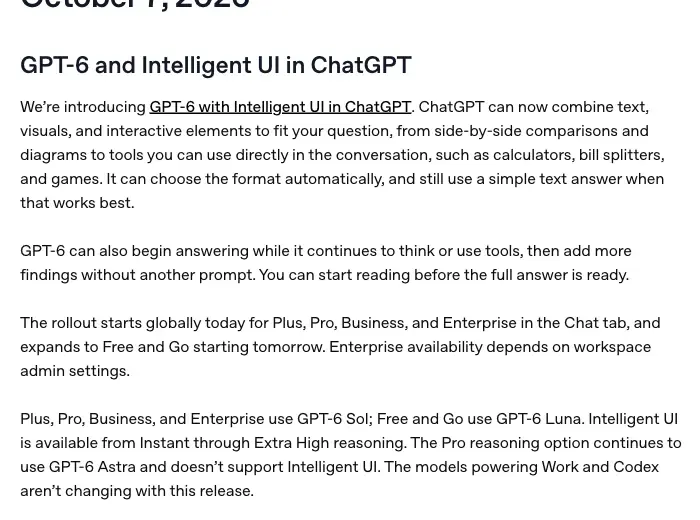
The same entry covers the rollout: “The rollout starts globally today for Plus, Pro, Business, and Enterprise in the Chat tab, and expands to Free and Go starting tomorrow. Enterprise availability depends on workspace admin settings.” And the model assignment: “Plus, Pro, Business, and Enterprise use GPT-6 Sol; Free and Go use GPT-6 Luna. Intelligent UI is available from Instant through Extra High reasoning. The Pro reasoning option continues to use GPT-6 Astra and doesn’t support Intelligent UI. The models powering Work and Codex aren’t changing with this release.”
There’s a second feature in the same release that gets less attention but matters in daily use. OpenAI says GPT-6 “can also begin answering while it continues to think or use tools, then add more findings without another prompt.” In other words, it starts replying before it has finished working and adds to the answer as it goes. OpenAI’s launch post says that for questions that need a web search, GPT-6 Instant starts answering 44% sooner on average than GPT-5.6 Instant. Read that number carefully. It’s about when the answer starts appearing, not how long the whole answer takes to finish.
OpenAI also says the audience is big: the launch post describes a new GPT-6 model “built for more than 1.2 billion people who use ChatGPT each week.”
Untangling the names: Astra, Sol, Luna and “GPT-6”
This is the part people are most confused about, and it isn’t their fault. OpenAI has released several things with GPT-6 in the name over about five weeks, and the new Chat rollout reuses two of those names.
The honest way to read it: “GPT-6” is the family, and Astra, Sol and Luna are different sizes inside it. Which size you get depends on your plan and where in ChatGPT you’re using it.
| Name | What it is | Where you meet it | Who |
|---|---|---|---|
| GPT-6 Astra | The top model of the family, launched in September | The Pro reasoning option in Chat; also ChatGPT Work and Codex | Pro, Business and Enterprise get “GPT-6 Pro” (Astra) in Chat; Plus and Pro get Astra in Work and Codex |
| GPT-6 Sol | The everyday GPT-6 for paid plans, tuned for conversation | The Chat tab from Instant through Extra High | Plus, Pro, Business, Enterprise (from Oct 7) |
| GPT-6 Luna | The everyday GPT-6 for free plans, tuned for conversation | The Chat tab | Free and Go (from Oct 8) |
| GPT-6.1 Sol | A separate option for agent work | ChatGPT Work and Codex only | Eligible paid plans |
| GPT-5.6 Sol / Terra / Luna | The previous generation | Still selectable; not retired by this rollout | Depends on plan |
Two cautions on that table. First, it comes from OpenAI’s help article “GPT-6 and other models in ChatGPT,” and the “who” column is as of this morning. Second, one thing worth knowing for the model menu: OpenAI says “in the model menu, GPT-6 replaces Latest,” and existing “Latest” selections move to GPT-6 at the same effort. You won’t see a picker full of Sol and Luna. You’ll see GPT-6, and which one powers it is your plan’s decision.
If you want the full September story of how Astra arrived, our GPT-6 tracker covers it. For the earlier plan-by-plan picture with GPT-5.6, see ChatGPT Plans in 2026.
A documentation conflict worth knowing about
Here’s something I noticed that I haven’t seen anyone mention. The October 7 launch post and the release note both say Free and Go get GPT-6 Luna. But the help article “GPT-6 and other models in ChatGPT,” which I opened this morning and which was marked “Updated: 6 hours ago,” still says in several places that Free and Go use GPT-5.6 Luna and that “GPT-5.6 Luna is becoming the default model for Free and Go users.”
My reading: the help article hasn’t fully caught up with the launch post, because the free rollout starts today. I can’t prove that. What I can say is that if you’re on Free and you see something that doesn’t match one page, it may match the other, and that’s not necessarily a bug on your end. OpenAI hasn’t said which page wins when they disagree; the launch post and release note, being the newer and more specific statements, are the ones I’d go with.
What Intelligent UI actually is
Here’s how OpenAI describes it: “We’ve trained GPT-6 to compose responses using text, visuals and interactive elements, choosing how they fit together based on your question.” And: “A comparison might work best side by side. An explanation might be easier to understand through an interactive diagram. And when a simple text answer is the most useful response, ChatGPT can give you that.”
The important phrase is “choosing how they fit together based on your question.” This is not a new mode you switch on. OpenAI’s help article says “no special prompt is required.” ChatGPT looks at what you asked and decides whether the answer deserves an interface.
OpenAI’s launch post demonstrates this with a handful of examples, and they’re a good map of what to expect.
Everyday planning. Ask for a plan for a Sunday lamb roast with friends, and the GPT-6 version of the answer in OpenAI’s demo includes a “How much should you buy?” section with a guest-count control. Change the number of people and the shopping quantities update. It also has a copy-shopping-list button and a cooking checklist timeline. The old version of the same demo (GPT-5.6) is a good text answer with a small table. That contrast is the whole pitch: the plan stops being something you read and becomes something you adjust.
Learning. The launch post shows interactive explanations for topics like the central limit theorem, “GDP explained simply,” the Monty Hall problem and drone photography, where you “explore how something works, change an input to see what happens, or work through a problem step by step.” A separate example breaks down a 7-speed bicycle into tappable parts (frame, wheels, drivetrain, brakes, cockpit).
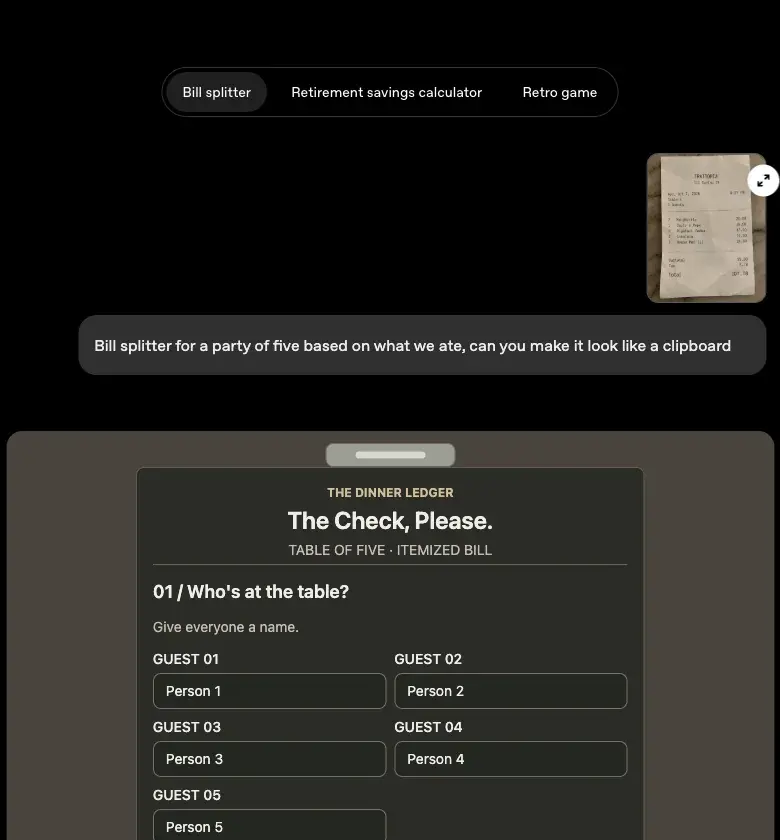
Tools you ask for. The third category is the one I find most useful. OpenAI says “you can also ask ChatGPT to create a tool for the task at hand, such as a calculator to explore how savings could grow, a bill splitter for dinner with friends, or a game you can play in the conversation.”

Press coverage adds a few more examples from the demos OpenAI gave reporters: recipe visuals, hiking maps, an airplane-wing lift explainer, and, per WIRED’s hands-on, an apartment-affordability calculator with income and expense sliders and an interactive seat map comparing aircraft layouts. TechCrunch’s Lucas Ropek attended an OpenAI demonstration. The Decoder summarizes the output as “interactive charts, forms, calculators, games.” As far as I could find, WIRED is the only outlet that has so far published a hands-on test, and it reads as a short qualitative try-out, not an accuracy audit.
How it works, in one paragraph
OpenAI says it built “a library of native, streamable components, along with a compiler that processes the interface as the model generates it.” Translation: ChatGPT isn’t drawing pictures or writing a mini website from scratch each time. It’s assembling screens from a set of building blocks OpenAI made in advance (sliders, buttons, charts, forms), and the screen appears piece by piece while the answer is still being written. That’s why the interface looks consistent from answer to answer and appears quickly. It also tells you something about the limits: ChatGPT can only build what the component library supports, and OpenAI admits “there’s still work ahead to improve the model’s design judgment and expand what it can create.”
Who gets what, and how to tell if you have it
Here’s the whole availability picture in one place, based on OpenAI’s release note and its two help articles.
A few details that decide whether you see it:
Where it works. OpenAI says Intelligent UI is “rolling out on the web and supported updated apps.” Update your mobile app to the latest version. The older ChatGPT desktop apps for macOS and Windows “do not support these capabilities; use ChatGPT on the web instead.” One early user on X complained it worked on iOS but not on their desktop; that matches OpenAI’s documented limit rather than being a mystery bug.
What reasoning level. It works from Instant through Extra High. It does not work with the Pro option. Be careful with the word “Pro” here, because it’s used two ways: a Pro subscription (the plan) and the Pro reasoning option (a level you can choose in the thinking slider). A Pro subscriber who leaves the thinking level on Pro won’t get Intelligent UI. Moving the slider down to Extra High, High, Medium or Instant gets it back.
What your plan includes. OpenAI’s help article lists which thinking levels each plan can pick. Plus has Medium and High but not Extra High. Pro, Business and Enterprise have Medium, High, Extra High and the Pro option. Free and Go are listed as “not included” at those levels, because they get Luna through Instant and a “Think” option instead. So the thing that varies by plan is how much thinking you can ask for, not whether the interface exists. The interface follows the model and the level.
The cost. None extra. The help article says: “Intelligent UI has no separate usage quota. Existing model, tool, and plan allowances still apply.” A free user will hit the same message limits as before. A chart doesn’t count against a separate chart budget.
How to check. Open a new chat on the web. Make sure GPT-6 is selected in the model menu, and the thinking level isn’t Pro. Then ask a question where an interface obviously helps. “Show me how a monthly savings plan grows if I change the amount.” If you get plain text, one of four things is probably true: your account hasn’t been reached yet, your app is out of date, you’re on the Pro level, or ChatGPT decided text was enough. Try a second, more obviously visual request before concluding you don’t have it.
How to use it: a walkthrough with one example carried all the way
You don’t need to learn anything new to use it, which is both the appeal and the trap. The real skill is asking for the right kind of interface and then checking what you got. Here’s the sequence I’d follow.
Step 1: Describe the outcome, not the layout
OpenAI’s own framing is that you “describe what you want to accomplish.” So don’t try to design the screen. State what you’re trying to decide. Compare these two requests:
- Weaker: “Make me a calculator with three sliders and a green chart.”
- Stronger: “I’m deciding how much to put into savings each month. Let me change the monthly amount, how many years, and the yearly return, and show me what I’d end up with and how much of it is my own money.”
The second tells ChatGPT the decision, the inputs you want control over, and the output you care about. The model chooses the components. That’s the design OpenAI trained it for.
Step 2: Look at the assumptions before the answer
This is the habit that matters most. When ChatGPT builds a calculator, it makes choices you didn’t specify: when deposits happen, whether returns compound monthly or yearly, whether fees and inflation are in or out. OpenAI’s own retirement demo shows the right behavior. At the bottom it states: “Assumes monthly deposits at the end of each month and a constant return compounded monthly. Actual investments fluctuate, and this illustration excludes fees and inflation.” If the tool you get doesn’t show its assumptions, ask for them: “List every assumption this calculator makes.”
Step 3: Run the example once, then change the inputs
I’ll use OpenAI’s own example, because I can check it. The demo shows a $500 monthly contribution, 30 years, and a 5% annual return, with a projected balance of $416,129, split into $180,000 of your contributions and $236,129 of investment growth.
Is that right? I recalculated it. Deposits of $500 at the end of each month for 360 months at 5% a year compounded monthly give $416,129.32. And 360 × $500 is exactly $180,000, which leaves $236,129 of growth. The demo’s arithmetic checks out under the assumptions it states. In a spreadsheet, the check is one cell: =FV(0.05/12, 360, -500).
Now change the inputs the way the sliders let you, and compare against your own calculation. Here are the results I computed for the same assumptions:
The pattern you should see when you drag a slider: contribute 25% more a month and you end up with about 25% more at the end (the relationship is linear), but add five years instead and the result jumps by a bigger percentage, because compounding has longer to work. With the same $500 a month at 5%: 25 years gives $297,755, 30 years gives $416,129, 35 years gives $568,046. Drop the return to 3% and 30 years gives $291,368; raise it to 7% and you get $609,985. If your interactive tool disagrees with these numbers under the same assumptions, something is off, and now you know to ask what.
Step 4: Ask it to show the work
A well-built calculator can state its formula. Ask: “What formula is this using? Write it out with my current slider values plugged in.” Compare that to the textbook formula. If it can’t or won’t, treat the output as an illustration, not a figure to act on.
Step 5: Move it to a spreadsheet when the stakes are real
For a one-off “what if,” the in-chat tool is great. For anything you’ll act on (a loan, a quote, a budget you’ll share), rebuild the calculation in a spreadsheet or a tool whose formulas you can read. We walk through exactly that in our small-business guide, ChatGPT Can Now Build You a Working Calculator.
Eight things worth trying first
These are my suggestions based on OpenAI’s own demo categories, not tested results. Use them as starting points and tell ChatGPT to show its assumptions.
- A plan that scales with a number you don’t know yet. “I’m hosting dinner for somewhere between 6 and 10 people. Plan the menu and let me change the guest count to update the shopping list.”
- A savings or loan what-if. “Let me change the monthly amount, the number of years, and the interest rate, and show me the total I’d pay or end up with. State your assumptions.”
- A bill splitter. “Split this dinner bill among five people based on what each of us ordered, including tax and a 20% tip.” (OpenAI’s demo starts from a receipt photo. For the tip arithmetic, a $187.50 check plus 20% is $225.00, or $45.00 each if split evenly, which gives you a quick sanity check on any splitter.)
- A side-by-side comparison. “Compare these two phone plans side by side for someone who uses about 15 GB a month and travels twice a year.”
- A concept you’re stuck on. “Explain the Monty Hall problem interactively so I can try switching and not switching and see the results.”
- A trip map. “Plan a three-day hike with stops on a map, and flag which days are hardest.”
- A study aid. “Make me an interactive diagram of the parts of a cell where I can tap each part to see what it does.” (Our back-to-school study guide covers the earlier STEM-visuals feature that this builds on.)
- A small game for a break. “Make a quick memory-matching game I can play right here.” It’s the one use case where accuracy doesn’t matter, which is exactly why it’s a safe way to get a feel for the interface.
Controlling how visual it gets
Some people will love this and some will find it noisy. OpenAI gives you a partial brake.
On the web, open Settings and turn off Layout and visuals. OpenAI’s help article says this reduces visual elements, but with an important qualifier: “Some visual elements may still appear; this setting does not switch the entire answer experience to a classic or text-only mode.” It also notes that “changes to a conversation’s appearance don’t change your other chats.”
So you have three levers, none of them a hard off switch:
- The Layout and visuals toggle on the web (reduces, doesn’t remove).
- The thinking level: choosing Pro, where the feature doesn’t apply, effectively avoids it, but only if your plan has Pro and you want that trade.
- Your wording: asking for “a short text answer” is ordinary prompting. OpenAI doesn’t list it as a documented control, so I’d treat it as something to try, not something to rely on.
The launch post says ChatGPT can “still use a simple text answer when that works best,” so a lot of everyday questions will keep looking the way they always did.
How it compares: Claude Artifacts, Gemini, and the free-AI see-saw
People keep asking whether this is “just Artifacts.” The honest answer is: related idea, different design. The Perplexity pass I ran compared the three using the vendors’ own descriptions.
| ChatGPT Intelligent UI | Claude Artifacts | Gemini “Neural Expressive” | |
|---|---|---|---|
| What it’s for | Shaping the answer itself into text, visuals, controls and small tools | Creating an editable, reusable thing (a dashboard, document, small app) beside the chat | A redesign of the Gemini app’s look and richer responses, announced at I/O in May 2026 |
| How it’s built | A library of native components plus a streaming compiler | Real code you can inspect, copy and share | Google describes the design language and capabilities, not an equivalent architecture |
| Can you inspect or export it? | OpenAI’s launch materials don’t describe code export or sharing | Yes, per Anthropic’s documentation | Not described as a reusable-artifact workflow |
| Appears automatically? | Yes, ChatGPT decides per question | You typically ask for an artifact | Part of how responses look |
Two fair conclusions. First, if you want something you can keep, edit and share as a standalone thing, Artifacts is the more documented route today, and inspectable code gives you something to audit. Second, if you want ChatGPT to simply answer better inside the chat without managing a separate object, Intelligent UI is aimed at exactly that. On Reddit, the first reaction was “so ChatGPT is finally introducing artifacts?” and the first reply was “not the same thing.” That’s about right. One caution from the research: inspectable code isn’t automatically correct code, so neither route removes the need to check the math.
The October 9 see-saw
The timing is a coincidence, but it’s a useful one. On October 9, Google’s free Gemini app drops to a single model, Flash-Lite, as we explained in Is Gemini Still Free? What Changes Oct 9. On October 8, OpenAI’s free ChatGPT gets GPT-6 Luna and interactive answers. If you used free Gemini as your main assistant, it’s a good week to spend 20 minutes running the same three real tasks in both and seeing which one you’d actually keep open. Don’t decide from launch-day demos. Both companies’ demos are their best examples.
What this means for you
If you’re on the Free or Go plan. You get GPT-6 Luna, and the interactive answers, starting today, at your usual message limits. Check the web version first (the model menu and a visual request, as in the diagnosis flow above). Don’t be surprised if your account lags a day. Use it for planning, comparing and learning tasks first. First action: ask for a what-if tool for something you’re actually deciding this week, and read the assumptions it shows.
If you’re on Plus. You’re on GPT-6 Sol with Medium and High thinking, not Extra High, per OpenAI’s plan table. That’s fine for the interface; it works from Instant up. First action: update your apps, and if you use the desktop app, confirm it’s a current version or switch to the web for this.
If you’re on Pro. Watch the Pro reasoning option. It uses Astra and doesn’t render Intelligent UI. If you want the interactive answers for a task, drop to Extra High for that chat. First action: try the same question at Extra High and at Pro and note which output you’d rather have.
If you’re a student or teacher. Interactive explanations are the obvious fit, and they’re easy to overtrust. A diagram can be tidy and wrong. First action: pick a concept you already know well, ask for the interactive version, and see whether it explains it correctly before you use it on something you don’t know.
If you run a small business or freelance. The “build me a calculator” use is the most practical part, for break-even, pricing and quotes. It’s also where hidden assumptions cost money. First action: read our small-business guide to building a calculator before putting a real number in front of a customer.
If you’re on a Business or Enterprise workspace. Availability “depends on workspace admin settings,” so the person who manages your workspace may need to enable it. OpenAI says Business, Enterprise, Edu and API inputs aren’t used to improve its models by default. Individual plans can be, unless you opt out. First action: ask your admin whether GPT-6 and the new controls are on for your workspace.
If you publish calculators or converters online. Search Engine Journal pointed out that tools built into ChatGPT could reduce traffic to standalone calculator and converter sites. That’s a prediction, not data. First action: look at how much of your traffic is a single-input tool and make sure those pages offer something a chat tool can’t, like verified formulas or saved results.
Edge cases and troubleshooting
These come from OpenAI’s help documentation and from what early users reported on X and Reddit in the first 48 hours. The community reports are early and thin, so I’ve marked where I’m relying on one person’s post.
“I don’t have GPT-6 at all.” The most common problem on day one. Paid tiers began October 7, Free and Go on October 8, and OpenAI says rollouts are gradual. Update the app, reload the web version, and check the model menu again later. If you’re on a managed workspace, an admin setting may be the reason.
“I have GPT-6 but get plain text.” Three possible causes: you’re on the Pro reasoning option, ChatGPT judged text was enough, or the feature hasn’t reached your account. Move the thinking level off Pro and ask something clearly visual (“show me how X changes as I change Y”).
“It works on my phone but not on my computer.” Per OpenAI, older macOS and Windows desktop apps don’t support it. Update the app, or use ChatGPT in a browser. One X user hit exactly this on October 7.
“I can’t turn the visuals fully off.” Documented behavior. The Layout and visuals toggle reduces them but doesn’t switch to a text-only mode. It’s also web only in the help article.
“The names don’t match what I see.” Expect that for a few days. The model menu says GPT-6, the help article still has GPT-5.6 Luna references for free plans, and the Pro reasoning option is a different model (Astra) from the one powering the other levels. A Reddit commenter who got GPT-6 on Android and the desktop app but not the web version suggests the rollout order varies by platform too. That’s one report, but it fits “gradual rollout.”
“My numbers look wrong.” Don’t trust a plausible-looking result. Ask for the formula and assumptions, recalculate the same inputs in a spreadsheet, and test an edge case (zero contribution, zero interest). The calculator section above walks through it. In the first 48 hours I found no verified report of a wrong calculation from Intelligent UI. Absence of reports this early is not evidence of accuracy.
“The test version I had last week looked different.” A few Reddit commenters said they had seen interactive diagrams and cards during an earlier limited test and then lost them when it ended. That’s anecdotal, and OpenAI hasn’t commented. Whatever you saw then, the October 7 release is the supported version.
“Do I have to worry about my data?” The interface doesn’t change OpenAI’s data rules, but the rules are worth knowing. Individual Free, Plus and Pro accounts can have conversations used to improve models unless you turn off “Improve the model for everyone” in Settings under Data controls. Business and Enterprise workspaces don’t, by default. And if you give thumbs up or down on a response, the whole conversation may be used even if you’ve opted out. A Temporary Chat isn’t used to improve models while it stays temporary, and OpenAI may keep a copy for up to 30 days for safety. We cover that feature in ChatGPT’s Temporary Chat explained.
What it can’t do
Being honest about limits is where I think most of the coverage is thin.
It can’t be assumed accurate. OpenAI’s launch post says GPT-6 is “better at recognizing and communicating the limits of its own capabilities,” but nothing published says the generated calculators were checked against reference answers. The independent research is cautious: a study of generated spreadsheet formulas concludes they can’t be assumed trustworthy, and a clinical-calculator paper found that when a chatbot called verified calculators, errors in the calculation itself disappeared, but accuracy still wasn’t 100% because the model could pick the wrong calculator or misread the question. None of those studies tested GPT-6’s Intelligent UI. They tell you where the risk lives, not how big it is for this feature.
It can’t be turned into a standalone thing you publish. OpenAI’s materials describe in-chat interfaces. They don’t describe exporting a tool as a shareable app the way Claude Artifacts documents code you can copy and share. If you need a reusable tool, expect to recreate it elsewhere.
It can’t run at the Pro reasoning level or in Work and Codex. Those are explicit exclusions, so complex agent-style tasks don’t get the interface in this release.
It isn’t a text-only toggle either way. You can reduce visuals, not remove them, and you can’t force them on for every answer.
It isn’t finished. OpenAI itself says “there’s still work ahead to improve the model’s design judgment and expand what it can create.” Expect some answers to be over-designed and some questions that deserve a chart to get a paragraph.
FAQ
Is GPT-6 free in ChatGPT? Yes, in the sense that Free and Go plans start getting GPT-6 Luna in the Chat tab on October 8, according to OpenAI’s release note, at your normal plan limits. The rollout is gradual, so your account may see it later than the date.
Is the free GPT-6 the same as what paid users get? No. Paid plans use GPT-6 Sol; Free and Go use GPT-6 Luna. OpenAI says both are “tuned for everyday conversation,” but it doesn’t publish a head-to-head comparison between them. The Pro reasoning option uses a third model, Astra.
What’s the difference between GPT-6 and Intelligent UI? GPT-6 is the model. Intelligent UI is the ability, built into that model, to answer with interactive screens (charts, forms, calculators, diagrams, games) rather than only text. You can’t get Intelligent UI on the older models.
Why don’t I see interactive answers? Likeliest reasons: your account hasn’t been reached, your app is old (especially the macOS and Windows desktop apps), you’re on the Pro reasoning option, or ChatGPT decided plain text was best. Try the web, a lower thinking level, and a clearly visual question.
Does Intelligent UI cost extra or use my limits faster? OpenAI says it has no separate usage quota and that your existing model, tool and plan allowances apply. It does not say how a richer answer compares in limit use to a plain one, so I can’t tell you.
Can I turn it off? You can reduce it. On the web, Settings has a “Layout and visuals” toggle, but some visual elements may still appear, and it isn’t a classic text-only mode.
Are the calculators ChatGPT builds accurate? Sometimes, and OpenAI’s own retirement demo checked out when I recalculated it. But no published audit shows how often they are, so verify anything you’ll act on. Ask for the formula and assumptions, recompute in a spreadsheet, and test an edge case.
Is it safe to type real financial numbers into it? That’s a separate question from whether the interface is accurate. On personal plans, your conversations can be used to improve models unless you opt out, and OpenAI hasn’t described a local-only guarantee for numbers entered into a generated widget. For client or customer data, use an approved workspace or anonymize first.
Is this the same as Claude Artifacts or Gemini’s new look? Related, not identical. Artifacts creates an editable object you can inspect and share. Gemini’s Neural Expressive is a design and response redesign. Intelligent UI shapes the answer inside the chat using OpenAI’s own component library.
What happened to GPT-6 Astra? It’s still there. Astra powers the Pro reasoning option in Chat for eligible plans and is available in Work and Codex. It just doesn’t support Intelligent UI.
The bottom line
The practical change for most people is smaller than the launch videos suggest and bigger than “a nicer chart.” For the first time, an answer in free ChatGPT can be something you adjust, such as a number you slide, a plan that rescales, or a diagram you tap. That’s a real improvement for planning, comparing and learning. It’s also exactly the kind of thing that looks authoritative whether or not it is.
So here’s the plan I’d follow this week. Check you have it on the web. Try two or three of the prompts above on something low-stakes. Make a habit of reading the assumptions line and checking one number independently. And keep the old rule: a tidy interface isn’t evidence of a correct answer.
If you want to get better at the part that matters, asking clearly and checking what comes back, our AI Fundamentals course and Prompt Engineering course are the places to start, and ChatGPT for Business covers the work-specific side.
Sources
- OpenAI, “GPT-6 and Intelligent UI for everyone” (October 7, 2026)
- OpenAI Help Center, “ChatGPT release notes”
- OpenAI Help Center, “GPT-6 and other models in ChatGPT”
- OpenAI Help Center, “How your data is used to improve model performance”
- OpenAI Help Center, “Temporary chat in ChatGPT”
- TechCrunch, “ChatGPT is getting a lot more visual, with the launch of a new interface”
- WIRED, “The New ChatGPT Is More Show Than Tell”
- The Decoder, “ChatGPT with GPT-6 ditches mostly text output for interactive UI”
- Search Engine Journal, “ChatGPT Gets GPT-6 And Intelligent UI For Interactive Answers”
- TestingCatalog, “OpenAI rolls out GPT-6 with Intelligent UI in ChatGPT”
- 9to5Google, Gemini app and Neural Expressive (May 19, 2026)
- Anthropic Help Center, “What are artifacts and how do I use them?”
- arXiv, “Understanding and Evaluating Trust in Generative AI and Large Language Models for Spreadsheets”
- arXiv, “An LLM-Powered Clinical Calculator Chatbot Backed by Verifiable Clinical Calculators”
