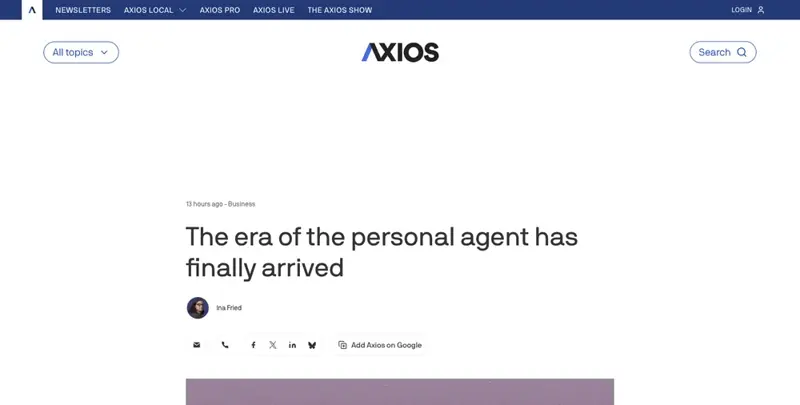
Four of the biggest companies on earth spent this week racing toward the same finish line: an AI that knows your whole life well enough to act on it without being asked twice. OpenAI, Meta, xAI, and Apple all shipped or expanded a “personal agent” in the span of about six weeks, and on September 20, 2026, Axios ran a piece that named what’s actually happening — a fight to become “the keeper of your personal information and data.” Nobody’s arguing about that framing. What’s missing is the boring, useful part: what does each one actually read, where does it go, and what’s the real off switch.
That’s this post. Not another “best AI assistant” ranking — you can find twelve of those already, and we’ve written our own take on which AI assistant to pick for daily use and the best one specifically for iPhone. This is the trust audit nobody publishes: a plain map of what ChatGPT, Google Gemini, Apple’s new Siri AI, and Meta’s Muse each read from your messages, mail, and photos, whether that happens on your device or on someone else’s server, and the exact settings that change it.
What just changed
Up until pretty recently, “AI assistant” mostly meant a chat window. You typed a question, it answered, the conversation ended, and whatever it remembered about you was thin — maybe your name, maybe a preference you’d repeated a few times.
That’s not the product anymore. The new pitch, across every major lab, is a persistent digital proxy — something that sits alongside your inbox, your calendar, your messages, and your photo library, and does things on your behalf instead of just describing how. Axios’s reporting on September 20 laid out the shape of it: OpenAI reportedly hired the creator of a project called OpenClaw specifically to push its next generation of personal agents. A startup called Instinct — which connects directly to your email, messages, screen activity, and even location, then proactively texts or calls you — is reportedly in talks for a $10 billion valuation. xAI launched Grok Bot in August 2026, giving agents their own cloud computers so they can sign into your apps and keep working while you’re asleep. And Meta’s Muse brought the whole idea to a mainstream audience with a polished app and deep integration into an ecosystem three billion people already use daily.
Apple joined from a different angle. Its rebuilt Siri — which Apple is calling Siri AI — shipped in beta on September 14, 2026, built on a custom 1.2-trillion-parameter model developed with Google’s Gemini 2.5 Pro, run through Apple’s Private Cloud Compute architecture. It’s the biggest change to Siri in fifteen years, and the pitch is nearly identical to everyone else’s: a “Personal Context” layer that can read your emails, messages, files, and photos to get things done.
So here’s the term you’ll see everywhere in this piece: personal context. Different companies brand it differently — Apple calls it Personal Context, Google calls its version Personal context too (yes, same name, different product), Meta just calls it “what Muse can access” — but the mechanism is the same across all four. The assistant is no longer answering from a blank slate. It’s reading a slice of your actual digital life first, then answering or acting based on what it finds.
None of that is inherently bad. A tool that can actually pull the flight details out of an email instead of making you copy-paste them is genuinely useful. But “useful” and “worth the access you’re granting” are two different questions, and right now almost nobody is answering the second one clearly. Let’s fix that, one assistant at a time.
What each assistant actually reads — and where it goes
Before the comparison table, you need the actual mechanics. This is the part that gets skipped in every launch-day writeup, because “it reads your files now” is a headline and “here’s precisely which files, processed where, with what off switch” is a service piece. We’re doing the service piece.
ChatGPT: Memory plus connectors, all server-side
OpenAI hasn’t given its personal-context layer a single branded name the way Apple and Google have — it’s built out of two separate features that add up to the same thing. Memory lets ChatGPT reference things you’ve told it in past conversations (your job, your writing style, ongoing projects) without you repeating yourself. Connectors let you link ChatGPT directly to services like Gmail, Google Calendar, and Google Drive, so it can search, read, and in some cases act on what it finds there.
Here’s a detail worth sitting with: X users tracking this space noted in mid-September that ChatGPT and Claude can already connect to Gmail and apply filters, sort, send, and delete on command — real inbox actions, not just reading. Gemini, even the Gemini panel built directly into Gmail, couldn’t do that yet as of this research. It’s a small thing, but it flips the assumption most people carry, which is that Google’s tools must be furthest along inside Google’s own products. Not necessarily true right now.
Everything ChatGPT reads through Memory or Connectors is processed on OpenAI’s servers — there’s no on-device option, no local processing tier. If you want the deeper walkthrough of what happens to a ChatGPT conversation specifically (training defaults, the 30-day deletion window, legal privilege — there isn’t any), we already wrote that one: is ChatGPT actually private? covers it end to end. This post treats ChatGPT’s personal-context layer as one comparison point among four, not the whole story.
Google Gemini: on by default, and a name collision with Siri
Gemini’s version of this is called Personal context, and here’s the detail that catches people off guard: it’s on by default. You didn’t opt in. Somewhere along the line, Google decided most users would want Gemini remembering past conversations to personalize future answers, and flipped the switch to “on” before you ever touched a settings menu.
Turning it off is simple once you know where to look: open the Gemini app, go to Settings, find Personal context, and toggle it off. Separately, if you’ve connected other Google apps — Gmail, Calendar, Photos — those live under Connected Apps in the same settings area, and you can review or revoke each one individually. Turning off Personal context doesn’t automatically disconnect those apps; they’re two different dials.
Now, the part that genuinely confuses people, including us the first time we mapped this out: Siri on iPhone now runs on a Gemini model, but that is not the same thing as using the Gemini app. Apple’s Siri AI is built on Gemini 2.5 Pro under a custom Apple-Google arrangement, but every request goes through Apple’s own Private Cloud Compute pipeline first — not through Google’s Gemini app infrastructure, and not subject to Google’s Personal context setting at all. Turning off Personal context in the Gemini app does absolutely nothing to what Siri AI does on your iPhone, and turning off Siri AI does nothing to your Gemini app account. They share a model architecture. They do not share a privacy control panel, a data pipeline, or a company’s promises about what happens to your data. Treat them as two completely separate products that happen to use similar underlying AI — because that’s exactly what they are.
Apple Siri AI: request-driven, hybrid processing, one big switch
Siri AI’s access, per Apple’s own materials, covers Messages, Mail, Photos, Calendar, Notes, and Reminders, plus whatever’s currently on your screen. Apple’s documentation is specific about the shape of that access: it’s request-driven retrieval, not continuous background reading. Ask Siri to recall that your sister suggested a recipe, and it searches Messages and Mail for that specific thing when you ask — it isn’t parsing every message you send in real time, watching for keywords, the way that sentence might make it sound.
Where the processing happens depends on the task. Simple stuff — recalling a fact you told it earlier, basic on-screen actions — can run entirely on-device. Heavier reasoning gets routed to Apple’s Private Cloud Compute (PCC) servers, and this is where Apple makes its biggest privacy claim in writing: “When Private Cloud Compute is handling users’ requests, their personal data is not stored nor made accessible to Apple or anyone else.” That’s a direct quote from Apple’s own materials, not a paraphrase — and it’s worth remembering it’s an architecture promise, not something you or I can independently verify from the Settings app.
Worked example, because this is where it gets concrete: you say, “Siri, email me that recipe my sister sent.” Here’s roughly what happens. Siri AI first checks what “my sister” resolves to — a contact match, likely handled on-device. It then searches Messages and Mail for a conversation matching “recipe” from that contact, which may involve PCC if the search requires deeper reasoning across your message history rather than a simple keyword hit. Once it finds the recipe, it drafts a new email — through the Mail app, using your account — and, per Apple’s design, shows you the draft or asks for confirmation before sending anything, rather than firing it off silently. The recipe text itself, plus the metadata about who sent it and when, passes through Apple’s cloud pipeline for that search step. It is not, per Apple’s stated architecture, retained there afterward.
Now, how to turn this off. There is no menu item labeled “stop Siri from reading my Mail” separate from “stop Siri from reading my Messages.” Apple doesn’t document a per-source toggle at all — the only clean way to shut off the entire personal-context layer is the master switch: Settings → Siri → scroll down → Turn Off Siri → Confirm Turn Off Siri. Want the old assistant back instead of no assistant at all? Turn Siri off, then turn it back on and choose Siri Classic from the option that appears. That gets you voice commands and basic requests without any of the Messages/Mail/Photos reading.
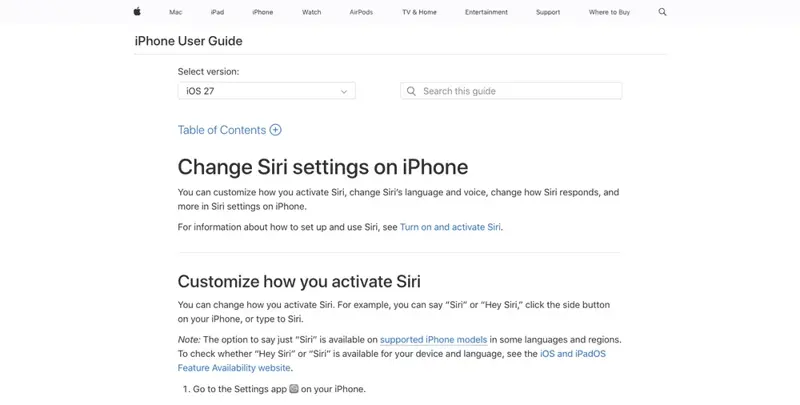
If full shutdown feels extreme, Apple does offer several granular toggles that limit specific AI behaviors without killing Siri entirely:
- Message summaries: Settings → Apps → Messages → Summarize Messages: Off
- Mail preview summaries: Settings → Apps → Mail → Summarize Message Previews: Off
- Personalized Smart Replies in Mail: Settings → Apps → Mail → Personalize Smart Replies: Off
- Notification summaries: Settings → Notifications → Summarize Notifications: Off
- Priority notifications: Settings → Notifications → Prioritize Notifications: Off
- Phone Call Context cards: Settings → Apps → Phone → Apple Intelligence & Siri → Show When Calling
- Screen Time restrictions: choose between Siri AI (Beta), Siri Classic, or Don’t Allow Siri — plus the option to block Broad World Knowledge, Writing Assistance, or sensitive-topic responses entirely
None of those individually stop Siri AI from reading your Mail when you directly ask it to do something with your Mail. They limit the ambient stuff — summaries showing up uninvited, notifications getting rewritten — not the core personal-context retrieval that fires when you make a request. That distinction matters more than it sounds like it should, and we’ll come back to it in the “what this can’t fix” section below.
Meta Muse: broadest reach, opt-in framing, and a mailbox nobody’s fully explained yet
Muse started as a mobile and WhatsApp-based agent. On September 17, 2026, Meta shipped a Mac build, and per TechCrunch’s reporting the next day, the desktop version can now work directly with files, messages, calendar, notes, and mail — inside their native macOS apps. Meta’s stated guardrail, quoted directly to TechCrunch: “you’re in control of what it can access, and it always asks before doing anything sensitive.”
That’s a real commitment, and it’s more explicit than what some competitors put in writing. It’s also, as of this writing, unverified by anyone outside Meta — “it always asks” is a design promise, and design promises get walked back or quietly loosened after launch more often than anyone likes to admit.
The detail that deserves real scrutiny: TestingCatalog reported on September 18, 2026, that Meta is building a dedicated Mail tab for Muse — essentially a mailbox interface built for the AI agent itself. What’s genuinely unclear, and what TestingCatalog was careful not to overstate, is whether this is a way to browse your existing connected email inside the Muse interface, or whether Muse is getting its own independent inbox that could send and receive on your behalf as a semi-autonomous identity. Those are very different things from a trust standpoint, and Meta hadn’t clarified which one it is at the time this piece was written.
There’s a trust layer here that’s specific to Meta and worth naming honestly, because pretending it isn’t real would be dishonest. Public reaction online has been notably split along company lines — plenty of people say outright that they trust Meta with their accounts and personal information less than they trust OpenAI or Apple, simply because of who’s asking. And the uncomfortable follow-up point being raised alongside that: most average consumers will likely use Muse anyway, mostly out of familiarity and convenience rather than genuine confidence in Meta specifically. That asymmetry is real. Meta’s history with Cambridge Analytica and repeated EU privacy fines means it’s starting this particular race with a trust deficit that Apple, whatever its own flaws, doesn’t carry in the same way. We covered Muse’s launch mechanics and broader trust profile in more depth in our full Meta Muse review if you want the complete picture beyond privacy specifically.
Muse runs on Meta’s own infrastructure — each user gets a dedicated cloud instance (Meta calls it a Secure VM) that keeps working even after you close the app, which is how it can monitor a flight price for days without you having the app open. There’s no on-device processing tier documented for Muse at all; everything routes through Meta’s servers, full stop.
The comparison, side by side
Here’s the whole picture in one table. This is built directly from what’s documented above — no estimates, no filler numbers.
| Assistant | What it reads | Where it’s processed | How to limit or turn it off |
|---|---|---|---|
| ChatGPT (Memory + Connectors) | Past chat history (Memory); Gmail, Calendar, Drive if you connect them | Server-side only — OpenAI’s infrastructure, no on-device option | Settings → Personalization → Memory (off); disconnect individual connectors under Connected Apps |
| Google Gemini (Personal context) | Past Gemini conversations by default; connected Google apps (Gmail, Photos, etc.) if enabled | Server-side — Google’s infrastructure | Settings → Personal context → toggle off; manage each connection separately under Connected Apps |
| Apple Siri AI (iOS 27 beta) | Messages, Mail, Photos, Calendar, Notes, Reminders, on-screen content — request-driven, not continuous | Hybrid: on-device for simple tasks, Private Cloud Compute for deeper reasoning (Apple: data “not stored nor made accessible to Apple or anyone else” during PCC processing) | No per-source toggle exists. Master switch only: Settings → Siri → Turn Off Siri, or revert to Siri Classic. Partial limits via Messages/Mail/Notification summary toggles |
| Meta Muse | Files, messages, calendar, notes, mail (Mac app); plus web actions like bookings, purchases, forms | Server-side — runs on a dedicated per-user Secure VM in Meta’s cloud, no on-device option | Review and revoke app connections in Muse settings; scrutinize the Mail tab closely once it ships; Meta states it “always asks before doing anything sensitive” |
A few things jump out once it’s laid side by side like this. Apple is the only one of the four with a documented on-device processing tier for any part of the pipeline — though it’s a hybrid, not a pure on-device system, and the heavier lifting still leaves your phone. Google is the only one that ships its personal-context feature turned on without asking first. And Apple is also the only one where there’s genuinely no way to say “read my Photos but not my Mail” — you get everything or the master switch.
What this means for you
Pick the profile closest to your situation and start with the one concrete action listed. You can layer on more later.
If you’re on iPhone and skeptical of Google’s involvement: the fact that Siri AI runs on a Gemini model under the hood might be a dealbreaker for you even with Apple’s Private Cloud Compute promises layered on top. Your cleanest move isn’t fighting the settings menu — it’s using iOS 27’s new Extensions framework to make ChatGPT or Claude your default assistant inside Siri and Writing Tools instead, or reverting to Siri Classic entirely (Settings → Siri → turn off, then back on, choose Siri Classic). You lose the personal-context conveniences, but you also lose the Gemini dependency.
If you already trust Meta’s ecosystem and use WhatsApp daily: Muse’s integration into an app you already have open all day is a real convenience, and there’s nothing wrong with using it. Your first action should be reviewing exactly which app connections you’ve granted it in Muse’s settings, right now, before the Mail tab ships — because once that feature lands, you’ll want to have already thought through whether you’re comfortable with it, instead of clicking “allow” reflexively in the moment.
If you want maximum privacy and don’t mind losing some convenience: none of the four assistants in this piece are for you, honestly. Your real move is looking at local, on-device AI — models that run entirely on your own hardware with zero cloud round-trip, which is a genuinely different privacy category from anything Apple, Google, OpenAI, or Meta currently offer. Our Local AI & Privacy course walks through setting that up with tools like Ollama and LM Studio, no cloud account required.
If you’re a professional handling client data — legal, medical, financial, HR: treat all four of these as off-limits for anything containing real client information, regardless of on-device claims or Private Cloud Compute promises. Architecture claims aren’t audits, and “processed on-device” doesn’t mean the same thing as “compliant with your industry’s confidentiality obligations.” Your first action: write down, today, the specific categories of information you will never paste, dictate, or connect to any of these tools — before a deadline pressures you into skipping the thought entirely.
If you’re already deep in Google Workspace for work: Gemini’s default-on Personal context is probably already active on your account, quietly building a profile from conversations you didn’t realize were being retained for that purpose. Your first action is a two-minute audit: open Gemini settings, check Personal context, decide deliberately whether to keep it on, and separately review your Connected Apps list for anything you forgot you’d linked.
If you manage a shared device or a household with kids: Siri AI’s Screen Time integration is your friend here — it lets you choose Siri Classic or “Don’t Allow Siri” per profile, and separately block categories like Broad World Knowledge or sensitive-topic responses. Your first action: set this up per family member before handing anyone a device running iOS 27, not after something surprising shows up in a summary notification.
If you’re mostly fine with the tradeoff and just want convenience: that’s a reasonable place to land, genuinely — but know precisely what “opting out” buys you before you decide you don’t need it. Turning off Memory or Personal context stops future use. It does not un-train a model that already learned from your past conversations, and it doesn’t undo anything already stored before you flipped the switch. Go in with clear eyes rather than assuming “I turned it off” means “it’s like I never used it.”
Edge cases and things that trip people up
Siri AI’s Gemini dependency isn’t separable, at least not yet. Because the beta’s language understanding is built on the Gemini 2.5 Pro foundation, you can’t keep Siri AI’s smarter conversational ability while somehow excluding the underlying model — it’s baked into the beta as one package. Your only real lever is the binary one: keep Siri AI (Gemini-powered, with personal context) or switch to Siri Classic (the older assistant, without it).
Gemini’s default-on Personal context genuinely surprises people, and it’s not a fringe complaint. Google’s own support forum has an active thread titled “Personal Context is on but I cannot turn it off,” from users who expected an opt-in model and got something already running. If a setting ships enabled without a clear announcement, most people never learn it exists until something makes them go looking — which is exactly what happened here.
Meta’s Mail tab raises the identical access question all over again, before it’s even shipped. Whatever conclusion you reach about Muse’s current Mac permissions, the Mail tab is a fresh decision point, not an extension of a decision you’ve already made. Treat it as its own on/off choice when it arrives instead of assuming your existing settings already cover it.
The WhatsApp integration means Muse shows up inside a window you associate with family and friends, not with an AI company. That’s a design choice with a real consequence: people type things into WhatsApp on autopilot, in the exact chat interface where Muse now lives, in a way they might not if it required opening a separate, clearly-labeled AI app first.
Siri AI’s beta has real access limits worth knowing before you go looking for it. As of this piece, it’s English-only, requires opting in through Settings (often via a waitlist), and only runs on iPhone 15 Pro, 15 Pro Max, or iPhone 16 and later. If you don’t see it, that’s likely why — not a bug on your end.
What this can’t fix
Be honest about the limits here, because every one of these companies has an incentive to let you believe a toggle solves more than it does.
There’s no per-source toggle on Siri AI. You cannot tell it “read my Photos but never touch my Mail.” It’s the master switch or nothing — a genuinely coarse control for a feature that touches six different categories of your life.
“Processed privately” doesn’t mean “anonymous” when the content is inherently identifying. A recipe from your specific sister, sent on a specific date, referencing your specific upcoming trip — none of that becomes generic just because it’s routed through a privacy-preserving architecture. Small, personal, identifiable content stays identifiable no matter how it’s transmitted.
Turning off training doesn’t retroactively erase what already happened. If a system used your data to train a model before you opted out, that use already occurred. The setting stops future collection. It does not reach backward and un-train anything.
You’re trusting an architecture claim you cannot personally verify. Apple’s Private Cloud Compute promise — data “not stored nor made accessible to Apple or anyone else” — and Meta’s “it always asks before doing anything sensitive” line are both real, specific, quotable commitments. They are also not something you can check yourself from the Settings app. You’re taking the company’s word for the design working as described, same as you always have been with any cloud service.
None of these carry legal privilege, and that never changes no matter which one you pick. A conversation with your doctor or lawyer is protected. A request to any of these four assistants is not — a detail OpenAI’s own CEO has acknowledged publicly regarding ChatGPT, and there’s no reason to assume the other three are different on this point. Nothing in this space today changes that fact.
FAQ
Does turning off Siri AI delete what it already learned? No. Apple’s on/off switch controls whether Siri AI keeps operating going forward — it isn’t documented as a deletion tool for prior interactions. If you want data actually removed, that’s a separate action from disabling the assistant.
Is Gemini in Gmail the same thing as Gemini’s personal context setting? No, and this trips people up constantly. Personal context is a setting inside the standalone Gemini app governing what it remembers across conversations. The Gemini panel built into Gmail is a separate integration with its own, more limited capabilities — as of this research, it couldn’t yet perform inbox actions like filtering or deleting messages the way ChatGPT and Claude’s Gmail connectors can.
Can I use ChatGPT or Claude instead of Siri on my iPhone? Yes. iOS 27’s new Extensions framework lets you pick ChatGPT, Google Gemini, or Claude as your preferred provider inside Siri and Writing Tools, instead of relying on Apple’s built-in Siri AI. That’s a real alternative if you’d rather not use Apple’s default pipeline at all.
Does Muse read my WhatsApp messages with other people? Meta’s public position is that Muse’s access is opt-in and permission-gated, with the agent asking before sensitive actions. Exactly how that plays out for messages you exchange with people who haven’t opted into anything themselves is a genuinely open question Meta hasn’t detailed in public materials as of this writing.
What happens to my data if I never opt into any of this? Depends entirely on the assistant. Gemini’s Personal context is on by default, so simply not touching the setting means it’s already active. Siri AI requires actively enabling it through a waitlist and Settings. Muse’s file, mail, and calendar access is described as opt-in per Meta’s own statements. “Doing nothing” produces four different outcomes across four different products — check each one directly rather than assuming.
Is Apple’s Private Cloud Compute promise actually verifiable, or is it just marketing? It’s a specific, technical, publicly documented architecture claim — not a vague brand slogan — and independent security researchers have examined pieces of it in the past. But “documented and examined by some experts” is still a different thing from “you personally verified it.” Reasonable to trust more than a plain marketing line. Not the same as proof you checked yourself.
Should I worry more about Meta or Google with my personal information? There’s no clean answer, and public sentiment genuinely splits here — some people default-trust Google’s engineering reputation while resenting its ad business model, others distrust Meta specifically because of its history while shrugging off Google’s data practices as “just how tech works now.” Both companies have documented privacy controversies. Pick based on which company’s specific past failures bother you more, not on which one currently has better PR.
Can my employer see what my Siri AI or Muse account does? On a personal device with a personal account, no more than they could see with any personal app — assuming it’s not managed through work IT. On a company-managed device or a business-tier account (particularly relevant for OpenAI’s Team and Enterprise plans), an administrator can typically have significantly broader visibility. Check your specific device’s management status if this matters to you.
Is it safe to let Muse book travel using my saved payment info? It works as advertised for the core function. Whether it’s “safe” depends on your comfort with Meta’s Secure VM holding an active session with access to book on your behalf, days after you closed the app. If that specific scenario makes you uneasy, use Muse for planning and comparison, but complete the actual purchase yourself.
What’s the single fastest thing I can do today to reduce my exposure? Open whichever of these four you already use, find its personal-context setting by name (Memory for ChatGPT, Personal context for Gemini, the Siri master toggle for Apple, app connections for Muse), and make one deliberate choice instead of leaving it at the default. Takes about two minutes per assistant, and it moves you from “whatever the company chose for me” to “what I actually decided.”
The bottom line
There isn’t a single “most trustworthy” assistant here — that’s the honest answer, even though it’s not a satisfying one. Apple has the most technically documented privacy architecture but bundles you into Google’s model whether you like it or not, and gives you a binary on/off switch instead of granular control. Google ships its personal-context feature already turned on, which is a meaningful strike against it regardless of how good the underlying controls are once you find them. Meta is building the broadest reach and the most direct commitments in writing (“it always asks”), while carrying the heaviest trust deficit of the four for reasons that predate any of this. ChatGPT sits in the middle — capable, server-side only, documented well enough elsewhere that we won’t repeat it here.
What actually matters is that you make an active choice instead of a default one. If you want the deeper, hands-on version of this for a specific assistant, we’ve built full courses for it: AI Privacy 101 covers ChatGPT and Claude’s data controls end to end, the Gemini Personal Intelligence Privacy Playbook walks through Google’s specific settings and connected-app risks in detail, and Local AI & Privacy is there if you’ve decided the cloud-based versions of any of this simply aren’t for you. All three start free.
Go pick your settings on purpose. Nobody else is going to do it for you.
Sources
- Axios: The AI assistant race is here as OpenAI, Meta, Apple launch agents (September 20, 2026)
- TechCrunch: Apple opens its new Siri AI to everyone with the iOS 27 public beta
- CNBC: Apple releases iOS 27, redesigned Siri AI
- MacRumors: iOS 27’s All-New Siri AI Has a Waitlist, Here’s How to Sign Up
- Apple Support: Change Siri settings on iPhone
- Cult of Mac: Turn off Siri AI and other Apple Intelligence features in iOS 27
- TechCrunch: Meta’s Muse hits Mac, letting the AI take actions on your computer (September 18, 2026)
- TestingCatalog: Meta to give Muse its own mailbox for communication (September 18, 2026)
- Meta Newsroom: Introducing Muse, a personal AI agent
- Google: Connect your Google apps to personalize your Gemini experience
- Google: Manage and delete your activity in Gemini Apps
- Google: Gemini Apps Privacy Hub
- FindSkill: Is ChatGPT Actually Private? A Plain-English 2026 Answer
- FindSkill: What Is Meta Muse? The AI Agent That Emails, Books, and Shops
