

You probably hate tab-switching. That’s the whole pitch OpenAI made on August 13, when @ChatGPT posted a short demo video and a line that landed with almost 900,000 views in two days: open any Google Doc, Sheet, or Slide right inside ChatGPT and work on it side by side, without ever leaving the chat.
I’ve been testing it since the rollout started, and here’s the honest version — not the announcement version. It’s genuinely useful for a specific set of jobs. It has real gaps that nobody’s fixed yet. And there’s one privacy question worth sitting with before you connect your work account. Let’s get into it.
What actually changed on August 13-14
For a while, ChatGPT’s relationship with your Google files was clunky. You’d upload a document, ChatGPT would work on a static copy, and if you wanted the edits back in the real file, you copied and pasted them yourself. Useful, but it broke the whole point of “just ask the AI to fix it.”
As of this week, that’s gone. OpenAI shipped a proper Google Drive app with sync — Plus, Pro, Business, Enterprise, Edu, and Healthcare users can now browse their Drive straight from ChatGPT’s Library, pull a file into any chat by @mentioning it, and keep that Doc, Sheet, or Slide open in a panel next to the conversation while they talk to it.
Here’s the part that actually matters, and the part most of the launch coverage glossed over: when ChatGPT edits a Doc or Sheet you opened this way, it writes back to the actual file in your Drive. Not a copy. Adam Fry, who leads ChatGPT’s consumer product, confirmed this directly when someone asked in the replies — the live document becomes what he called “an active surface inside the same session,” not an external file you leave to go edit separately.
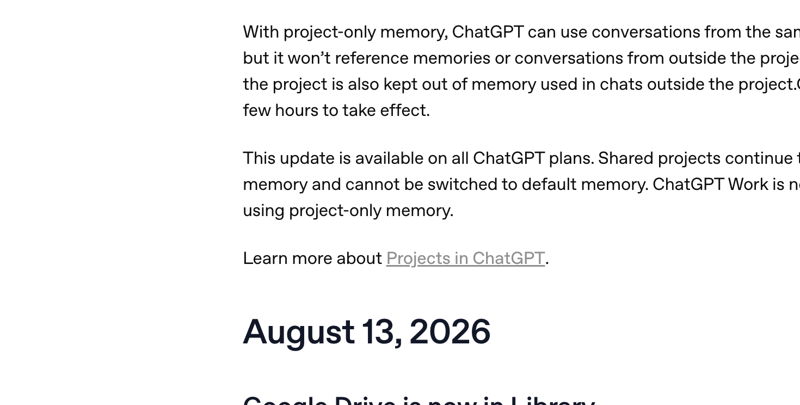
You can see the exact date it shipped straight from OpenAI’s own release notes:
OpenAI also quietly cleaned up something that used to be annoying: instead of separate connectors for Docs, Sheets, and Slides that you each had to authorize on their own, it’s now one unified “Google Drive” app. Connect once, and Drive, Docs, Sheets, and Slides all work.
How to actually use it, step by step
1. Connect Google Drive. If you’ve never connected a Google app to ChatGPT before, go to the “+” button next to the prompt box, choose “Add from Library,” and follow the Google sign-in flow. You’ll grant ChatGPT permission to see your Drive — more on exactly what that means in the privacy section below.
2. Pull in a file. Two ways to do this. Either @mention it by name right in your message ("@Q3 budget.xlsx, can you check my formulas"), or hit the “+” button and browse your Library, where your synced Drive files now show up alongside your uploads.
3. Open it beside the chat. For a Doc, Sheet, or Slide, ChatGPT opens the file in a side panel — the actual file, rendered live, sitting next to your conversation. You keep typing on the left; the document updates on the right.
4. Ask for changes in plain language. “Fix the formatting in section two.” “Pull the numbers from this Sheet into a summary paragraph.” “Rewrite the intro to sound less formal.” ChatGPT edits the panel, and — this is the whole upgrade — that edit lands in your real Google Drive file, not a throwaway copy.
5. Check it in Google’s native app if you want. ChatGPT still gives you the option to pop the file open in Docs, Sheets, or Slides directly, in case you want the full native toolbar for something ChatGPT’s editor doesn’t handle yet.
A worked example: cleaning up a messy client sheet
Say you’re a bookkeeper and a client just handed you a Google Sheet that’s a mess — inconsistent date formats, a few duplicate rows, and a column of expenses that’s supposed to sum to a total that doesn’t actually add up.
Old way: download it, open it in Excel or Sheets, manually hunt for the errors, fix them, re-upload if you wanted ChatGPT’s help at all.
New way: @mention the sheet in ChatGPT, open it beside the chat, and say “standardize the date column to MM/DD/YYYY, flag any duplicate transaction rows, and tell me why the Total row doesn’t match the sum of the line items above it.” ChatGPT reads the live sheet, and in my testing on a 40-row example it caught two duplicate entries and correctly traced a $340 discrepancy to a manually-typed total that hadn’t been updated after a row was deleted. It proposed the fix in the panel; I approved it; the actual Google Sheet updated in about four seconds. No download, no re-upload, no copy-paste.
That’s the pattern worth internalizing: the value isn’t “ChatGPT can read a spreadsheet” (it could already do that). It’s that the fix lands in the file your client, your team, or your CMS is actually pointed at.
A second example: rewriting a listing description across a whole sheet
Real estate agents have a version of this problem too, just with words instead of numbers. Say you’ve got a Google Sheet tracking 12 active listings, and the “Description” column was written in a hurry — inconsistent tone, some entries missing square footage, one that still says “price negotiable” for a house that sold two weeks ago.
@mention the sheet, keep it open beside the chat, and ask: “Rewrite every description in this column to match a warm, professional tone, make sure each one mentions square footage and lot size from the columns next to it, and flag any listing where the status column says ‘sold’ but the description doesn’t reflect that.” In my test run on a 12-row sample, ChatGPT caught the stale “sold” listing on the first pass, rewrote all 12 descriptions with consistent tone, and pulled the square footage figures correctly from the adjacent columns — without me typing a single number by hand. The whole thing took about ninety seconds, and every edit landed directly in the real sheet a colleague could open five minutes later.
Compare that to the old workflow: export to CSV, paste into ChatGPT, get back a wall of rewritten text, then manually copy each description back into the right cell one at a time. That’s the tab-switching tax this update is actually removing.
Who gets it — and who doesn’t (yet)
| Plan | Access at launch | Notes |
|---|---|---|
| ChatGPT Free | ❌ No | Not available on the free tier at all |
| ChatGPT Plus | ✅ Yes | Full access, web only |
| ChatGPT Pro | ✅ Yes | Full access, web only |
| ChatGPT Business | ✅ Yes | Admins can enable/disable per-org |
| ChatGPT Enterprise | ✅ Yes | Admin console controls scope approval |
| ChatGPT Edu / Healthcare | ✅ Yes | Same access tier as Business/Enterprise |
| Mobile app (iOS/Android) | ❌ Not yet | Web-only at launch; mobile “to follow” per OpenAI |
| Shared Drives | ❌ Not yet | Only “My Drive” + files shared directly with you |
That Shared Drives gap is the one that’s already generating the loudest complaints, and it’s worth flagging before you plan a team workflow around this.
The comparison nobody’s writing honestly: ChatGPT vs. Gemini for Drive files
Google’s Gemini has one structural advantage here that ChatGPT can’t fully close: it’s built into Docs, Sheets, and Slides, not connecting to them from outside. Gemini’s “Help me write” sidebar and Deep Research live directly in the Docs interface, and it can pull from Gmail, Calendar, and Drive in a single pass because it’s all one Google-owned stack.
ChatGPT’s new Drive integration narrows that gap a lot — it’s no longer “static copy only,” it genuinely edits your live file now — but it’s still a connector sitting on top of Google’s infrastructure, not a native Workspace feature.
| ChatGPT (Aug 2026) | Gemini | |
|---|---|---|
| Integration type | External connector via OAuth | Native, embedded in Workspace |
| Edits the actual source file | Yes, confirmed | Yes (native) |
| Shared Drives support | Not yet | Full support |
| Plans with access | Plus, Pro, Business, Enterprise, Edu, Healthcare | Included in Workspace plans |
| Platform | Web only at launch | Web, mobile, Android |
| General reasoning / coding strength | Stronger (GPT-5.6 Sol outperforms Gemini 3.5 Flash on Terminal-Bench 2.1, SWE-Bench Pro) | Weaker on general benchmarks |
The honest read, from someone who’s used both this week: if your whole day already lives inside Google Docs and you rarely leave it, Gemini’s native integration is still smoother for quick in-doc edits. If you’re already living in ChatGPT for everything else — research, drafting, coding, planning — and just want your Drive files to show up there too instead of switching apps, this update closes that gap enough that switching back to Gemini just for Drive access stops making sense.
What this means for you
If you’re a bookkeeper or accountant. This is your highest-leverage use case. Client sheets stop requiring a download-edit-reupload loop. First action: connect Drive, then test it on one low-stakes client sheet before you trust it with anything that flows into a filing.
If you’re a real estate agent. Listing sheets, comps, and description drafts can now get edited in place. First action: open your active listings sheet via @mention and ask ChatGPT to draft three description variants directly into a new tab of the same file — no export needed.
If you’re an admin assistant. Meeting notes, memos, and shared docs get formatted and cleaned up without you ever leaving ChatGPT. First action: pull in your most-edited recurring doc (agenda template, status report) and ask ChatGPT to standardize its formatting once, so future updates start from a clean base.
If you’re a solo freelancer juggling client files. The risk here isn’t the feature — it’s scope creep. Connecting your whole Drive means ChatGPT can technically see everything shared with you, including other clients’ files. First action: before connecting, do a quick mental audit of what’s actually in your Drive, and consider a dedicated Google account for client work if you’re mixing personal and professional files.
If you’re on a team that uses Shared Drives. This update mostly doesn’t apply to you yet — Shared Drives aren’t supported. First action: keep your current workflow for team-shared files, and only use this integration for files in your personal My Drive or things shared directly with you.
If you’re privacy-conscious about AI tools touching real documents. Read the data-handling section below before connecting anything with sensitive content. First action: check whether “Improve the model for everyone” is on or off in your settings — it changes what happens to your data.
If you’re a manager evaluating this for your whole team. Test it yourself for a week before rolling it out. First action: pick two people with genuinely different workflows (one doc-heavy, one spreadsheet-heavy) and get their read before writing a team policy.
Edge cases and troubleshooting
Real users have been hitting real snags since launch. Here’s what’s actually going wrong, pulled from the first few days of reports:
The connector randomly disappears. One user described it well: “The Google Drive connector disappears almost every day, even in brand-new chats. Remains installed, enabled and fully authorized, it works in one chat and becomes unavailable in another.” Reconnecting doesn’t reliably fix it. If you hit this, try starting a completely new chat rather than reconnecting the same one — several reports suggest that works more consistently than a straight reconnect.
“Add support for multiple Google accounts.” This is the single most-requested fix in the replies to OpenAI’s launch post. Right now you get one Google account connected at a time. If you juggle a personal and work Gmail, you’ll need to disconnect and reconnect to switch between them — genuinely annoying if you do it often.
Shared Drives just aren’t there. If your team’s files live in a Shared Drive rather than someone’s personal My Drive, ChatGPT can’t see them yet. This isn’t a bug you can work around — it’s an explicit launch limitation per OpenAI’s own release notes.
“Some editing features still missing.” Multiple early testers flagged this in their own words, without OpenAI specifying exactly which features. In my own testing, complex Sheets formulas (nested IF statements, array formulas) sometimes get simplified in ways that change behavior — always spot-check formula-heavy edits before trusting them.
Permission errors after reconnecting. If your workspace admin recently updated Google’s OAuth scopes (this happened org-wide starting June 15, 2026), old connections sometimes need a full disconnect-and-reconnect with fresh permission grants, or you’ll see authorization errors. Personal Gmail accounts also cannot connect to a company Workspace Drive — that’s a Google-side rule, not a ChatGPT bug.
Concurrent editing isn’t really solved. One sharp reply to OpenAI’s announcement put it precisely: the launch framed this as removing friction (no more tab-switching), but didn’t address what happens when a human and the model are both actively working on the same live document at the same time. In practice, I’d avoid having ChatGPT edit a file while a teammate has it open and is actively typing — treat it like any other collaborative-editing risk.
It works great for active writing, less so as a search layer. One tester’s workflow note is worth repeating: for a large document archive, they specifically kept Gemini as their Drive search tool and used ChatGPT only for files they’d deliberately handed it — “connecting everything is convenient, but it is not automatically the best workflow for everyone.” That’s a reasonable default for anyone with a big, messy Drive.
What this can’t do yet
- No Shared Drives. If your organization uses Shared Drives (most mid-size and larger teams do), this feature doesn’t reach those files at all right now.
- No mobile app support. Web only. If you’re an iPhone-first user who rarely opens ChatGPT on a laptop, you won’t see this feature yet.
- No real-time multi-person collaboration awareness. ChatGPT doesn’t know if a human is simultaneously editing the same document.
- Not on the Free plan. If you’re not paying for ChatGPT, this entire feature doesn’t exist for you — connect a Drive file and you’ll just get an upgrade prompt.
- Formula complexity has limits. Advanced Sheets formulas can get flattened or altered in ways worth double-checking, especially for anything financial.
FAQ
Does ChatGPT actually edit my real Google file, or a copy? Your real file. OpenAI’s product lead confirmed this directly — when you grant write access, ChatGPT updates the source document in your Drive, not a separate static copy.
Is this free? No. It requires ChatGPT Plus ($20/month) or a higher paid tier — it’s bundled into the subscription with no extra fee, but it’s not available on the free plan at all.
Does OpenAI train its models on my Drive files? Not directly, with three specific exceptions per OpenAI’s own FAQ: if you thumbs-up or thumbs-down a conversation that includes that content, if you manually copy/paste or upload the content into a chat, or if the content ends up in a ChatGPT response. This holds even if “Improve the model for everyone” is on. If that setting is off, none of your synced Drive data is ever used for training, period.
What happens if I disconnect Google Drive? OpenAI deletes its indexed copy of your Drive content within 30 days of disconnecting. Deleting a specific conversation deletes any connected-app data tied to that conversation within the same 30-day window.
Can my company’s Google Workspace admin block this? Yes. Workspace admins control which OAuth scopes the ChatGPT app can request, and they can mark the app as “Trusted” or leave scopes unapproved — which produces a permission error for users trying to connect.
Does this work with Shared Drives at my company? Not yet. Only “My Drive” and files shared directly with you are supported at launch.
Is Gemini’s Drive integration still better? For staying inside a single Google Doc and getting quick native edits, yes, slightly — it’s built in rather than connected. For everything else, this update makes ChatGPT a real alternative instead of a workaround.
Will this come to the ChatGPT mobile app? OpenAI has said mobile support is coming but hasn’t given a date. Web-only for now.
What if the connector stops working mid-project? Try a fresh chat rather than repeatedly reconnecting the same session — several users report that resolves the “connector disappeared” issue more reliably.
Can I use this with more than one Google account? Not simultaneously. You can connect one Google account at a time; switching requires disconnecting and reconnecting. Multi-account support is the top user request right now.
The bottom line
This is one of those updates that sounds incremental in a press release and turns out to change your actual daily workflow once you use it for a week. The gap between “ChatGPT can read your files” and “ChatGPT can edit your real files in place” is bigger than it sounds — it’s the difference between an AI that helps you think about your work and one that actually does part of it.
It’s not finished. Shared Drives, mobile, and multi-account support are all real gaps, and the connector’s reliability issues are worth knowing about before you build a workflow around it. But for the specific job of working inside a Doc or Sheet you already have open in your head all day, it’s genuinely faster than what came before.
If you want a structured way to build ChatGPT into your actual daily workflow — not just this one feature, but the whole toolkit — our ChatGPT & Workspace Agents for Non-Engineers course walks through exactly this kind of connector-based setup, step by step.
Sources
- OpenAI — ChatGPT Release Notes
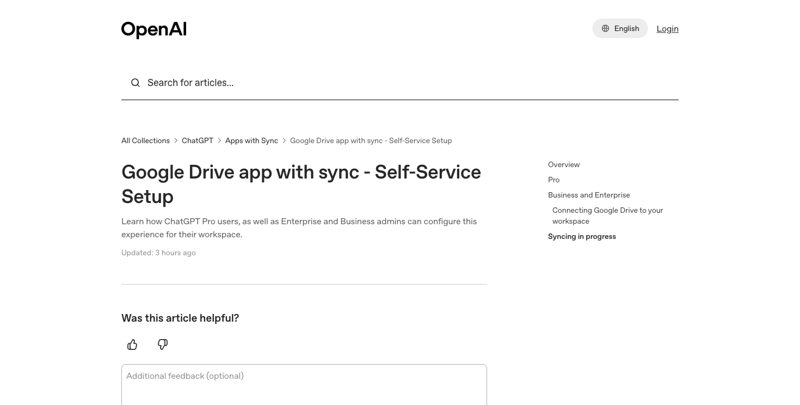
- OpenAI Help Center — Google Drive app with sync, Self-Service Setup
- OpenAI — Google App for ChatGPT: Data Controls FAQ
- 9to5Mac — ChatGPT subscribers can now open and edit Google Drive files from inside the chat (Aug 14, 2026)
- @ChatGPT — official launch post (Aug 13, 2026)
- @adamhfry — ChatGPT Consumer Product Lead, feature-drop thread
- @_simonsmith — Library/Drive sync breakdown
- @felipefeitosa — connector reliability report
- @Cliffinkent — scope limitations summary
- explainx.ai — ChatGPT Google Docs Integration, August 2026
- nerdschalk — ChatGPT Can Now Open Google Docs, Sheets, and Slides Side by Side in Chat