You draw a lopsided rectangle, a stick-figure sofa, and a squiggle where you want a window. Thirty seconds later, ChatGPT hands you back a finished, styled room render that actually looks like what you meant. Not what you typed — what you drew, badly, with a trackpad.
That’s the new part. OpenAI shipped ChatGPT Images 2.5 on September 8, 2026, and it’s rolling out today to every tier — free, Plus, Pro, Work — on desktop, mobile, and web. It’s the same product you’ve been using to generate images since last spring, just meaningfully better at the two things that actually annoyed people: keeping faces and objects consistent when you edit, and generating the image in the first place. There’s also a genuinely new feature riding along called Sketch, and it’s the part everyone’s actually talking about.
What Is ChatGPT Images 2.5?
If you’ve made an image in ChatGPT any time since April, you were using Images 2.0 (model name gpt-image-2) — the update that first got resolution and instruction-following to a usable place after years of DALL·E-era limitations. Images 2.5 is the next version of that same model, not a new product. Same place in the menu, same “Images” option, no new subscription tier.
What actually changed, per OpenAI’s own launch page:
- Sharper, more natural-looking output. Less of that slightly-waxy AI-image look, per OpenAI and corroborated by early hands-on coverage from Axios.
- Better subject preservation. Lock in a specific face, pet, or product and edit around it without the model quietly redrawing the thing you wanted kept.
- More precise multi-turn editing. Ask it to change one part of an image and the rest is supposed to survive intact — across several rounds of edits, not just one.
- Comment-based edits. You can now drop a comment directly on a spot in the image (“make this darker,” “change this to blue”) instead of describing the location in a sentence.
- Up to 50% faster generation. That’s OpenAI’s number, not an independently measured one — worth flagging before you repeat it as fact (more on that below).
- Sketch. Type
@Sketch, draw something rough, and ChatGPT turns it into a finished image. - Templates. Starting points for common formats like “Poster” and “Merch,” so you’re not staring at a blank prompt box.
Two new models also shipped in the API — GPT-Image-2.5 Flare and GPT-Image-2.5 Sunburst — but that’s a developer-facing change. If you’re using the regular ChatGPT app, you’ll never see those names.
None of this touches the actual DALL·E-to-ChatGPT-Images transition that already happened back in August (the official DALL·E GPT was retired August 30 — we covered that separately if you’re still catching up). This is a version bump inside the tool you’re already using, not a migration.
Five Months Later: Why the Timing Isn’t Random
OpenAI shipped Images 2.0 on April 21, 2026. Images 2.5 landed almost exactly five months later, on September 8. That gap matters if you’ve watched how search demand for AI tools actually forms.
chatgpt image 2 and chatgpt image 2.0 — the exact, oddly-specific version terms from the April launch — still pull a combined 12,100 searches a month today, five months on. That’s not people who forgot the product name. That’s the pattern for any version-specific software update: a spike of curiosity right at launch, then a long, boring tail of people searching the exact version number because they read about it somewhere and want to know if they already have it.
The 2.5 version terms haven’t formed that volume yet — it’s hours old as of this writing. But the underlying category is enormous and already rankable: “chatgpt image generator” pulls 60,500 searches a month with low keyword competition, and “chatgpt image editing” is climbing fast, up 128% year over year. If the 2.0 pattern holds, “chatgpt images 2.5” as a specific search term will be a real, searchable thing within a few weeks. Right now, on launch day, the field is basically empty — the search results page is a mix of the official OpenAI blog post, a five-month-old page about the previous version, and a wall of X posts from the last several hours. No one has written the plain-English “what changed and how do I use it” explainer yet.
That’s a long way of explaining why this post exists today instead of next month.
Why This Launch Actually Landed
Launch-day noise is usually just noise. This one had real engagement behind it — OpenAI’s announcement post pulled in over 16,000 likes and 2.8 million views within hours, and Sam Altman’s follow-up (“I don’t think it can solve super difficult math problems, but it is really good and we hope you enjoy it”) added another 11,500. Greg Brockman quote-posted a side-by-side comparison video with the caption “holy openai is on berserker mode” — not exactly restrained, but the kind of reaction that tends to mean people are actually testing the thing, not just skimming a press release.
The Sketch demo specifically is what’s spreading. Justine Moore, a widely-followed AI builder, posted: “Guys I think OpenAI just solved sketch → render. You can now open up a sketchpad in ChatGPT, draw whatever you want, and get a beautiful image… I have zero artistic ability and am making cool stuff.” That’s the pitch in one sentence, and it’s the reason this post exists instead of a shrug.
Why Drawing Beats Describing (Sometimes)
There’s a real reason this feature is resonating beyond the usual AI-tool hype cycle, and it’s not really about the technology. It’s about a specific kind of frustration that’s been sitting there unaddressed since AI image tools went mainstream: some things are genuinely painful to put into words.
Try describing, in a text prompt, exactly where a sofa should sit relative to a window, a rug, and a doorway, in a way that leaves zero ambiguity. Now try drawing three shapes on a piece of paper. The drawing takes ten seconds and is unambiguous. The sentence takes two minutes and still gets misread half the time — “near the window” could mean a dozen different things to a model that’s never seen your actual room.
That’s the actual unlock, and it’s why “you can’t draw” was never really the barrier people thought it was. You don’t need artistic skill to communicate spatial relationships. You need a rectangle, a circle, and an arrow. OpenAI’s own examples lean into exactly this — a room layout, an outfit’s silhouette, a rough logo shape — all things that are about position and structure, not artistic execution. The Sketch tool isn’t asking you to draw well. It’s asking you to point.
How to Use Sketch, Step by Step
Here’s the actual workflow — tested against OpenAI’s own documentation and the first wave of hands-on reviews from TechRadar and The Verge.
Step 1: Open a chat and type @Sketch. A drawing canvas pops up right inside the conversation.
Step 2: Draw your rough idea. Doesn’t need to be good. TechRadar’s reviewer described the interface as looking “a little bit like MS Paint from 1995” — that’s a comment on the drawing tool’s aesthetics, not a knock on what it produces. A room layout, an outfit silhouette, a logo shape, a stick-figure pose — anything you can indicate faster by hand than by typing a paragraph.
Step 3: Hit the checkmark. ChatGPT loads a pre-filled prompt telling it to convert your sketch into a finished image.
Step 4: Add style and detail. This is the step people skip, and it’s the one that matters most. Sketch alone gives the model your composition — where things go, what’s big, what’s empty. It does not replace telling it what style, mood, materials, or lighting you want. Type that in before you submit.
Step 5: Review and iterate. If something’s off, use a comment pinned to the specific spot rather than a full re-prompt. That’s the whole point of the comment-based editing upgrade — local fixes that don’t touch the rest of the image.
A real example, start to finish: Draw a rough rectangle for a living room, a blob for a sofa against one wall, and a square for a window on the opposite wall. Add the text: “Cozy Scandinavian living room, warm oak floors, linen sofa, afternoon light through the window, plants in the corner.” What comes back in testing across early reviews: a genuinely finished-looking room render that respects your rough layout — sofa placement, window position, general proportions — while filling in the material and lighting details you described. Ask a follow-up like “make the sofa a deep green instead” via a comment on the sofa, and in the reviewed cases, only the sofa changes.
That last part — one that reviewers specifically praised — is the actual upgrade. Images 2.0 would happily redo your whole room to match a new color note. Images 2.5, when it works as intended, doesn’t.
A Second Example: Using the Poster Template
Sketch isn’t the only new starting point. Templates work differently — instead of drawing, you pick a pre-built format and fill in the specifics.
Step 1: Ask ChatGPT for the Poster template, or select it if it’s surfaced in your Images menu.
Step 2: Tell it what the poster is for. Say you’re making a flyer for a neighborhood yard sale. You’d type something like: “Poster template. Yard sale, Saturday September 20th, 8am to 2pm, 412 Maple Street. Bold, friendly, hand-lettered feel, warm yellow and orange palette.”
Step 3: Review the text rendering specifically. This is where ChatGPT’s image models have historically had a real edge over competitors like Midjourney — legible, correctly-spelled text inside a generated image, not warped gibberish. Check the date, time, and address are rendered exactly as you typed them, since even a strong text-rendering model can occasionally introduce a typo.
Step 4: Use a comment to fix layout, not a full re-prompt. If the address is too small or the date overlaps another element, click that specific area and describe the fix, rather than starting over.
The Templates feature is a smaller deal than Sketch, but it solves a real, boring problem: most people don’t want to design a poster from a blank canvas, they want to fill in a format that already looks decent.
The Merch template works the same way for anything you’d put on a T-shirt, tote bag, or mug — describe the design concept and the format handles composition conventions (centered graphic, print-safe margins) that you’d otherwise have to know to ask for. It’s not going to replace a real print-on-demand design workflow for a serious storefront, but for a one-off gift or a small batch, it removes the “where do I even start” problem.
The Part Everyone’s Skipping: Sketch Needs Words Too
Here’s the one honest caveat that separates a real review from a press release. An independent practitioner test — 8 scenarios, three prompting conditions each — found that combining a sketch with a detailed text brief scored 97.8 out of 100 on average, meaningfully ahead of text-only prompting at 94.4. Sketch genuinely helps convey spatial layout, hierarchy, and composition — the stuff that’s painful to describe in a sentence.
But sketch-only prompting, with no accompanying text, was a different story. In that same test, a sketch-only request for a sneaker concept returned no output at all after 90 seconds — a flat failure, not a mediocre result. The tool wants the drawing and the description together. Skip the words and you’re rolling dice.
Is the “50% Faster” Claim Real?
Worth being straight about this one. OpenAI’s own wording is “up to 50%” lower latency versus Images 2.0 — and the announcement doesn’t publish a benchmark methodology. No sample size, no hardware spec, no percentile breakdown, no mention of whether queue time is included. That’s a vendor performance claim, not an independently verified number. It’s plausible — early hands-on testers did report the tool feeling noticeably snappier — but treat “50% faster” as OpenAI’s marketing framing, not a measured fact you should repeat as gospel.
Similarly, you may see headlines claiming the API pricing for the new models doubled. That’s not accurate either: OpenAI’s own model documentation shows the token rates for the new GPT-Image-2.5 Flare model match the previous generation’s pricing exactly. If you’re not building on the API, none of this affects you anyway — it’s only relevant if you’re a developer paying per image generated through OpenAI’s platform.
ChatGPT Images 2.5 vs. the Competition
Images 2.5 doesn’t exist in a vacuum. Here’s how it stacks up against the other tools people are actually comparing it to, based on each vendor’s documented capabilities as of September 2026 — not a controlled head-to-head benchmark, because no neutral one exists yet.
| Tool | Best at | Editing style | Speed claim | Price starting point |
|---|---|---|---|---|
| ChatGPT Images 2.5 | Conversational, iterative edits; text rendering | Comment-pin edits, sketch guidance, reference photos | “Up to 50% faster” than 2.0 (unverified methodology) | Included in ChatGPT Plus ($20/mo) or free tier |
| Midjourney V7/V8 | Artistic quality, atmospheric composition | Canvas-based Editor with masking, layers, retexturing | Draft Mode for faster ideation (no published metric) | ~$10/mo (Basic plan) |
| Google Nano Banana 2 | Photorealism, subject consistency, 4K output | High-fidelity edits, Flash-class speed on the Lite tier | ~4 seconds (Lite tier, per Google) | Free tier available; paid tiers vary |
| Grok Imagine 2.0 | Low-cost region editing, multi-reference (up to 5 images) | Segmentation/magic-wand style controls, background removal | Not directly comparable (no shared benchmark) | ~$0.04/image (API) |
The honest summary from the research: Midjourney still wins on pure artistic polish. Nano Banana 2 wins on raw photorealism and speed at scale. ChatGPT Images 2.5’s actual edge is the workflow — you’re already in a conversation, you can point at a specific spot and say “fix this,” and now you can draw instead of describe. If your job is “iterate on one image inside a chat,” that’s a real advantage. If your job is “produce the single most beautiful image possible,” Midjourney still has the edge.
One more distinction worth making, because it trips people up: below roughly 200 images a month, pay-per-use pricing (which is how ChatGPT Images and Nano Banana 2 both work under the hood) tends to be cheaper than a flat subscription. Above that volume, a subscription model like Midjourney’s flat monthly fee usually wins on cost-per-image. If you’re generating five images a week for personal use, the math looks completely different than if you’re a studio pushing out hundreds a month — worth actually doing that arithmetic before picking a tool based on vibes.
Grok Imagine 2.0 deserves a slightly longer look since it’s the one people underestimate. It’s not trying to compete on artistic quality — its actual strength is segmentation-style region editing (something closer to a magic-wand tool in Photoshop than a text prompt) plus support for up to five reference images in one generation, at a genuinely low per-image API cost. If your workflow is “combine elements from several existing images into one composite,” that’s a real, specific use case Images 2.5 doesn’t directly target. And on the Google side, it’s worth knowing Nano Banana 2 actually ships in two flavors — a Pro tier Google positions for maximum factual accuracy, and a Lite tier built for raw speed, with a roughly four-second generation claim. That’s the tier comparison people usually miss when they say “Nano Banana 2 is faster” without specifying which one.
Here’s the subject-preservation upgrade in practice, from one of OpenAI’s own launch examples — the same portrait, edited to change the outfit while keeping the child’s pose, expression, and background intact:
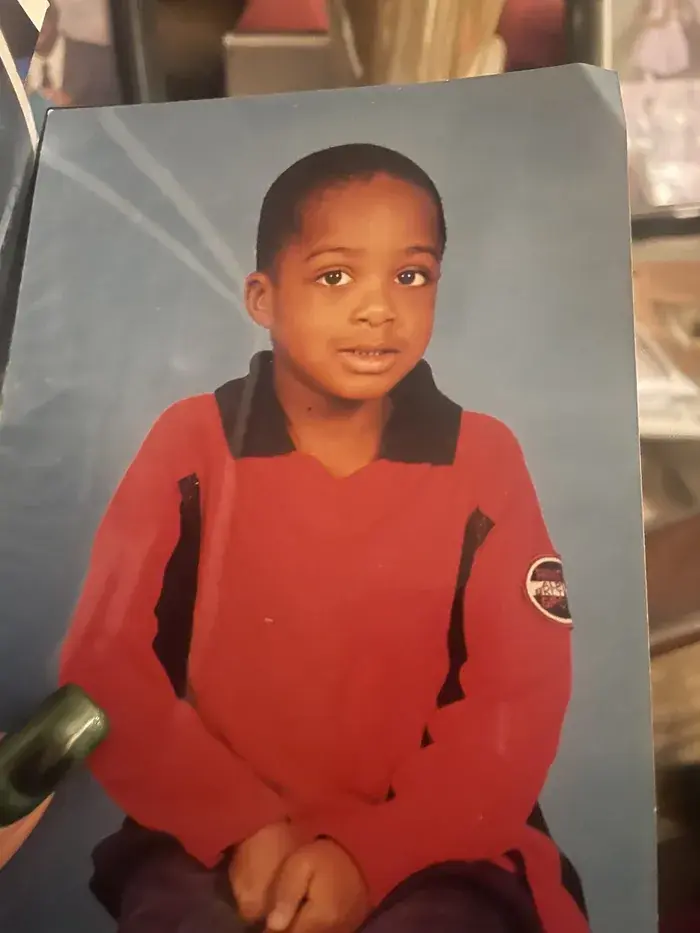
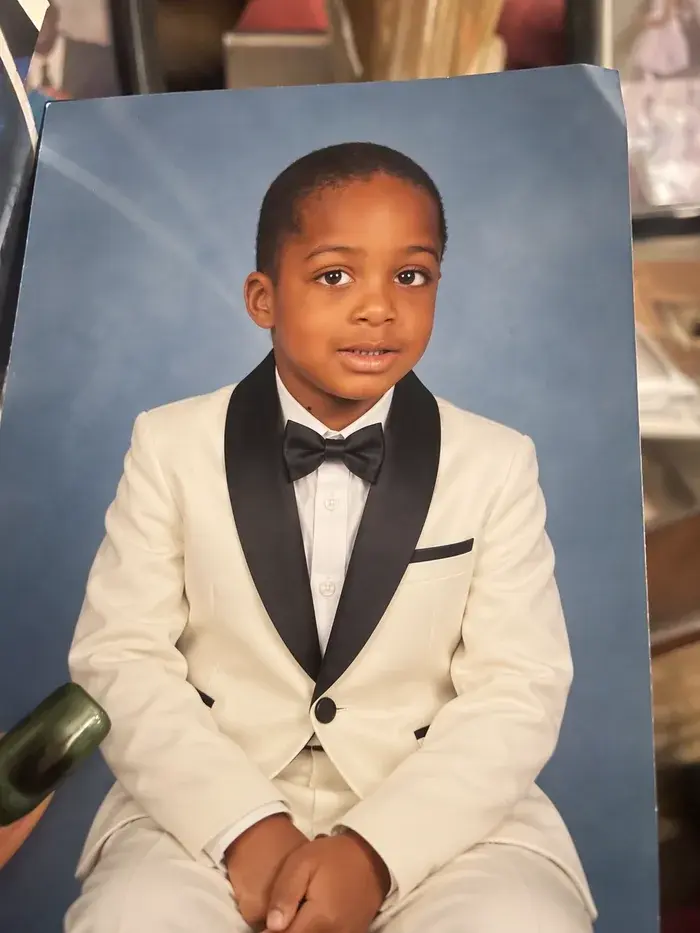
That’s the specific failure mode this update targets: ask for one change (the outfit) and get exactly that, not a different kid, a different pose, or a different background.
What This Means for You
If you’re a casual user who’s never made an AI image: Start here. Type @Sketch, doodle literally anything, add one sentence of description, and see what comes back. It’s the lowest-effort on-ramp OpenAI has ever shipped for this feature. First action: open ChatGPT right now and try @Sketch with a stick-figure drawing of anything in the room you’re sitting in.
If you’re someone who’s fought with AI image editing before: The subject-preservation and comment-based edit upgrades are aimed directly at your specific frustration — “I asked it to change one thing and it changed everything.” Test that exact failure mode again with a photo you tried before. First action: re-run your worst past editing attempt and see if the local-edit behavior actually holds this time.
If you’re a marketer or social media manager: The Templates feature (Poster, Merch) plus faster iteration means concept-to-draft cycles get shorter. It’s still not a replacement for a real design tool when you need pixel-precise brand compliance. First action: try the Poster template for your next social graphic before opening Canva.
If you’re a small business owner making your own product visuals: Combine this with our existing guide on product photos with ChatGPT Images for Etsy and Shopify listings — the subject-preservation upgrade specifically helps keep your actual product looking like your actual product across variations.
If you’re a developer building on the API: GPT-Image-2.5 Flare is the speed-optimized default; Sunburst trades time for tighter control on premium workflows. Token pricing is unchanged from the previous generation, so this is a quality upgrade at the same cost, not a price hike to budget around.
If you’re skeptical of hype cycles in general: Fair. The “50% faster” number is unverified marketing copy, and Reddit’s pre-launch leak thread already flagged unresolved distortion issues on cars and 2D-style images. This is a real, well-received upgrade — it is not a categorical leap. Test it against your actual use case before believing anyone’s launch-day enthusiasm, including this post’s.
If you make images professionally for clients (real estate, design, product): This general-purpose update is not a replacement for dedicated tools built around your specific workflow. It’s a strong ideation layer. Read the profession-specific companion piece on interior design and staging for the more detailed limitations.
If you’re a parent or hobbyist making things with kids: The low bar to entry here is genuinely worth trying with a child who “can’t draw” — the entire pitch of Sketch is that a rough scribble becomes a finished image, which is a genuinely fun five minutes with a kid who wants to see their doodle “come alive.” First action: let your kid draw something simple and add the description together.
If you manage a team’s design requests and get asked for “quick mockups”: This shortens the loop between “someone describes an idea in a meeting” and “there’s a visual to react to.” It won’t replace a real designer for anything client-facing or brand-sensitive, but for internal alignment — “is this roughly the vibe you meant?” — it’s a fast, free first pass. First action: next time someone describes a visual concept verbally in a meeting, sketch it live and show them the result before the meeting ends.
Edge Cases and Troubleshooting
“I typed @Sketch and nothing happened.” This is a documented rollout-lag issue — several users on X reported the same thing in the first hours after launch. It’s a staged rollout across tiers and platforms; if it’s not there yet, it’s very likely coming within the day, not a sign you’re doing something wrong.
“My sketch-only prompt returned nothing.” Expected, per the practitioner test above. Add a text description alongside your drawing — Sketch is a visual supplement to your prompt, not a replacement for it.
“The edit changed way more than I asked for.” This is the exact failure mode Images 2.5 is supposed to fix, but “supposed to” isn’t “always does.” Use the comment-pin method (click directly on the spot, not a general re-prompt) and be as specific as possible about what should stay the same.
“Cars and 2D-style images still look distorted.” Multiple early testers flagged this specifically — vehicles and flat/2D illustration styles appear to be a weaker case for the underlying model, even in 2.5. If that’s your use case, expect more retries than average.
“I can’t get a native 4K or higher-resolution output.” Not currently offered as a selectable option through the consumer ChatGPT interface — output above roughly 2560×1440 remains experimental on OpenAI’s own image API documentation, with 3840×2160 as the stated technical ceiling. If you need guaranteed 4K for print, you’ll want a dedicated upscaling step afterward.
“Someone told me it’s trained on artists’ work without permission.” This criticism surfaced immediately in the replies to OpenAI’s own launch post and isn’t new to this release — it’s the standing debate around all generative image models. OpenAI’s documented policy says training data “may include material that may be protected by copyright as well as public-domain content,” without a named artist-by-artist consent mechanism. Worth knowing the debate exists; not something this specific update changes one way or the other. Separately, OpenAI’s terms require you to have a person’s consent before using the tool to reproduce their specific likeness — that’s a usage rule on your end, distinct from the training-data question, and it’s worth not conflating the two when you’re deciding what’s appropriate to generate.
“The Sketch drawing tool feels really basic.” Multiple reviewers made the same observation — it’s a simple canvas, not a full illustration tool. That’s by design. It’s meant to capture rough composition and layout, not serve as a drawing app in its own right.
“I’m on the free tier — do I actually get this?” Yes. OpenAI’s rollout explicitly includes free, Plus, Pro, and Work tiers from day one, across desktop, mobile, and web. There’s no paywall specific to Images 2.5 or Sketch.
“The output resolution isn’t quite what I need for print.” Current API documentation lists 3840×2160 as the stated technical ceiling, with anything above roughly 2560×1440 marked experimental. For a phone wallpaper or a social post, that’s plenty. For a large-format print banner, you’ll likely want a dedicated upscaling tool as a second step.
“I asked for a specific brand’s product and it looks close but not exact.” Expected — and arguably a feature, not a bug, from a legal standpoint. The model isn’t pulling live product photography or exact specifications; it’s generating something stylistically similar based on training data. Never use a generated image as a stand-in for an actual product photo in a real listing.
What This Can’t Do
It can’t guarantee the “50% faster” claim holds for your specific use case. That’s an unverified average, not a promise.
It can’t reliably handle sketch-only prompts with zero text. You need both inputs together.
It’s not a dimensionally accurate planning tool. For anything where scale, measurements, or exact spatial relationships genuinely matter — architecture, engineering, construction — this is a visualization aid, not a CAD replacement.
It doesn’t verify real-world facts. Product names, prices, availability, and specifications in a generated image are illustrative, not sourced. Never treat a generated label or price tag as accurate.
It still shows the “AI look” in some cases. Reviewers noted “remaining noise/artifacts” even on official demo images. The improvement is real, but it’s an improvement, not a solved problem.
FAQ
Do I need to pay for ChatGPT Plus to use Sketch? No. It’s available on the free tier as well as Plus, Pro, and Work, per OpenAI’s own launch announcement.
Is Sketch the same as the old “draw with ChatGPT” features some GPTs had? No — this is a native, built-in feature inside the standard Images tool, not a third-party custom GPT.
Can I use Sketch on mobile? Yes, it’s part of the same rollout across desktop, mobile, and web, though initial rollout may reach platforms at slightly staggered times.
What happened to my Images 2.0 chats and generations? Nothing changes about your existing history. This is a version upgrade to the underlying model, not a platform migration — same tool, same “Images” menu option.
Does Sketch work with a mouse, or do I need a touchscreen/stylus? Reviewers tested it successfully with a standard mouse and trackpad. A stylus or touchscreen makes the drawing itself easier, but it’s not required.
How is this different from just describing what I want in text? Sketch conveys spatial relationships — where things sit relative to each other, proportions, layout — faster and more accurately than most people can describe in words. It’s a supplement to your text prompt, working best alongside a style/detail description, not instead of one.
Can I generate images with real people’s faces? OpenAI’s service terms require you to have the person’s consent and rights before using the tool’s visual capabilities to reproduce someone’s likeness. That’s a usage restriction on your end, separate from the training-data debate mentioned above.
Will the “chatgpt images 2.5” search demand keep growing? Based on the pattern from the April 2.0 launch — which still pulls a combined 12,100 monthly searches five months later — yes, expect version-specific search volume to keep building over the next few months as more people hear about the update.
Is this the same model powering the API? Related but distinct. The consumer ChatGPT app uses the underlying Images 2.5 model; developers building on OpenAI’s API get two specific variants, Flare and Sunburst, tuned differently for speed versus editing control.
What’s the single best first thing to try? Type @Sketch, draw something you’ve been struggling to describe in words, add one sentence about style, and see what happens. It’s the fastest way to understand whether this update actually changes your workflow or not.
Is Sketch available outside the US? Yes — this is a global, all-language, all-tier launch, not a limited regional test like some of OpenAI’s other recent features. Google Trends data shows the same launch-day search spike happening in South Korea alongside the US, which is a decent signal the rollout isn’t English-only.
Does Sketch replace needing to write good prompts? No, and this is the single most common misunderstanding forming already. Sketch adds a visual layer on top of your prompt — it doesn’t replace the text description of style, mood, and detail. Treat it as “prompt plus drawing,” not “drawing instead of prompt.”
Can I turn a real photo into a Sketch-guided edit, or is Sketch only for drawings from scratch? Sketch itself is for drawing a new rough reference. To edit an existing photo, you’d upload the photo and use the standard editing/comment-pin workflow rather than Sketch specifically — the two features serve different starting points.
The Bottom Line
ChatGPT Images 2.5 is a real, well-tested upgrade to a tool you’re probably already using — sharper output, edits that (mostly) stay where you point them, and a genuinely new way to start an image by drawing instead of typing. It’s not a categorical leap over Images 2.0, and the flashiest numbers OpenAI is quoting deserve a healthy dose of “show me the methodology.” But if you’ve ever abandoned an AI image edit because it redrew the whole picture, or given up trying to describe a room layout in a paragraph, this update is aimed squarely at you.
Want to go deeper on getting consistent, professional results out of AI image tools — prompting technique, style control, and where these tools still need a human check? Our AI Image Generation course walks through exactly that, model-agnostic and updated for exactly this kind of release.
Sources
- OpenAI — Introducing ChatGPT Images 2.5
- 9to5Mac — OpenAI releases ChatGPT Images 2.5 with ‘sharper details’ and ‘more precise editing’
- Unite.AI — ChatGPT Images 2.5 with Sketch and two new API models
- Axios — ChatGPT Images gets better at faces, pets and edits
- TechRadar — ChatGPT Images 2.5 hands-on: 3 features you’ll actually use
- The Verge — ChatGPT Sketch hands-on
- XDA Developers — ChatGPT Sketch turns doodles into rendered images
- Kingy AI — ChatGPT Images 2.5 Sketch Test: 8 scenarios, one hard limit
- OpenAI Developer Platform — GPT-Image-2.5 Flare model documentation
- OpenAI — How your data is used to improve model performance
- Live DataForSEO Sep 9, 2026 US keyword pull (chatgpt image generator, chatgpt image editing, chatgpt sketch, chatgpt draw)
- X/Twitter posts from @OpenAI, @sama, @gdb, @minchoi, @venturetwins (Sep 8, 2026) via Grok research