Scroll your ChatGPT sidebar right now. If it’s a wall of chats named “New chat,” “New chat (2),” and one from March you can’t identify anymore, you’ve got the exact problem ChatGPT Projects was built to fix — and there’s a decent chance you’ve never opened the feature that fixes it.
Projects have been sitting in your sidebar for months, quietly free on every plan since September 2025. Most people scroll right past it. And this week, OpenAI made it a lot more useful: you can now talk to a Project by voice, drop a file into that voice conversation mid-sentence, and search across every chat, project, image, and document you’ve ever created from one search bar. If you’ve been meaning to get organized in ChatGPT and never got around to it, this is the week to actually do it — it takes about five minutes.
What a Project actually is
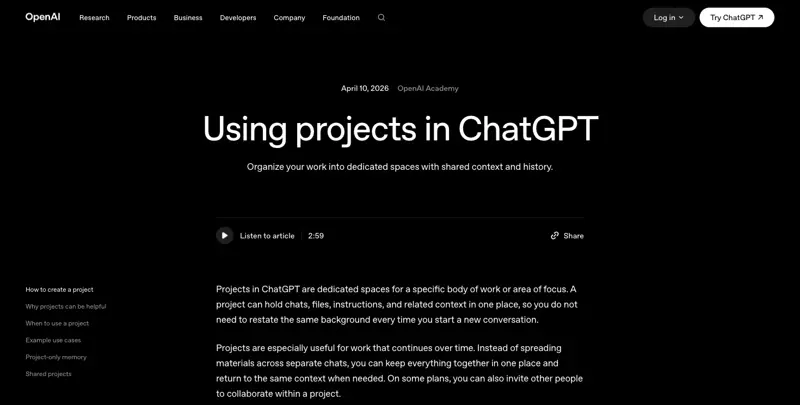
A Project is a folder that keeps one job’s files, instructions, and conversations together, so you stop re-explaining yourself every time you open a new chat.
Here’s the problem it solves concretely. Say you’re job hunting. Without Projects, every time you open ChatGPT to tweak your resume or draft a cover letter, you either paste your resume in again, or you dig through old chats hoping you saved the version you liked. With a Project, you upload your resume once, write a one-time instruction (“I’m applying for mid-level marketing roles, keep my tone confident but not arrogant, always ask before rewriting more than one paragraph at a time”), and every chat inside that Project already knows all of it. No re-explaining. No hunting.
That’s the whole idea: a project holds a scoped set of chats, project-level instructions, and file references in one place, with its own dedicated view — a Chats tab showing every conversation that belongs to it, and a Sources tab showing every file attached.
The timeline, because it matters for what you’re eligible for
OpenAI first launched Projects in mid-December 2024, restricted to Plus, Pro, and Team subscribers. Through 2025, the feature picked up Deep Research integration, voice mode inside project chats, and memory that could reference past project conversations for paid users. Then, on September 2–3, 2025, OpenAI opened Projects to Free-tier users globally on web and Android (iOS followed shortly after) — and raised file limits at the same time. By July 2026, the custom-instructions character limit had grown again, and a new universal search feature arrived that also touches Projects. That brings us to this week.
What’s new this week (August 7, 2026)
Two things landed close together, and they’re easy to conflate, so here’s the precise version.
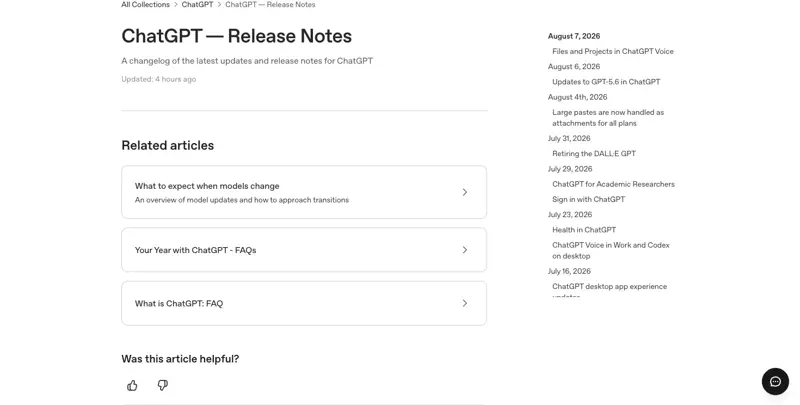
Voice now works inside Projects, and you can upload files mid-voice-chat. OpenAI’s official release notes confirm that as of August 7, “GPT-Live in ChatGPT Voice now supports file uploads and Projects.” In practice: you can start a voice conversation from inside a Project, and ChatGPT will reference that project’s recent chats, uploaded files, and custom instructions while you talk — no need to type anything first. You can also upload a file during an active voice conversation and ask questions about its contents in real time, project or no project. This builds on the July 8, 2026 rollout of GPT-Live-1 as the new voice engine (GPT-Live-1 for paid tiers, a lighter GPT-Live-1 mini for Free users), which improved how naturally you can interrupt and be interrupted mid-conversation.
Universal search now spans everything — but this part actually shipped July 14, not August 7. A new search entry point in the sidebar now lets you search across your chats, projects, images, and documents from one place, with filters to narrow by content type. Independent reporting corroborated the July 14 date and confirmed it rolled out simultaneously on web, iOS, and Android, available on every plan tier including Free. It’s genuinely useful alongside the voice update even though the dates don’t match — which is worth knowing so you’re not waiting for a “universal search” announcement that already happened three weeks earlier.
One limitation worth flagging honestly: this search index only covers content created or uploaded directly inside ChatGPT. It doesn’t reach into third-party apps you’ve connected — Slack, Google Drive, SharePoint — even if ChatGPT has touched files there.
The reaction from people actually using it has been genuinely enthusiastic, not manufactured hype. One OpenAI engineer’s announcement post pulled over 1,600 likes within a day, with plenty of replies from people specifically excited about using voice mode inside a travel-planning or job-search project — talking through a project out loud, with ChatGPT already knowing everything you’ve uploaded to it, is a different experience than typing.
Why almost nobody’s actually explained this
Search for “how to use ChatGPT Projects” right now and here’s what you’ll find: OpenAI’s own help pages, a dense AI-generated overview, a handful of YouTube tutorials that are a year old at this point, some Reddit threads, and a wave of generic productivity blog posts. What you won’t find is a calm, current explainer that covers what Projects actually is and what changed this week — the entire voice-in-Projects, files-in-voice, universal-search layer is essentially absent from the search results as of this writing.
Part of that is timing — this genuinely is days-old news. But part of it is that Projects has always been a slightly awkward feature to explain, because it’s not flashy. There’s no single dramatic demo moment the way there is for image generation or voice mode. It’s organizational infrastructure, and organizational infrastructure doesn’t generate the same coverage a splashy new model does, even when — as is the case here — it’s quietly one of the more useful things ChatGPT does.
Worth connecting to the other news from this same week: OpenAI also just made ChatGPT’s free-tier text chats genuinely unlimited (removing the old rate cap entirely, as of August 6). That change and this one are separate, but they compound — a Free user can now have as many chats as they want and organize them properly with Projects, which wasn’t nearly as useful a combination back when Free users were rationing their messages. If you’ve been curious about that change too, we cover it in Is AI Still “Unlimited”? What Changed in 2026.
How to set one up, right now
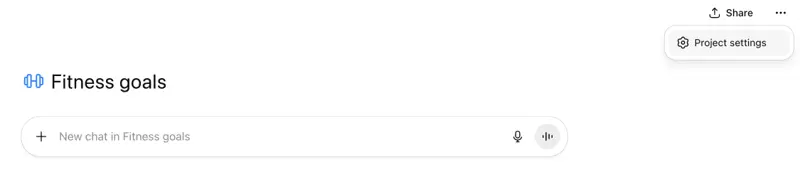
Step 1: Find Projects in your sidebar. Look for a “Projects” section, usually near the top of the left panel, with a plus icon next to it. Click it.
Step 2: Name your Project and write your instructions. This is the field that does the real work — don’t skip it or leave it generic. Be specific: state the goal, the audience, the tone, and any hard rules. A vague instruction like “help me with marketing” does almost nothing; a specific one like “I run social media for a 12-person dental practice; keep every caption under 150 characters, never use exclamation points, and always suggest one relevant hashtag” changes every response inside that Project.
Step 3: Upload your files. Drag in whatever’s relevant — a resume, a style guide, a set of past emails you want ChatGPT to match the tone of, a spreadsheet of data you’ll be asking questions about repeatedly. Free accounts get 5 files per project; see the limits table below for other tiers.
A few starter instruction templates, if you’re staring at a blank field: For freelance work — “I’m writing on behalf of [business], targeting [audience]. Tone: [3 adjectives]. Always ask before publishing anything over [word count]. Never use [specific words/phrases you dislike].” For a job search — “I’m applying for [role type] roles. My background is [1-sentence summary]. Match the tone of my existing resume, and flag anything that sounds generic or could apply to literally any candidate.” For a class — “This is for [course name]. I’m allowed to use AI for [specific permitted uses per your syllabus] but not for [prohibited uses]. When I ask you to explain something, check my understanding with a question before just giving the answer.” Swap in your real specifics — the template matters less than the act of being concrete instead of vague.
Step 4: Start chatting inside the Project, not from your main sidebar. Every new chat you open from within the Project inherits your instructions and can reference your uploaded files. Expected result: ask a question that depends on something you uploaded, and ChatGPT answers correctly without you re-pasting anything.
Step 5 (new this week): Try voice. Open the Project, switch to voice mode, and just talk. Expected result: ChatGPT responds with awareness of your project’s files and instructions, the same way the text chat does — you’ll notice it referencing specifics from your uploads without you having said them out loud.
Step 6: Keep chats scoped to sub-tasks, not one sprawling thread. Start a new chat inside the Project for each distinct piece of work, and rename each one so you can find it later. A Project called “Q3 Content” might have five separate chats inside it — one per platform, or one per week — rather than one enormous scrolling conversation.
Worked example, start to finish: Say you’re planning a two-week trip to Japan. You create a Project called “Japan Trip — October.” Your instructions: “I’m traveling with my partner, budget-conscious but willing to splurge on one nice dinner per city, we prefer walking over taxis, and I want restaurant recommendations to include a rough price range every time.” You upload your flight confirmation PDF and a spreadsheet of hotels you’re considering. Chat one, inside the Project: “Build a rough day-by-day itinerary for Tokyo, days 1–4.” Chat two: “Given my flight arrival time in the uploaded confirmation, what’s realistic for day one — should I plan anything, or assume I’ll be jet-lagged?” Chat three, by voice, walking through your apartment two days later: “What’s a good area to stay based on the hotels I uploaded, given we want to walk everywhere?” Every one of those chats already knows your budget preference, your walking preference, and what’s in your files — you never repeated yourself once.
Feature limits by plan (August 2026)
| Plan | Files per project | Collaborators | Notes |
|---|---|---|---|
| Free | 5 files | 5 | Added Sept 2025; you can create as many Projects as you want |
| Go | 25 files | 10 | Same cap as Plus |
| Plus | 20–25 files | 10 | OpenAI’s own help pages disagree with each other here — the Projects page says 25, the File Uploads FAQ says 20; treat 20 as the safer working number until it’s resolved |
| Pro | 40 files | 100 | Also unlocks the highest reasoning-effort model tiers |
| Team / Business | 40 files | up to 100 | Increased from 20 in 2026 |
| Enterprise / Edu | 40 files | 100 | Same cap as Pro/Business |
A few more specifics worth knowing: maximum file size is 512MB regardless of plan, but you can only upload 10 files in a single batch at once. Custom instructions got a meaningful upgrade on July 15, 2026 — the character limit jumped from 1,500 to 5,000 for Plus, Pro, Enterprise, Business, and Education users, which is enough room for genuinely detailed, specific instructions rather than a cramped paragraph.
Two structural limits to know before you build a system around Projects: there’s no nesting — Projects are flat, so you can’t create a sub-project inside a project — and Custom GPT chats can’t be moved into or grouped inside a Project; they stay permanently separate. There’s also no officially published cap on how many Projects you can create, but the sidebar gets genuinely hard to navigate somewhere around 20 — treat that as your practical ceiling for staying organized, not a hard rule.
Projects vs. Claude Projects vs. Custom GPTs
If you’ve used more than one AI tool, you’ve probably wondered how ChatGPT’s version stacks up. Here’s the real comparison, not marketing copy from either company.
| Dimension | ChatGPT Projects | Claude Projects | Custom GPTs |
|---|---|---|---|
| Free-tier access | Yes, since Sept 2025 | Yes, since Feb 2026 | Limited use of existing GPTs; building your own requires Plus |
| File cap | 5/20-25/40 by plan, 512MB/file | No hard file-count cap; auto-retrieval activates at scale | Similar caps to standard chat uploads |
| Context window | 128K tokens | 200K tokens, with retrieval expanding effective knowledge further | Depends on underlying model, typically 128K |
| Memory | Project-only memory option; can reference past project chats (Plus/Pro) | Project-scoped, auto-synthesized memory, isolated per project | No persistent rolling memory beyond instructions/files |
| Instructions | Free-text field, 5,000-char limit on paid tiers | Plain-text system prompt, full control | Structured GPT Builder wizard and config |
| Sharing | Team/Business/Enterprise plans; up to 100 collaborators on Pro+ | Claude for Work/Team plans enable shared workspaces | Shareable via GPT Store link or team workspace |
| Nesting | None — flat structure only | None documented | Not applicable |
| Multimodal tools | Canvas, image generation, Code Interpreter, Deep Research, Voice | Interactive Artifacts panel, MCP server extensibility | Actions via API spec, Code Interpreter |
The honest read: Claude Projects tends to handle large, dense document sets and long, technical work better, thanks to the bigger context window and stronger automatic retrieval as file counts grow. ChatGPT Projects wins on breadth — you get live voice, image generation, and Canvas all inside the same workspace, plus a larger single-file size ceiling. Custom GPTs are really a different tool wearing a similar name: they’re for building a shareable, fixed-persona assistant other people can use, not a private evolving workspace for your own ongoing work. If you’re choosing between a Project and a Custom GPT for something only you’ll use, Project is almost always the right call.
What this means for you
If you’re job hunting — this is close to the ideal use case. One Project, your resume and a few strong past cover letters uploaded, instructions capturing your target role and tone. Your first action: create it today, even before your next application, so it’s ready when you need it.
If you’re a student — one Project per class, not one giant “school” Project. Upload the syllabus and any reading materials you’re allowed to use with AI tools. Your first action: start with just your hardest class this semester, and see if the organization actually changes how you use ChatGPT before expanding to the rest.
If you’re managing a small business or side project — a Project per major workstream (content calendar, customer emails, product descriptions) keeps your voice consistent without you re-explaining your brand every session. Your first action: pick your most repetitive task — the one you paste the same context into most often — and build a Project around just that one first.
If you’re a freelancer with multiple clients — one Project per client is the natural structure, and it solves a real problem: keeping Client A’s brand voice from leaking into Client B’s copy. Your first action: set up your two most active clients first, not all of them at once.
If you’re already deep into Custom GPTs — don’t abandon them, but recognize they’re solving a different problem. Keep Custom GPTs for anything you want to share publicly or reuse as a fixed persona; move your own private, evolving work into Projects instead.
If you’re on Claude for the bigger context window — you don’t have to choose exclusively. Plenty of people run Claude Projects for genuinely huge document work and ChatGPT Projects for everything with a voice or image-generation component, since that’s still ChatGPT’s stronger lane.
If you tried Projects once, months ago, and gave up — worth a second look specifically because of this week’s update. If your dropoff reason was “I have to type everything,” voice mode inside a Project may solve exactly that friction.
If you’re planning a trip — this is close to a perfect fit and probably the most immediately satisfying first Project to build. Upload your confirmations, note your budget and pace preferences once, and every planning conversation afterward — by text or now by voice while you’re doing something else entirely — already has the full picture.
If you’re a manager writing performance reviews or team communications — a Project holding your team’s role descriptions, your company’s tone guidelines, and past examples of feedback you’ve given keeps every draft consistent without you re-explaining your management style each time. Your first action: build it before your next review cycle, not during it, so it’s ready when the deadline pressure hits.
If you’re deep into a single long-term creative project — a novel, a course, a research paper — one Project per major work, with your outline, style notes, and existing drafts uploaded, means ChatGPT stops asking you to re-establish characters, terminology, or argument structure every session. This is one of the cases where the free tier’s 5-file cap will genuinely start to pinch; it’s worth checking whether a paid tier’s higher cap changes your experience meaningfully before assuming Projects “isn’t built for serious work.”
Edge cases and troubleshooting
“I don’t see a Projects section in my sidebar at all.” Confirm you’re on the current app version — this has been fully rolled out since September 2025, so an outdated app is the most common cause. On Team, Business, Enterprise, or Education workspaces, also check with your workspace admin; some organizational settings can restrict feature availability.
“Voice mode inside my Project isn’t referencing my uploaded files.” This is a very fresh feature (days old at publish time) and OpenAI has said it’s rolling out gradually — not everyone gets it the same day. If typed chats in the same Project reference your files fine but voice doesn’t yet, that’s expected during rollout, not a bug on your end.
“I hit my file limit and can’t upload anything else.” Check your plan’s actual cap in the table above, and note the Free tier’s ceiling of 5 files is genuinely tight — you’ll likely need to remove an outdated file before adding a new one. This is also a sign a single Project might be doing too much; consider splitting it into two more focused ones.
“ChatGPT keeps giving me generic answers even inside my Project.” The most commonly cited beginner mistake, across independent practitioner guides, is treating a Project as just a labeled folder rather than an actual context-aware workspace — skipping the instructions field entirely, or writing something too vague to change behavior (“be helpful and creative”). Go back and write instructions that specify audience, format, and at least one hard constraint; vague instructions produce vague output no matter how many files you’ve uploaded.
“I uploaded 30 files and the answers got worse, not better.” This is the second most common mistake, sometimes called “the kitchen sink upload” — dumping every possibly-relevant document in rather than curating a small, current set. Aim for 3–10 genuinely useful files rather than uploading your entire folder. More files isn’t more context; past a point, it’s more noise for the model to sort through.
“My Scheduled Task can’t seem to read files from my Project.” This is a documented, real limitation as of mid-2026 — Scheduled Tasks currently cannot read files stored inside a Project, which trips up people trying to automate recurring reports based on project documents. The workaround is having your scheduled task pull from a connected app (Gmail, Drive) instead of relying on in-project files directly.
“I have two files with conflicting information and ChatGPT seems confused.” That’s exactly what’s happening, and it’s a known failure mode — superseded documents create conflicting signals the model can’t resolve on its own. Use clear, dated filenames, and delete or replace outdated versions immediately rather than letting old and new versions sit side by side.
“My sidebar is unmanageable even with Projects.” Archive or delete completed Projects and stray chats on a regular cadence — weekly or monthly, whichever you’ll actually stick to. OpenAI hasn’t published a hard project-count limit, but real navigation starts degrading somewhere around 20 visible Projects.
What Projects can’t do
It can’t replace genuinely deep, ongoing technical work the way a larger context window can. If you’re working with dozens of large technical documents that all need to stay in active context simultaneously, Claude’s bigger window and stronger retrieval-at-scale handle that more comfortably right now.
It doesn’t sync with everything you’ve connected. The new universal search covers content created or uploaded directly in ChatGPT — it doesn’t extend into Slack, Google Drive, or SharePoint content you’ve connected through plugins, even though ChatGPT can technically access those.
It won’t fix vague instructions. A Project with sloppy, generic instructions performs barely better than no Project at all. The organizational structure is only as useful as the specificity you put into the instructions field.
It doesn’t let you nest or sub-organize. If your mental model is folders-within-folders, Projects will frustrate you — it’s a strictly flat, one-level structure. You build organization through naming and scoping, not hierarchy.
It can’t currently power Scheduled Tasks reading project files. If you were hoping to automate a recurring report that pulls from documents living inside a Project, that specific combination doesn’t work yet.
FAQ
Is ChatGPT Projects actually free, or is that a trick? It’s genuinely free — Projects opened to Free-tier users in September 2025, nearly a year ago, with a 5-file cap per project. You don’t need a paid plan to use the core feature at all.
How many Projects can I create? There’s no officially published hard limit, but the sidebar becomes difficult to navigate somewhere around 20 visible Projects — treat that as a practical, not a technical, ceiling.
Can I share a Project with a coworker? Sharing and collaboration require Team, Business, or Enterprise plans, with collaborator caps ranging from 10 (Plus/Go) up to 100 (Pro and above). Free and Plus individual accounts don’t support multi-person collaboration on a single Project.
What’s the actual difference between a Project and just pinning a chat? A pinned chat is still one conversation with everything mixed together. A Project is a container for multiple chats that all share the same files and instructions — you get the organization of separate conversations without losing shared context between them.
Does voice mode work the same inside a Project as outside one? Mechanically yes, but inside a Project it has access to your uploaded files and custom instructions automatically, which changes what it can meaningfully answer without you explaining context out loud first.
Can I move an existing chat into a Project after the fact? Yes, most ChatGPT clients let you move an existing conversation into a Project from the chat’s options menu — you don’t have to start over inside the Project to get the organizational benefit.
Do Custom GPT conversations show up in my Projects? No — this is a hard structural separation. Custom GPT chats remain permanently outside the Projects system; you can’t combine or move them in.
Is there a mobile app version of Projects? Yes, on both iOS and Android, including the new universal search and (as it continues rolling out) the voice-in-Projects capability from this week’s update.
Will my Project instructions leak into chats outside the Project? No — instructions are scoped strictly to the Project they’re written in. A chat started from your main sidebar, outside any Project, won’t see instructions or files from a Project you built elsewhere, and vice versa between separate Projects.
What happens to a Project’s chats if I delete the Project itself? Deleting a Project removes it and everything scoped inside it, including its chats — this isn’t like deleting a folder while keeping the files loose elsewhere. If there’s a specific chat you want to keep, move or copy it out before deleting the Project it lives in.
The bottom line
ChatGPT Projects has quietly been the free organizational fix for a problem almost everyone using AI regularly actually has — chats scattered everywhere, context re-typed constantly, nothing findable six weeks later. This week’s update, letting you talk to a Project by voice and search across everything you’ve ever made, closes the last real gap between “a feature that exists” and “a feature that’s actually convenient enough to use daily.” Five minutes to set one up. You’ll feel the difference on the very next chat.
Want to get more out of ChatGPT beyond just organization — real prompting technique, not just folder structure? Our Prompt Engineering course and AI Fundamentals cover the rest. First two lessons are free, no signup, 30 seconds in.
Sources
- OpenAI — ChatGPT Release Notes (Aug 7, 2026: voice + file uploads + Projects)
- OpenAI — Projects in ChatGPT (Help Center)
- OpenAI — Using Projects in ChatGPT (Academy)
- TechCrunch — ChatGPT brings unlimited text chats to free users (Aug 6, 2026)
- NotebookCheck — ChatGPT: New search finds your old chats, images and documents
- North Lab Apps — ChatGPT Projects, Explained: How They Work, Limits & Comparisons
- StackMatchup — ChatGPT Projects vs Claude Projects: The 2026 Workspace Comparison
- Geeky Gadgets — ChatGPT Projects vs Claude Projects AI Management
- VMTS — ChatGPT adds one search surface for chats, projects, images, and files
- BGR — ChatGPT Projects plan-tier file limits reporting
- Releasebot — ChatGPT updates by OpenAI, August 2026
