

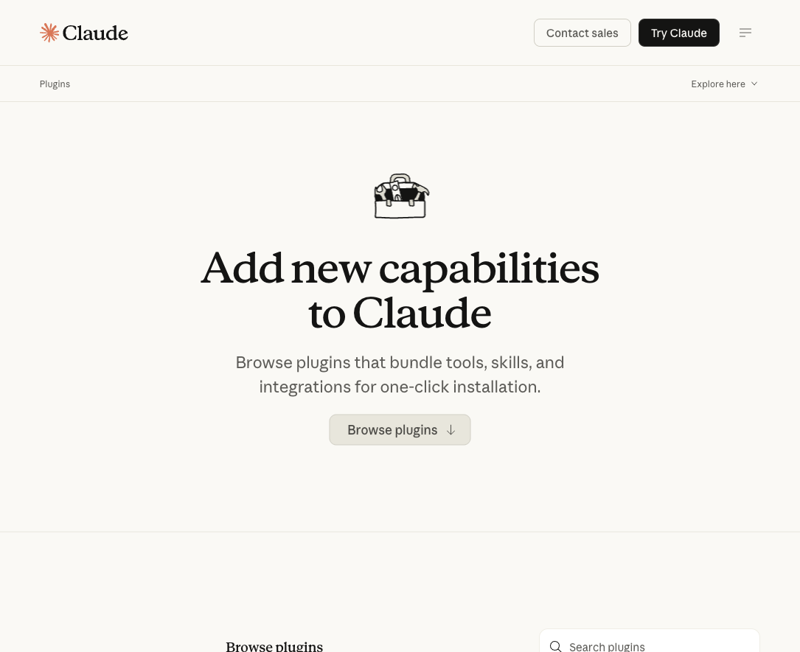
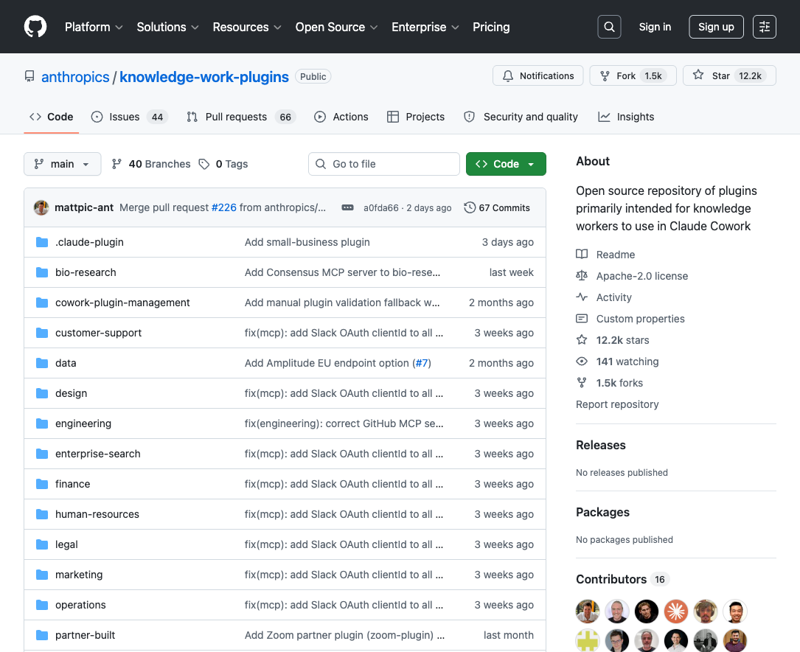
Anthropic open-sourced its core set of Claude Cowork plugins on GitHub. Add the May 13 small-business plugin and you have 12 plugins, more than 60 connectors, and a marketplace that did not exist in February. If you turn on every plugin at the same time, Cowork becomes confused — the same skill name shows up three times, the connector authorization screen never finishes loading, and Claude takes forty seconds to pick which sub-agent to call.
The right move is to install the plugins that match what you actually do, ignore the rest until you do that work, and revisit the list every couple of months. Here is the day-one shortlist based on what each plugin actually requires to be useful.
How Cowork plugins work in two paragraphs
Each plugin is a bundle of three things: skills (the prompt templates Claude follows for specific tasks), connectors (the OAuth links that let Claude read and write to your apps), and slash commands (the shortcuts you type to trigger a workflow). Some plugins also include sub-agents — Claude instances pre-configured to specialize in a sub-task.
You install a plugin once, authorize its connectors with your own accounts, and the slash commands show up in Cowork’s input area the next time you start a session. There is no per-plugin subscription. The cost is whatever you already pay for the apps the connectors connect to.
The 7 worth installing on day 1
These are the plugins that benefit almost any small team, where the connector requirements line up with tools most people already use. Install in this order.
1. productivity
What it does: Manages tasks, calendars, daily workflows, and personal context so Claude stops asking you the same questions every time.
Connectors: Slack, Notion, Asana, Linear, Jira, Monday, ClickUp, Microsoft 365.
Install if: Your team uses Slack and at least one of the project trackers (Notion / Asana / Linear / Jira / Monday / ClickUp). Most teams have both.
Why it goes first: This is the only plugin where Claude builds context about your individual workflow over time. The longer you use it, the better the morning-prep, end-of-week, and “what did I miss” workflows get. Installing it second or third is a missed week of context-building.
2. enterprise-search
What it does: One query that searches across email, Slack, Notion, Drive, Confluence, and your wiki in parallel and returns a synthesized answer.
Connectors: Slack, Notion, Guru, Jira, Asana, Microsoft 365.
Install if: You have ever spent fifteen minutes hunting for the spec or the meeting note that you know exists somewhere.
Why it goes second: This is the plugin people install when they need something specific and then leave installed because the search habit forms after one or two wins. Mature teams report a 3 to 5 minute average saved per search. That math is conservative and still pencils out.
3. small-business
What it does: The May 13 launch — 15 ready-to-run agentic workflows aimed at small-business operations (payroll planning, monthly close, business pulse dashboard, campaign runner, invoice chaser, lead triager, contract reviewer, content strategist, margin analyzer).
Connectors: QuickBooks, PayPal, HubSpot, Canva, DocuSign, Google Workspace, Microsoft 365.
Install if: You run a small business or you handle finance / marketing / operations for one.
Why it goes third: The workflows are where the immediate ROI lives. Run the invoice chaser, the monthly close, and the campaign runner once each on real data — those three alone justify the install for anyone running a service business.
4. sales (or skip if you do not have a pipeline)
What it does: Prospect research, pre-call briefs, pipeline review, outreach drafting, competitive battlecards.
Connectors: Slack, HubSpot, Close, Clay, ZoomInfo, Notion, Jira, Fireflies, Microsoft 365.
Install if: You have a paid HubSpot or Close subscription. If you only have the free HubSpot, the pipeline-review workflow has too little to work with.
Why this matters: The pre-call brief workflow is the single highest-ROI thing in the plugin if you do any sales calls. Five minutes of prep instead of fifteen, with better information.
Skip if: You sell through a website or a marketplace and never get on a sales call.
5. customer-support
What it does: Triage tickets, draft responses, package escalations, research customer context, turn resolved issues into knowledge base articles.
Connectors: Slack, Intercom, HubSpot, Guru, Jira, Notion, Microsoft 365.
Install if: You use Intercom, HubSpot Service Hub, or another supported help-desk tool.
Why it goes fifth: The “turn resolved issues into knowledge base articles” workflow is the one nobody admits they need. Every team has a ticket backlog of FAQs that should have been knowledge base entries six months ago. Run this once a week and the support team’s per-ticket time drops.
6. marketing
What it does: Drafts content, plans campaigns, enforces brand voice, briefs on competitors, reports on performance across channels.
Connectors: Slack, Canva, Figma, HubSpot, Amplitude, Notion, Ahrefs, SimilarWeb, Klaviyo.
Install if: You run any campaigns and have at least HubSpot or Klaviyo for sending.
Why it goes sixth: The brand-voice enforcement step is genuinely useful — paste your brand guide once, and every draft after that comes back consistent. The competitor briefing is good if you have Ahrefs or SimilarWeb; skip it if you do not, since the workflow will just describe public web pages.
7. finance
What it does: Prep journal entries, reconcile accounts, generate financial statements, analyze variances, manage close, support audits.
Connectors: Snowflake, Databricks, BigQuery, Slack, Microsoft 365.
Install if: You have a finance team using Snowflake or BigQuery, or you are at a small business that does its close in Microsoft 365 / Excel.
Why this slot is honest: Most small businesses will not use this plugin — its connector list assumes you have a data warehouse. If you are doing your bookkeeping in QuickBooks, the small-business plugin (#3) covers what you need. Install this one only if your finance team has graduated to a real data stack.
The 4 to skip on day 1 (and the honest reasons)
These are not bad plugins. They are plugins with sharp use cases that do not match a generic small-team rollout. If you are in the use case, ignore my advice and install them. If you are not, installing them adds slash-command clutter and wastes an hour clicking through OAuth prompts that lead nowhere.
Skip 1: bio-research
Connectors: PubMed, BioRender, bioRxiv, ClinicalTrials, and others.
Why skip: It is genuinely good if you are a life sciences researcher and useless if you are not. The skill descriptions reference things like “target prioritization” and “preclinical research tools.” If those phrases do not mean anything to you, the plugin will sit unused.
Skip 2: data
Connectors: Snowflake, Databricks, BigQuery, Definite, Hex, Amplitude, Jira.
Why skip: It assumes you have a data warehouse and someone writing SQL against it. If you store your data in Google Sheets, the workflows literally cannot run. The productivity plugin and the small-business plugin already include the connectors you need for spreadsheet-level data work.
Skip 3: legal
Connectors: Slack, Box, Egnyte, Jira, Microsoft 365.
Why skip: The Box and Egnyte connector requirement is the tell. If your contracts live in Google Drive or Dropbox, the contract-review workflow needs a folder structure it does not have. Most small businesses keep contracts in Google Drive. The small-business plugin’s contract reviewer (with DocuSign) covers the day-to-day; come back to the legal plugin when you have a larger legal ops team.
Skip 4: product-management
Connectors: Slack, Linear, Asana, Monday, ClickUp, Jira, Notion, Figma, Amplitude, Pendo, Intercom, Fireflies.
Why skip: The connector list is the giveaway. This plugin is built for SaaS product teams that already have Linear + Amplitude + Pendo. If you do not have at least one product analytics tool (Amplitude or Pendo), the user-research synthesis and roadmap workflows are missing their input data. The productivity plugin covers the tracker side; the marketing plugin covers the user-feedback side for non-SaaS teams.
How to install in the right order
The actual sequence, condensed:
- Productivity first. Authorize Slack + your project tracker. Run a “what’s on my plate this week” workflow on Monday to seed the context-building.
- Enterprise-search second. Authorize Slack, Notion (or Microsoft 365), and Drive. Try one specific search — “what was the decision on the pricing page last quarter” — and you will know within five minutes whether it works for your knowledge.
- Small-business third if you run an SMB. Authorize QuickBooks first, then PayPal or Stripe, then HubSpot. Skip Canva and DocuSign for the first run.
- Sales, customer-support, marketing, finance based on which department’s work touches you. If you wear multiple hats, install in the order of “where do I lose hours each week.”
- Wait on the other four until your work changes or your stack adds the missing connectors.
What this can’t fix
A few honest limits before you start.
- Connector authorization is the slow part. Each connector takes 30 to 90 seconds to authorize, sometimes longer for Microsoft 365 enterprise tenants. Block out an actual hour for installation if you go past four plugins.
- Plugins do not de-duplicate skills. If two plugins both ship a “draft email” skill, you get both. Cowork will pick one most of the time but you will occasionally see Claude switch between drafting styles mid-response. The fix is to delete the duplicate skill from one of the plugins.
- The connector for a tool is not the same as the desktop app. The QuickBooks connector talks to QuickBooks Online, not the legacy desktop installation. Same with HubSpot — the connector handles the current HubSpot API surface, not your CSV exports from five years ago.
- Plugins are not a substitute for skills authoring. The pre-built workflows are good starting points. Your team’s actual processes need custom skills, custom slash commands, and probably a custom plugin you build on top. The official plugins are the foundation; the company-specific layer is the lift.
- More plugins is not better. Past four or five, the slash-command menu gets unwieldy and you spend time scrolling. Be disciplined about removing what you do not use.
The bottom line
Install the productivity plugin first, the enterprise-search plugin second, the small-business plugin third, then add sales / customer-support / marketing / finance based on the work that lands on your desk. Skip bio-research, data, legal, and product-management until your stack catches up to the connector list — and revisit the list every couple of months because Anthropic ships new plugins on a roughly monthly cadence.
If you want to go deeper on how the skills and connectors fit together — and how to build your own — our Cowork Skills & Plugins course walks through the authoring side, including how to publish a plugin to your private marketplace.
Sources
- Plugins for Claude Code and Cowork — Anthropic
- anthropics/knowledge-work-plugins on GitHub — open-source plugin repository
- Anthropic Rolls Out Plugins for Claude Cowork Workflows — Reworked
- Anthropic expands Cowork plugins across enterprise functions — Constellation Research
- Anthropic brings agentic plug-ins to Cowork — TechCrunch
- Best Claude Cowork Plugins You Must Not Miss in 2026 — Composio
- Introducing Claude for Small Business — Anthropic