Two months after Google shipped a native Gemini app for Mac, Windows finally got its turn. On September 10, 2026, Google quietly put out a desktop app for Windows 10 and 11 — and if you searched for it that week, you’d have found Google’s own landing page, one CNET writeup, and a six-month-old Reddit thread that had nothing to do with the new release. No real walkthrough anywhere. Which is odd, because this is the operating system running on roughly a billion PCs, and Microsoft has had an AI assistant baked into it since 2023.
So here’s the thing nobody’s told you yet: Gemini for Windows ships with a marquee feature — the Gemini Spark agent — that Google’s own marketing page groups right in with the launch, and that same feature is explicitly excluded from the Windows app on Google’s own support docs. That’s not a minor footnote. It’s the first thing you should know before you download anything. We’ll get to why, plus the full install steps, a real Alt+Space walkthrough, the bugs people are already hitting, and the question everyone actually wants answered: is this worth using instead of the Copilot that’s already sitting in your taskbar?
What Just Changed
Until last week, Gemini on Windows meant one of two things: a browser tab at gemini.google.com, or the Gemini features already stitched into Chrome and Android. If you wanted something that felt like a real application — living in your Start menu, launchable with a keystroke, aware of whatever you’re doing at the moment — you were out of luck, unless you owned a Mac.
That gap is why the July Mac app mattered (we covered the install and the Fn-key voice trick when it landed), and it’s why this Windows release matters more. Windows is where the actual competition lives. Microsoft has had Copilot wired into the taskbar, the Windows key, and — on newer machines — a dedicated hardware key since early 2024. Any AI assistant trying to get traction on Windows isn’t launching into empty space. It’s launching into a fight it didn’t pick.
Here’s what Google actually shipped: a native download for Windows 10 and later, built around an overlay you summon with Alt + Space, image generation through Google’s Nano Banana model built into the workspace, a Gemini Spark agent that Google’s marketing groups alongside the whole release, and “Connected Apps” support that lets Gemini reach into your Gmail, Drive, Docs, and Calendar when you let it. On paper, that’s a serious feature set. In practice, one of those four items doesn’t actually work yet on Windows — and we’ll spend a whole section on which one, because Google isn’t exactly shouting about it.
How to install Gemini for Windows (and where NOT to download it from)
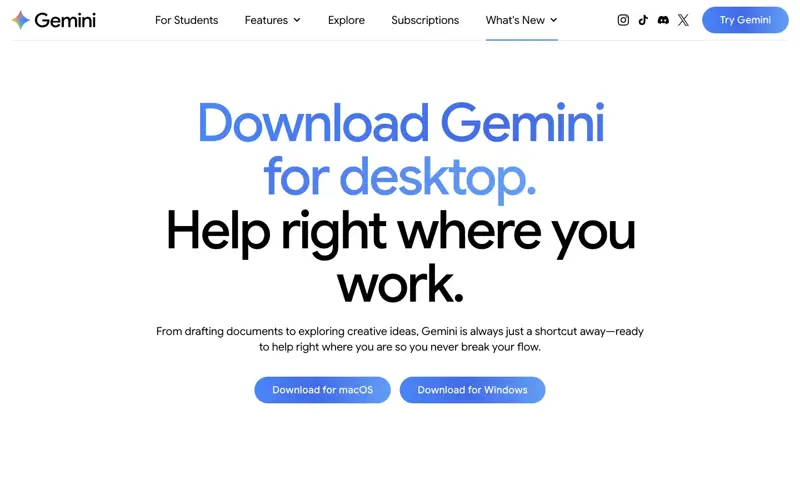
Start here: the only legitimate download is at gemini.google/desktop. That warning isn’t boilerplate. Search “Gemini for Windows” right now and you’ll find third-party listings — one making the rounds calls itself “G AI” — dressed up to look like the official app. They’re not. Google has never distributed Gemini through a random download aggregator, and a Windows AI assistant is exactly the kind of thing phishing pages love to impersonate, because people are in a hurry to try the new thing and don’t check the publisher field on the installer. Check it anyway.
The actual system requirements, straight from Google:
| Requirement | Minimum |
|---|---|
| Operating system | Windows 10 or later |
| RAM | 8 GB or more |
| Free disk space | 200 MB |
| Processor | x64 or ARM64 |
| Account | Personal Google Account, or a work/school account your admin has enabled |
Notice what’s not on that list. No specific CPU generation, no GPU requirement, no TPM or NPU check, no particular Windows edition. That’s a deliberately low bar — Google wants this running on whatever PC you already own, not just the newest Copilot+ laptops with dedicated AI silicon. Compare that to Microsoft’s Copilot+ PC feature tier, some of which is genuinely gated behind an NPU, and Gemini’s minimum spec looks almost old-fashioned by design.
Installing it is close to unremarkable, which is the right amount of remarkable for an installer:
- Go to
gemini.google/desktopin any browser and click the Windows download button. Don’t use a search result that isn’t Google’s own domain. - Run
GeminiSetup.exefrom your Downloads folder once it finishes. - Let the installer finish — it’s a standard Windows install, no separate license key, no App Store purchase step.
- Open Gemini from the Start menu the first time (after that, it lives in your system tray).
- Sign in with your personal Google Account, or your work/school account if your IT admin has switched Gemini on for it.
- Set your shortcut in Settings if Alt+Space is already taken by something else on your machine — more on that in a minute, because it almost certainly is.
That’s the whole thing. Takes less time to install than to read this paragraph. No trial period, no expiring key, no separate purchase screen — the download itself is free, though what you can actually do inside the app depends on which Gemini plan you’re signed into.
The Alt+Space overlay, walked through step by step
Here’s what the shortcut actually does: press Alt + Space from inside any Windows application, and a small floating Gemini window appears over whatever you’re doing. Not a full window switch. Not tabbing away from your work. It hovers, you type or talk to it, and then it goes away and you’re back where you started.
Google’s own launch messaging frames it as something you use “right alongside your favorite tools and daily apps” — polishing drafts, summarizing long documents, brainstorming, generating images and video without ever leaving what you’re working on. That’s the pitch, and having tried it, it’s mostly true, with two real caveats we’ll get to in the troubleshooting section.
Let’s actually use it. Say you’ve got Outlook open with a client email you need to reply to — something mildly annoying, the kind of message that takes longer to word correctly than to actually resolve.
Worked example: drafting an email reply from an open inbox tab
- With the email open on screen, press Alt + Space. The overlay appears in the corner, not blocking the email itself.
- Type (or speak, if you’ve got voice input configured): “I have this client email open asking for a deadline extension. Draft a short, polite reply saying yes to two extra days but no more, and explain we’ve got a hard deadline after that.”
- Gemini doesn’t automatically read your screen the way a true screen-aware assistant would — this is closer to a floating chat than an all-seeing overlay, so for now you’d paste the relevant lines of the client’s email into the prompt, or describe what it said.
- Gemini drafts the reply in the overlay window. Read it, tweak the tone if it’s off, and copy it into Outlook.
- Close the overlay with Alt+Space again or click away. You never left your inbox.
The whole loop took under a minute in testing, versus the usual routine of opening a browser tab, navigating to gemini.google.com, re-explaining the context, copying the result, and switching back. That friction-removal — not any single feature — is the actual unlock here. One sharp observation making the rounds among people who’ve tried it: the value isn’t the AI being smarter, it’s the AI being closer. An assistant that floats over a contract, a deck, or a client email removes the tax of tabbing out, and that tax is what kills daily usage of most AI tools, no matter how good the model underneath is.
A second worked example, using Nano Banana image generation:
- You’re finishing a slide and need a quick custom graphic — say, a simple icon of a rocket for a “roadmap” slide.
- Alt+Space, then: “Generate a flat, minimal icon of a rocket launching, blue and white color scheme, transparent background.”
- Gemini generates the image inline using Nano Banana, right in the overlay. Save it and drag it into your deck.
No separate image-generation site, no account switch. That’s a real time-saver if you build a lot of decks or docs and used to bounce out to a dedicated image tool for one quick asset.
Setting up Connected Apps (Gmail, Drive, Docs, Calendar)
The Windows app’s overlay can pull context from your Google account — but only from what you explicitly turn on. Here’s the setup:
- Sign into Gemini (desktop app or web).
- Go to Settings & help → Connected Apps in Gemini web (this setting isn’t duplicated inside the Windows app itself yet — you manage it from the browser).
- Turn on the specific connections you want: Gmail, Drive, Docs, Calendar are the current options.
- You’ll get a consent prompt the first time Gemini actually uses a connection — it’s not silent access.
- In a prompt, either mention what you want by name and let Gemini figure out which connected app to use, or type @ followed by the app name (e.g., “@Gmail”) to point it directly at a source.
- You can disconnect any of these at any time from the same Connected Apps settings page.
Once connected, you could ask something like “summarize the unread emails from my manager this week” or “pull my Thursday meetings from Calendar and draft an agenda,” and Gemini reaches into that data live. It’s genuinely useful — and it’s also the section of this guide you should read most carefully, because of what “connected” quietly means for your data. We cover that under Privacy below, and it’s not a small caveat.
Gemini vs Copilot on Windows: the honest comparison
This is the section everyone searching “gemini for windows” actually wants, so let’s not bury it. Copilot isn’t a competitor Gemini is walking into cold — it’s the incumbent, pre-installed, already integrated, already reporting real enterprise numbers. Here’s the side-by-side.
| Gemini for Windows | Microsoft Copilot on Windows | |
|---|---|---|
| Installation | Separate download from gemini.google/desktop, requires Google sign-in | Pre-installed on Windows 11; consumer tier needs no install or sign-in |
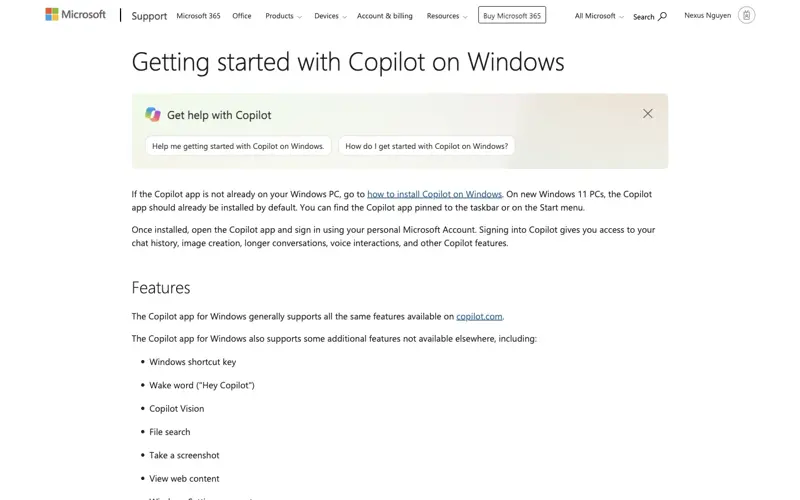
| Launch shortcut | Alt + Space (customizable), taskbar icon, system tray | Win + C, dedicated Copilot key on newer laptops, voice (“Hey, Copilot”), taskbar icon |
| Core interaction model | Floating overlay over your current app | Sidebar/app view, plus inline suggestions inside Office apps |
| Image generation | Nano Banana, built into the desktop workspace | Image Creator (DALL·E-based), separate experience |
| Agent/autonomous tasks | Gemini Spark — not available on the Windows app at launch (web, mobile, and Mac only) | Copilot Actions / agent features rolling out across Microsoft 365, more mature in enterprise tier |
| Deepest integration | Gmail, Drive, Docs, Calendar via Connected Apps | Word, Excel, PowerPoint, Outlook, OneNote, Teams — native, first-party |
| Consumer pricing | Free to download; feature and model limits vary by plan | Free (basic Copilot in Windows) |
| Paid tier pricing | Google AI Pro/Ultra subscription (needed for Spark and higher usage limits) | Microsoft 365 Copilot: $30/user/month (annual commitment) on top of a qualifying Microsoft 365 plan |
| Admin/IT controls | None at launch — no enterprise management tooling for the Windows app yet | Mature: enterprise deployment, Microsoft Graph controls, sensitivity labels, retention policies, audit logs |
| Enterprise data commitment | Data from connected email/files may be used to personalize and, in some cases, train models (see Privacy below) | Enterprise Data Protection: prompts and Graph data not used to train Microsoft’s foundation models |
| Reported scale | New — no public enterprise adoption numbers yet | 30M+ paid Microsoft 365 Copilot seats as of Q4 FY26 (reported July 29, 2026), seat growth more than doubled quarter-over-quarter |
| Best for | Gmail/Drive-heavy users, quick cross-app drafting and research, Nano Banana image needs | Microsoft 365 shops, teams needing IT governance, deep Office document work |
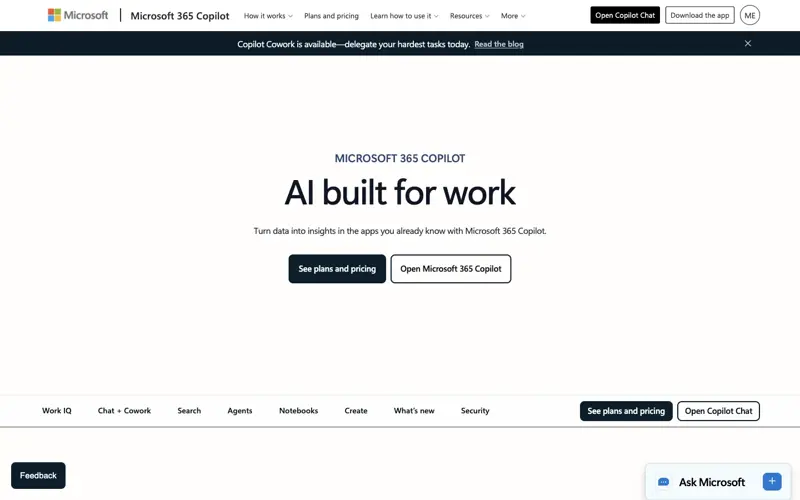
A couple of numbers worth sitting with. Microsoft reported more than 30 million paid Microsoft 365 Copilot seats in its fiscal Q4 2026 earnings, with organizations like NHS England (505,000 clinicians planned), KPMG (276,000+ seats), and HSBC (200,000 seats) deploying it at a scale Gemini for Windows simply hasn’t had time to reach yet — the app is days old. Worth flagging separately: the oft-cited “50 million Copilot users” figure floating around online is actually GitHub Copilot, a different product for a different audience. Don’t let anyone conflate the two in a comparison — it’s a common mistake and it makes the numbers look more impressive for Microsoft than they already are.
None of that means Gemini loses on features. Reviewers who’ve used both consistently rate Gemini’s research and creative output — long-document synthesis, image generation, brainstorming — ahead of Copilot’s, while giving Copilot the edge on structured writing, coding assistance, and anything that touches an actual Office document. If your day is spent in Excel formulas and PowerPoint decks, Copilot’s first-party integration wins by default. If your day is spent digging through a messy Gmail inbox and Google Docs, Gemini’s Connected Apps setup does something Copilot flatly can’t.
What This Means For You
If you live in Gmail and Google Drive all day. This is the clearest win case. Connected Apps turns Gemini into something that can summarize your actual inbox and pull real files, not generic advice. First action: install it, connect Gmail only at first (not everything at once), and try one real task — summarizing this week’s unread mail — before you decide whether to connect Drive and Calendar too.
If your company is a Microsoft 365 shop. Copilot already has the integration depth you’d need — Outlook, Word, Excel, Teams — and your IT department almost certainly already has some visibility into it. Installing a second AI assistant with zero admin controls on a work machine is the kind of thing that gets you a polite email from IT. First action: check whether your organization already has a Copilot license before adding anything else.
If you’re an IT admin reading this because someone on your team already installed it. Right now, there’s no enterprise management layer for Gemini on Windows — no centralized deployment, no data-loss-prevention hooks, no audit trail comparable to what Copilot’s enterprise tier offers. First action: decide your policy on personal Google account sign-ins on managed devices before this spreads past one person’s laptop, because unmanaged AI tools with account-level Gmail/Drive access are exactly the kind of shadow-IT risk security teams lose sleep over.
If you already use Gemini on Mac. The Windows version doesn’t fully match it yet — Spark is missing here, and some of the polish reviewers praised in the Mac release feels thinner on Windows. First action: install it for parity across your machines, but don’t expect an identical experience; treat Windows as the newer, less mature sibling app for now.
If you’re Copilot-curious but skeptical of Microsoft’s version. A lot of the skepticism around Copilot is fair — sluggish rollout, inconsistent quality across different Office apps. Gemini gives you a genuine second opinion without switching your whole workflow. First action: run the same task through both for a week — an email draft, a document summary, one image generation — and actually compare the outputs side by side instead of picking on brand loyalty.
If you’re a solo operator or freelancer without an IT department to answer to. You have the most freedom here — no policy to violate, no admin to notify. First action: install it, connect the Google services you already use daily, and give the Alt+Space habit two weeks before judging it; muscle memory for a new shortcut takes longer to form than people expect.
If you’re chasing every new AI release because it’s new. Fair enough, but know what you’re actually installing: a first-generation Windows app, built fast, with real rough edges (see below) and one headline feature that doesn’t even work on this platform yet. First action: install it with tempered expectations, and don’t uninstall Copilot or anything else on the strength of day-one hype.
Edge cases and troubleshooting
Alt+Space conflicts with something else and doesn’t open Gemini. This is the single most common complaint, and it’s not really Gemini’s fault — Alt+Space is a shortcut already claimed by Windows Copilot on some setups, and it’s the default activation key for PowerToys Run, a popular Microsoft utility a lot of power users already have installed. If nothing happens when you press it, one of those two is winning the race. Fix: open Gemini’s settings and remap the shortcut to something unclaimed, or skip the shortcut entirely and launch from the taskbar icon or system tray instead.
The floating window keeps repositioning itself every time you open it. A widely reported annoyance: instead of remembering where you last placed it, the overlay resets position on each Alt+Space press. There’s no confirmed permanent fix yet — this looks like a launch-week bug rather than intended behavior. Workaround: drag it to your preferred spot each session, or keep it docked in a screen corner where a reset position doesn’t get in your way.
Gemini randomly switches response language mid-conversation. Some users have reported Gemini replying in a different language than the one they typed in, with no obvious trigger. If this happens, explicitly state your preferred language at the start of a new prompt (“Respond only in English”) — it’s a workaround, not a real fix, but it resolves the immediate annoyance.
The app feels laggy or slow to open. Multiple early users have flagged sluggish performance, and there’s a plausible reason: this really does behave like a web app wrapped in a desktop shell (built on Electron, similar to a lot of “native” apps that are really just Chromium underneath) rather than a fully native Windows build. That’s a different architecture than the Mac version, which reviewers describe as feeling native. Workaround: keep only the apps you actually use running in your system tray, and don’t expect Mac-level snappiness from this release.
You see a “You are offline” error even though your internet is fine. This is a documented bug tied to a GPU-process crash, reported directly in Google’s own launch thread. It’s a false negative, not an actual connectivity problem. Fix: fully quit and relaunch the app; if it recurs often, check for a pending Windows graphics driver update, since GPU-process crashes are frequently driver-related.
Startup feels slower since installing Gemini. Because the app runs background processes (consistent with users’ Electron-wrapper complaints), it can add to boot time the way a browser with too many extensions does. Fix: in Task Manager’s Startup tab, you can disable Gemini launching automatically at boot and instead open it manually when you need it.
Connected Apps isn’t pulling in the email or file you expect. Two likely causes: either you haven’t explicitly turned on that specific connection in Settings & help → Connected Apps, or your prompt didn’t clearly signal which source to use. Fix: use the @ syntax (e.g., @Gmail) to point Gemini directly at the right connected source instead of relying on it to guess.
You’re on a work or school Google account and nothing works. Gemini Spark specifically requires a personal Google Account — it explicitly does not support work or school accounts, regardless of what your IT admin has enabled. That’s a hard platform rule, not a bug. For the base Gemini app itself, confirm your admin has actually turned on Gemini access for your organization’s accounts; not all Workspace admins have.
What Gemini for Windows Can’t Do (Yet)
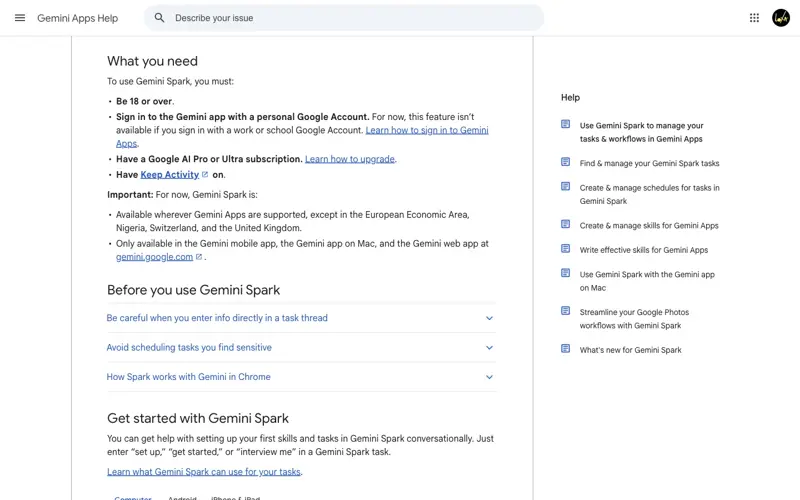
No Gemini Spark on Windows — full stop. This is the headline limit, and it’s the one thing in this whole guide worth remembering above everything else. Google’s own support documentation is explicit: Spark is “only available in the Gemini mobile app, the Gemini app on Mac, and the Gemini web app.” Windows isn’t on that list. Google’s desktop marketing page groups Spark in with the launch messaging in a way that makes it easy to assume it’s included — it isn’t, and that gap between marketing framing and the actual support doc is worth being annoyed about.
No enterprise admin or IT controls at launch. There’s no centralized deployment tooling, no policy management, no audit logging comparable to what Microsoft has built for Copilot over two-plus years. If your organization needs governance before adopting an AI tool broadly, Gemini for Windows isn’t there yet.
Fewer refined features than the Mac version. The Mac app has had since April 2026 to mature, plus a major July update. Windows launched September 10 as effectively a first release. Expect some catch-up before Windows gets full feature parity.
Spark’s eventual Windows rollout will still exclude a chunk of the world. Even once (if) Spark reaches Windows, Google’s current restrictions bar the European Economic Area, the UK, Switzerland, and Nigeria entirely, on top of requiring a personal account, age 18+, and a Google AI Pro or Ultra subscription. That’s a meaningful slice of Gemini’s global user base locked out on day one of any future rollout, not just an edge case.
It’s not a Windows shell replacement. The Alt+Space overlay is a convenience layer over your current app — it doesn’t get native, structured read/write control of arbitrary Windows applications the way some marketing framing implies. It’s closer to “a smart floating chat window” than “an assistant that operates your PC for you.”
Privacy: the part worth reading slowly
Before you connect Gmail and Drive to anything, know what “connected” actually means under the hood. Per Google’s own documentation, when you turn on Connected Apps and leave “Keep Activity” switched on, prompts, responses, summaries, excerpts, and inferences drawn from your connected emails and files may be used to improve Google’s generative AI models — and a de-identified subset of that material may be reviewed by human reviewers. Google’s own guidance is blunt about it: don’t connect apps containing anything you wouldn’t want used for training or potentially seen by a reviewer.
That’s a materially different posture than Microsoft’s enterprise commitment for Copilot, where prompts and Microsoft Graph data are explicitly not used to train Microsoft’s foundation models under Enterprise Data Protection. If your Gmail inbox has client contracts, HR complaints, or anything you’d wince at a stranger’s eyes on, that’s a real reason to think twice before flipping on every Connected App at once — or to at least understand exactly which ones you’re turning on and why.
Frequently Asked Questions
Is there a Gemini app for Windows now?
Yes. Google released a native Gemini desktop app for Windows on September 10, 2026, downloadable only from gemini.google/desktop. It requires Windows 10 or later, 8GB+ RAM, 200MB of free disk space, and works on both x64 and ARM64 processors.
Is Gemini or Copilot better on Windows? Neither wins outright — it depends on your workflow. Copilot has deeper native integration with Word, Excel, PowerPoint, Outlook, and Teams, plus mature IT admin controls. Gemini tends to edge ahead on research depth, creative writing, and image generation, and connects more naturally to Gmail and Google Drive. If your work lives in Microsoft 365, Copilot’s integration wins. If it lives in Google’s ecosystem, Gemini does.
Does Gemini for Windows have Spark? No — not at launch, and Google’s own support documentation confirms Spark currently only works in the Gemini mobile app, the Mac app, and the web app at gemini.google.com. If Google’s marketing implied otherwise to you, you’re not misreading it; the marketing page groups Spark with the desktop release in a way that doesn’t match the actual platform restrictions.
Is my data used to train Google’s AI? Potentially, yes — if you connect Gmail, Drive, or other apps and leave “Keep Activity” turned on, Google’s documentation states that prompts, responses, and inferences from that connected content may be used to improve its generative AI models, with a de-identified subset reviewed by humans. You can turn off individual Connected Apps at any time from Settings & help.
How do I change the Alt+Space shortcut? Open Gemini’s settings from the system tray icon and look for the keyboard shortcut option. This matters more than it sounds — Alt+Space is also used by Windows Copilot on some setups and is the default hotkey for the popular PowerToys Run utility, so conflicts are common.
Is Gemini for Windows free? The download and basic use are free. Higher usage limits, more advanced models, and features like Gemini Spark (once it does reach Windows) require a Google AI Pro or Ultra subscription.
Can I use Gemini for Windows with a work Google account? Only if your organization’s Google Workspace admin has specifically enabled Gemini access for your account. Some features, like Gemini Spark, explicitly require a personal account and won’t work with a work or school login regardless of admin settings.
Why does Copilot come pre-installed but Gemini doesn’t? Because Copilot is Microsoft’s own product built into an operating system Microsoft controls. Google is a third party on Windows, the same position ChatGPT and every other outside AI app is in — it has to earn a download, not ship by default.
Does the Windows app work the same as the Mac app? Not exactly. The Mac app has had since April 2026 to mature and picked up a major system-wide voice feature in July. Windows launched as a newer release without full feature parity, and it’s missing Spark, which the Mac version has.
What happened to the “G AI” listing I saw when searching for this?
That’s not Google’s app. Third-party listings impersonating official AI tool downloads are common, and Gemini for Windows is popular enough right now to be a target. Only download from gemini.google/desktop.
The Bottom Line
Gemini for Windows is a genuinely useful app with one big asterisk: the feature getting the most attention in Google’s own marketing — Spark — doesn’t actually run on the platform you’d be installing it on. Everything else is real and mostly works: the Alt+Space overlay meaningfully cuts the friction of switching tools mid-task, Nano Banana image generation is a nice bonus for anyone building decks or docs, and Connected Apps genuinely helps if your work lives in Gmail and Drive. Just go in knowing the rough edges — laggy performance, a floating window that won’t remember where you put it, and zero IT governance if you’re on a managed work machine.
Copilot isn’t going anywhere, and if your day is Word docs and Outlook threads, it’s still the better-integrated tool. But “which one should live on your PC” isn’t really an either/or question anymore — plenty of people are going to end up running both, reaching for whichever one fits the task in front of them.
If you want to actually get good at using Gemini’s cross-app features — the Connected Apps setup, the privacy trade-offs, the workflows that make this worth the download — our Gemini Personal Intelligence at Work course walks through exactly that, built for people using Gemini across Gmail, Drive, and Calendar without accidentally oversharing. If you’re newer to Gemini altogether, Google Gemini Mastery is the better starting point. And if you’re staying Team Microsoft for now, our Microsoft Copilot for Microsoft 365 course covers the integration depth this guide only had room to summarize.
Sources
- Google — Gemini for desktop (official download page)
- Google — Use Gemini Spark to manage your tasks & workflows in Gemini Apps
- Google — Gemini Spark updates: macOS launch, connected apps and more
- Microsoft — Microsoft 365 Copilot product and pricing page
- Microsoft Support — Getting started with Copilot on Windows
- Microsoft Support — Access Microsoft 365 Copilot on Windows
- Microsoft Support — Understand updates to the Copilot key on Windows devices
- Notebookcheck — Gemini for Windows launches without Google’s Spark agent
- Windows Forum — Google Gemini Desktop App Is Available for Windows
- TechSpot — Google Gemini for Windows and macOS Download
- TechCrunch — Gemini Spark, Google’s agentic assistant, is now available on Mac
- Microsoft — Windows 11: Windows Copilot, Features and Benefits
