If you’ve built a Gem in the Gemini app, you’ve probably seen the banner by now: Google is replacing Gems with something called Skills. And if you’ve read anything about it online, you’ve probably also seen a date that sounds like a deadline. October 13. “After that, you can’t edit your Gems.”
Here’s the thing. Google never said that. That date comes from someone digging through app code in September, not from a Google announcement, and Google’s own pages now say something quite different. The real timeline is slower and more forgiving than the rumor, but it still has a date you shouldn’t ignore, and the move from a Gem to a Skill changes how your helper behaves in a few ways that are easy to miss.
This guide sorts out what’s confirmed and what isn’t, shows you how to rebuild a Gem as a Skill with a real example you can copy, and covers the problems people are already running into. Everything about dates and settings comes from Google’s own help pages and Workspace Updates post, which I read directly rather than trusting the headlines.
What just changed
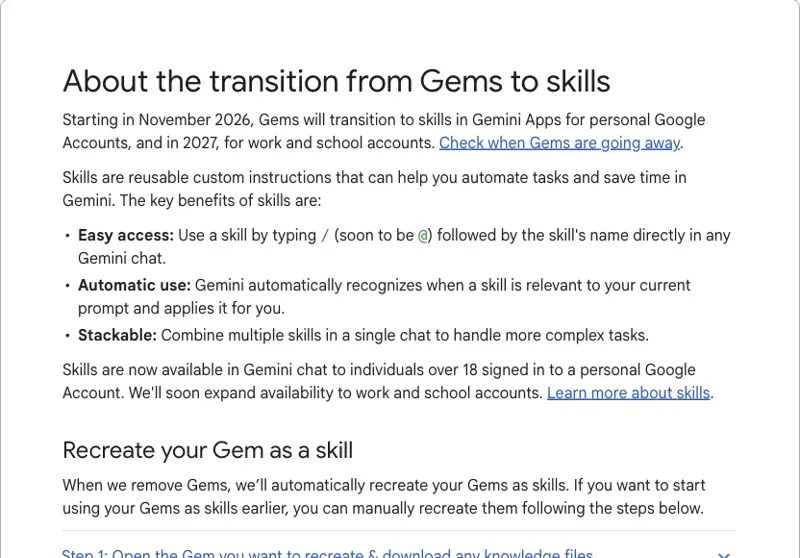
Google introduced skills in the Gemini app and in Google Workspace as the replacement for Gems. A skill is a saved set of instructions for one kind of job, something like “write my weekly newsletter in my voice” or “turn a recipe into a grocery list.” Gems did a version of that. Skills do it differently in three ways that matter:
- You call them from any chat. Type
/and the skill’s name (Google says@is coming soon). No more opening a side panel and switching to a separate Gem conversation. - Gemini can pick them up on its own. If a skill looks relevant to what you’re asking, Gemini applies it without being told.
- They stack. You can use more than one skill in a single prompt. A “weekly newsletter” skill plus a “brand guidelines” skill, for example, both shaping one draft.
Skills are also built on an open, Markdown-based format called SKILL.md. That means a skill someone wrote for another AI tool can be uploaded into Gemini, and one you write in Gemini can be downloaded as a file you own.
The dates Google has actually published
Google’s Workspace Updates post (September 30, 2026) is the most precise source. Here’s its key-dates list:
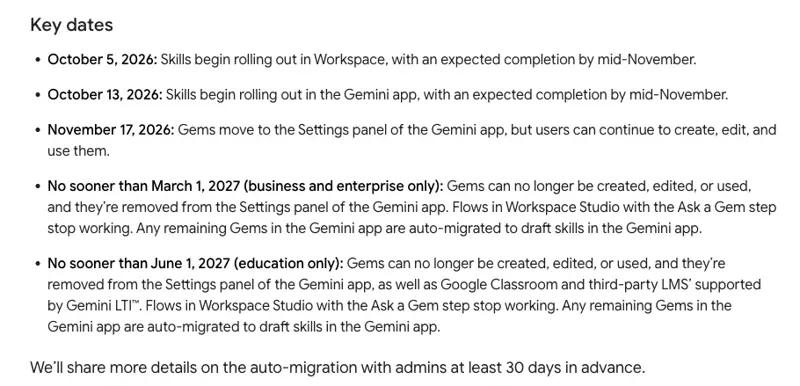
Read that carefully, because two details cut against the rumor:
- October 13 is when skills start rolling out in the Gemini app. It’s a start date for the new thing. It is not an end date for the old thing.
- November 17 is when Gems move into the Settings panel, and Google’s own wording is that “users can continue to create, edit, and use them.” The in-app notice that 9to5Google spotted says Google will “automatically begin migrating your Gems to skills” starting that day, and that you can use your Gems until they migrate.
So where did “Oct 13 lock” come from? Android Authority’s September 9 teardown of Google app code found strings suggesting Gem creation and editing might stop on October 13. Those were internal strings, not an announcement. When Google’s real in-app notice went live, it gave November 17 and didn’t repeat the October restriction. Plenty of X posts still carry the older date, and that’s the version most people have in their heads.
I’m not saying the rumor is impossible to come true. Google could adjust. I’m saying that as of October 3, nothing Google has published supports it, and you should plan around the dates above instead.
One honest gap: Google hasn’t published a hard “last day you can edit a personal-account Gem.” Gemini Apps Help says only that Gems transition to skills “starting in November 2026” for personal accounts. Business and nonprofit accounts get March 2027 at the earliest. Education accounts get June 2027 at the earliest. If you’re on a personal Google account, treat November 17 as the day your clock starts.
Gems vs Skills: what’s actually different
Here’s the comparison, built from Google’s help pages rather than marketing:
| Gems | Skills | |
|---|---|---|
| How you start one | Open the Gems side panel, pick a Gem, chat inside it | Type / and the skill name in any chat (soon @) |
| Automatic use | No, you choose the Gem | Yes, Gemini applies a relevant skill on its own |
| Using several at once | No, one Gem per chat | Yes, skills stack in one prompt |
| Where your chats live | A Gem has its own page listing its recent chats | Chats appear in your normal side panel; skills have no chat page |
| File format | Internal to Gemini | Open SKILL.md standard; downloadable as a .zip |
| Reference files | Upload “Knowledge” files in the Gem editor | Upload with the skill (folder or .zip); Drive files and Notebooks “coming” |
| Sharing | Share link | Not yet; Google says it’s coming “in the coming weeks” |
| Default tools (Canvas, image generation, etc.) | Pin a default tool | Most Gem default tools don’t work with skills yet |
| Works with Deep Research and Canvas | Via default tool | No, not yet |
| Limit | Not a headline feature | Unlimited created, 100 active at a time |
That table already tells you who has the most to rebuild. If your Gems were mostly “paste my rules, answer in my format,” they’ll convert easily. If they leaned on a pinned tool or shared with teammates, you’ve got homework.
How to rebuild a Gem as a Skill (10 minutes)
Google will recreate your Gems as skills automatically when it removes them. You don’t have to do anything yourself. But “automatic” means Google’s converter decides what the name, description, and trigger conditions look like, and, as you’ll see, the description is the single most important thing about a skill. Rebuilding by hand takes about ten minutes per Gem and gives you a better result. Here’s the process from Google’s own guide, with a working example at the end.
Before you start: what you need
Google’s Create & manage skills page lists three requirements. You must be 18 or over, signed in to the Gemini app with a personal Google Account (work and school accounts can’t create skills yet), and have Keep Activity turned on in your Gemini settings. Skills currently work in the Gemini mobile app, the Gemini app on Mac, and the web app at gemini.google.com. If Keep Activity is off, that’s the first thing to fix, and it’s the most common reason a skill option is missing.
What does leaving Keep Activity on mean? Google’s Gemini Apps Privacy Hub says that with it on, your activity is used to provide, develop, and improve Google’s services (including training generative AI models), and human reviewers, including Google’s service providers, look at a subset of chats. Reviewed data is disconnected from your account and kept for up to three years, even if you later delete your activity. With it off, chats are kept for 72 hours so Google can provide the service, and Google says they aren’t used to improve its models unless you submit feedback. Temporary chats aren’t used for training. It’s a trade-off, and it’s yours to make: if you want skills, Keep Activity comes with them, so keep client names, passwords, and other sensitive details out of those chats. Google hasn’t said whether skills created automatically from your Gems work with the setting off.
Step 1: Copy everything out of the Gem
On a computer, go to gemini.google.com. Open the sidebar, click Gems, and click Edit next to the Gem you’re recreating. Keep this tab open.
If the Gem has files under “Knowledge,” download each one. Google says you’ll have to do this one at a time (it’s only the automatic migration that handles files in bulk). Make a new folder on your computer and name it exactly what you plan to call the skill: all lowercase, words separated by hyphens, like plan-45-minute-science-lesson. Put the downloaded files in that folder.
Step 2: Create the skill
On the Gemini sidebar, open Settings → Skills. At the top you’ll see several ways to start. Google lists five on its Create & manage skills page:
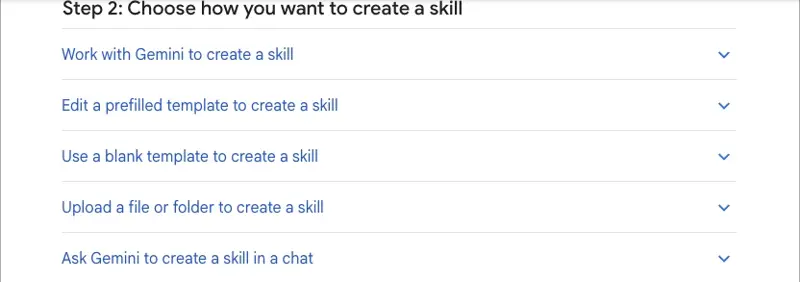
For a straight Gem conversion, pick Create manually. Paste in the name, the description, and the instructions from your Gem, then click Create. Gemini reformats the name into the right shape for you if you typed it with spaces or capitals.
You can also let Gemini do the converting. Open any chat and type something like:
Create a skill based on these instructions: [paste your Gem’s instructions here]
Google documents that exact approach. Gemini builds the skill, saves it to your Skills page, and you can edit it afterward by describing your changes in the chat.
Step 3: Add the files (only if your Gem had any)
Skills pick up reference files only when you upload them with the skill. So after you’ve created the skill:
- On the Skills page, hover over your new skill, click Skill actions, then Download. You get a .zip containing a SKILL.md file.
- Open the zip and move the SKILL.md into the folder you made in Step 1, next to your downloaded files.
- Back on the Skills page, hover over the same skill, click Skill actions → Replace skill, and upload the whole folder.
One rule trips people up: the folder name has to match the skill name. If they don’t match, the upload fails.
Two limits to know now. Uploading files to create a skill only works on gemini.google.com and in the Gemini app on Mac, not on your phone. And the total size of everything you upload can’t be more than 100 MB.
Step 4: Test it with a slash
Open a new chat. Type /, pick your skill from the list, and give it a real task. Don’t test it with a toy prompt. Use the last real thing you asked the Gem to do and see if the result matches. If it doesn’t, the fix is almost always in the description or in a missing instruction, which we’ll get to in a moment.
A worked example: a teacher’s lesson-plan Gem
Let me carry one example all the way through so you can see what actually changes. This is a made-up but realistic Gem, the kind a middle-school science teacher might have built.
The old Gem’s instructions:
You are a friendly lesson-planning assistant for 7th grade science. Always make a 45-minute plan: 5-minute warm-up, 10-minute mini-lesson, 20-minute activity, 10-minute exit ticket. Align to NGSS standards. Use plain language at a 7th-grade reading level. Add one idea for English learners and one extension for advanced students. Put the plan in a table. If I forget the topic or standard, ask me.
This works fine as a Gem. But notice three things that will hurt it as a skill:
- It opens with a persona (“friendly lesson-planning assistant”). A skill isn’t a character you chat with. It’s a procedure Gemini follows. The persona does nothing.
- It’s locked to one grade and subject. Google’s own writing advice says to teach Gemini how to handle a type of task, not one specific result.
- Nothing in it tells Gemini when to use it. In a Gem, you decided by opening the Gem. In a skill, Gemini decides by reading the name and description.
The rebuilt skill (SKILL.md):
---
name: plan-45-minute-lesson
description: Builds a 45-minute lesson plan with a warm-up, mini-lesson, activity, and exit ticket, aligned to a named standard, with one support for English learners and one extension for advanced students. Use when planning a class period, turning a topic or standard into a lesson, or trimming an existing plan to fit 45 minutes.
---

# Plan a 45-minute lesson

## Before you start
Ask for the grade, subject, topic, and standard if any of them is missing.
Default to the grade and subject named earlier in the conversation.

## Structure (always exactly 45 minutes)
1. Warm-up: 5 minutes
2. Mini-lesson: 10 minutes
3. Activity: 20 minutes
4. Exit ticket: 10 minutes

## Rules
- Align the plan to the standard the teacher names. If none, suggest one and say so.
- Write at the reading level of the grade being taught.
- Add one support for English learners and one extension for advanced students.
- Format the plan as a table with columns: Minutes, What the teacher does, What students do.
- Never invent standard codes. If unsure of the code, say "check the standard text."
What changed, and why each change matters:
| Gem version | Skill version | Why |
|---|---|---|
| “You are a friendly… assistant” | Removed | Skills are procedures, not personas |
| “for 7th grade science” | “Ask for the grade, subject, topic” | One skill now serves every class you teach |
| No trigger | “Use when planning a class period…” in the description | This is what lets Gemini pick the skill up on its own |
| Description: none | Third-person, starts with a verb, under 1,024 characters | Google’s required shape |
| “Align to NGSS” | “Align to the standard the teacher names” | Works outside science, too |
| None | “Never invent standard codes” | A guardrail you’ll be glad of the first time Gemini makes one up |
Then use it. In a fresh chat:
/plan-45-minute-lesson 7th grade, photosynthesis, MS-LS1-6
Gemini loads the skill, builds the table, and you’re done. Want a parent email afterward? Create a second skill, say write-parent-update, and in the same chat add:
Now use /write-parent-update to summarize what we covered today in three sentences.
That’s stacking: two skills in one conversation, each doing its own job. With Gems, you’d have had to copy the plan into a different Gem’s chat.
How to write a skill Gemini actually uses
Google published a dedicated guide to writing effective skills, and it’s worth ten minutes. The most useful ideas, distilled:
The name and description are the trigger. Gemini doesn’t read every skill in full every time. It first checks only the name and a one-to-two-sentence description to decide if the skill is relevant. A vague description means your skill sits there unused. Google’s rules: start with a verb, describe what it does rather than what it is, write in the third person, stay under 1,024 characters, and add specific “Use when…” situations. Use plan-meal-from-recipe, not recipe-data.
One job per skill. Google’s guide says each skill is built for a single job. If you’ve got a Gem that does “my whole content process,” split it. A “draft the LinkedIn post” skill and a “check against brand voice” skill, stacked, beat one giant one.
Decide how much freedom to give. Creative tasks (brainstorming headlines) want loose instructions. Strict tasks (copying financial data into an exact layout, summarizing meeting notes as bullets only) want step-by-step ones, because “even a small change to the data or format is considered a mistake.”
Include a template or an example. Google says output templates improve accuracy, especially for formatting. If you always want a certain table layout, show the table.
Keep it short. Focus on what’s unique about how you do the job. Gemini already knows how to write a paragraph. It doesn’t know that your clients hate the word “synergy.”
Google also tells you when not to bother: one-off jobs, tasks Gemini already handles well, and tasks whose steps change constantly. Not everything needs a skill.
What this means for you
Pick the line closest to your situation and do the first action listed.
If you’re on a personal Google account with a few Gems you use weekly: you’ve got until at least November 17 before migration begins. First action: this week, pick your single most-used Gem and rebuild it by hand using the steps above. Compare the result with how the Gem behaved. That tells you whether you can trust the automatic conversion for the rest.
If you’re a teacher on a school-managed Google account: your Gems are safe much longer. Google’s education date is June 1, 2027 at the earliest, and your admin gets at least 30 days’ notice before auto-migration. First action: don’t panic-rebuild. Keep an export of each Gem’s instructions in a document, and ask your admin whether skills have been turned on for your domain. If you teach on a personal account and a school account both, handle the personal one first.
If you run a small business on Google Workspace: business and enterprise accounts keep Gems until March 1, 2027 at the earliest. But note that skills in Workspace apps (Docs, Gmail and the like) are separate from skills in the Gemini app and don’t sync. First action: decide where you need the skill. If it’s for writing in Docs, build it in Workspace. If it’s for chat, build it in the Gemini app. Build both if both.
If you’re a Workspace admin: the date to watch is the 30-day notice Google promises before auto-migration. First action: check your admin console for the skills setting, and tell people which Gems are used in Workspace Studio flows. Existing flows with an “Ask a Gem” step keep working for now, but you can no longer create new ones with that step.
If you share Gems with teammates or clients: this is the group with the most friction. Google says sharing for skills is coming “in the coming weeks,” but it isn’t there at the time of writing. First action: for every shared Gem, save the instructions and files somewhere neutral (a shared drive folder) now, so a teammate can rebuild the skill themselves if sharing is late.
If you’ve got 15+ Gems and no time: don’t rebuild all of them. First action: list your Gems and mark each one “used this month” or “haven’t touched.” Rebuild only the first group. The second group can migrate automatically, or be left to expire. You can also create unlimited skills but only 100 can be active at once, so a cleanup helps either way.
If you never made a Gem: skills are actually easier to start with than Gems were. First action: pick one task you’ve typed into Gemini three times this month and turn it into a skill. Settings → Skills → Create with Gemini lets you describe it in plain words.
Edge cases and troubleshooting
These are the real problems that show up in Google’s own known-issues note and in what people have been posting. None of them are exotic.
1. “I don’t see Skills in my settings.” Rollout is gradual. Google’s schedule has the Gemini app rolling out starting October 13 and finishing by mid-November, and its help page says skills are arriving “starting with personal Google Accounts, so they might not be available in your chats just yet.” Work and school accounts aren’t included yet. Also check that Keep Activity is on and that you’re 18 or over, since Google lists both as requirements. If you’ve got both kinds of account, check the personal one. Fix: wait, switch on Keep Activity, or sign in with a personal account.
2. “Create manually won’t save on my phone.” This is a known issue Google has posted. Manually created skills don’t save in the Gemini mobile app for now. Workaround: create the skill conversationally in a chat (“Create a skill based on these instructions…”) or do it on the web at gemini.google.com.
3. “I can’t edit my skill’s files on my phone or Mac.” Also a known issue. Skills with uploaded files can’t be edited in the mobile app or the Gemini app on Mac for now. Edit them in the web app. And to change a file in a skill, you have to upload the entire skill with all its reference files again, not just the changed one.
4. “My upload failed.” Four usual suspects. First, the folder name doesn’t match the skill name. Second, the skill name isn’t lowercase with hyphens. Third, your folder contains an unsupported file: .docx, .doc, .xlsx and other binary formats aren’t supported, though .pdf, .md, .txt, .csv, .json and images are. Convert Word and Excel files before uploading. Fourth, a hidden file like .DS_Store snuck in; Google’s tip is to check for hidden binary files before you upload.
5. “My Gem used Canvas / image generation / Deep Research and the skill doesn’t.” Google says most default tools that were available in Gems don’t work with skills yet, and skills don’t yet work with Canvas or Deep Research. Fix: for now, keep the instructions in the skill and ask for the tool in your prompt when you need it ("…and put the result in Canvas"). Check whether that works for your case before you give up a Gem you rely on.
6. “Gemini isn’t using my skill automatically.” Three possible causes. The description is too vague (rewrite it with a “Use when…” sentence). The skill is turned off (Gemini only auto-applies skills that are active, and if one is off and you call it, Gemini asks whether to turn it back on). Or you’re over the limit of 100 active skills. Calling it by hand with /skill-name always works as a fallback.
7. “My skill is in Gemini but not in Docs or Gmail.” Skills in the Gemini app and in Workspace apps don’t sync. Create the same skill separately in each place you need it. Google’s own post says so, and users have already been asking about it on X.
8. “The personality is gone.” A recurring complaint on X is that a Gem with a character, a name, and a voice doesn’t survive the move as a character. One user put it as “the persona goes, the instruction stays.” That’s accurate to how skills are designed. If the voice matters to you, write it into the instructions as concrete rules (“short sentences, no exclamation points, address me by first name”), not as a role to play.
9. “I used Opal or Gems from Google Labs.” Google says Opal (its mini-app builder) and Gems by Google Labs go away in November too, at the same time as personal-account Gems. Those need their own export step. Save anything you built there before November.
What this can’t do (and what Google hasn’t said)
Let’s be honest about the limits, because the launch coverage mostly isn’t.
It can’t guarantee your Gem converts perfectly. Google has confirmed that Gems will be recreated as skills, including “supported files.” It has not published a feature-by-feature conversion guide. tbreak’s reporting made the same point: Google hasn’t said whether default tools, attached files, or share links will all transfer the way they worked before. Someone asked Google’s official Gemini account on X whether Gem instructions survive the cutover or need rebuilding, and as far as I can tell that question hasn’t been answered in public. Rebuilding by hand is how you take control of that.
It can’t share yet. Skills don’t have the share links Gems did. Google says sharing arrives soon, along with Google Drive files and Gemini Notebook notebooks as sources. Until then, a skill you build is yours.
It can’t sync between the Gemini app and Workspace. You’ll maintain two copies if you want both.
It can’t use every tool Gems could. Canvas, Deep Research and most default Gem tools don’t work with skills right now.
It can’t run scripts that reach the internet. Skills can include scripts, but Google says scripts that need internet access aren’t supported, and they can’t take actions on external sites. If a skill’s job is “go fetch something,” that’s not what this does.
There’s one more honest unknown, and it’s the question people ask most: is this free? Early September reporting from 9to5Google and others said skills were restricted to Google AI Pro and AI Ultra subscribers because skills began life inside Gemini Spark, Google’s proactive-agent feature. Google’s current help text says otherwise for chats: “Skills are available without a Google AI subscription and can be used in your chats.” Creating Spark tasks and schedules still needs a paid plan. The simplest check is to open Settings in your account and look for Skills. If you see it, you’ve got it. If you don’t, it hasn’t reached you yet.
FAQ
Is “October 13” the last day to edit my Gems? Not according to anything Google has published. October 13 is when skills begin rolling out in the Gemini app. The “no creating or editing after Oct 13” version traces back to a September app-code teardown. Google’s Workspace post says that on November 17 Gems move to Settings and “users can continue to create, edit, and use them.”
When will my Gems actually stop working? It depends on your account. Personal Google accounts: migration begins November 17, 2026, and Gems keep working until they migrate. Business, enterprise and nonprofit accounts: no sooner than March 1, 2027. Education accounts: no sooner than June 1, 2027. Google gives admins at least 30 days’ notice before the automatic migration.
Do I have to rebuild my Gems myself? No. Google says it will “automatically recreate your Gems as skills” when it removes Gems, and that includes supported files. For business and education, remaining Gems become draft skills. Rebuilding by hand is optional, but it gives you a better description and trigger.
Are Gemini Skills free? Google’s help text says skills are available without a Google AI subscription and can be used in your chats. Spark tasks and schedules are separate and need a paid plan. Reporting from early September said otherwise, so check Settings → Skills in your own account.
What is SKILL.md? It’s an open, Markdown-based format for packaging a skill: a file with a name and description at the top, followed by instructions. Google says building on it lets you bring skills from other platforms into Gemini and download yours as a .zip. We wrote a deeper look at how it works across tools in our guide to OpenClaw skills and in the Claude Skills vs Gemini Gems vs ChatGPT GPTs comparison (written before the Gems switch, so read the Gems column as “what Gems were”).
How do I use a skill in a chat?
Type / followed by the skill’s name and pick it from the list. Google says @ is coming. Gemini can also apply a relevant skill on its own, and you can use more than one at a time.
Can I use skills written for Claude or other AI tools? Skills are built on the open SKILL.md format, and Google’s help says you can import skills made on other platforms by uploading their SKILL.md files. Check the details though: scripts that need the internet won’t run, and file types are limited.
How many skills can I have? As many as you like, but only 100 can be active at the same time. Disable one to enable another.
What about Gemini Spark? Skills originated in Gemini Spark, the feature where Gemini works on tasks in the background. Spark has stricter requirements of its own (18+, a personal account, a Google AI Pro or Ultra plan, Keep Activity on, and it isn’t available in the EEA, Nigeria, Switzerland or the UK). Chat skills have lighter ones: 18+, a personal account, and Keep Activity on. Our Spark explainer and Spark access guide cover that side.
Does this affect Gemini Notebook? Google tells educators to move toward Gemini Notebook and Guided Learning in place of Gems for student-facing uses. If that’s you, our Gemini Notebook study guide is a good starting point.
The bottom line
The headline version, “Google is killing Gems,” is true but badly timed in most coverage. Skills start arriving October 13. Personal-account Gems start migrating November 17, and keep working until they do. Work and school accounts have until 2027. Nothing Google has published says you lose editing access on October 13.
Don’t wait for the automatic conversion to find out what it does to your best Gem. Pick the one you use most, rebuild it by hand this weekend using the lesson-plan example above as your template, and add a “Use when…” sentence to the description. Save every Gem’s instructions and files outside Gemini either way. It costs nothing and it’s the only protection that works whatever Google decides.
If you want to get better at the part that matters most, writing instructions an AI follows reliably, our Google Gemini course covers building reusable helpers, and Prompt Engineering teaches the instruction-writing habits that make a skill work. If you also use Claude or Cowork, Cowork Skills & Plugins covers the same SKILL.md idea from the other side.
Sources
- Google Workspace Updates — Introducing skills in the Gemini app and Workspace, plus what’s next for Gems
- Gemini Apps Help — About the transition from Gems to skills
- Gemini Apps Help — Create & manage skills for Gemini Apps
- Gemini Apps Help — Write effective skills for Gemini Apps
- Gemini Apps Privacy Hub (Keep Activity)
- Android Central — Google outlines timeline to phase out Gemini Gems in favor of Skills
- Tom’s Guide via Yahoo — Google is replacing Gemini Gems with Skills: this is what you need to know
- tbreak — Gemini Gems to Skills: migration starts 17 November
- SiliconReport — Gemini app will replace Gems with skills on November 17
- AI Weekly — Google Migrates Gemini Gems to Paywalled ‘Skills’ on Nov 17
- Thurrott — Google Gemini’s Custom ‘Gems’ Are Being Replaced With ‘Skills’
- X posts reviewed for community reaction: @testingcatalog, @Google, @GeminiApp, @AndroidAuth, @PamelaSMFWorks, @ethereaglehq, @DaytonDavis (October 2026)
