

If you type the same instructions into Gemini every week (“reply in a friendly tone, keep it under 120 words, never promise a refund date”), Google now has a feature for exactly that: a Skill. You write the instructions once, give the Skill a name, and call it from any chat. On November 17, 2026, Google makes old Gems read-only for personal accounts (18 and over), so this is a good week to open the Skills page.
This guide is for the person who does a job, not the person who builds software. It covers what a Skill is, who can use one, how to build your first, how to write one that Gemini actually picks up, and three complete samples: a reply desk for a small shop, a listing-and-follow-up Skill for a real estate agent, and a weekly status update for an office manager. It also covers what goes wrong, and what not to put in a Skill.
One honest note first. We have not built a Skill in a Gemini account of our own for this guide. Everything about how Skills work comes from Google’s own pages (its Gemini Apps Help articles, its launch post and two Workspace Updates posts), which we read on November 16, 2026. The three sample Skills are written by us, from Google’s guidance, to show the shape. Run each against your own real messages before you trust it.
If you built Gems and want the dates, what breaks and how to move them over, we wrote that separately: Gemini Gems Are Becoming Skills: Dates, Setup, What Breaks. This guide is about building something new for your job.
What a Skill is, in plain words
Google’s help page puts it this way: “A skill is a set of instructions and preferences that teaches Gemini how to handle a specific type of task the way you would.” It adds an image that is useful for a non-technical person: “Think of it as a cheat sheet that captures your expertise—your process, your preferences, and the details only you would know—so Gemini can do a recurring task correctly every time, without you explaining it again.”
Three things make a Skill different from a long prompt you keep in a note:
- You call it by name. In a chat, you type
/(or@, if you have the updated shortcut) and pick the Skill. - Gemini can use it without being told. Google says Gemini can use an active Skill when it fits the task.
- You can use more than one at once. Google’s page says “You can include multiple skills for Gemini to use in a single task.”
Google also says each Skill “is built for a single job.” That one line decides how you should build them. A Skill called “do my whole business” is the wrong shape. A Skill called “reply to customer messages” is the right one.
Who can use Skills, and does it cost anything?
This is the part that is confusing, because Google’s own pages word it differently.
On September 30, 2026, Google’s launch post said Skills were rolling out in Gemini chat to “all Google AI subscription tiers,” and it did not say whether any of those tiers is free. PCWorld reported the same day that Skills had been limited to paid users and that free access was now available. 9to5Google reported that Gems would move to Skills for “all free users who don’t have Spark.”
The page that matters today is Google’s current Gemini Apps Help page, “Create & manage skills for Gemini Apps.” It says: “Skills are available without a Google AI subscription and can be used in your chats.” It lists two requirements: you must be 18 or over, and signed in to the Gemini app.
Use that sentence when someone says Skills are paid-only. Two caveats, both from the same page. Google says that “For now, skills are only available in the Gemini mobile app, the Gemini app on Mac, and the Gemini web app at gemini.google.com.” And a Skill that depends on a connected service is a different matter: “Skills work with Keep Activity off, but features that require it, like Connected Apps, won’t be available.”
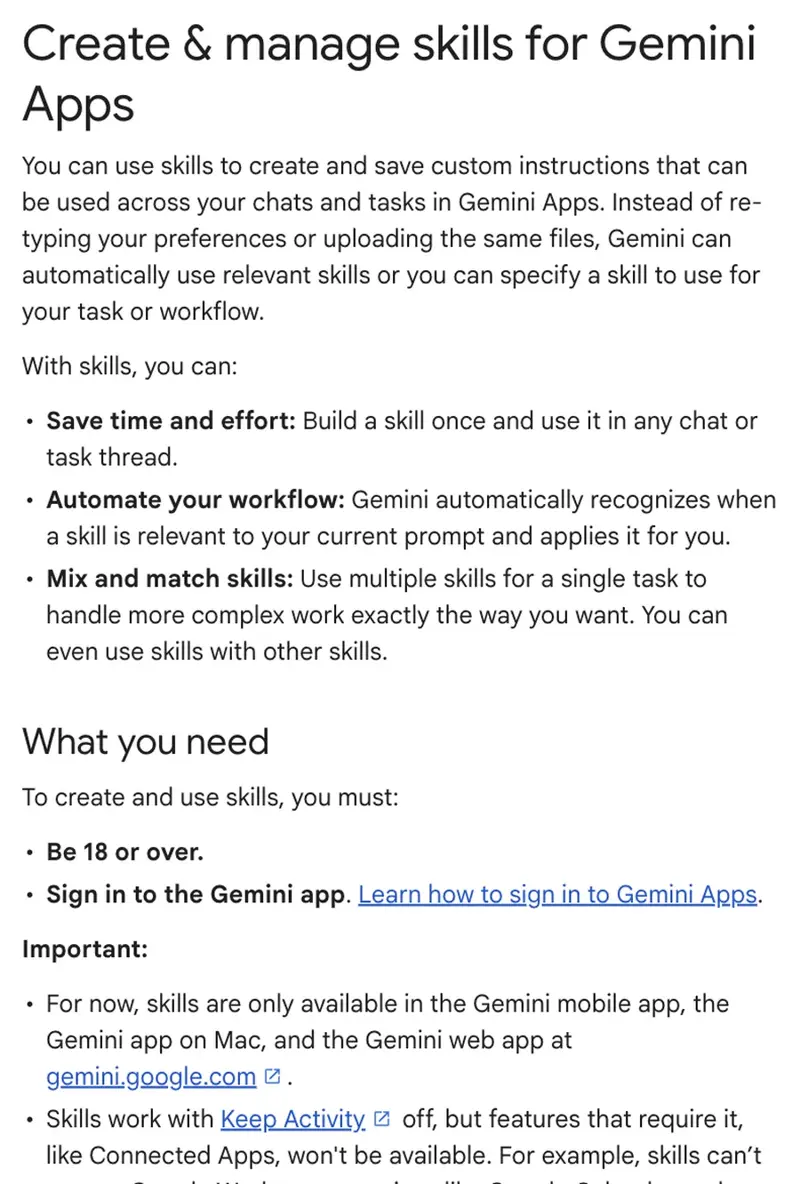
What this guide does not claim: that every free account sees the Skills page today. Google describes the rollout in the Gemini app as running from October 13 with completion expected by mid-November, so a person whose account is not updated yet may not see it. If you cannot find it, the troubleshooting section below has the first thing to check.
Skills in the Gemini app are not Skills in Workspace
If you use Google Workspace at work (Gmail, Docs and Slides through a business account), you may have seen a different announcement. Google’s Workspace Updates post of November 2026 says reusable skills “are now rolling out across Google Workspace Studio and Workspace apps,” starting November 9, 2026 for Rapid Release domains and November 30, 2026 for Scheduled Release domains, on plans that include Business Starter, Standard and Plus and Enterprise Starter, Standard and Plus.
The point that trips people up is in the same post: Skills made in Workspace “do not sync automatically with skills or Gems in the Gemini app.” Both use the same open file format (SKILL.md), so you can copy the instructions by hand from one place to the other.
| Skills in the Gemini app | Skills in Workspace apps | |
|---|---|---|
| Who it is for | People with a personal Google account, 18 and over | Workspace Business and Enterprise plans and some add-ons, 18 and over |
| Where you build | Customize, then Skills, in the Gemini app | A skill builder in Google Docs, per Google’s Workspace post |
| When it started | Rolling out from October 13, 2026 | Per Google’s November post, from November 9, 2026 (Rapid Release) or November 30, 2026 (Scheduled Release) |
| Syncs with the other | Not automatically | Not automatically |
The sources for the columns are Google’s Gemini Apps Help and its two Workspace Updates posts. Google’s pages do not agree on whether work accounts can use the Gemini app’s Skills yet: the Help page about the Gems transition says work and school accounts are expected later, while the September Workspace post says the Gemini app’s Skills are available to Workspace customers too. If you are on a work account, follow your administrator, not this guide.
The timeline, so you know how much time you have
Dates matter here because a Gem you cannot open is a Gem you cannot test against.
For a personal account over 18, Google’s page says that on November 17 “Gems transition to skills and become read only. You can still access your Gems, but can’t use or edit them, or create new ones,” and that Gems are removed on December 17. If you have a Gem you rely on, rebuild it before the 17th, or let Google’s automatic conversion do it and then check the result. The migration guide linked above walks through both.
You do not need an old Gem to start. Everything below works from a blank page.
Build your first Skill
This is the path Google’s help describes. We have not clicked through it in our own account, so if a button is named slightly differently on your screen, trust your screen.
Step 1: Pick the task you repeat the most
Google’s “Write effective skills” page lists three signs that a task deserves a Skill. You “give Gemini the same instructions over and over, especially for complex tasks with long prompts.” You “repeatedly adjust Gemini’s layout or style to match your needs.” Or you “manually combine steps across apps like Gmail, Docs, and Calendar.”
The same page lists when to skip a Skill: “A one-off job,” a task that is “Already handled well,” and one that is “Constantly changing,” where “The steps or requirements change too often to keep a skill up to date.” Take that list seriously. A Skill you have to rewrite every Monday is worse than a prompt.
A quick filter: if you did the task at least three times last month and each time you pasted the same instructions, it passes.
Step 2: Open Skills
In the Gemini web app, Google says to open Customize in the sidebar. “If you don’t see it, click More first, then click Skills at the top.”
Step 3: Choose how to create it
Google lists four routes:
- Work with Gemini. Pick “Create with Gemini” and describe the task.
- Edit a template. Start from a prefilled template or a blank one.
- Upload a file. A
SKILL.mdfile, or a folder or.zipthat contains one. This is how you import a Skill you wrote somewhere else. - Ask in a chat. Tell Gemini “Create a skill based on these instructions:” and paste them.
For a first Skill, the easiest honest choice is the manual route, because it makes you write the three fields yourself. Google describes it as: “Enter the name of your skill, a description of what it does, and instructions for it to follow.” The next section is about writing those three fields well, because they decide whether the Skill works.
Step 4: Test it in a chat
In a new chat, type / (or @ if you have the updated shortcut) and pick your Skill, then give it a real task. Google also says Gemini can apply an active Skill on its own when your request fits it. To check that, run a request without calling the Skill and see whether it is used.
You can turn a Skill off: “Open the skill, click More, then choose Deactivate.” Google says “Gemini can only automatically use skills that are turned on,” and that up to 100 skills can be active at a time. If you delete one, “it can’t be undone.”
How to write a Skill that Gemini picks up
Google’s “Write effective skills” page is short and specific. It is the best source here, so most of this section is its advice, applied.
The name
Google says: “Start with an action statement, or verb.” It also says to “Avoid vague and generic words, like helper, tools, data.” Its own example: use plan-meal-from-recipe instead of recipe-data. The format is strict: lower case, words separated by hyphens.
For a shop: reply-to-customer-message, not customer-helper. For an agent: write-listing-and-followups. For an office: write-weekly-status-update.
The description
This is the field people skip, and Google calls it critical. “The skill’s name and its 1–2 sentence description are critical. They help Gemini decide whether your skill is relevant to the task. A generic description means Gemini might not use the skill when it’s needed.”
Google also explains how Gemini reads a Skill, in three steps: it checks only the name and description to see whether the Skill is relevant, then reads the full instructions if it is, then opens any attached files only when it needs them. That means the name and the description are all Gemini checks before it decides to use your Skill.
Google’s rules for it:
- Start with a third-person statement of what it does. “Don’t write in the first-person (“I can help you”) or second-person (“You can use this to”).”
- Then start a second sentence with “Use when…” and list the situations.
- Stay within 1,024 characters.
Google’s own sample, for a recipe Skill: “Categorizes recipes, scales ingredient portions, and generates grocery lists from selected meals. Use when saving a new recipe, adjusting the serving size for a meal, or creating a shopping list from a meal plan.”
The instructions
Google’s page says to think “cheat sheets, not manuals,” and to “Keep your skills short and focused.” It lists what to focus on: quick instructions on how to do the task, formatting rules so the output looks the way you want, and common mistakes for Gemini to avoid.
Five habits from the page that are worth building into every Skill:
- Write for a type of task, not one result. Google’s example of what not to do is an instruction that only works for one result, “like telling Gemini to make a grocery list for ‘Spaghetti on Tuesday’.” Teach it how to handle any meal plan instead.
- Match the freedom to the stakes. “Give more freedom for creative tasks,” and “Give less freedom for strict or critical tasks,” with “clear, step-by-step instructions when accuracy and format are important.”
- Give an output template. Google’s example: “Always format client reports with the following sections: ‘Executive Summary,’ ‘Key Findings,’ ‘Recommendations,’ ‘Next Steps’.”
- Add a common-mistakes section. Google’s example: “Remove personal info: Make sure the report does not include any personal info (like names, emails, or phone numbers) unless the task specifically asks for it.”
- Say what to do when something is missing. Google’s example: “If an email doesn’t have a date for the event, ask me for the date instead of guessing or leaving it out.”
The fifth habit is the one that protects you in a job where a made-up detail has a cost: a refund date, a square-footage number, a meeting time.
Three complete samples
Each sample below is written by us from Google’s guidance. Each has the three fields Google asks for. Paste the name, description and instructions into the manual route, then test with your own material. The wording is yours to change.
On privacy, for all three: do not put real customer, client or tenant details into the Skill itself. Keep the Skill about the method, and paste the specific message into the chat when you use it. A Skill is saved text. A chat can be deleted: Google’s Gemini Apps Help says you can delete Gemini Apps Activity for “All time,” a custom date range or one conversation, from Settings & help, then Activity.
Sample 1: a reply desk for a small shop
The task. An owner of a small online or local shop answers the same kinds of messages all week: where is my order, can I change the address, do you have this in another size, a complaint about a late parcel. The facts change, but the tone, the length and the promises do not.
Why it passes the filter. It is repeated, the format matters (short, friendly, no promises you cannot keep), and the instructions do not change week to week.
The name:
reply-to-customer-message
The description (two sentences, third person, “Use when” second):
Drafts short, friendly replies to customer messages for a small shop, in the owner's voice. Use when replying to a question about an order, shipping, returns or a product, or to a complaint.
The instructions:
You draft replies for the owner of a small shop. The owner reads and sends every reply.
Keep every reply under 120 words, in plain language, with no corporate phrases.
Start with the customer's name if the message has one. If it does not, start with "Hi,".
Answer the customer's actual question in the first two sentences.
For a complaint, say sorry once, say what happened in one sentence, and say what the owner will do next. Do not argue.
Use this layout: a greeting, the answer, one next step for the customer, a sign-off with the shop name.
Common mistakes to avoid:
Do not promise a refund, a replacement or a delivery date unless the owner's message gives it.
Do not invent order numbers, tracking numbers, prices or stock levels.
Do not copy the customer's address, phone number or email into the reply.
If the message is missing something you need (an order number, a photo of the damage, a date), ask the customer for it in one short question instead of guessing.
If you are not sure the owner's policy covers the request, write the reply as "I'll check and come back to you by [date the owner fills in]" and tell the owner you did that.
How to test it. Take five real messages from last month, with names removed. Run each through the Skill and compare the reply to what you sent. Mark every place it promised something you would not, and add that to the mistakes list. Keep the shop’s return window and shipping times in a short file you upload with the Skill (Google says reference files are added by uploading them with the Skill).
Sample 2: listing and follow-ups for a real estate agent
The task. An agent writes a listing description for each property, then sends the same three follow-ups: a thank-you after a showing, a check-in after a few days, and a note when the price changes.
The care point. Listing language is something to check against your brokerage’s compliance rules. The sample tells Gemini to describe the property, not the people it might suit. We are not a legal source: use your brokerage’s compliance guidance for the actual wording, and put its rules in the Skill.
The name:
write-listing-and-followups
The description:
Writes a property listing description and the standard buyer follow-up messages for a real estate agent, from the facts the agent supplies. Use when preparing a new listing, or when drafting a thank-you, check-in or price-change message to a buyer.
The instructions:
You draft listing text and buyer follow-ups for a real estate agent. The agent reviews everything before it goes out.
Use only the property facts the agent gives you in the chat. Never invent square footage, lot size, school names, renovation dates or prices.
If a fact you need is missing, ask the agent for it instead of leaving it out or guessing.
For a listing, use this layout: a headline of one line, a first paragraph of 3 sentences on the home's best features, a short list of key facts, and a closing line with the showing contact the agent gives.
Describe the property, its features and its location facts. Never describe who would or would not be a good fit for the home or the neighborhood.
Do not use the phrases the agent's brokerage has banned. If the agent pasted a banned-phrases list, check the draft against it and say which phrases you removed.
For a follow-up, write 80 words or fewer, in a warm and professional tone, with one clear next step for the buyer.
Common mistakes to avoid:
Do not state a legal, tax or financing fact as certain. Say "check with your lender" or "ask your attorney" where it applies.
Do not copy a buyer's phone number, email or financial details into the message.
Do not promise a price, a repair or a closing date the agent has not given you.
How to test it. Run it on a listing you have already sold, with the real facts but no client details. Compare the description to what you wrote. Check every number against your own sheet. Ask for the three follow-ups and read each as the buyer would.
If you want the compliance and market-analysis side of an agent’s AI work, our course AI for Real Estate Agents (first 2 lessons free) is built for residential agents.
Sample 3: a weekly status update for an office manager
The task. An office manager, an executive assistant or a team’s coordinator collects notes every week and turns them into the same status update for a manager or a client.
The name:
write-weekly-status-update
The description:
Turns a person's rough weekly notes into a short status update with progress, decisions, risks and next steps. Use when preparing a weekly update for a manager, a client or a team.
The instructions:
You turn rough notes into a weekly status update. Use only what the notes say.
Always format the update with these sections: "Progress", "Decisions", "Risks", "Next steps".
Under "Progress", write at most five bullets, each one line, each starting with a verb.
Under "Decisions", list only decisions the notes say were made. If the notes show none, write "None this week".
Under "Risks", write each risk with one sentence on what could go wrong and who is handling it.
Under "Next steps", give each item an owner and a date. If an owner or a date is missing from the notes, write "owner needed" or "date needed" and list the gap again at the end of your reply.
Keep the whole update under 250 words. Use plain words and no jargon.
Common mistakes to avoid:
Do not turn a possibility into a fact. If the notes say "might", the update says "might".
Do not add percentages, dates or names that are not in the notes.
Do not include personal details about anyone, such as health, pay or performance.
If two notes seem to contradict each other, ask which is right before you write the update.
How to test it. Use the notes you wrote for last week’s update. The check is simple: did any line in the Skill’s version appear that was not in your notes? Any such line is a mistake to add to the “Common mistakes” list. Our AI for Executive Assistants course (first 2 lessons free) is built for an assistant’s week of scheduling, email triage and meeting summaries.
Test and improve it
A Skill is not finished when you save it. It is finished when it has survived a week of your real work. Here is a loop that fits inside a week.
- Save it, then run five real tasks. Use messages or notes from last month with the personal details removed.
- Read each output against what you would have written. Do not ask whether it is good. Ask whether you would send it.
- Write down every miss as an instruction. A reply that was too long becomes “Keep every reply under 120 words.” A promise you would never make becomes a line under “Common mistakes.”
- Check that Gemini picks it up on its own. Ask for a task that fits the Skill without calling it. If it does not use it, rewrite the description with more of your real situations after “Use when.”
- Retire it if the work changes. Google lists “Constantly changing” tasks as a reason not to build a Skill. Deactivate a Skill you no longer use instead of leaving it to interfere.
What goes in a Skill and what stays out
Put in the Skill: your method, your tone, your template, your list of mistakes, the rules that change slowly. Keep out of the Skill: anything about a specific person, anything secret, and anything that changes every week.
A short list of things never to paste into a Skill:
- Customer, client, tenant or patient names, addresses, phone numbers or account numbers.
- Anything your employer or your professional rules say you must not put into a consumer app.
The last item matters more than the others. If your employer provides a Workspace account, ask your administrator before you put work material into any Skill.
On the data side, Google’s Gemini Apps Privacy Hub says that when Keep Activity is on, “Your chats and what you share with Gemini” are saved to your Activity and Google uses that activity to develop its services, including “training generative AI models.” It also says that “A subset of chats are reviewed by human reviewers,” that chats “are disconnected from your account before being sent to service providers,” and that “Reviewed chats are retained for up to three years.” With Keep Activity off, “Your future chats won’t appear in your Activity” and Google does not use them to train its models unless you send feedback, though chats are kept with your account for up to 72 hours.
Skills themselves work with Keep Activity off, according to Google’s help page. So a person who wants Skills and wants Keep Activity off can have both, and loses only the features that need it, such as Connected Apps.
What this means for you
If you run a small shop. Build reply-to-customer-message first. Your first action: take the five most common questions you got last week and write the answer to each as one line in the instructions. Put the return window and shipping times in a reference file, not in the instructions.
If you are a real estate agent. Build the listing Skill from your own best listing, not from the sample. Your first action: paste your brokerage’s banned-phrases list into the instructions, and test the Skill on a listing you have already sold.
If you are an office manager or an executive assistant. Build write-weekly-status-update and run it on last week’s notes. Your first action: check every sentence of the output against your notes before you trust it with this week’s.
If you freelance or run a one-person business. Pick the one email or proposal you write every week and make it a Skill with an output template. Your first action: copy your best past version into the template, with the client’s details replaced by labels like [client name].
If you teach. Google’s Workspace post gives a lesson planning skill as one example. Your first action: write down the format you want for a lesson plan once, then test it on a lesson you have already taught. Keep student names out.
If you used Gems. Do not try to rebuild every Gem this week. Your first action: list your Gems, keep the three you actually used last month, and rebuild those as focused Skills. Google’s transition page says Gems are converted automatically with their supported files, but audio, video, archives, legacy Office files and GitHub files are not included, and the total for a Skill is capped at 100 MB.
If you are on a work or school account. Ask your administrator what applies to you. Google’s pages say Gemini app Skills for work and school accounts come later, and Workspace has its own Skills with a separate rollout.
Edge cases and troubleshooting
You cannot find Customize or Skills. Google says to click More first in the sidebar, then Skills at the top. If it is not there at all, check that you are 18 or over, signed in to a personal account, and using the web app, the mobile app or the Mac app. Google’s Workspace post said the Gemini app rollout would finish by mid-November, so your account may not have it yet.
The Skill never gets used on its own. The description is the likely cause. Google says Gemini only checks the name and description to decide whether a Skill is relevant. Rewrite the description so it starts with what the Skill does in the third person and then lists real situations after “Use when.” Avoid a name like helper or tools. One report, in a community thread that Perplexity found and that we did not verify, says a Skill’s instructions were not applied on the first turn of a conversation. We cannot confirm it, so treat it as a report.
The upload fails. Google’s upload checklist: SKILL.md must be in the main folder, the name must be lower case with hyphens, the total must be under 100 MB, scripts cannot make requests to external websites, and you should “check for hidden binary files (like .DS_Store or .pyc) that might cause the upload to fail.”
A Skill that works across Gmail, Docs or Calendar stops working. Google’s help page says features that need Keep Activity, like Connected Apps, won’t be available when it is off. Skills themselves work with it off.
Your old Gem tools are missing. Google’s transition page says most Gem default tools do not work with Skills, and lists Create video, Create music, Canvas, Deep research and Guided learning. If your Gem leaned on one of those, a Skill may not be a full replacement yet.
Someone says Skills are paid. Point them to the current Help page’s line: “Skills are available without a Google AI subscription and can be used in your chats.” Google’s September launch post used different wording.
What a Skill cannot do
A Skill is saved instructions. It is not a person who checks the work, and Google’s pages describe limits worth knowing:
- It cannot make up for facts you do not give it. The sample Skills say “never invent,” but a model can still get a detail wrong. You read every output before it leaves your desk.
- It does not replace a Gem’s tools yet. Google lists the Gem default tools that do not work with Skills (see above).
- Its scripts cannot reach the internet. Google says “Scripts that require access to the internet are not supported,” and scripts “can’t perform actions or requests on external websites.”
- Sharing has limits. As of November 16, 2026, Google’s help page says a Skill “can only be shared by its owner and individuals with Editor access,” and that “For now, you can only share and manage access to skills in the Gemini web app at gemini.google.com.” Google’s own pages differ on when sharing and Drive files arrive, so check the current Help page.
Questions people ask
Are Gemini Skills free? Google’s current help page says “Skills are available without a Google AI subscription and can be used in your chats.” It lists two requirements: 18 or over, and signed in to the Gemini app. The pages we read do not describe usage limits for free accounts, so we cannot tell you how many times a day you can run one.
What is the difference between a Skill and a Gem? Google says Skills are replacing Gems. A Skill is a saved set of instructions you call from any chat, that Gemini can also apply on its own, and that you can combine with other Skills. Our dates and migration guide has the full comparison.
What is a SKILL.md file? Google describes Skills as using the open SKILL.md format. If you upload a Skill, Google says the file must be named SKILL.md, be in the main folder, and that the skill name inside must be lower case with hyphens. You can also download a Skill from Gemini as a .zip to keep a copy.
What happens to my old Gems on November 17? On personal accounts over 18, Gems “become read only”: you can still open them but cannot use or edit them. Google says it will convert them to Skills, with supported files, and that they are removed on December 17.
Will a Skill work on a work account? It depends on your organization. Google’s Help says work and school accounts come later, and its Workspace posts describe a separate Workspace skills rollout that does not sync with the Gemini app. Ask your administrator.
Should I put my client list in a Skill? No. Put the method in the Skill and the specifics in the chat, so you can delete the chat. Our AI Privacy 101 course (first 2 lessons free) covers what happens to what you paste into an AI tool.
The bottom line
A Skill is the simplest way to stop retyping the same instructions. Build one for the task you repeat most, make the description specific, add a mistakes list, and test it on a week of real work. Keep personal details out, read every output, and let it grow only as fast as your trust in it.
If you want a broader grounding in Gemini itself, Google Gemini Mastery (first 2 lessons free) is our course for it, and Gemini Spark for Solopreneurs (first 2 lessons free) goes further into Tasks, Skills and schedules for a one-person business.
Today’s first step is small: open Customize, then Skills, and write the name and description of one Skill before you write any instructions. If you cannot say in two sentences what it does and when to use it, the task is not ready to be a Skill.
Sources
- Gemini Apps Help: Create & manage skills for Gemini Apps
- Gemini Apps Help: Write effective skills for Gemini Apps
- Gemini Apps Help: About the transition from Gems to skills
- Google blog: Let skills in Gemini tackle your most repetitive tasks (September 30, 2026)
- Google Workspace Updates: Introducing skills in the Gemini app and Workspace, plus what’s next for Gems
- Google Workspace Updates: Skills in Workspace (November 2026)
- Gemini Apps Privacy Hub
- PCWorld: Adiós Gems: Google’s new Gemini Skills won’t be paywalled
- 9to5Google, September 30, 2026: Gems to Skills for free users
- FindSkill.ai: Gemini Gems Are Becoming Skills: Dates, Setup, What Breaks