On July 30, Google quietly shipped the feature every quiz add-on has been charging teachers for: Gemini now builds a complete, auto-graded quiz directly inside Google Forms. You type one sentence — or point it at the lesson doc already sitting in your Drive — and it writes the questions, marks the correct answers, and assigns the points. No extension, no export step, no third-party account.
If you’ve been paying $8 to $15 a month for a quiz generator that pastes questions into Google Forms, this is the week to check whether you still need it.
Here’s the honest version of the story, though, because the headlines are skipping it: the feature is real, it works the way the demo shows, and a lot of teachers won’t have it yet — or at all — depending on what their school pays Google. We’ll get to exactly who gets it, because that part decides whether this post saves you money or just raises your eyebrows.
What just changed
Google Forms has had a Gemini “Help me create” button since mid-2025, but it had a gap you’d notice in about four seconds as a teacher: it could draft questions, but it couldn’t set the answer key or the point values. So you’d generate a “quiz,” then walk through every question by hand, clicking the correct answer and typing a point value. For a 20-question quiz, the AI saved you the typing and left you all the clicking.
The July 30 update closes that gap. When you ask for a quiz now, Gemini:
- Turns on quiz mode automatically — no digging through Settings
- Marks the correct answer on every question it generates
- Assigns point values per question
- Mixes question types — multiple choice, checkboxes, short answer, long answer, and grids
- Builds from your own materials — reference a Google Doc, Slides deck, or PDF from your Drive, and it writes questions about that content, not generic textbook filler
Rollout started July 24 for Rapid Release domains and begins August 5 for Scheduled Release domains, with up to 15 days before it shows up in any given account. So if you don’t see it this week, that alone doesn’t mean you’re not getting it.
Who actually gets it (read this before celebrating)
This is the part the news posts glossed over. The feature ships to:
- Workspace Business Standard and Plus
- Workspace Enterprise Standard and Plus
- Education Plus — and the Google AI Pro for Education or Teaching and Learning add-ons
- Personal accounts with Google AI Pro or Ultra subscriptions
Notice what’s missing: Education Fundamentals, the free tier most schools start on, is not on the list. If your district runs free Workspace for Education and hasn’t bought an add-on, the button won’t appear no matter how long you wait. Your school’s Google admin also has to have “smart features and personalization” switched on — more on that in the troubleshooting section, because it’s the number-one reason the feature “doesn’t work” for people who should have it.
So the honest framing isn’t “free AI quizzes for every teacher.” It’s: if your school already pays for Gemini, the quiz builder you were paying a third party for is now included — and if you’re a tutor, trainer, or homeschool parent with a personal Google AI subscription, you get it too.
The walkthrough: from one sentence to a graded quiz
I’ll carry one real example through the whole flow — the same kind of quiz Google used in its own demo, because it’s genuinely representative: a high-school biology quiz on cellular respiration, built from a unit doc that already exists in Drive.
Step 1: Open a new form and meet the Gemini panel
Go to forms.google.com on desktop (this is desktop-only for now) and open a blank form. If your account has the feature, you’ll see the Gemini panel front and center: “Let’s start creating,” with example prompts and a text box that says “Describe the form or quiz you want to create. Type @ to include content from your files.”
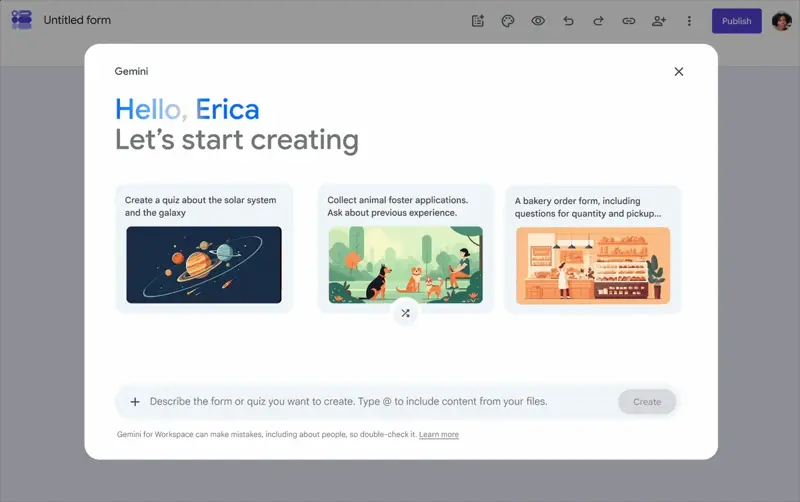
If you see a plain empty form instead, either your account doesn’t have access yet (rollout, edition, or admin settings) or you’re on mobile. Jump to the troubleshooting section.
Step 2: Write the prompt — and attach your lesson file
Here’s the prompt from our worked example:
Create a comprehensive 20-question quiz that tests students’ knowledge of @Biology, module II: cellular respiration
That @ reference is the whole trick. Typing @ opens a picker for your Drive files — Docs, Slides, or PDFs — and whatever you attach becomes the source material. Gemini writes questions about what’s actually in the file: your terminology, your examples, your emphasis. Without the attachment, you get competent-but-generic questions on the topic; with it, you get questions on what you actually taught.
A few prompt details that change the output quality:
- Say the count and the audience. “10-question quiz on the water cycle for 5th graders” beats “water cycle quiz.” Gemini calibrates difficulty to the audience you name.
- Ask for the mix you want. “Mostly multiple choice, plus two short-answer questions that require explanation” works. If you don’t specify, you’ll get a mix chosen for you.
- Name the skill, not just the topic. “Questions that test whether students can apply the concept to new scenarios” produces noticeably different items than a plain topic prompt, which tends to generate recall questions.
Then click Create and give it a moment.
Step 3: Review the draft — with the answer key showing
Gemini returns a full quiz draft in a preview pane, and this screen is where the new feature earns its keep. Check the “Show answer key” box at the bottom left, and every question displays its marked correct answer (green check) and point value, before anything is published.
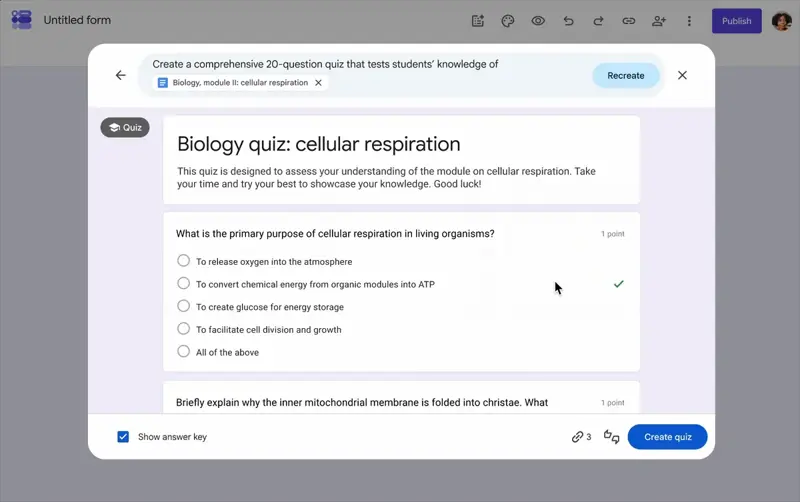
In our biology example, the draft came back titled “Biology quiz: cellular respiration” with a friendly student-facing description, a mix of multiple choice and short-answer explanation questions (“Briefly explain why the inner mitochondrial membrane is folded into cristae”), the correct answers pre-marked, and one point assigned per question.
At this stage you have three moves:
- Refine the prompt — edit it in place and regenerate (“make it 15 questions,” “add two questions about fermentation”)
- Recreate — a fresh attempt at the same prompt. Fair warning: the previous version is gone once you do this, so if the current draft is 80% right, edit it instead of rolling the dice again.
- Create quiz — accept the draft and drop it into the real Forms editor
Step 4: The editor pass — check the answer key like you’d check a student teacher’s
Click Create quiz and the draft becomes an ordinary Google Form — every question is a normal, editable Forms question. Change wording, swap question types, adjust points, delete the weak ones, add your own.
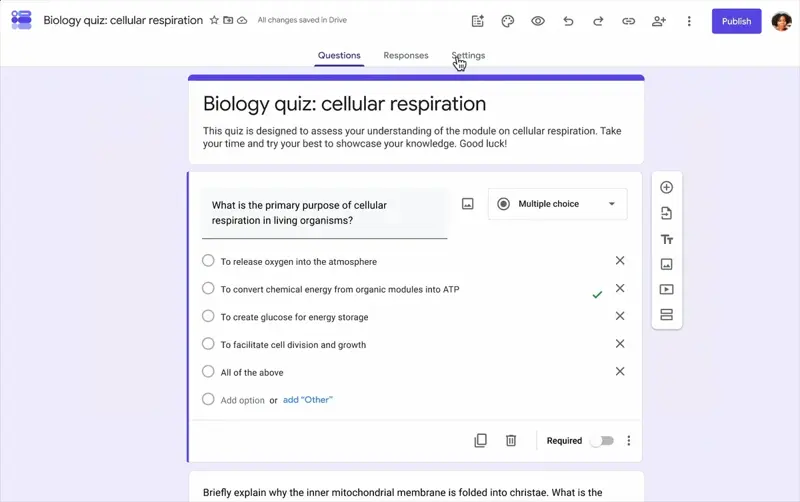
Now the step that isn’t optional: verify every marked answer before you assign this. Not because this feature is unusually sloppy — because AI-generated answer keys as a category have a documented error problem, and a wrong answer key in a graded quiz is the worst kind of error: invisible to you, unfair to students, and discovered only when a kid who got it right challenges the grade.
The research here is worth two paragraphs of your attention. A University of Michigan analysis of LLM-generated multiple-choice questions found an average of 1.6 to 2.18 item-writing flaws per question, with the most common being implausible distractors — wrong-answer options so obviously wrong they give the real answer away — appearing in over half of generated items. A 2025 study of ChatGPT-generated medical practice questions found 49% contained item-writing flaws and 22% contained outright factual or conceptual errors. Fewer than 20% of AI-generated questions in the Michigan study passed every quality check.
And the finding that should change how you use this feature: a 2026 study in Frontiers in Computer Science compared quizzes written by teachers alone, AI alone, and teachers editing AI drafts — and the teacher-plus-AI condition had more flaws than teachers working alone, with a large effect size. The researchers called it automation bias: when the draft looks done, you stop scrutinizing it. The tool isn’t the risk. The “looks done” feeling is.
So the professional workflow is: generate, then grade the generator. Read each question asking three things — Is the marked answer actually correct? Could a student defend a different option? Do the wrong options actually tempt anyone? For a 20-question quiz that’s maybe five minutes. Keep those five minutes in the process forever.
Step 5: Publish and assign
From here it’s standard Forms: Publish, then share the link, or push it through Google Classroom as an assignment and the grades flow into the gradebook like any Forms quiz. Auto-grading works on the question types with fixed answers (multiple choice, checkboxes, dropdown, short answer); the long-answer explanation questions still need your eyes, which is the correct division of labor anyway.
Five prompt recipes to steal
The difference between a mediocre generated quiz and a good one is almost entirely the prompt. These five patterns cover most of what a working teacher or trainer needs — swap the bracketed parts and go. Attach your source file with @ in every one of them.
The reading-check (fastest win):
Create a 10-question multiple-choice quiz on @[unit doc] for [grade level]. Focus on the key concepts, one question per major section, and keep all questions answerable directly from the material.
The application quiz (harder than recall):
Create a 12-question quiz on @[unit doc] for [grade level]. At least half the questions should present a new scenario and ask students to apply the concept, not recall a definition. Include two short-answer questions that require a one-sentence explanation.
The mixed-difficulty test:
Create a 20-question quiz on @[unit doc]: 8 easy recall questions worth 1 point, 8 medium application questions worth 2 points, and 4 challenging questions worth 3 points that combine two or more concepts.
The trainer’s comprehension check:
Create an 8-question quiz based on @[policy or onboarding doc] for new employees. Questions should test whether someone could act correctly in a real situation, not whether they memorized the wording. Plain language, no trick questions.
The vocabulary/terminology drill:
Create a 15-question quiz on the key terms in @[unit doc] for [grade level]. Mix multiple choice and short answer. For short-answer items, the answer should always be a single word or two-word term from the material.
One meta-tip that improves all five: if the first draft skews too easy, don’t say “make it harder” — say who it’s for more precisely (“for students who already completed the unit and did the lab”) . Gemini calibrates to audience descriptions better than to difficulty adjectives.
The bigger picture: teachers are already doing this — mostly without a map
Some context makes it clear why Google built this into Forms instead of leaving it to add-ons. Teacher AI use has crossed from early-adopter territory into the mainstream: Gallup’s survey with the Walton Family Foundation found 60% of U.S. K-12 teachers used AI tools during the 2024–25 school year, and the weekly users saved an average of 5.9 hours a week — the researchers put that at about six weeks of reclaimed time over a school year. Independent analysis of RAND’s teacher panel puts 2025–26 usage near 69%. Quiz and worksheet creation sits right at the top of the task list in every one of these surveys.
And yet the support structure hasn’t caught up. In Gallup’s 2026 follow-up, only 18% of teachers said they’d received formal guidance from their school on AI use — a third had received nothing at all. Meanwhile teacher sentiment is getting more cautious, not less: EdChoice’s spring 2026 polling found 55% of teachers now oppose AI use in classrooms, an eight-point swing against it in six months.
Both things are true at once: teachers use these tools because the workload math demands it, and they’re uneasy about them because nobody’s drawn the lines. That’s exactly why the boring parts of this post matter — the answer-key verification pass, the student-data rules, the “check what your admin actually enabled” step. The teachers who’ll get the most out of this feature aren’t the ones who adopt it fastest; they’re the ones who adopt it with a working quality-control habit. (If your school still has no AI policy, our student data safety check for free AI tools covers the guardrails that matter before any tool touches classroom work.)
Do you still need the paid quiz add-on?
This is the money question, literally. The first page of Google results for “AI quiz generator” is entirely paid and freemium tools — and as of this week, none of their pages mention that Forms now does the core job natively. Here’s the honest comparison, with 2026 pricing pulled from the vendors’ own pages:
| Gemini in Forms (native) | Brisk Teaching | MagicSchool AI | Quizizz | Diffit | |
|---|---|---|---|---|---|
| Price for the quiz feature | Included with eligible Workspace/AI plans | Free tier; Pro $99.99/yr | Free tier; Plus $12.99/mo ($99.96/yr annual) | Free tier; paid from ~$5–10/mo | Free tier; $149.99/yr individual |
| Builds quiz from a prompt | Yes | Yes | Yes | Yes | Partially (resources, not full quizzes) |
| Builds from your Doc/PDF | Yes — native Drive @ reference | Yes (extension reads the page) | Yes (paste/upload) | Yes (upload) | Yes — its core strength |
| Sets answer key + points automatically | Yes | Into Forms, with re-checking | Export step required | In Quizizz’s own player | N/A |
| Where the quiz lives | Google Forms, natively | Pushed into Forms/Docs | MagicSchool → export | Quizizz’s platform | Diffit → export |
| Question banks / reuse across quizzes | No | Limited | Limited | Yes — strong | No |
| Standards alignment tagging | No | Yes | Yes | Yes | Yes |
| Live game modes | No | No | No | Yes — its whole identity | No |
| Reading-level differentiation | Only via prompt wording | Some | Some | Some | Yes — best in class |
The pattern is plain. If your quiz add-on’s main job was “generate questions and get them into Google Forms with an answer key,” the native feature just absorbed it. That was the core paid pitch of a lot of Chrome extensions, and it’s now a built-in button on eligible accounts.
But the paid tools don’t collapse to zero. Three things they still genuinely do better:
- Question banks and reuse. Forms still has no native question bank. If you build versioned assessments from a reusable pool — different periods, make-up tests, randomized variants — Quizizz and similar tools still earn their subscription.
- Standards alignment. MagicSchool and Brisk tag items to specific curriculum standards. Gemini will loosely follow a standard if you paste it into the prompt, but it doesn’t tag or track anything.
- Differentiation at scale. Diffit’s whole reason to exist — the same content at five reading levels — is real, and the native feature doesn’t touch it.
If none of those three describe your workflow, run your own comparison before the fall renewal hits your card. Generate the same quiz in both tools and check which one you actually edit less.
What this means for you
If you’re a K-12 teacher with school Workspace: first, find out which edition your school runs — ask whoever manages your Google accounts whether you have Education Plus or the Teaching and Learning add-on. If yes, try the feature this week on next week’s quiz, and set up your fall assessments with it before the back-to-school crunch. If your school is on free Fundamentals, the button isn’t coming; your practical options are asking your department to look at the Teaching and Learning add-on or continuing with your current tool’s free tier.
If you’re a corporate trainer or HR onboarding lead: you likely have Business Standard or Plus, which means you already have this and nobody told you. Compliance-training comprehension checks, onboarding quizzes, product-knowledge checks — point it at the policy PDF and the first draft writes itself. Your first action: take your most recent onboarding doc and prompt a 10-question check from it; you’ll know in five minutes whether this replaces your current process.
If you’re a private tutor or test-prep coach: a personal Google AI Pro subscription gets you the feature without any school involved. Generating a fresh practice quiz per session from the student’s actual materials — their class handouts, their textbook chapter PDF — is exactly the workflow this was built for. Start with one student’s next session.
If you’re a professor or TA: it works the same on eligible university Workspace accounts, and low-stakes reading checks are the sweet spot. For anything summative, weigh the answer-key error research above seriously — and note the item-writing-flaws literature came from your world. The five-minute verification pass is non-negotiable at the college level, where one ambiguous stem generates seventeen emails.
If you’re a homeschool parent: this might be the quietest big win of the bunch. A personal AI Pro subscription plus your curriculum PDFs equals weekly auto-graded checks without buying an assessment platform. Attach the chapter, ask for ten questions, review, assign.
If you’re a department head or instructional coach: the interesting move isn’t your own quizzes — it’s the renewal audit. List what your team pays for quiz-generation tools, map which of those subscriptions exist mainly to do what this button now does, and redirect the freed budget to the tools doing the three things Forms still can’t (banks, standards, differentiation).
If you’re the school IT admin: you’re about to get tickets about a missing button. The controls live in Admin console → Generative AI → Gemini for Workspace, feature access is per-service and per-OU, and the “smart features and personalization” setting gates the whole thing. Changes take up to 24–48 hours to propagate — communicate that lag or it’ll generate a second wave of tickets.
Edge cases and troubleshooting
Real problems from the first week of rollout, with fixes:
1. “I don’t see the Gemini panel at all.” Work through this in order: (a) Are you on desktop? Mobile doesn’t have it. (b) Is your edition on the eligible list above? Free Education Fundamentals isn’t. (c) Has the rollout reached you? Rapid Release started July 24, Scheduled Release starts August 5, and each phase takes up to 15 days. (d) Has your admin enabled smart features? All four have to be true.
2. “My school pays for Gemini and I still don’t have it.” Your admin may have Gemini enabled for some services but not Forms — the Admin console controls access per app. Ask them to check Generative AI settings for Forms specifically, and remember the 24–48 hour propagation window after any change.
3. “It generated the quiz but some answers are wrong.” Expected, occasionally — that’s what the review pass is for. Edit the answer key by hand in the editor (click the question → Answer key). If one topic keeps generating bad items, your source doc may be thin on it; add a paragraph to the doc and regenerate rather than fighting the prompt.
4. “It made a form, not a quiz — no answer key anywhere.” Your prompt probably didn’t say “quiz.” The word matters: “quiz” or “test” triggers quiz mode with answer marking; “form about photosynthesis” gets you a survey. Regenerate with the word quiz in the prompt.
5. “I clicked Recreate and lost the version I liked.” There’s no undo for that — previous drafts are gone. The habit that prevents it: once a draft is mostly right, click Create quiz and fix details in the editor, where revision history exists. Recreate is for drafts you’d throw away anyway.
6. “It won’t build multiple sections.” Correct — single-section quizzes only for now. If you need sections (one per topic, or page breaks between passages), generate the questions in one section and add section breaks manually in the editor afterward.
7. “Can it update the quiz I already have?” No. Generation replaces the form’s content, and it can’t edit an existing form. For that workflow — “add five harder questions to this quiz” — generate the additions as a throwaway new form and copy the questions over, or add them by hand.
8. “Short-answer questions mark right answers wrong.” Forms’ short-answer auto-grading matches text exactly, so “mitochondria” fails if the key says “the mitochondria.” After generation, open each short-answer question’s answer key and add the acceptable variants — or accept that short-answer items get hand-graded, which the response view makes fast.
What it can’t do
Five honest limits, so you’re not surprised in week two:
- No question banks. Every quiz is a fresh generation. There’s no pool, no reuse, no “pull 10 random from these 50.” That stays third-party territory.
- No genuine pedagogy. It writes recall and comprehension items well and application items when pushed, but the research is consistent: distractor quality is the weakest link in AI-generated assessment, and a human item-writer still beats it on the questions that matter most.
- No standards tagging, no LMS beyond Google. It won’t tag items to standards frameworks, and if your school lives in Canvas or Schoology rather than Classroom, you’re exporting manually like always.
- No mobile, no multi-section, no editing existing forms. The three most-requested capabilities are the three it launched without.
- It can’t know what your class needs. It read your PDF; it didn’t watch your third period struggle with electron transport on Tuesday. The judgment about what to assess — the part that makes assessment teaching rather than paperwork — never left your desk.
FAQ
Is Gemini in Google Forms free? It’s included at no extra cost with eligible paid plans — Workspace Business/Enterprise Standard and Plus, Education Plus, the Google AI Pro for Education and Teaching and Learning add-ons, and personal Google AI Pro/Ultra subscriptions. It is not available on the free Education Fundamentals edition, so “free” depends entirely on what your school or you already pay Google.
Does it really set the answer key automatically? Yes — that’s the new part as of July 30, 2026. Generated quizzes come with correct answers marked and point values assigned. Earlier versions of “Help me create” generated questions but left answer keys and points to you. You should still verify every marked answer before assigning.
Can it make a quiz from a PDF?
Yes. Type @ in the prompt box and attach a Google Doc, Slides deck, or PDF from your Drive. Gemini builds the questions from that file’s content. This also works with a pasted-in prompt describing the topic, but grounding it in your actual materials produces noticeably more relevant questions.
What question types can it generate? Multiple choice, checkboxes, short answer, long answer, and grid questions. Auto-grading applies to the types with fixed answers; long-answer items still need manual grading.
When will my school get it? Rapid Release domains started July 24, 2026; Scheduled Release domains start August 5 — each with up to 15 days of gradual rollout. If it’s mid-August and there’s no button, the issue is your edition or your admin settings, not the rollout.
Is student data safe — does Google train AI on it? For Workspace for Education accounts, Google states that Gemini chats aren’t reviewed by humans or used to improve its AI models, and Gemini is covered as a Core Service under the same FERPA/COPPA-relevant terms as Gmail and Docs. Admins control access by organizational unit, and some Gemini surfaces default to on only for users designated 18+ in the admin settings.
Can students use it to make quizzes? Age and admin settings decide that. Several Gemini-for-Education surfaces are restricted to users 18+ or gated behind age-based access settings, and admins can enable features per organizational unit — so a district can turn it on for staff and off for students.
Is it better than Brisk or MagicSchool? For “generate a Forms quiz with an answer key from my materials” — it’s now the shortest path, and it’s included with plans many schools already have. For question banks, standards tagging, and reading-level differentiation, the paid tools still do things the native feature doesn’t. See the comparison table above.
Does it work with Google Classroom? Yes, the ordinary way: the generated quiz is a standard Google Form, so you assign it through Classroom and grades import like any Forms quiz.
Why does mine only generate questions without answers? You either got the older form-generation behavior (rollout hasn’t reached you), or your prompt didn’t ask for a quiz. Include the word “quiz” and check back after the rollout window if answer marking still doesn’t appear.
The bottom line
The interesting thing about this launch isn’t the AI — quiz generators have existed for two years. It’s the location. The moment the generator lives inside the tool where the quiz already lives, with the answer key set and the gradebook connected, the whole category of “middleman quiz tools” has to justify itself on harder ground than “we save you typing.”
For teachers, the move this week is simple: check your edition, try it on one real quiz, keep the five-minute answer-key check, and audit what you’re paying add-ons for before fall renewals. The tool writes questions now. Deciding what’s worth asking — that’s still the job.
If you want a structured way to set up your whole AI teaching workflow before the term starts, our AI for Teachers: First Week Back course walks through it lesson by lesson — and Claude for Teachers: A Standards-Aligned Week goes deep on making AI output actually match what you’re required to teach.
Sources
- Google Workspace Updates — Use Gemini in Google Forms to quickly create a new quiz (July 30, 2026)
- Google Help — Create a form with Gemini in Google Forms
- Google Workspace Updates — Use Gemini in Google Forms to quickly create a new form (June 2025)
- University of Michigan — Item-writing flaws in LLM-generated multiple-choice questions
- Frontiers in Computer Science — Teacher-AI collaborative MCQ creation and automation bias (2026)
- PubMed — ChatGPT-generated practice MCQs for medical students: flaw and error rates (2025)
- Gallup / Walton Family Foundation — The AI Dividend: teacher AI use and time savings (2025)
- RAND — American Teacher Panel: AI adoption in K-12 (2025)
- Google for Education — Gemini privacy for Education FAQ
- Google Workspace Admin Help — Turn Gemini for Workspace on or off for users
- Brisk Teaching — Pricing
- MagicSchool AI — Pricing
- Diffit — Pricing
